
How to Create a Ui Policy in ServiceNow
This guide explains how to create a UI policy in ServiceNow that hides the "End Date" field on a leave request form whenever the "Half Day" checkbox is selected. With this configuration, the "End Date" field remains visible and mandatory only when "Half Day" is not selected, ensuring accurate data entry for leave requests.
Video: #5 Create UI Policy | Learn Application Development in ServiceNow | Leave Management System by SAASWITHSERVICENOW (2020). All credit for the demonstration goes to the creator; watch the original on YouTube. The written guide below was generated from this video by Docsie. Creator? Request a change or removal.
This guide explains how to create a UI policy in ServiceNow that hides the "End Date" field on a leave request form whenever the "Half Day" checkbox is selected. With this configuration, the "End Date" field remains visible and mandatory only when "Half Day" is not selected, ensuring accurate data entry for leave requests.
Prerequisites
- Access to a ServiceNow instance with the Leave Management System installed.
- Permissions to open Studio and create application files such as UI Policies.
Reviewing the current leave request form behavior
Navigate to the Leave Management System.
- Open your ServiceNow instance.
- Use the left navigation pane to search for "leave".
- Select Leave Request under the Leave Management System.
- Click Create New to open a new leave request form.
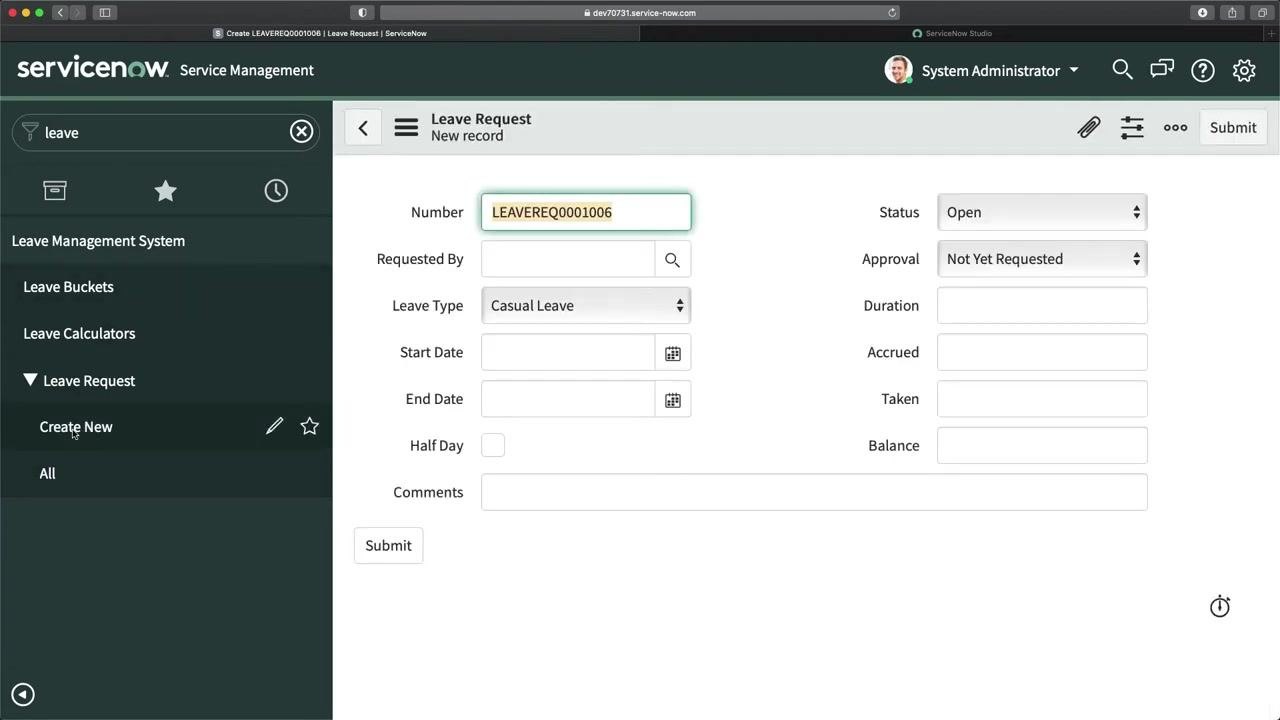
Open a new Leave Request form.
The form displays fields such as Number, Requested By, Leave Type, Start Date, End Date, Half Day, Comments, and others. Both Start Date and End Date fields are visible, and the Half Day checkbox is available.
Check the current behavior of the Half Day checkbox.
Click the Half Day checkbox and observe that the End Date field remains visible and editable. This is not the desired behavior.
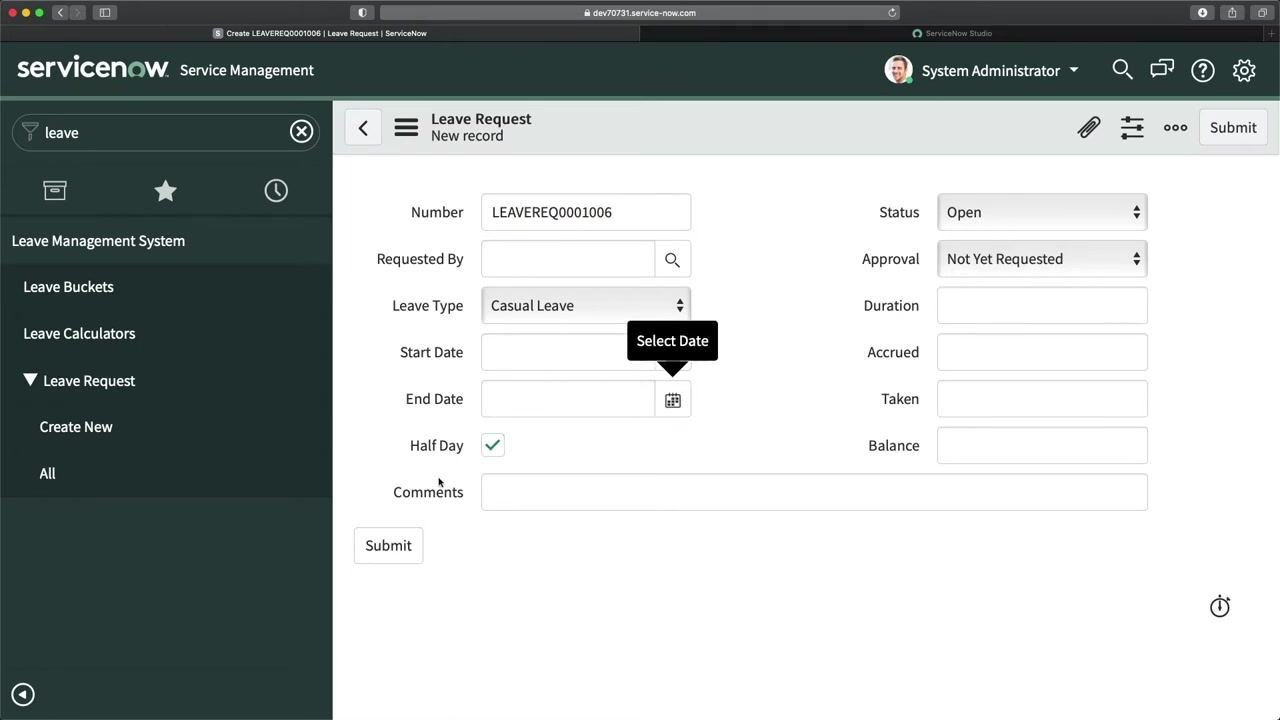
Understand the requirement for the UI policy.
- The End Date field should be hidden when Half Day is checked.
- When Half Day is not checked, End Date should be visible and mandatory.
- Both Start Date and End Date must be filled in to submit a leave request unless it is a half-day leave.
Creating the UI policy in Studio
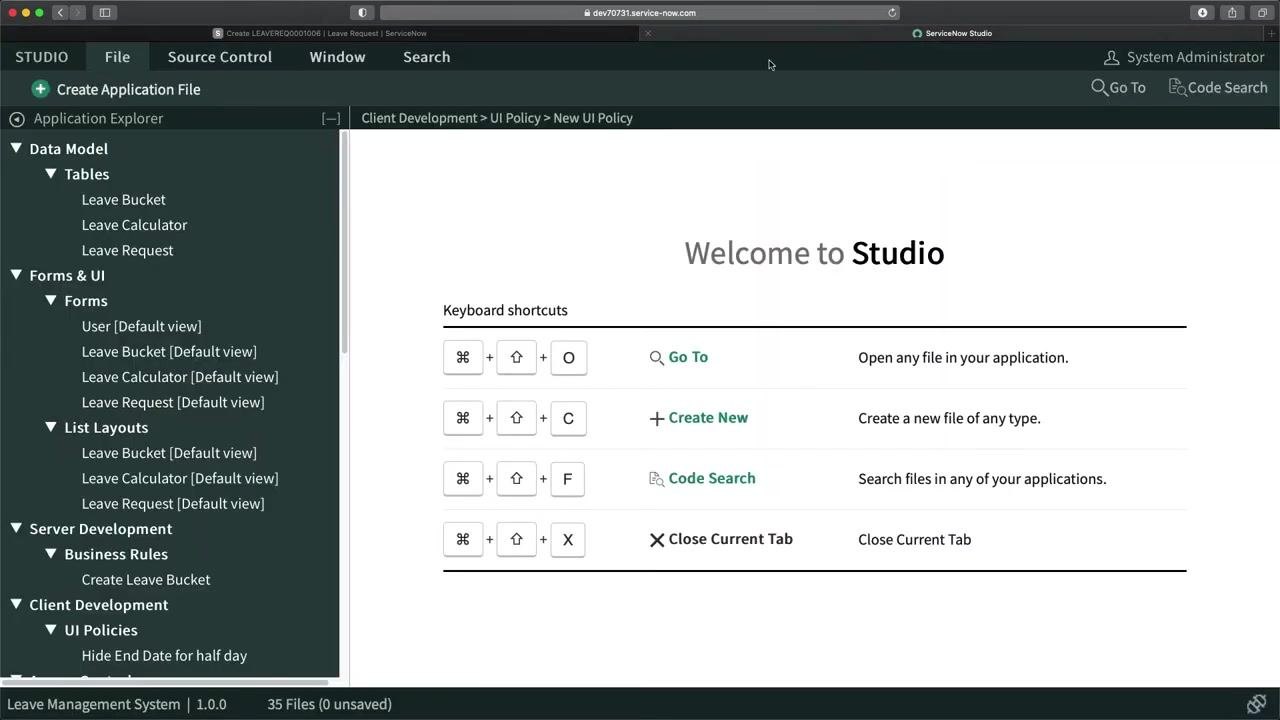
Open ServiceNow Studio to configure the UI policy.
- Navigate to Studio from your ServiceNow instance.
- In the Application Explorer, review the sections for Data Model, Forms & UI, Server Development, and Client Development.
- Locate Client Development and expand UI Policies.
Create a new application file for the UI policy.
- Click Create Application File at the top left.
- Select UI Policy as the file type.
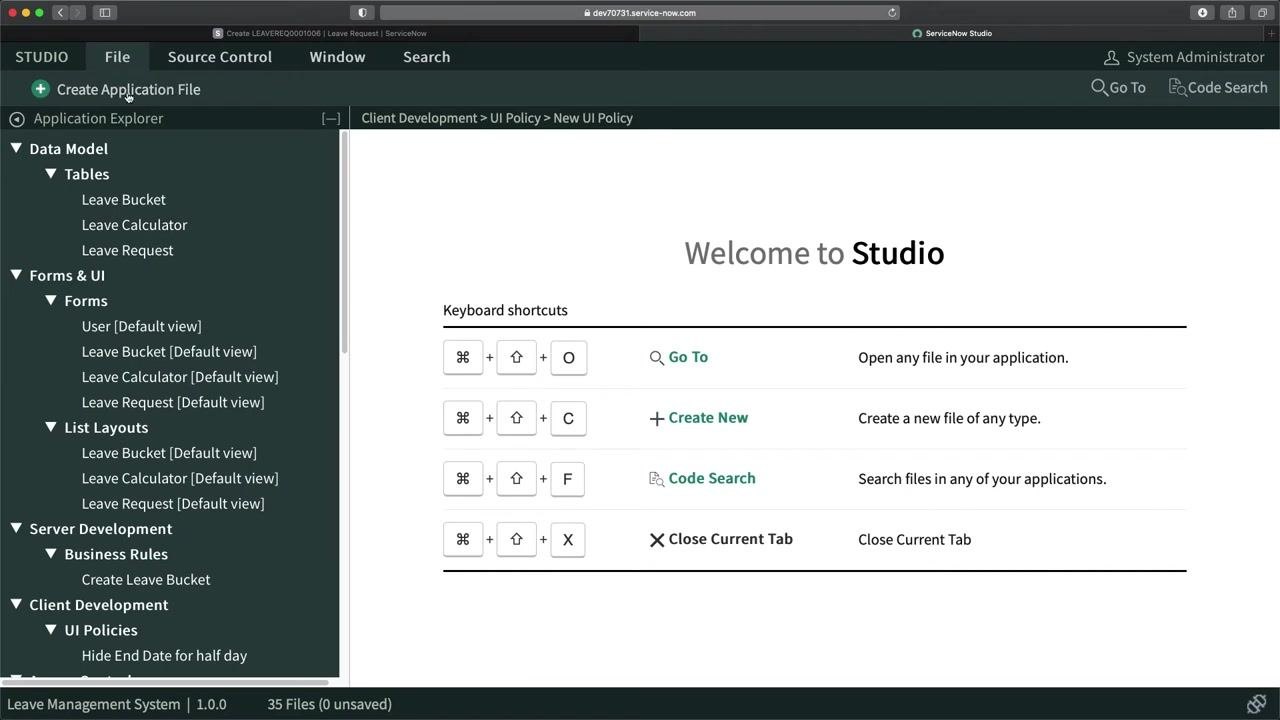
Configure the new UI policy.
In the New UI Policy form, set the following:
- Table: Select
Leave Requestfrom the dropdown. - Application: Ensure it is set to
Leave Management System. - Active: Ensure the checkbox is checked.
- Short Description: Enter a description such as "Hide End Date for half day".
The UI policy lets you define conditions and actions to hide or show fields based on the value of the "Half Day" checkbox.
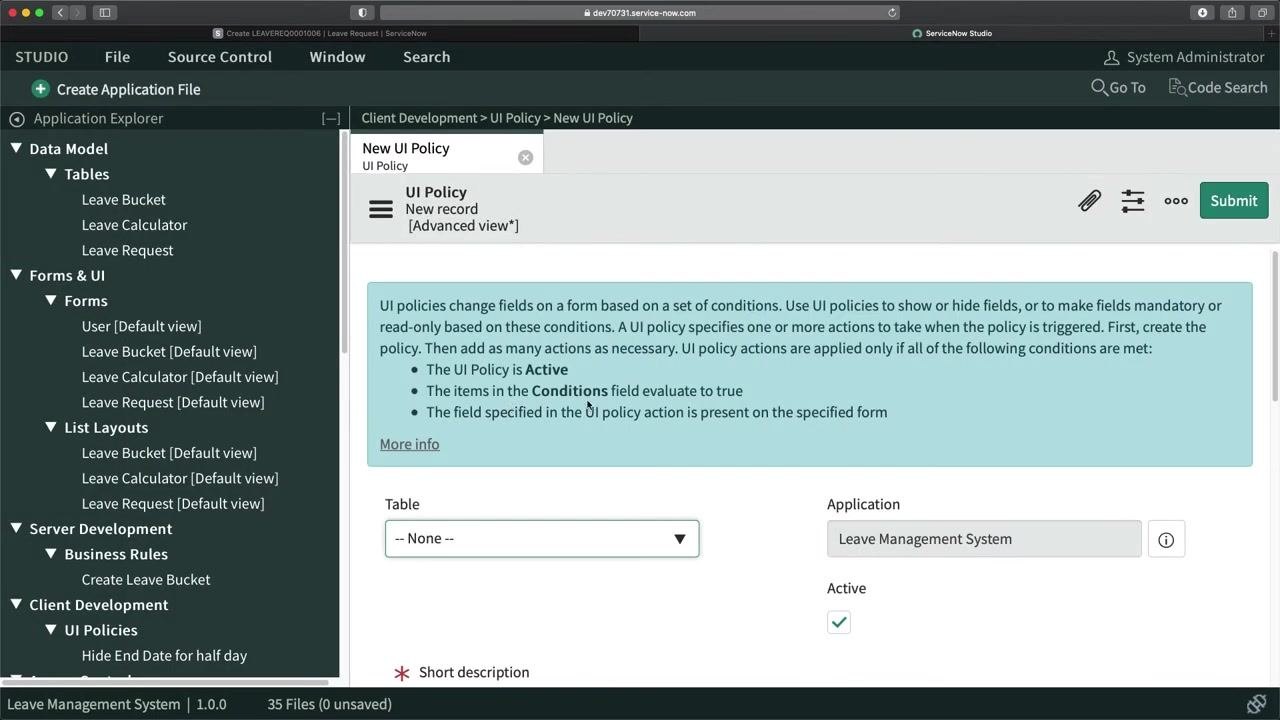
Enter a descriptive name for the UI policy.
In the Short description field, enter: Hide End Date for Half Day. This helps identify the purpose of the policy.
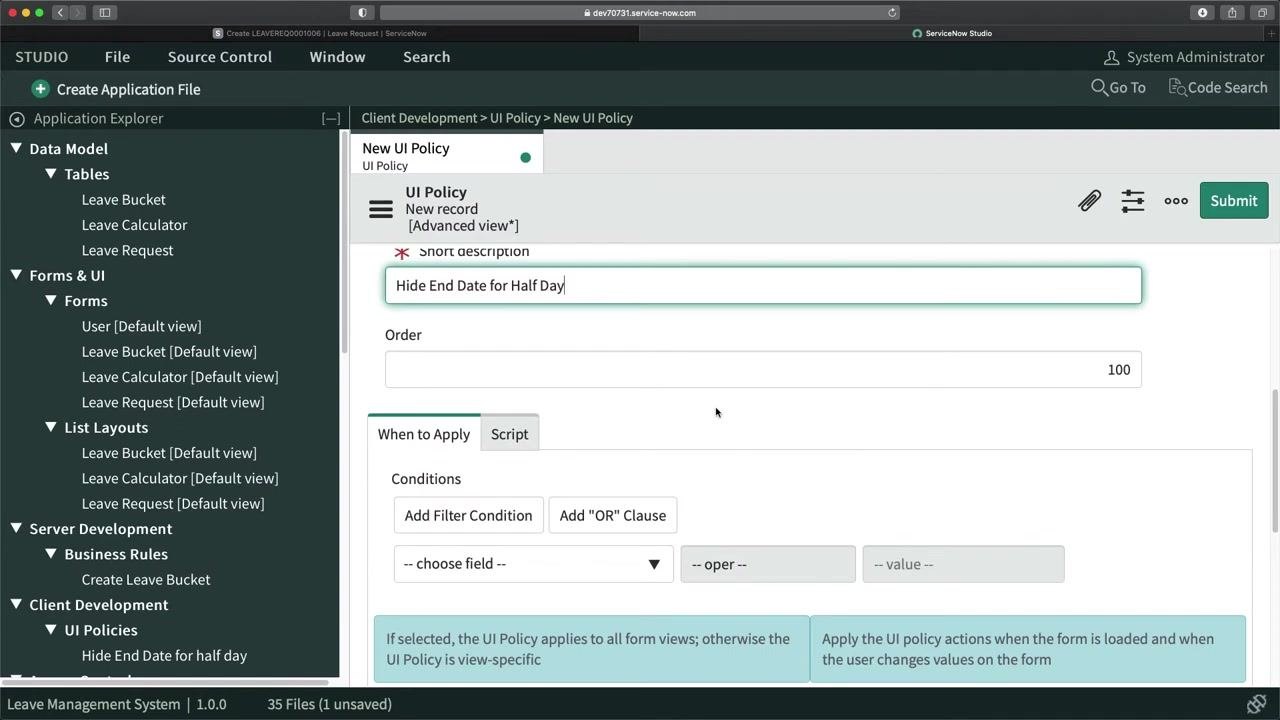
Set the UI policy condition to control field visibility and requirement.
- In the Conditions section, click Add Filter Condition.
- For the field, select Half Day.
- For the operator, select is.
- For the value, select false.
This means the policy applies when "Half Day" is not checked, ensuring "End Date" is visible and mandatory only for full-day leave requests.
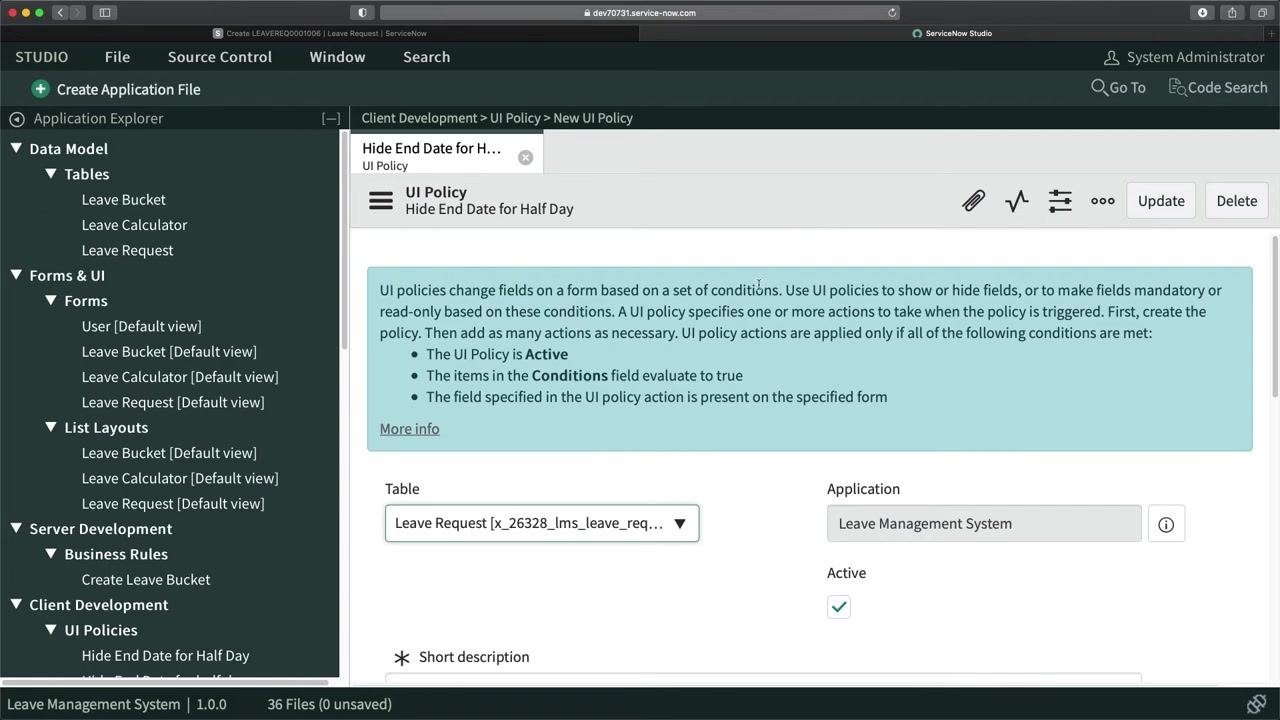
Save the UI policy.
Click Submit or Update to save the UI policy. The policy is now created and ready for UI Policy Actions.
Adding the UI policy action
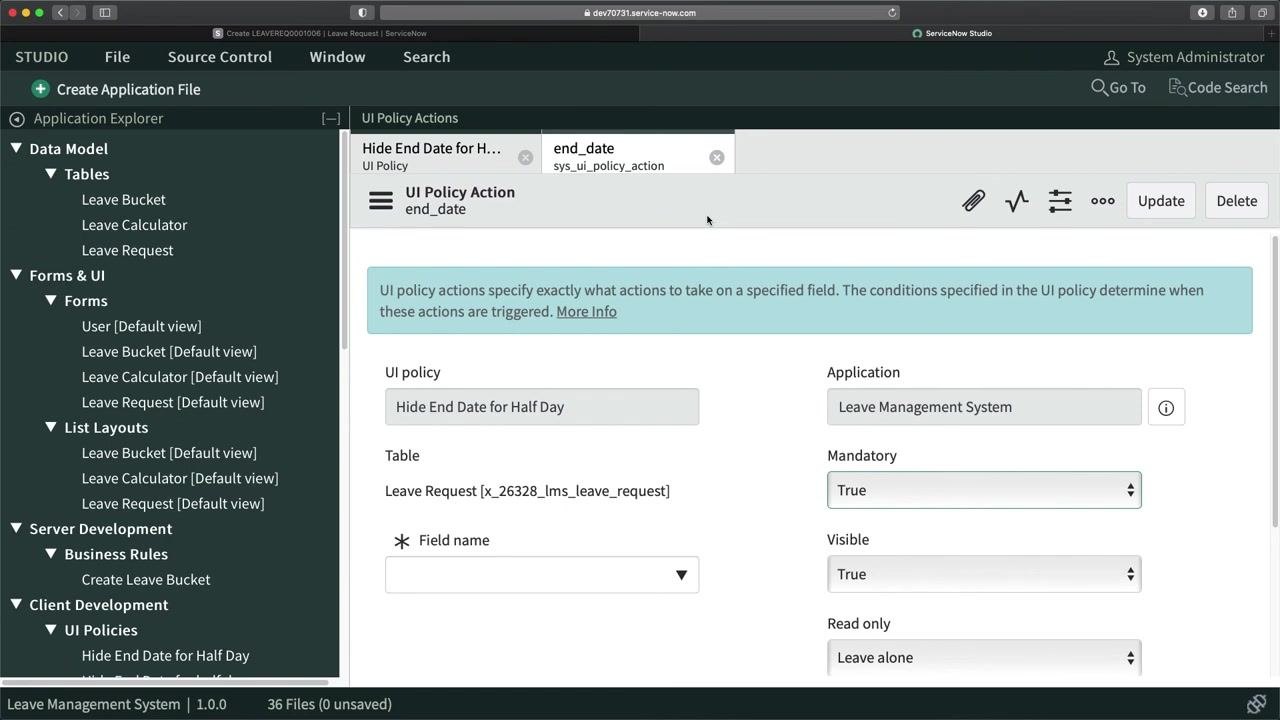
Add a new UI policy action to control the End Date field.
Scroll to the bottom of the UI Policy form and click the New button under UI Policy Actions. In the new UI Policy Action form, set:
- UI policy:
Hide End Date for Half Day - Table:
Leave Request [x_26328_lms_leave_request] - Field name:
End Date - Mandatory:
True(makes End Date required when Half Day is not checked) - Visible:
True(shows End Date when Half Day is not checked) - Read only:
Leave alone - Clear the field value: Leave unchecked unless you want to clear the End Date when switching from full day to half day.
Review and finalize the UI policy action.
Double-check that the settings are:
- Mandatory: True
- Visible: True
- Read only: Leave alone
- Clear the field value: Unchecked (optional, based on your requirements)
Click Submit to save the UI Policy Action.
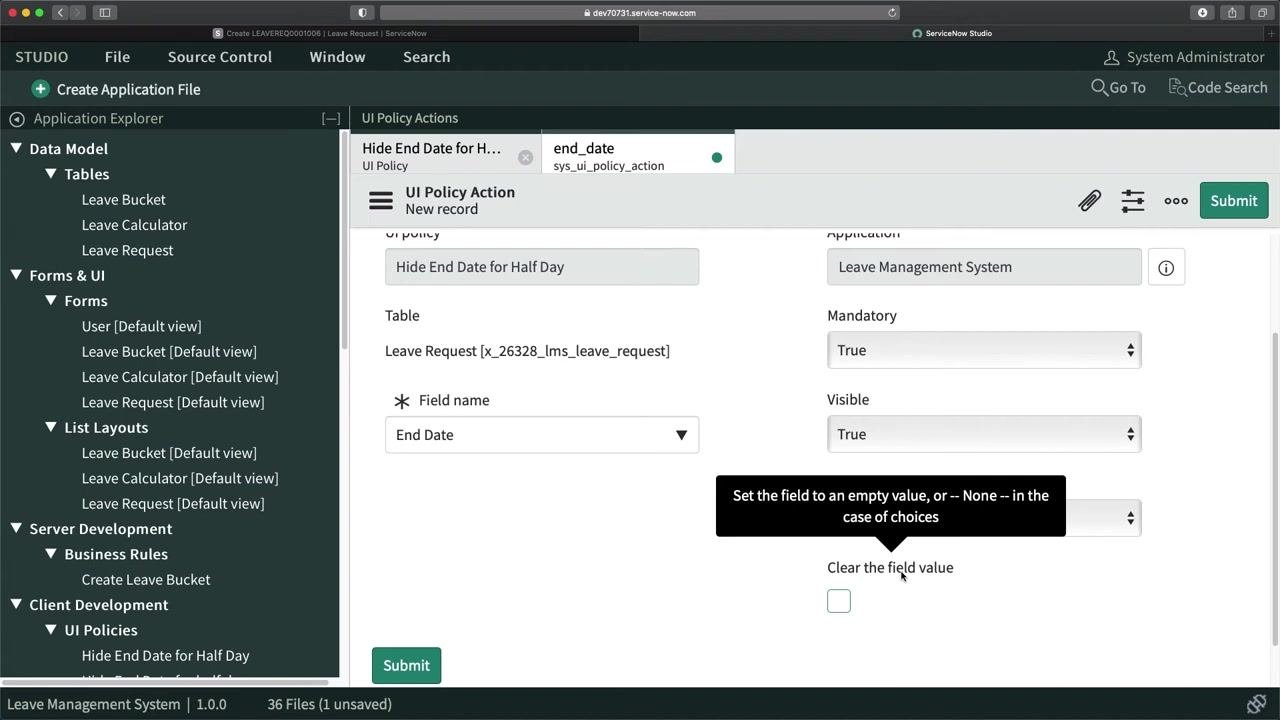
Save the UI policy action.
Ensure the Clear the field value option is unchecked unless you want the End Date cleared when switching to Half Day. Click Submit to save the action. The UI policy and its action are now created.
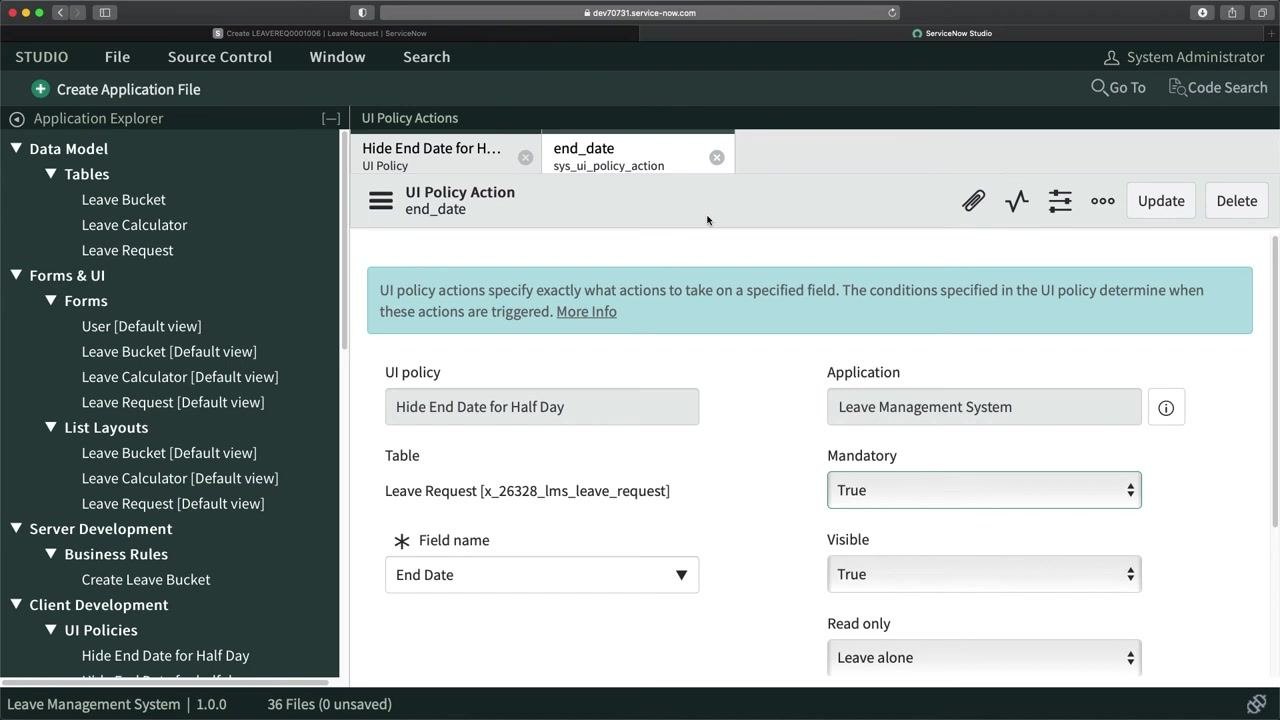
Review the saved UI policy action.
Confirm that the UI Policy Action is listed with the correct settings:
- UI policy: Hide End Date for Half Day
- Table: Leave Request [x_26328_lms_leave_request]
- Field name: End Date
- Mandatory: True
- Visible: True
- Read only: Leave alone
Click Update if any changes are needed, or proceed to testing.
Testing the UI policy
Reload the Leave Request form to test the UI policy.
Navigate to the Leave Request form in ServiceNow and reload the page to ensure the new UI policy is applied.
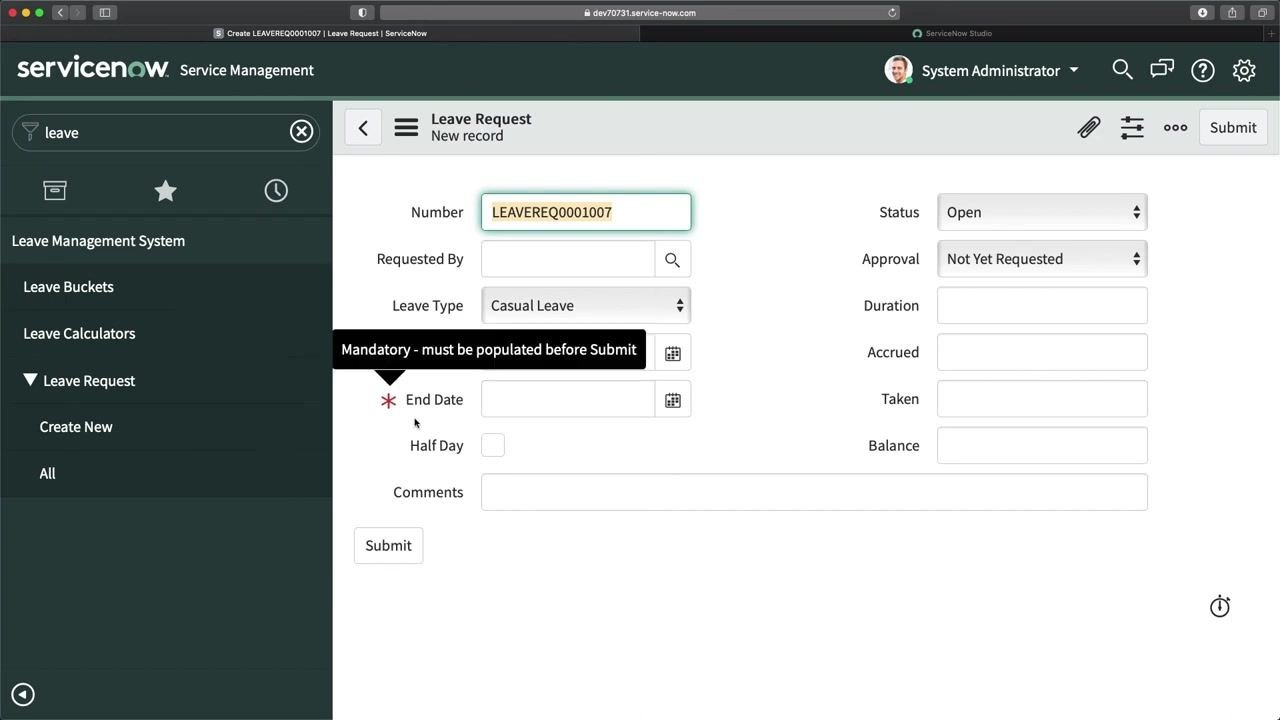
Verify the End Date field is mandatory by default.
On the Leave Request form, observe that the End Date field is visible and marked as mandatory, indicated by a red asterisk and the tooltip "Mandatory - must be populated before Submit." This confirms the UI policy enforces the field requirement when "Half Day" is not checked.
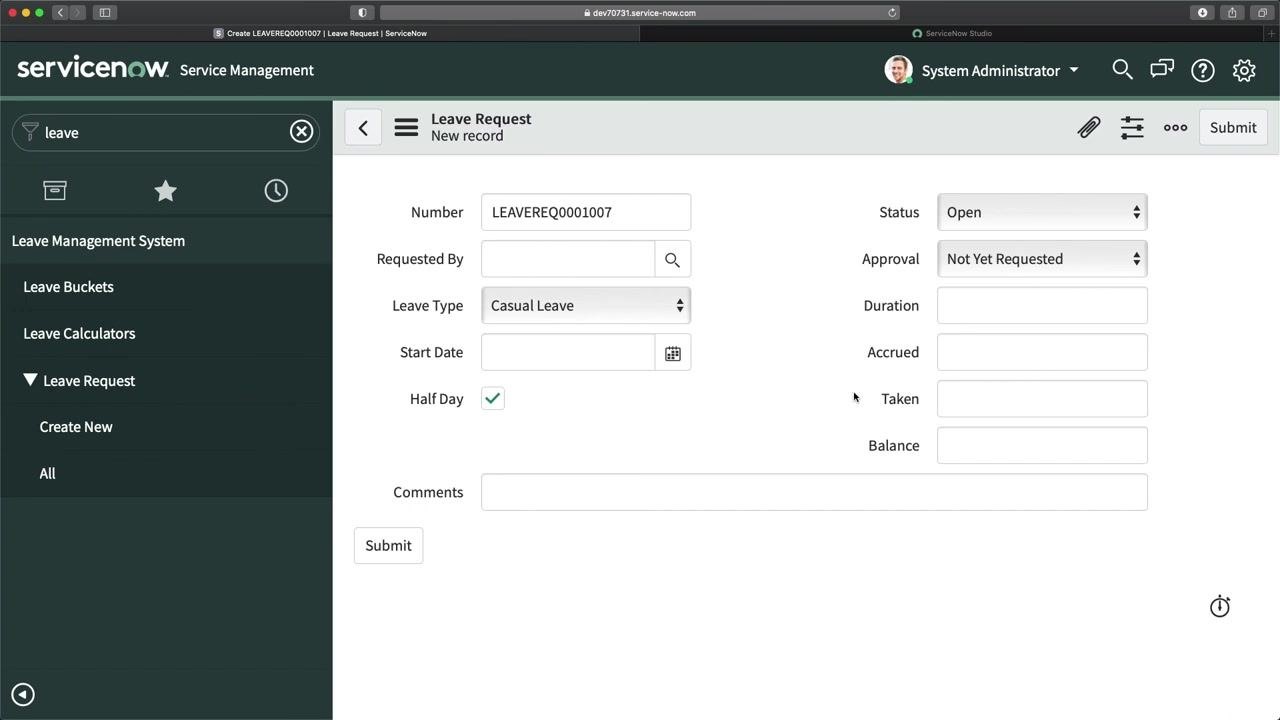
Test the UI policy by selecting the Half Day checkbox.
Check the Half Day checkbox on the Leave Request form. The End Date field disappears, and you can no longer enter or edit it while "Half Day" is selected.
Confirm the UI policy behavior.
The form now displays only the Half Day checkbox and other relevant fields, with the End Date field hidden. The UI policy works as intended: it makes the End Date field visible and mandatory only when "Half Day" is not checked.
Summary
You can use UI policies in ServiceNow to:
- Make fields read-only.
- Make fields visible or hidden.
- Make fields mandatory or optional.
- Apply these behaviors based on specific conditions, such as the value of the "Half Day" checkbox.
These policies help enforce correct data entry and streamline the user experience.
By following these steps, you have successfully created and tested a UI policy in ServiceNow. The End Date field is now dynamically shown or hidden and set as mandatory based on the Half Day selection, ensuring accurate leave request submissions.
Generation details: cost, quality tiers
Docsie billed 2,500 credits ($1.75) to analyze this 5-minute video at standard quality. The rewrite, template fill and Word/PDF exports were included. The same video at each quality tier:
| Quality | Frames sampled | Credits | Approx. cost |
|---|---|---|---|
| Draft | every 16-30 s | 1,250 | $0.88 |
| Standard (this guide) | every 8-15 s | 2,500 | $1.75 |
| Detailed | every 4-7 s | 5,000 | $3.50 |
| Ultra | every 1-3 s | 10,000 | $7.00 |
Credits priced at $0.70 per 1,000; plans include a monthly allowance. Enterprise customers on on-premise or bring-your-own-model deployments run this on their own inference and pay no per-video credits.
Generated by Docsie Video-to-Docs on 2026-09-14 from a 4-minute video. Screenshots are frames from the source video and belong to their creator, SAASWITHSERVICENOW, whose original is embedded above. If you own this video and want the guide removed or credited differently, contact us and we will act within one business day.