
How to Send a Workflow Notification As Email in SAP
Workflow approvals in SAP — used in both ECC6 and S/4HANA — often require timely action, but users cannot be expected to stay logged into SAP to check for pending items. This guide explains how to send a workflow notification as email in SAP, so approvers are alerted by email whenever a new item is waiting in their inbox.
Video: SAP Workflow Training: In SAP Send Automatic Notification For any Dialog Workflow Workitem RSWUWFML2 by arghadip kar (2020). All credit for the demonstration goes to the creator; watch the original on YouTube. The written guide below was generated from this video by Docsie. Creator? Request a change or removal.
Workflow approvals in SAP — used in both ECC6 and S/4HANA — often require timely action, but users cannot be expected to stay logged into SAP to check for pending items. This guide explains how to send a workflow notification as email in SAP, so approvers are alerted by email whenever a new item is waiting in their inbox.
Prerequisites
Before configuring workflow email notifications, make sure the following are in place:
- Access to SAP GUI and a valid login to your SAP system.
- Authorization for the relevant workflow and purchasing transactions.
- A valid email address maintained in the user's SAP user master record (this is mandatory — without it, SAP cannot generate or send workflow email notifications).
Understand the role of workflow in SAP
Workflow functionality is commonly used for approvals or other defined actions within SAP. Because users cannot realistically stay logged in to monitor new items, email notifications let approvers know when action is required without having to check SAP manually.
Access the SAP Easy Access screen
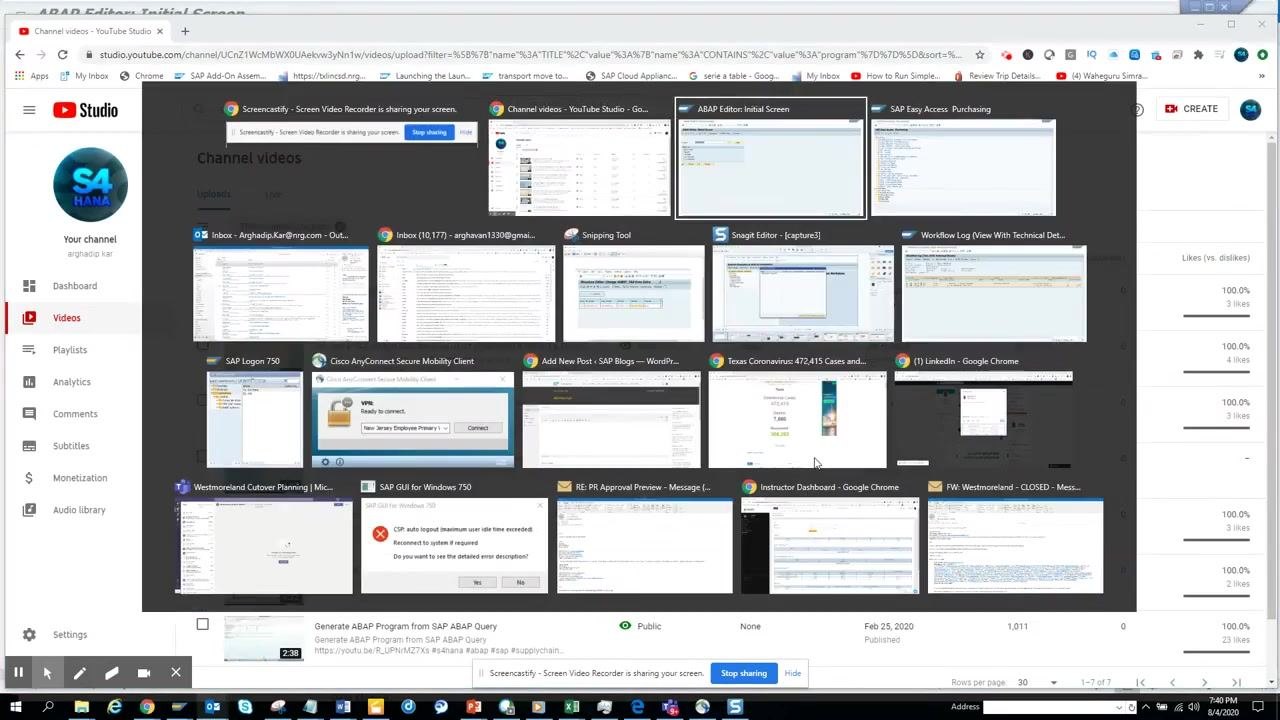
Open SAP GUI and log in to your SAP system. On the SAP Easy Access screen, you can see your Favorites and SAP Menu, including the workflow and purchasing transactions you need.
Open the Business Workplace (SBWP)
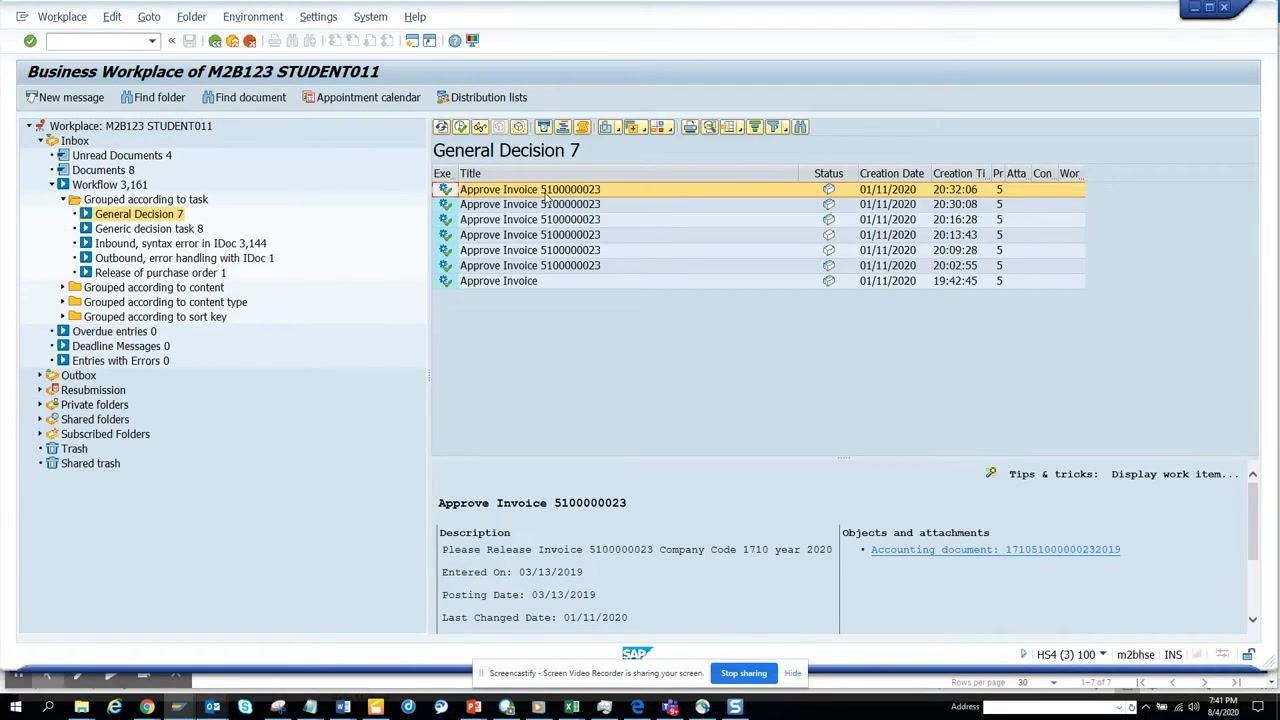
In the command field at the top of the screen, enter SBWP and press Enter. This opens the SAP Business Workplace, where all workflow items are managed.
Review workflow items in your inbox
In the Business Workplace, locate your Inbox. Workflow items here are grouped by task, content, content type, and sort key.
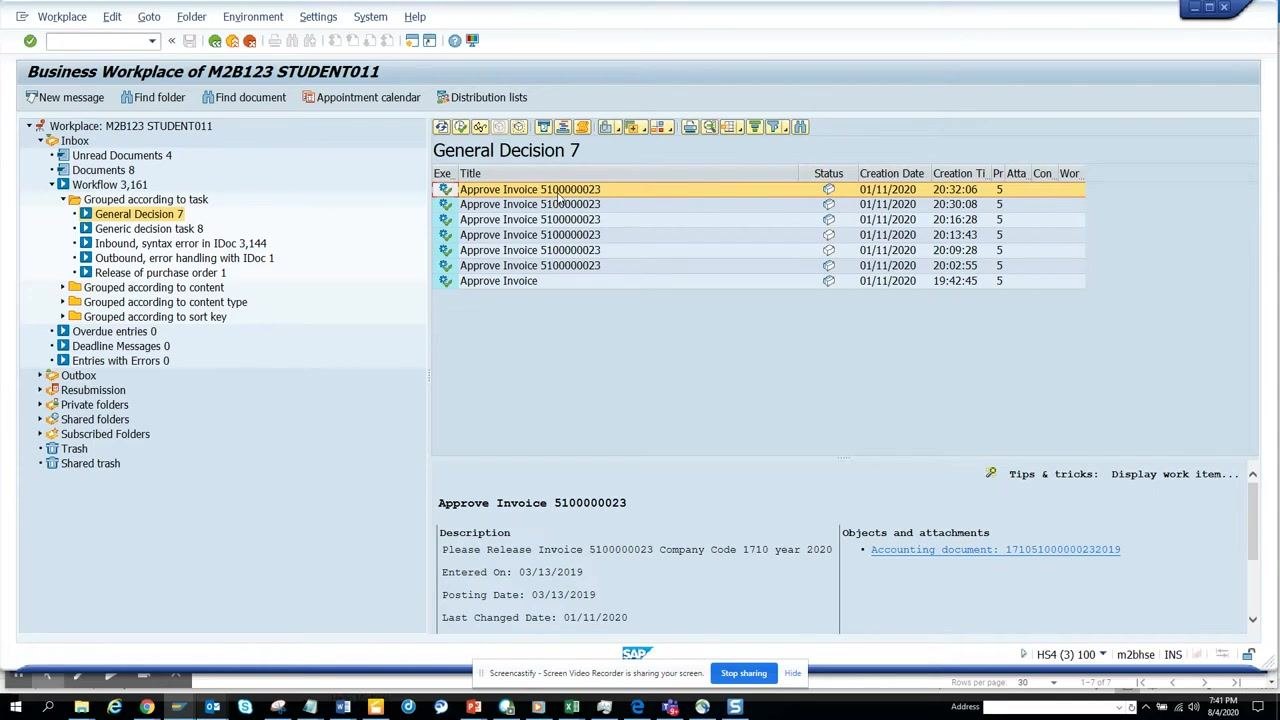
Under Grouped according to task, you can see specific approval tasks, such as "General Decision 7." Each item — for example, "Approve Invoice 5100000023" — shows its status, creation date, and time.
Identify the dialog task for a workflow item
To configure notifications for a specific task, you first need to identify its dialog task. In the Business Workplace, select the relevant workflow item (for example, "Approve Invoice 5100000023") to highlight it.
View workflow technical details
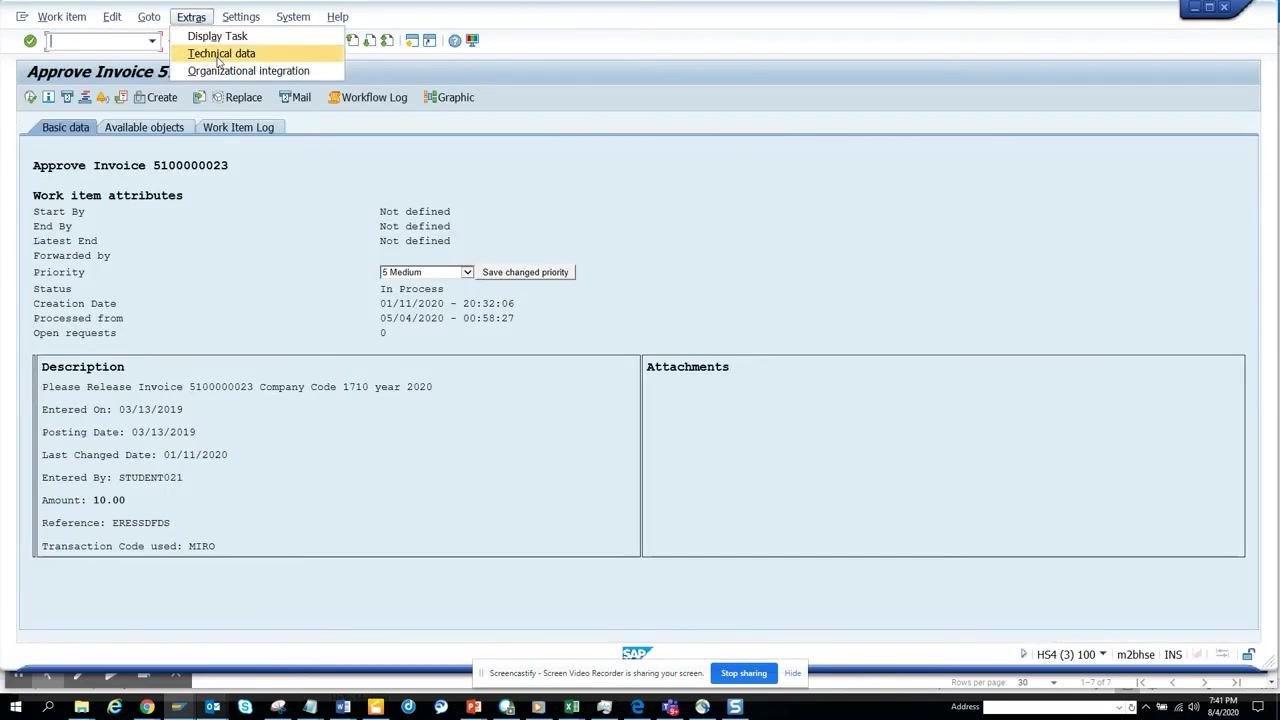
With the item selected, click Display workflow log in the toolbar. In the workflow log window, go to Extras > Technical Data to review the task details associated with the item.
Copy the workflow task number
In the technical details, locate the task number tied to the workflow item you want to send notifications for, and copy it. You will need this number on the notification program's selection screen.
Open transaction SE38 to run the notification program
SAP provides a standard report to trigger email notifications for workflow items. From the SAP Easy Access screen, enter SE38 in the command field and press Enter to open the ABAP Editor.
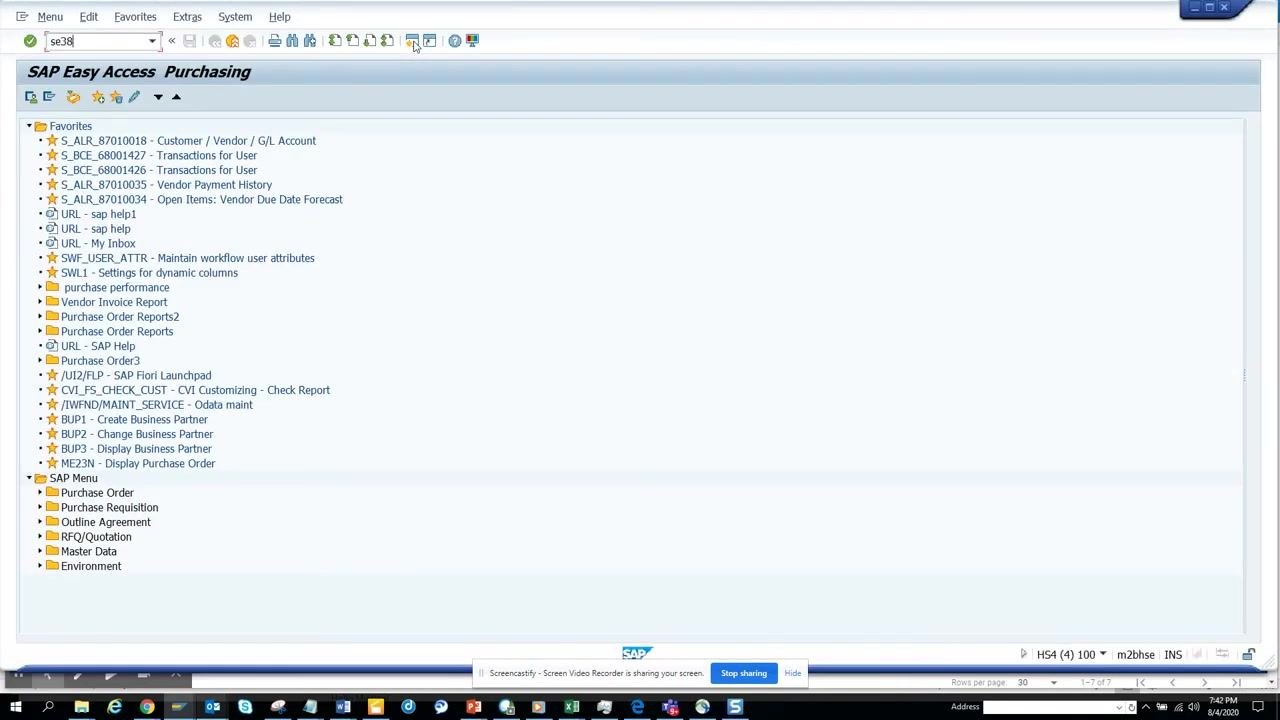
Run program RSWWWFM_L2
In the ABAP Editor, enter the program name RSWWWFM_L2 and click Execute (F8) to open the notification program's selection screen.
Enter task and job details on the selection screen
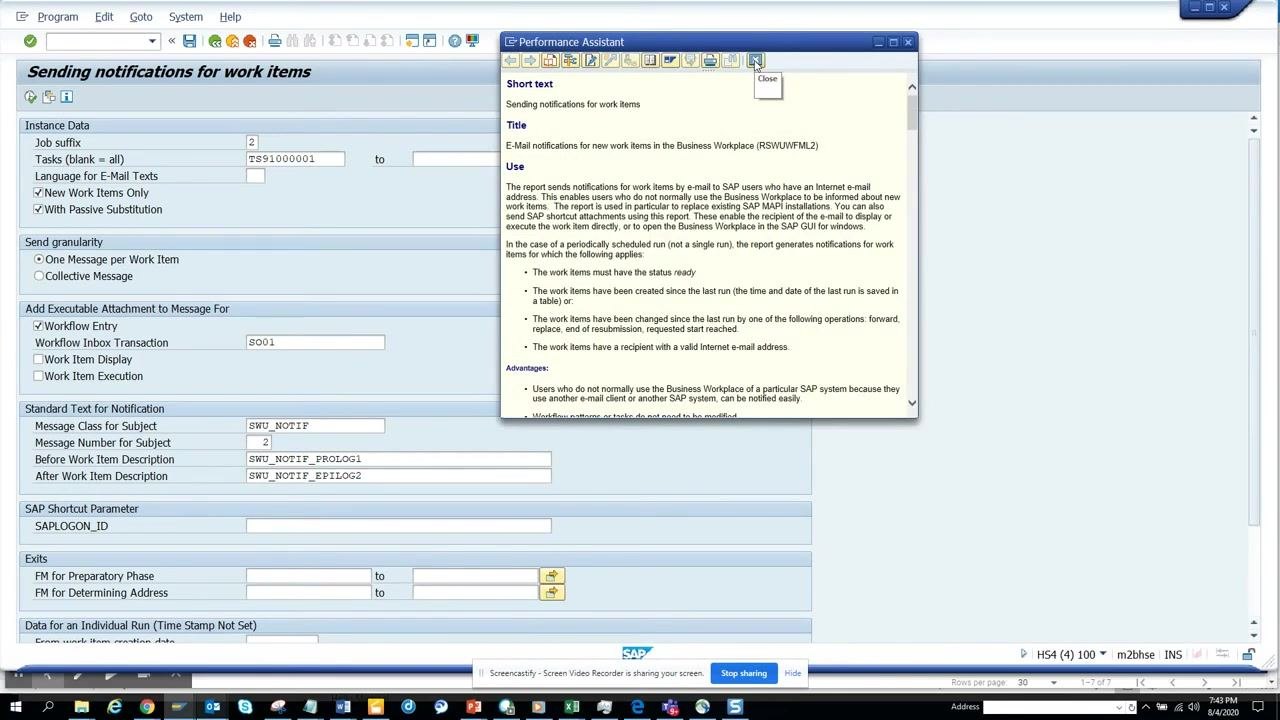
On the Sending notifications for work items screen, fill in the following fields:
- Job suffix: enter a numeric or alphanumeric value (for example,
2). - Tasks: paste the copied task number (for example,
TS91000001). - New Work Items Only: check this box to notify only on new work items.
- With Passive Substitution: optionally check this box so substitutes also receive notifications.
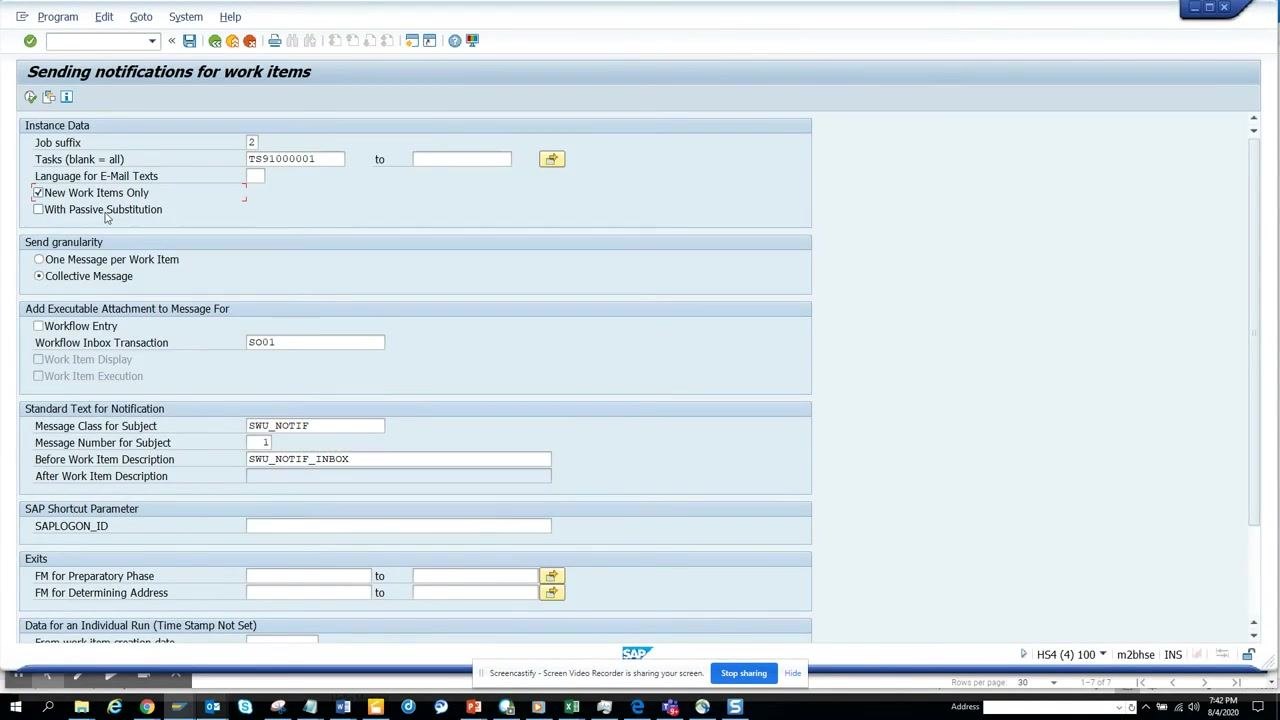
Set the notification granularity
Under Send granularity, select One Message per Work Item to receive an individual email for each workflow item. Alternatively, choose Collective Message for a daily summary, though this option is less commonly used.
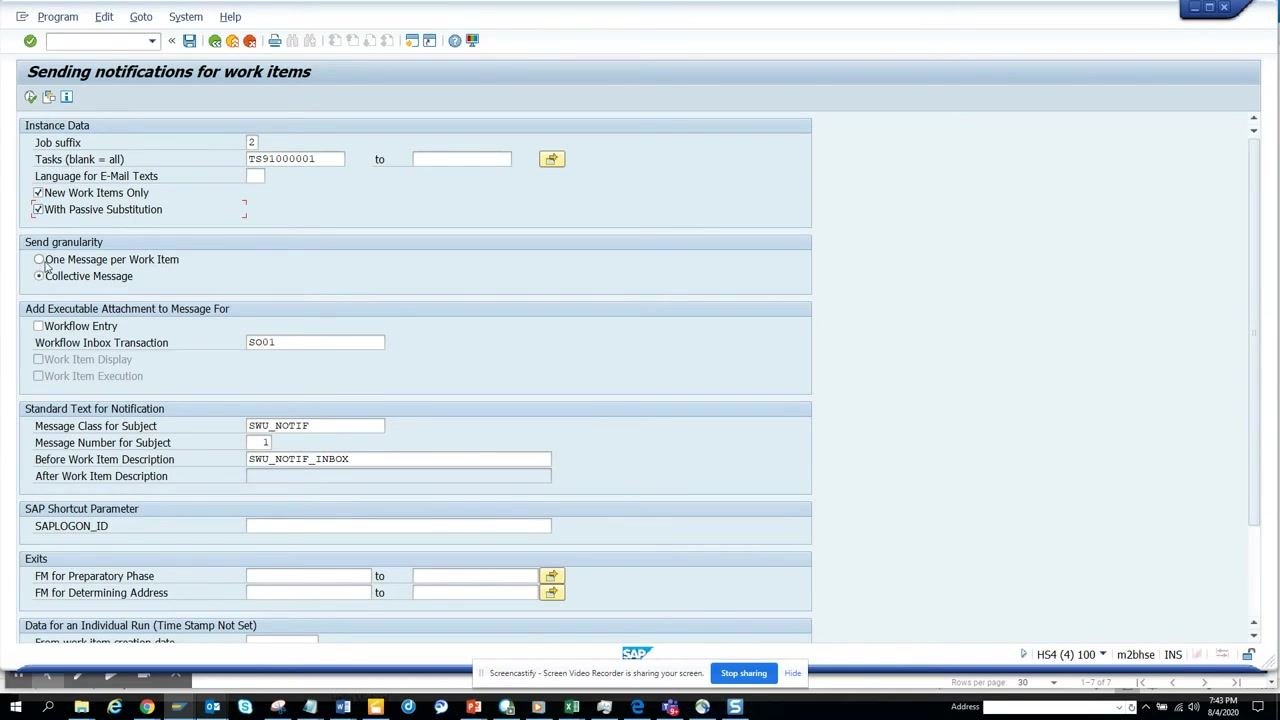
Add an executable attachment to the email
Under Add Executable Attachment to Message For, check Workflow Entry, and make sure the Workflow Inbox Transaction field is set to SO01. This adds a shortcut to the SAP inbox inside the notification email, so recipients can double-click to open the item directly.
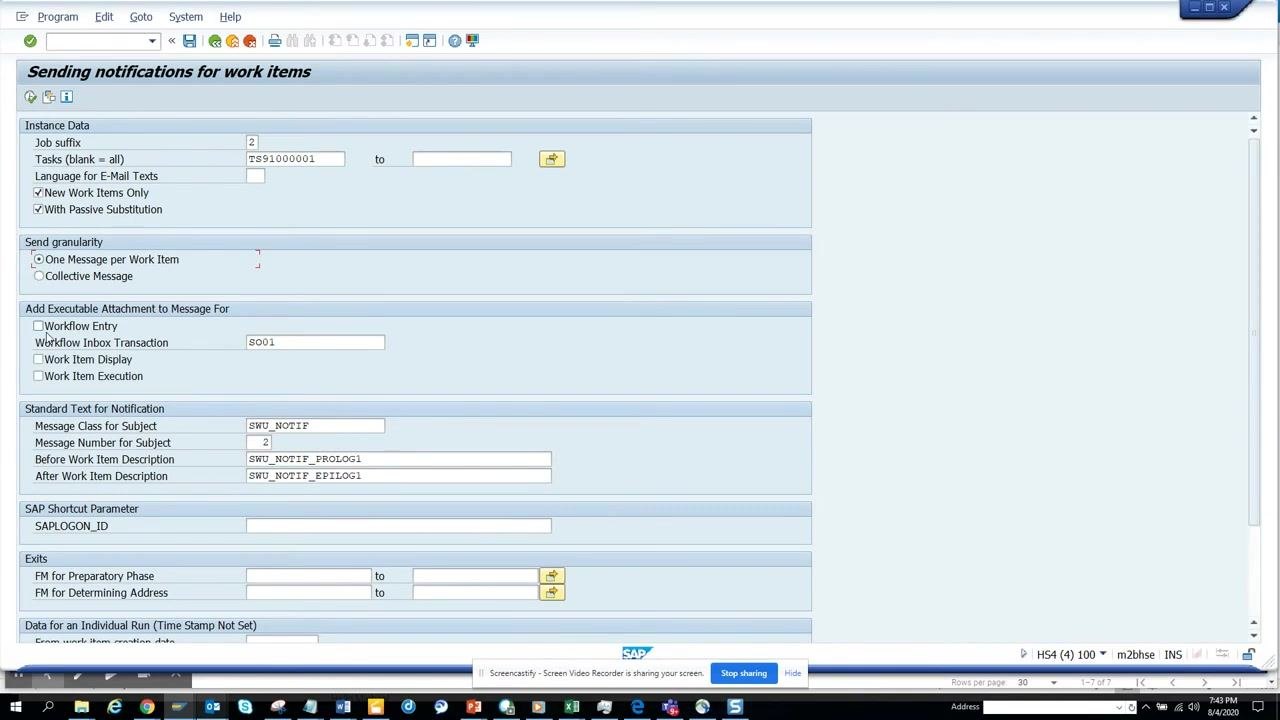
Review notification text settings (optional)
In the Standard Text for Notification section, you can adjust:
- Message Class for Subject — default is
SWU_NOTIF. - Message Number for Subject — default is
1, or as required. - Before/After Work Item Description — defaults are
SWU_NOTIF_INBOX,SWU_NOTIF_PROLOG1, andSWU_NOTIF_EPILOG1.
Execute or schedule the program
Once all fields are filled in, click Execute to run the program immediately, or schedule it as a background job for regular notifications. This scheduling is typically performed by a user with the WFH or SAP_WFRT role.
When the program runs periodically, it uses the Job suffix to identify and process only new or changed work items since the last run, so only relevant items are picked up for notification.
Review execution results
After execution, the program processes all tasks matching the specified task number. If no work items are processed, check whether you selected the correct type or filter options — if you missed a required type (for example, "All"), return to the selection screen, select the appropriate type, and execute again.
Filter by work item creation date
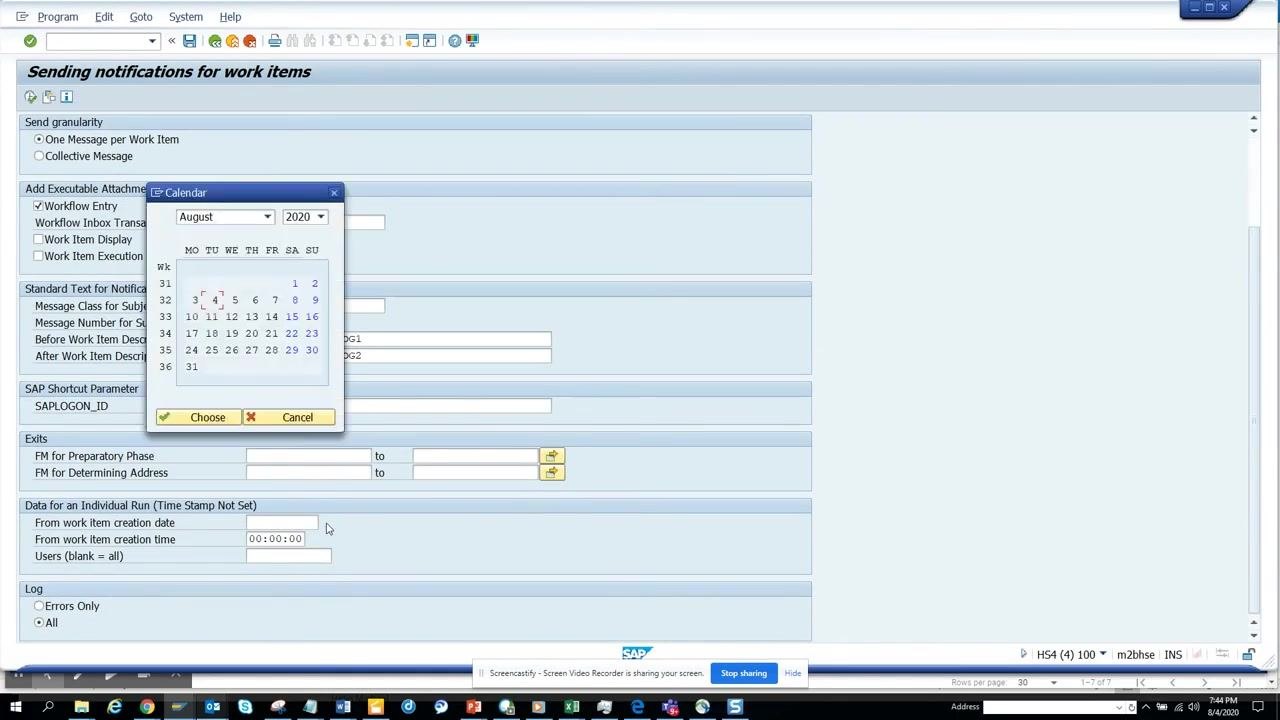
To test or refine your selection, use the From work item creation date field. Click the calendar icon next to the date field, select a specific date (for example, a date in 2019) to filter work items created from that date onward, and click Choose to confirm.
Execute with the date filter and review output
After setting the creation date filter, click Execute again. The program displays the number of work items found and the number of notifications sent — for example, a message such as "2 work items were written, none were sent" can appear if prerequisites are not met.
Verify the user's email address
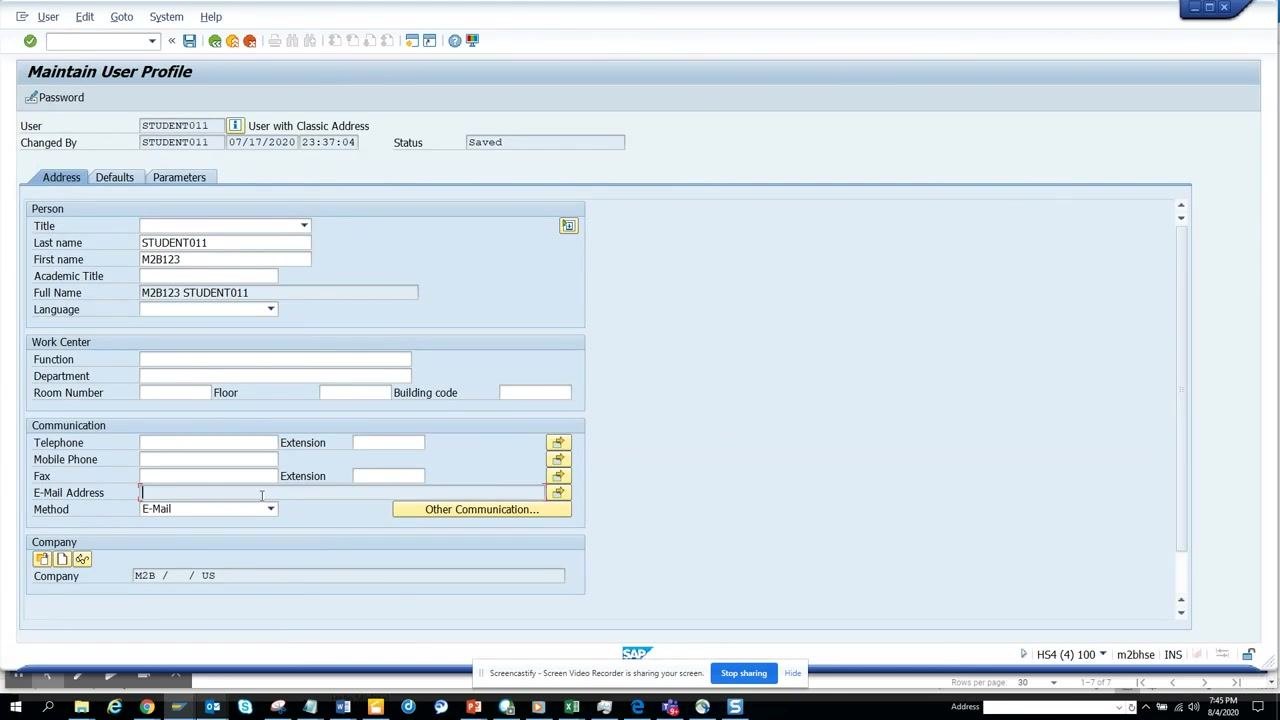
Before workflow email notifications can be sent, the user's email address must be maintained in the SAP user master record. Open the Maintain User Profile screen using transaction SU3, and in the Communication section, check that the E-Mail Address field contains a valid address. Without it, SAP will not generate or send workflow email notifications.
Save changes and retest
If you added or corrected the email address, save the user profile. Return to the notification program and execute it again to confirm that notifications are now sent successfully.
Summary
By following these steps, you can access workflow items in the Business Workplace, identify the relevant approval tasks, and configure and run the standard SAP program to send workflow notifications by email. Applying filters lets you test targeted scenarios, and verifying the user's email address resolves the most common delivery issue. Each notification email includes a direct link to the SAP inbox, letting recipients act on approvals without logging in separately.
Generation details: cost, quality tiers
Docsie billed 3,000 credits ($2.10) to analyze this 6-minute video at standard quality. The rewrite, template fill and Word/PDF exports were included. The same video at each quality tier:
| Quality | Frames sampled | Credits | Approx. cost |
|---|---|---|---|
| Draft | every 16-30 s | 1,500 | $1.05 |
| Standard (this guide) | every 8-15 s | 3,000 | $2.10 |
| Detailed | every 4-7 s | 6,000 | $4.20 |
| Ultra | every 1-3 s | 12,000 | $8.40 |
Credits priced at $0.70 per 1,000; plans include a monthly allowance. Enterprise customers on on-premise or bring-your-own-model deployments run this on their own inference and pay no per-video credits.
Generated by Docsie Video-to-Docs on 2026-10-19 from a 5-minute video. Screenshots are frames from the source video and belong to their creator, arghadip kar, whose original is embedded above. If you own this video and want the guide removed or credited differently, contact us and we will act within one business day.