
How to Delete a Client in SAP
This guide walks you through how to delete a client in SAP, from logging into the target client through scheduling the deletion job and monitoring it to completion. The example used throughout is client 010, a training client, but the same steps apply to any client you need to remove.
Video: How to delete a client in SAP using SCC5 | SAP Basis Administration by DSA Knowledge (2021). All credit for the demonstration goes to the creator; watch the original on YouTube. The written guide below was generated from this video by Docsie. Creator? Request a change or removal.
This guide walks you through how to delete a client in SAP, from logging into the target client through scheduling the deletion job and monitoring it to completion. The example used throughout is client 010, a training client, but the same steps apply to any client you need to remove.
Prerequisites
- You must log in directly to the client you intend to delete.
- You need access to transaction codes SCC5 (Delete Client) and SM37 (Job Overview).
- You should know the background server and output device available in your system, since these are required when scheduling the deletion job.
Log in to the client you want to delete
Log in to the SAP system using the client you wish to delete. In this example, the client to be deleted is 010.
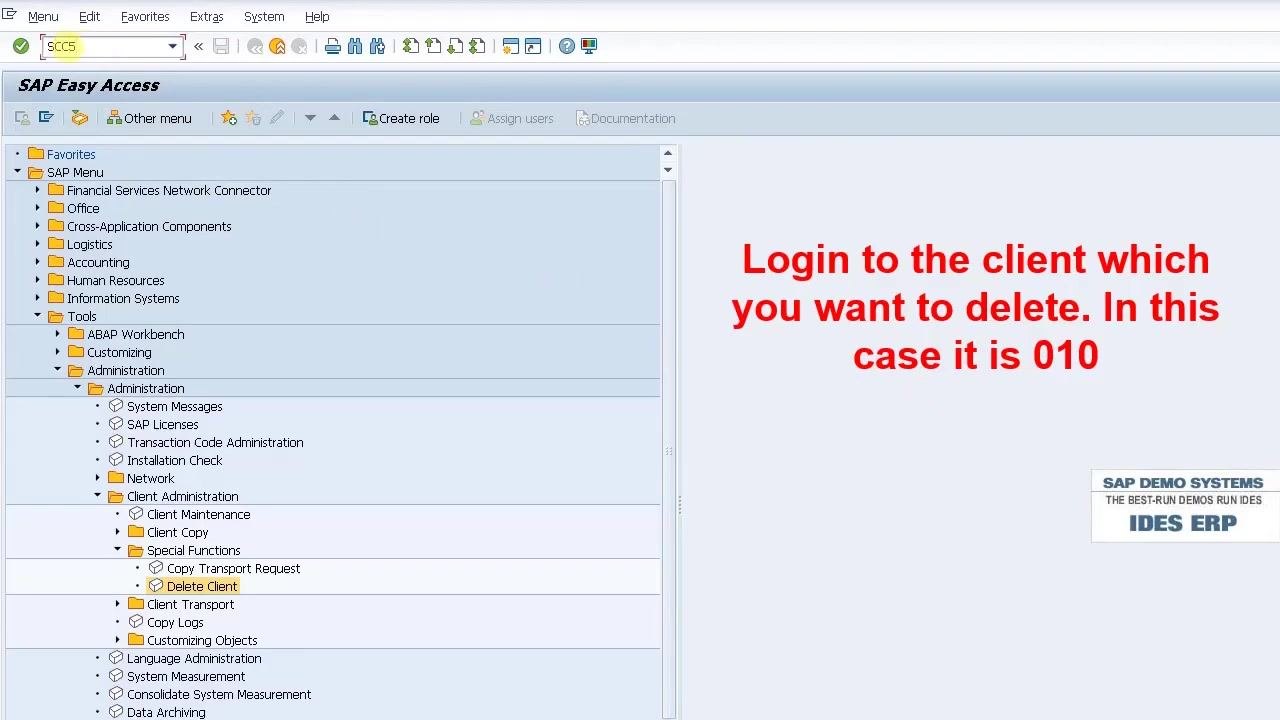
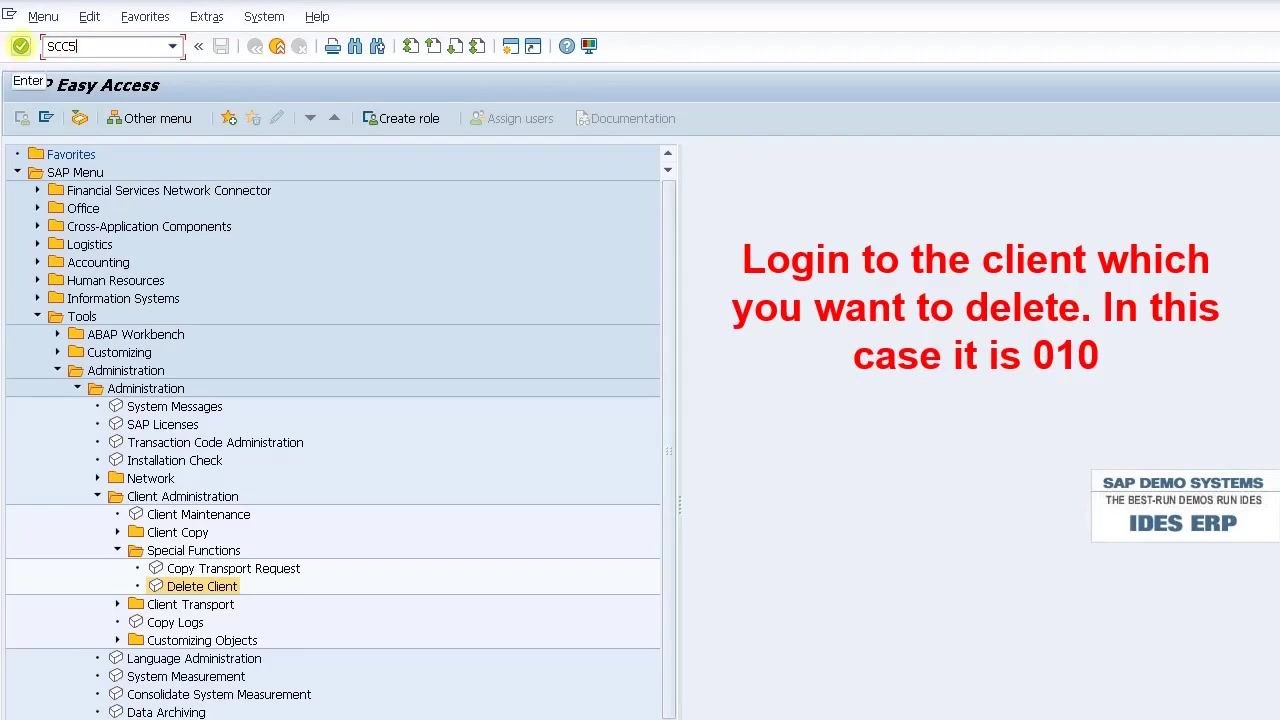
Once logged in, the SAP Easy Access screen appears. The left panel shows the SAP Menu with navigation folders such as Financial Services Network Connector, Office, Logistics, Accounting, Human Resources, Information Systems, and Tools. The right panel displays a prompt instructing you to log in to the client you want to delete — in this case, 010. The transaction code field at the top left contains SCC5, and the system is identified as SAP DEMO SYSTEMS IDES ERP.
Navigate to the Delete Client function
In the SAP Menu, expand the following path:
- Tools > Administration > Administration > Client Administration > Special Functions
Select Delete Client from the menu. The right panel continues to display the instruction to log in to client 010.
Open the Delete Client screen
The Delete Client screen appears with the following options:
- Delete in Background and Start Immediately buttons at the top.
- Client to be deleted field set to 010.
- Delete entry from T000 checkbox checked.
- Test run checkbox unchecked.
Select the client to be deleted
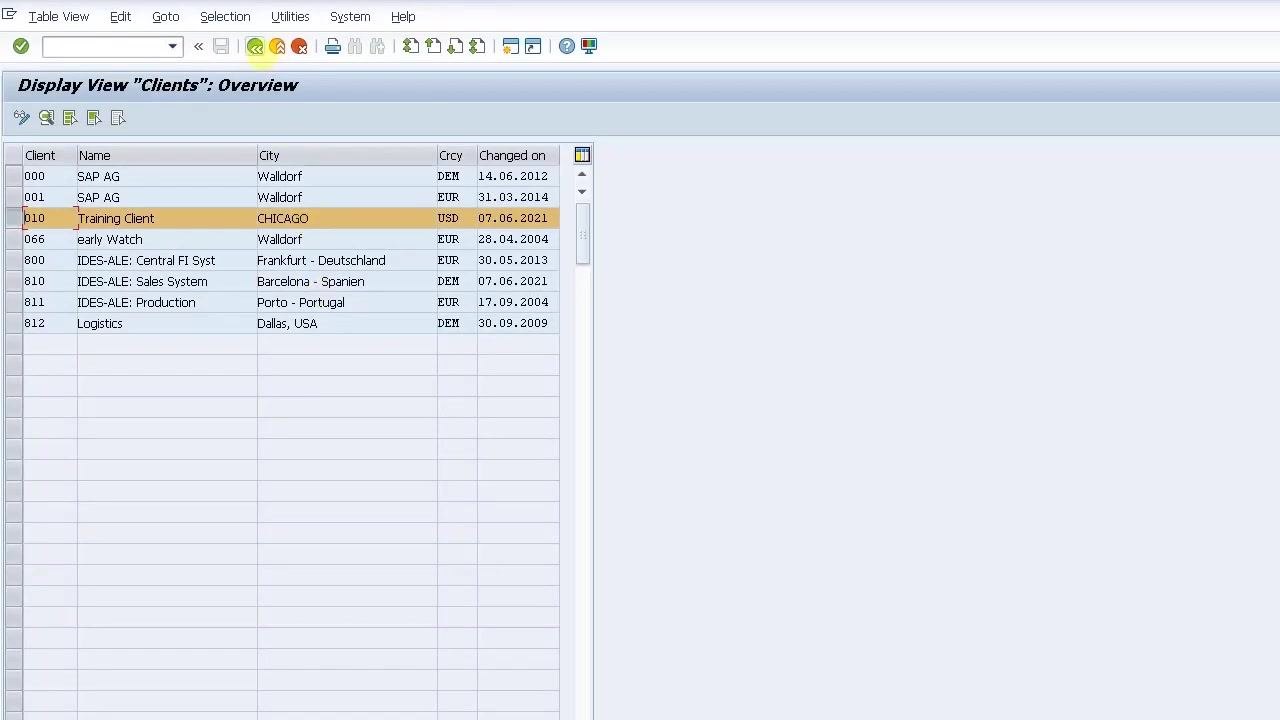
The Display View "Clients": Overview screen lists all clients in the system, including:
- 000 (SAP AG, Walldorf)
- 001 (SAP AG, Walldorf)
- 010 (Training Client, CHICAGO, USD, 07.06.2021)
- 066 (Early Watch, Walldorf)
- 800, 810, 811, 812 (various demo and logistics clients)
No client is selected yet at this point.
Select client 010 (Training Client, CHICAGO) from the list. Once selected, it appears highlighted, confirming it is marked for deletion.
Schedule the deletion job in the background
The Schedule Client Copy in Background screen appears. Set the following:
- Profile name: DELETE
- Background Server (Optional): ECCEhP7_EH7_00
- No Printer Dialog checkbox: checked
- Immediately checkbox: unchecked (at this point)
Next, check the Immediately checkbox to run the job right away. No Printer Dialog remains checked.
Set background print parameters
A Background Print Parameters pop-up appears on the Schedule Client Copy in Background screen. Configure the following:
- Output Device: enter
LP01. - Number of Copies: ensure this is set to
1. - Page Area: select "Everything" or specify a page range (default is "Everything").
- Properties: ensure Print Time is set to
SAP spool only for now. Use the Properties button to adjust further print settings if needed.
Confirm the settings by clicking the green checkmark button.
Verify the deletion parameters and confirm
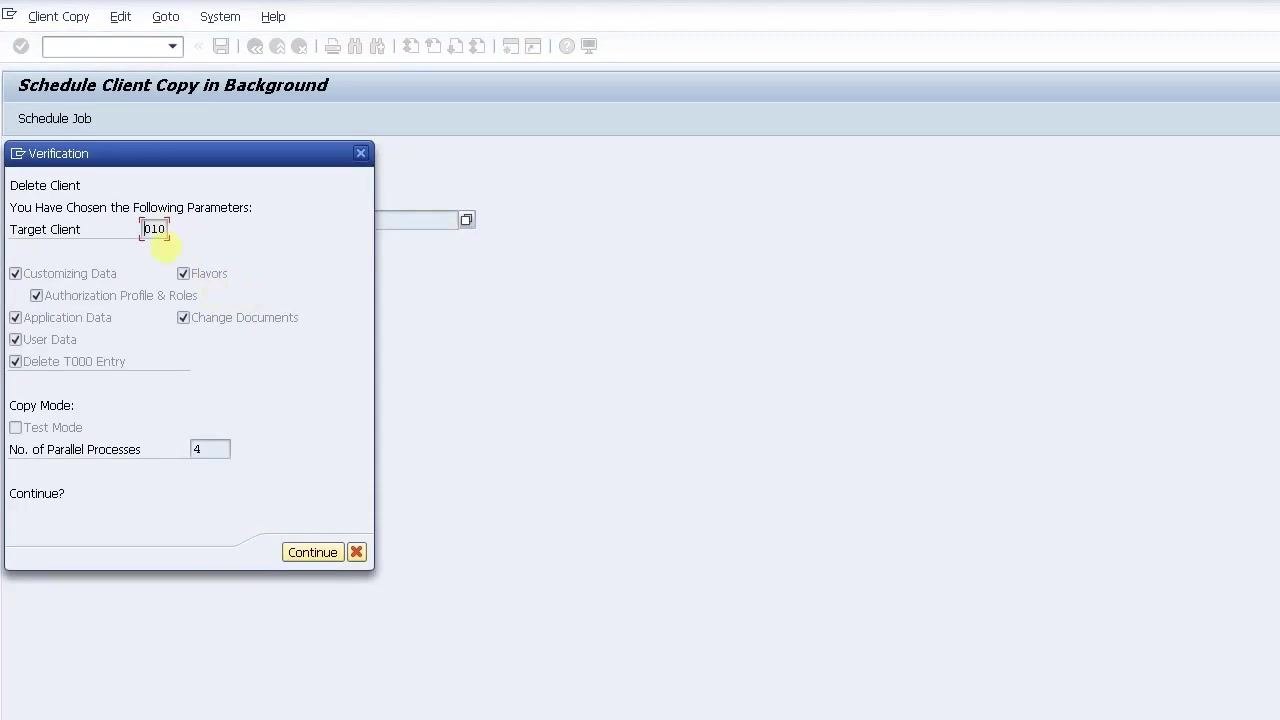
A Verification dialog appears showing the deletion parameters:
- Target Client: 010
- The following options are checked: Customizing Data, Authorization Profile & Roles, Application Data, User Data, Flavors, Change Documents, Delete T000 Entry.
- Copy Mode: Test Mode is unchecked.
- No. of Parallel Processes: 4
The dialog asks Continue?, with the Continue button highlighted.
Click Continue to confirm and start the client deletion process.
Monitor the deletion job
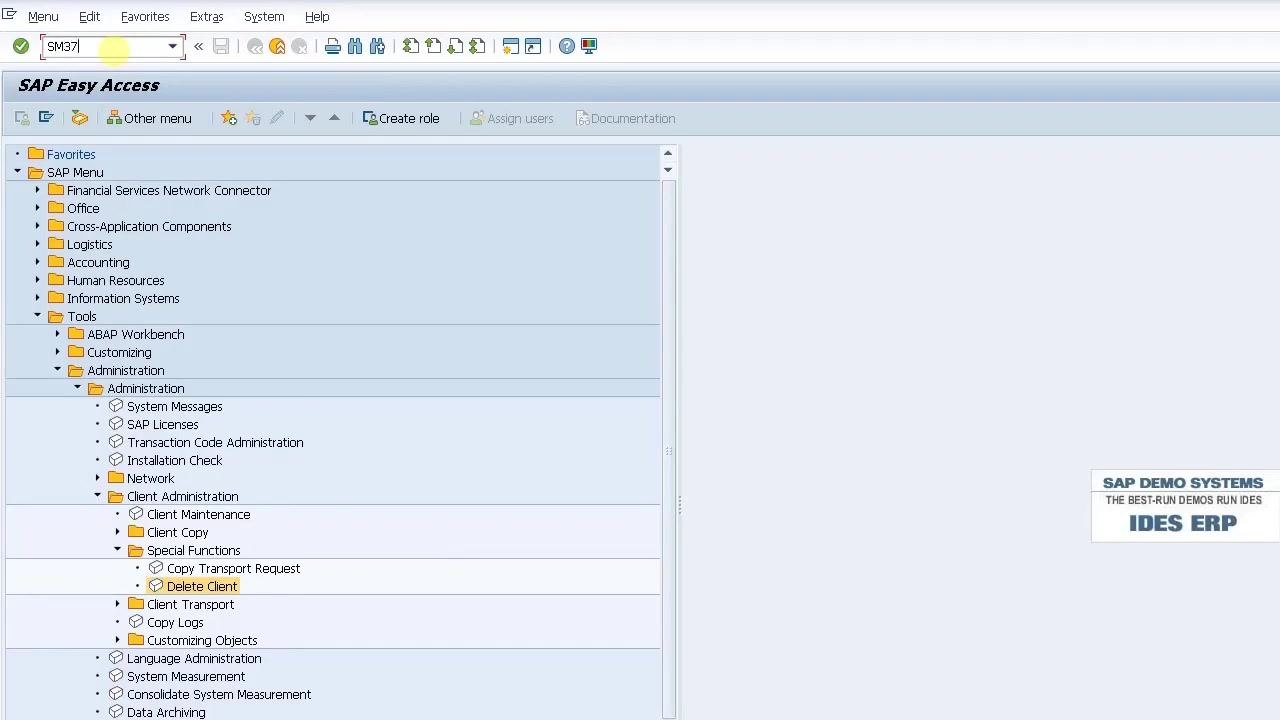
Return to the SAP Easy Access screen and enter transaction code SM37 in the transaction code field to monitor background jobs. The SAP Menu navigation tree remains visible, with Delete Client still highlighted under Tools > Administration > Client Administration > Special Functions. The system is identified as SAP DEMO SYSTEMS IDES ERP.
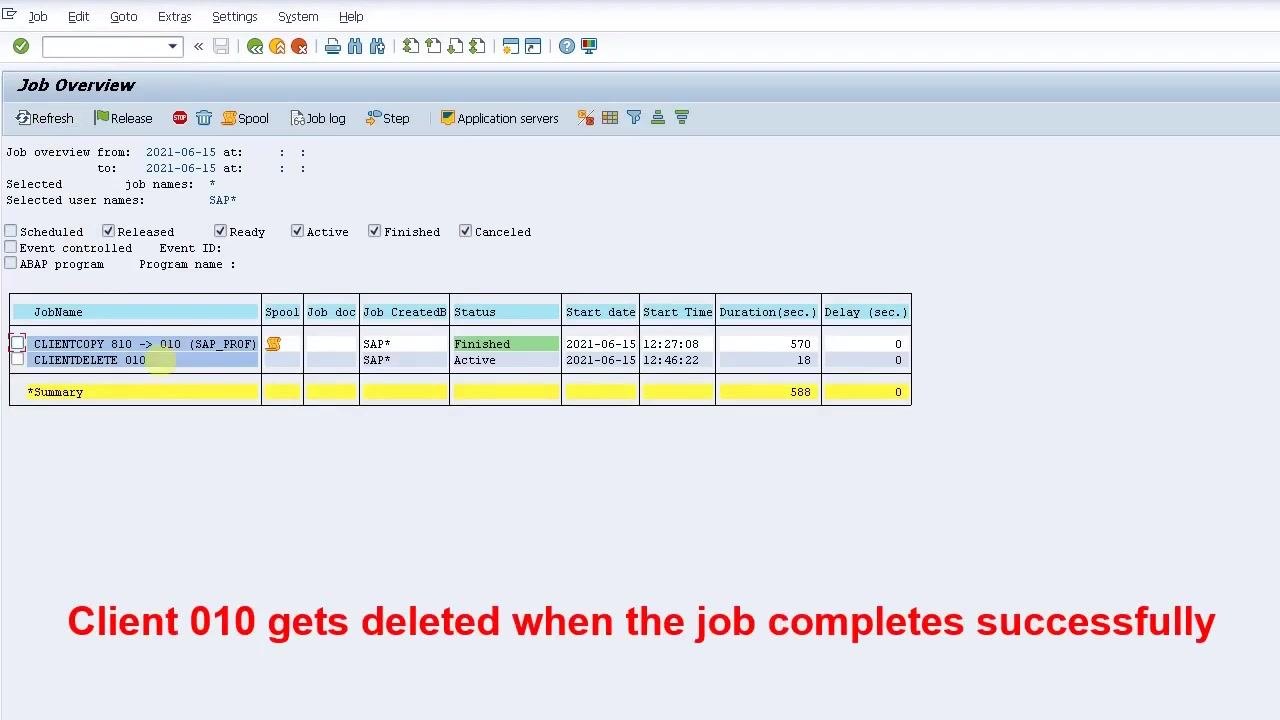
The Job Overview screen appears, listing background jobs with columns for JobName, Spool, Job doc, Job CreateDB, Status, Start date, Start Time, Duration (sec.), and Delay (sec.). Two jobs are visible:
CLIENTCOPY 810 -> 010 (SAP_PROF)— status: FinishedCLIENTDELETE 010— status: Active
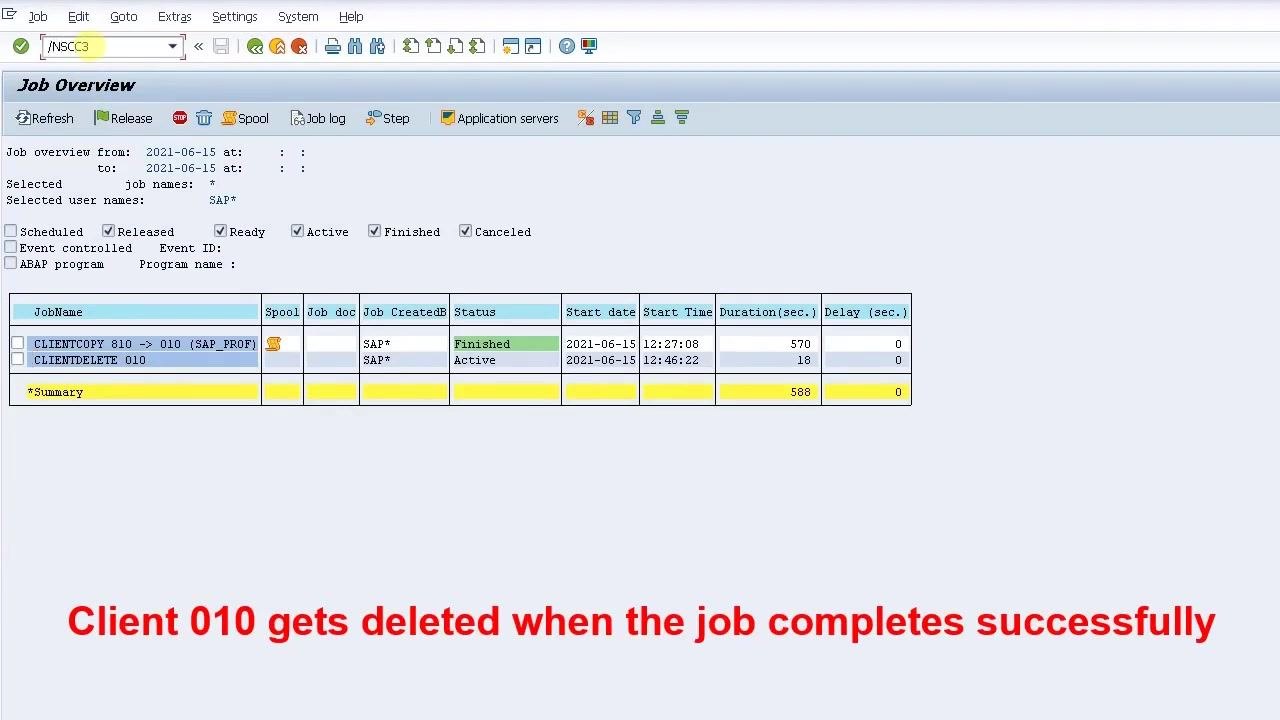
The CLIENTDELETE 010 job is the deletion job for client 010. A message at the bottom confirms: "Client 010 gets deleted when the job completes successfully."
Review the job log entries
Open the Job Log Entries for CLIENTDELETE 010 screen to review the log overview, which includes:
- Date: 2021-06-15
- Time: 12:46:22
- Message text: "Job started" and "Step 001 started (program RSCLXCOP, variant <...>, user ID SAP*)"
- Message class: 00
- Message no.: 516 and 550
- Message type: S (Success)
The message at the bottom reiterates: "Client 010 gets deleted when the job completes successfully."
Analyze the client copy/transport log
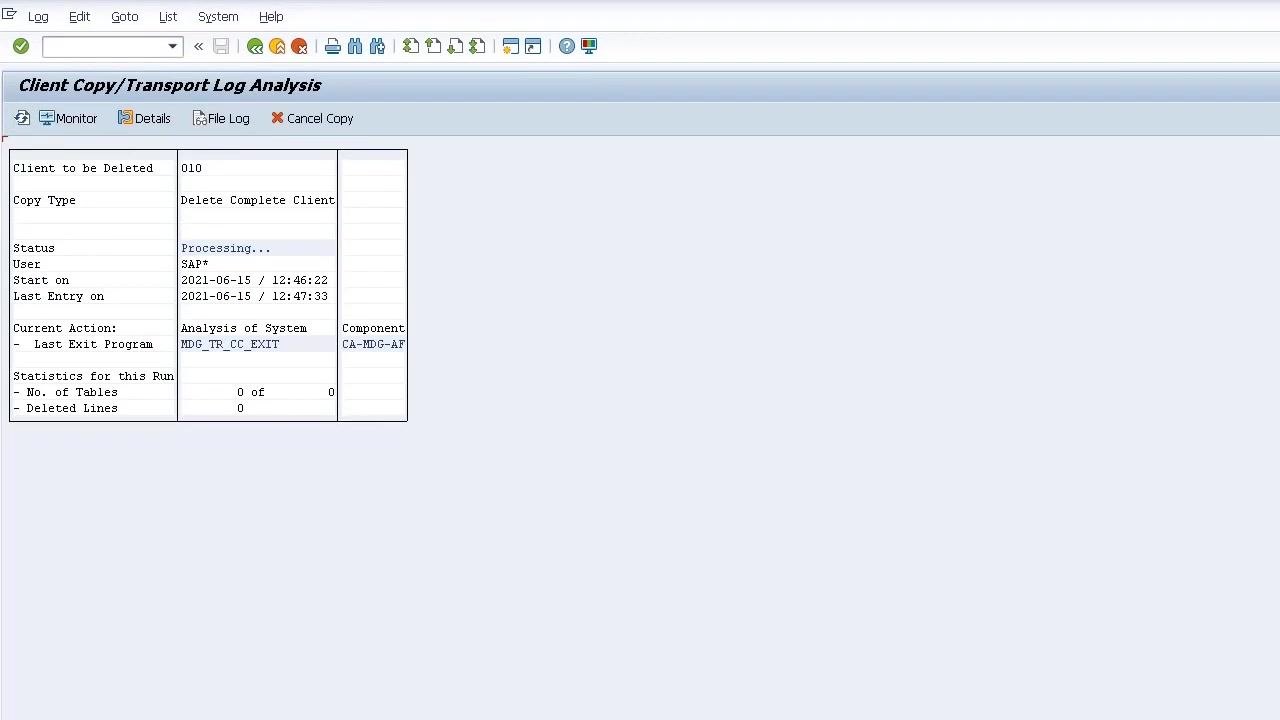
The Client Copy/Transport Log Analysis screen shows detailed progress on the left panel:
- Client to be Deleted: 010
- Copy Type: Delete Complete Client
- Status: Processing...
- User: SAP*
- Start on: 2021-06-15 / 12:46:22
- Last Entry on: 2021-06-15 / 12:47:21
- Current Action: Analysis of System
- Statistics for this Run: No. of Tables: 0 of 0, Deleted Lines: 0
Refresh the screen to continue monitoring progress. The Current Action updates to show:
- Last Exit Program:
MDG_TR_CC_EXIT - Component:
CA-MDG-AF - Last Entry on: 2021-06-15 / 12:47:33
The job remains in progress, with statistics still at zero at this stage.
Summary
By following these steps, you can schedule, confirm, and monitor how to delete a client in SAP from start to finish. The process begins with logging into the target client and navigating to the Delete Client function, continues through scheduling the background job and setting print parameters, and ends with verifying deletion parameters and confirming the job.
Use the Job Overview (transaction SM37) and the Client Copy/Transport Log Analysis screen to track progress. The client deletion is complete once the job status changes from Active to Finished and the logs confirm successful completion.
Generation details: cost, quality tiers
Docsie billed 2,000 credits ($1.40) to analyze this 4-minute video at standard quality. The rewrite, template fill and Word/PDF exports were included. The same video at each quality tier:
| Quality | Frames sampled | Credits | Approx. cost |
|---|---|---|---|
| Draft | every 16-30 s | 1,000 | $0.70 |
| Standard (this guide) | every 8-15 s | 2,000 | $1.40 |
| Detailed | every 4-7 s | 4,000 | $2.80 |
| Ultra | every 1-3 s | 8,000 | $5.60 |
Credits priced at $0.70 per 1,000; plans include a monthly allowance. Enterprise customers on on-premise or bring-your-own-model deployments run this on their own inference and pay no per-video credits.
Generated by Docsie Video-to-Docs on 2026-10-19 from a 3-minute video. Screenshots are frames from the source video and belong to their creator, DSA Knowledge, whose original is embedded above. If you own this video and want the guide removed or credited differently, contact us and we will act within one business day.