
How to Create Enterprise Structure in SAP
Setting up the enterprise structure is one of the foundational tasks in SAP Material Management (MM). This guide walks you through how to create enterprise structure in SAP MM, starting with the conceptual hierarchy of organizational levels and then moving into the actual configuration steps in SPRO — including defining a plant, maintaining storage locations, setting up a purchasing organization, assigning these elements to each other, and creating purchasing groups.
Video: How to create Enterprise Structure in SAP MM | Enterprise Structure in SAP Material Management | by SAP Learning (2020). All credit for the demonstration goes to the creator; watch the original on YouTube. The written guide below was generated from this video by Docsie. Creator? Request a change or removal.
Setting up the enterprise structure is one of the foundational tasks in SAP Material Management (MM). This guide walks you through how to create enterprise structure in SAP MM, starting with the conceptual hierarchy of organizational levels and then moving into the actual configuration steps in SPRO — including defining a plant, maintaining storage locations, setting up a purchasing organization, assigning these elements to each other, and creating purchasing groups.
Prerequisites
- Access to the SAP Easy Access screen and authorization to run the SPRO transaction.
- Familiarity with the SAP Implementation Guide (IMG) navigation tree.
- Awareness that company code creation is typically handled by the finance team rather than the MM consultant.
Organizational structure
Review the organizational structure diagram
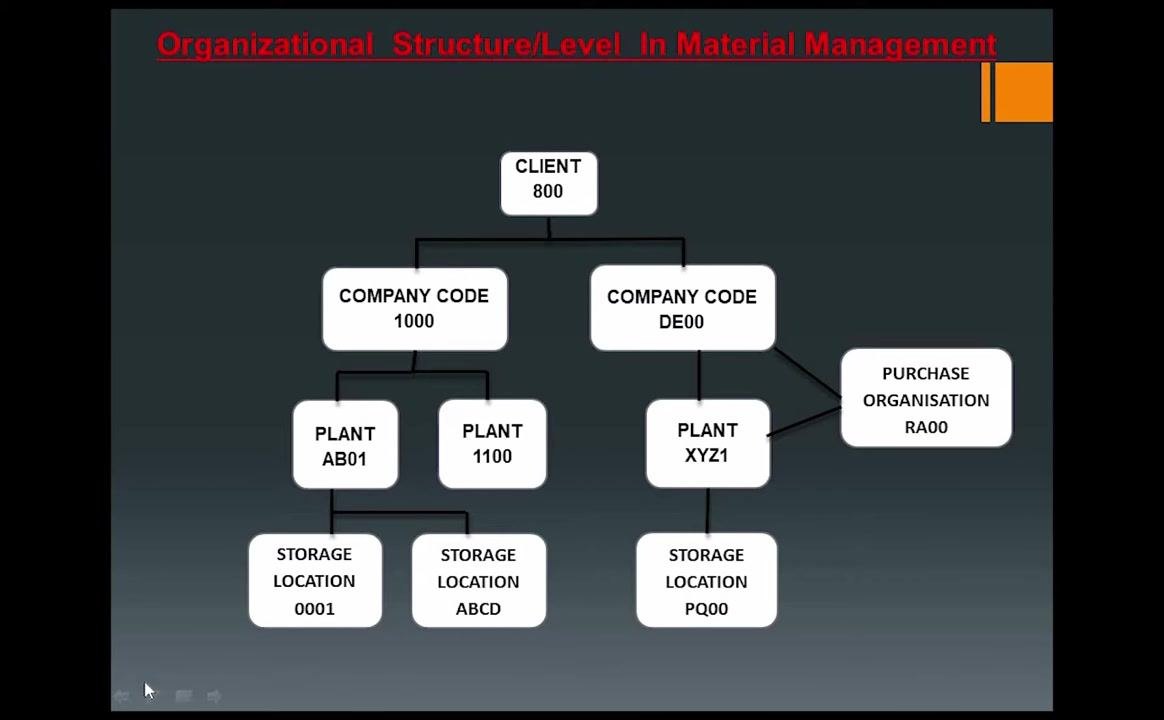
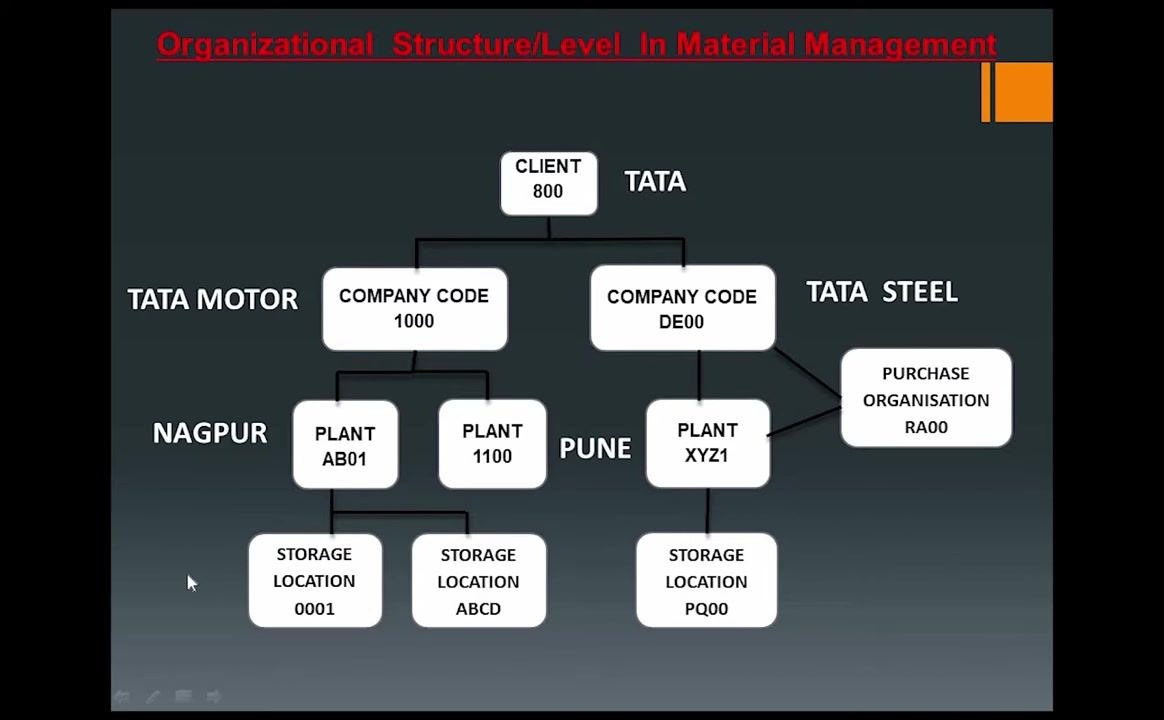
The organizational hierarchy for Material Management is represented in a diagram titled "Organizational Structure/Level In Material Management." From top to bottom, it displays the following levels:
- Client (800)
- Company Code (e.g., 1000, DE00)
- Plant (e.g., AB01, 1100, XYZ1)
- Storage Location (e.g., 0001, ABCD, PQ00)
- Purchase Organisation (RA00)
This structure organizes business processes at different levels within material management.
Understand the client level
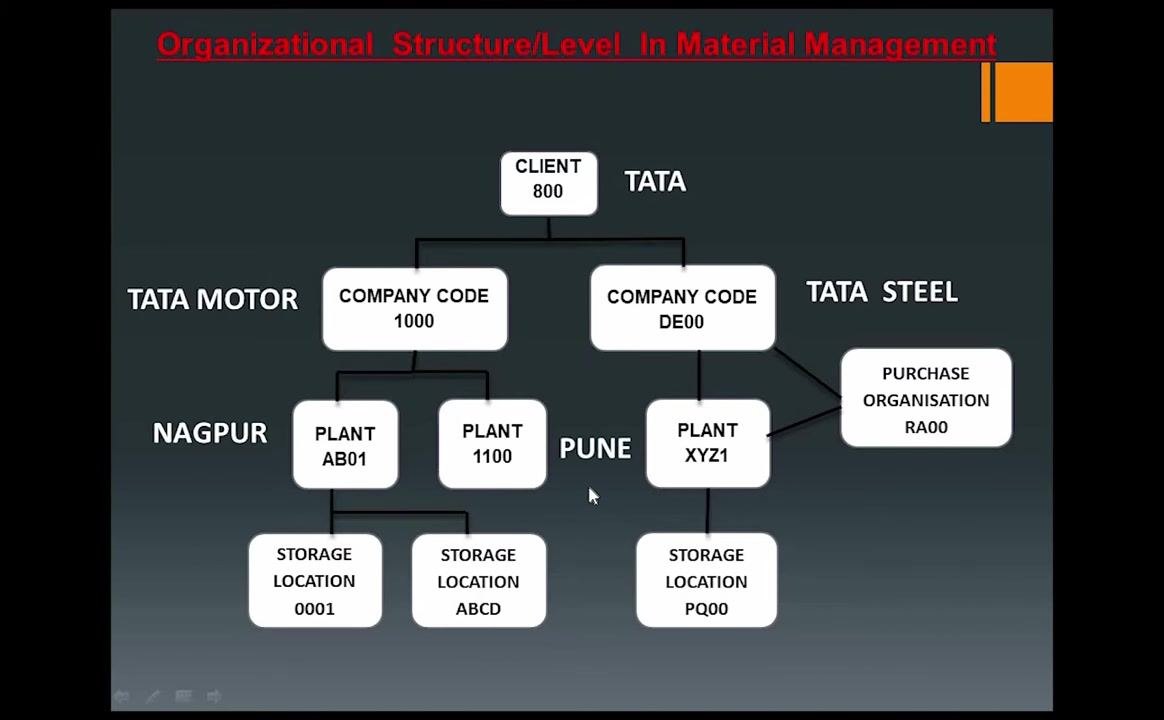
The Client represents the customer or the highest organizational unit, identified by a 3-digit code. For example, Client 800 represents Tata.
Identify company codes
Each company under the client is assigned a unique Company Code, which is used to manage company-specific data such as money, credit, and debit. Example company codes include 1000 for Tata Motor and DE00 for Tata Steel.
Explore the plant level
Each company can have multiple Plants — operational units, manufacturing units, or headquarters. Each plant is assigned a unique code, which can be numeric or alphanumeric, such as Plant AB01 (Nagpur), Plant 1100 (Pune), or Plant XYZ1. Plants are responsible for planning, procurement, and distribution of goods to customers.
Examine storage locations
Each plant contains one or more Storage Locations, identified by 4-digit alphanumeric codes. Examples include 0001 under Plant AB01, ABCD under Plant 1100, and PQ00 under Plant XYZ1. Storage locations sit at the lowest level of the hierarchy and are used to manage inventory within a plant.
Learn about the purchase organization
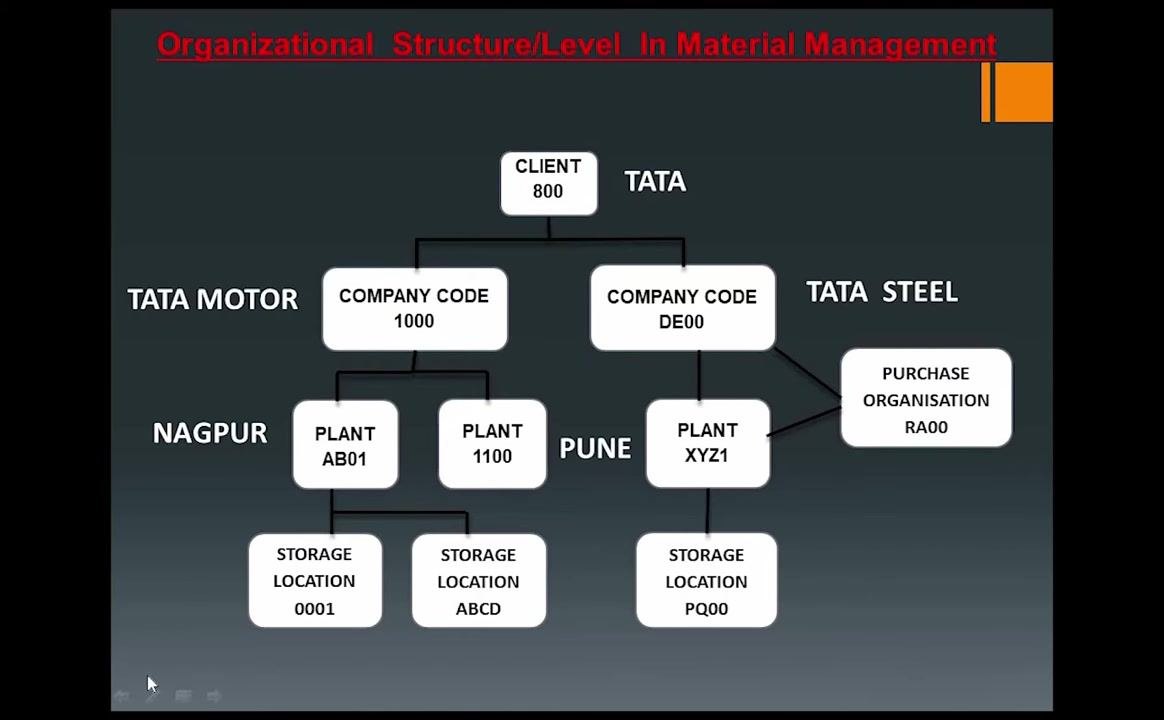
The Purchase Organization operates in parallel with the plant and company code levels. It is responsible for procuring materials and services and negotiating prices, and it links to both the company code and the plant. Purchase Organisation RA00 is shown as an example in the structure.
Identify the purchasing group
The Purchasing Group consists of the people who work within the Purchase Organization and handle day-to-day procurement activities.
Understand assignment rules
Before configuring the system, keep these assignment rules in mind:
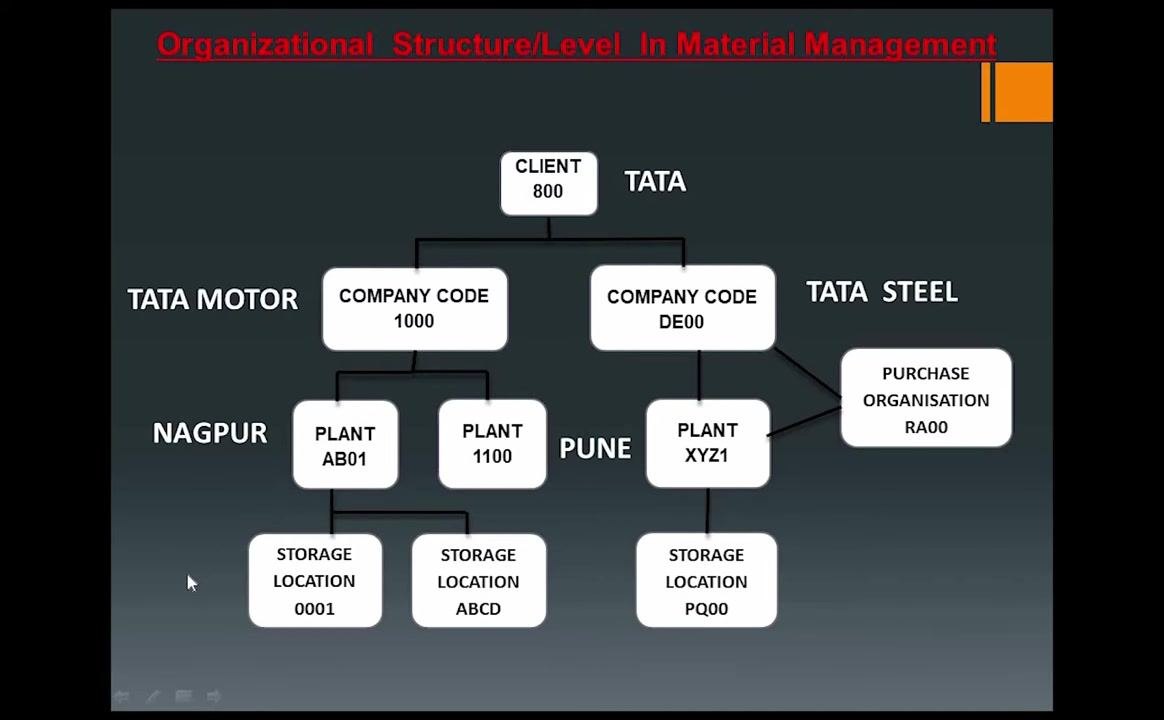
- Only one company code can be assigned to a plant.
- A company code can have multiple plants, but a plant cannot be linked to more than one company code.
- Assigning a purchase organization to a plant is mandatory.
- Assigning a purchase organization to a company code is optional.
SPRO and plant configuration
Access SPRO for configuration
The SAP Easy Access screen is used by end users for daily operations, while the configuration and logic behind assignments — such as those described above — are managed in the background by consultants using the SPRO transaction.
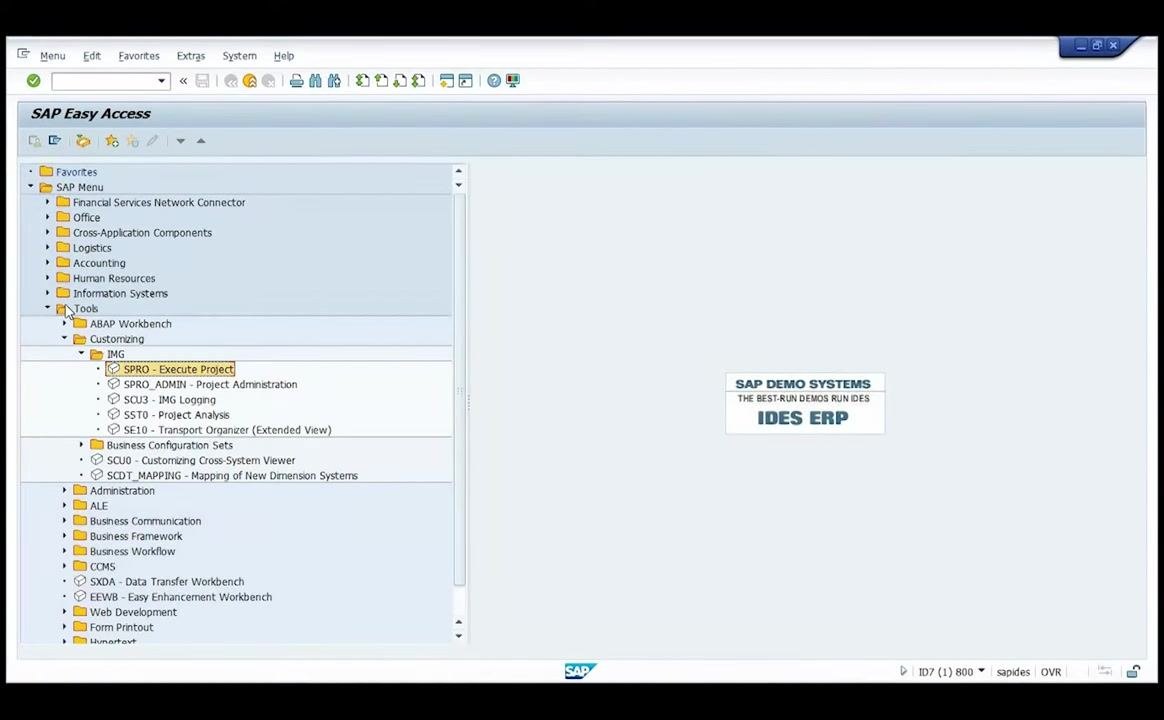
SPRO stands for SAP Project Reference Object. To reach the configuration screen, follow this navigation path:
- Go to Tools in the SAP Menu.
- Expand Customizing.
- Expand IMG (Implementation Guide).
- Select SPRO – Execute Project.
Press Enter to proceed to the configuration screen.
By following these steps, you build an understanding of how organizational elements in SAP Material Management relate to one another, and you are ready to begin assigning them within the SAP system. The following sections provide a detailed, step-by-step guide for navigating SAP to create or copy a plant, using standard templates, and entering plant-specific details.
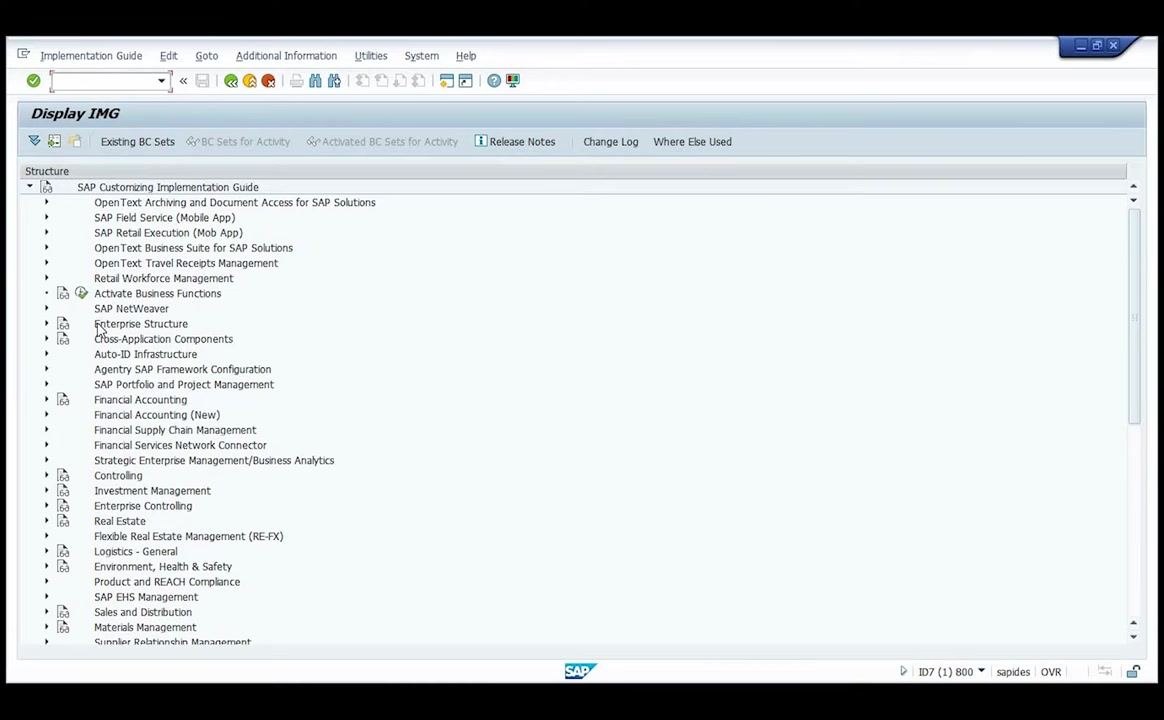
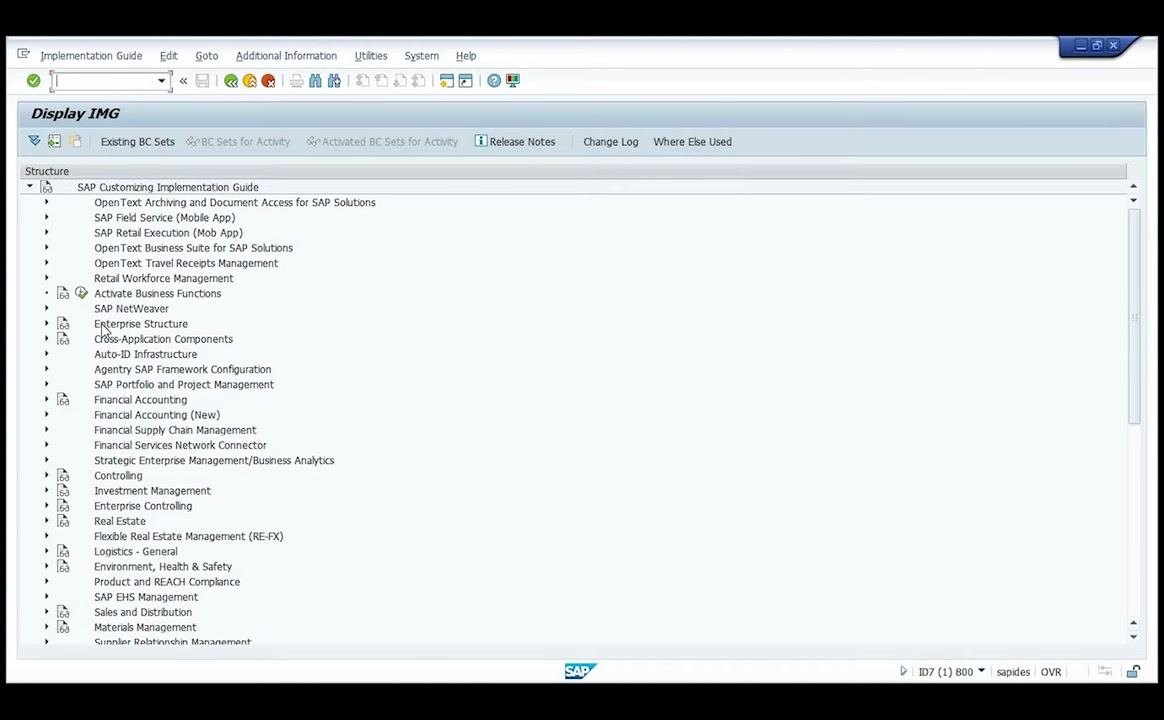
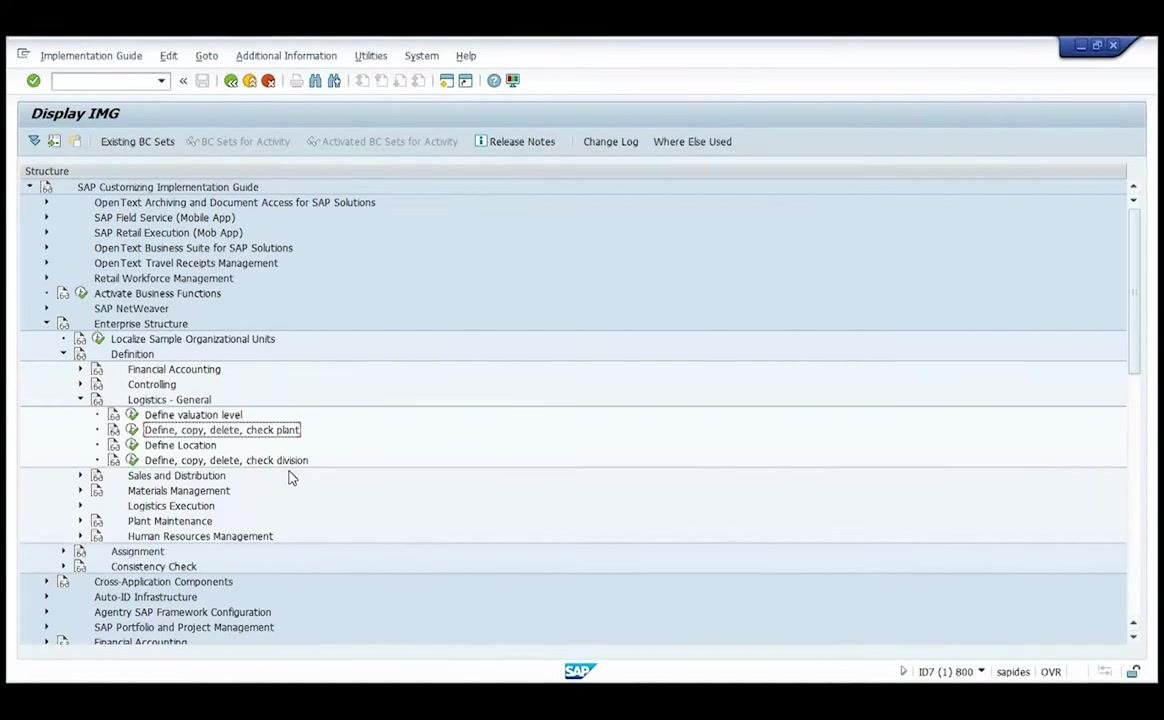
Navigate to Enterprise Structure in the SAP Reference IMG
From the Display IMG screen, locate the navigation tree on the left and expand the Enterprise Structure node.
Access the company code definition
Under Enterprise Structure, expand Definition, then expand Financial Accounting. Select Edit, Copy, Delete, Check Company Code to view or edit company code data.
Review company code data
The Change View "Company Code": Overview screen appears, listing existing company codes and their names (e.g., 0001 SAP A.G., 1000 BestRun Germany, and others). Note that company code creation is typically performed by the finance team, not the MM consultant.
Navigate to plant definition
Click the Back button (or press F3) to return to the previous menu. In the navigation tree, expand Logistics - General under Definition, click on Plant, and select Define, Copy, Delete, Check Plant.
Open the plant overview
Click on Define Plant to open the plant overview. The Change View "Plants": Overview screen displays a list of existing plants (e.g., Hamburg, New York, München, and others). SAP provides standard plants, such as 1000, that you can use as templates.
Copy a standard plant
Select a standard plant (e.g., 1000) from the list to use as a template, then use the copy function to create a new plant based on it. Once the copy completes, a new screen opens for entering plant-specific details.
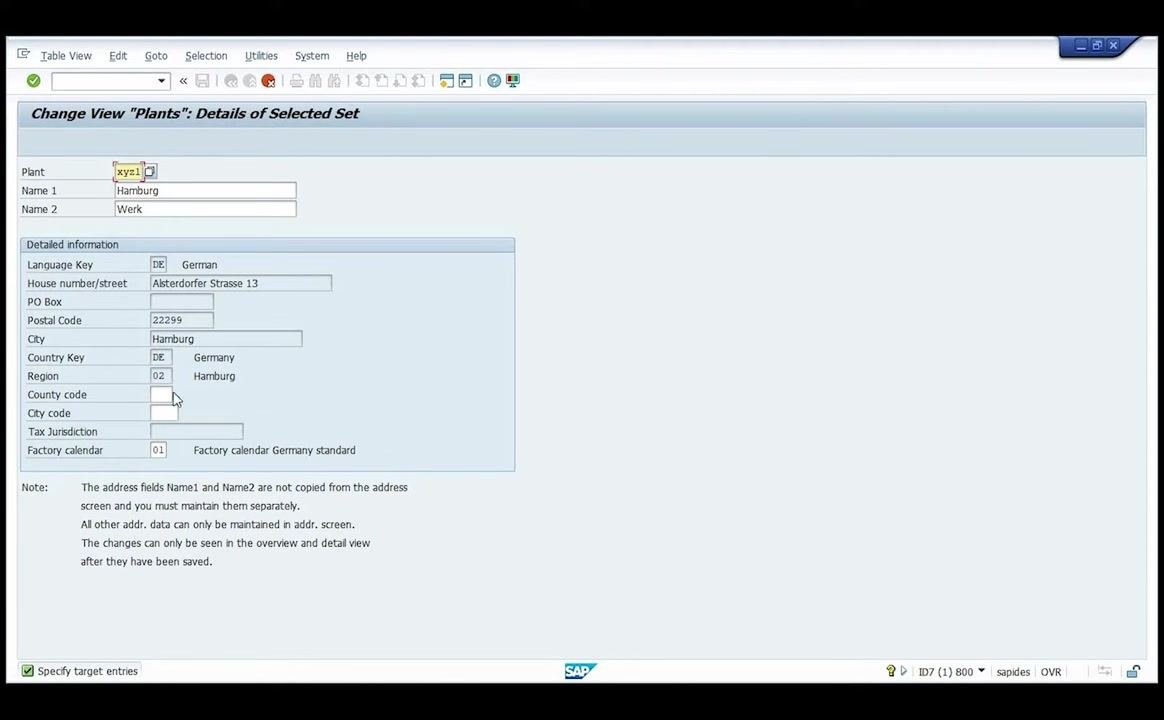
Open the plant details screen
Open the Change View "Plants": Details of Selected Set screen and make sure you are editing the plant with Plant code xyz1. The initial details carried over from the template show:
- Name 1: Hamburg
- Name 2: Werk
- Language Key: DE (German)
- House number/street: Alsterdorfer Strasse 13
- Postal Code: 22299
- City: Hamburg
- Country Key: DE (Germany)
- Region: 02 (Hamburg)
- Factory calendar: 01 (Factory calendar Germany standard)
Change the plant name
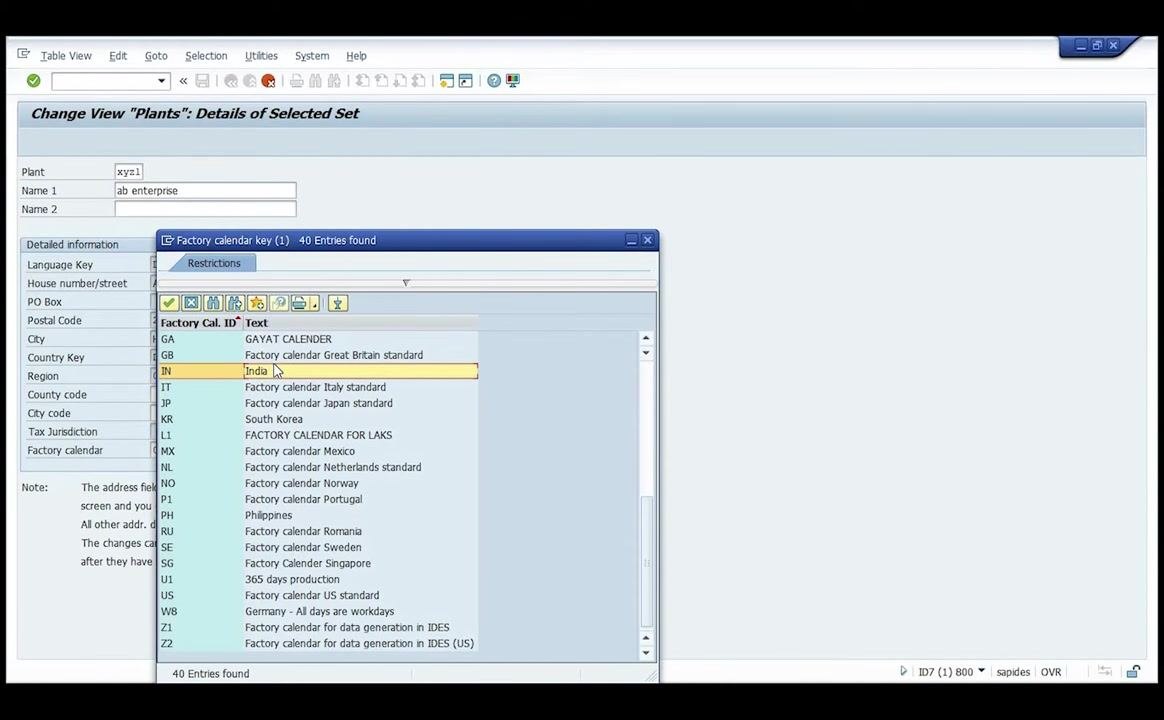
In the Name 1 field, select or enter ab enterprise as the new plant name. A dropdown may show options such as "ab enterprise," "Rahul Industries Pvt Ltd," and "Rahul Industries" — choose ab enterprise.
Update the factory calendar for the plant
Click on the Factory calendar field to open the selection dialog. A list of available factory calendars appears; scroll to find the appropriate one. Since the plant is in India, select the entry with Factory Cal. ID IN and Text India.
Edit the plant address details
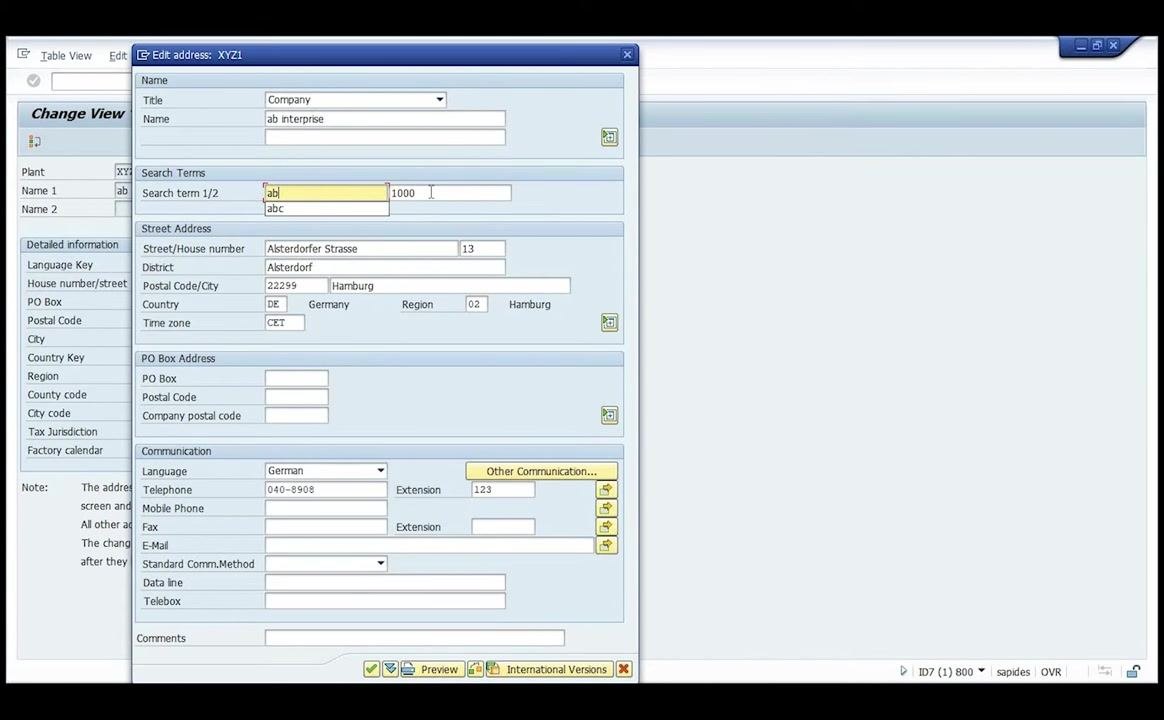
A new window titled Edit address: XYZ1 opens. In the Title field, select Company. In the Name field, enter ab enterprise. In the Search Terms section, enter ab in the Search term 1/2 field so the plant can be found quickly later.
Update the street address and location details
In the Street/House number field, enter 13. In the District field, enter Nagpur. In the Postal Code/City section, enter Postal Code 440024 and City Nagpur. In the Country field, enter IN (India), and leave the Region field as 02 for now. Set the Time zone field appropriately for India rather than leaving it as CET.
Set the correct time zone for the plant in India
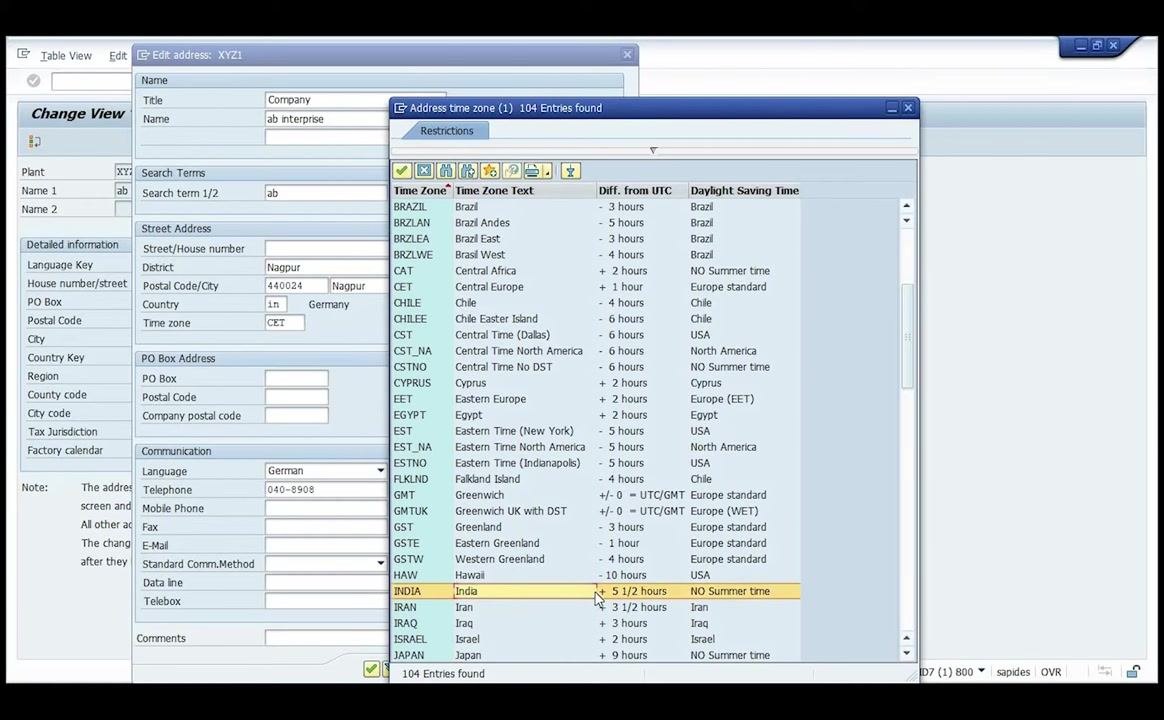
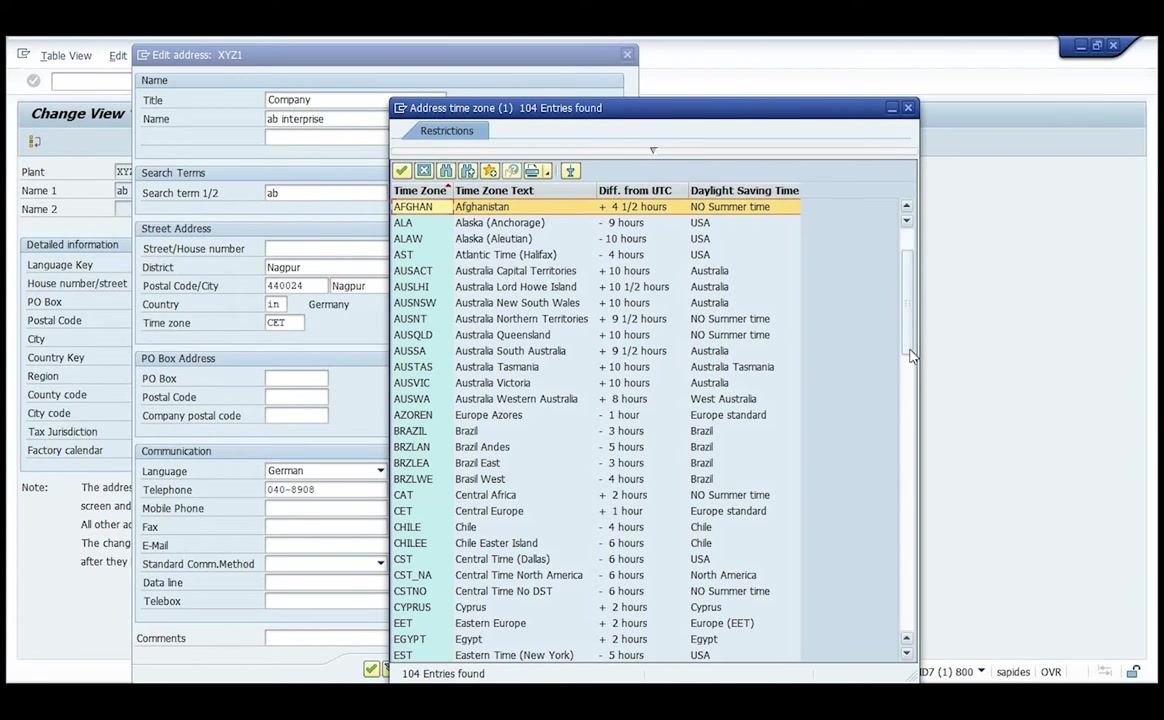
In the Edit address: XYZ1 window, locate the Time zone field and click the selection button next to it to open the Address time zone dialog. Scroll through the list and select the entry with:
- Time Zone:
INDIA - Time Zone Text:
India - Diff. from UTC:
+5 1/2 hours - Daylight Saving Time:
NO Summer time
Confirm your selection.
Update the region (state) for the plant address
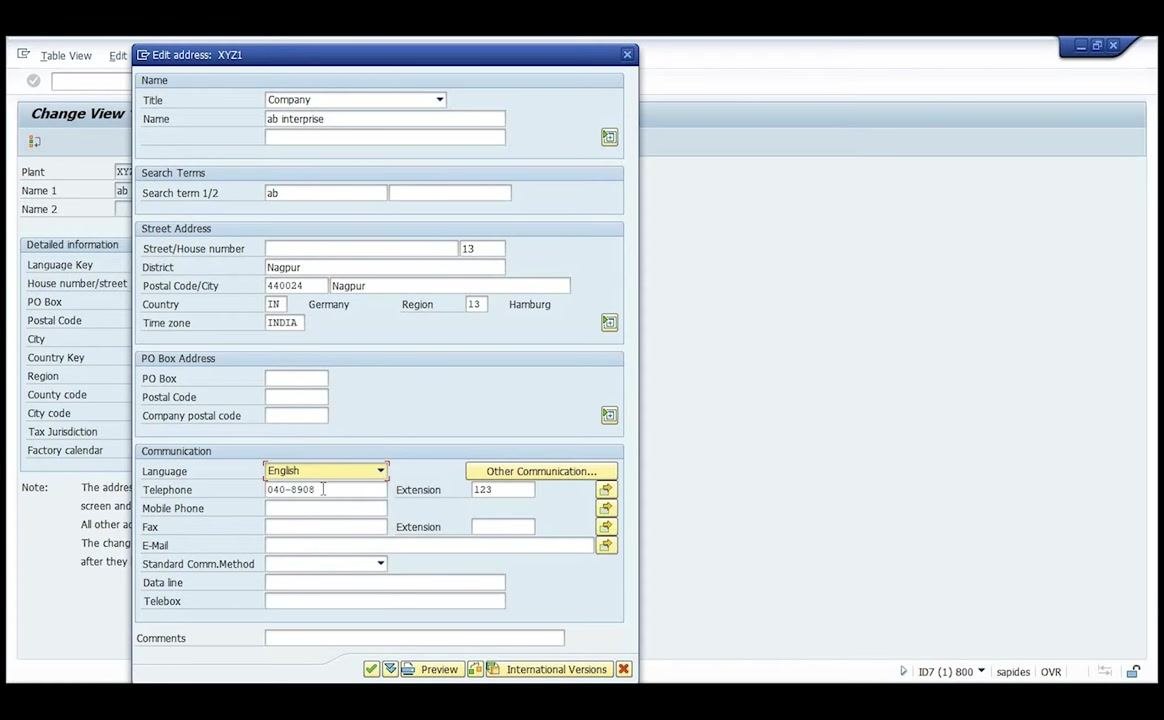
In the Edit address: XYZ1 window, click the selection button next to the Region field. In the Region (State, Province, County) dialog, scroll and select Region Key 13, Description Maharashtra, and confirm your selection.
Change the communication language to English
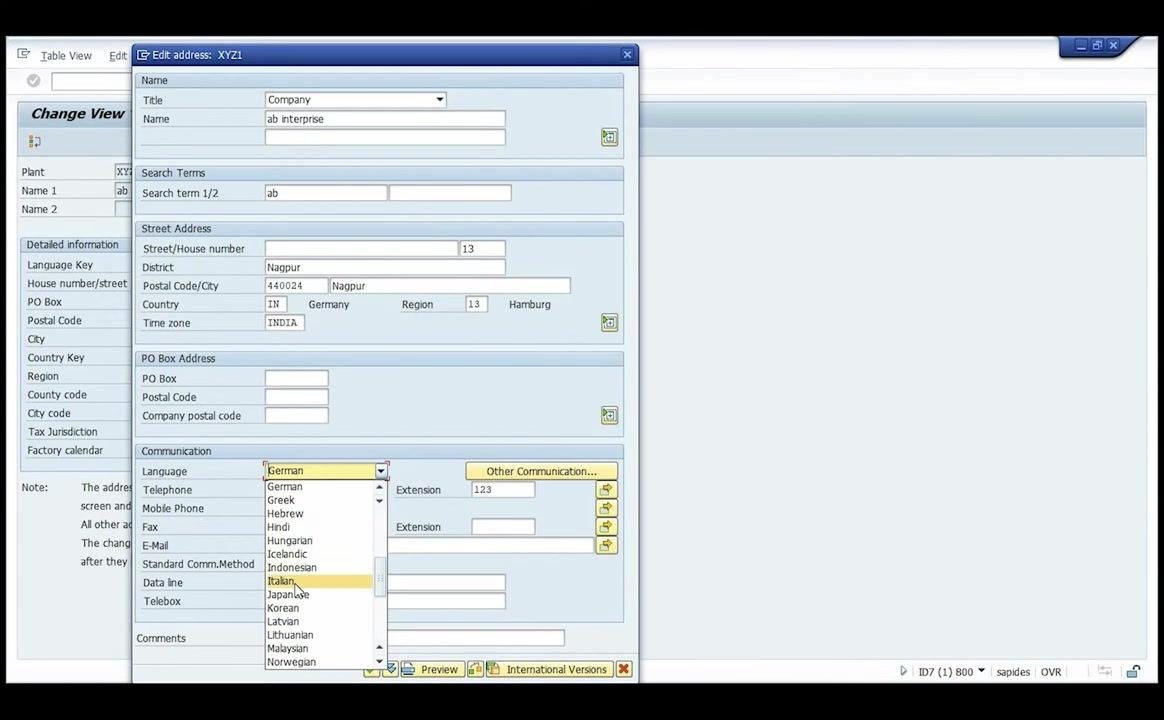
In the Communication section, click the dropdown for the Language field and select English from the list of available languages. Remove or leave blank the Telephone field if not required.
Confirm and save the plant address changes
Before saving, confirm the following fields are set:
- Name:
ab enterprise - District:
Nagpur - Postal Code/City:
440024 Nagpur - Country:
IN - Region:
13 Maharashtra - Time zone:
INDIA - Language:
English
Press Enter to confirm and save the changes.
Verify the plant creation in the overview
Return to the Change View "Plants": Overview screen and confirm that the plant with code xyz1 and name ab enterprise appears in the list. A message at the bottom should indicate "Data was saved" and "Number of entries copied: 1."
Storage location
Maintain the storage location
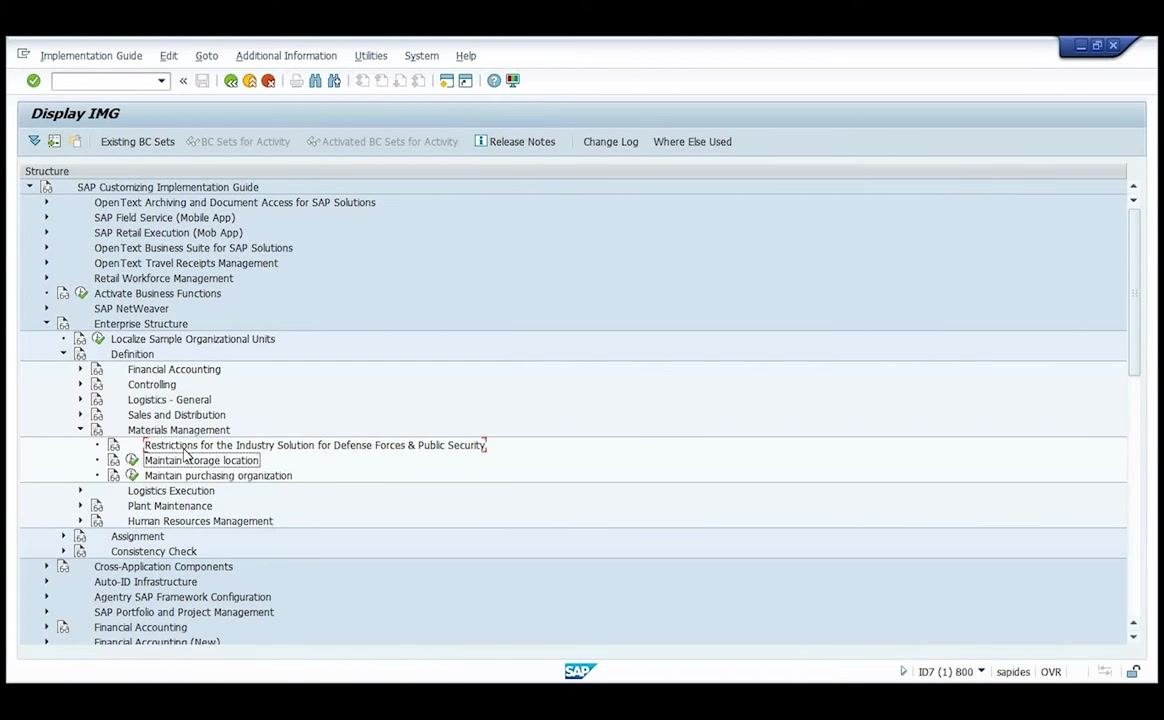
In the SAP Implementation Guide (IMG), expand SAP Customizing Implementation Guide > Enterprise Structure > Definition > Materials Management and select Maintain storage location.
Click on Maintain storage location to open the configuration screen. The Change View "Storage Locations": Overview window appears. Make sure the plant code at the top is set to XYZ1, then click the New Entries button to add a new storage location.
Enter storage location codes and descriptions
In the New Entries: Overview of Added Entries window for plant XYZ1, locate the table with columns SLoc and Description. Enter the following rows:
- SLoc
0001, DescriptionRaw Material - SLoc
0002, DescriptionFinished Product
Ensure both storage locations are listed in the table.
Save the storage location entries
Click the save icon (diskette) in the toolbar to save the new storage locations, and confirm that the entries are saved and appear in the overview.
Purchasing organization
Maintain the purchasing organization
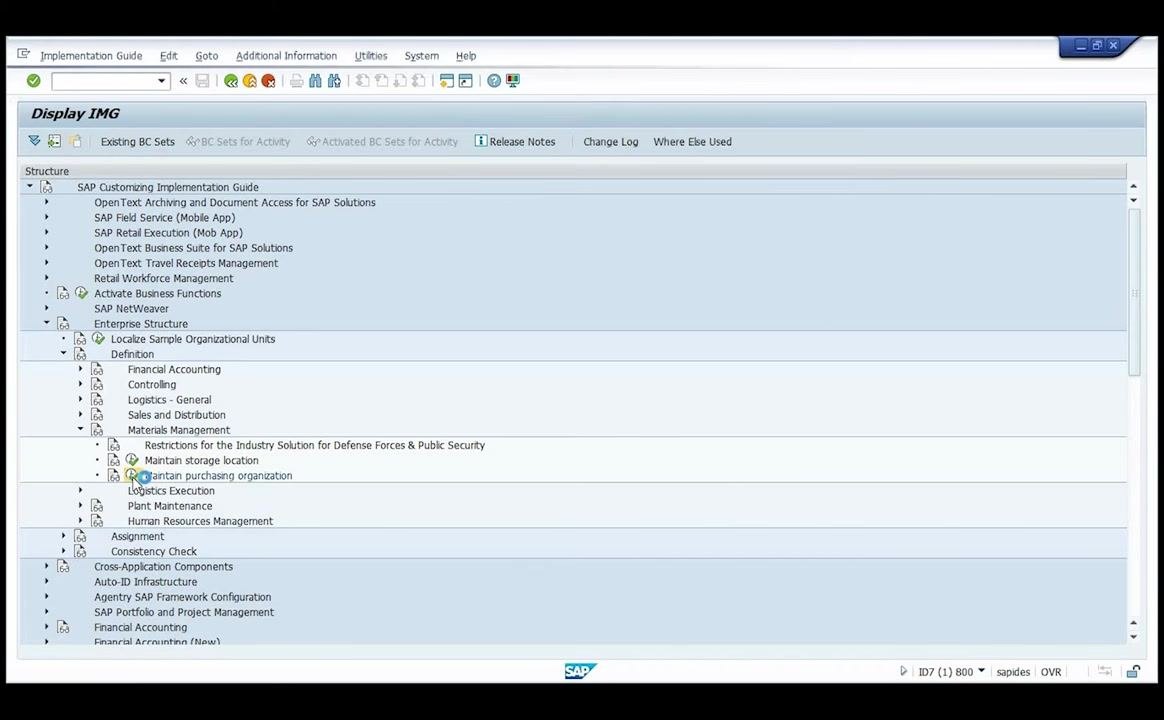
In the SAP Customizing Implementation Guide (IMG), expand SAP Customizing Implementation Guide > Enterprise Structure > Definition > Materials Management and select Maintain purchasing organization.
Click on Maintain purchasing organization to open the Change View "Purchasing Organizations": Overview window, then click the New Entries button to add a new purchasing organization.
Enter the purchasing organization code and description
In the New Entries: Overview of Added Entries window, enter the following in the first available row:
- Purch. Organization:
po01 - Purch. Org. Descr.:
pur org 01
If the code po01 is already in use, enter a different code (e.g., PO, PORG) as prompted by the system.
Save the purchasing organization entry
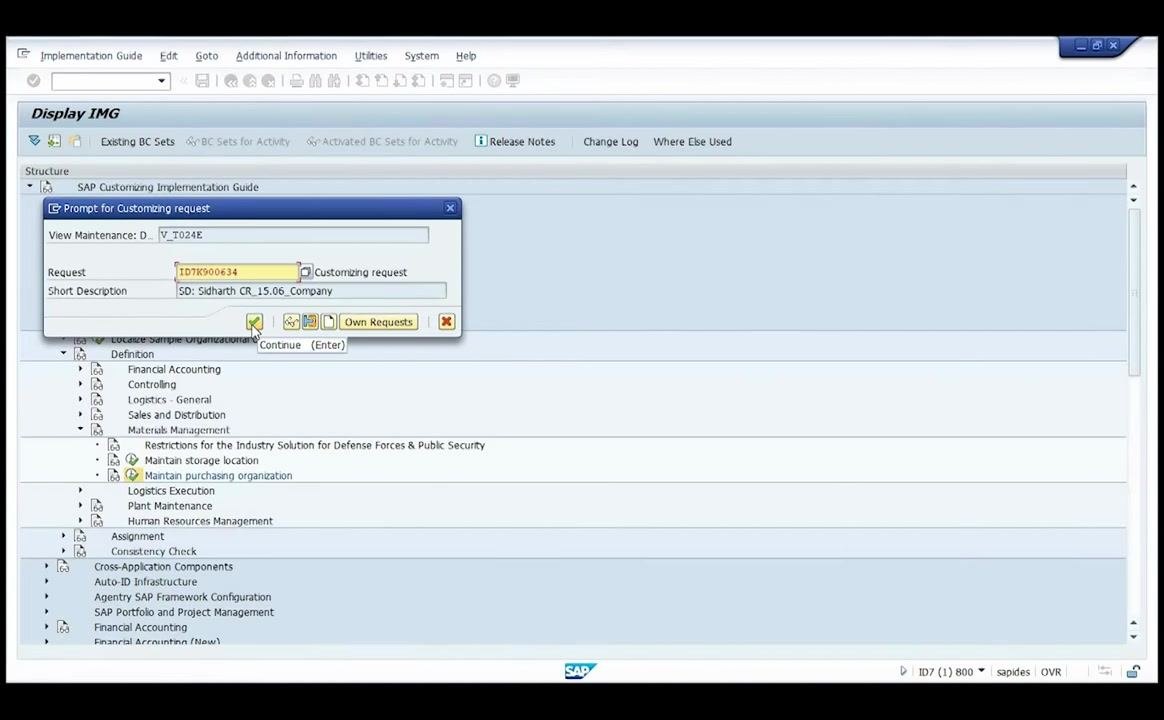
Click the save icon (diskette) in the toolbar to save the new purchasing organization. If a Prompt for Customizing request dialog appears, select or confirm the appropriate request (e.g., ID7K900634) and click Continue (Enter).
Assignment: plant and company code
Navigate to the assignment section
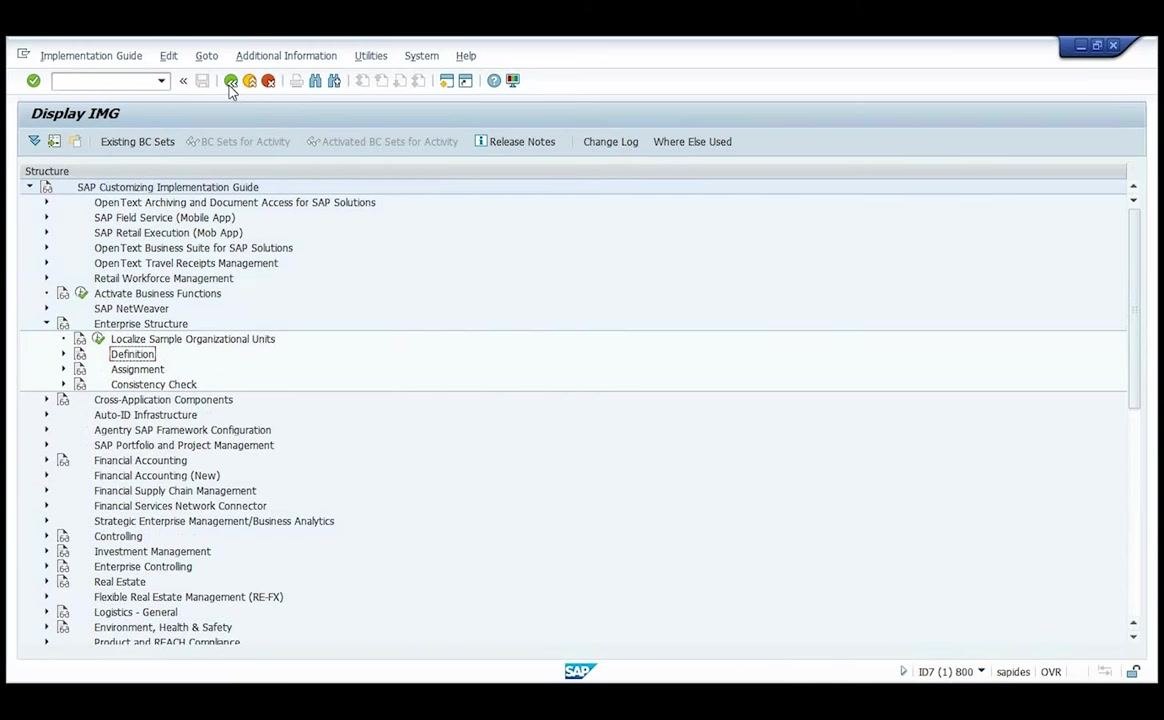
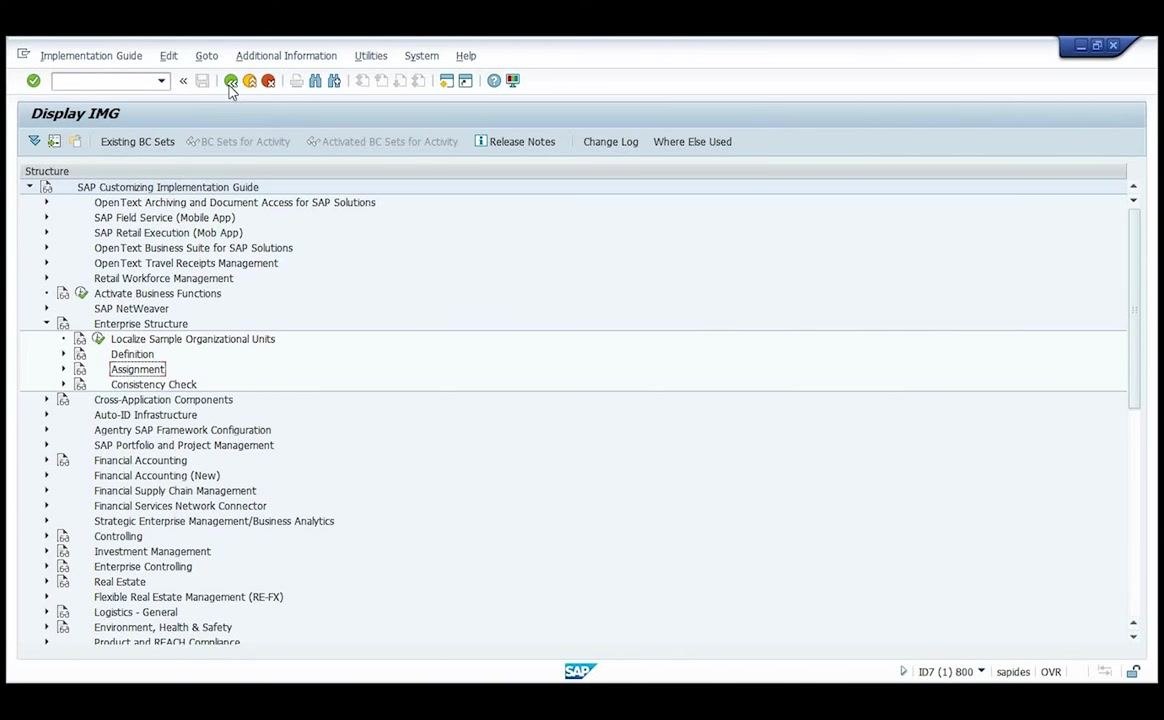
Open the SAP Customizing Implementation Guide (IMG) and expand Enterprise Structure > Assignment in the structure panel. You will see options such as Definition, Assignment, and Consistency Check. Under Assignment, locate the options for assigning organizational units.
Click to expand the Assignment node and highlight it to reveal sub-options such as Financial Accounting, Controlling, and Logistics - General.
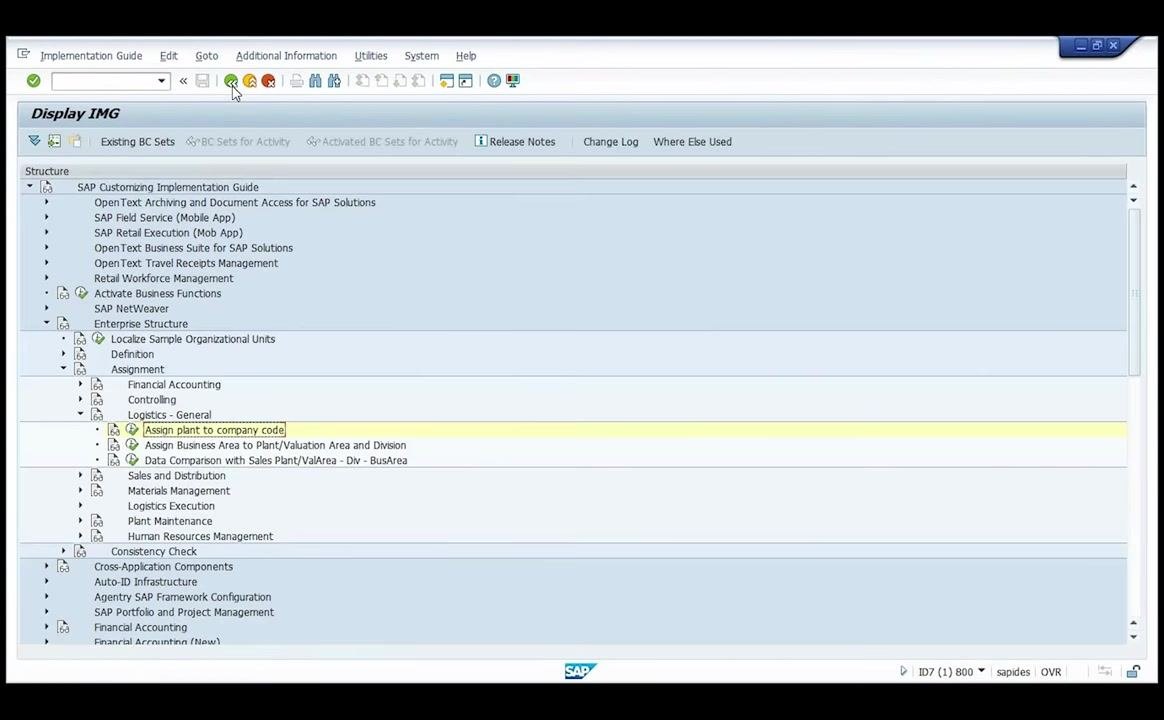
Under Logistics - General, expand the node and click on Assign plant to company code to open the assignment screen for linking plants to company codes.
Open the assignment plant – company code overview
The system displays the Change View "Assignment Plant - Company Code": Overview table. Review the list of existing plant and company code assignments, then click the New Entries button at the top of the screen to add a new one.
Add a new plant assignment
In the New Entries: Overview of Added Entries screen, enter the following details:
- CoCd: 1000
- Plnt: XYZ1
- Name of Plant: ab enterprise
- Company Name: BestRun Germany
If a warning appears stating "Country of plant differs from country of company code," click the green checkmark or press Enter to continue.
Save the assignment
Ensure the new entry is visible in the table, then click the save icon to store the assignment. Confirm the entry appears as CoCd 1000, Plnt XYZ1, Name of Plant ab enterprise, Company Name BestRun Germany.
Assign the purchasing organization to the plant
Click the back button to return to the main Assignment menu in the SAP IMG. The Assign plant to company code option should now be highlighted, indicating completion.
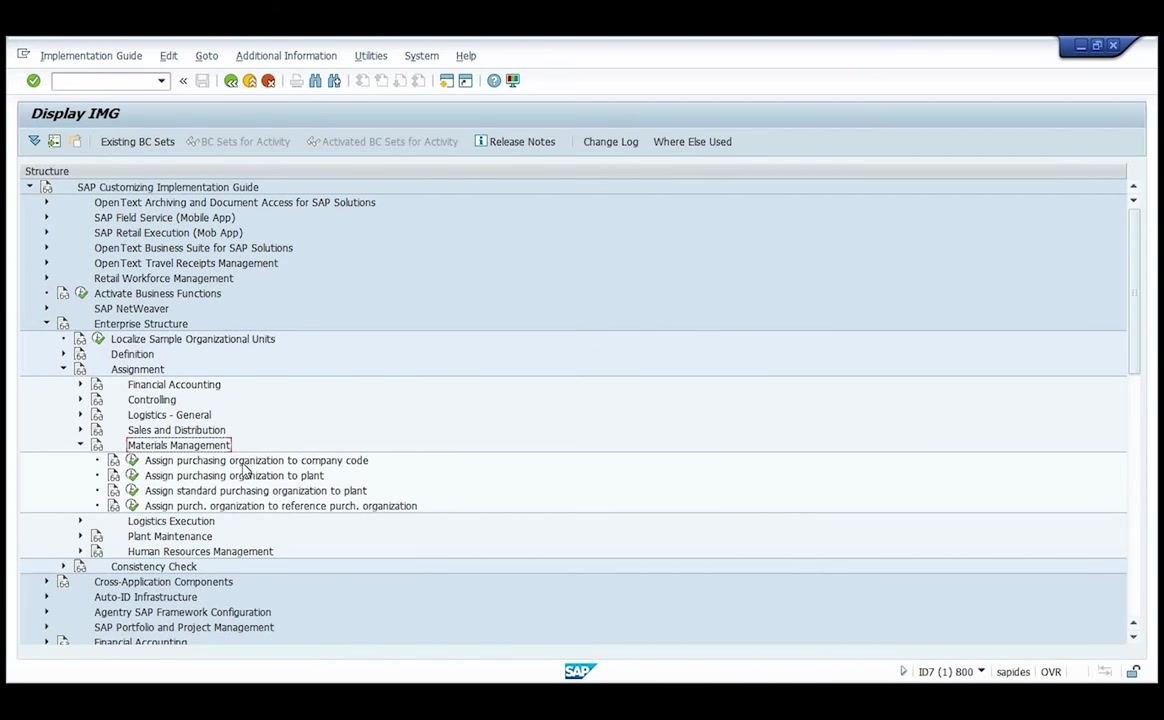
Click on the next assignment option, Assign purchasing organization to plant, to continue with the configuration.
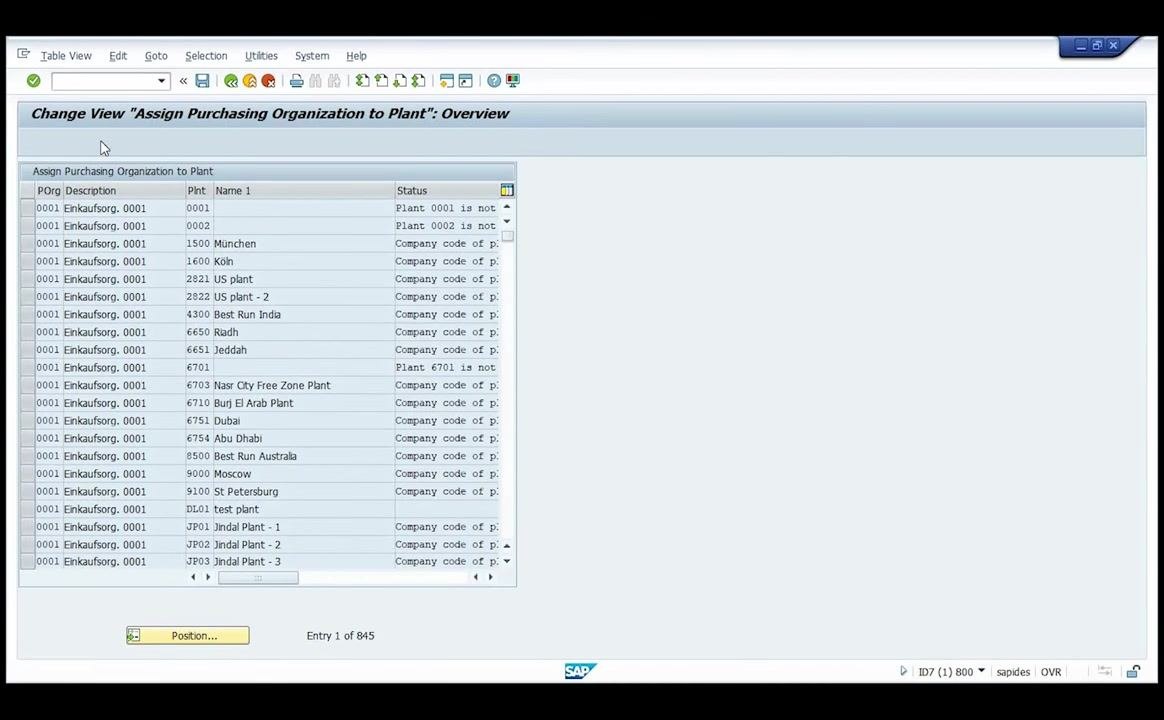
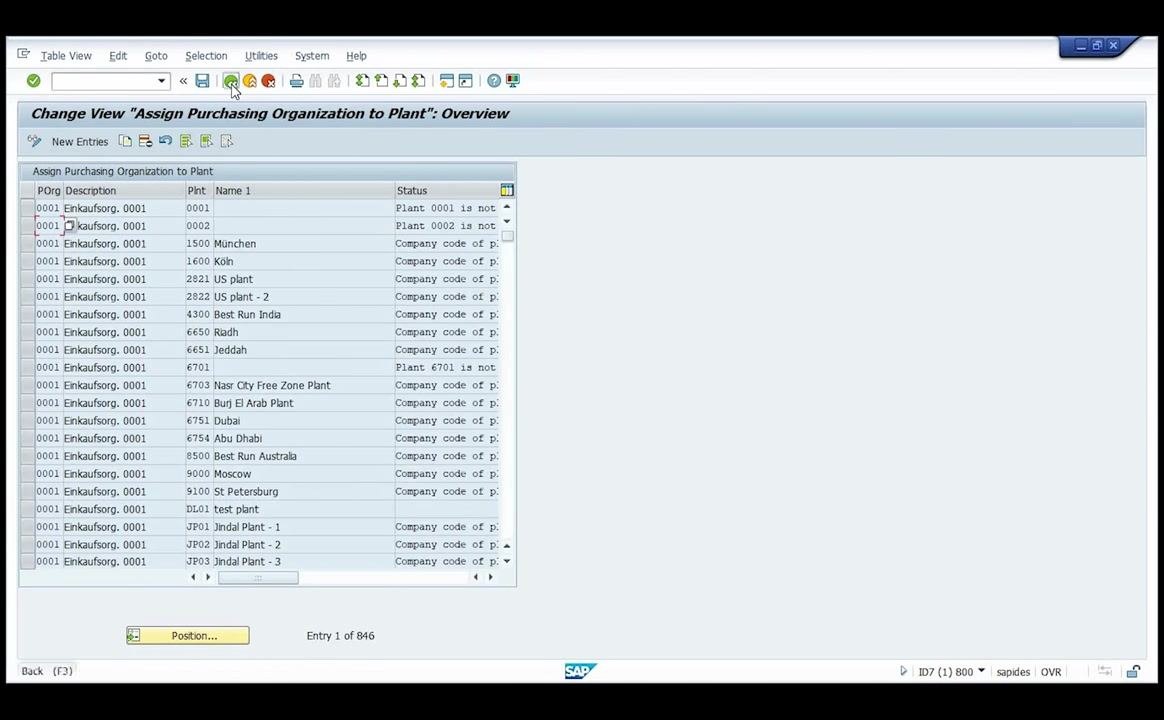
After selecting this option, the system displays the Change View "Assign Purchasing Organization to Plant": Overview screen. Review the table listing existing assignments, including columns for Purchasing Organization (POrg), Description, Plant (Plnt), Name, and Status.
Add a new assignment
Click the New Entries button to add a new purchasing organization to plant assignment. A selection window titled Purchasing Organization (249 Entries found) appears, listing available purchasing organizations with their codes and descriptions in the left pane. Scroll or search for the desired purchasing organization (e.g., 01PO pur org 01) and select it.
Save the assignment
The New Entries: Overview of Added Entries screen appears. Confirm that the new assignment is visible in the table:
- POrg: 01PO
- Description: pur org 01
- Plnt: XYZ1
- Name 1: ab enterprise
Click the save icon in the toolbar to store the assignment.
After saving, a Prompt for Customizing request dialog appears, displaying View Maintenance V_T024W_ASSIGN, Request ID7K900634 (example), and Short Description "SD: Sidharth CR_15.06. Company." Click the green checkmark to confirm and proceed.
Return to the assignment overview
The system returns to the Change View "Assign Purchasing Organization to Plant": Overview screen, where the new assignment should now be listed among the existing entries. Use the scroll bar or search function to verify the entry.
Set the default purchasing organization
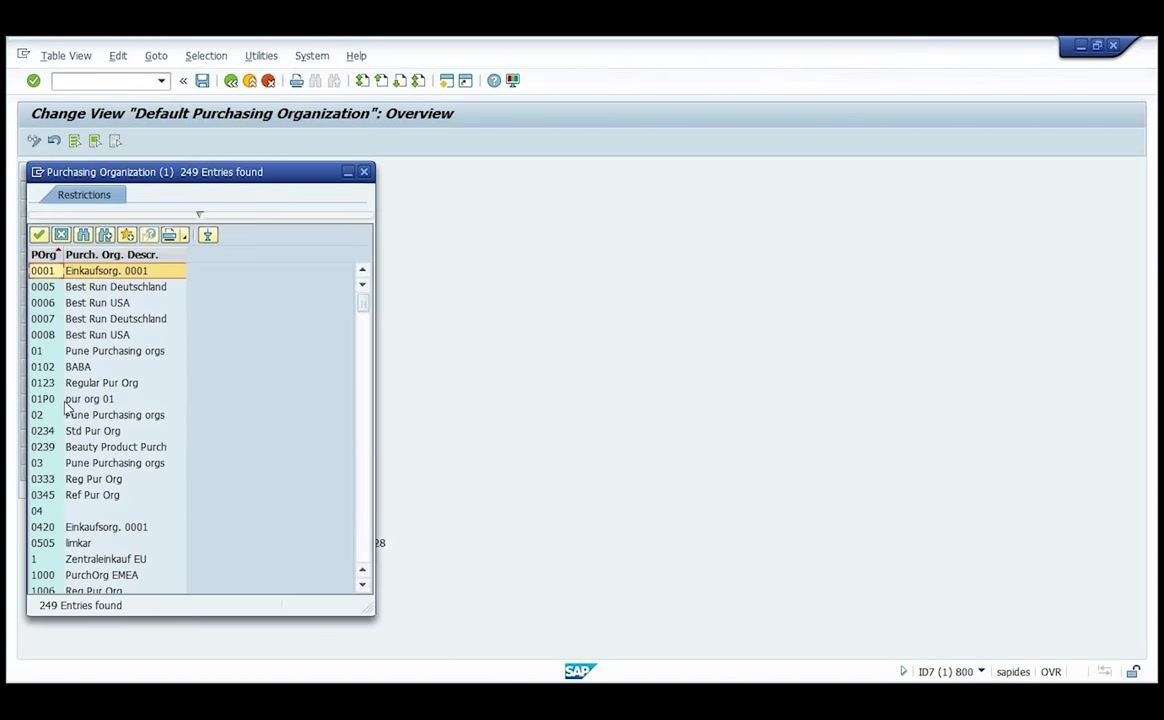
Sometimes you need to enter the purchasing organization as the default for a plant. The system displays the Change View "Default Purchasing Organization": Overview screen, with a table listing plants, purchasing organizations, and plant descriptions.
To assign the default purchasing organization, click the Position... button. In the Another entry dialog, enter the plant code (e.g., xyz1) in the Plant field and click the green checkmark to confirm.
Select the purchasing organization
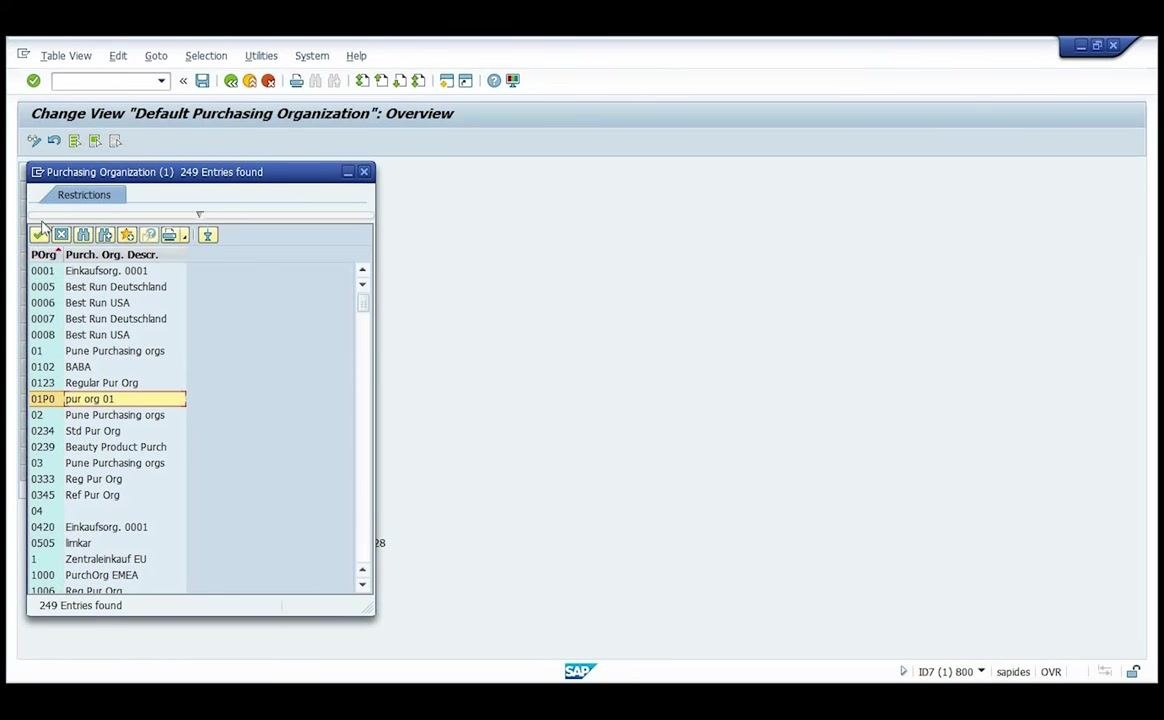
A selection window titled Purchasing Organization (1) 249 Entries found appears. Scroll or search for the purchasing organization (e.g., 01PO pur org 01) and select it by clicking on it.
Click the green checkmark or OK button to confirm the selection.
Save the default assignment
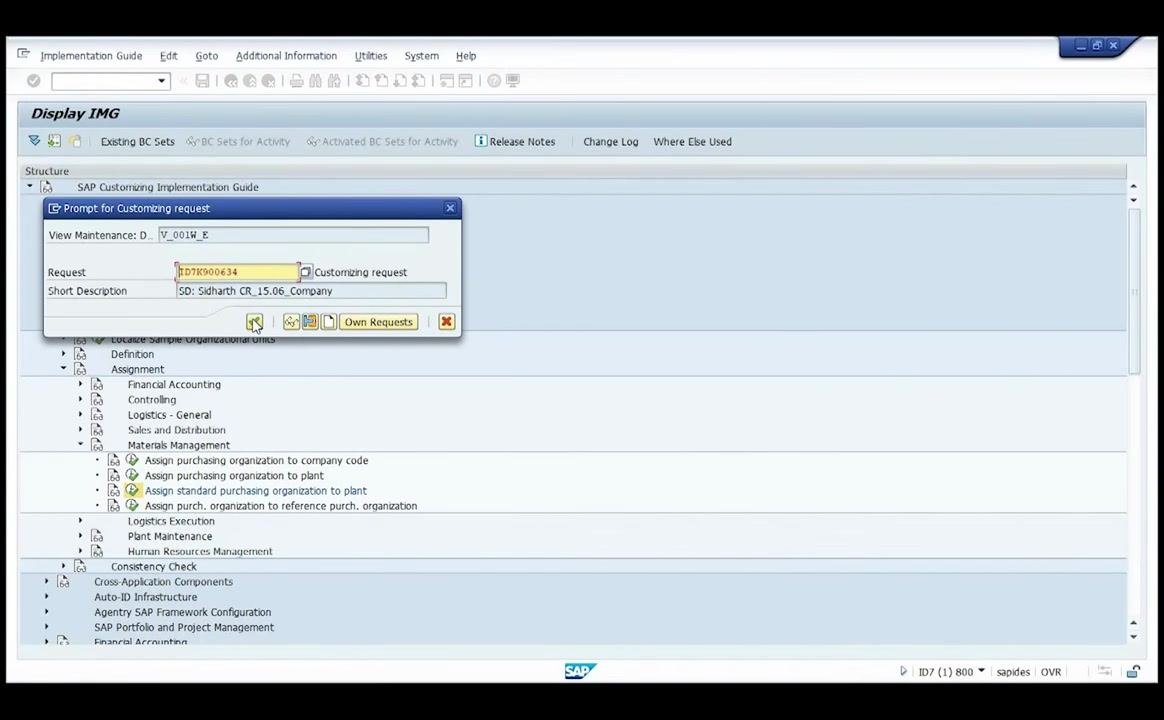
After confirming, a Prompt for Customizing request dialog appears, displaying View Maintenance V_001W_E, Request ID7K900634 (example), and Short Description "SD: Sidharth CR_15.06. Company." Click the green checkmark to save the assignment.
By completing these steps, you assign a purchasing organization to a plant and set the default purchasing organization for that plant, ensuring that all procurement activities for the plant are managed by the correct purchasing organization.
Purchasing groups
Create purchasing groups
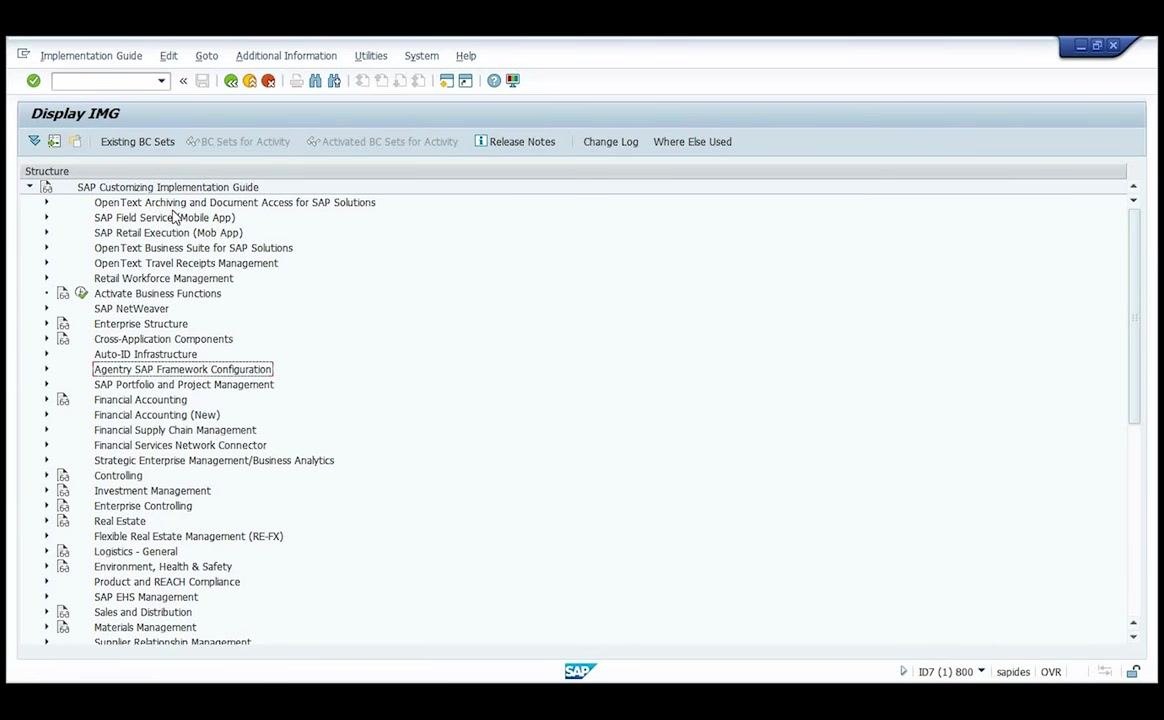
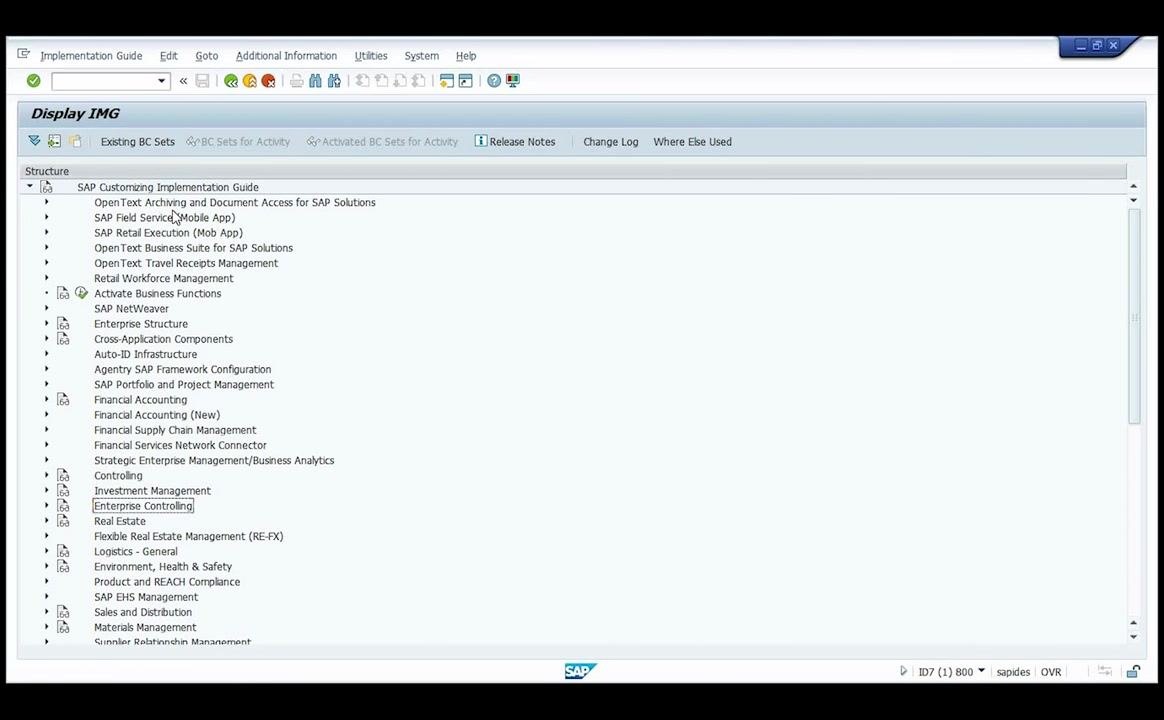
Scroll down the structure pane and locate and expand the Purchasing node to reveal its sub-options, which include "Environment Data," "Material Master," "Vendor Master," "Create Purchasing Groups," and others.
Click on Create Purchasing Groups under the Purchasing section. The system opens the New Entries: Overview of Added Entries screen for purchasing groups.
Add a new purchasing group
In the New Entries: Overview of Added Entries screen, enter the details for the new purchasing group:
- Purchasing Group:
ab0 - Description:
purch group ab
Additional columns such as "Tel.No. Pur. Grp," "Fax number," and "Telephone" are available but can be left blank if not required.
Save the new purchasing group
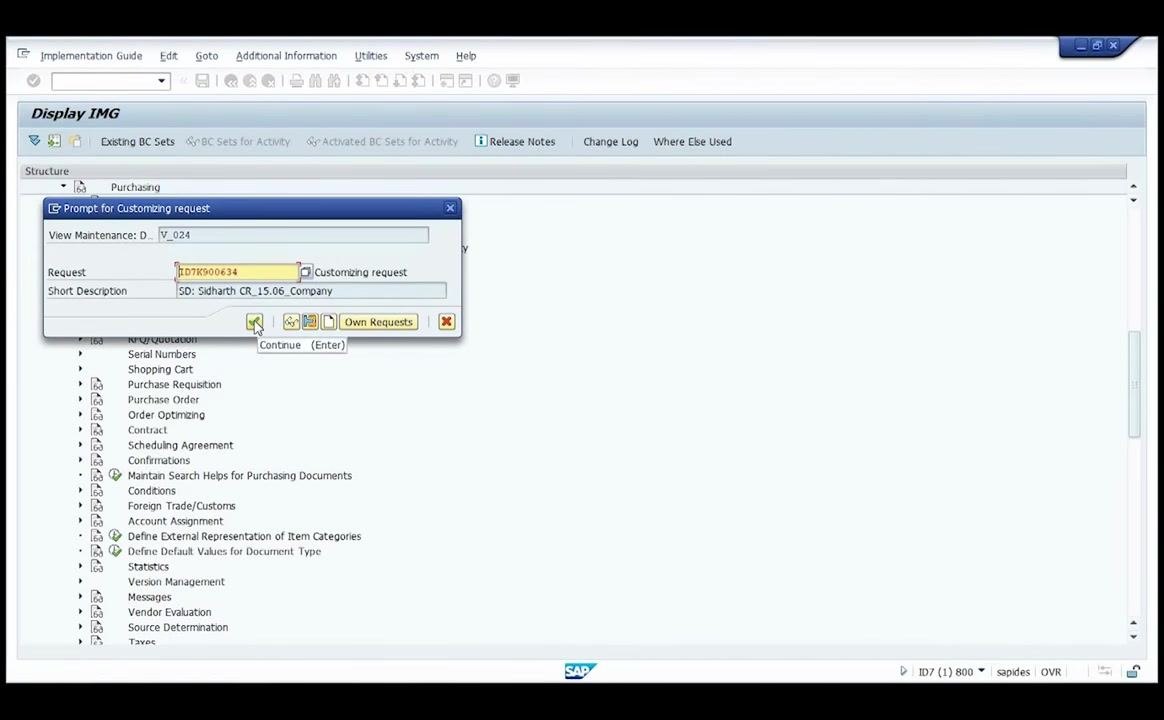
After entering the details, click the save icon in the toolbar to store the new purchasing group. The system prompts for a customizing request, displaying View Maintenance D...V_024 (truncated), Request ID7K900634 (example), and Short Description "SD: Sidharth CR_15.06. Company." Click the green checkmark to confirm and proceed.
Verify the entry and confirmation
The system returns to the New Entries: Overview of Added Entries screen. Confirm that the new purchasing group entry appears in the table as Purchasing Group AB0, Description purch group ab. A message at the bottom left confirms "Data was saved."
What's next
With the plant, storage locations, purchasing organization, plant-to-company-code assignment, purchasing-organization-to-plant assignment, default purchasing organization, and purchasing group all configured, your enterprise structure in SAP MM is ready to support procurement and inventory management activities. You can now use these organizational elements — the purchasing group in particular — for day-to-day procurement activities within your organization.
Generation details: cost, quality tiers
Docsie billed 7,500 credits ($5.25) to analyze this 15-minute video at standard quality. The rewrite, template fill and Word/PDF exports were included. The same video at each quality tier:
| Quality | Frames sampled | Credits | Approx. cost |
|---|---|---|---|
| Draft | every 16-30 s | 3,750 | $2.62 |
| Standard (this guide) | every 8-15 s | 7,500 | $5.25 |
| Detailed | every 4-7 s | 15,000 | $10.50 |
| Ultra | every 1-3 s | 30,000 | $21.00 |
Credits priced at $0.70 per 1,000; plans include a monthly allowance. Enterprise customers on on-premise or bring-your-own-model deployments run this on their own inference and pay no per-video credits.
Generated by Docsie Video-to-Docs on 2026-10-19 from a 14-minute video. Screenshots are frames from the source video and belong to their creator, SAP Learning, whose original is embedded above. If you own this video and want the guide removed or credited differently, contact us and we will act within one business day.