
How to Create an OData Service Using a CDS View in SAP
This guide walks you through the full process of creating an OData service using a CDS view in SAP, from defining the view in Eclipse to testing the generated service through the SAP Gateway Client. You will create a Core Data Services (CDS) view based on the VBAK table, activate it, expose it as an OData service, register it in the backend, and verify that it returns data correctly.
Video: Create CDS view and expose as Odata service by Zafar Karnalkar (2023). All credit for the demonstration goes to the creator; watch the original on YouTube. The written guide below was generated from this video by Docsie. Creator? Request a change or removal.
This guide walks you through the full process of creating an OData service using a CDS view in SAP, from defining the view in Eclipse to testing the generated service through the SAP Gateway Client. You will create a Core Data Services (CDS) view based on the VBAK table, activate it, expose it as an OData service, register it in the backend, and verify that it returns data correctly.
Prerequisites
- Access to Eclipse IDE connected to your SAP system.
- An SAP project visible in the Project Explorer (for example,
S28_800_btp014_en). - Authorization to create local objects (
$TMP) and activate CDS views. - Access to SAP GUI with transactions SE11, /n/iwfnd/maint_service, and the SAP Gateway Client.
Part 1: Creating the CDS view in Eclipse
Step 1: Open Eclipse and select the Data Definition wizard
Launch Eclipse IDE and confirm that you are connected to your SAP system. In the Project Explorer panel, locate your SAP project (for example, S28_800_btp014_en) and expand it to view subfolders such as Local Objects ($TMP), Favorite Packages, Favorite Objects, and System Library. The main workspace may display information such as "Release Notes of ABAP Development Tools 3.32".
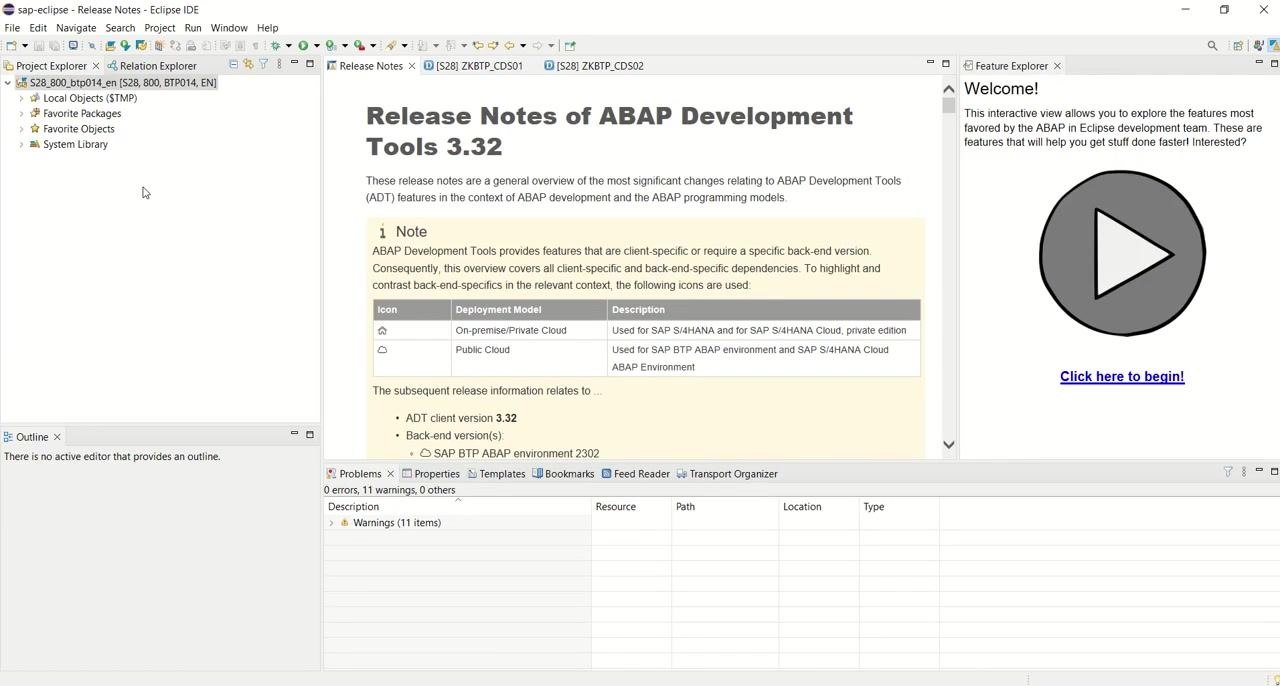
Right-click on your SAP project in the Project Explorer, hover over New, and select Other... from the submenu to open the wizard for creating new objects.
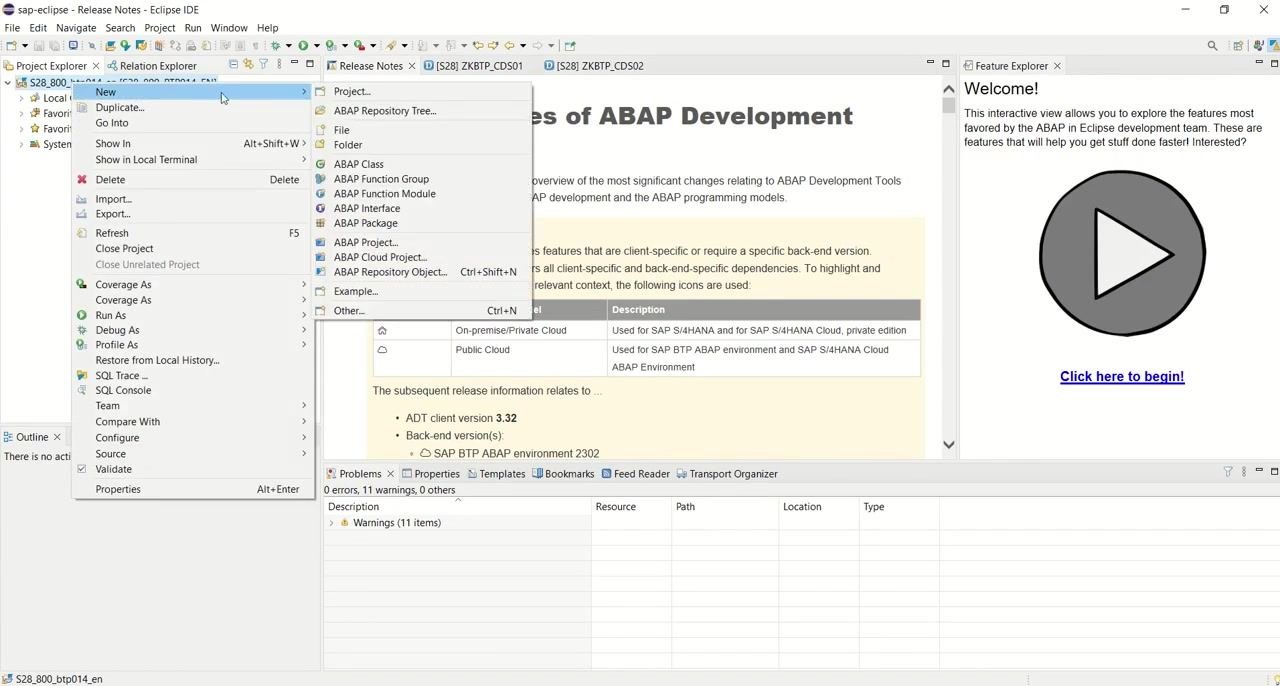
In the Select a wizard dialog, scroll or use the filter box to search for "DDL" or "Data Definition". Expand Core Data Services, select Data Definition, and click Next.
Step 2: Enter package and name details
In the New Data Definition dialog, complete the following fields:
- Project: Confirm your project (for example,
S28_800_btp014_en) is selected. - Package: Enter
$TMPto save the view as a local object that will not be transported. - Name: Enter the CDS view name, for example
ZKBTB_CDS03. - Description: Enter a description, for example
CDS view for BTP 03. - Original Language: This typically defaults to
EN.
Since you are saving as a local object, you do not need to select or create a transport request.
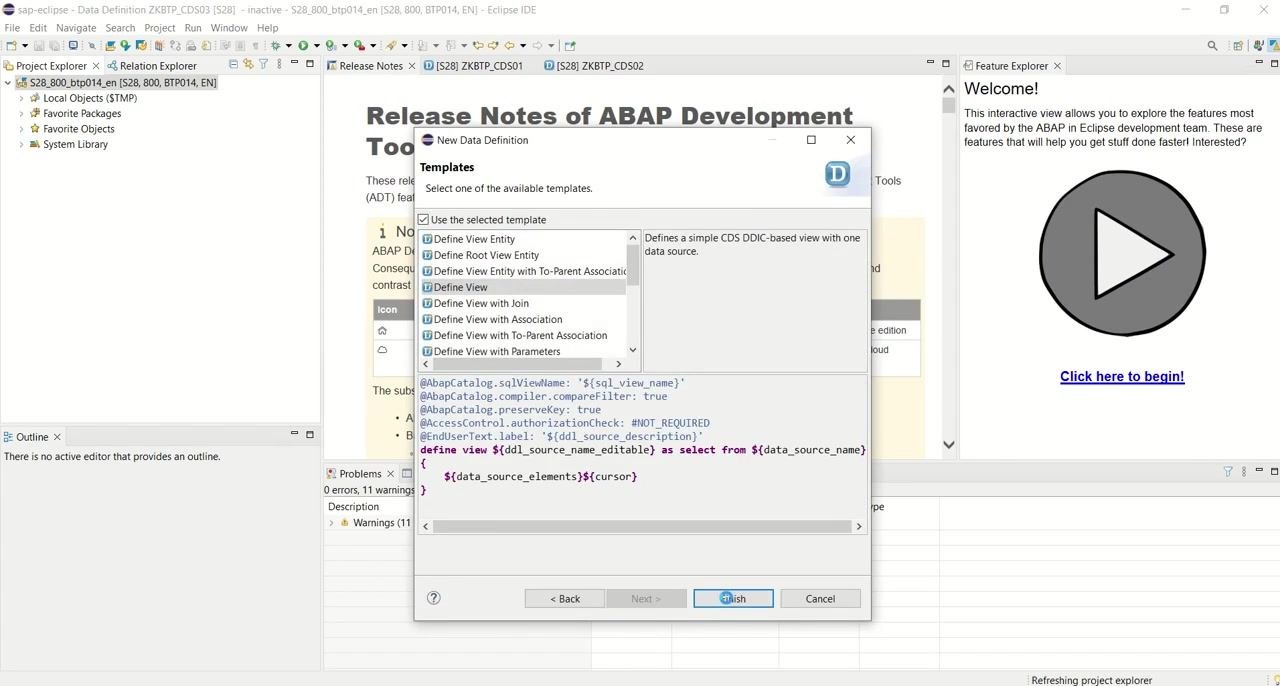
Step 3: Proceed to template selection
Click Next to move to the template selection screen. In the Templates dialog, select Define View (or another template as required). The preview shows the basic structure for a CDS view. Click Finish to create the new CDS view object.
At this point, you have created a new CDS view definition in your SAP system. The next steps involve editing the generated code to match your data requirements.
Part 2: Defining the CDS view structure and selecting columns
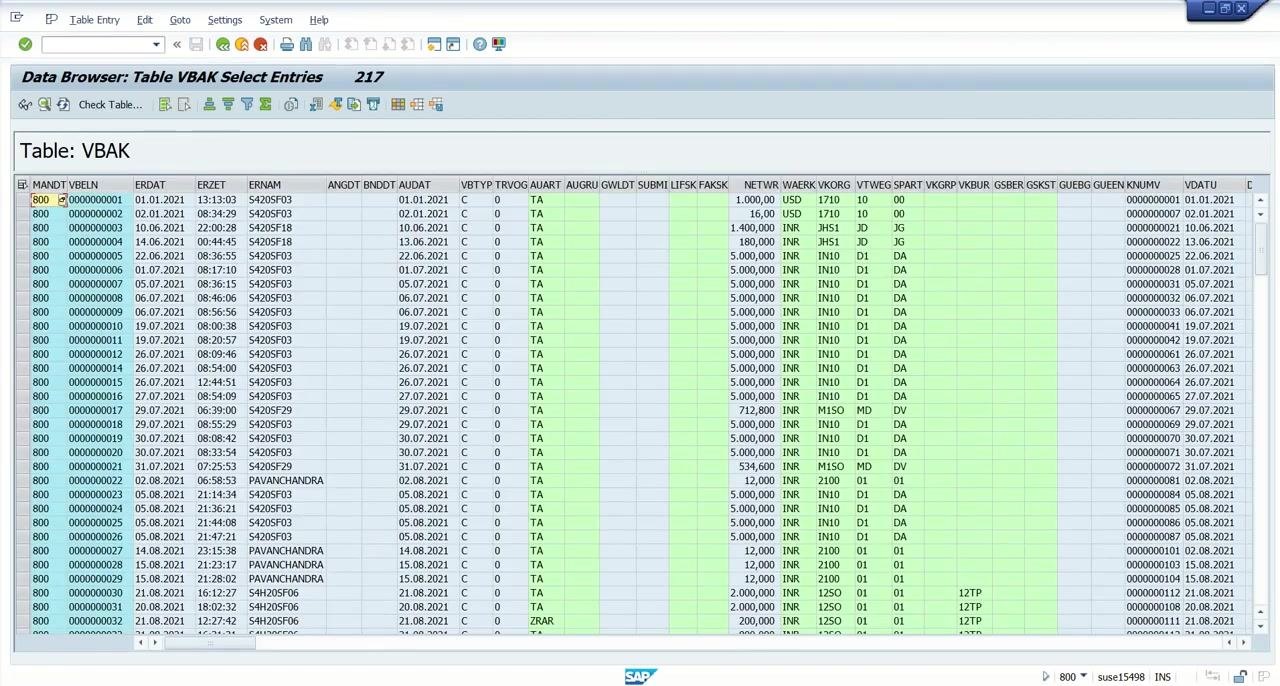
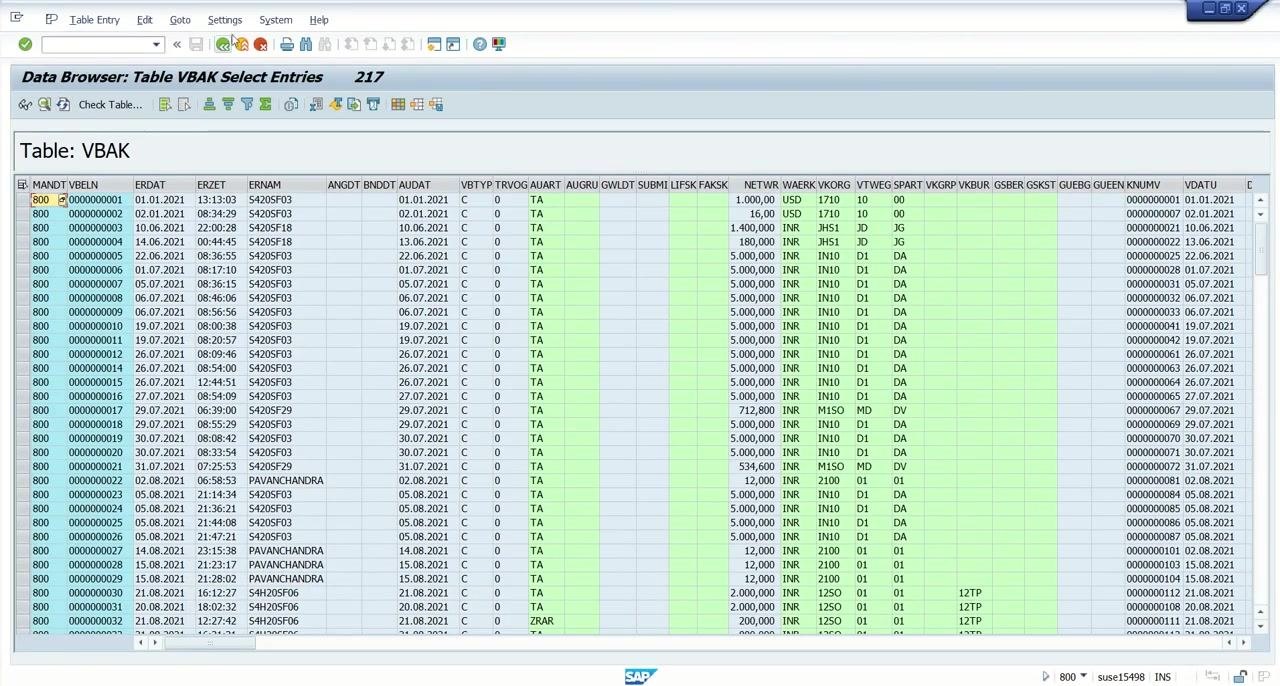
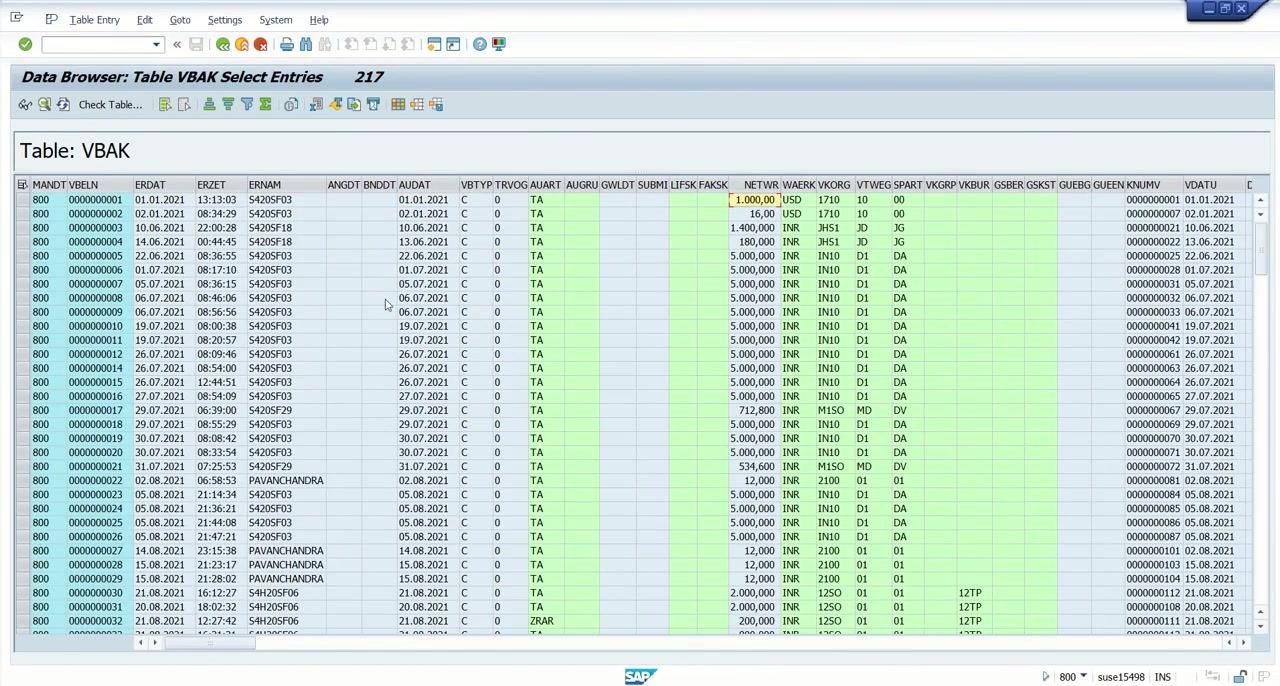
Step 4: Understand the source table (VBAK)
Review the VBAK table in the SAP Data Browser to identify the columns you need for your CDS view. For this example, the required columns are:
- Key field: VBELN – Sales Document (Key)
- ERDAT – Creation Date
- AUART – Sales Document Type
- NETWR – Net Value
- KUNNR – Customer Number
Step 5: Edit the CDS view definition in Eclipse
Once you finish the template wizard, the CDS view editor opens in Eclipse. Replace the placeholder values in the generated code with your actual table and field names, setting the SQL view name to ZK_CDS03 and the source table to VBAK. Begin defining the CDS view as follows:
@AbapCatalog.sqlViewName: 'ZK_CDS03'
@AbapCatalog.compiler.compareFilter: true
@AbapCatalog.preserveKey: true
@AccessControl.authorizationCheck: #NOT_REQUIRED
@EndUserText.label: 'CDS view for BTP 03'
define view ZKBTP_CDS03 as select from VBAK
{
}
Step 6: Add key and non-key fields
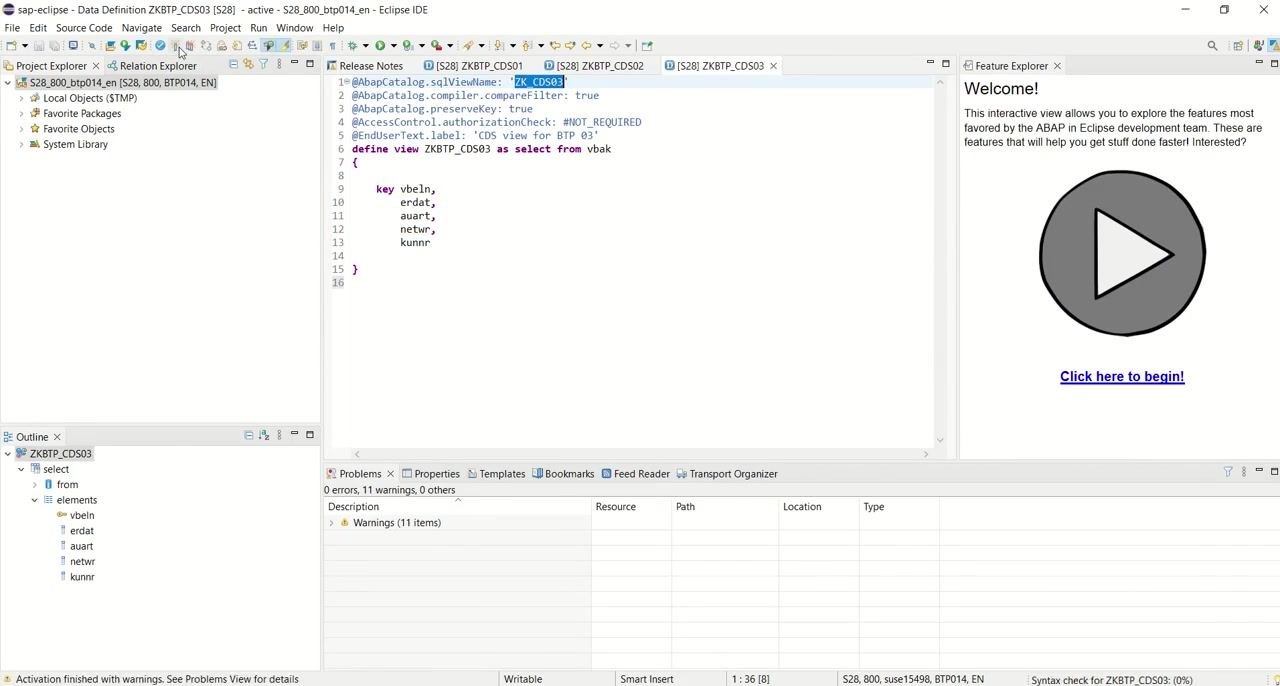
Inside the curly braces { }, list the fields you want to include in your CDS view. Mark VBELN as the key field, then add the remaining required fields: ERDAT, AUART, NETWR, and KUNNR. The completed code should look like this:
define view ZKBTP_CDS03 as select from VBAK
{
    key vbeln,
    erdat,
    auart,
    netwr,
    kunnr
}
Step 7: Check for syntax errors
Review the Problems tab at the bottom of Eclipse for any errors or warnings. Confirm there are no syntax errors; warnings may appear at this stage but are not critical.
Once these steps are complete, the structure of your CDS view is defined, the required columns from VBAK are selected, and the syntax is verified. The next phase covers activating and testing the view.
Part 3: Activating and verifying the CDS view
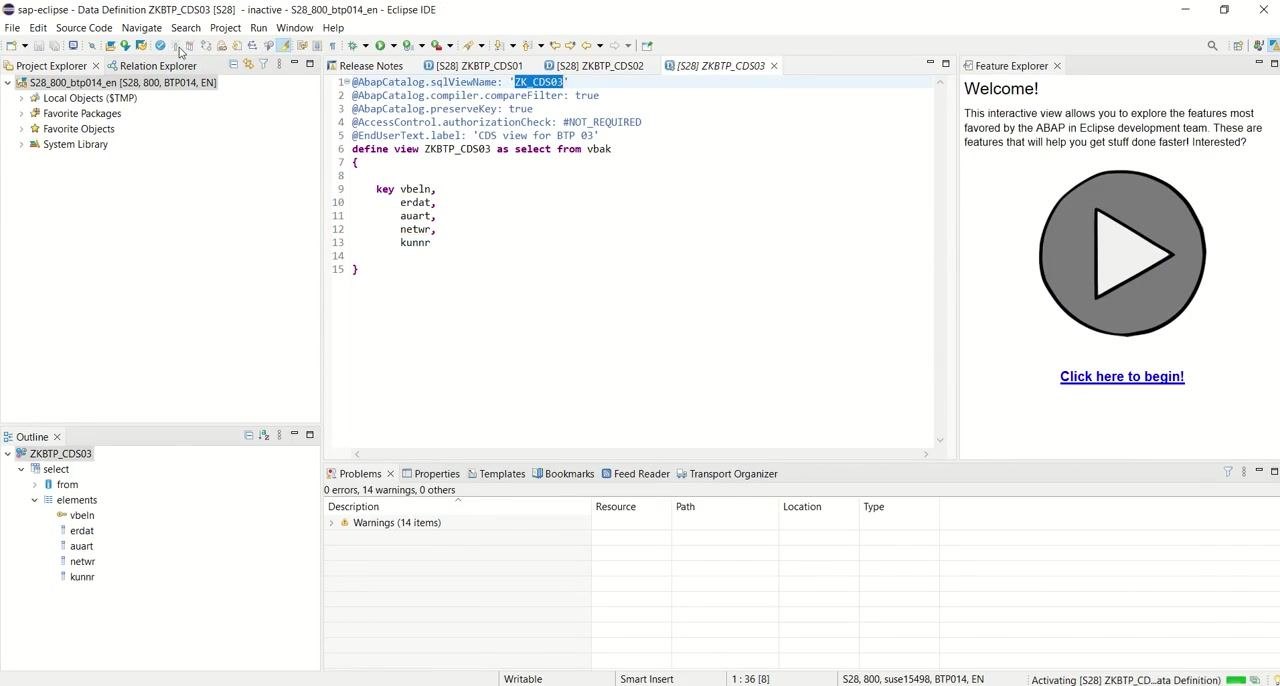
Step 8: Activate the CDS view in Eclipse
With your CDS view definition complete and correct, click the Activate button (or use the context menu to activate). Wait for the activation process to finish, checking the Problems tab for any errors or warnings, and confirm that the status in the editor tab changes to "active."
Step 9: Verify CDS view creation in the SAP backend
Open transaction SE11 (ABAP Dictionary) in SAP GUI. Select Database table, enter the SQL view name ZK_CDS03, and click Display.
In the Dictionary: Display View screen, verify the following details:
- CDS Database View: ZK_CDS03 (should be marked as Active)
- Short Description: CDS view for BTP 03
- Data Definition: ZKBTP_CDS03
Review the View Fields tab to confirm that all required fields (MANDT, VBELN, ERDAT, AUART, NETWR, KUNNR) are present and mapped to the VBAK table. You may see a warning stating that "Generated DDL SQL views are only supported in limited way by SE11"; this does not indicate a problem with your view.
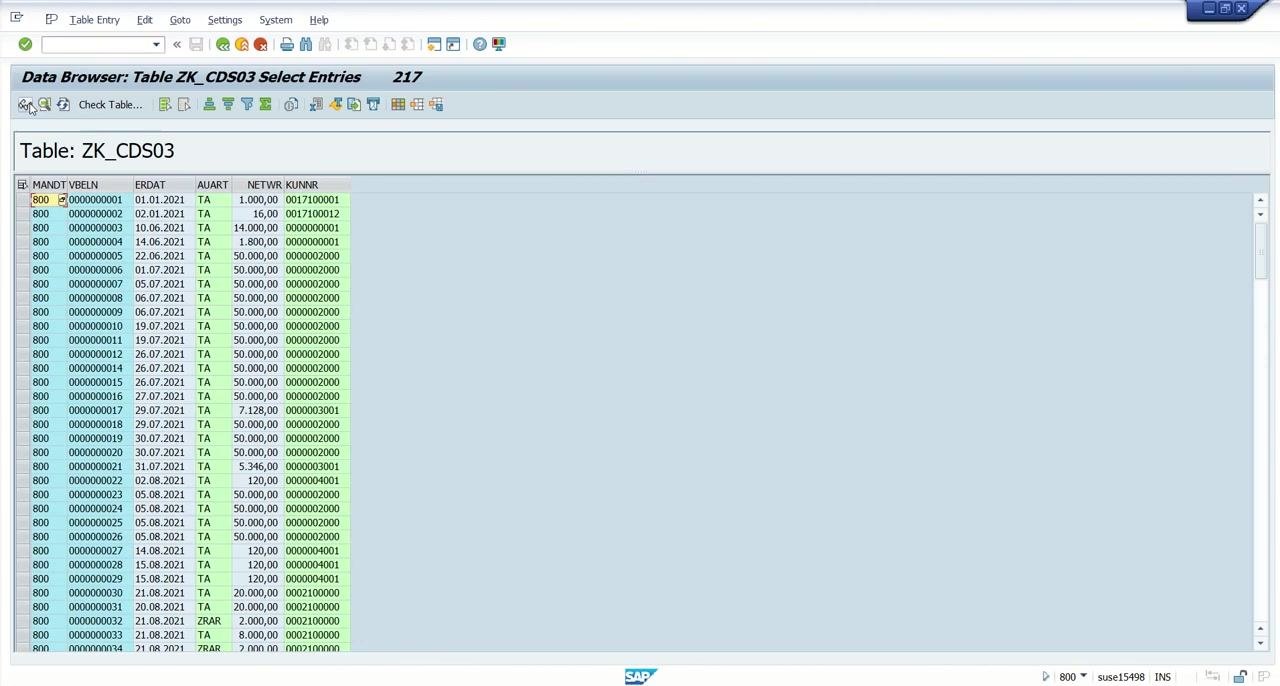
Step 10: Display data from the CDS view
In the Data Browser (transaction SE16 or SE11), display the contents of the table/view ZK_CDS03. Confirm that the data is populated as expected, with columns for MANDT, VBELN, ERDAT, AUART, NETWR, and KUNNR.
Part 4: Exposing the CDS view as an OData service
Step 11: Add the OData publish annotation
Return to your CDS view definition in Eclipse and add the following annotation above the define view statement:
@OData.publish: true
This annotation instructs the system to generate an OData service from your CDS view.
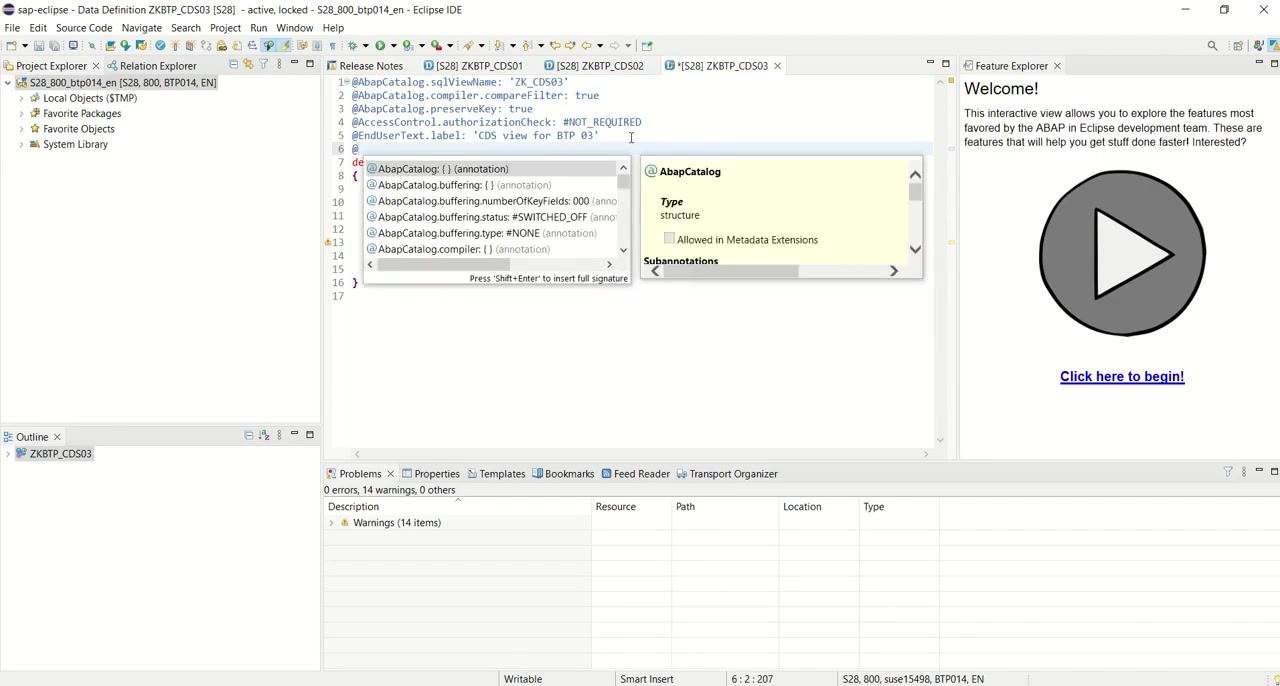
Step 12: Save, check, and activate the CDS view
Save your changes in Eclipse, perform a syntax check to confirm there are no errors, and activate the CDS view again so the OData annotation takes effect.
With these steps complete, your CDS view is activated in Eclipse, its creation and structure are verified in the SAP backend through SE11, its data is confirmed as correctly populated, and it is exposed as an OData service through the @OData.publish: true annotation. You are now ready to register and consume this CDS view as an OData service.
Step 13: Check for errors and warnings in Eclipse
After reactivating your CDS view, review the Problems tab at the bottom of the screen. Confirm there are no errors, noting any warning messages (for example, "15 warnings, 0 errors"). Review the warning descriptions for potential issues, but proceed as long as no errors are present.
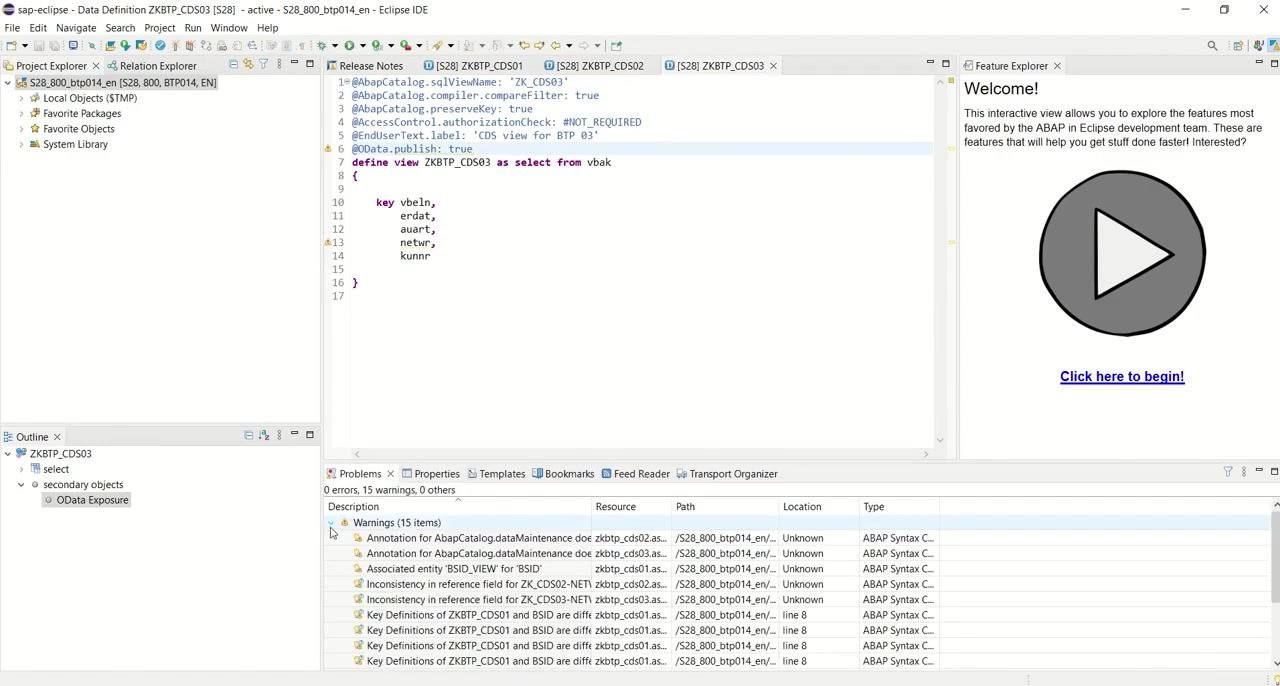
Step 14: Use the Outline panel for navigation
Use the Outline panel at the bottom left of Eclipse to quickly navigate the structure of your CDS view. Confirm that "OData Exposure" appears under secondary objects, which indicates the OData annotation has been recognized.
Step 15: Identify the generated OData service name
Place your cursor on the annotation line in your CDS view code (@OData.publish: true) and hover to display a tooltip showing the generated service name, such as ZKBTP_CDS03_CDS. Note this service name for use in SAP GUI.
Part 5: Activating and maintaining the service
Step 16: Navigate to Activate and Maintain Services
Enter the transaction code /n/iwfnd/maint_service in the SAP GUI command field and execute it. The "Activate and Maintain Services" screen opens, displaying the Service Catalog. Click the "Add Service" button in the toolbar to register a new OData service.
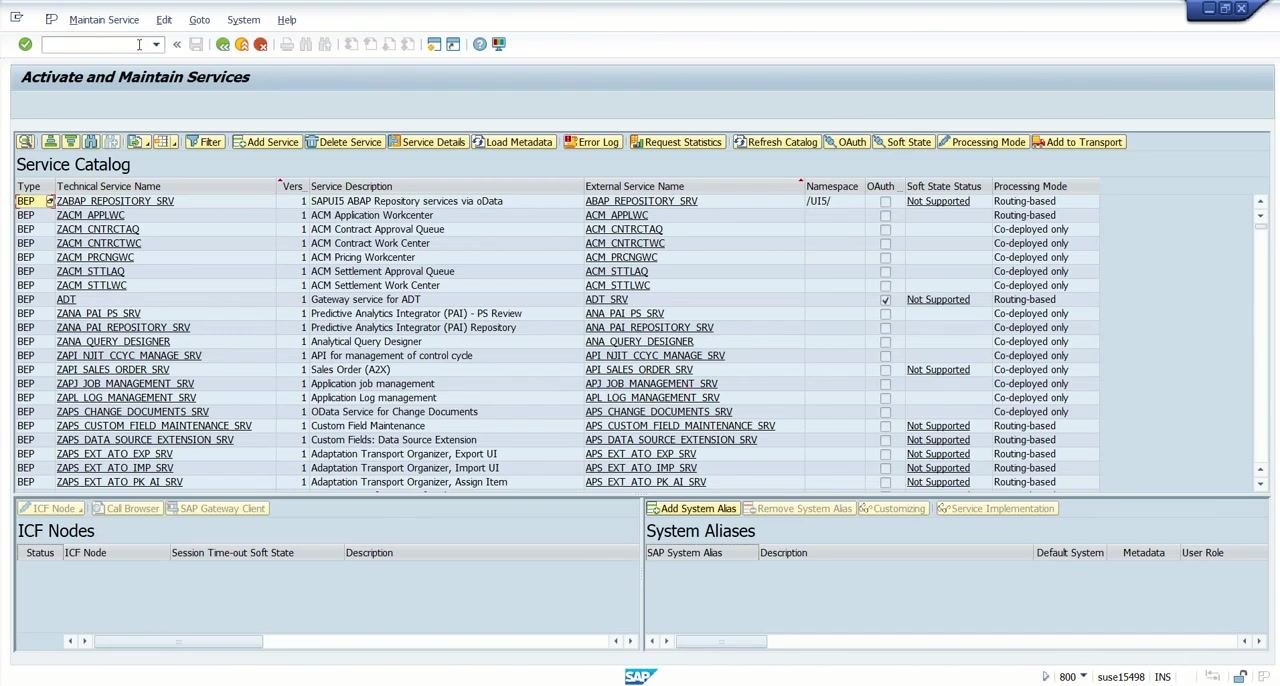
Step 17: Register the OData service as a local object
In the "Add Service" dialog, enter the following details:
- Technical Service Name:
ZKBTP_CDS03_CDS - Service Version:
1 - Description:
CDS view for BTP 03 - External Service Name:
ZKBTP_CDS03_CDS - Technical Model Name:
ZKBTP_CDS03_CDS - Model Version:
1 - Package Assignment: Click "Local Object" (the field shows
$TMP)
Ensure "Standard Mode" is selected under ICF Node. Optionally, check "Set Current Client as Default Client in ICF Node." Click the green checkmark to proceed.
Wait for the confirmation dialog stating: "Service 'ZKBTP_CDS03_CDS' was created and its metadata was loaded successfully." Click the green checkmark to close the confirmation dialog.
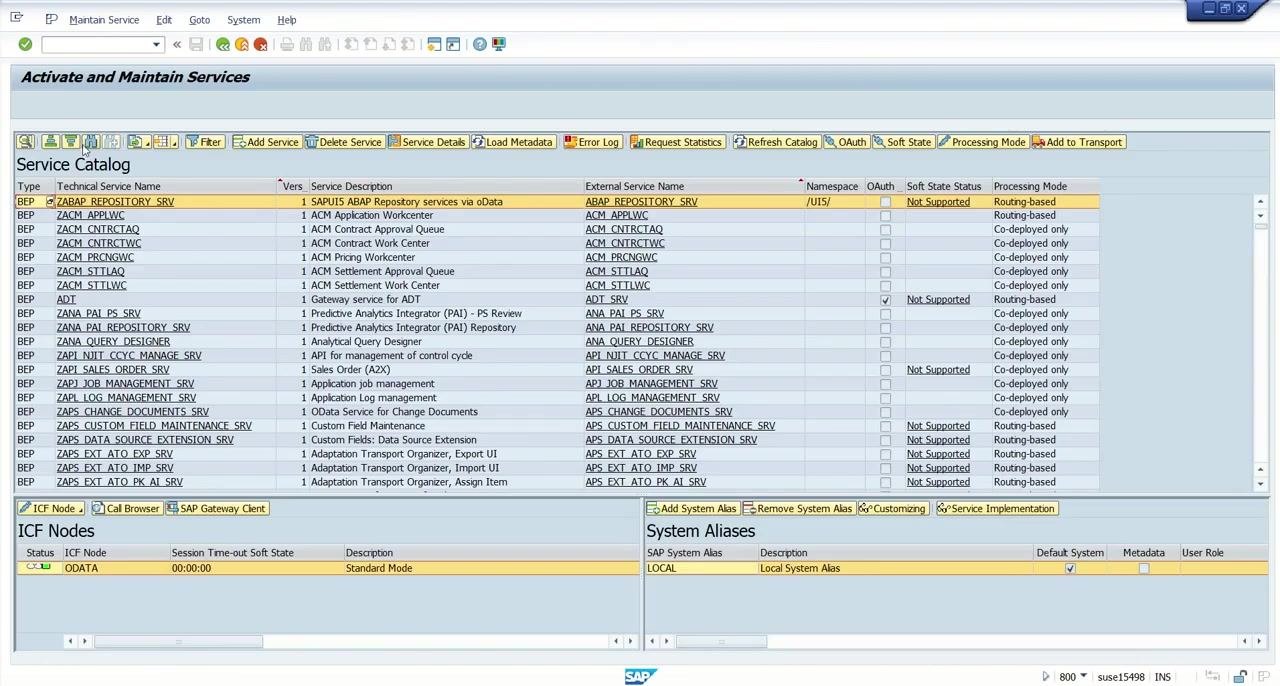
Step 18: Locate and verify the registered service
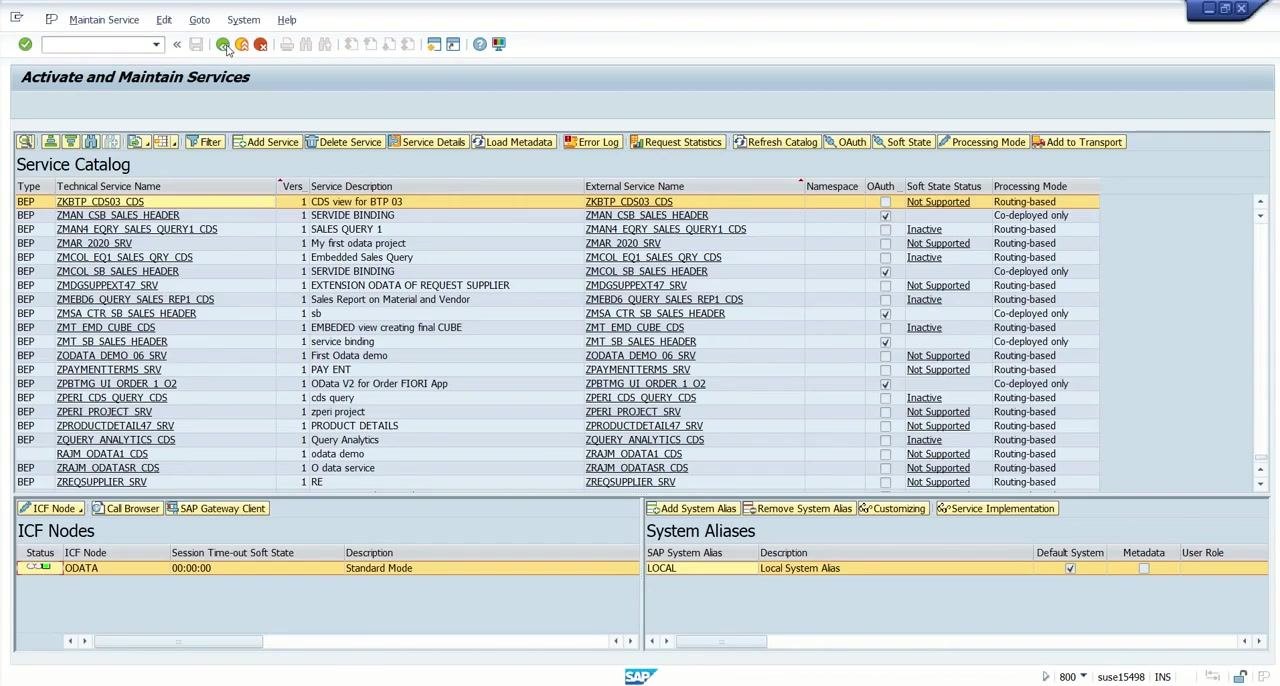
Back in the "Activate and Maintain Services" screen, click the "Find" button in the toolbar and search for your registered service (ZKBTP_CDS03_CDS) in the Service Catalog list. Confirm that it appears with the correct description and technical name.
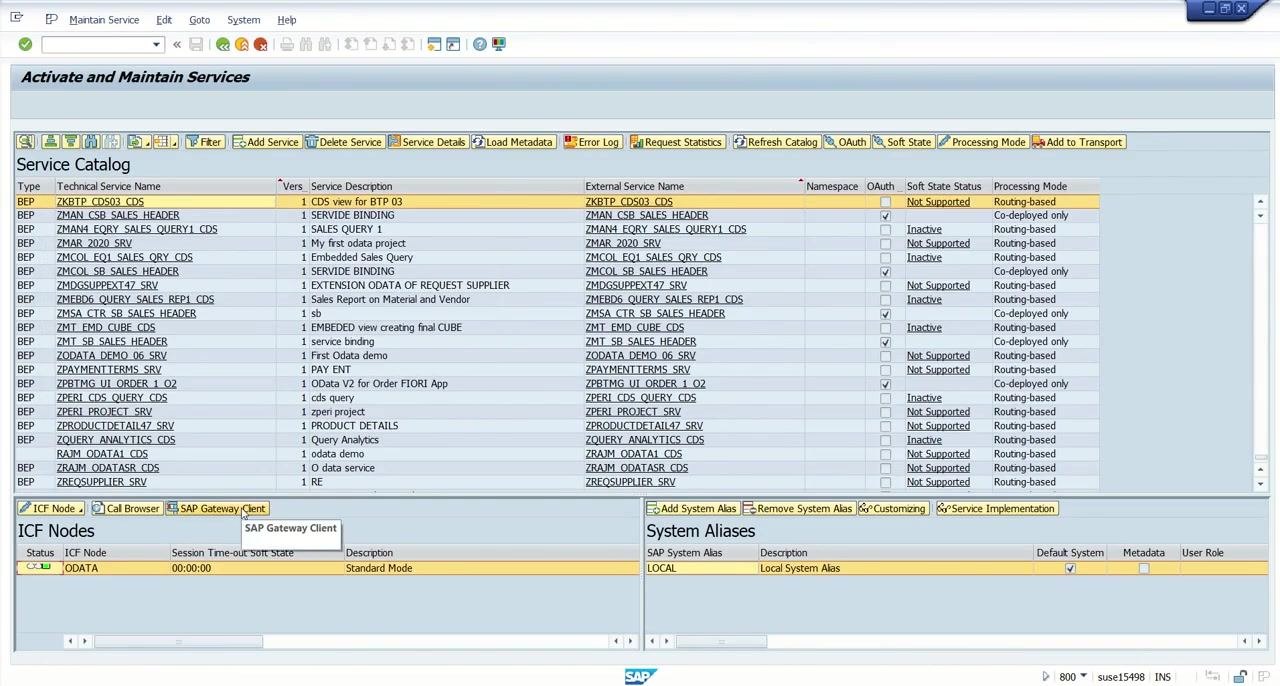
At this point, you have checked for errors, identified the OData service name, registered the service in SAP, and verified its activation and metadata loading.
Part 6: Testing the OData service using SAP Gateway Client
Step 19: Test the OData service
Open the SAP Gateway Client in SAP GUI. In the "Request URI" field, enter:
/sap/opu/odata/sap/ZKBTP_CDS03_CDS/ZKBTP_CDS03?$format=json
Ensure the HTTP Method is set to GET, then click Execute to send the request. In the HTTP Response section, confirm that the status code is 200 (success) and review the returned data records in JSON format.
In the HTTP Response, identify the columns returned by the CDS view:
vbeln(Sales Document)erdat(Creation Date)auart(Sales Document Type)netwr(Net Value)kunnr(Customer)
Confirm that these columns match the fields defined in your CDS view.
Summary
You have now created an OData service using a CDS view in SAP from start to finish: defining the CDS view in Eclipse based on the VBAK table, activating and verifying it in the SAP backend through SE11, exposing it with the @OData.publish: true annotation, registering the service in Activate and Maintain Services, and confirming successful data retrieval through the SAP Gateway Client. Your CDS view is now available as a working OData service that returns data for VBELN, ERDAT, AUART, NETWR, and KUNNR.
Generation details: cost, quality tiers
Docsie billed 4,000 credits ($2.80) to analyze this 8-minute video at standard quality. The rewrite, template fill and Word/PDF exports were included. The same video at each quality tier:
| Quality | Frames sampled | Credits | Approx. cost |
|---|---|---|---|
| Draft | every 16-30 s | 2,000 | $1.40 |
| Standard (this guide) | every 8-15 s | 4,000 | $2.80 |
| Detailed | every 4-7 s | 8,000 | $5.60 |
| Ultra | every 1-3 s | 16,000 | $11.20 |
Credits priced at $0.70 per 1,000; plans include a monthly allowance. Enterprise customers on on-premise or bring-your-own-model deployments run this on their own inference and pay no per-video credits.
Generated by Docsie Video-to-Docs on 2026-10-19 from a 7-minute video. Screenshots are frames from the source video and belong to their creator, Zafar Karnalkar, whose original is embedded above. If you own this video and want the guide removed or credited differently, contact us and we will act within one business day.