
How to Create an Industry Sector in SAP
This guide walks you through how to create an industry sector in SAP MM, from accessing the configuration path in the Implementation Guide to verifying the new industry sector appears in the Material Master. You'll copy an existing industry sector, define its attributes, save it, and confirm it is available when creating a material.
Video: SAP MM | How to create industry sector in sap mm | Sap MM videos | Sapislive by ERP With Akshay (2023). All credit for the demonstration goes to the creator; watch the original on YouTube. The written guide below was generated from this video by Docsie. Creator? Request a change or removal.
This guide walks you through how to create an industry sector in SAP MM, from accessing the configuration path in the Implementation Guide to verifying the new industry sector appears in the Material Master. You'll copy an existing industry sector, define its attributes, save it, and confirm it is available when creating a material.
Prerequisites
- Access to an SAP system with a valid user login.
- Authorization to use transaction codes SPRO and MM01.
- Familiarity with navigating the SAP Implementation Guide (IMG).
Access the SAP Easy Access screen
Log in to your SAP system and wait for the SAP Easy Access screen to load. Confirm that the navigation menu appears on the left side of the screen and that the "SAP DEMO SYSTEMS" logo is displayed in the center.
Navigate to the SAP Reference IMG
Enter the transaction code SPRO in the command field and press Enter. On the Customizing: Execute Project screen, click SAP Reference IMG at the top. The navigation menu remains visible on the left side of the screen.
Open the Implementation Guide and locate the field selection settings
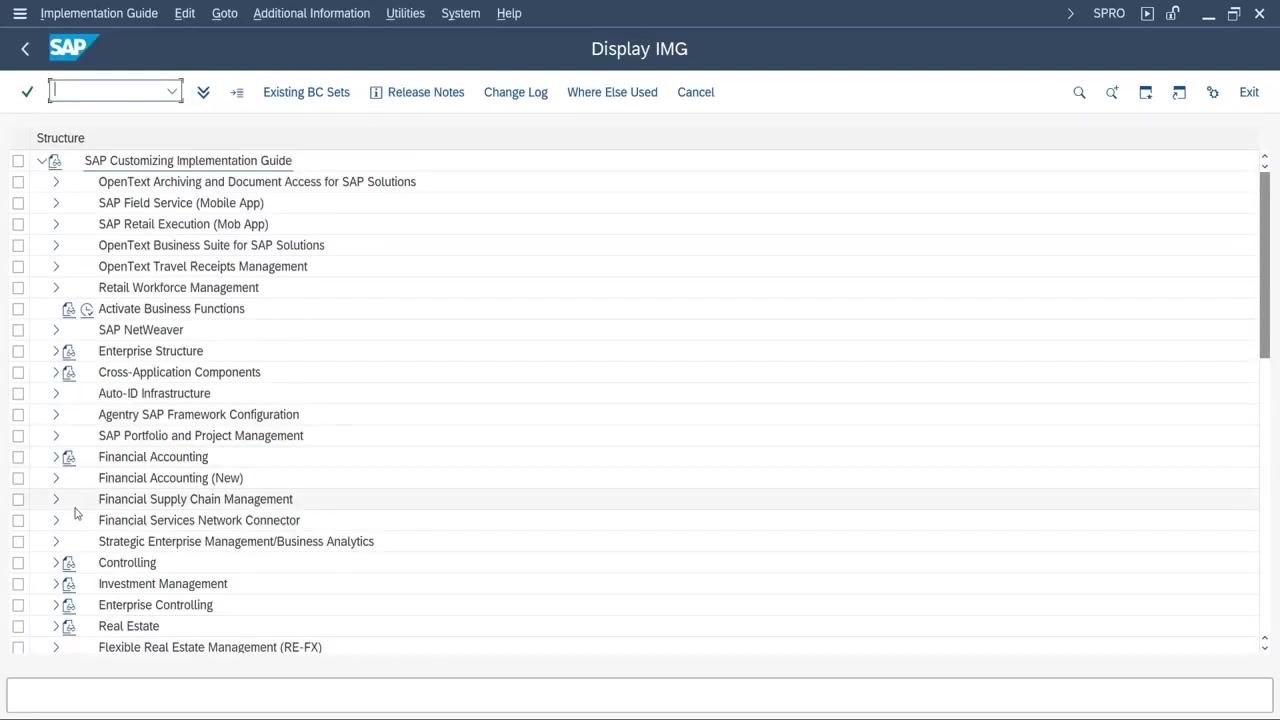
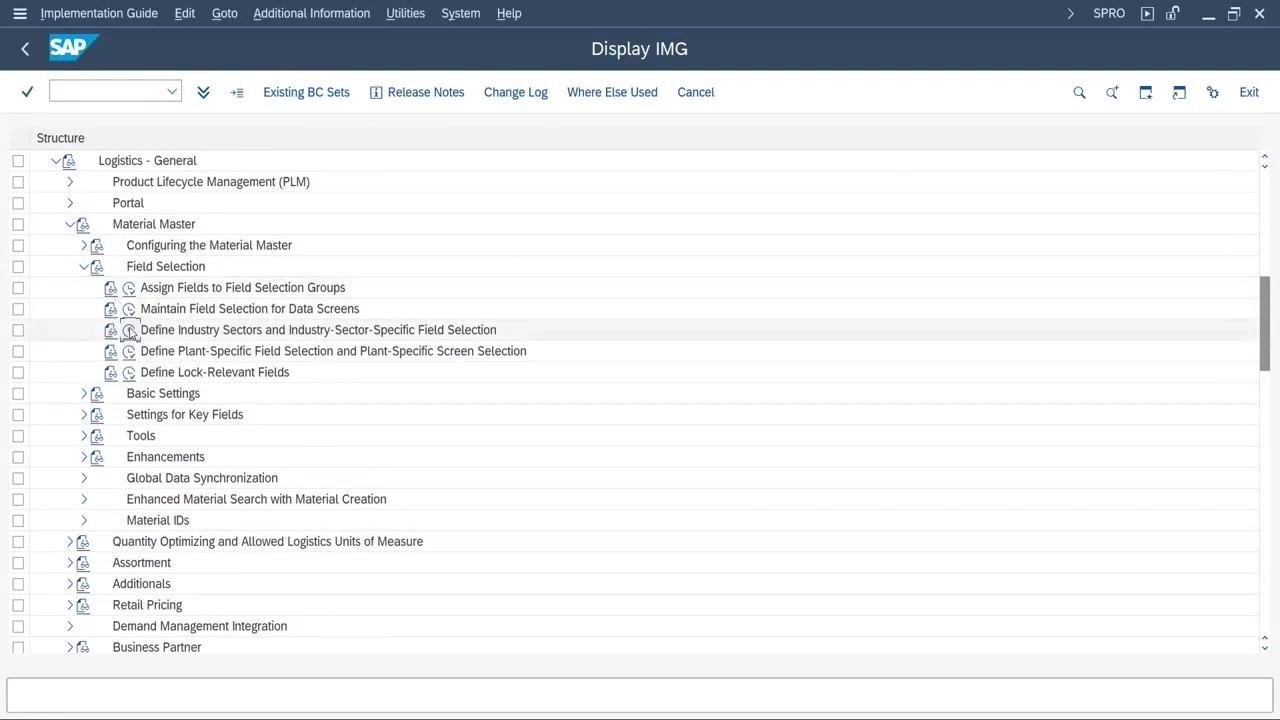
On the Display IMG screen, locate the SAP Customizing Implementation Guide structure in the left navigation panel. Expand the following path:
- Logistics – General
- Material Master
- Field Selection
Select Define Industry Sectors and Industry-Sector-Specific Field Selection to open the configuration screen.
Review existing industry sectors
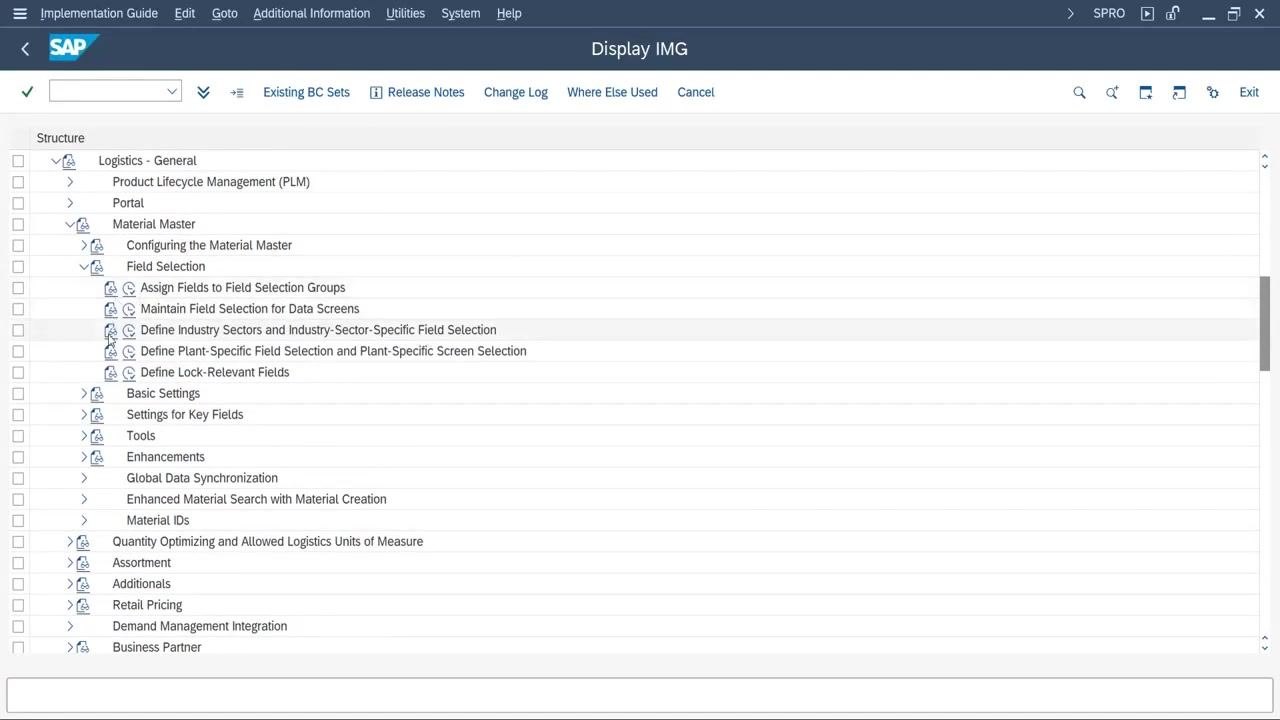
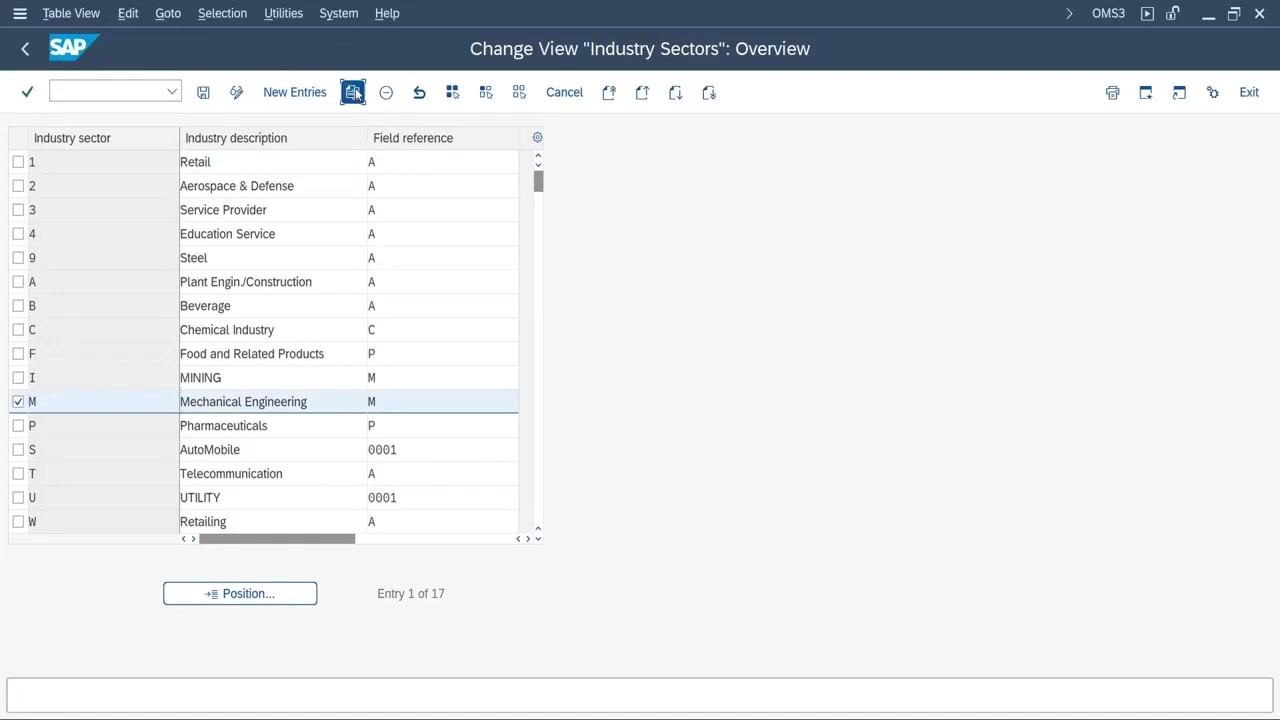
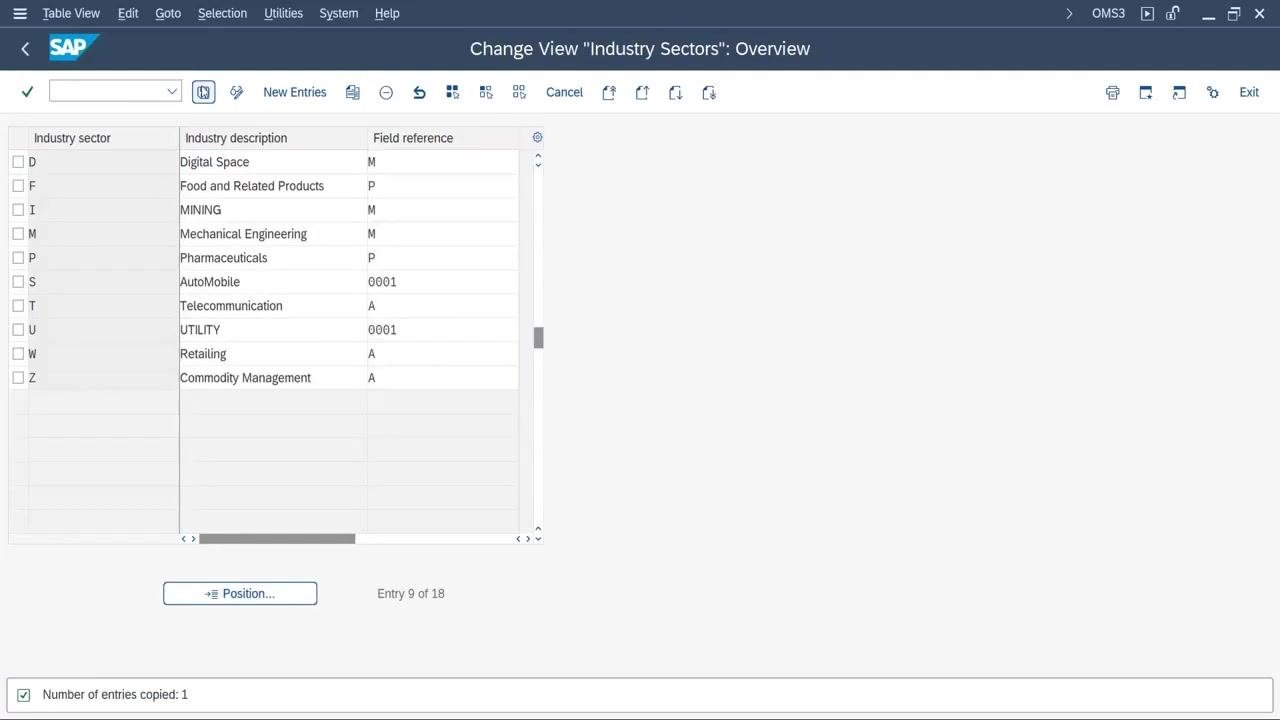
The Change View "Industry Sectors": Overview screen displays a list of existing industry sectors, including columns for Industry sector, Industry description, and Field reference. Example entries include Retail, Aerospace & Defense, Service Provider, and Mechanical Engineering.
Copy an existing industry sector
Select the industry sector you want to use as a template — for example, Mechanical Engineering (code M) — and click the Copy as button (the icon with two documents). A new entry row appears for editing.
Enter the new industry sector details
In the new entry row, fill in the following fields:
- Industry sector: D
- Industry description: Digital Space
- Field reference: M (this key defines the screen sequence for fields in the Material Master)
Press Enter to confirm the entry.
Save the new industry sector
Click the save icon to save the new industry sector. Confirm that "Digital Space" now appears in the list of industry sectors, and check that a confirmation message at the bottom of the screen reads "Number of entries copied: 1".
Verify the new industry sector in the Material Master
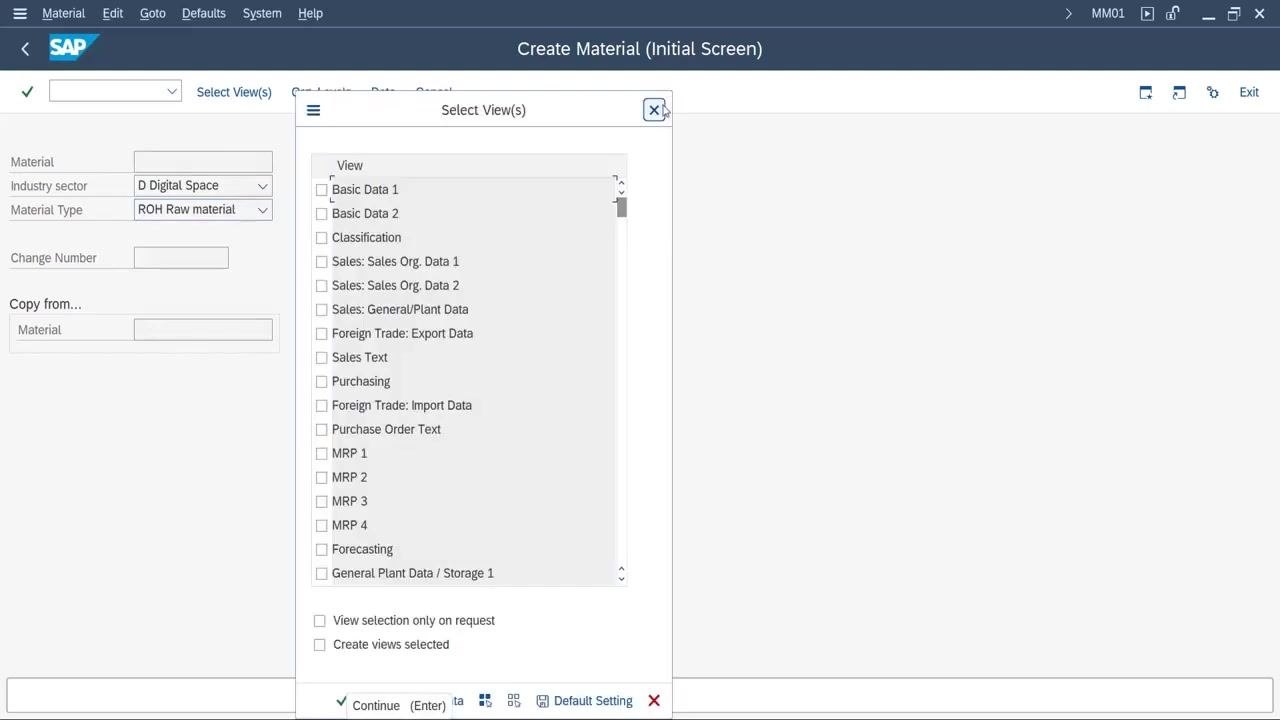
Open transaction MM01 (Create Material Master). On the Create Material (Initial Screen) window, locate the Industry sector dropdown and confirm that D Digital Space appears as an available option, alongside other sectors such as Plant Engin/Construction, Beverage, Chemical Industry, Food and Related Products, Mining, Mechanical Engineering, Pharmaceuticals, Automobile, Telecommunication, Utility, Retailing, and Commodity Management.
Select the new industry sector and material type
In the Industry sector field, select D Digital Space from the dropdown. In the Material Type field, select ROH Raw material. Leave the Change Number and Copy from... fields blank unless your process requires them.
Select the relevant views
Click the green checkmark, or press Enter, to continue. In the Select View(s) dialog, choose the views relevant to your material, such as Basic Data 1, Basic Data 2, Classification, Sales, Purchasing, or MRP. Click Continue (Enter) to proceed.
Summary
You have now learned how to create an industry sector in SAP MM by copying an existing sector in the IMG, defining its code, description, and field reference, and saving it. You also confirmed the new industry sector is available and selectable when creating a material in transaction MM01.
Generation details: cost, quality tiers
Docsie billed 1,500 credits ($1.05) to analyze this 3-minute video at standard quality. The rewrite, template fill and Word/PDF exports were included. The same video at each quality tier:
| Quality | Frames sampled | Credits | Approx. cost |
|---|---|---|---|
| Draft | every 16-30 s | 750 | $0.52 |
| Standard (this guide) | every 8-15 s | 1,500 | $1.05 |
| Detailed | every 4-7 s | 3,000 | $2.10 |
| Ultra | every 1-3 s | 6,000 | $4.20 |
Credits priced at $0.70 per 1,000; plans include a monthly allowance. Enterprise customers on on-premise or bring-your-own-model deployments run this on their own inference and pay no per-video credits.
Generated by Docsie Video-to-Docs on 2026-10-19 from a 2-minute video. Screenshots are frames from the source video and belong to their creator, ERP With Akshay, whose original is embedded above. If you own this video and want the guide removed or credited differently, contact us and we will act within one business day.