
How to Create a Variant in SAP
Variants in SAP let you save a fixed set of input values for a transaction screen, so you don't have to re-enter the same selection criteria every time you run a report. This guide shows you how to create a variant in SAP using the MB51 (Material Document List) transaction as an example, then how to load it for future use.
Video: How to Create Variant in SAP for any T-code by Aon Excellence. All credit for the demonstration goes to the creator; watch the original on YouTube. The written guide below was generated from this video by Docsie. Creator? Request a change or removal.
Variants in SAP let you save a fixed set of input values for a transaction screen, so you don't have to re-enter the same selection criteria every time you run a report. This guide shows you how to create a variant in SAP using the MB51 (Material Document List) transaction as an example, then how to load it for future use.
Prerequisites
- Access to the SAP Easy Access screen with a valid user menu.
- Authorization to run the MB51 transaction (or another transaction for which you want to create a variant).
- The specific input values you want to save as fixed (for example, plant, storage location, movement types, or material filters).
Access the MB51 transaction
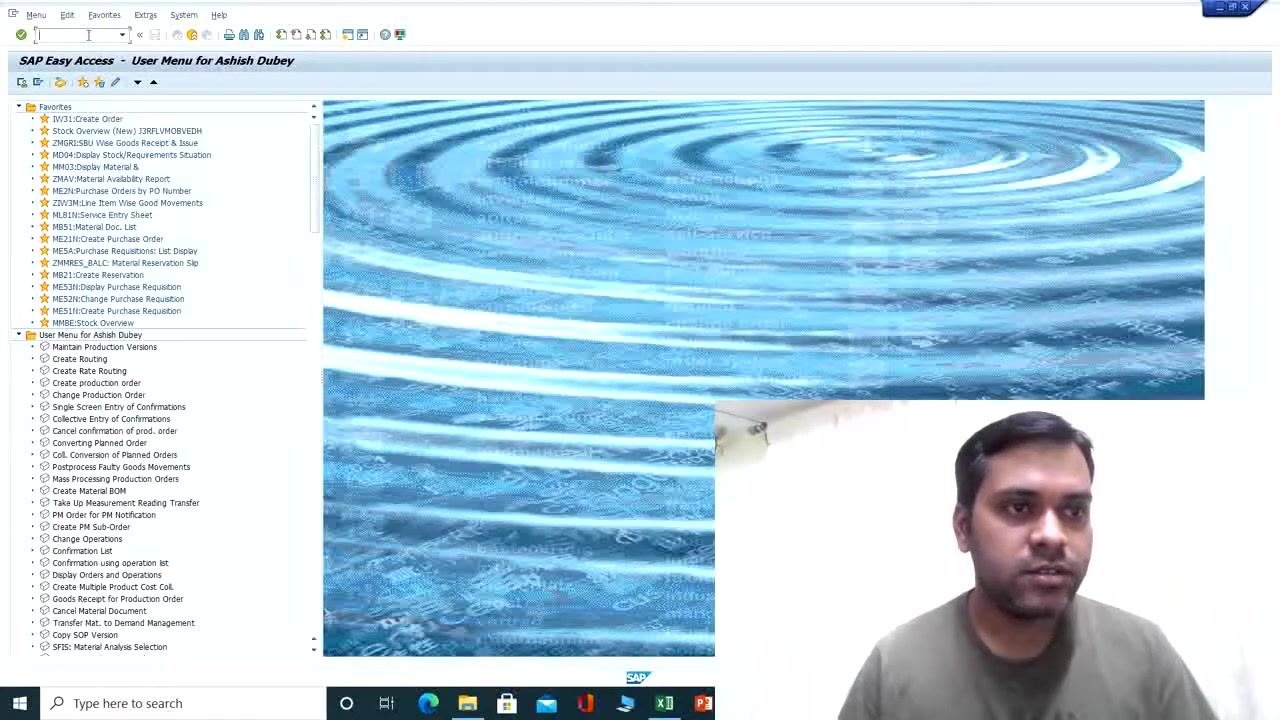
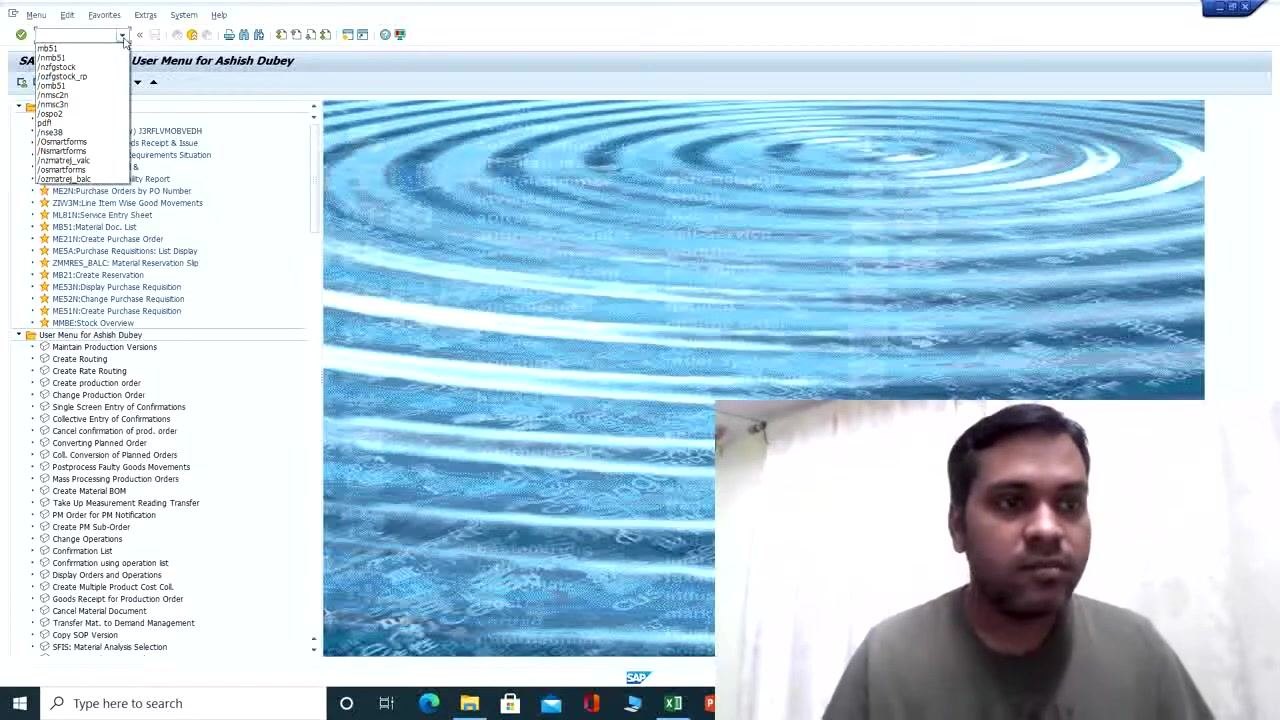
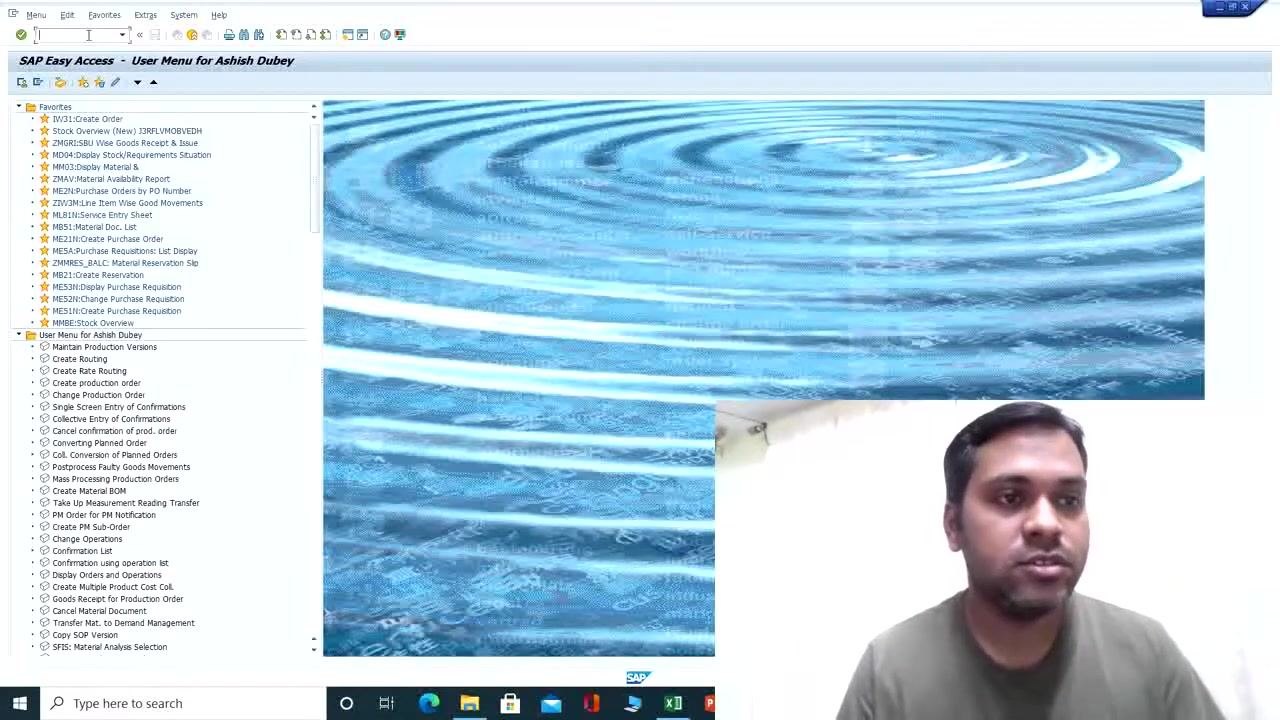
On the SAP Easy Access screen, locate your user menu and the list of available transactions. Transaction codes are typically grouped under Favorites and User Menu.
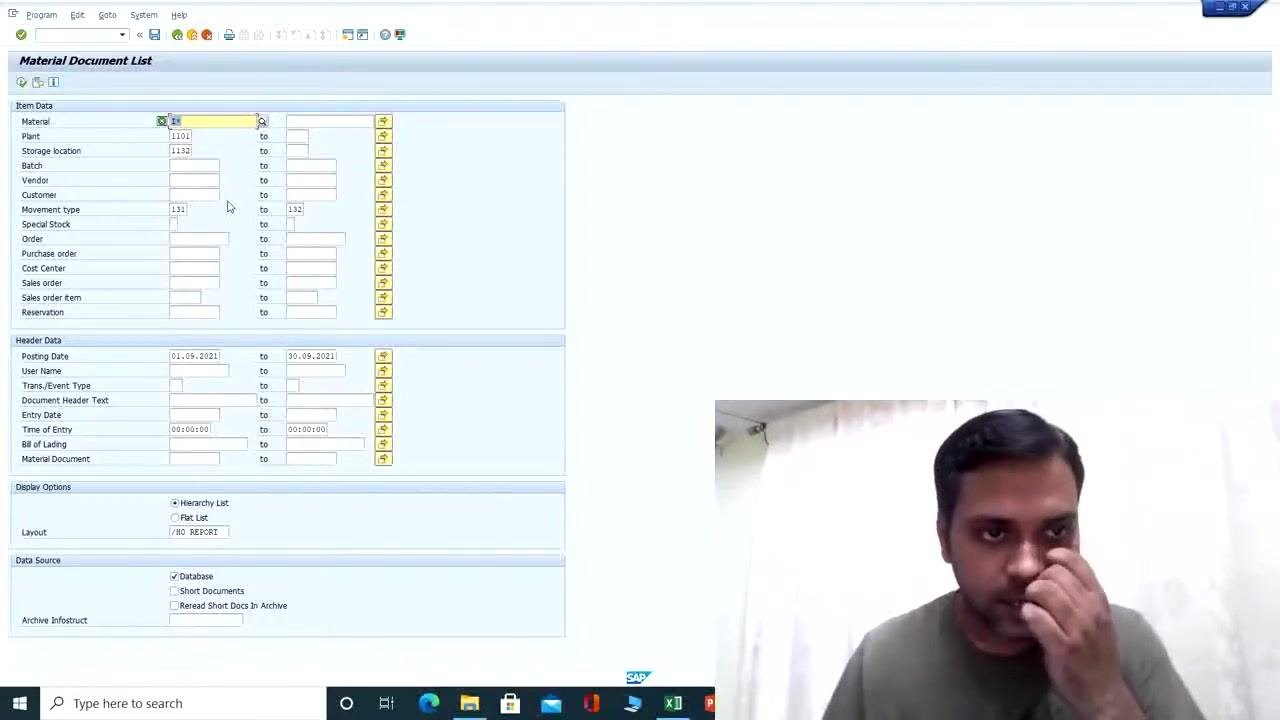
Enter the transaction code MB51 in the command field, or select it from your favorites or menu list. This opens the Material Document List input screen.
Enter the fixed values on the input screen
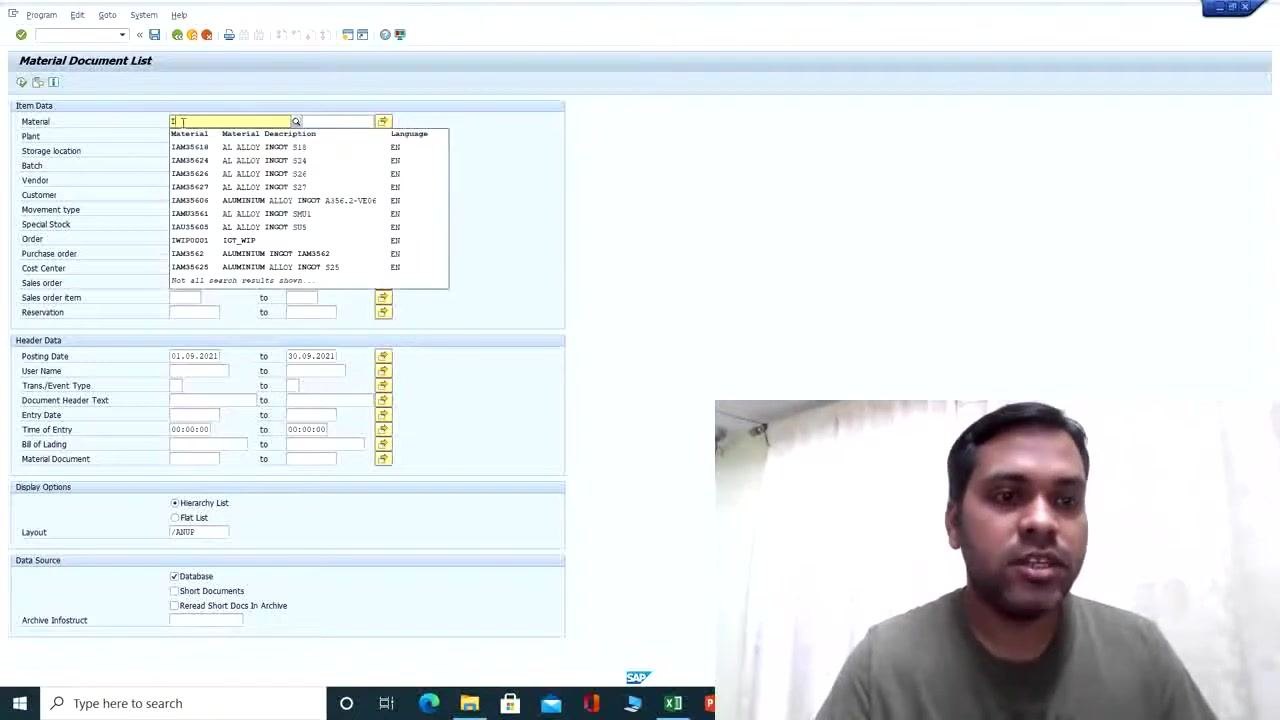
On the MB51 input screen, fill in the fields you want to save as fixed values for repeated use. For example:
- Plant: 1101
- Storage Location: 1132
- Movement Types: 131, 132
- Posting Date: 01.09.2021 (for the current reporting month, September 2021)
The input screen is organized into sections such as Item Data and Header Data.
Set the posting date range and material filter
Set the Posting Date range to define the reporting period:
- From: 01.09.2021
- To: 30.09.2021
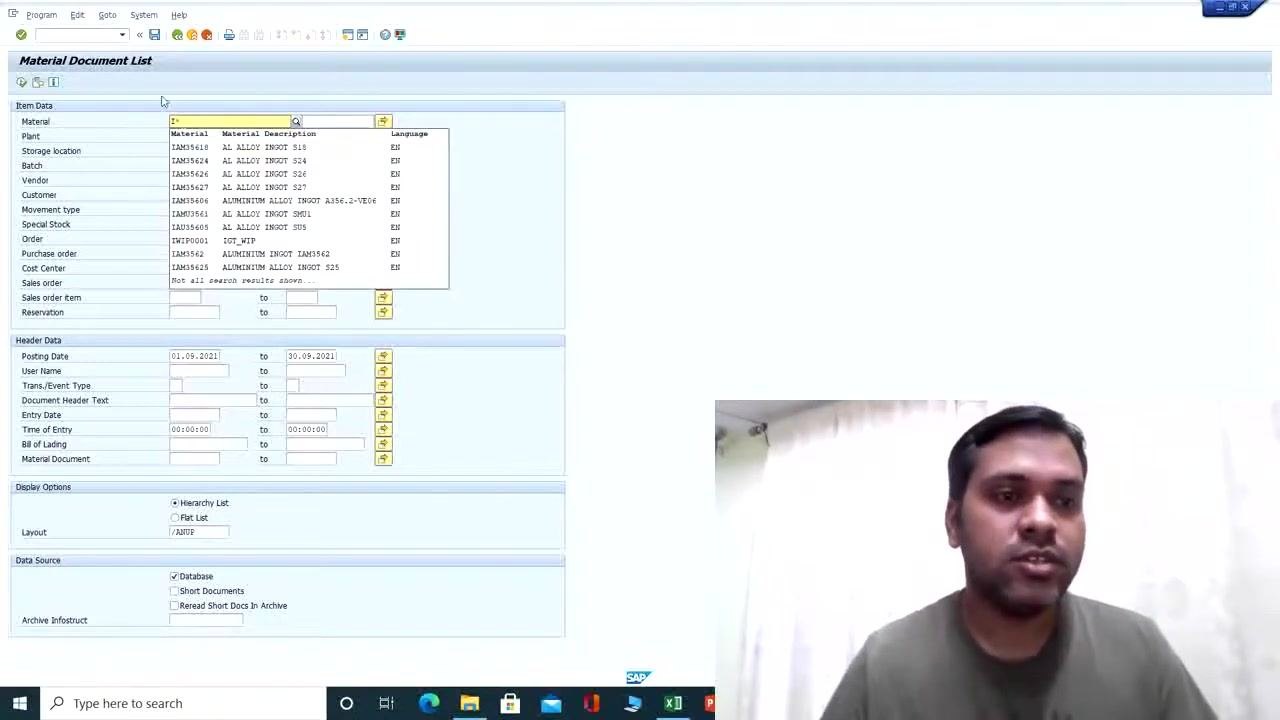
In the Material field, enter I* to filter for material codes that start with the letter "I." This ensures the report includes only transactions for materials beginning with "I."
Apply a custom layout
In the Layout field under Display Options, select your preferred layout (for example, /MB REPORT). Once saved as part of the variant, this layout is applied automatically every time you run the report, so you don't need to set it manually again.
Open the variant menu
With all fixed values and the layout entered, go to the menu bar at the top of the screen and click Goto. Hover over or select Variants, then choose Save as Variant from the dropdown.
Define the variant name and description
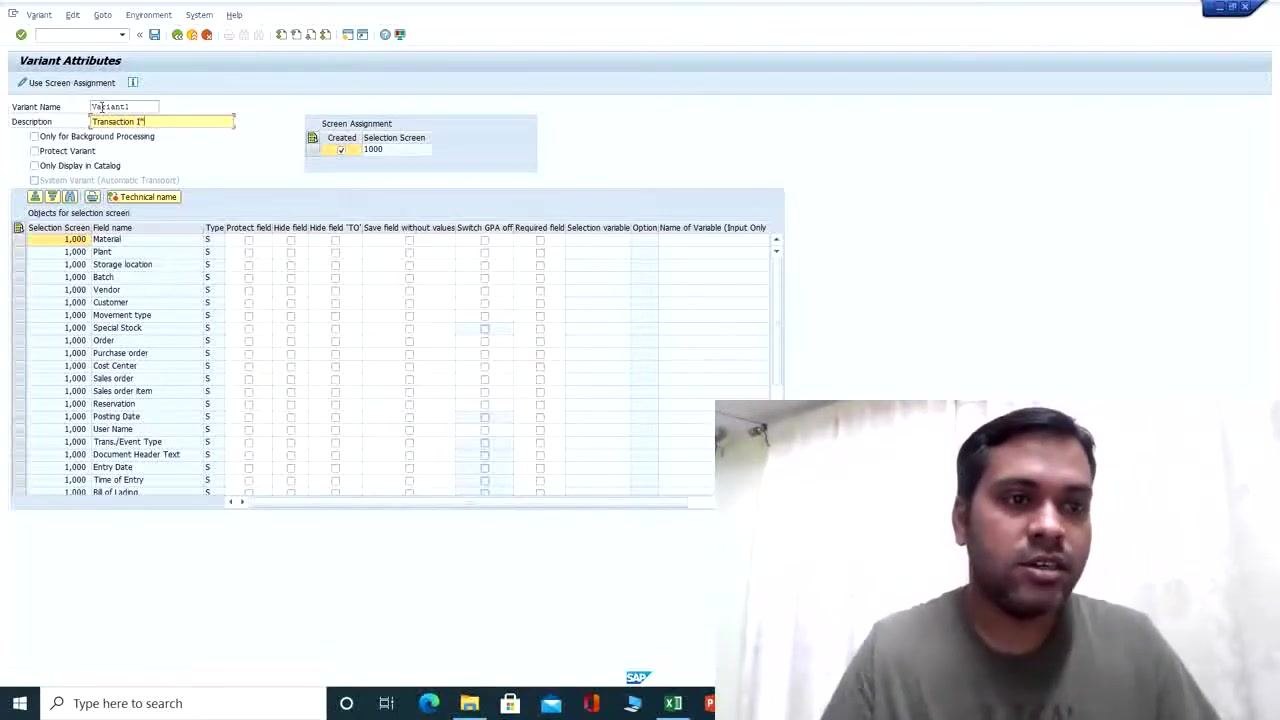
In the Variant Attributes window that appears, enter the following:
- Variant Name:
Variant1 - Description:
Transaction I*
Optionally, select additional options such as Only for Background Processing or Protect Variant if needed.
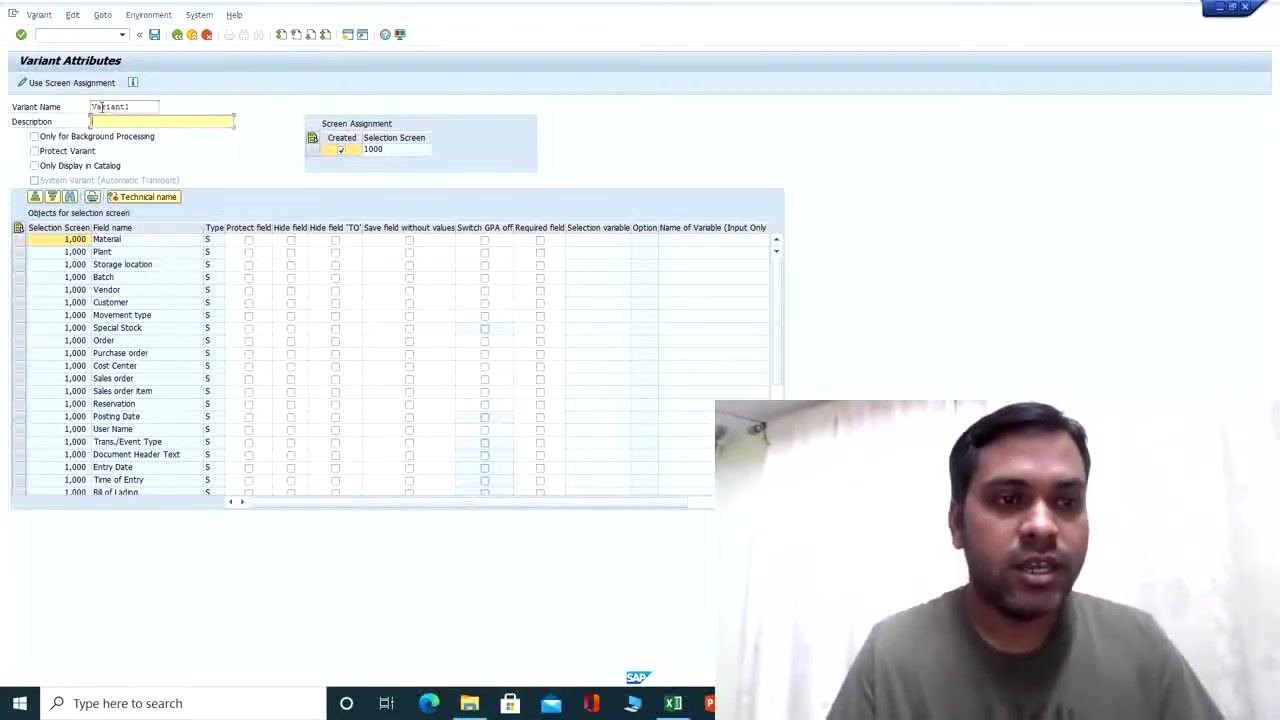
Save the variant
Click the save icon (or press the corresponding button) to save the variant. A confirmation message appears at the bottom of the screen: Variant VARIANT1 saved.
Load a saved variant
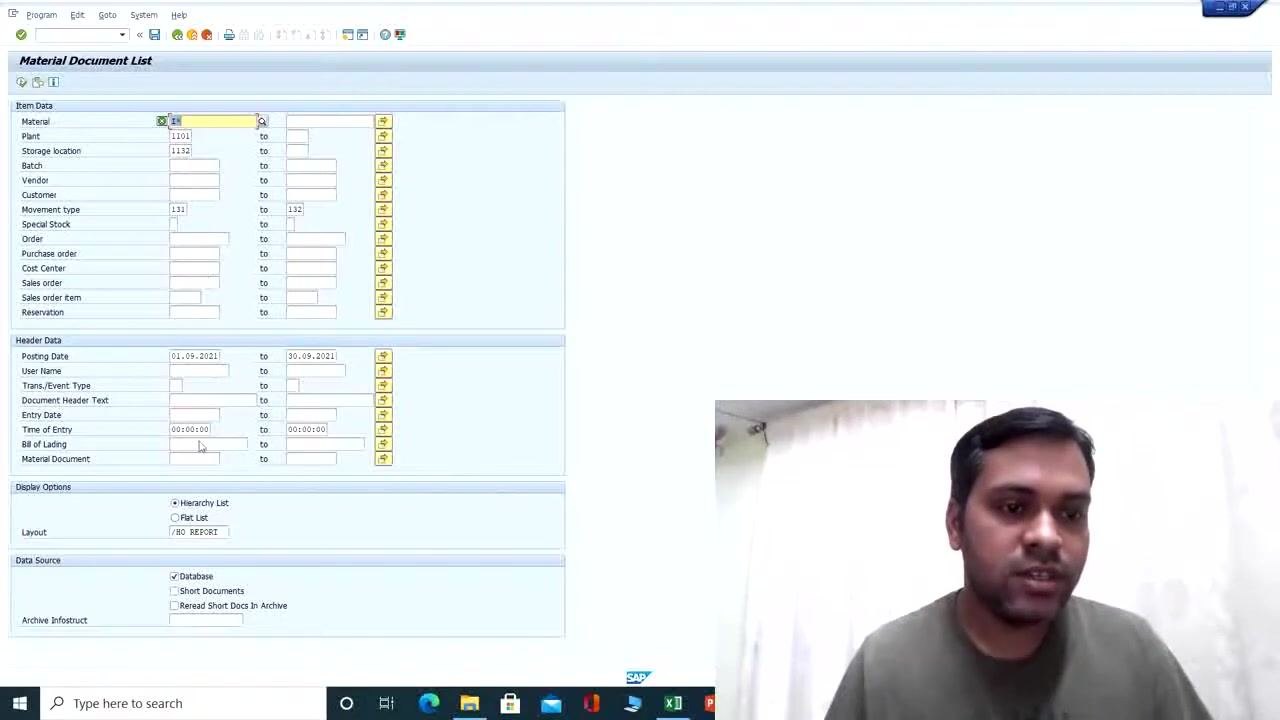
On the Material Document List input screen, click the Variants button or use the menu to open the variant selection dialog. A pop-up titled ABAP: Variant Directory of Program RM07DOCS appears, listing available variants.
Select the variant you previously created (for example, VARIANT1 with the description "Transaction I*"), then click the green checkmark or press Enter to load it.
Once loaded, all fields you fixed in the variant—such as Plant, Storage Location, Movement Types, Material filter, and Layout—are automatically populated. Only fields not saved in the variant, such as the posting date range (if not fixed), may need to be entered manually.
Summary
Creating a variant in SAP lets you save a fixed set of input values—such as plant, storage location, movement types, material filters, and layout—so you can reuse them quickly for recurring reports. This functionality is not limited to MB51: you can save and load variants for any SAP transaction code that accepts input values, helping you save time and keep your reporting criteria consistent.
Generation details: cost, quality tiers
Docsie billed 2,500 credits ($1.75) to analyze this 5-minute video at standard quality. The rewrite, template fill and Word/PDF exports were included. The same video at each quality tier:
| Quality | Frames sampled | Credits | Approx. cost |
|---|---|---|---|
| Draft | every 16-30 s | 1,250 | $0.88 |
| Standard (this guide) | every 8-15 s | 2,500 | $1.75 |
| Detailed | every 4-7 s | 5,000 | $3.50 |
| Ultra | every 1-3 s | 10,000 | $7.00 |
Credits priced at $0.70 per 1,000; plans include a monthly allowance. Enterprise customers on on-premise or bring-your-own-model deployments run this on their own inference and pay no per-video credits.
Generated by Docsie Video-to-Docs on 2026-10-12 from a 4-minute video. Screenshots are frames from the source video and belong to their creator, Aon Excellence, whose original is embedded above. If you own this video and want the guide removed or credited differently, contact us and we will act within one business day.