
How to Change a Purchase Order with ME22N in SAP S/4HANA
This guide shows you how to change a purchase order with ME22N in SAP. You'll learn which transaction codes apply to purchase orders, which fields you can edit, and how to update quantities, prices, material descriptions, tax conditions, and organizational data step by step.
Video: How to Edit purchase order in SAP : T-Codes ME22N by SAP Information with Rahul sahu. All credit for the demonstration goes to the creator; watch the original on YouTube. The written guide below was generated from this video by Docsie. Creator? Request a change or removal.
This guide shows you how to change a purchase order with ME22N in SAP. You'll learn which transaction codes apply to purchase orders, which fields you can edit, and how to update quantities, prices, material descriptions, tax conditions, and organizational data step by step.
Prerequisites
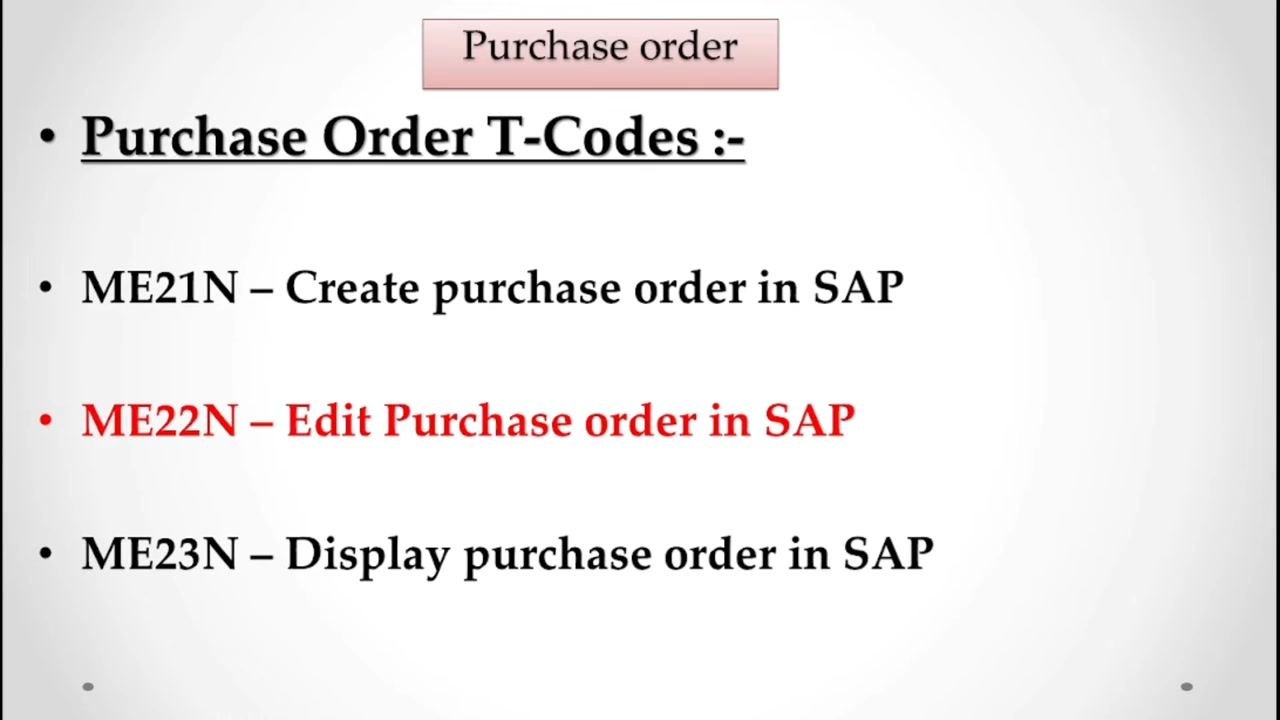
Before you begin, you should know the transaction codes used for purchase orders in SAP:
- ME21N – creates a new purchase order.
- ME22N – edits an existing purchase order.
- ME23N – displays a purchase order in view-only mode; no changes are allowed.
You typically need to change a purchase order when the agreed rate changes (for example, from 10 rupees to 11 or 9 rupees) or when an incorrect quantity was entered (for example, 9000 instead of 10000). Understanding which fields can and cannot be changed helps you make the correct update.
What you can change in a purchase order
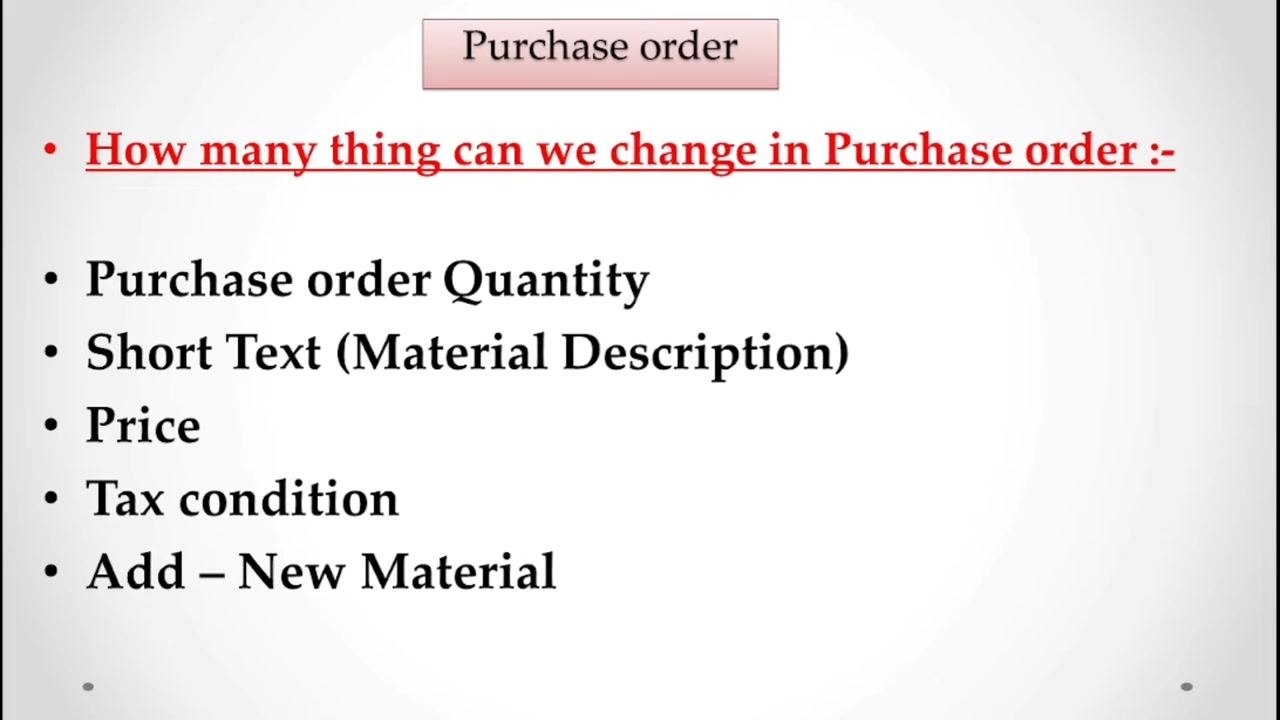
Before saving, you can update the following elements of a purchase order:
- Purchase order quantity
- Short text (material description)
- Price
- Tax condition
- New material added to the order
Step-by-step: Edit a purchase order using ME22N
Step 1: Review the editable fields
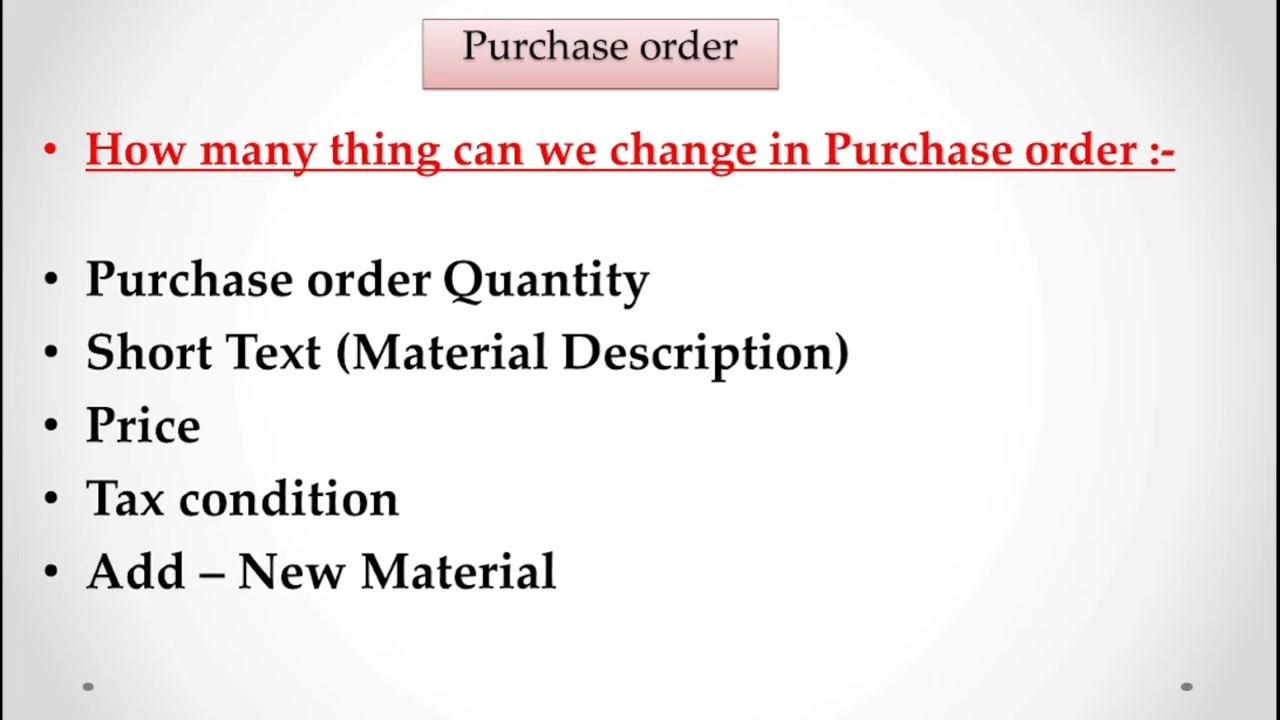
Confirm the fields you can update: purchase order quantity, short text, price, tax condition, and new materials added to the order.
Step 2: Review additional editable fields
In addition to item-level details, you can also update organizational data, including:
- Purchase organization
- Purchase group in SAP
- Company code
- Vendor address
Step 3: Open the purchase order editing screen
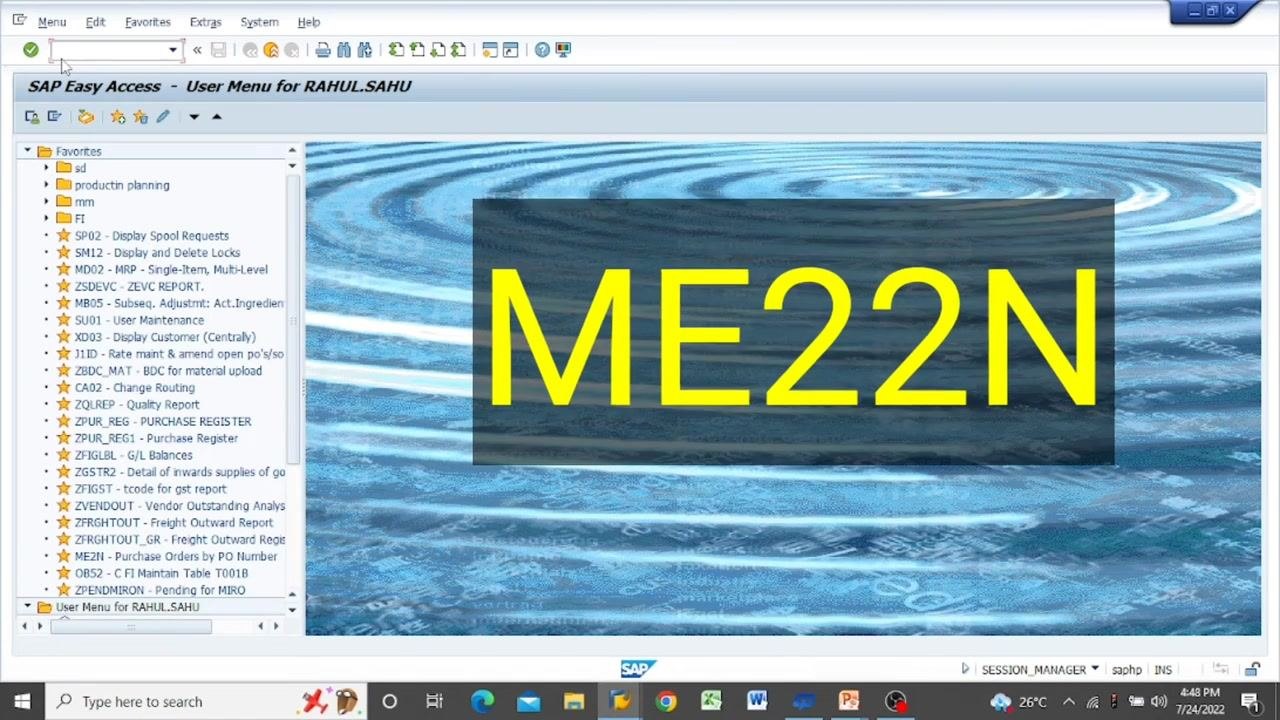
Open SAP Easy Access. In the command field, type the transaction code ME22N and press Enter.
Step 4: Open the purchase order you want to edit
On the ME22N screen, click the Other Purchase Order icon and enter the purchase order number you wish to edit.
Step 5: Update quantity and price
Review the current details, such as PO Quantity and Net Price for each item. Click in the PO Quantity field to enter a new quantity, and click in the Net Price field to enter a new price.
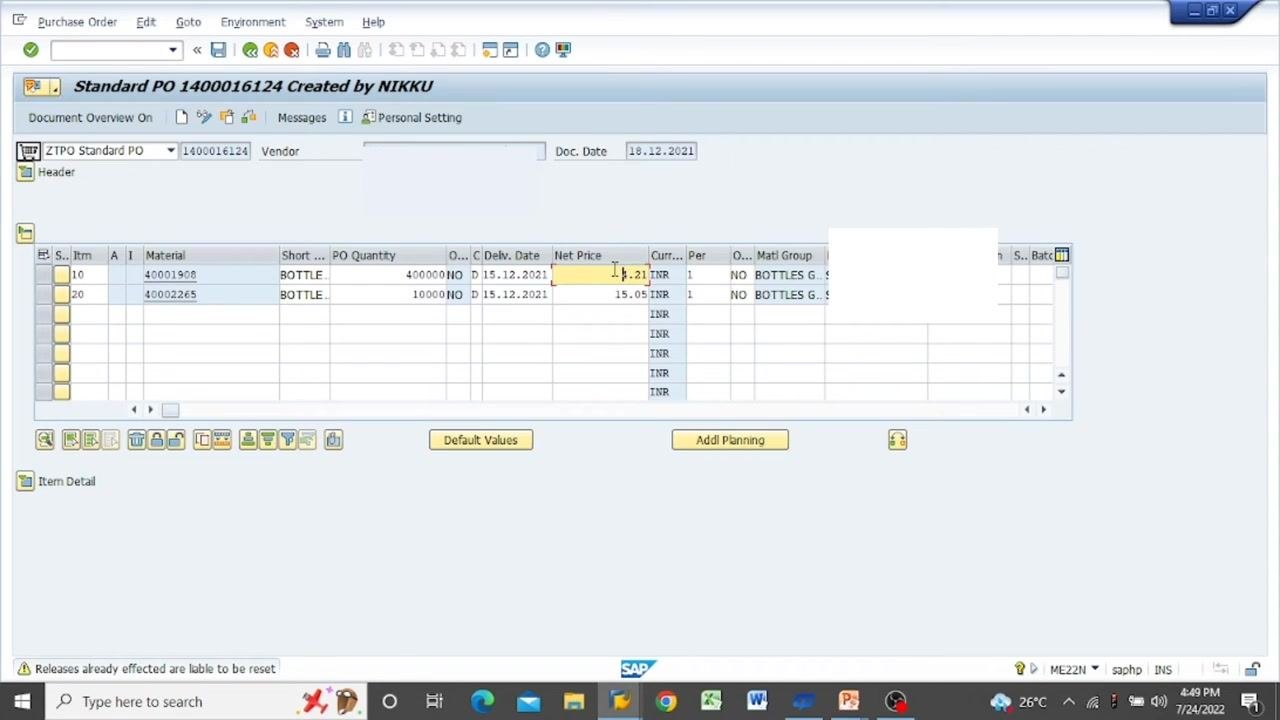
Step 6: Confirm quantities and prices for each item
Set the correct values for each line item — for example, item 10 updated to 400,000 units at 6.00 INR, and item 20 updated to 10,000 units at 10.00 INR. Make sure the PO Quantity and Net Price fields reflect the correct figures.
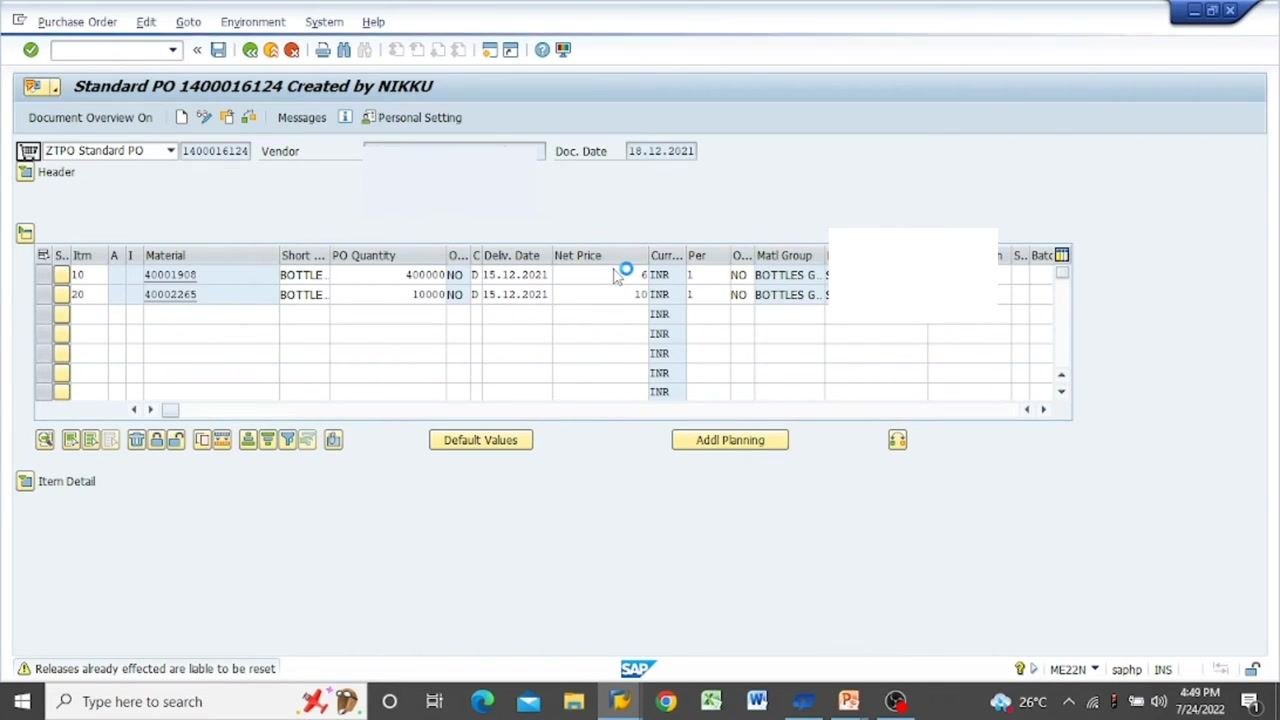
Step 7: Edit the material description
Click in the Short Text field for the relevant item and enter or update the material description (for example, "BOTTLE").
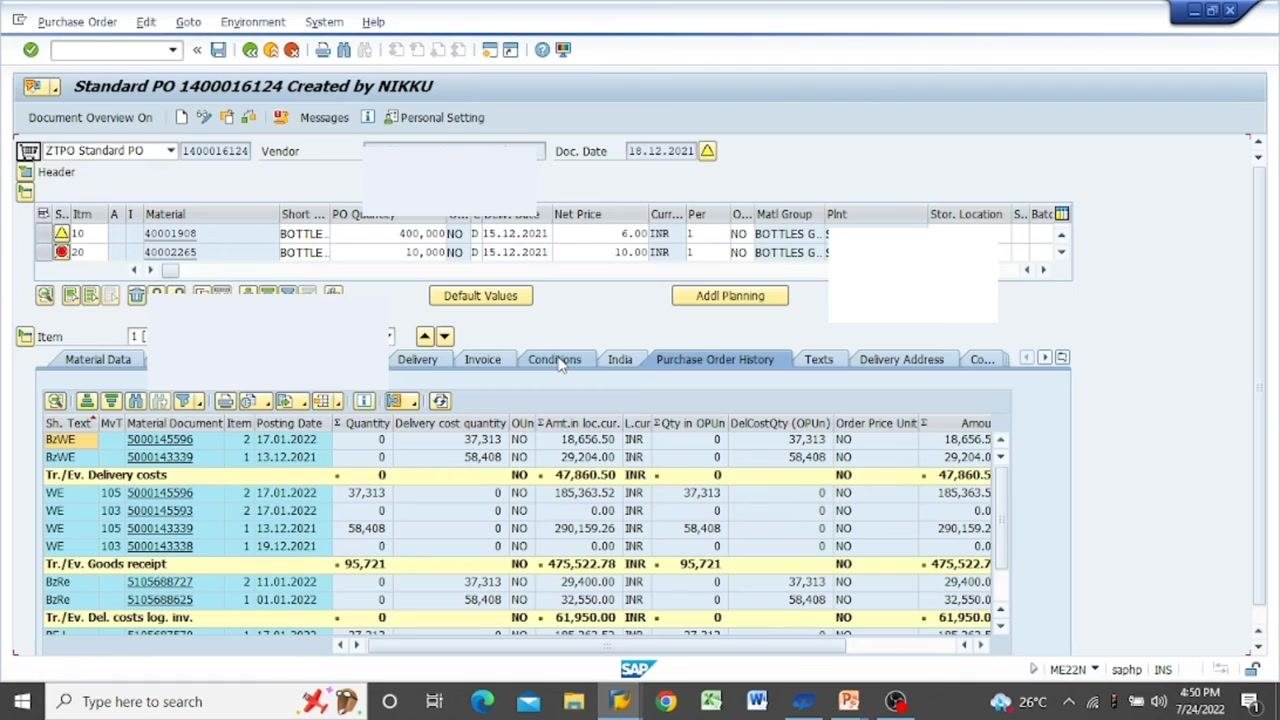
Step 8: Edit tax conditions
Select the item you want to update, scroll to the Item Detail section, and click the Conditions tab. Review and update condition values such as gross price, discounts, or export fees, then click Update to apply your changes.
Step 9: Edit the tax code
Go to the Invoice tab in the Item Detail section and locate the Tax Code field. Click the search icon to open the list of available tax codes and select the appropriate one (for example, AR, AP, F1, or F2).
Step 10: Add a new material
Enter a new item number (for example, 30) in the item list, then fill in the required fields: material code, quantity, price, and plant.
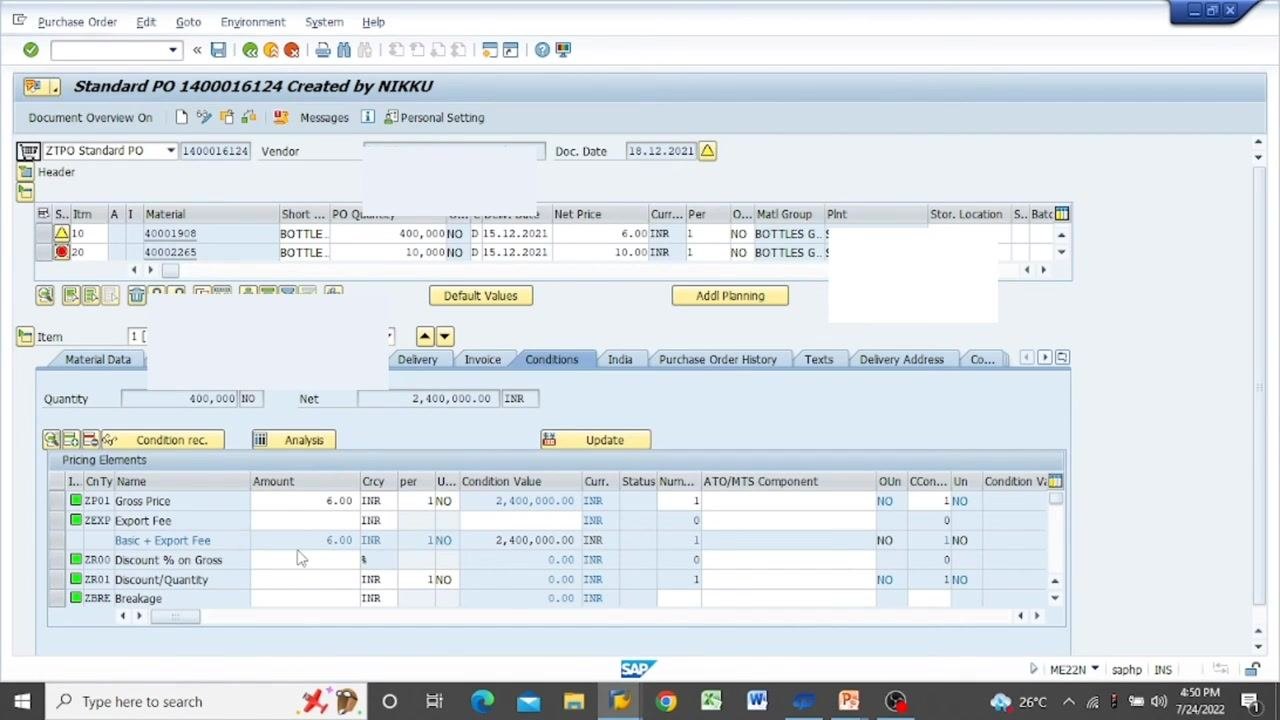
Step 11: Update purchasing organization, group, or company code
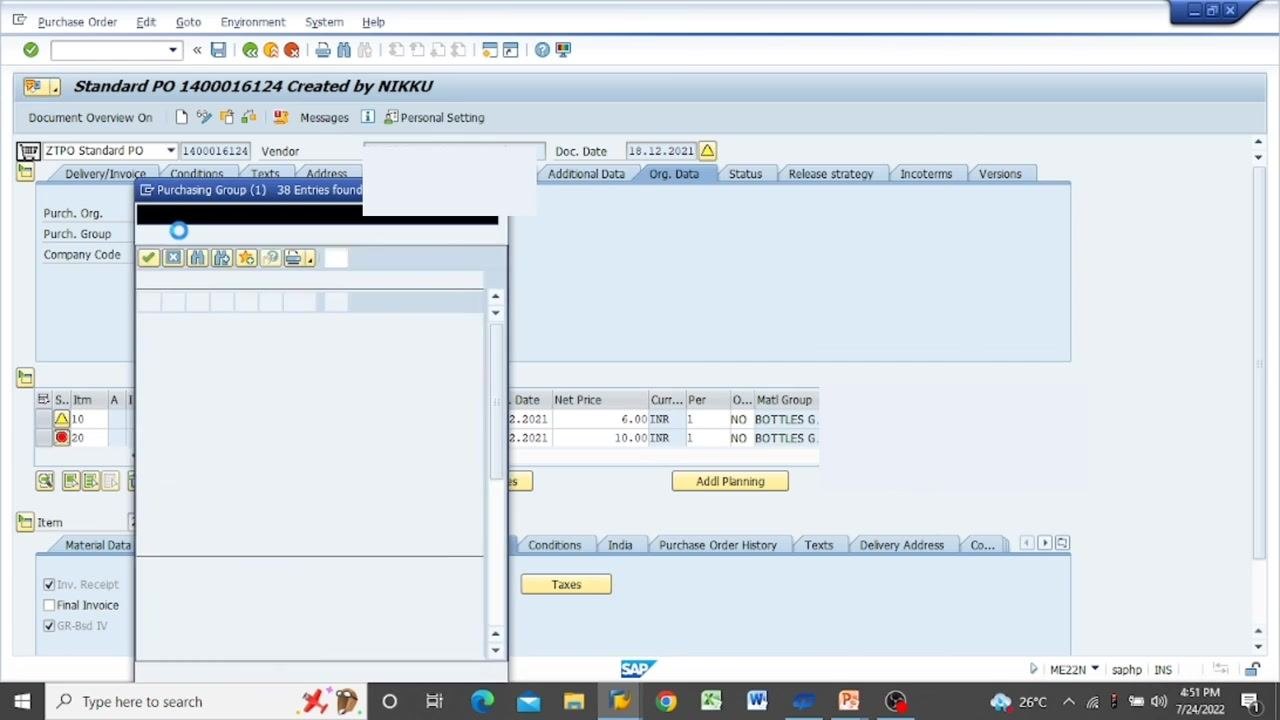
Go to the header section of the purchase order and click the Org. Data tab. Update the Purch. Org., Purch. Group, or Company Code fields as needed, using the search function to select the correct value.
Step 12: Select the purchasing group
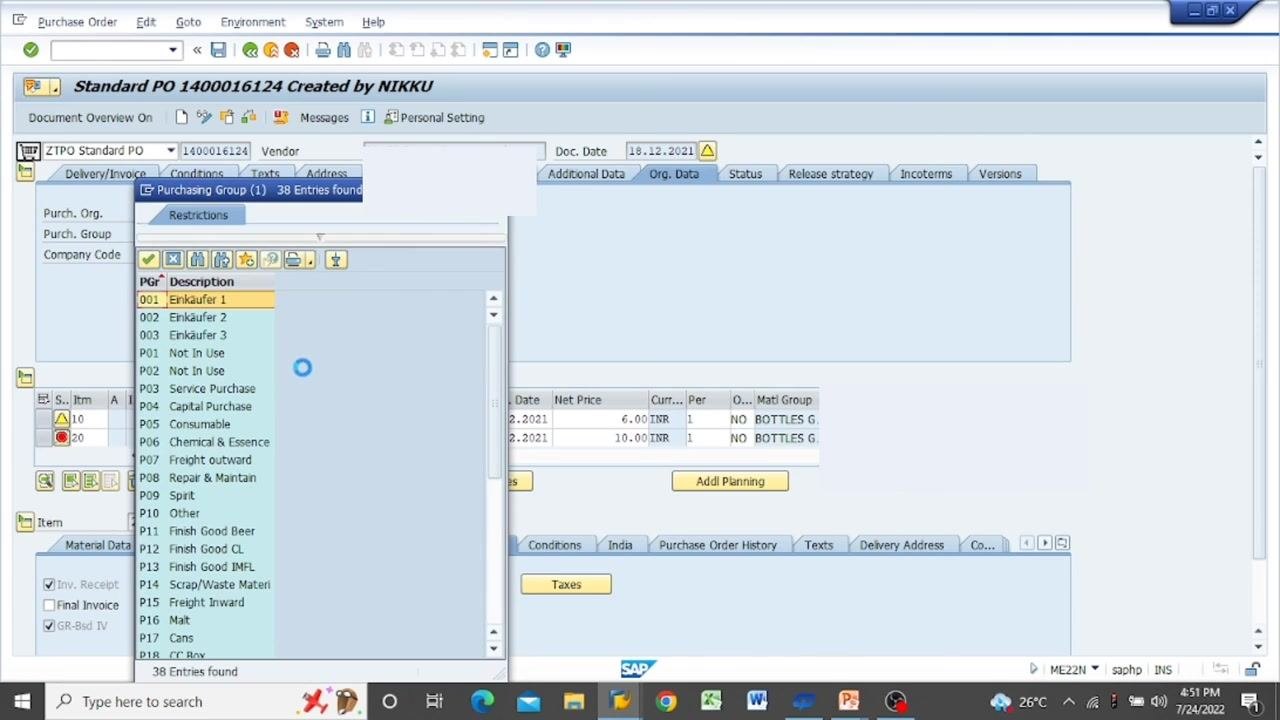
Click the search icon next to the Purch. Group field to open the selection window. Review the list of available groups, each with a code (for example, 001, 002, P01, P02) and description (for example, Einkäufer 1, Service Purchase, Capital Purchase), and click to select the appropriate entry.
Step 13: Review the purchase order
Double-check all entered data, including item details, quantities, prices, tax codes, and organizational data. Confirm that all required fields are filled in correctly before saving. If changes are needed, repeat the relevant steps above.
Step 14: Save the purchase order
Click the Save icon (diskette symbol) in the SAP toolbar to save your changes. Wait for the confirmation message indicating the purchase order has been successfully updated.
Editable fields after saving
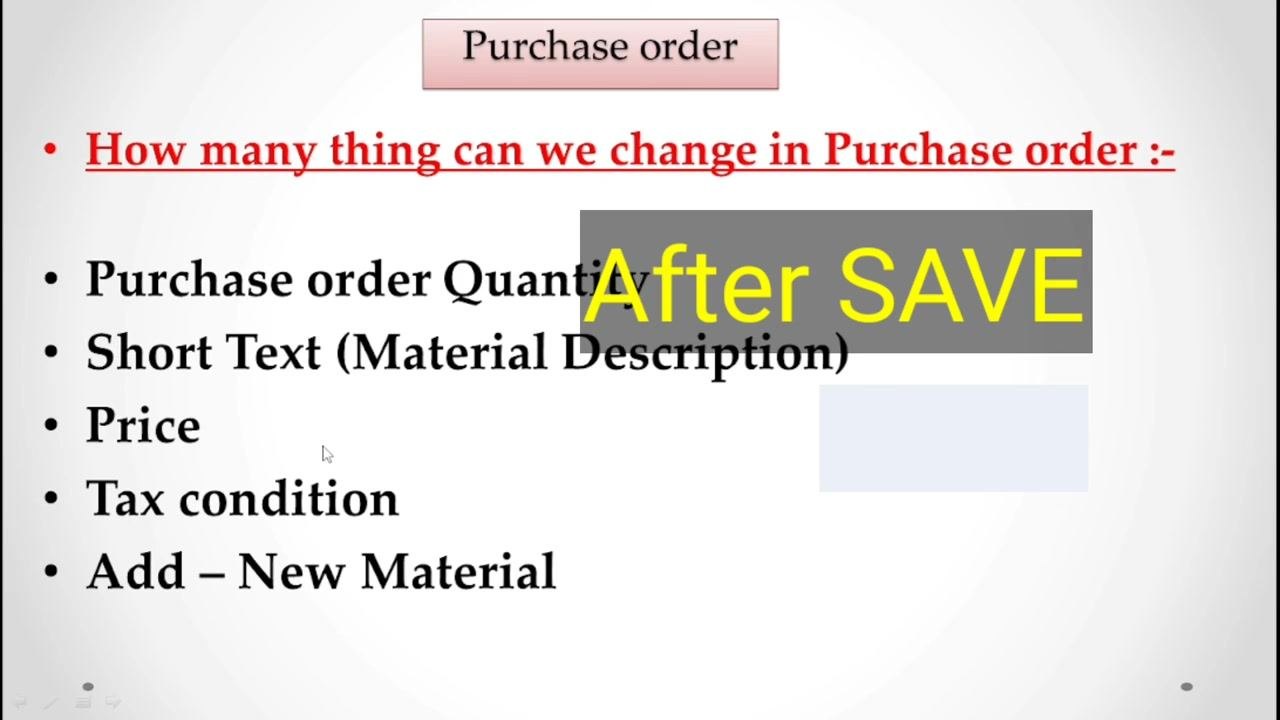
Some fields remain editable even after the purchase order has been saved:
- Purchase order quantity
- Short text (material description)
- Price
- Tax condition
- New material added to the order
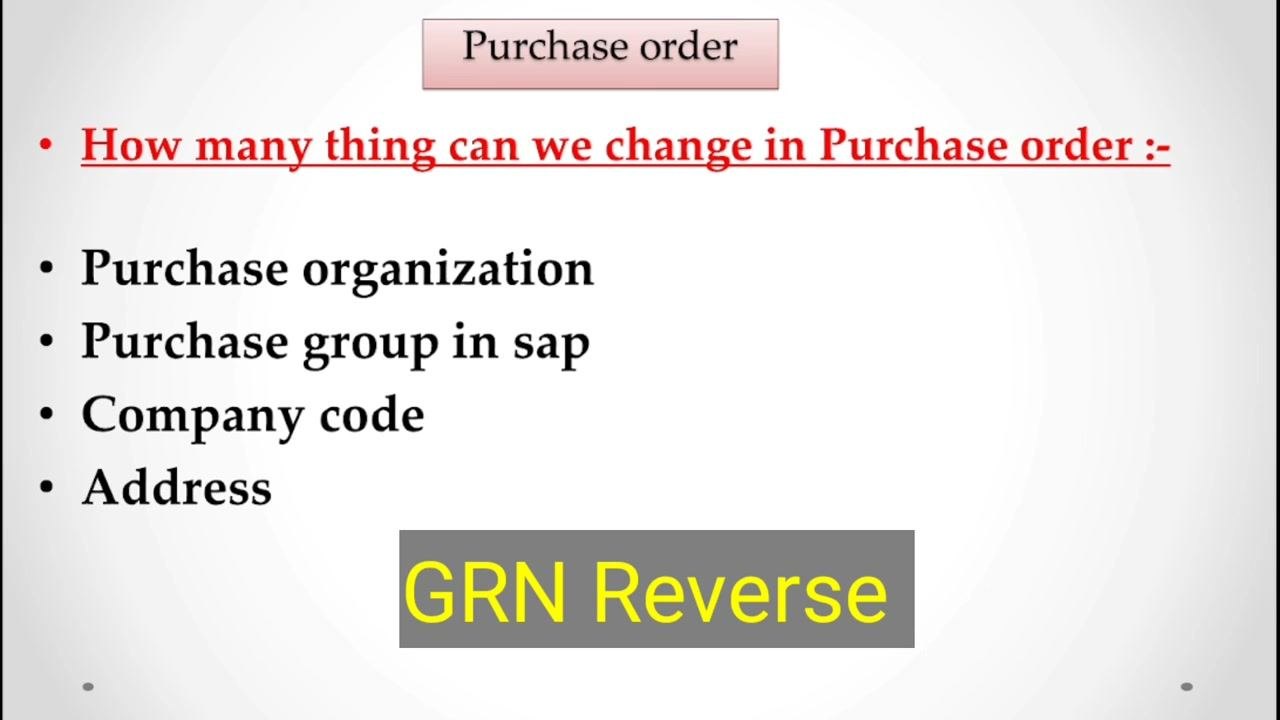
Organizational data can also still be updated after saving, including:
- Purchase organization
- Purchase group in SAP
- Company code
- Address
If the purchase order has an associated Goods Receipt Note (GRN), reverse the GRN first before making further changes to the purchase order.
What's next
Now that you know how to change a purchase order with ME22N in SAP, review your updated purchase order to confirm all changes were saved correctly. If you need to make further edits, repeat the relevant steps, and reverse the GRN first if one has already been posted against the order.

Generation details: cost, quality tiers
Docsie billed 3,500 credits ($2.45) to analyze this 7-minute video at standard quality. The rewrite, template fill and Word/PDF exports were included. The same video at each quality tier:
| Quality | Frames sampled | Credits | Approx. cost |
|---|---|---|---|
| Draft | every 16-30 s | 1,750 | $1.22 |
| Standard (this guide) | every 8-15 s | 3,500 | $2.45 |
| Detailed | every 4-7 s | 7,000 | $4.90 |
| Ultra | every 1-3 s | 14,000 | $9.80 |
Credits priced at $0.70 per 1,000; plans include a monthly allowance. Enterprise customers on on-premise or bring-your-own-model deployments run this on their own inference and pay no per-video credits.
Generated by Docsie Video-to-Docs on 2026-10-06 from a 6-minute video. Screenshots are frames from the source video and belong to their creator, SAP Information with Rahul sahu, whose original is embedded above. If you own this video and want the guide removed or credited differently, contact us and we will act within one business day.