
How to Change a Material Master with MM02 in SAP S/4HANA
This guide explains how to change a material master with MM02 in SAP, walking through the process of adding missing information and updating existing data for a material record. You'll learn how to open the transaction, locate the correct views, update weight and pricing fields, and save your changes so they are correctly reflected in the system.
Video: SAP | Change material with transaction mm02 by ADVIST Academy EN. All credit for the demonstration goes to the creator; watch the original on YouTube. The written guide below was generated from this video by Docsie. Creator? Request a change or removal.
This guide explains how to change a material master with MM02 in SAP, walking through the process of adding missing information and updating existing data for a material record. You'll learn how to open the transaction, locate the correct views, update weight and pricing fields, and save your changes so they are correctly reflected in the system.
Prerequisites
Before you begin, identify the specific changes needed for your material. In this example, the following updates are required:
- Net weight: 30 kg
- Gross weight: 40 kg
- Purchasing value key: 1
- Valuation class: change to 3100 (Trading goods)
- Standard price: update to 499 Euro
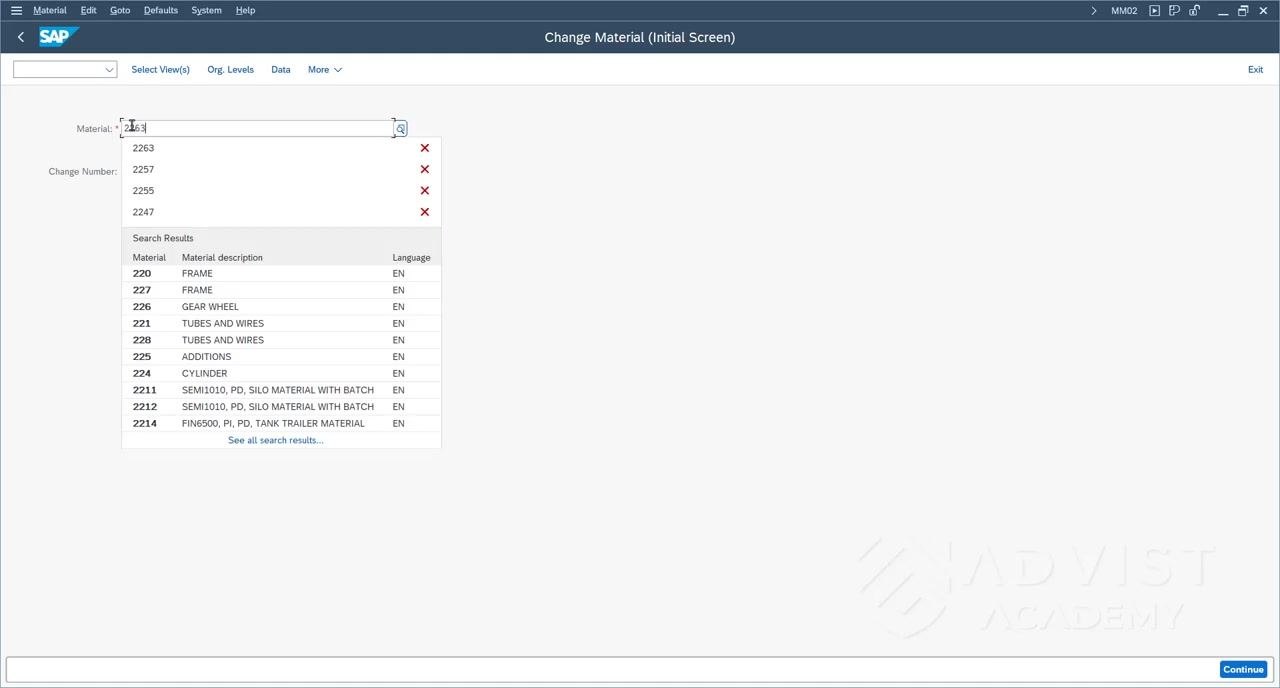
Open the material change transaction
Open SAP Easy Access and enter the transaction code MM02 in the command field, then press Enter. This is the standard transaction code for changing a material master record.
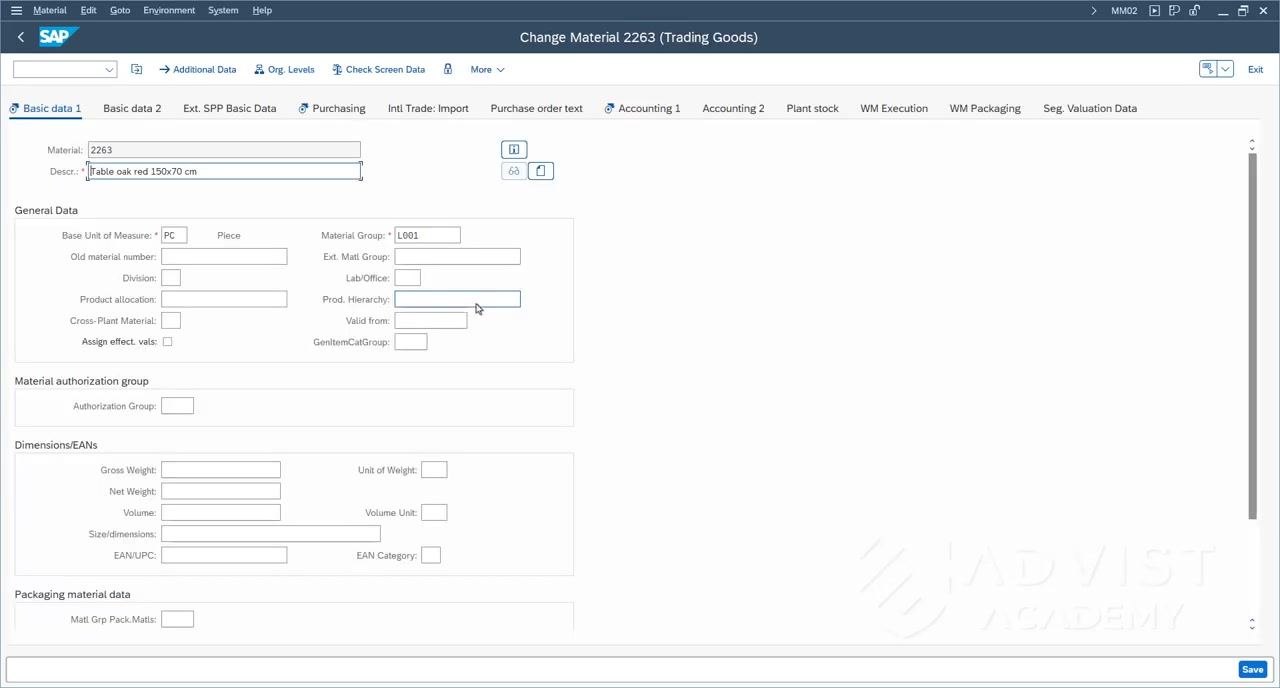
Enter or find the material number
On the Change Material (Initial Screen), enter the material number in the Material field — for example, 2263. If you don't know the material number, use the F4 help (search function) to display a list of available materials and their descriptions, then select the correct one.
Select the required views
After entering the material number, click Enter or Continue. In the view selection screen, choose the following views:
- Basic Data 1
- Purchasing
- Accounting 1
Update weight and dimension data
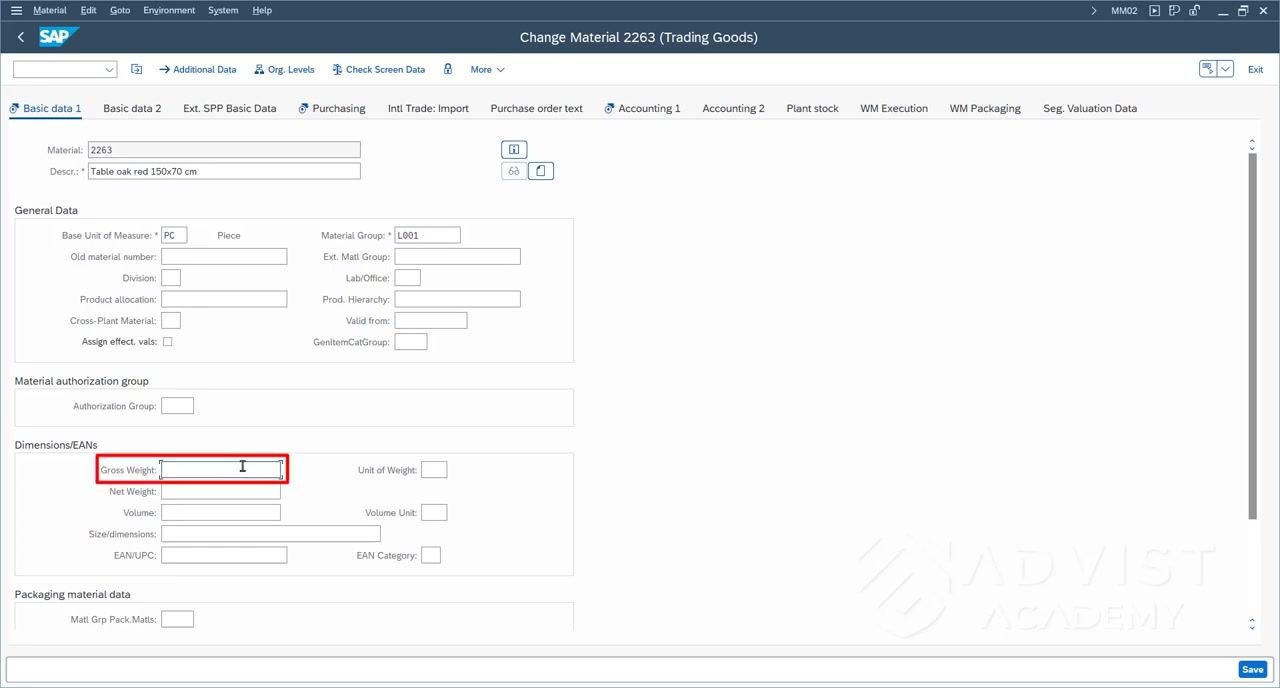
In the Basic Data 1 view, go to the Dimensions/EANs section and enter:
- Gross Weight:
40 - Net Weight:
30 - Unit of Weight:
KG
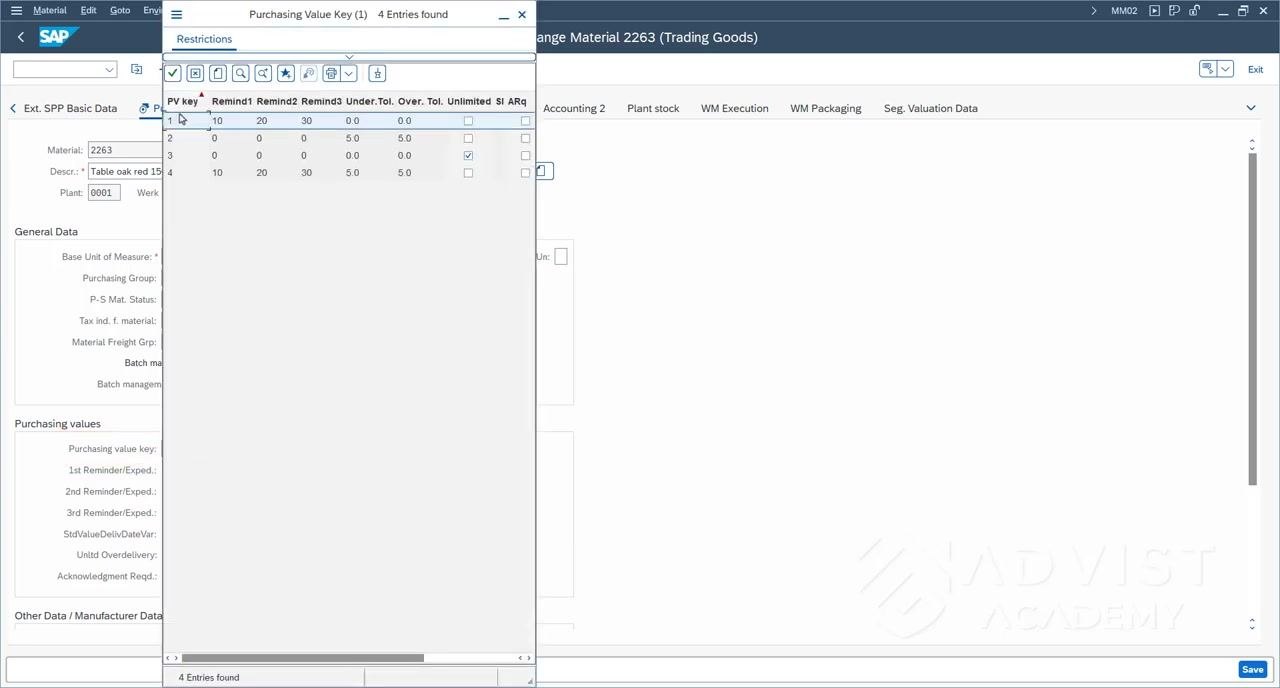
Set the purchasing value key
Switch to the Purchasing view and locate the Purchasing value key field in the Purchasing values section. Click the selection button next to the field to open a popup showing the available purchasing value keys and their parameters, such as reminder deadlines, tolerances, and procedures.
Select Value Key 1 from the list, then confirm your selection to populate the field. This key determines how purchasing conditions — tolerances, delivery deadlines, and price deviations — are managed for the material, and it also sets reminder parameters for late deliveries or payments.
Update the standard price and valuation class
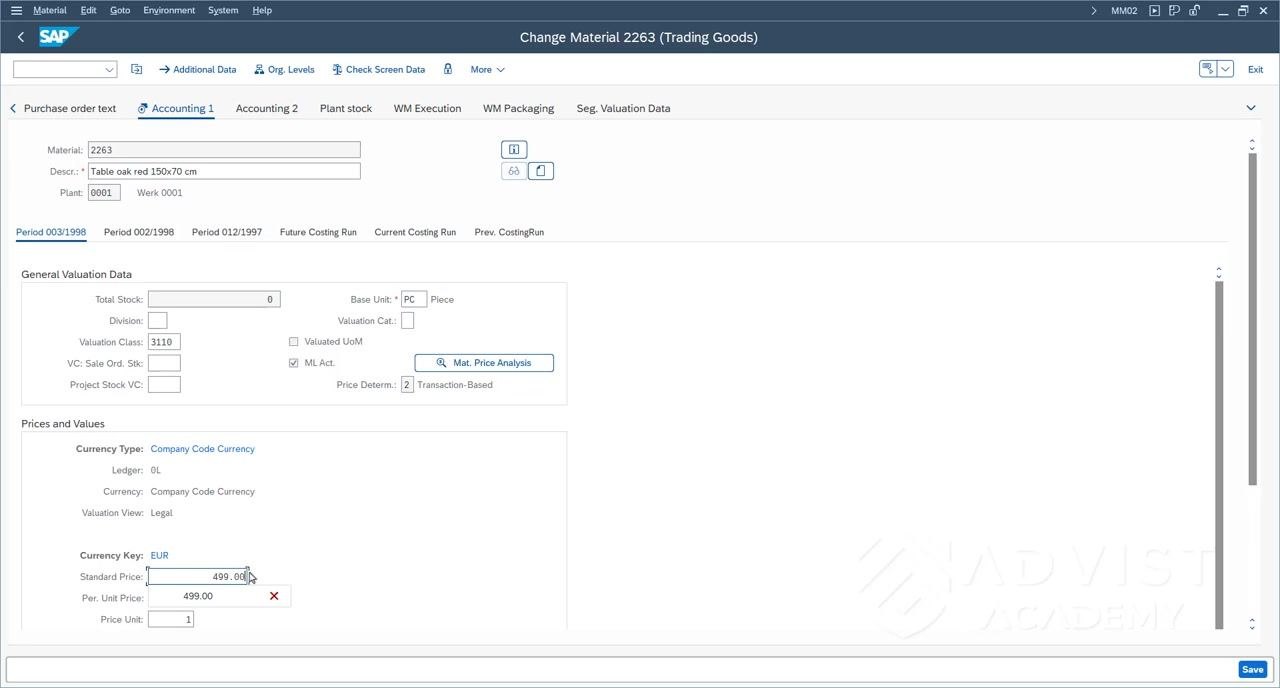
Switch to the Accounting 1 view. In the Prices and Values section, update the Standard Price field to 499.00 EUR. The standard price is a fixed value used for stock valuation and remains constant unless changed manually.
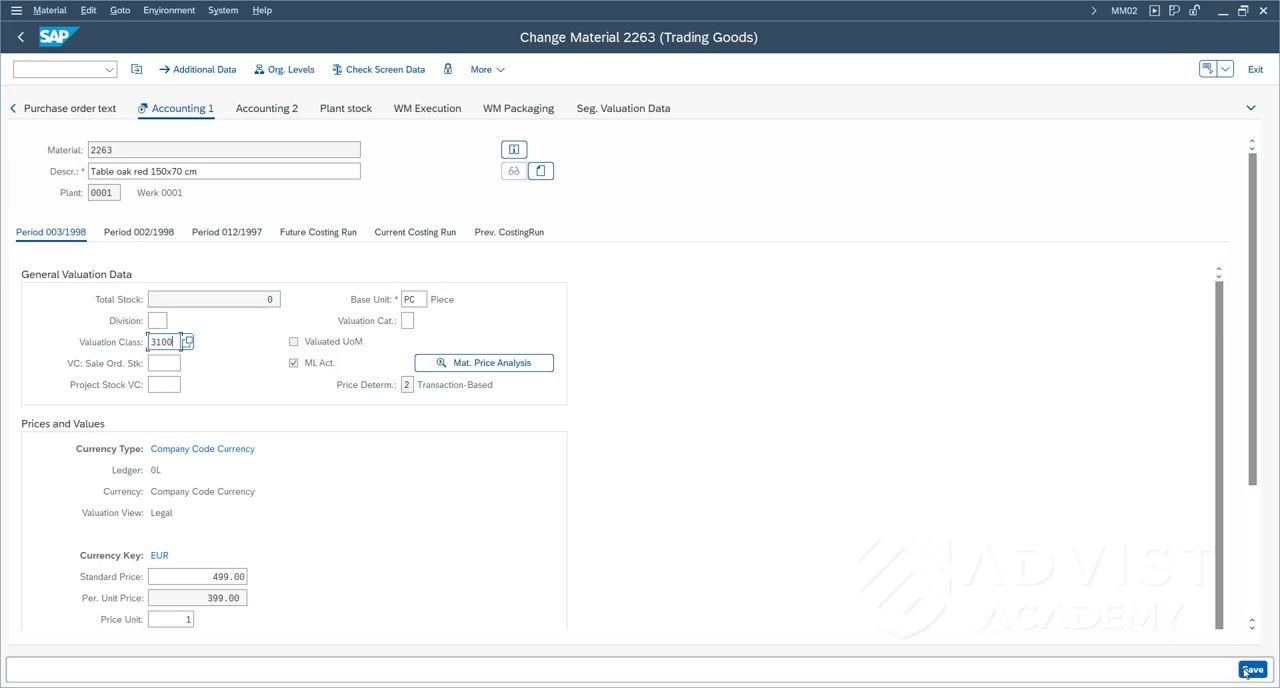
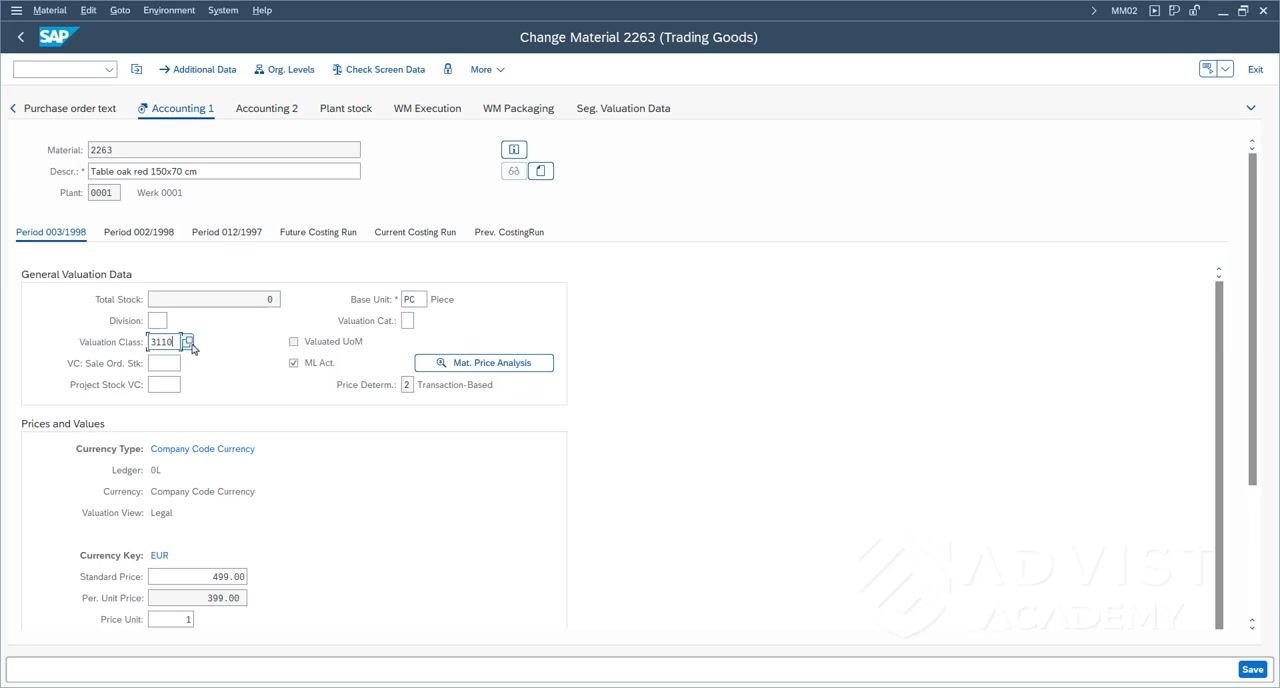
In the same view, under General Valuation Data, set the Valuation Class field to 3100 for Trading Goods. The valuation class determines how the material is valued in terms of costs and which accounts are used for postings.
Save your changes
Once you have verified all updated fields — gross weight, net weight, purchasing value key, standard price, and valuation class — click the Save button at the bottom right of the screen to apply your changes.
Confirm the update
After saving, check the confirmation message at the bottom left of the screen. It should read Material 2263 changed, confirming that your changes have been successfully saved in the system.
Field restrictions to keep in mind
Some fields, such as the material number and material type, cannot be changed once set. These fields are linked to transaction data and overall system consistency, and the restriction is in place to protect data integrity and prevent issues in downstream business processes.
Summary
You have now completed the steps required to change a material master with MM02 in SAP, updating purchasing and accounting data so that all required fields are complete and accurate. If you have further questions, refer to your organization's SAP documentation or contact your SAP support team.

Generation details: cost, quality tiers
Docsie billed 2,000 credits ($1.40) to analyze this 4-minute video at standard quality. The rewrite, template fill and Word/PDF exports were included. The same video at each quality tier:
| Quality | Frames sampled | Credits | Approx. cost |
|---|---|---|---|
| Draft | every 16-30 s | 1,000 | $0.70 |
| Standard (this guide) | every 8-15 s | 2,000 | $1.40 |
| Detailed | every 4-7 s | 4,000 | $2.80 |
| Ultra | every 1-3 s | 8,000 | $5.60 |
Credits priced at $0.70 per 1,000; plans include a monthly allowance. Enterprise customers on on-premise or bring-your-own-model deployments run this on their own inference and pay no per-video credits.
Generated by Docsie Video-to-Docs on 2026-10-06 from a 3-minute video. Screenshots are frames from the source video and belong to their creator, ADVIST Academy EN, whose original is embedded above. If you own this video and want the guide removed or credited differently, contact us and we will act within one business day.