
How to Create a Storage Type in SAP
This guide explains how to create a storage type in SAP Warehouse Management (WM) by copying an existing storage type as a reference. You will walk through configuring storage type 201 for warehouse number 089, saving it with a transport request, and verifying that the new storage type is available for use in transfer orders.
Video: How to create a new Storage Type - SAP WM Customization by BHUPAL REDDY (2016). All credit for the demonstration goes to the creator; watch the original on YouTube. The written guide below was generated from this video by Docsie. Creator? Request a change or removal.
This guide explains how to create a storage type in SAP Warehouse Management (WM) by copying an existing storage type as a reference. You will walk through configuring storage type 201 for warehouse number 089, saving it with a transport request, and verifying that the new storage type is available for use in transfer orders.
Prerequisites
- Access to the SAP system with authorization to use the SPRO transaction and configure Warehouse Management settings.
- An existing storage type to use as a copy template (this guide uses storage type 001 — High rack with inventory).
- A valid transport request number for saving customizing changes.
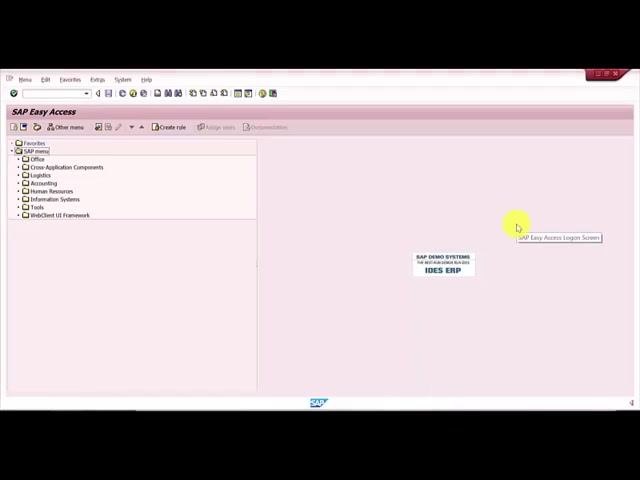
Open the SAP Easy Access screen
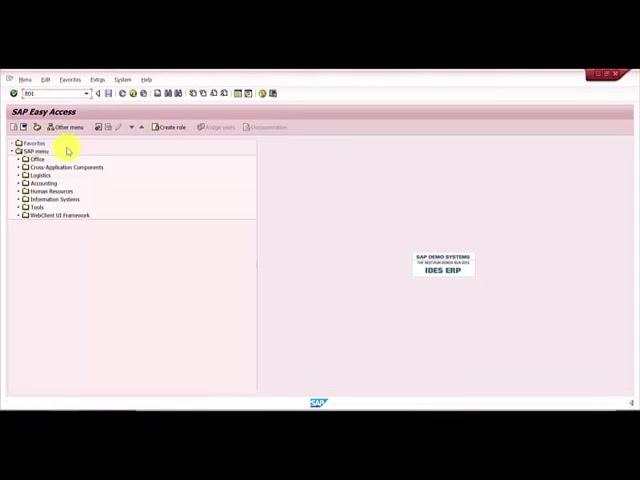
Launch SAP and confirm you are on the SAP Easy Access main screen. You should see the navigation tree on the left and the "SAP DEMO SYSTEMS IDES ERP" label in the center. No actions are required yet — this is your starting point.
Navigate to the SAP Reference IMG
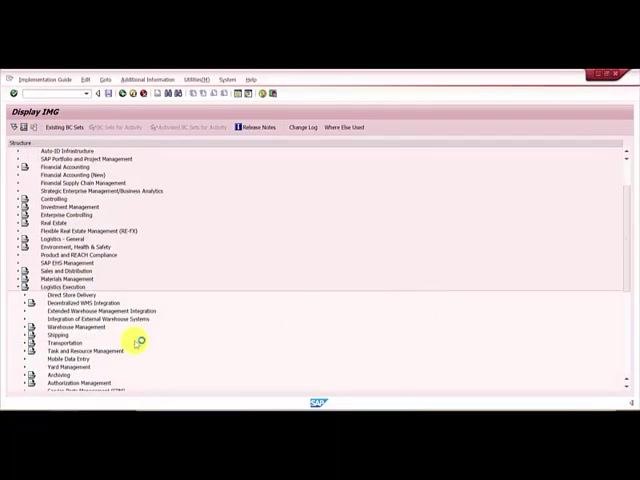
Enter the transaction code SPRO in the command field at the top of the SAP Easy Access screen, then press Enter.
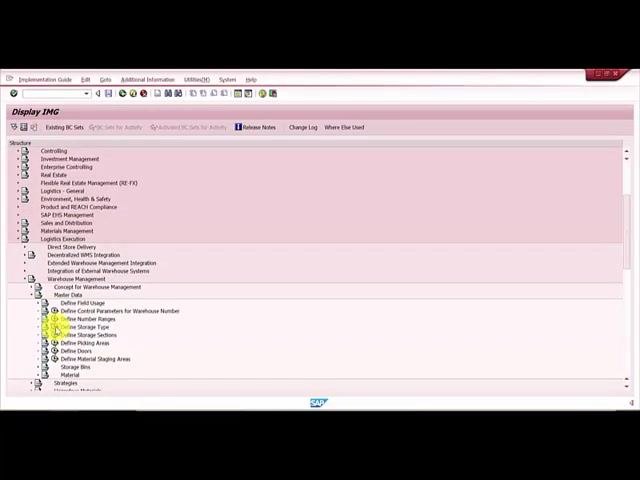
The system displays the Display IMG (Implementation Guide) screen. Locate the navigation tree on the left, which lists the various SAP modules and configuration areas.
Expand Logistics Execution
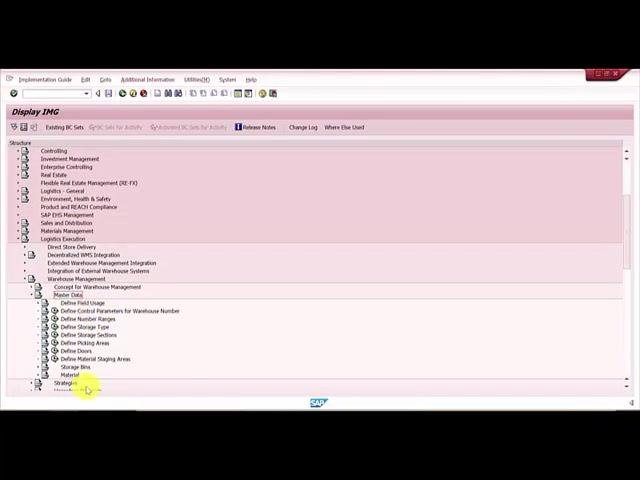
In the navigation tree, expand Logistics Execution, then Warehouse Management, then Master Data.
Open the Define Storage Type configuration
Within Master Data, select Define Storage Type to open the configuration area for storage types.
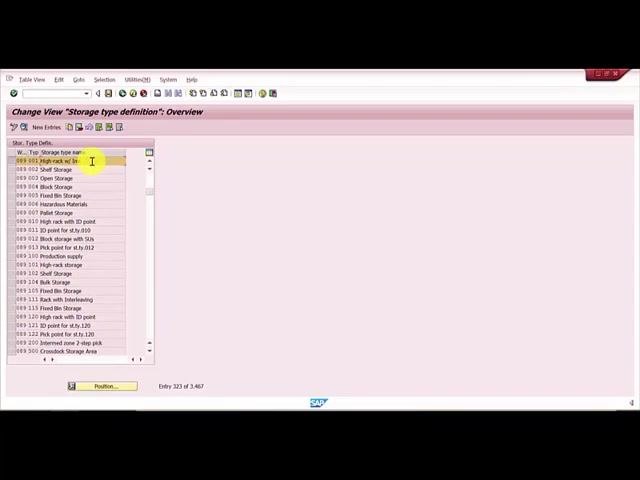
The Change View "Storage type definition": Overview screen appears, showing a list of existing storage types for various warehouses.
Locate the reference storage type
In the overview list, find the high rack storage type for warehouse number 089. For example, Storage Type 001 (High rack with inventory) and Storage Type 101 (High rack SU-managed) are visible in the list. Confirm that Storage Type 001 is the template you want to copy.
Copy an existing storage type
Do not click the New Entries button to add a storage type directly. Always copy an existing storage type as a reference — such as a template storage type or the central warehouse storage type. Storage Type 001 is commonly used as the baseline template.
Select the storage type you want to use as a template (for example, 001 for high rack), then click Copy as to start the copy process. If you have already copied a storage type before, you can copy from that existing entry instead. The system takes you to the Storage Type Controls screen for the new storage type.
When prompted, enter the following values:
- Warehouse Number: 089
- Storage Type: 201 (the new storage type you want to create)
Configure the storage type controls
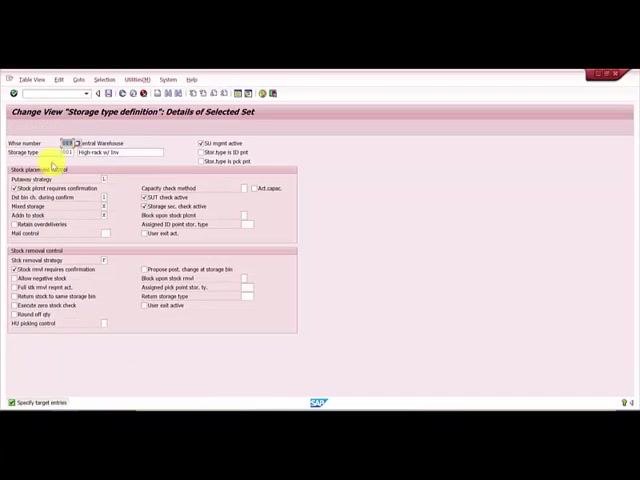
On the Change View "Storage type definition": Details of Selected Set screen, confirm and set the following:
- Warehouse Number: 089 (Central Warehouse)
- Storage Type: 201 (your new storage type)
- Storage Type Description: enter a relevant description, such as "high rack w inv"
- SU management active: leave unchecked
- Capacity check active: leave unchecked
- Section check active: leave unchecked
- Stock Removal Strategy: set to "F"
Review other settings, such as Next empty bin and Destination bin changed during confirmation, and ensure they match your requirements.
Save the new storage type
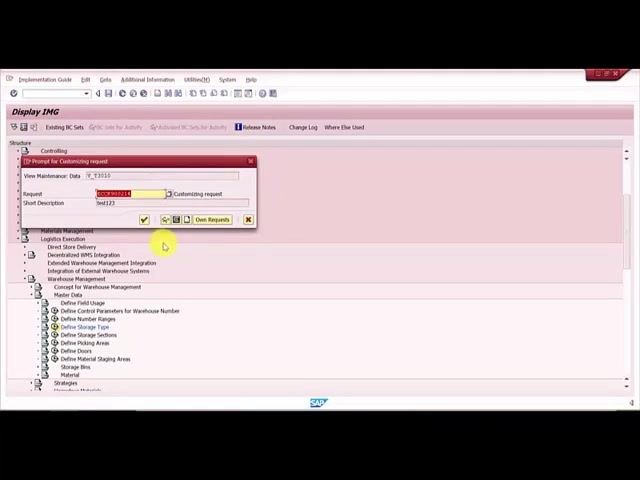
After configuring the controls, click Save. The system prompts you for a transport request.
Enter the transport request details
In the Prompt for Customizing request dialog, enter:
- Request: your transport request number (for example, "TEST2017")
- Short Description: a description (for example, "test2017")
Click the green checkmark to confirm and proceed.
Verify that the storage type was created
Confirm that the new storage type (201) for warehouse 089 now appears in the overview list. The system indicates that the entry has been created successfully.
Key configuration values used:
- Warehouse Number: 089 (Central Warehouse)
- Template Storage Type: 001 (High rack with inventory)
- New Storage Type: 201
- SU Management Active: Not checked
- Capacity Check Active: Not checked
- Section Check Active: Not checked
- Stock Removal Strategy: F
- Transport Request: TEST2017 (example)
Following these steps ensures your new storage type is created using best practices — leveraging an existing template and maintaining consistency in your SAP Warehouse Management configuration.
Verifying the new storage type is available for use
Step 11: Return to the SAP Easy Access screen
Navigate back to the SAP Easy Access main menu, and confirm you are in the correct client and system (for example, SAP DEMO SYSTEMS, IDES ERP).
Step 12: Create a transfer order item
Open the transaction for creating a transfer order. On the Create Transfer Order: Initial Screen, enter:
- Warehouse Number: 089
- Movement Type: 501
- Material: enter a valid material code for your scenario
- Quantity Requested: 100
- Plant/Stor. Loc.: 2000 / 0089
Leave other fields as default unless your process specifies otherwise.
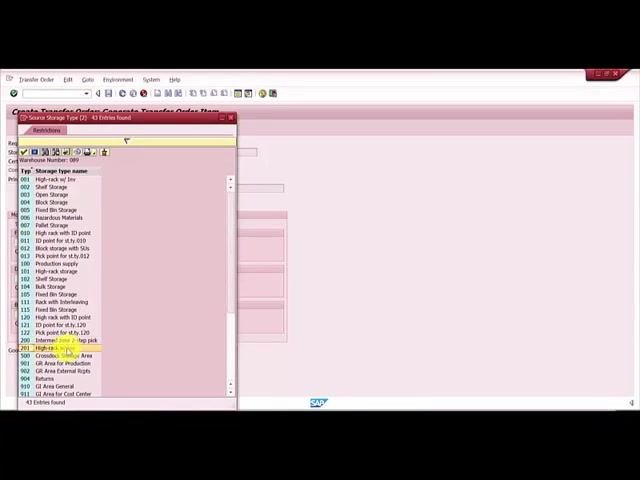
Continue to the Create Transfer Order: Generate Transfer Order Item screen. Review the fields for requested quantity, material, plant/storage location, and movement data, then prepare to select the storage type for the transfer.
Step 13: Confirm storage type 201 is available
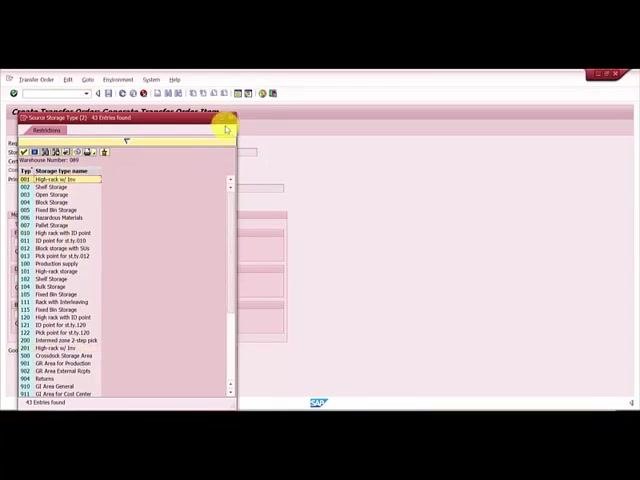
In the storage type selection dialog, scroll through the list of available storage types and look for "201." The description should match what you entered earlier (for example, "high rack w inv"). Confirming that "201" appears in the list indicates that the storage type was created successfully.
Step 14: Return to SAP Easy Access
After verification, return to the SAP Easy Access main menu. You have now confirmed the creation and availability of storage type 201.
Summary
- Use the transfer order creation process to visually confirm the presence of storage type 201.
- Ensure the description and settings match your configuration.
- For advanced verification, you can check at the table level in SAP.
By following these steps, you ensure that your new storage type is not only created but also available for operational use in SAP Warehouse Management.
Generation details: cost, quality tiers
Docsie billed 2,500 credits ($1.75) to analyze this 5-minute video at standard quality. The rewrite, template fill and Word/PDF exports were included. The same video at each quality tier:
| Quality | Frames sampled | Credits | Approx. cost |
|---|---|---|---|
| Draft | every 16-30 s | 1,250 | $0.88 |
| Standard (this guide) | every 8-15 s | 2,500 | $1.75 |
| Detailed | every 4-7 s | 5,000 | $3.50 |
| Ultra | every 1-3 s | 10,000 | $7.00 |
Credits priced at $0.70 per 1,000; plans include a monthly allowance. Enterprise customers on on-premise or bring-your-own-model deployments run this on their own inference and pay no per-video credits.
Generated by Docsie Video-to-Docs on 2026-10-19 from a 4-minute video. Screenshots are frames from the source video and belong to their creator, BHUPAL REDDY, whose original is embedded above. If you own this video and want the guide removed or credited differently, contact us and we will act within one business day.