
How to Create a Fiscal Year Variant in SAP
A Fiscal Year Variant defines the fiscal year structure in SAP, including the number of posting periods and special periods used for year-end activities. This guide walks you through how to create a fiscal year variant in SAP, configure its periods, and save your settings using a customizing request.
Video: How to create Fiscal year variant in SAP FICO by Adarsh Kumar (2014). All credit for the demonstration goes to the creator; watch the original on YouTube. The written guide below was generated from this video by Docsie. Creator? Request a change or removal.
A Fiscal Year Variant defines the fiscal year structure in SAP, including the number of posting periods and special periods used for year-end activities. This guide walks you through how to create a fiscal year variant in SAP, configure its periods, and save your settings using a customizing request.
Prerequisites
Before you begin, keep the following in mind:
- A Fiscal Year Variant contains 12 normal posting periods (months) and up to 4 special periods for year-end activities.
- You can define a maximum of 16 posting periods per year.
- Special periods are reserved specifically for year-end closing tasks.
Access the SAP Easy Access screen
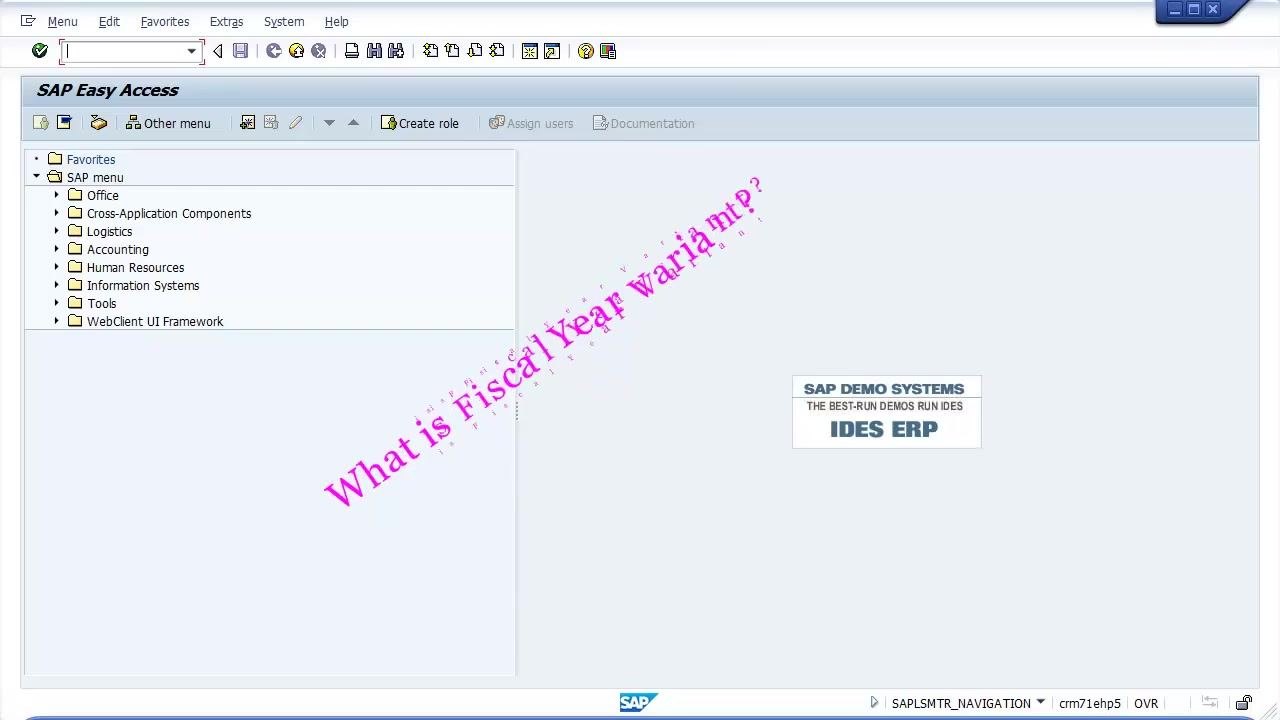
Start from the SAP Easy Access main menu. The left panel displays the SAP menu with folders such as Office, Logistics, Accounting, and Human Resources. The right panel may show system information (for example, "SAP DEMO SYSTEMS IDES ERP"), and the command field appears at the top of the screen.
Open the Fiscal Year Variant configuration
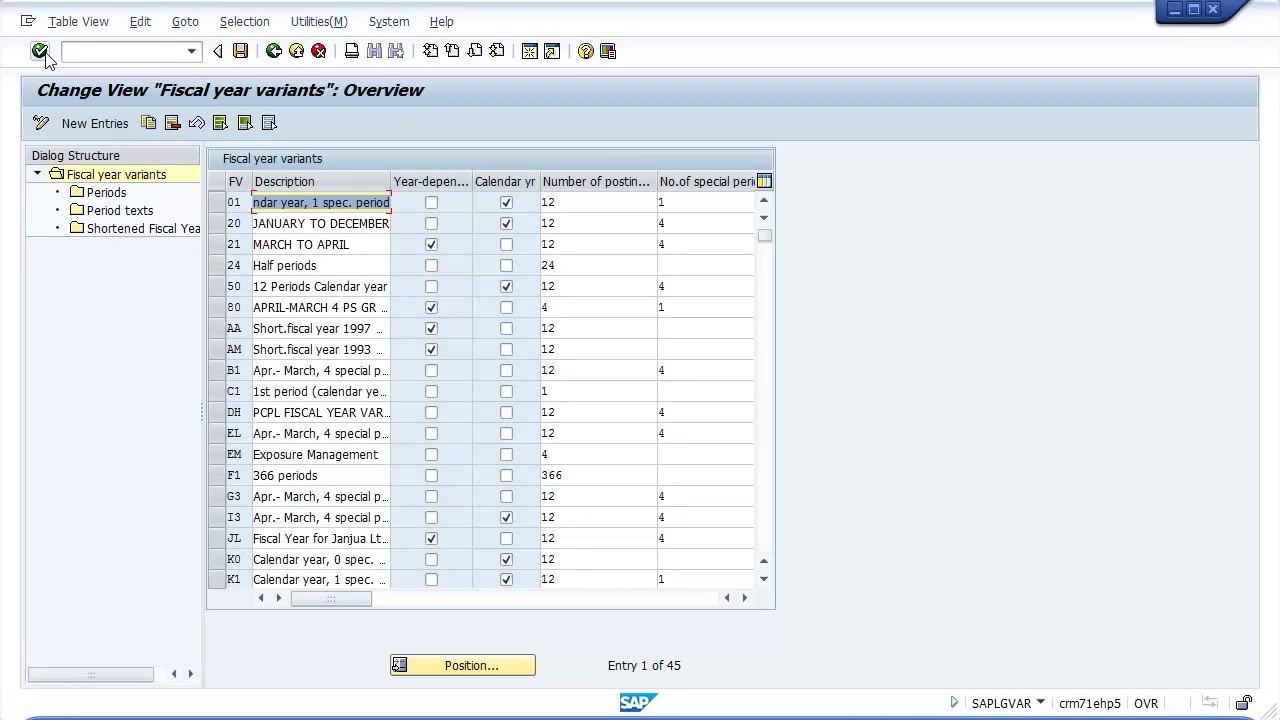
Click the command field at the top of the SAP Easy Access screen. Type OB29 and press Enter to navigate to the Fiscal Year Variant configuration.
The Change View "Fiscal year variants": Overview screen appears, listing existing fiscal year variants with columns for FV (code), Description, Calendar year, Number of posting periods, and Number of special periods.
Create a new fiscal year variant
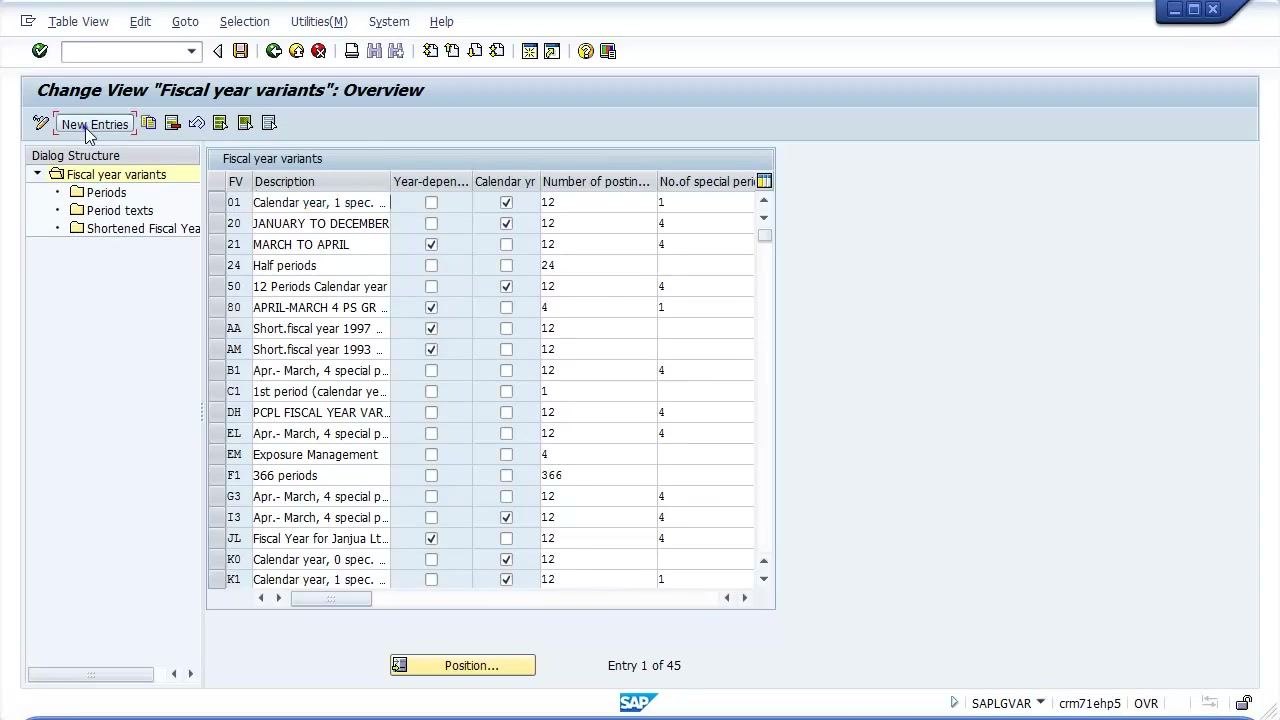
Click the New Entries button at the top left of the screen to add a new fiscal year variant.
Enter the fiscal year variant details
On the New Entries: Overview of Added Entries screen, fill in the following fields:
- FV: Enter a unique two-character code for the fiscal year variant (for example,
AD). - Description: Enter a descriptive name (for example,
April - March, 4 Spl Periods). - Number of Posting Periods: Enter
12, since a fiscal year contains 12 months. - Number of Special Periods: Enter
4for year-end activities.
Leave all other fields at their default values unless your requirements dictate otherwise.
After entering the details, press Enter to validate the entries and confirm that the new fiscal year variant is highlighted/selected.
Maintain periods for the fiscal year variant
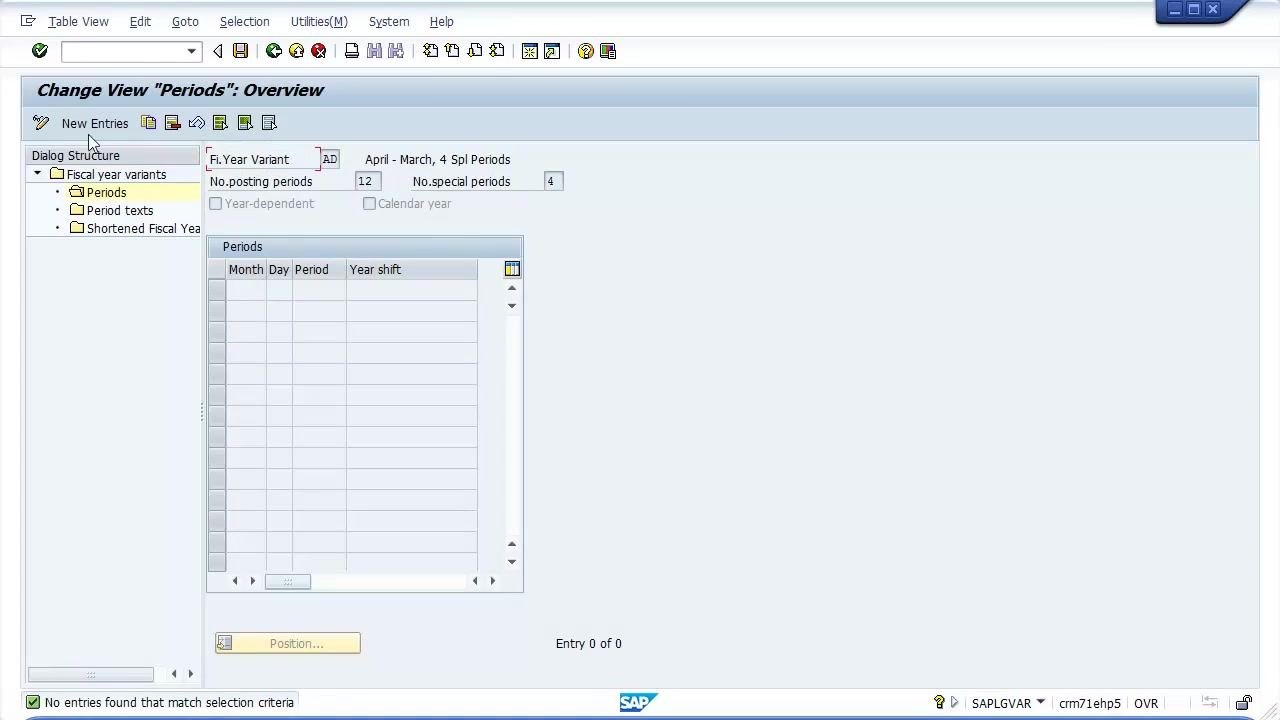
In the left navigation pane, under Fiscal year variants, double-click the Periods folder. The Change View "Periods": Overview screen appears for the selected fiscal year variant.
Click New Entries to begin defining the periods, then update the Month field in ascending order (for example, 01 for January, 02 for February, and so on), completing the period details as required for your fiscal year structure.
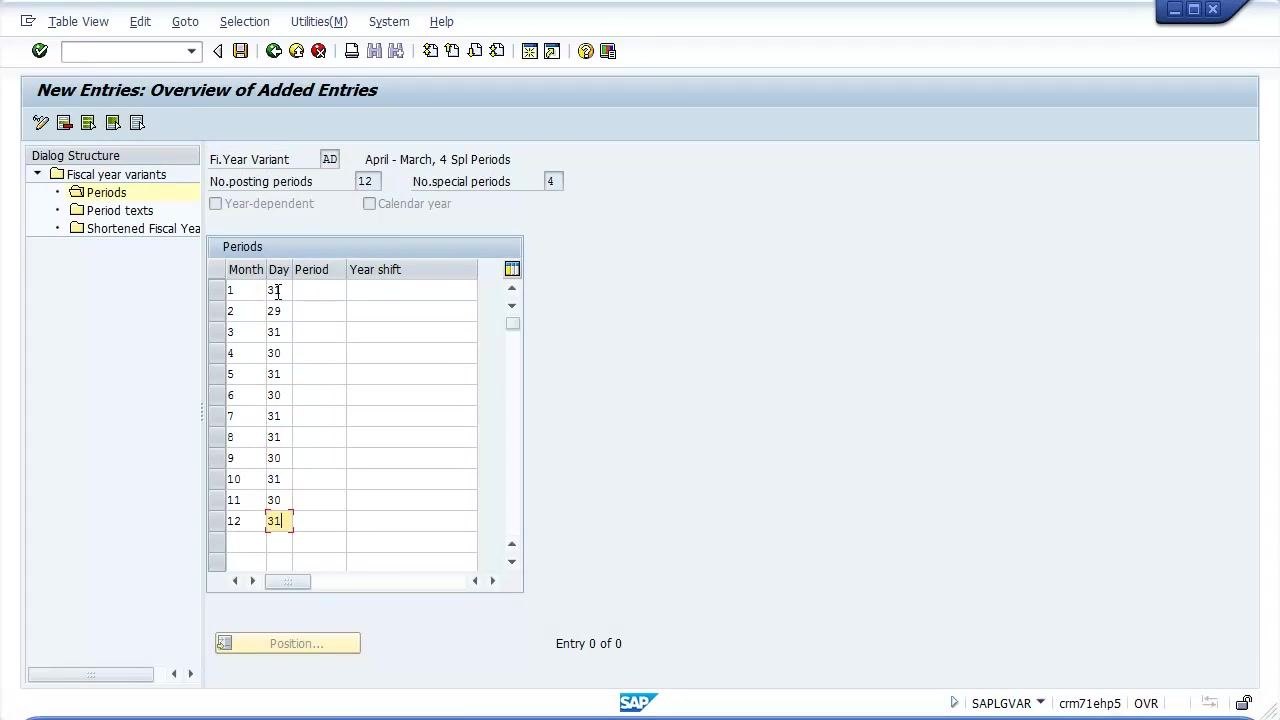
Update the number of days for each month
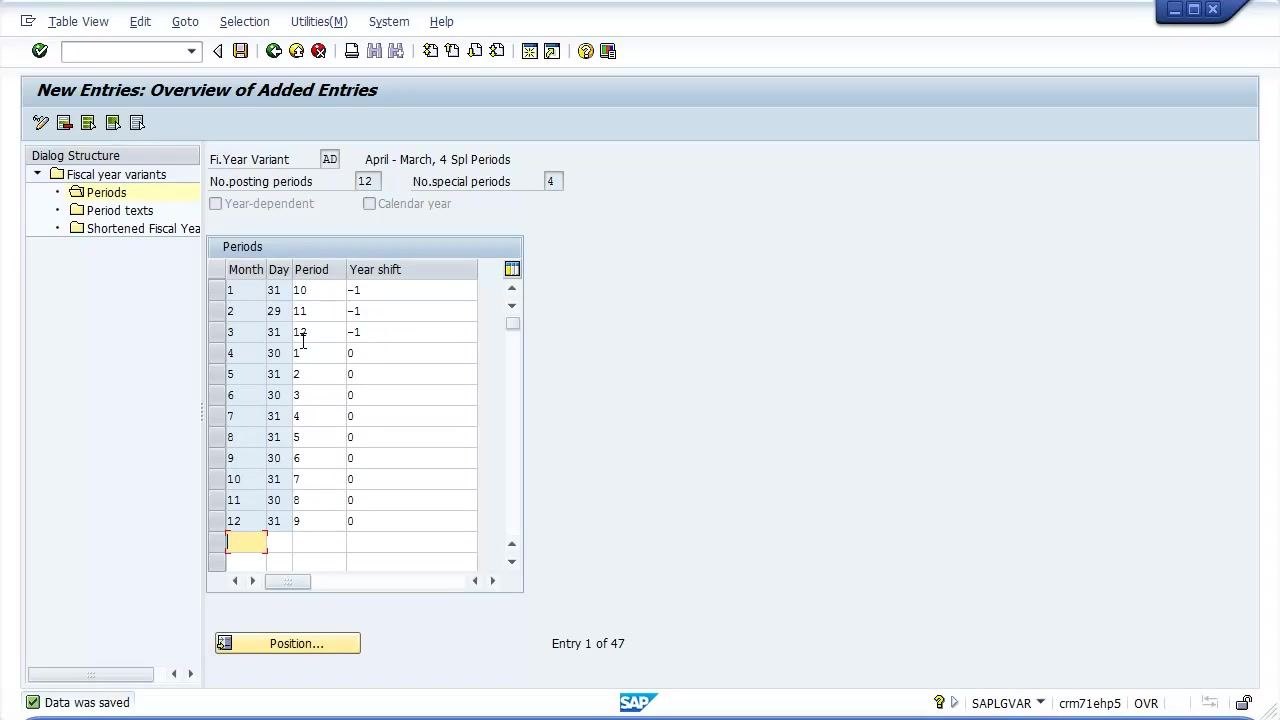
On the New Entries: Overview of Added Entries screen, locate the Periods table. For each month (1 to 12), enter the correct number of days in the Day column (for example, 31 for January, 29 for February in a leap year, 30 for April, and so on), ensuring every month reflects the correct number of days for your fiscal calendar.
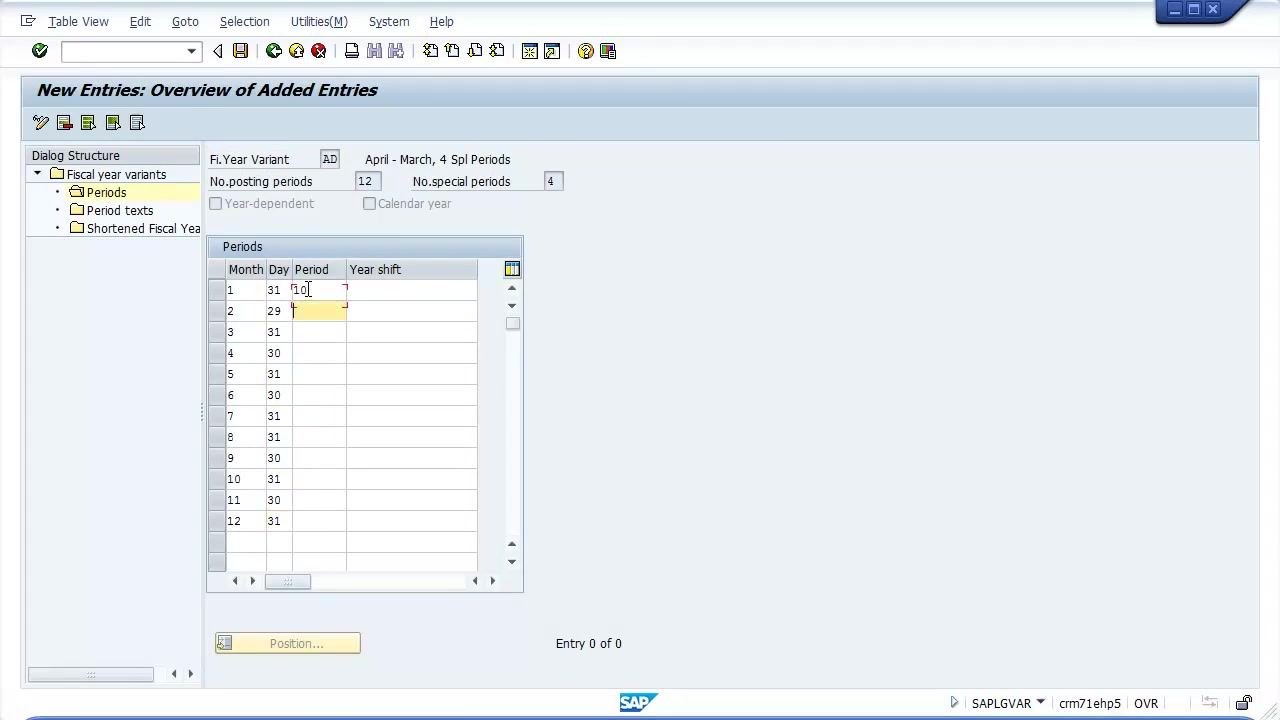
Set the period number for when each month starts
In the Period column, specify the period number corresponding to when each month starts in your fiscal year. For example, if your fiscal year starts in April, set Period as 1 for April (Month 4), 2 for May (Month 5), and so on. Adjust earlier months (January, February, March) to reflect their period numbers relative to the fiscal year start (for example, 10, 11, 12).
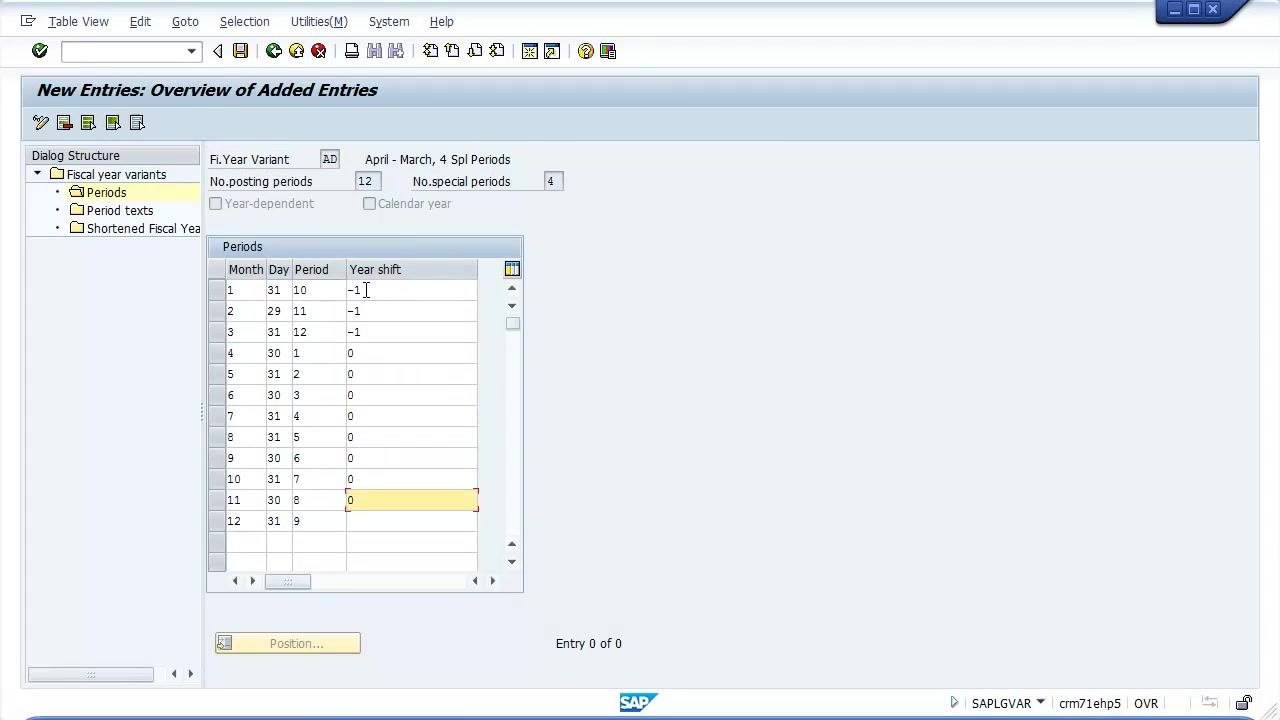
Enter the year shift for each month
In the Year shift column, enter the appropriate value for each month:
- Use
0for months that belong to the same calendar year as the fiscal year start. - Use
-1for months that belong to the previous calendar year (for example, January, February, March if the fiscal year starts in April).
This ensures that periods are correctly assigned to fiscal years.
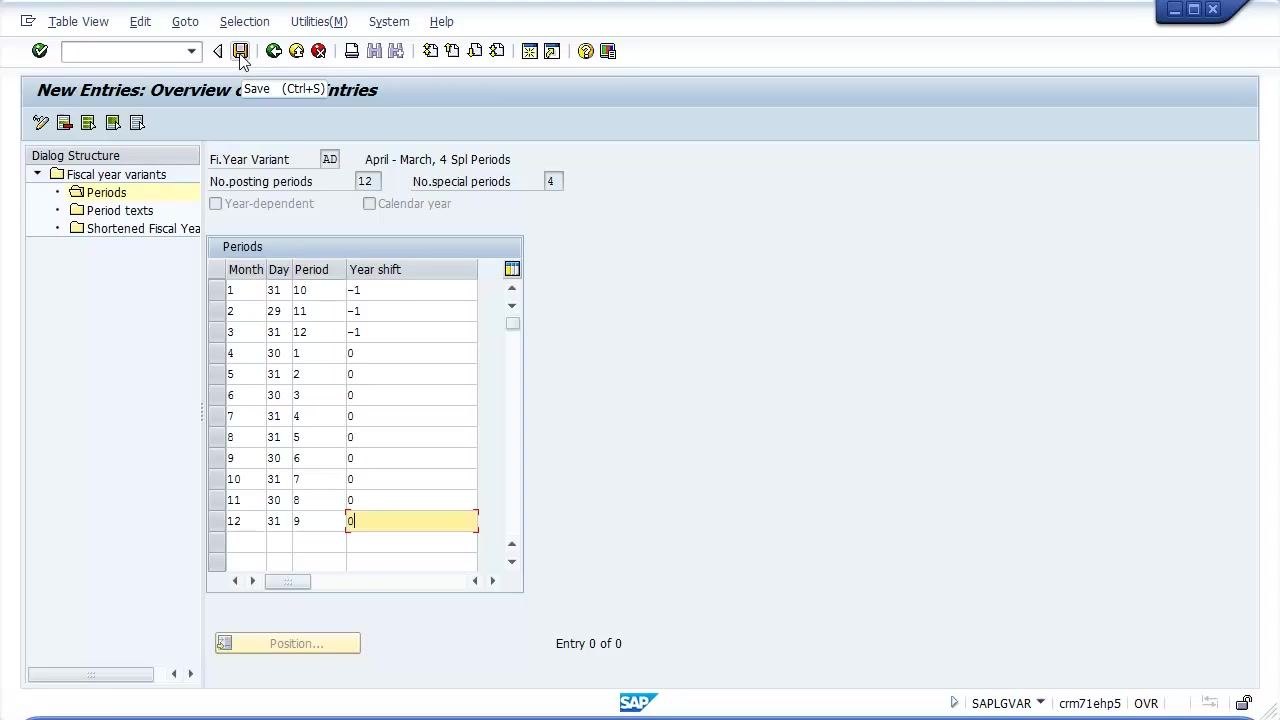
Save the fiscal year variant
After updating all period, day, and year shift details, click the Save button (disk icon) at the top of the screen to save your fiscal year variant configuration.
Create a customizing request for Financial Accounting configuration
When prompted, a Create Request dialog appears. In the Short Description field, enter a meaningful description such as Financial Accounting Settings, and confirm that the Owner and Source client fields are correct. Click Save in the dialog to create and assign the customizing request.
Confirm that your data is saved
After saving, verify that the Data was saved message appears at the bottom of the screen. The periods table should now reflect your configured values for days, periods, and year shifts.
Summary
By following these steps, you have successfully learned how to create a fiscal year variant in SAP, configure its posting and special periods, and save your changes using a customizing request. Continue to maintain period details as needed to match your organization's fiscal calendar requirements.
Generation details: cost, quality tiers
Docsie billed 1,500 credits ($1.05) to analyze this 3-minute video at standard quality. The rewrite, template fill and Word/PDF exports were included. The same video at each quality tier:
| Quality | Frames sampled | Credits | Approx. cost |
|---|---|---|---|
| Draft | every 16-30 s | 750 | $0.52 |
| Standard (this guide) | every 8-15 s | 1,500 | $1.05 |
| Detailed | every 4-7 s | 3,000 | $2.10 |
| Ultra | every 1-3 s | 6,000 | $4.20 |
Credits priced at $0.70 per 1,000; plans include a monthly allowance. Enterprise customers on on-premise or bring-your-own-model deployments run this on their own inference and pay no per-video credits.
Generated by Docsie Video-to-Docs on 2026-10-19 from a 2-minute video. Screenshots are frames from the source video and belong to their creator, Adarsh Kumar, whose original is embedded above. If you own this video and want the guide removed or credited differently, contact us and we will act within one business day.