
How to Create a Division in SAP
Creating a division in SAP SD is a core step in setting up your Enterprise Structure, allowing you to organize materials, services, or product lines within a sales organization. This guide walks you through the complete process, from opening the SAP Easy Access screen to confirming that your new division is available for use in customer master data.
Video: Create/Define Division in SAP SD module. by SAP CLASS (2017). All credit for the demonstration goes to the creator; watch the original on YouTube. The written guide below was generated from this video by Docsie. Creator? Request a change or removal.
Creating a division in SAP SD is a core step in setting up your Enterprise Structure, allowing you to organize materials, services, or product lines within a sales organization. This guide walks you through the complete process, from opening the SAP Easy Access screen to confirming that your new division is available for use in customer master data.
Prerequisites
- Access to an SAP GUI client and valid login credentials.
- Authorization to use the
SPROtransaction and maintain Enterprise Structure settings. - A customizing request available (or permission to create one) for saving configuration changes.
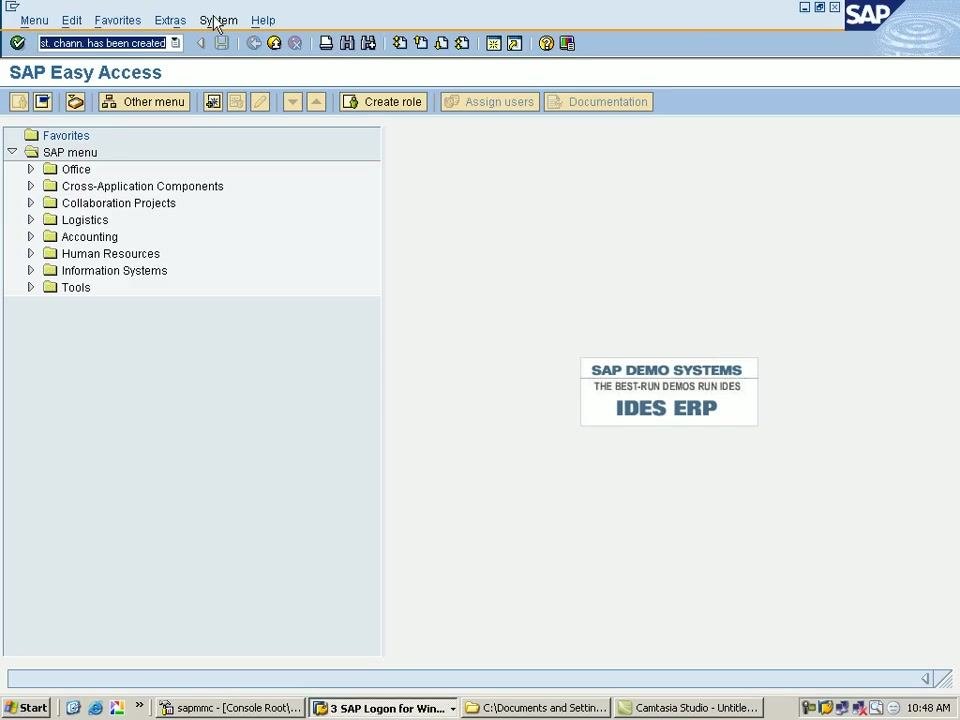
Access the SAP Easy Access screen
Launch the SAP GUI and log in to your SAP system. Once logged in, confirm that you are on the SAP Easy Access screen.
The left panel displays the SAP menu, with folders such as Office, Cross-Application Components, Collaboration Projects, Logistics, Accounting, Human Resources, Information Systems, and Tools. The main area shows the demo system banner, and the top menu bar includes Menu, Edit, Favorites, Extras, System, and Help, along with a toolbar of common action icons.
Open the SAP Customizing Implementation Guide
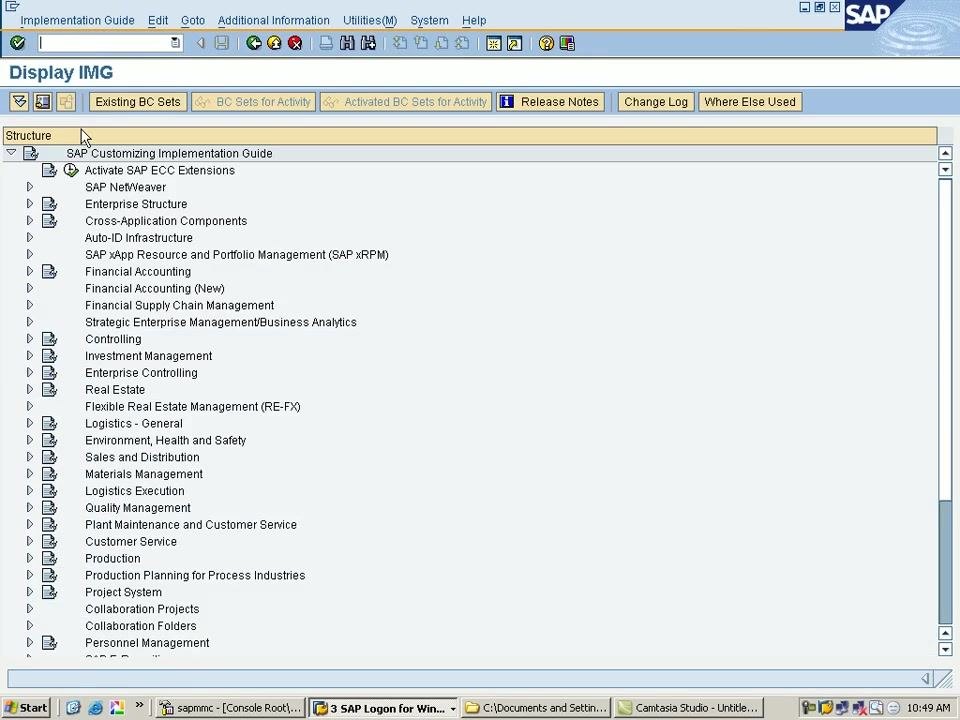
In the command field at the top of the screen, enter the transaction code /nSPRO to access the SAP Reference IMG (Implementation Guide).
As you type, a dropdown of previously used transaction codes appears, including /nxd01, /nva01, /n, /nspro, SPRO, /nex, RCOMP, mm01, /nsmartform, and /nsmart_form. Select /nSPRO from the dropdown, or type it manually and confirm.
This opens the Display IMG screen, which presents the SAP Customizing Implementation Guide. The left panel lists expandable sections such as Activate SAP ECC Extensions, SAP NetWeaver, Enterprise Structure, Cross-Application Components, Financial Accounting, and Controlling, among others. The toolbar offers options including Existing BC Sets, BC Sets for Activity, Activated BC Sets for Activity, Release Notes, Change Log, and Where Else Used.
Navigate to the division maintenance activity
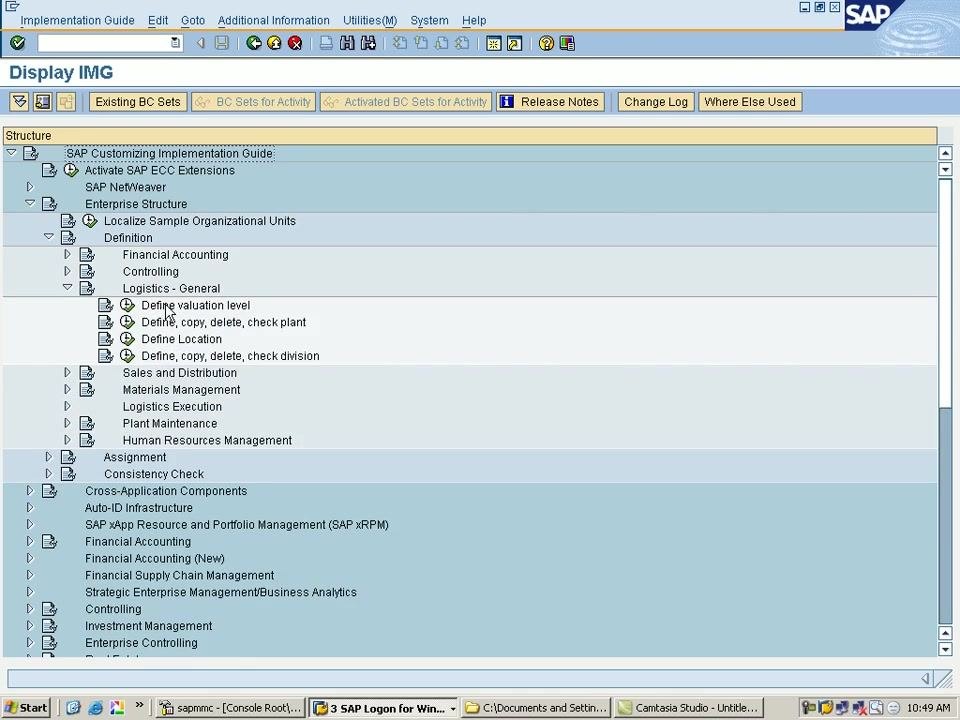
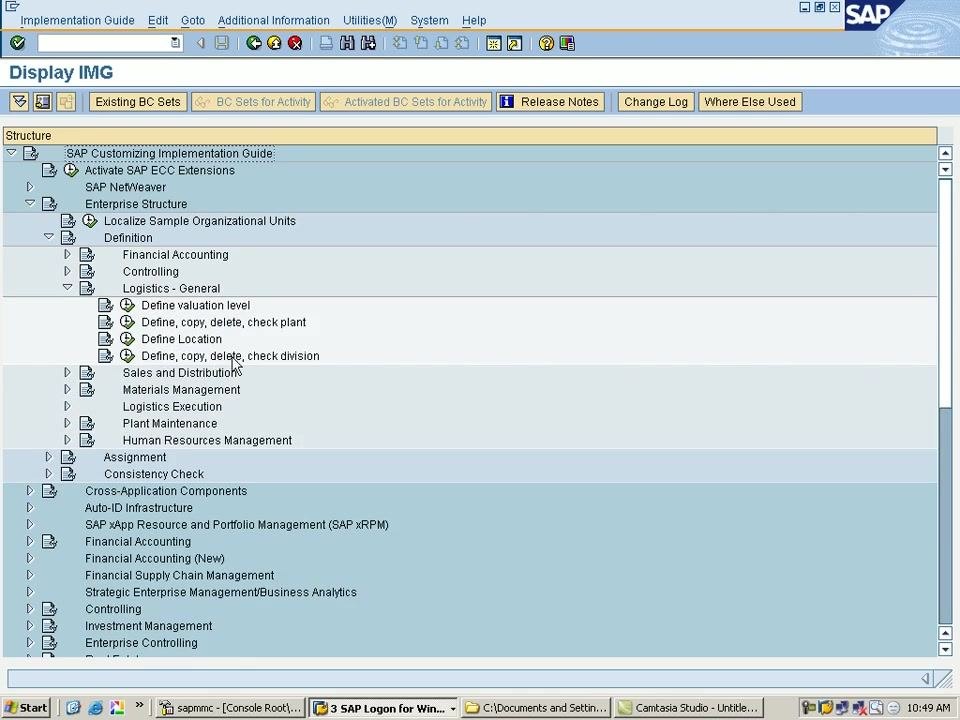
Expand the Enterprise Structure node, then the Definition sub-node, followed by Logistics - General. The following options become visible:
- Define valuation level
- Define, copy, delete, check plant
- Define Location
- Define, copy, delete, check division
Choose the Define Division activity
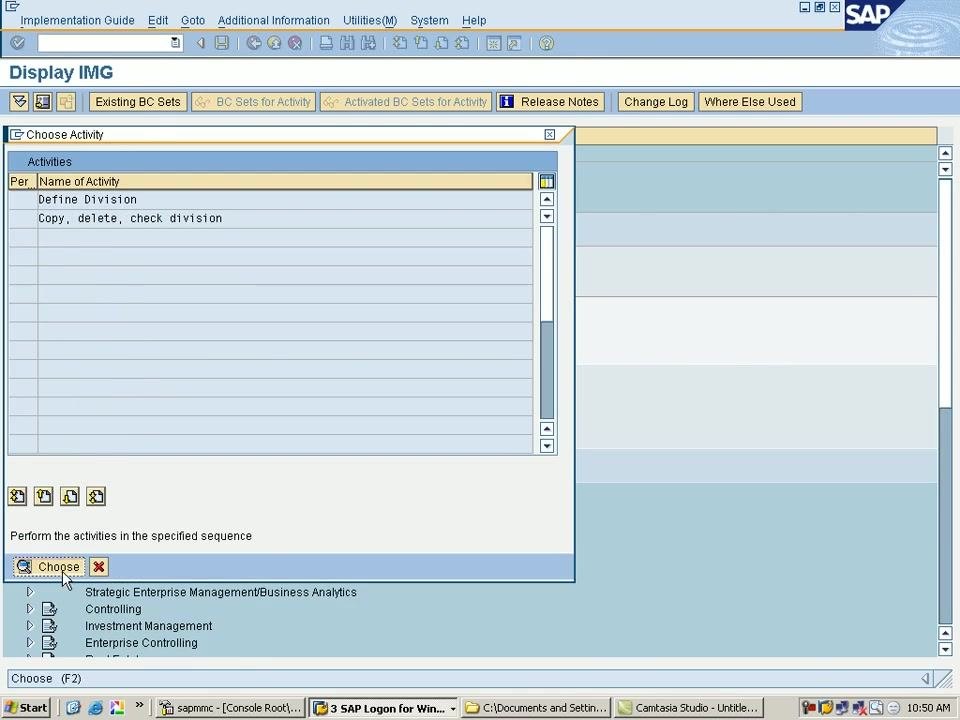
Click Define, copy, delete, check division under Logistics - General. A Choose Activity dialog box appears, listing two activities:
- Define Division
- Copy, delete, check division
Select Define Division, then click the Choose button (or press F2) to proceed.
Review existing divisions and start a new entry
The Change View 'Divisions': Overview screen appears, displaying a table of existing divisions with Division and Name columns. Examples include:
- 01: Pumps
- 02: Motorcycles
- 03: Paints
- 04: Lighting
- 05: Foods
- 06: Elevators
- 07: High Tech
- 08: Service
- 09: Automotive Parts
- 10: Vehicles
Click the New Entries button at the top left of the screen to add a new division.
Enter the division code
On the New Entries: Overview of Added Entries screen, enter the new division code in the Division column — for example, 70. The table is now ready to accept the corresponding name.
Enter the division name
In the Name column next to the new division code, enter the name for the division. For division 70, the name is set to car. Confirm that the Division column shows 70 and the Name column shows car before proceeding.
Save the new division
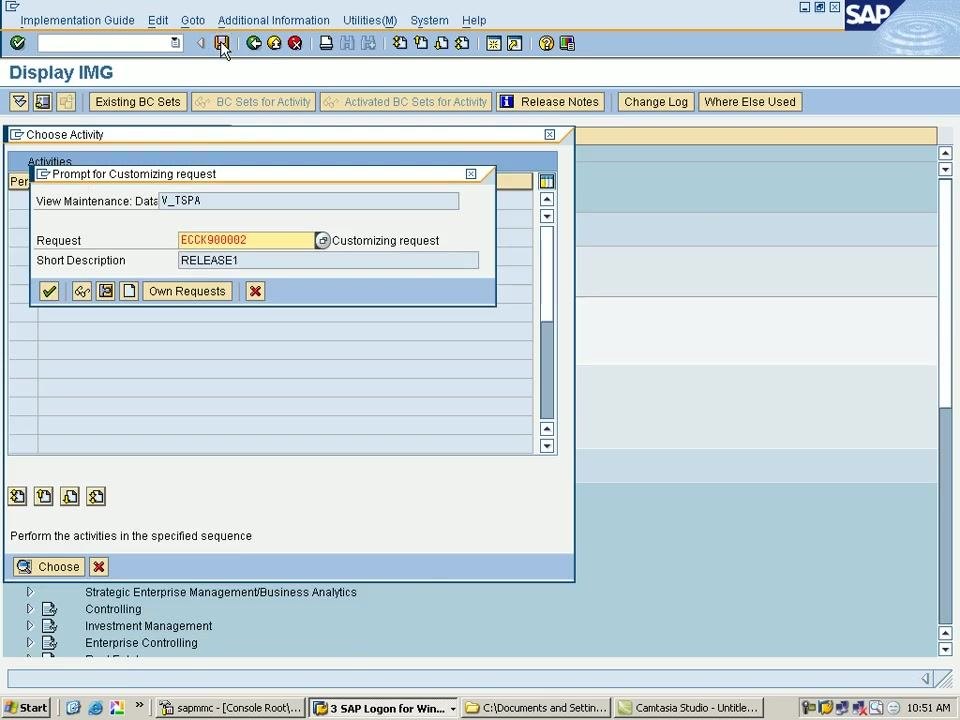
Click the Save icon (floppy disk) in the toolbar at the top of the SAP window to save your new division entry.
The system prompts you for a customizing request through the Prompt for Customizing request dialog, showing:
- View Maintenance: Table/View
V_TSPA - Request:
ECKK900002(Customizing request) - Short Description:
RELEASE1
Confirm the request by clicking the green checkmark button in the dialog.
After confirming, you return to the SAP Easy Access screen, where a confirmation message appears at the top: "Division has been created." This confirms that your new division entry has been successfully saved in the system.
Verify the new division
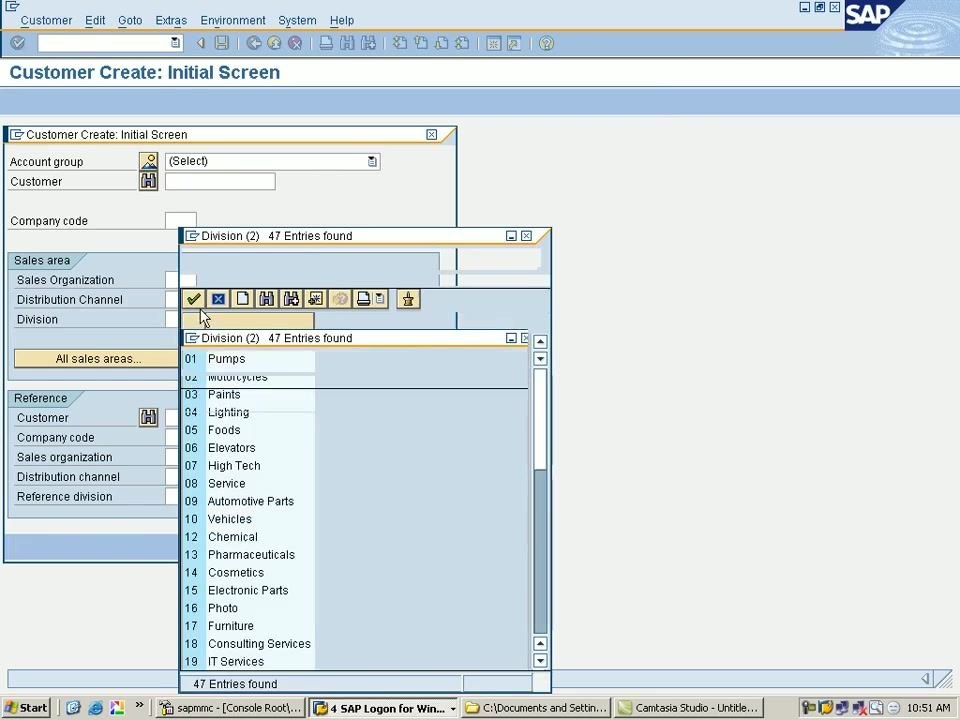
To confirm that division 70 is active and available, navigate to the Customer Create: Initial Screen (the transaction used for customer master data). In the Sales area section, click the search help (dropdown) for the Division field.
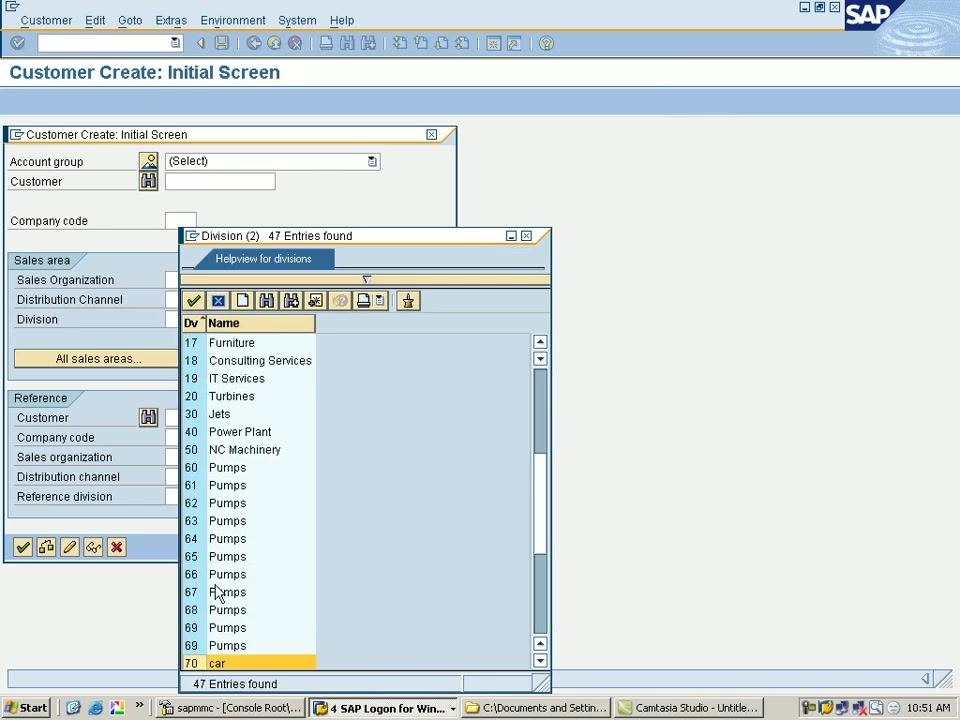
A popup window lists all available divisions. Scroll through the list to confirm that division 70 with the name car now appears, typically at the bottom of the list.
What's next
You have successfully learned how to create a division in SAP SD, saved the configuration, and verified that the new division is available for use in master data. Continue with any additional configuration or assignments required by your business process, such as linking the division to a sales organization or distribution channel.
Generation details: cost, quality tiers
Docsie billed 2,000 credits ($1.40) to analyze this 4-minute video at standard quality. The rewrite, template fill and Word/PDF exports were included. The same video at each quality tier:
| Quality | Frames sampled | Credits | Approx. cost |
|---|---|---|---|
| Draft | every 16-30 s | 1,000 | $0.70 |
| Standard (this guide) | every 8-15 s | 2,000 | $1.40 |
| Detailed | every 4-7 s | 4,000 | $2.80 |
| Ultra | every 1-3 s | 8,000 | $5.60 |
Credits priced at $0.70 per 1,000; plans include a monthly allowance. Enterprise customers on on-premise or bring-your-own-model deployments run this on their own inference and pay no per-video credits.
Generated by Docsie Video-to-Docs on 2026-10-19 from a 3-minute video. Screenshots are frames from the source video and belong to their creator, SAP CLASS, whose original is embedded above. If you own this video and want the guide removed or credited differently, contact us and we will act within one business day.