
How to Configure Transport Routes in SAP
This guide walks you through how to configure transport routes in SAP manually, from logging into the SAP GUI to distributing and activating your transport route configuration in the Transport Management System (TMS). You will learn how to access the relevant screens, define consolidation and delivery routes between your Development, Quality, and Production systems, and confirm that your configuration has been successfully activated.
Video: transport route creation by sapguru (2019). All credit for the demonstration goes to the creator; watch the original on YouTube. The written guide below was generated from this video by Docsie. Creator? Request a change or removal.
This guide walks you through how to configure transport routes in SAP manually, from logging into the SAP GUI to distributing and activating your transport route configuration in the Transport Management System (TMS). You will learn how to access the relevant screens, define consolidation and delivery routes between your Development, Quality, and Production systems, and confirm that your configuration has been successfully activated.
Prerequisites
- Access to the SAP GUI with valid logon credentials.
- Authorization to use the Transport Management System (transaction STMS).
- Knowledge of your system landscape (for example, DEV, QAS, and PRD systems) and the transport domain controller.
Accessing SAP Easy Access
Step 1: Log in and open SAP Easy Access
Launch the SAP GUI and log in to your SAP system. The main window displays the SAP Easy Access screen, with the SAP menu in the left pane showing folders such as Office, Cross-Application Components, Collaboration Projects, Logistics, Accounting, Human Resources, Information Systems, and Tools.
The right pane shows a welcome message identifying the demo system, while the status bar at the bottom right displays system details, including the system (PRD), client (000), user (DDIC), program, transaction, and performance metrics.
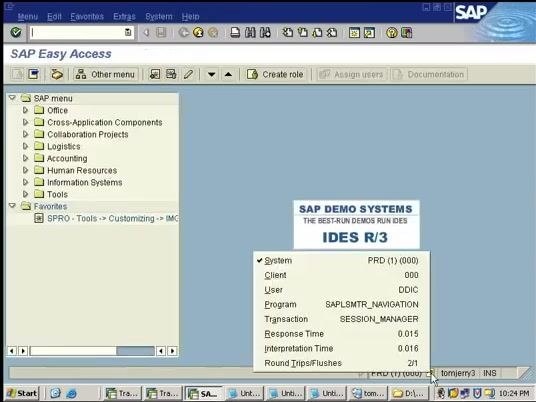
Step 2: Confirm your system details
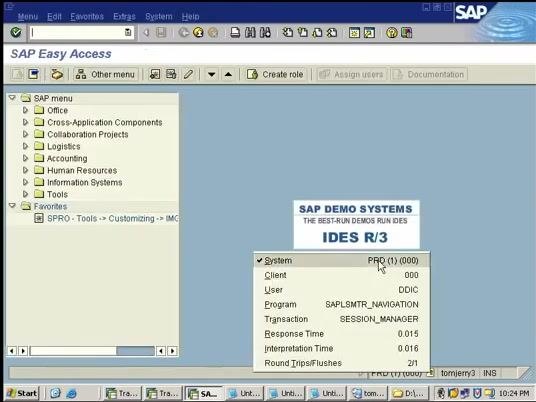
Before making any changes, hover over or click the system status area at the bottom right of the screen to review your current context. Confirm the following details:
- System: PRD (1) (000)
- Client: 000
- User: DDIC
- Program: SAPLSMTR_NAVIGATION
- Transaction: SESSION_MANAGER
Verifying these details ensures you are working in the correct client and user context before you begin configuring transport routes.
Opening the Transport Management System
Step 3: Start the Transport Management System (TMS)
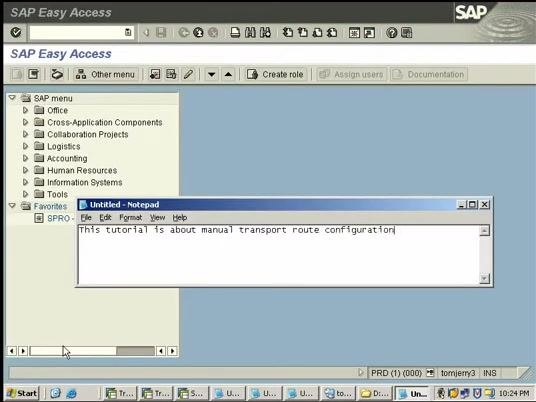
From the SAP Easy Access screen, open the transaction for the Transport Management System. The Transport Management System window opens, displaying the system (PRD), transport domain (DOMAIN_PRD), and domain controller (Transport domain PRD), along with a status message confirming that you are logged onto the domain controller.
Since the transport domain is already configured, the next step is to configure the transport routes manually.
Step 4: Open the Change Transport Routes screen
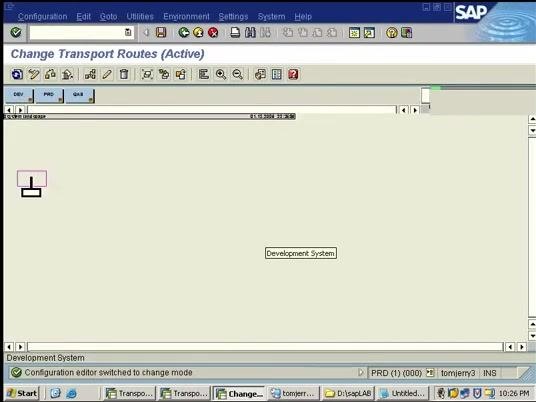
From the TMS window, navigate to the Change Transport Routes (Active) screen. This screen displays a graphical editor with a box labeled "Development System" in the center, and the status bar confirms: "Configuration editor switched to change mode."
Make sure the editor is in change mode before you proceed to add a new route.
Adding a Transport Route
Step 5: Add a new transport route
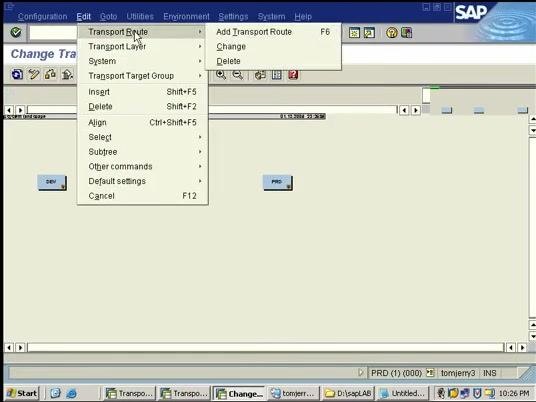
In the Change Transport Routes (Active) window, open the Edit menu from the top menu bar. Hover over Transport Route to expand the submenu, then select Add Transport Route (shortcut: F6).
Other available options in this menu include Change and Delete, but for this task you select Add to prepare for creating a new route.
Step 6: Select the transport layer
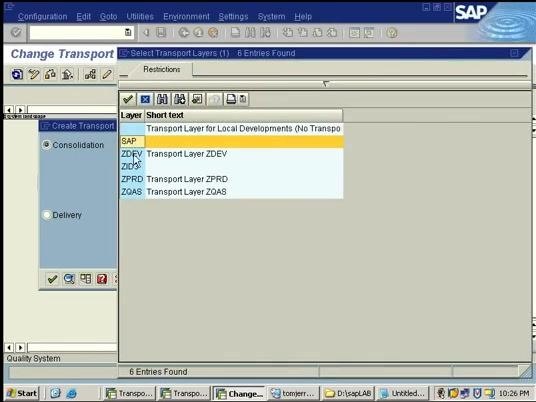
A dialog opens listing the available transport layers, with columns for Layer (for example, SAP, ZDEV, ZJDS, ZPRD, ZQAS) and Short text describing each layer. Click to highlight the transport layer you want to use, such as ZDEV.
Selecting the correct transport layer is essential, as it determines which layer the new transport route will use.
Step 7: Define the transport route details
After selecting the transport layer, the Create Transport Route dialog opens with two sections:
- Consolidation: Integration system (DEV), Transport layer (QAS), Consolidation system (QAS)
- Delivery: Source system (DEV), Delivery system (QAS)
Use the dropdown fields to confirm or select the correct systems for each field. This configures the direction and the systems involved in the transport route.
Step 8: Configure the route from Quality to Production
Update the Create Transport Route dialog to reflect the Quality-to-Production route:
- Consolidation: Integration system (QAS), Transport layer (PRD), Consolidation system (PRD)
- Delivery: Source system (QAS), Delivery system (PRD)
Confirm that the correct systems are selected for moving transports from Quality (QAS) to Production (PRD) before proceeding.
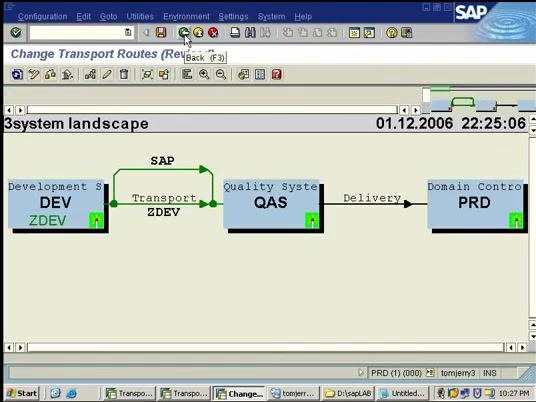
Once both routes are defined, the main window displays a graphical system landscape showing the Development System (DEV) with transport layer ZDEV, an arrow labeled "Transport ZDEV" pointing to the Quality System (QAS), and an arrow labeled "Delivery" pointing from QAS to the Domain Controller (PRD). This landscape visually confirms your transport route configuration, with the current date and time shown at the top right.
Finalizing the Configuration
Step 9: Add a short description and activate the configuration
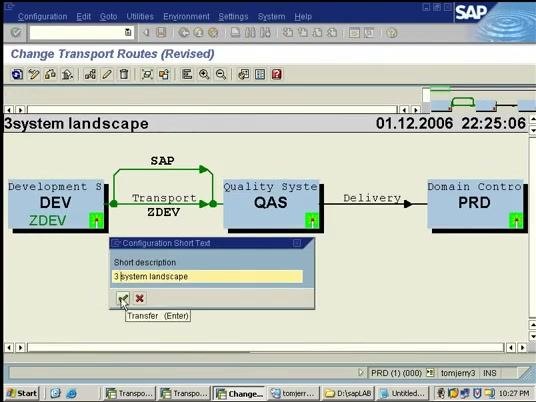
A Configuration Short Text dialog appears, prompting you for a description. In the Short description field, type a label such as "3 system landscape," then click the checkmark button or press Enter to confirm and transfer the description. This documents your configuration for future reference.
The system then returns to the Transport Management System overview, where a status message at the bottom confirms: "Configuration was distributed and activated." The main panel reconfirms that you are logged onto the domain controller, with system (PRD), transport domain (DOMAIN_PRD), and domain controller (Transport domain PRD) details displayed. No further action is required at this point.
Summary
You have now learned how to configure transport routes in SAP manually, from logging into SAP Easy Access and opening the Transport Management System, to defining consolidation and delivery routes between Development, Quality, and Production systems, and confirming that the configuration was successfully distributed and activated. With the transport routes in place, your system landscape is ready to support transport requests moving through DEV, QAS, and PRD.
Generation details: cost, quality tiers
Docsie billed 1,500 credits ($1.05) to analyze this 3-minute video at standard quality. The rewrite, template fill and Word/PDF exports were included. The same video at each quality tier:
| Quality | Frames sampled | Credits | Approx. cost |
|---|---|---|---|
| Draft | every 16-30 s | 750 | $0.52 |
| Standard (this guide) | every 8-15 s | 1,500 | $1.05 |
| Detailed | every 4-7 s | 3,000 | $2.10 |
| Ultra | every 1-3 s | 6,000 | $4.20 |
Credits priced at $0.70 per 1,000; plans include a monthly allowance. Enterprise customers on on-premise or bring-your-own-model deployments run this on their own inference and pay no per-video credits.
Generated by Docsie Video-to-Docs on 2026-10-19 from a 3-minute video. Screenshots are frames from the source video and belong to their creator, sapguru, whose original is embedded above. If you own this video and want the guide removed or credited differently, contact us and we will act within one business day.