
How to Change a Sales Order with VA02 in SAP S/4HANA
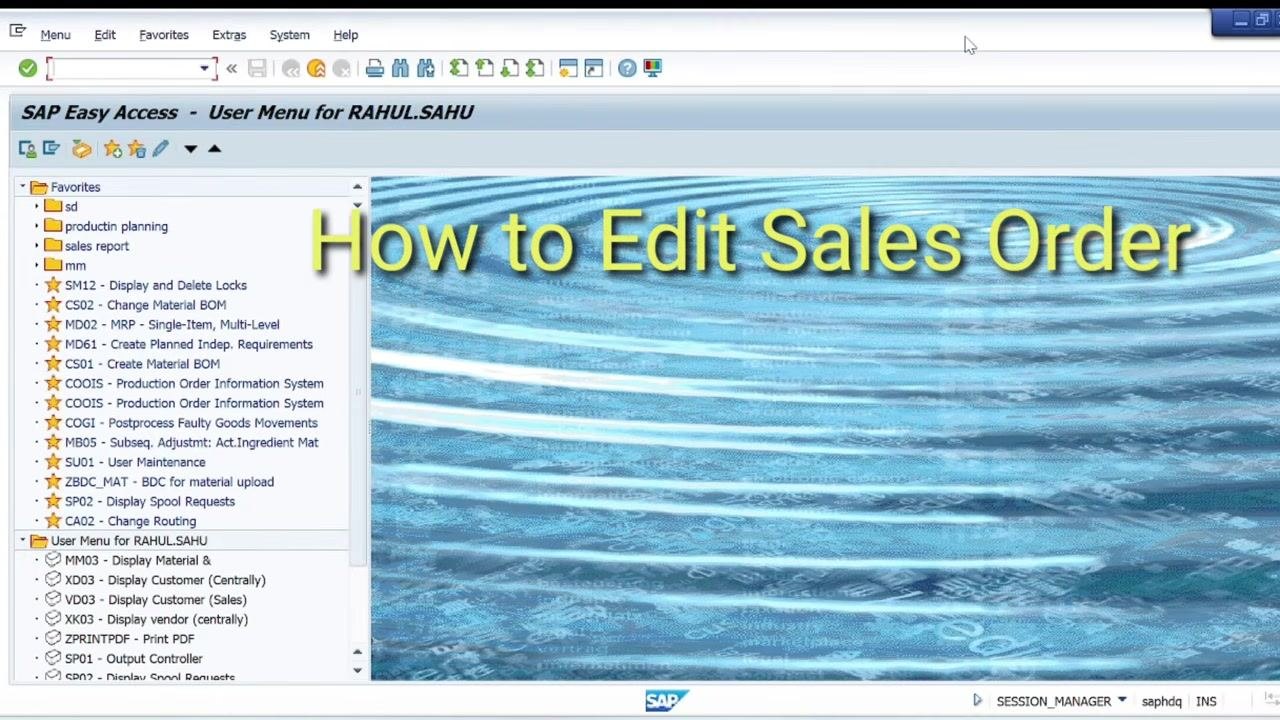
When you need to update an existing sales order—correct a customer reference, swap a material, adjust pricing, or change the delivering plant—you can do this directly in SAP using transaction code VA02. This guide walks you through how to change a sales order with VA02 in SAP, from opening the order to confirming and saving your changes.
Video: How to Edit sales order in SAP With Example : VA02 : How to Change sales order in SAP SD Module by SAP Information with Rahul sahu (2024). All credit for the demonstration goes to the creator; watch the original on YouTube. The written guide below was generated from this video by Docsie. Creator? Request a change or removal.
When you need to update an existing sales order—correct a customer reference, swap a material, adjust pricing, or change the delivering plant—you can do this directly in SAP using transaction code VA02. This guide walks you through how to change a sales order with VA02 in SAP, from opening the order to confirming and saving your changes.
Prerequisites
Before you begin, keep the following in mind:
- You can only edit a sales order that already exists in the system. New orders are created through a different transaction.
- Editable fields in a sales order typically include Customer Name, Quantity, Material, Amount, Plant, and other order-specific fields as required.
- If a delivery or invoice has already been created for the sales order, you cannot edit it directly. You must first reverse the Post Goods Issue (PGI) before making any changes.
Open the sales order in VA02
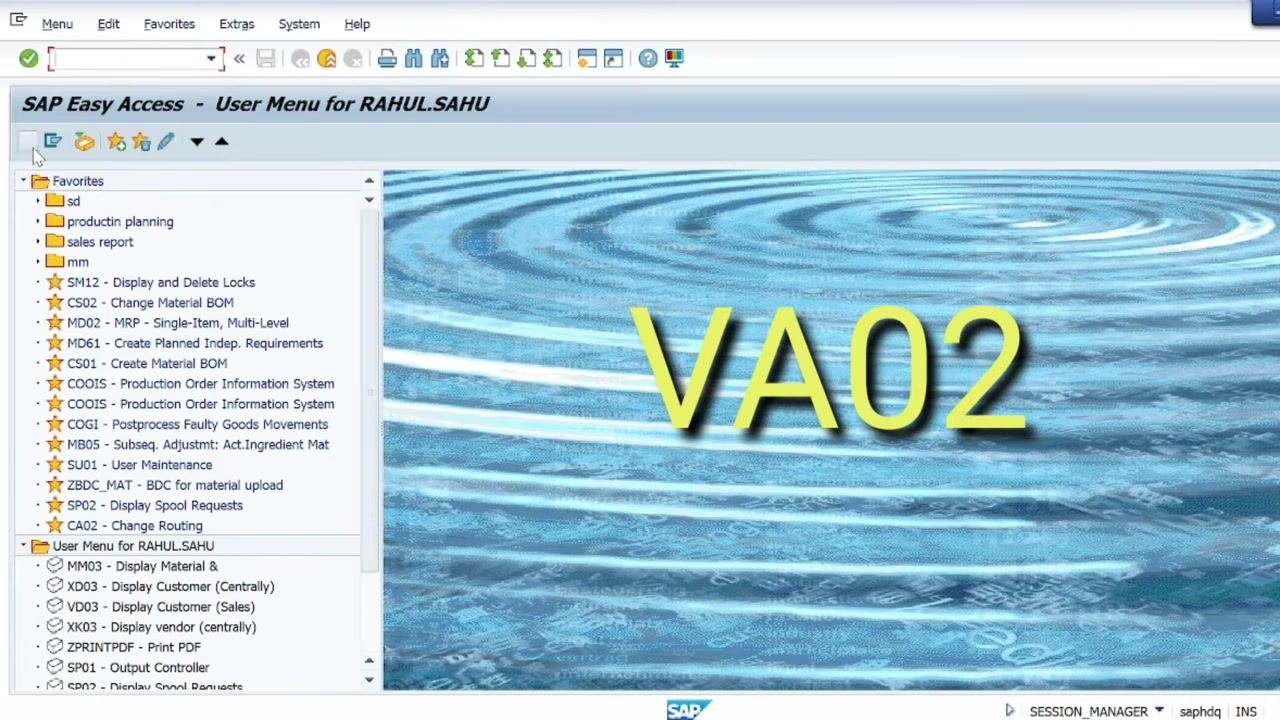
Enter transaction code VA02
From the SAP Easy Access screen, enter VA02 in the command field and press Enter. This transaction opens the Change Sales Document screen, where you can begin editing.
Enter the order number or search for it
In the Change Sales Document screen, enter the sales order number in the Order field. If you don't know the exact number, use the available search criteria—such as Purchase Order No., Sold-to party, Delivery, Billing Document, WBS Element, or Material—and click Search to locate the order.
Check the document flow
Before editing, check the document flow to confirm the sales order is still open and has not yet been delivered or invoiced. Verify the order status (for example, "Open" as of a given date) in the Document Flow screen.
Edit customer reference and reference date
Update the customer reference fields
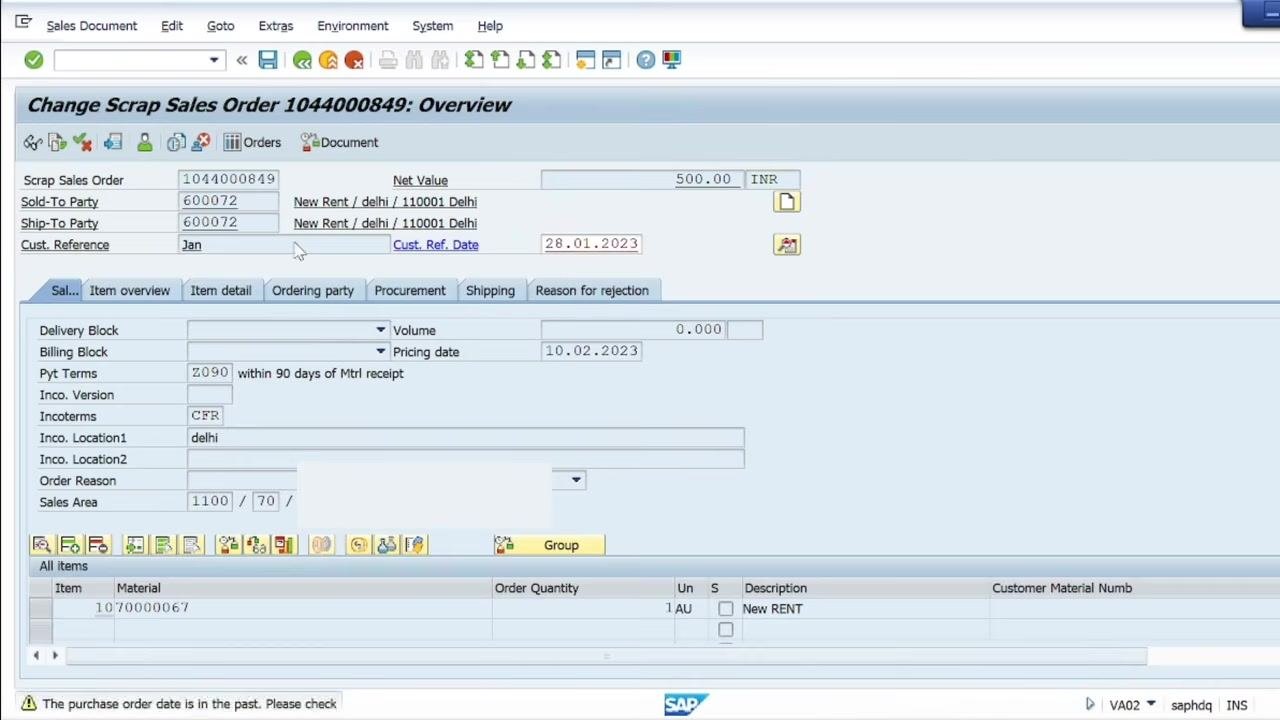
In the Change Sales Order: Overview screen, locate the Cust. Reference and Cust. Ref. Date fields. Enter the customer reference and the corresponding reference date, then confirm that the changes are reflected in the respective fields.
Edit payment terms, incoterms, and location
In the same overview screen, locate the Pymt Terms field and confirm it shows the correct payment terms (for example, terms specifying a number of days from material receipt). Edit the Incoterms field and the Inco. Location1 field as needed, and make any other necessary updates to fields such as Order Reason or Sales Area.
Change the material
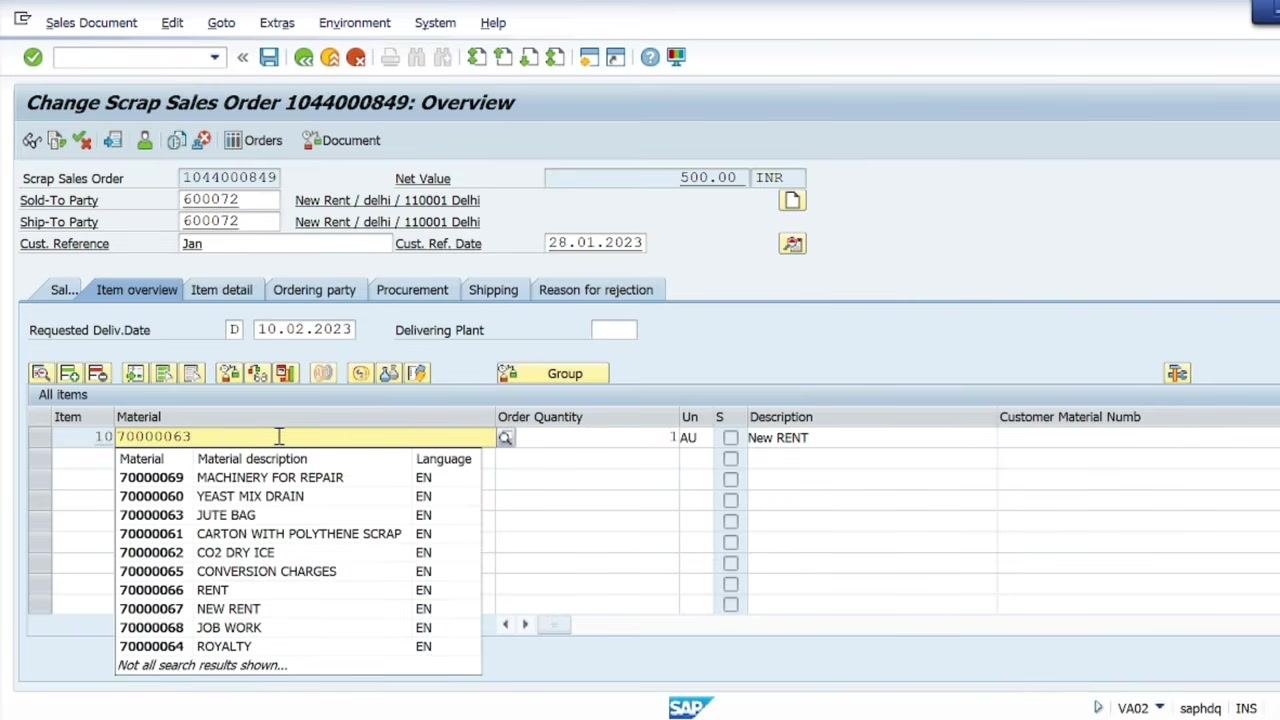
Edit the material code
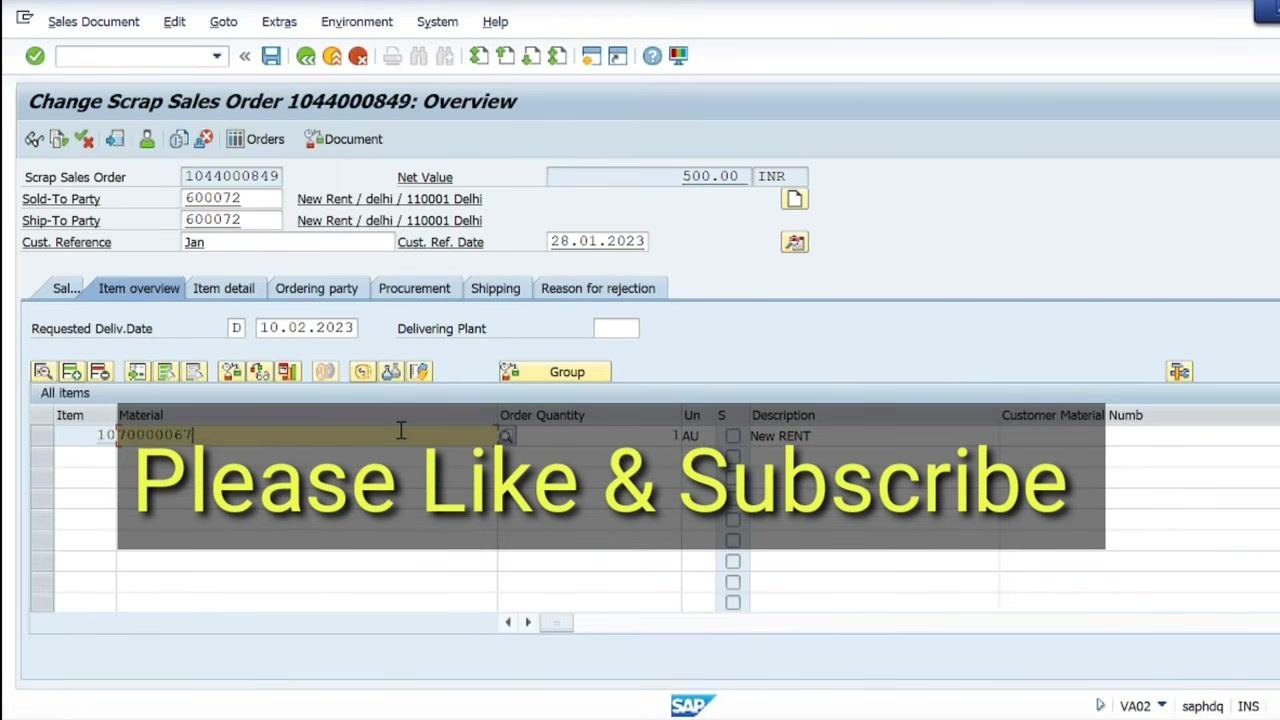
Click into the Material field for the item you want to change. Delete the existing material code, enter the new material code, and select the appropriate material from the dropdown list if one appears. Press Enter to confirm the change.
Acknowledge system messages
If an information message appears—for example, noting that the item category will be redetermined—click the green checkmark to acknowledge it and continue.
Verify the material change and order details
Confirm that the new material now appears in the item overview, and check that the order quantity and unit are correct. Watch for any system warnings, such as a pricing error indicating a mandatory condition is missing.
Update pricing conditions
Open the conditions tab and set the basic price
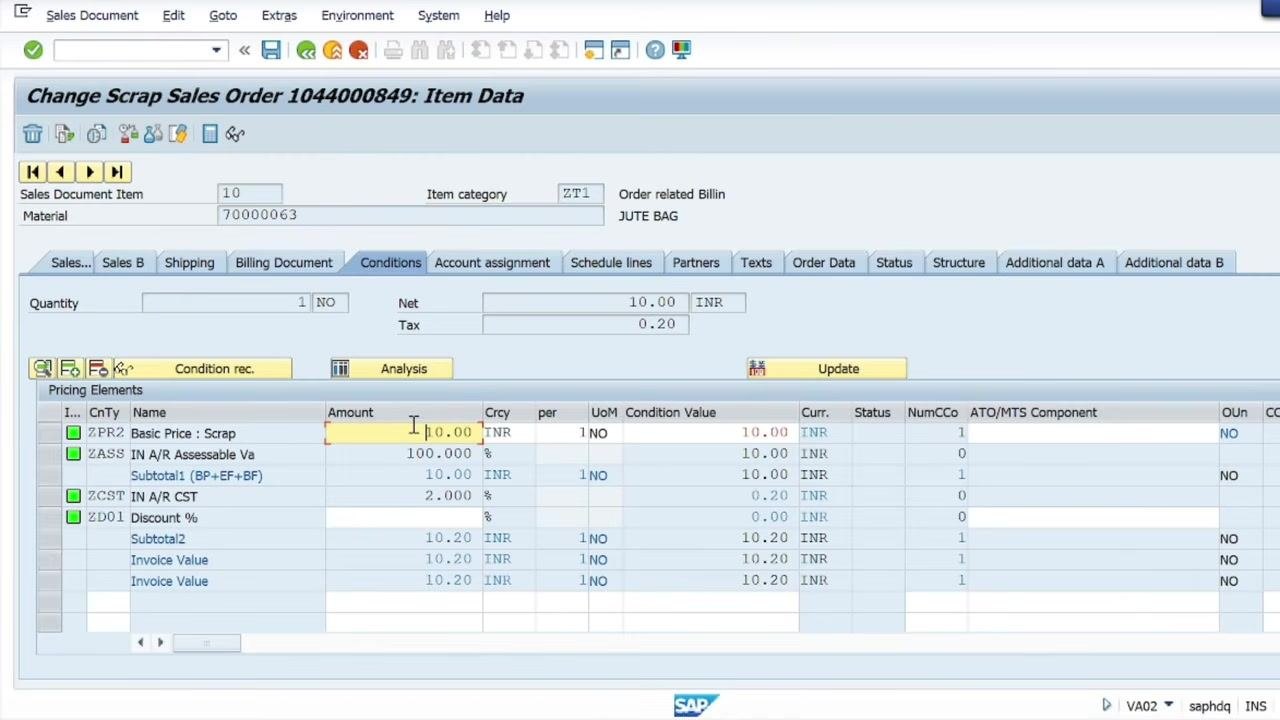
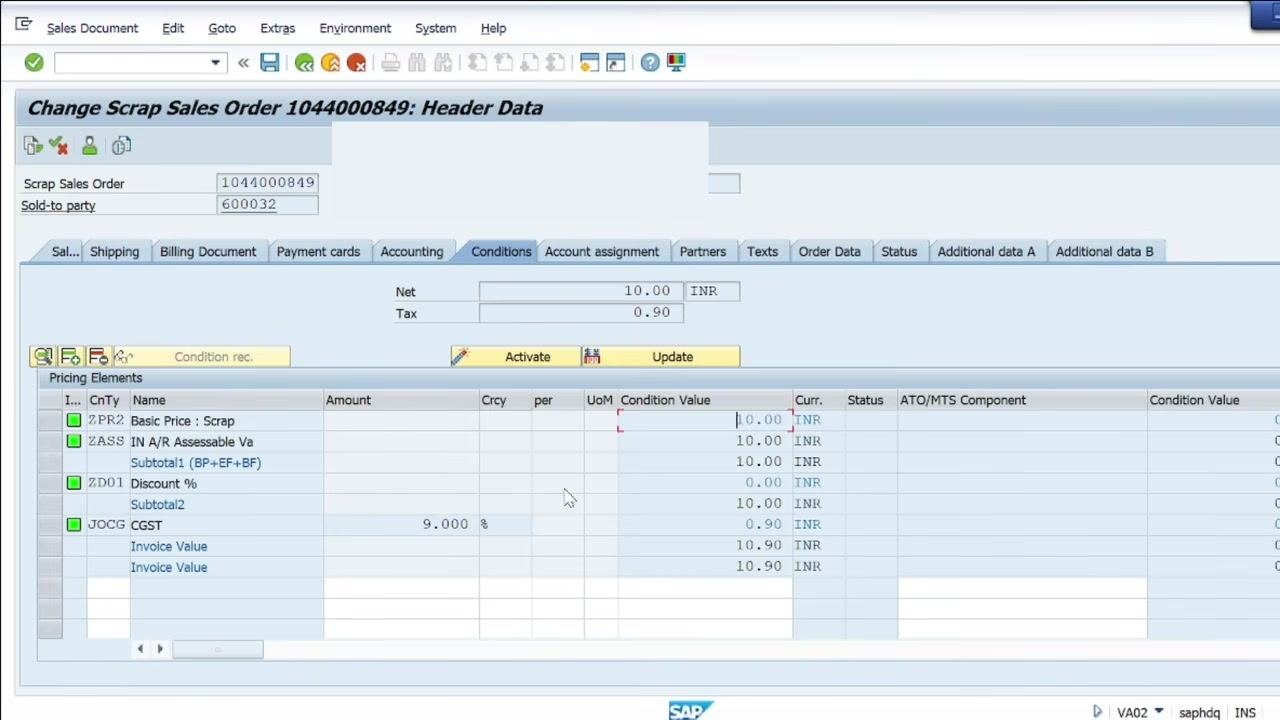
Double-click the new material line to open the item details, then go to the Conditions tab. Locate the basic price condition type (for example, ZPR2) and enter the new amount for the basic price. Make sure any other pricing elements, such as taxes or discounts, are updated as needed.
Manually update the basic price if allowed
In the Conditions tab, locate the basic price row in the pricing elements table. If the pricing is set to manual, you can enter a new amount directly. If the pricing is automatic, note that the maximum value is fixed and cannot be changed manually.
Update pricing automatically
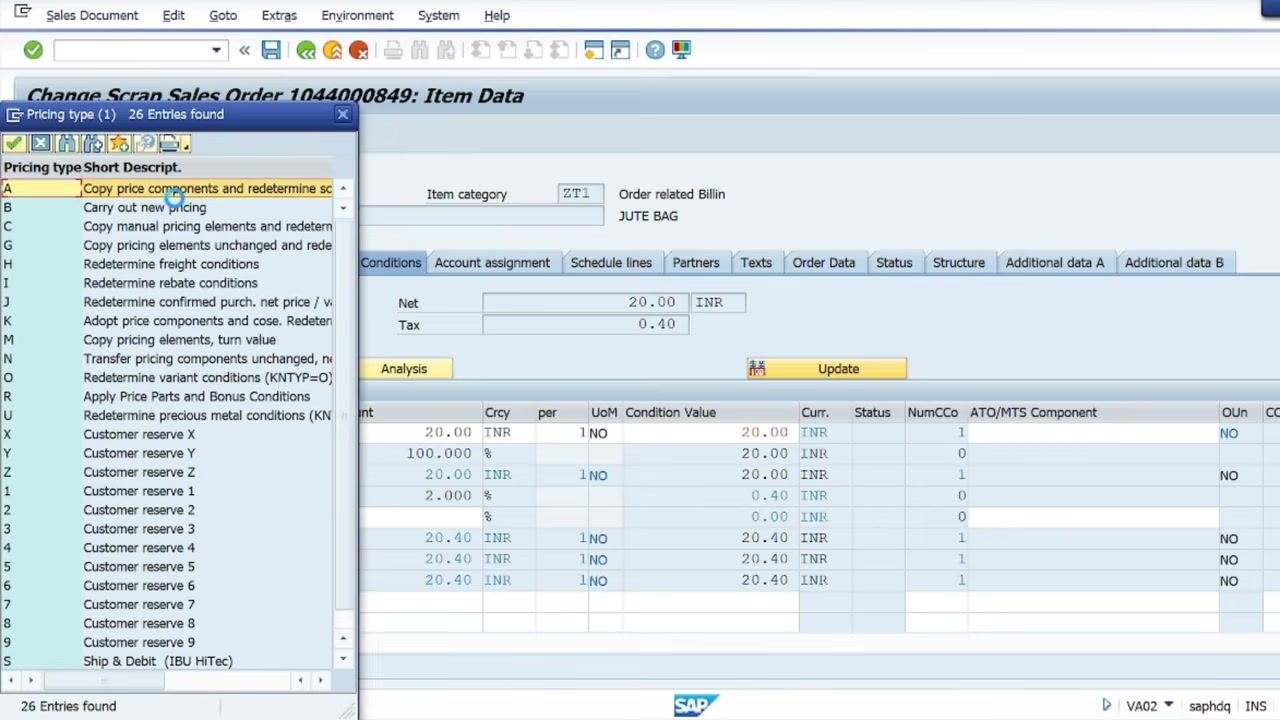
Click the Update button to refresh the pricing based on the new material or other changes. The system recalculates the net value and tax, and displays the new rate for the material. If a Pricing Type dialog appears, choose the appropriate option—such as copying price components and redetermining the scale—and confirm your selection.
Adjust the order quantity
In the Conditions tab, confirm that the Quantity field reflects the correct order quantity. Update it if the new order requirements call for a different quantity.
Change the delivering plant and sold-to party
Change the delivering plant
Go back to the Item Overview tab and locate the Plnt (Plant) column for the relevant item. If the plant code is incorrect, click into the field and enter the correct plant code.
Change the sold-to party
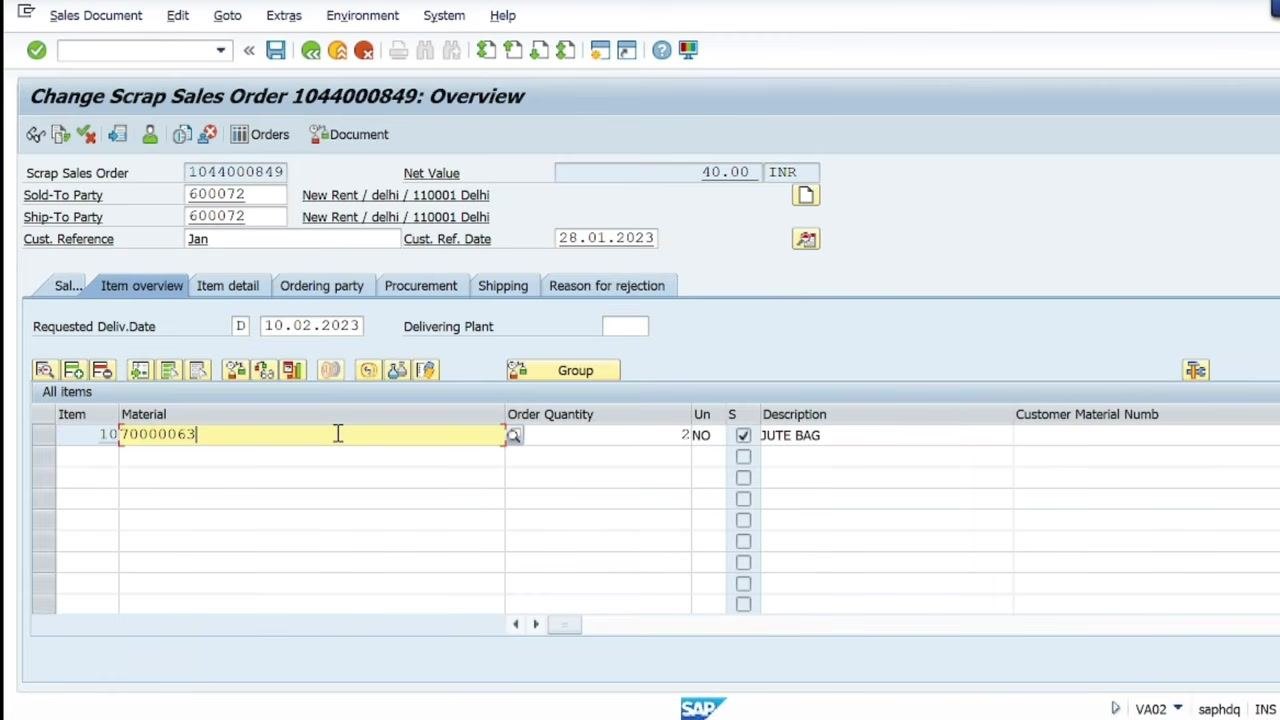
In the Overview screen, locate the Sold-To Party field and enter the new customer code. Press Enter to confirm the change.
Acknowledge messages after the customer change
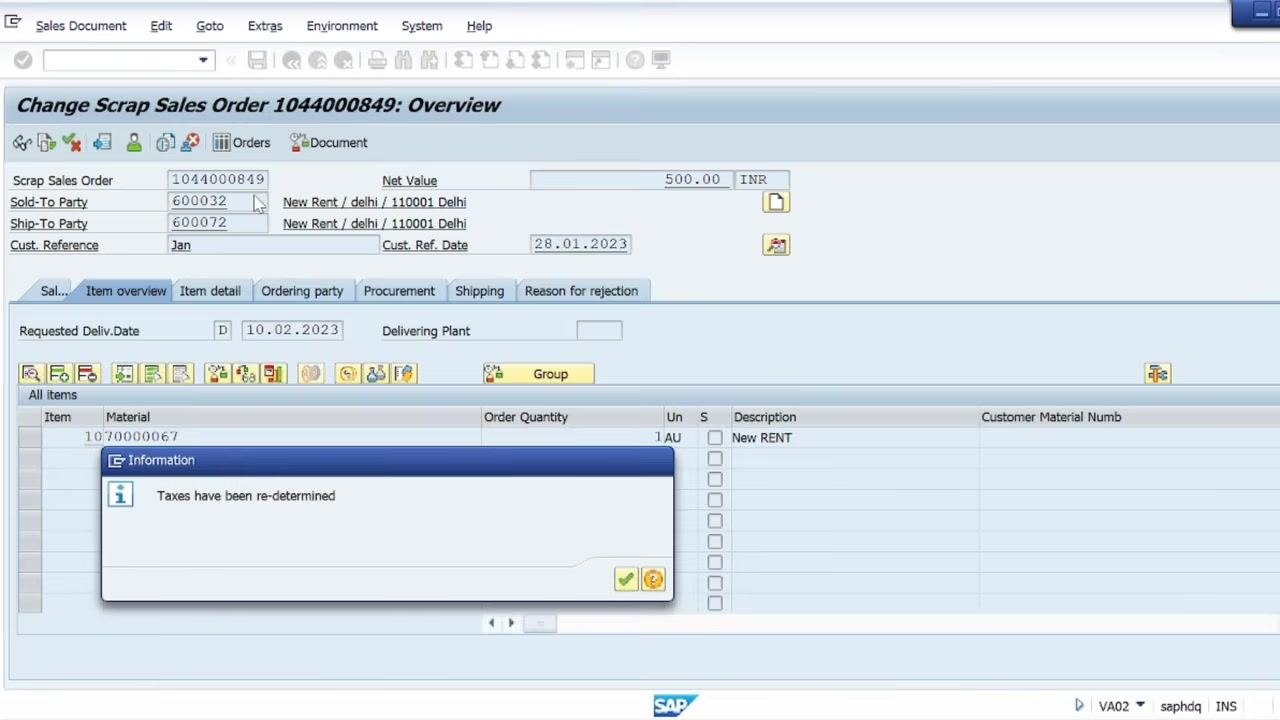
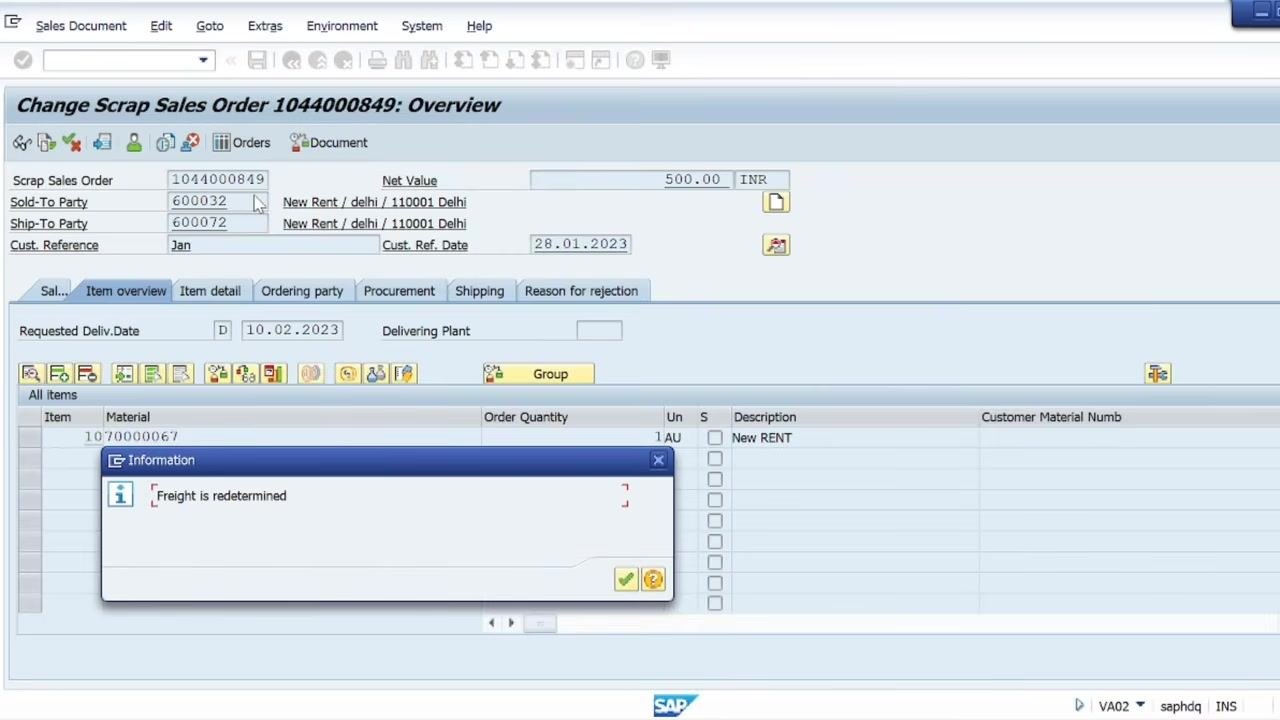
After pressing Enter, acknowledge any information popups that appear—for example, a message indicating taxes have been re-determined, followed by a message indicating freight has been redetermined. Click the green checkmark on each to continue.
Verify pricing after the customer change
Changing the customer can affect the material price and conditions, so check the Pricing Elements table for errors or missing conditions, such as a mandatory condition being flagged as missing.
Review and confirm changes
Review the conditions before finalizing
Do not rely solely on the Conditions tab to judge the final invoice value, as this screen may not reflect all changes or the final state of the order. Verify that the net value, tax, and invoice value are all updated according to the new material and pricing before proceeding.
Save the sales order
Once all necessary changes are made, review the order for accuracy and save the updated sales order to record all modifications.
What's next
By following these steps, you can edit key fields and change the material in an SAP sales order using VA02, keeping pricing and reference information accurate. This approach lets you update existing sales orders directly—adjusting customer references, materials, pricing, plant, and sold-to party—without creating new orders, helping you keep order management streamlined and data accurate.
Generation details: cost, quality tiers
Docsie billed 3,500 credits ($2.45) to analyze this 7-minute video at standard quality. The rewrite, template fill and Word/PDF exports were included. The same video at each quality tier:
| Quality | Frames sampled | Credits | Approx. cost |
|---|---|---|---|
| Draft | every 16-30 s | 1,750 | $1.22 |
| Standard (this guide) | every 8-15 s | 3,500 | $2.45 |
| Detailed | every 4-7 s | 7,000 | $4.90 |
| Ultra | every 1-3 s | 14,000 | $9.80 |
Credits priced at $0.70 per 1,000; plans include a monthly allowance. Enterprise customers on on-premise or bring-your-own-model deployments run this on their own inference and pay no per-video credits.
Generated by Docsie Video-to-Docs on 2026-10-11 from a 6-minute video. Screenshots are frames from the source video and belong to their creator, SAP Information with Rahul sahu, whose original is embedded above. If you own this video and want the guide removed or credited differently, contact us and we will act within one business day.