
How to Delete a Receipt in SAP Concur
This guide explains how to delete a receipt in SAP Concur when the wrong receipt has been matched to a company card charge. This situation can occur due to user error or because billing details changed after the receipt was attached. The steps below walk you through reviewing, detaching, and re-attaching receipts so your expense report reflects the correct documentation before you submit it.
Video: Deleting ExpenseIt Receipts and E-receipts from Company Card Charges by SAP Concur (2026). All credit for the demonstration goes to the creator; watch the original on YouTube. The written guide below was generated from this video by Docsie. Creator? Request a change or removal.
This guide explains how to delete a receipt in SAP Concur when the wrong receipt has been matched to a company card charge. This situation can occur due to user error or because billing details changed after the receipt was attached. The steps below walk you through reviewing, detaching, and re-attaching receipts so your expense report reflects the correct documentation before you submit it.
Before you begin
Understanding how receipts reach SAP Concur helps you troubleshoot mismatches:
- Expense It Feature: You take a picture of a receipt, and the system analyzes it, uploads it to Available Expenses, and matches it to the corresponding credit card charge.
- E-Receipts from Vendors: Vendors such as car rental agencies, hotels, and airlines send e-receipts directly, which are automatically matched to company card charges.
Before making changes, confirm the expense report has not been submitted yet, since you will be editing expense items directly.
Review the expense report and its attached receipts
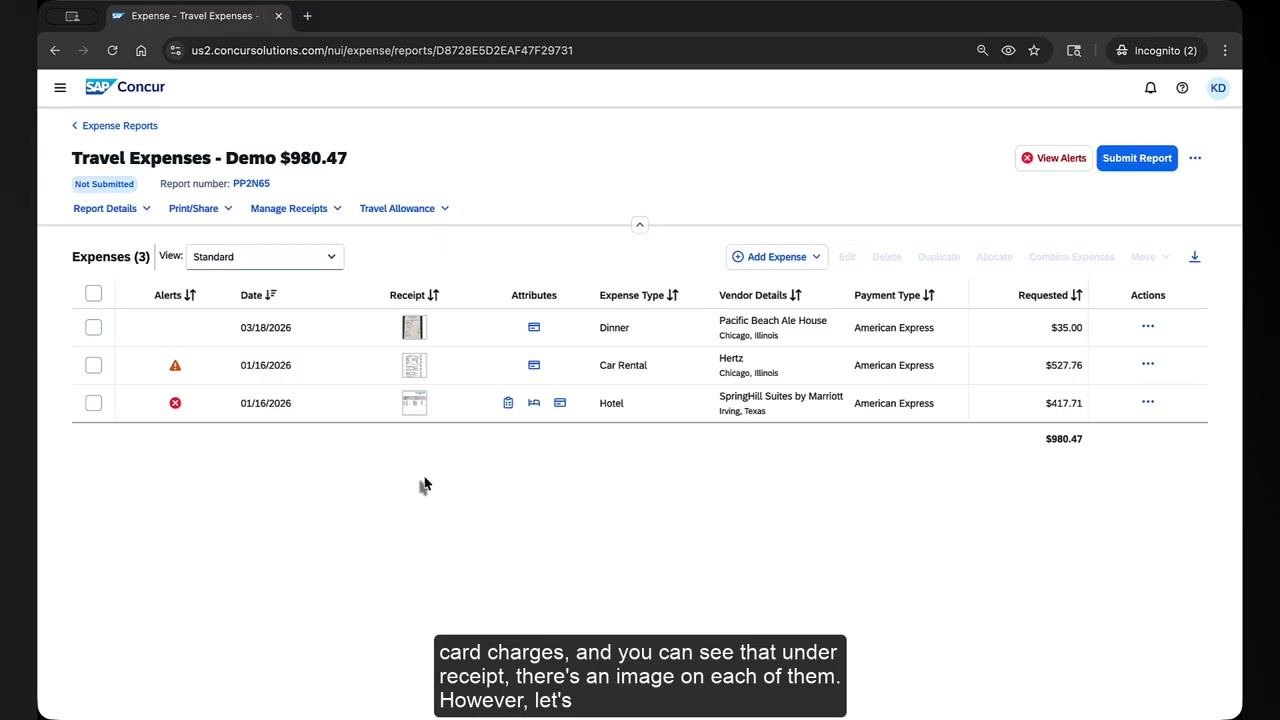
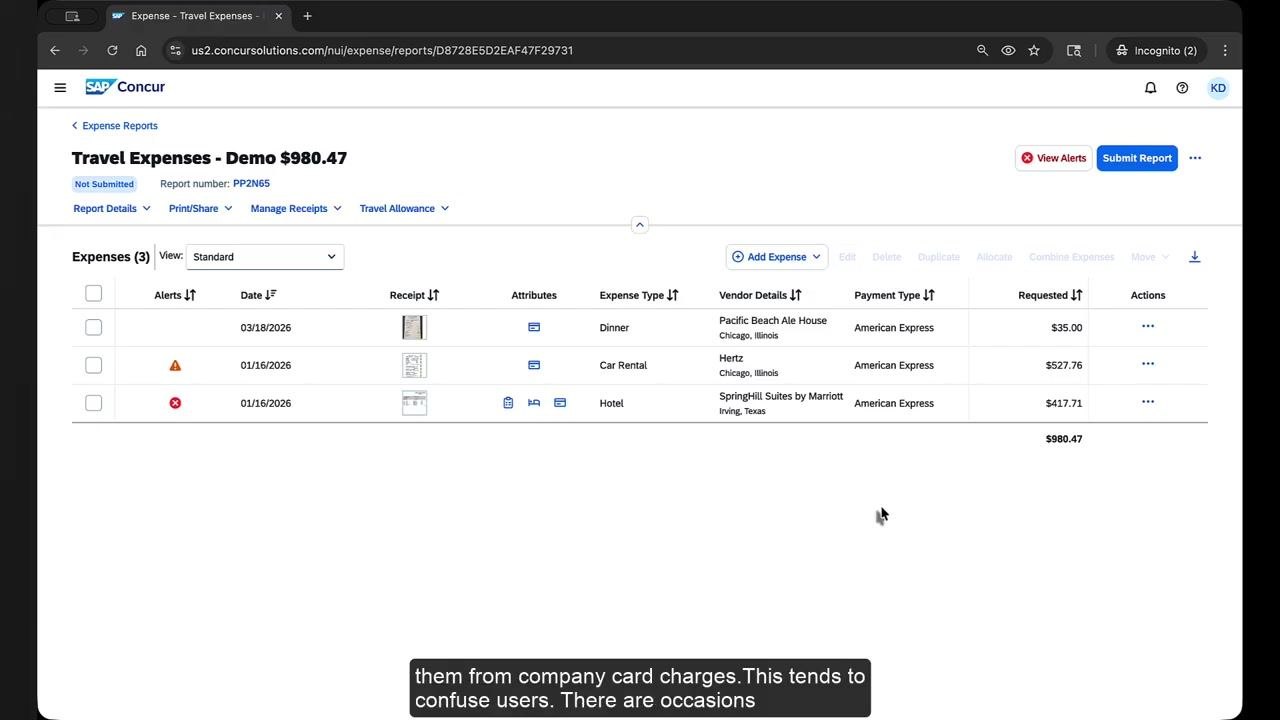
Open your expense report and check each company card charge for an attached receipt. In the example report, three charges each display a receipt image in the Receipt column: a Dinner charge, a Car Rental charge, and a Hotel charge, all paid with American Express.
The presence of a receipt image confirms that a receipt or e-receipt has already been matched to that line item. If any of these receipts appear incorrect, you will need to detach them before attaching the right one.
Confirm that receipts cannot be removed while attached to the report
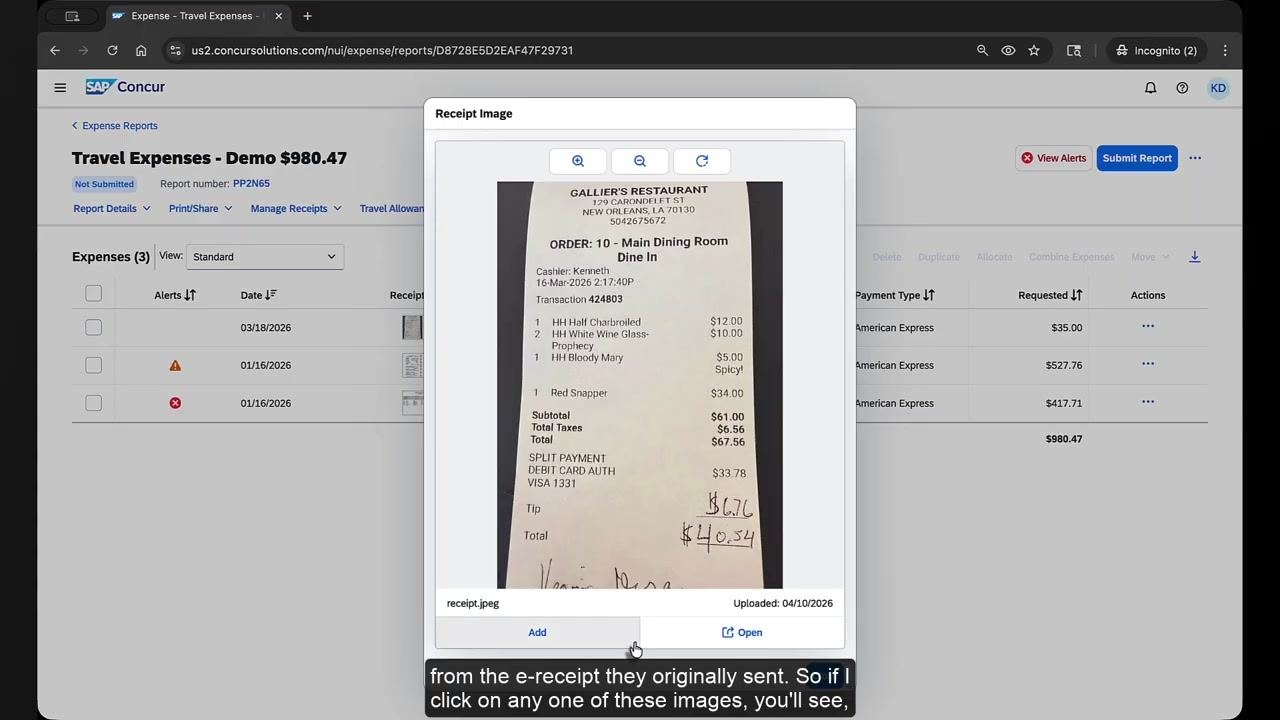
Click the receipt image in the Receipt column for the expense in question. A pop-up window opens showing the scanned image or photo for a physical receipt, or the electronic receipt for an e-receipt sent by a vendor.
In either case, no remove option is available in this pop-up. This confirms that receipts and e-receipts cannot be detached directly from within an active expense report.
Delete the expense items from the report
To detach a receipt, you must first remove the expense item itself from the report:
- Select the checkboxes next to the expenses you want to detach receipts from, such as Dinner and Car Rental.
- Click Delete at the top of the expense list.
- Review the confirmation dialog, which explains that expenses will be permanently deleted, while expenses from outside sources that cannot be deleted—such as e-receipts or corporate card transactions—will be moved to Available Expenses.
- Click Delete Expenses to confirm.
Locate the expenses in Available Expenses
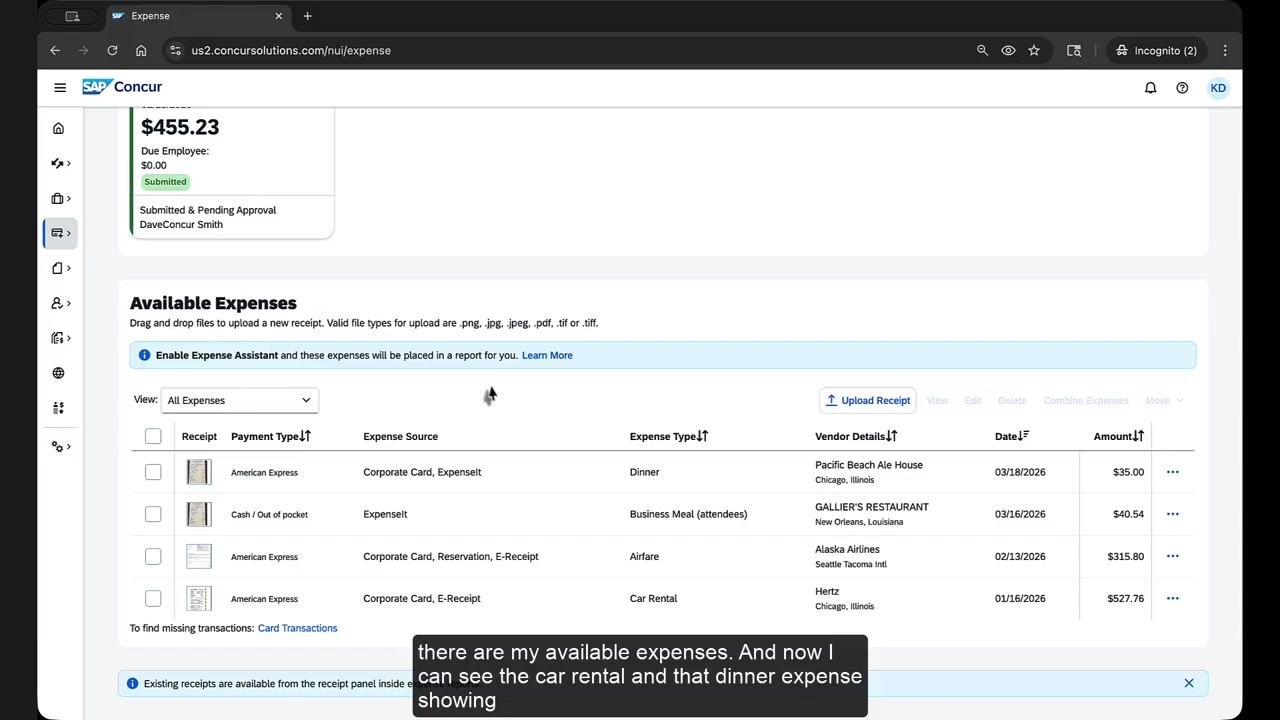
After deletion, the selected expenses no longer appear in the report. Navigate to the Available Expenses section to find them.
Each expense now appears with its source listed, such as "Corporate Card, ExpenseIt" or "Corporate Card, E-Receipt," confirming that the card transaction and the receipt have been moved there together.
Separate the receipt from the company card charge
For each expense with an incorrectly matched receipt, you need to split the combined sources:
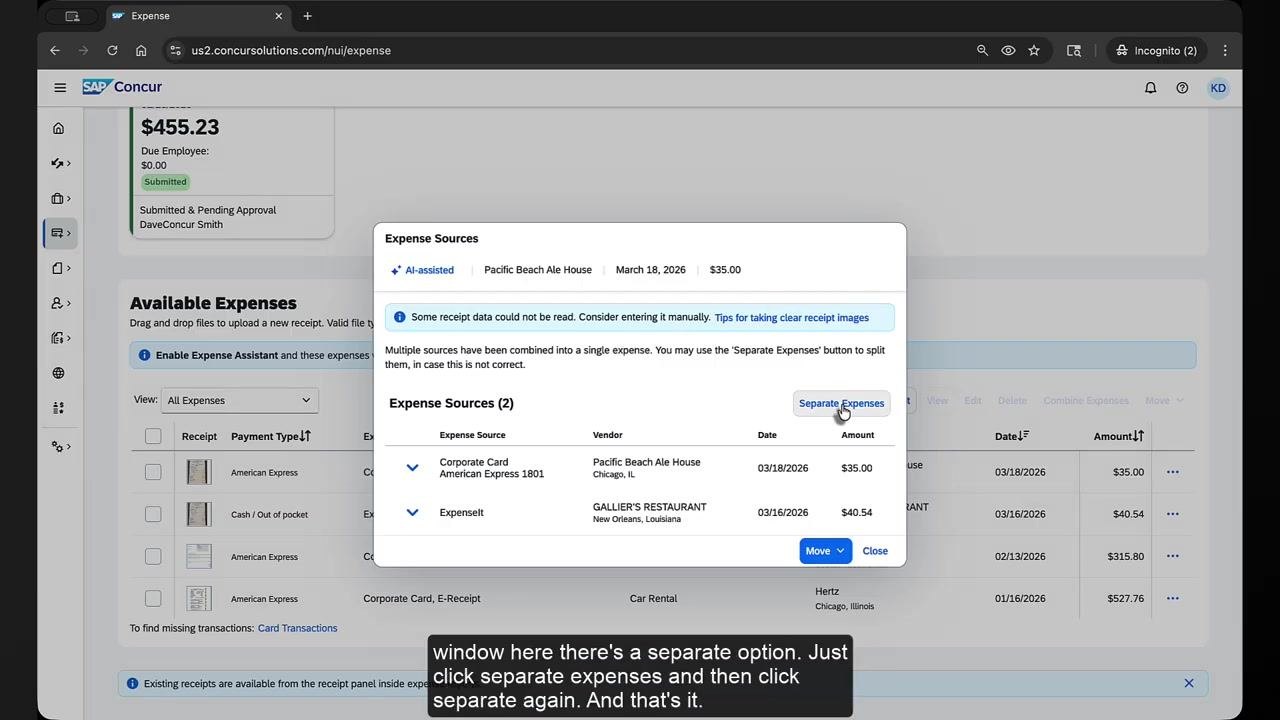
- Click the expense source link, such as "Corporate Card, ExpenseIt" for Dinner or "Corporate Card, E-Receipt" for Car Rental.
- In the Expense Sources window that appears, review the combined sources listed for the expense.
- Click Separate Expenses.
- If prompted, confirm by clicking Separate again.
Repeat this process for every expense that has an incorrectly matched receipt or e-receipt.
Once separated, the card charge and the receipt become individual items in Available Expenses, letting you correctly match or remove receipts as needed.
Re-add the card charge and attach the correct receipt
With the sources separated, you can now rebuild the expense correctly:
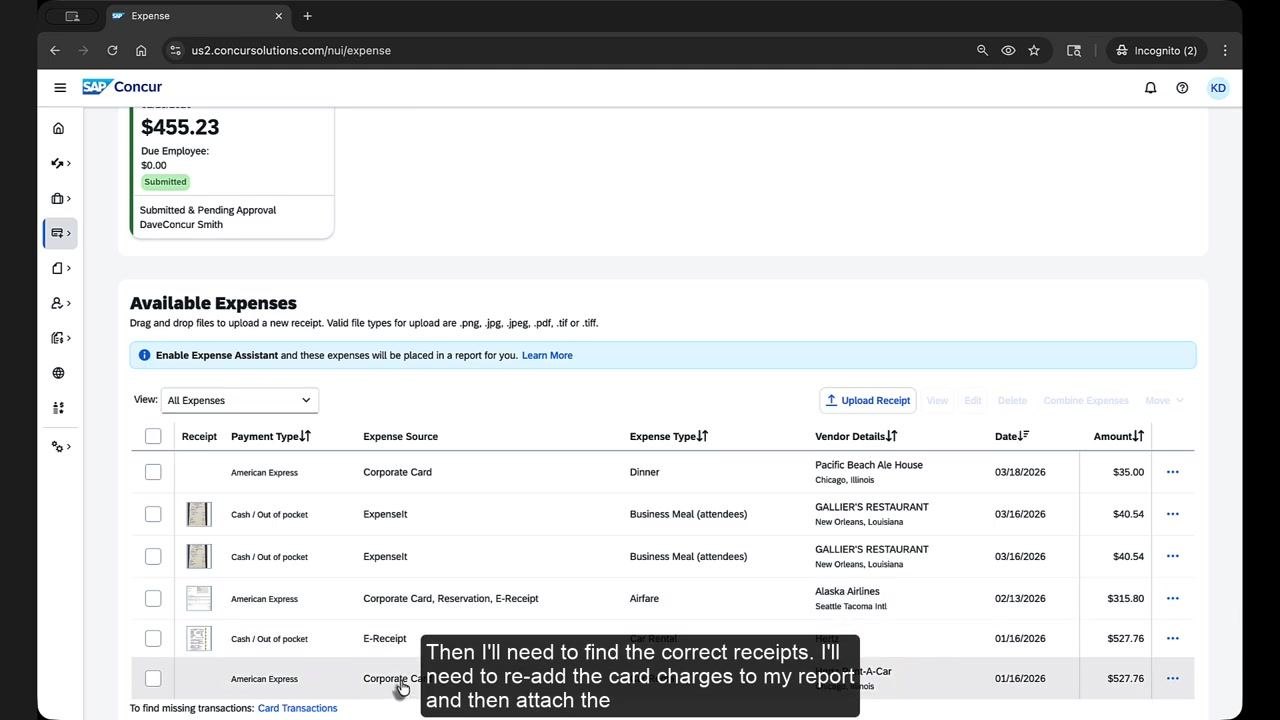
- In Available Expenses, identify each card charge by its Payment Type (for example, "American Express"), Expense Source (for example, "Corporate Card"), Expense Type (for example, "Dinner" or "Car Rental"), and Vendor Details (for example, "Pacific Beach Ale House" or "Hertz Rent-A-Car").
- Select the checkbox next to each card charge you want to add back to your report.
- Click Add to Report (the button label may vary slightly depending on your SAP Concur configuration).
- Once the expense is back in your report, click Upload Receipt or the receipt icon next to the expense.
- Attach the correct receipt image or file.
- Verify that the correct receipt is now matched to the appropriate card charge.
What's next
After attaching the correct receipts to each card charge, review the full report once more to confirm accuracy, then submit it for approval as usual.
If you have further questions, visit the SAP Concur Community at community.concur.com, where you can search existing answers or post your own question.
Generation details: cost, quality tiers
Docsie billed 2,500 credits ($1.75) to analyze this 5-minute video at standard quality. The rewrite, template fill and Word/PDF exports were included. The same video at each quality tier:
| Quality | Frames sampled | Credits | Approx. cost |
|---|---|---|---|
| Draft | every 16-30 s | 1,250 | $0.88 |
| Standard (this guide) | every 8-15 s | 2,500 | $1.75 |
| Detailed | every 4-7 s | 5,000 | $3.50 |
| Ultra | every 1-3 s | 10,000 | $7.00 |
Credits priced at $0.70 per 1,000; plans include a monthly allowance. Enterprise customers on on-premise or bring-your-own-model deployments run this on their own inference and pay no per-video credits.
Generated by Docsie Video-to-Docs on 2026-10-02 from a 4-minute video. Screenshots are frames from the source video and belong to their creator, SAP Concur, whose original is embedded above. If you own this video and want the guide removed or credited differently, contact us and we will act within one business day.