
How to Create and Submit an Expense Report in SAP Concur
SAP Concur connects your expense, travel, and invoice spending in one unified system, giving you an end-to-end view of business spend. This guide walks you through how to create and submit an expense report in SAP Concur, from capturing a receipt on your phone to submitting the finished report for approval. The platform is designed for both business travelers and office-based employees, supporting scenarios from flight bookings to team lunches.
Video: Concur Expense Demonstration by SAP Concur (2024). All credit for the demonstration goes to the creator; watch the original on YouTube. The written guide below was generated from this video by Docsie. Creator? Request a change or removal.
SAP Concur connects your expense, travel, and invoice spending in one unified system, giving you an end-to-end view of business spend. This guide walks you through how to create and submit an expense report in SAP Concur, from capturing a receipt on your phone to submitting the finished report for approval. The platform is designed for both business travelers and office-based employees, supporting scenarios from flight bookings to team lunches.
Using SAP Concur to manage spend delivers three key benefits:
- Greater visibility into every transaction
- Improved compliance across the organization
- A simplified process for employees submitting reports
Prerequisites
Before you start, make sure you have:
- Access to the SAP Concur web application and the SAP Concur mobile app
- Any relevant receipts, either as photos or forwarded e-receipts
- Partner apps connected (airlines, car rental, or hotel accounts) if you want transactions to flow in automatically
Capturing expenses with ExpenseIt
ExpenseIt lets you turn a photo of a receipt into a ready-to-use expense entry, making expense reporting significantly easier.
Step 1: Open your trip in the SAP Concur mobile app
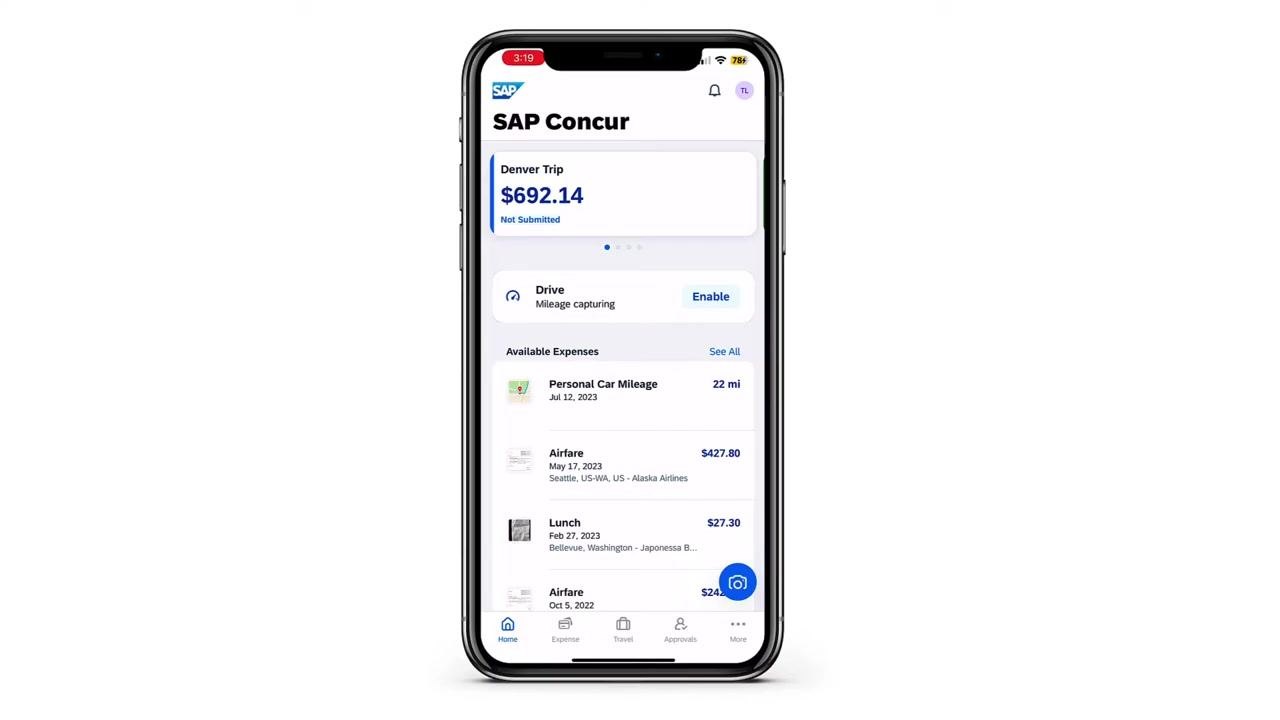
Open the SAP Concur mobile app to view your current trip, including its running balance (for example, a "Denver Trip" with a balance of $692.14). From here you can see available expenses such as Personal Car Mileage, Airfare, and Lunch, and enable features like mileage capturing if needed.
Step 2: Capture and confirm the receipt
Use your smartphone camera to photograph the receipt. ExpenseIt automatically extracts the data and prompts you to confirm the detected amount (for example, $14.06). Select the correct amount, or indicate if it is incorrect.
Connecting partner apps for automatic expense creation
Step 3: Connect partner apps in the App Center
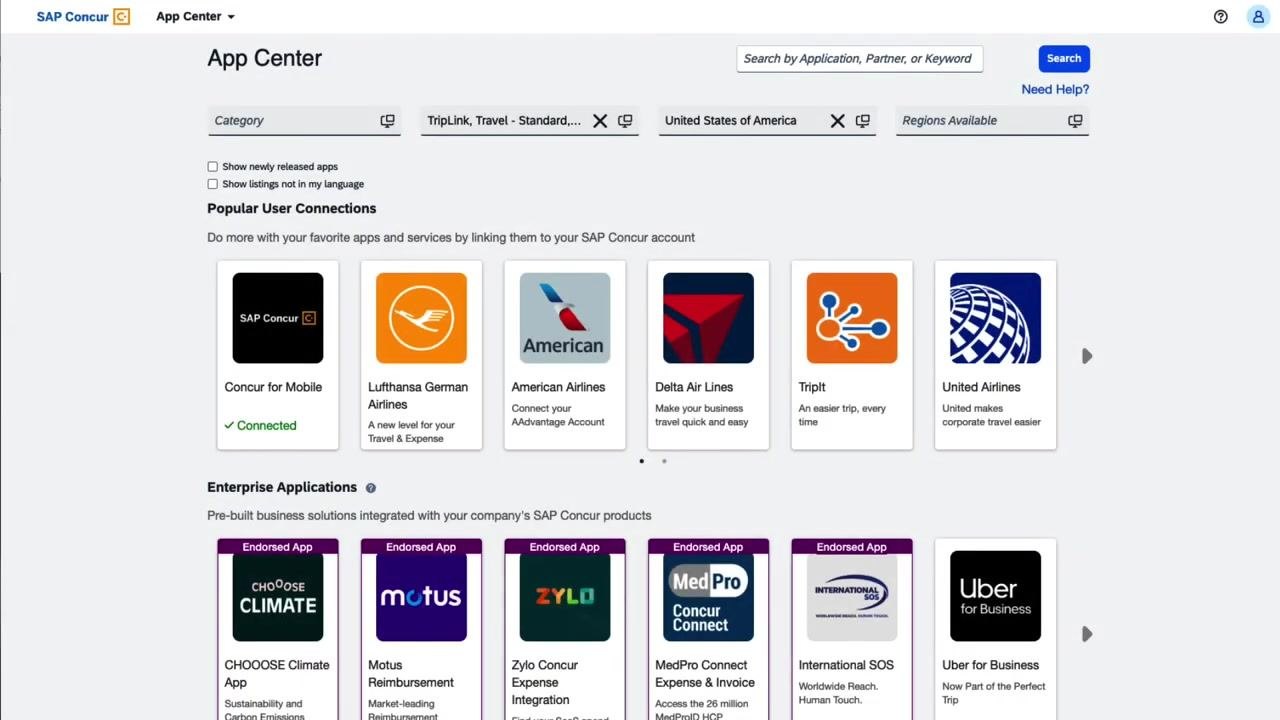
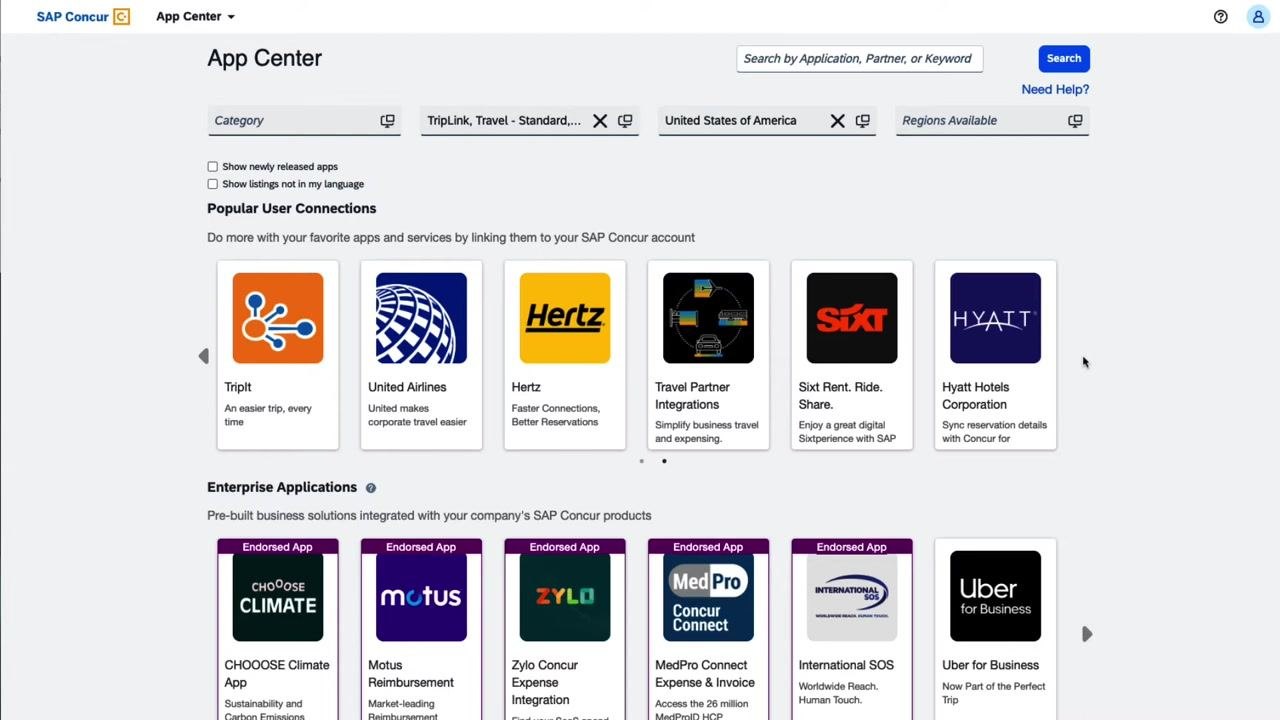
Open the SAP Concur App Center to browse and connect partner applications such as airlines, car rental companies, and hotel chains. Popular connections include SAP Concur for Mobile, Lufthansa, American Airlines, Delta, TripIt, United Airlines, Hertz, Sixt, and Hyatt. Enterprise applications such as Motus Reimbursement, Zylo Concur Expense Integration, MedPro Connect, International SOS, and Uber for Business are also available. Connecting these apps lets transactions flow into your reports automatically.
Building and reviewing the expense report
Step 4: Review the consolidated report
All expenses for a trip appear together in one report. For example, a "Denver Trip" report totaling $534.17 lists Airfare, Lunch, Business Meals, Hotel, and Personal Car Mileage. From here you can add, edit, delete, copy, allocate, combine, or move expense items.
Step 5: Review automated entries and audit alerts
SAP Concur automatically combines credit card transactions, booked travel, and e-receipts to pre-fill most of the report. Built-in audit rules highlight exceptions and notify you of incomplete entries, such as missing receipt images or required itemizations, displayed at the top of the report. Respond to these alerts by attaching missing receipts or completing required fields before you submit.
Step 6: Itemize expenses and attach receipts
For expenses with multiple components, such as a hotel bill, enter details like hotel charges, hotel tax, and parking separately. Attach a receipt image to each expense for verification, and use the Create Itemization button to break down charges as needed. Review any remaining alerts, then save or delete expense lines as necessary.
Step 7: Submit the report and track its status
Once the report is complete, submit it and monitor its progress as it moves through the approval workflow. The web interface displays the report summary, including all itemized expenses and their current status, along with options to add, edit, delete, copy, allocate, or combine expenses within the report.
Managing expenses from the mobile app
Step 8: Review expenses on your mobile device
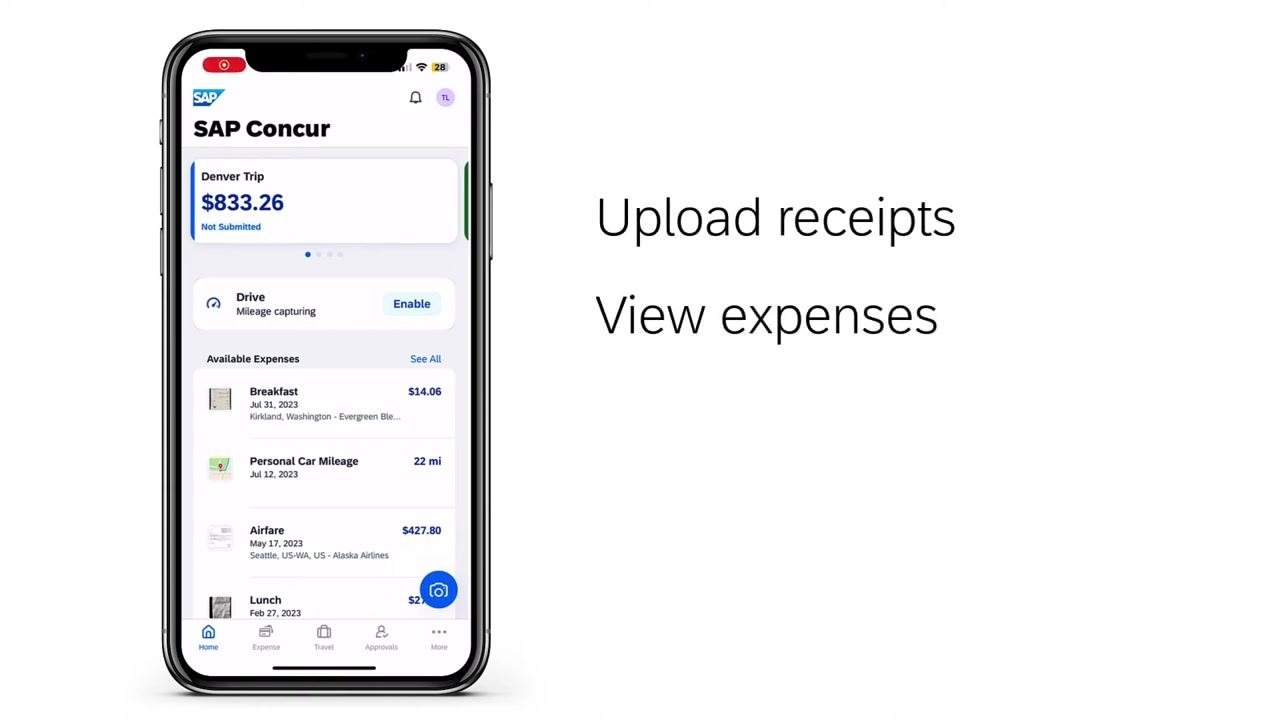
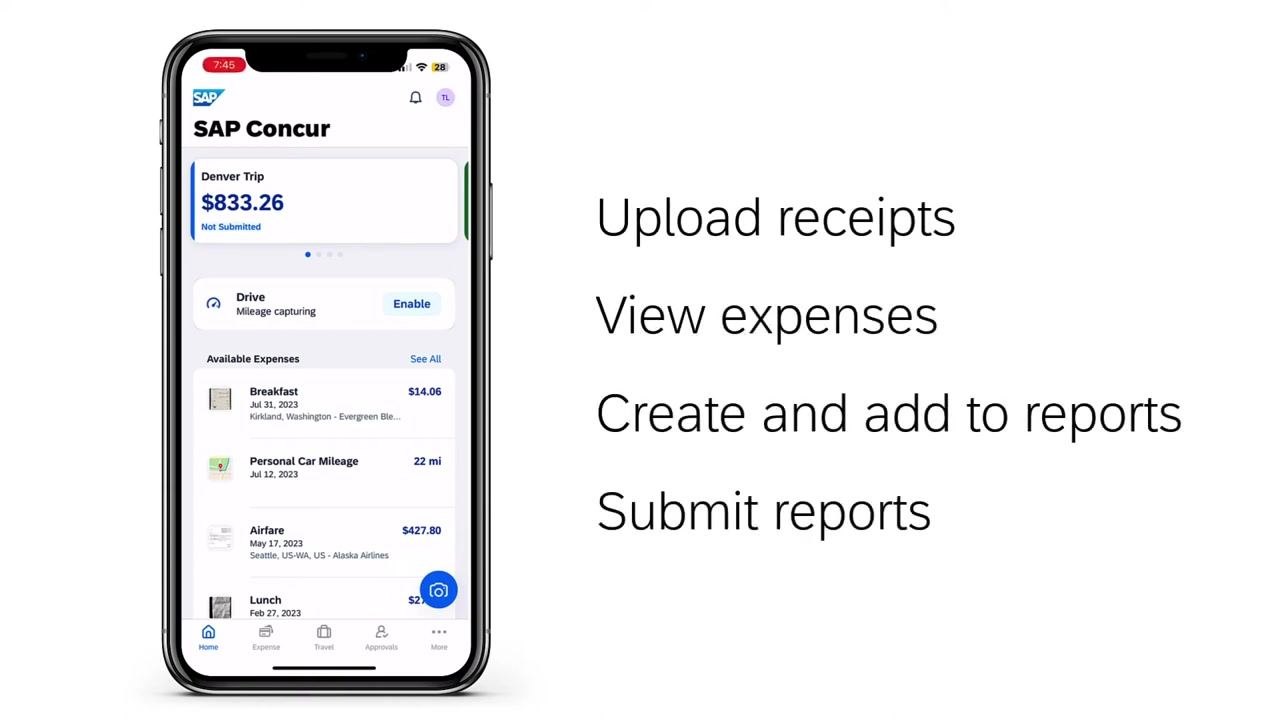
The SAP Concur mobile app lets you manage expenses on the go. Upload receipts directly from your phone and view all available expenses, such as breakfast, personal car mileage, airfare, and lunch. Enable mileage capturing for trips, and check your current trip summary and balance (for example, a "Denver Trip" with a balance of $833.26).
Step 9: Create, add, and submit reports from your phone
From the mobile app, you can upload receipts, view expenses, create and add expenses to a report, and submit the report while you're on the move.
Step 10: Approve reports as a manager
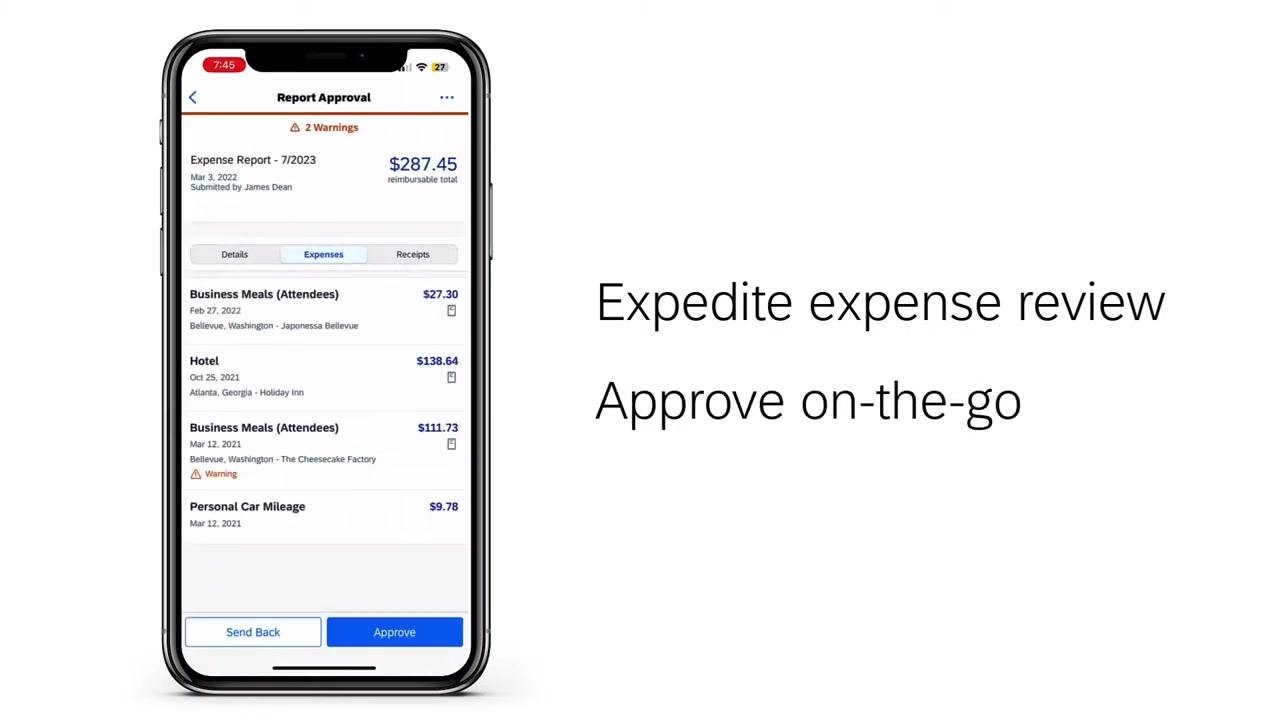
Managers can review submitted expense reports directly on a mobile device, viewing report details, itemized expenses, and attached receipts. Respond to any warnings or missing information, then approve or send back the report from the app.
Tracking spend with dashboards
Step 11: Monitor key spend metrics
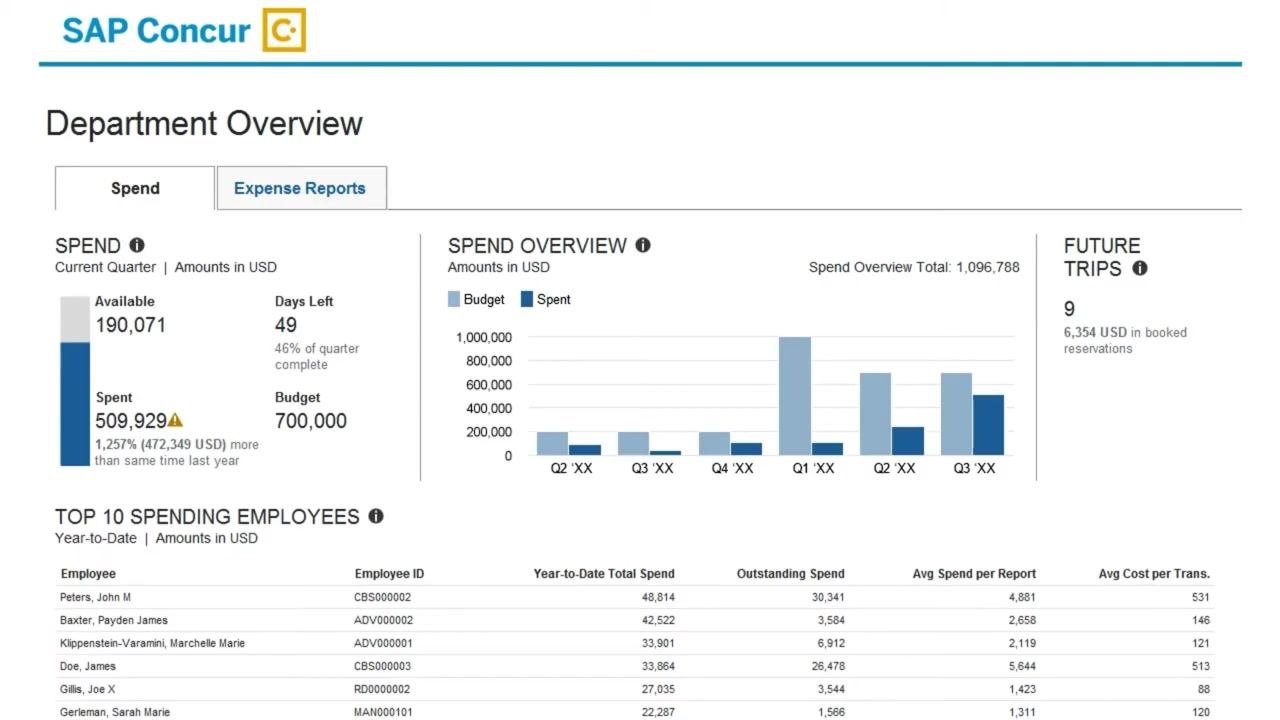
Use the Department Overview dashboard to monitor spend by quarter, budget versus actuals, and upcoming trips. Review top spending employees, year-to-date totals, outstanding spend, average spend per report, and average cost per transaction using visual charts and tables.
Integrating SAP Concur with financial systems
Step 12: Connect SAP Concur to your financial systems
Connect SAP Concur to your ERP, CRM, HR, and accounting systems using financial connectors to unify spend data across your organization.
Step 13: Choose a supported integration
Supported integrations include Microsoft Dynamics, SAP, Workday, ADP, Sage, Salesforce, Oracle NetSuite, and QuickBooks.
Summary
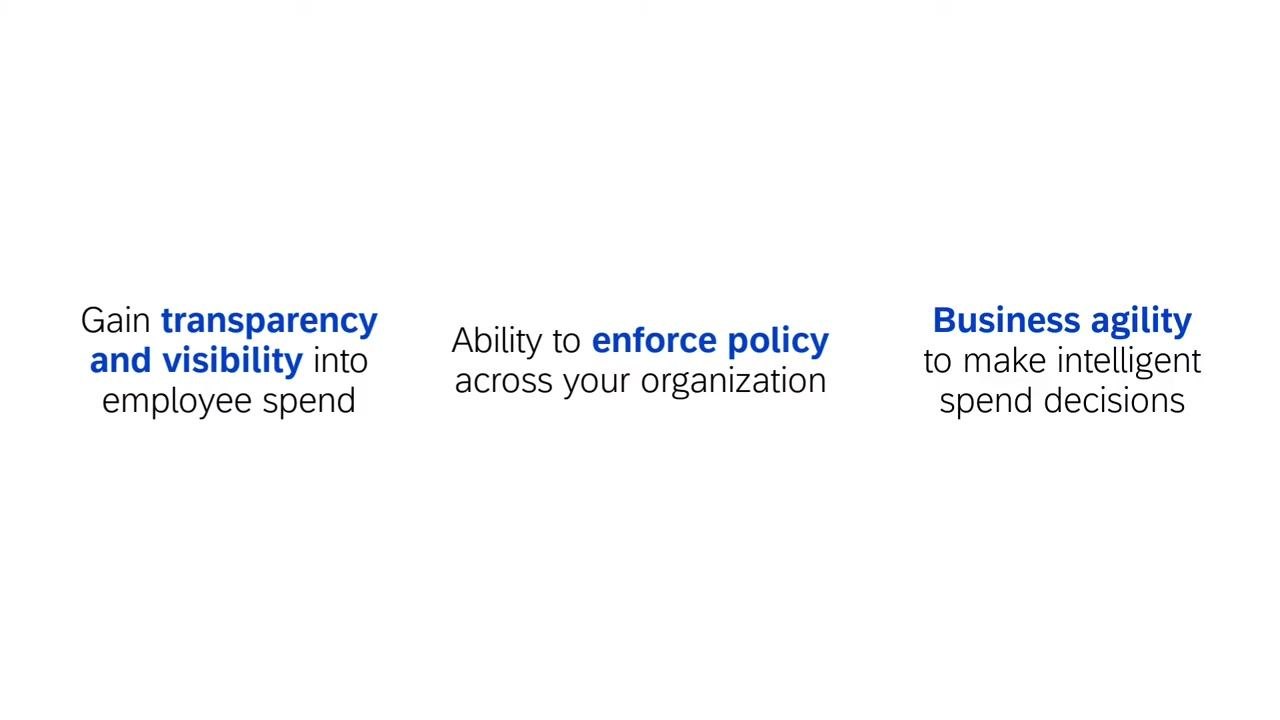
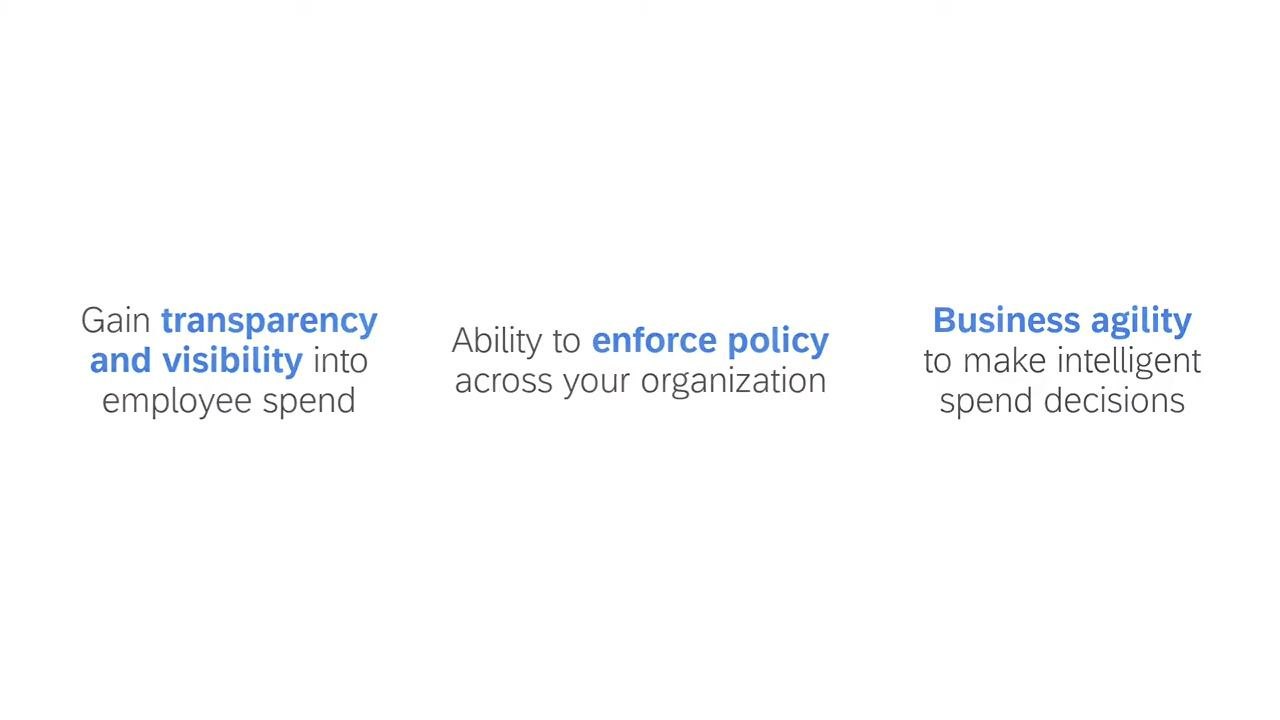
Bringing SAP Concur's travel and expense products together in a single solution helps employees be more productive by managing all travel and expense needs in one platform. It gives you:
- Transparency and visibility into employee spend
- Policy compliance enforced across your organization
- Business agility to make intelligent spend management decisions
What's next
To see SAP Concur in action and explore how it fits your organization, schedule a demo with the SAP Concur team. During the demo, you can walk through real-world scenarios, ask questions, and see how SAP Concur integrates with your existing systems.
Generation details: cost, quality tiers
Docsie billed 2,000 credits ($1.40) to analyze this 4-minute video at standard quality. The rewrite, template fill and Word/PDF exports were included. The same video at each quality tier:
| Quality | Frames sampled | Credits | Approx. cost |
|---|---|---|---|
| Draft | every 16-30 s | 1,000 | $0.70 |
| Standard (this guide) | every 8-15 s | 2,000 | $1.40 |
| Detailed | every 4-7 s | 4,000 | $2.80 |
| Ultra | every 1-3 s | 8,000 | $5.60 |
Credits priced at $0.70 per 1,000; plans include a monthly allowance. Enterprise customers on on-premise or bring-your-own-model deployments run this on their own inference and pay no per-video credits.
Generated by Docsie Video-to-Docs on 2026-10-02 from a 3-minute video. Screenshots are frames from the source video and belong to their creator, SAP Concur, whose original is embedded above. If you own this video and want the guide removed or credited differently, contact us and we will act within one business day.