
How to Set Availability in Paylocity
This guide walks you through how to set availability in Paylocity using the Scheduling app. You'll learn how to mark your weekly unavailability, remove an existing unavailability record, and submit a time off request for manager approval.
Video: Paylocity - How to Set Availability and Time Off by Helpful Videos. All credit for the demonstration goes to the creator; watch the original on YouTube. The written guide below was generated from this video by Docsie. Creator? Request a change or removal.
This guide walks you through how to set availability in Paylocity using the Scheduling app. You'll learn how to mark your weekly unavailability, remove an existing unavailability record, and submit a time off request for manager approval.
Prerequisites
- You need access to the Paylocity mobile app with the Scheduling module enabled.
- You should know the days and times you are regularly unavailable to work before starting.
Setting your weekly unavailability
Step 1: Open the main menu
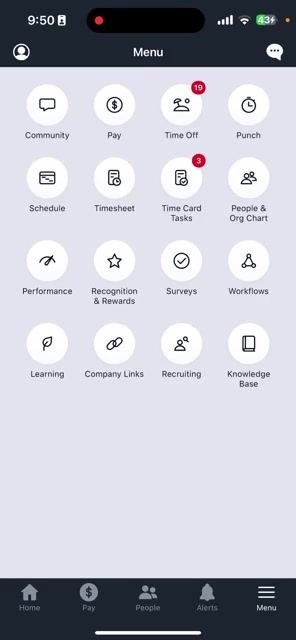
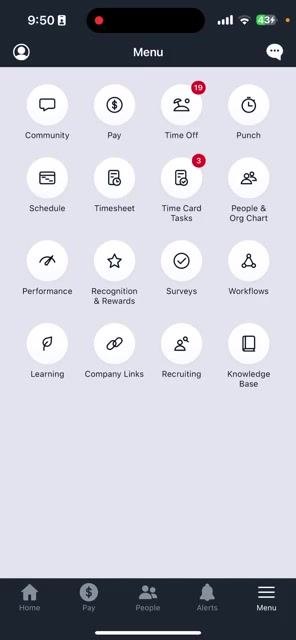
Open the app and go to the bottom right of the screen. Tap the Menu hamburger icon (three horizontal lines). This opens the main menu, which includes options such as Community, Pay, Time Off, Punch, Schedule, Timesheet, and more.
Step 2: Select Schedule
From the main menu options, select Schedule.
Step 3: Open the Availability tab
At the top of the Schedule screen, scroll across and select Availability. If you have not set up availability yet, you'll see a message indicating you have no availability records.
Step 4: Start a new availability entry
Tap the plus (+) button at the bottom right of the Availability screen to add a new availability entry.
Step 5: Define your unavailability setting
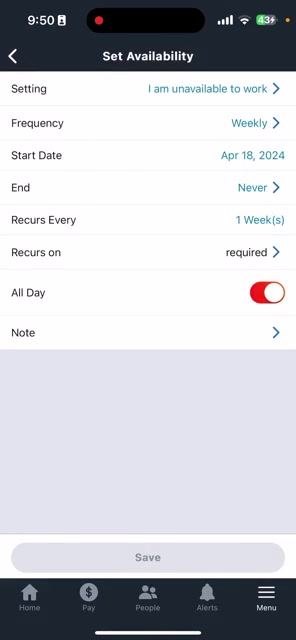
On the Set Availability screen, configure the following:
- Setting: Select "I am unavailable to work."
- Frequency: Set to "Weekly."
- Note: Add a note if needed (optional).
Step 6: Configure the date and recurrence details
Set the Start Date to today's date and do not change this value. Then configure the remaining options:
- End: Leave as "Never" unless you want to specify an end date.
- Recurs Every: Set to "1 Week(s)."
- All Day: Toggle on if you are unavailable the entire day.
Step 7: Choose the days you are unavailable
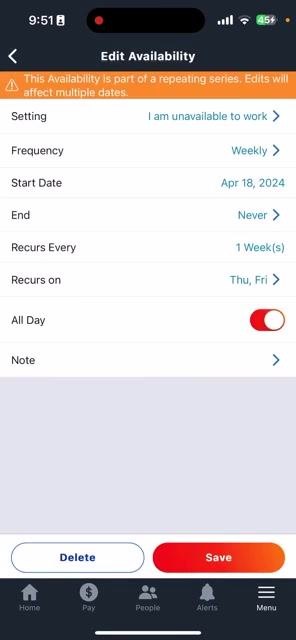
Under Recurs on, select the specific days you are unavailable to work. For example, select "Thu" and "Fri" if you are unavailable on Thursdays and Fridays, then confirm your selections.
Step 8: Save your unavailability
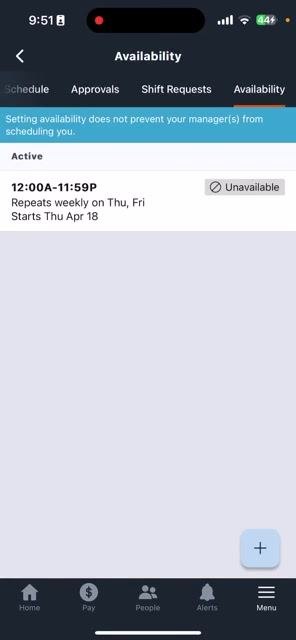
Tap Save at the bottom of the screen to save your unavailability preferences. Your unavailability will now appear under the Availability tab, showing the time range (e.g., 12:00A–11:59P), the recurring days (e.g., Thu, Fri), and the start date.
Deleting existing unavailability
Step 9: Remove an unavailability record
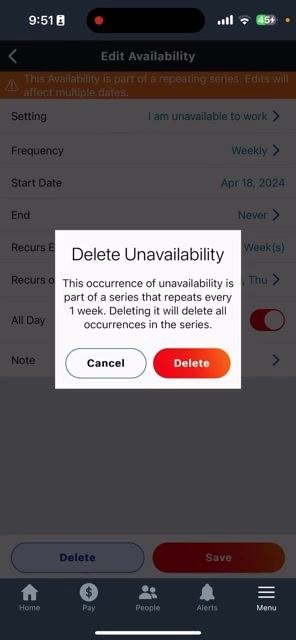
If you previously set unavailability and need to remove it, tap the entry in the Availability tab. On the Edit Availability screen, tap Delete. A confirmation dialog will explain that the occurrence is part of a recurring series set to repeat every 1 week, and that deleting it will remove all occurrences in the series. Tap Delete again to confirm and remove all related unavailability entries.
Requesting time off
Step 10: Return to the main menu and open Time Off Request
Tap the Menu hamburger icon (three horizontal lines) at the bottom right of the screen. From the main menu, locate and select Time Off Request.
Step 11: Fill out the time off request form
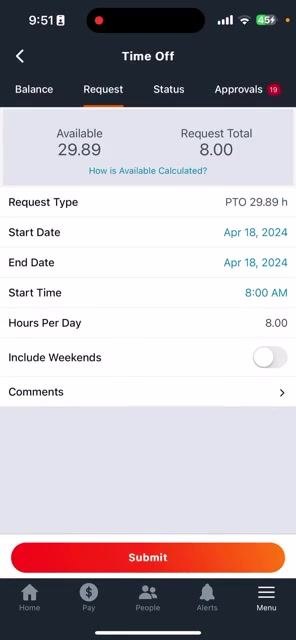
On the Time Off screen, make sure you are on the Request tab. Review your available PTO balance and any existing request totals at the top, then set the following fields:
- Request Type: Select the appropriate type (e.g., PTO 29.89 h).
- Start Date: Set the first day you need off (e.g., Apr 18, 2024).
- End Date: Set the last day you need off (e.g., Apr 18, 2024 for a single-day request).
- Start Time: Enter the time your time off should begin (e.g., 8:00 AM).
- Hours Per Day: Enter the number of hours you are requesting per day (e.g., 8.0).
- Include Weekends: Toggle on if your request includes weekend days; otherwise leave it off.
- Comments: Add a note or reason for your request (optional).
Step 12: Submit your request
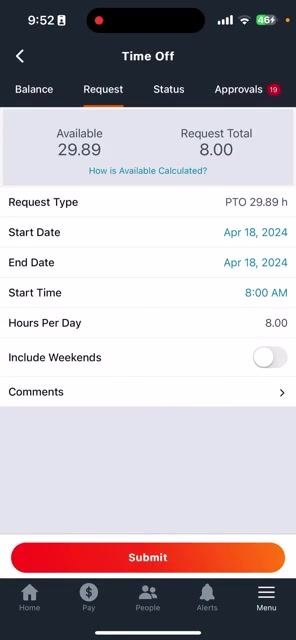
Review all entered details for accuracy, then tap the Submit button at the bottom of the screen to send your request for manager approval.
Summary
You now know how to set availability in Paylocity by marking your recurring unavailable days, updating or removing those records when your schedule changes, and submitting a time off request for approval. Following these steps keeps your schedule accurate and ensures your manager has visibility into your availability and time off needs.
Generation details: cost, quality tiers
Docsie billed 1,500 credits ($1.05) to analyze this 3-minute video at standard quality. The rewrite, template fill and Word/PDF exports were included. The same video at each quality tier:
| Quality | Frames sampled | Credits | Approx. cost |
|---|---|---|---|
| Draft | every 16-30 s | 750 | $0.52 |
| Standard (this guide) | every 8-15 s | 1,500 | $1.05 |
| Detailed | every 4-7 s | 3,000 | $2.10 |
| Ultra | every 1-3 s | 6,000 | $4.20 |
Credits priced at $0.70 per 1,000; plans include a monthly allowance. Enterprise customers on on-premise or bring-your-own-model deployments run this on their own inference and pay no per-video credits.
Generated by Docsie Video-to-Docs on 2026-10-19 from a 2-minute video. Screenshots are frames from the source video and belong to their creator, Helpful Videos, whose original is embedded above. If you own this video and want the guide removed or credited differently, contact us and we will act within one business day.