
How to Approve a Time Card in Paycor
Before you approve payroll for a pay period, you need to review employee time cards for errors and resolve any outstanding exceptions. This guide walks you through how to approve a time card in Paycor, including how to locate time card exceptions, correct missed punches, approve or deny employee punch requests, and finalize the time card for payroll processing.
Video: Paycor - Manager time approval proess by HR for Staff. All credit for the demonstration goes to the creator; watch the original on YouTube. The written guide below was generated from this video by Docsie. Creator? Request a change or removal.
Before you approve payroll for a pay period, you need to review employee time cards for errors and resolve any outstanding exceptions. This guide walks you through how to approve a time card in Paycor, including how to locate time card exceptions, correct missed punches, approve or deny employee punch requests, and finalize the time card for payroll processing.
Prerequisites
- Access to your Paycor account with login credentials
- Permission to view and edit employee time cards
- The correct clock-in or clock-out time for any employee with a missed punch (obtained from the employee or via email)
Access the time dashboard
Log in to Paycor
Open your web browser and navigate to https://secure.paycor.com/Portal/. Enter your credentials to log in to your Paycor account.
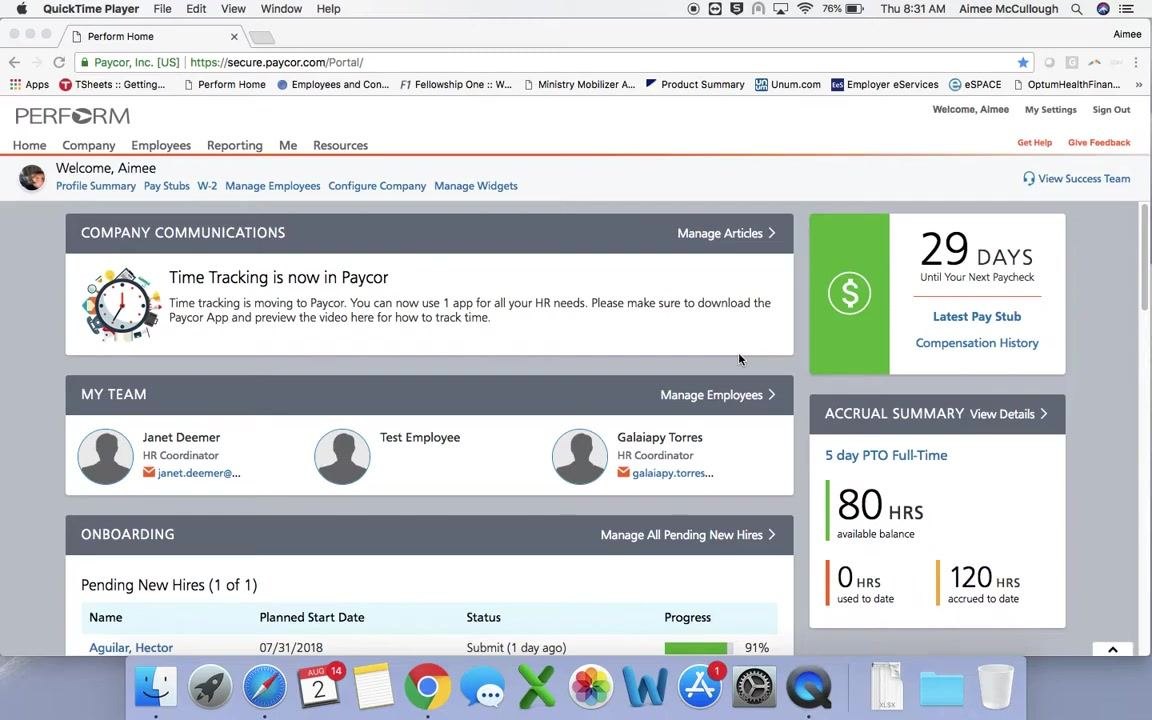
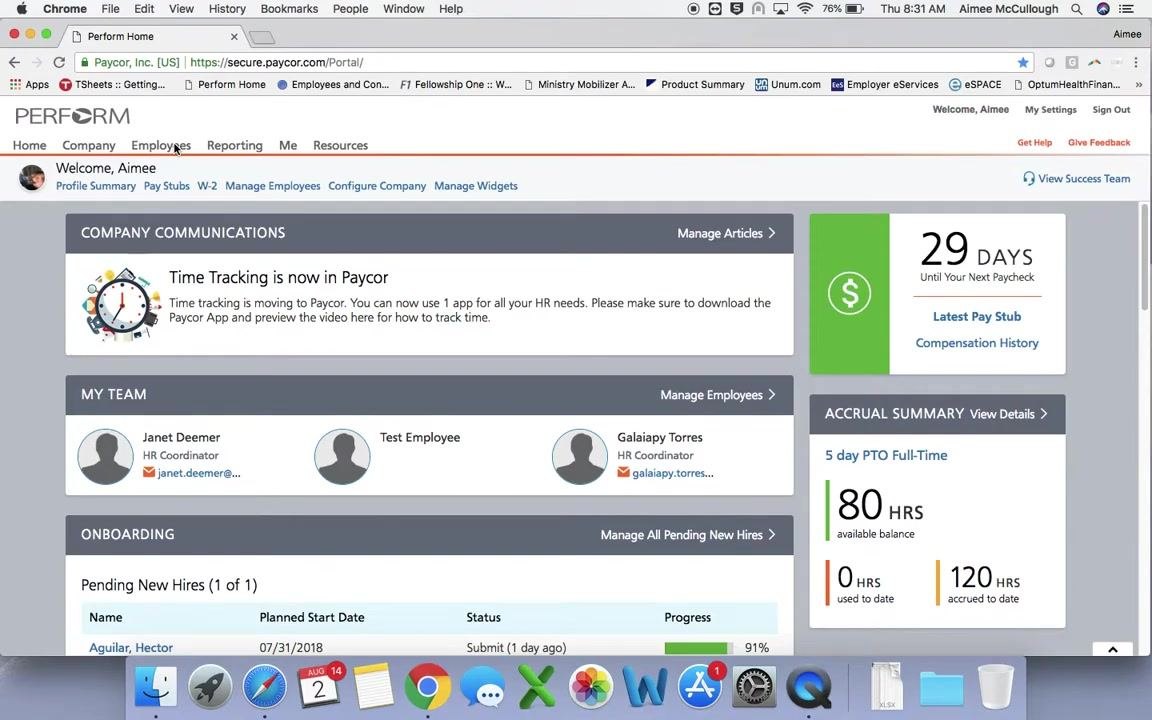
Open the Time Dashboard
On the top navigation bar, locate the Employees menu, then click View Time Dashboard from the employee menu.
Review and correct time card exceptions
Review employee status and time card exceptions
On the Time Dashboard, review the following sections at the top of the page:
- Current Employee Status: shows which employees are present, absent, or currently punched in
- Approaching Overtime: flags employees nearing overtime, if any
- Time Card Exceptions: lists employees with critical or non-critical time card exceptions
Use the Time Card Exceptions list to identify which employees' time entries need correction.
Select an employee with a time card exception
Click the name of an employee listed under Time Card Exceptions to open their profile and time card details.
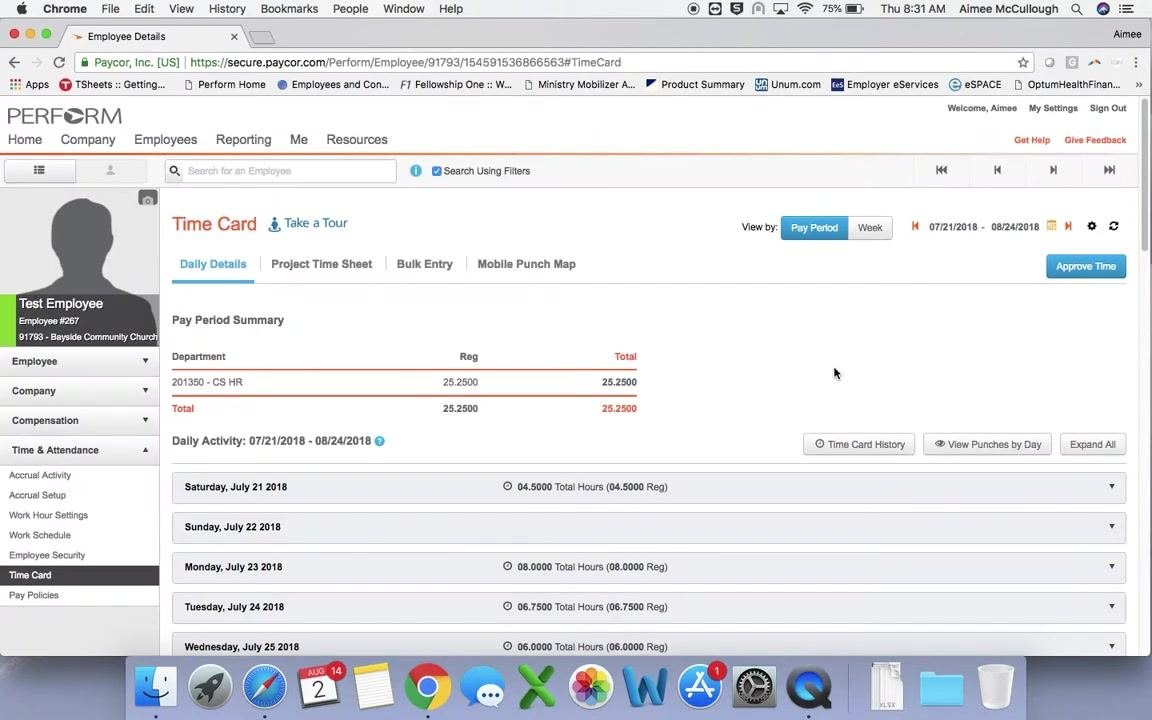
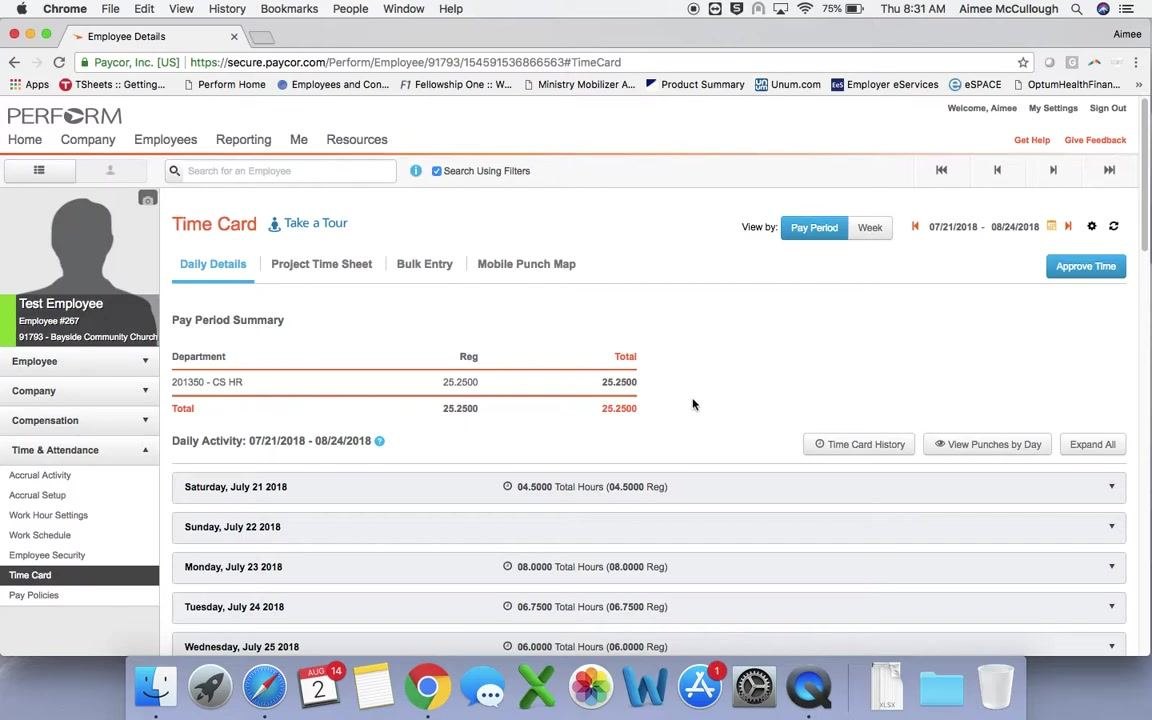
Review the employee's time card details
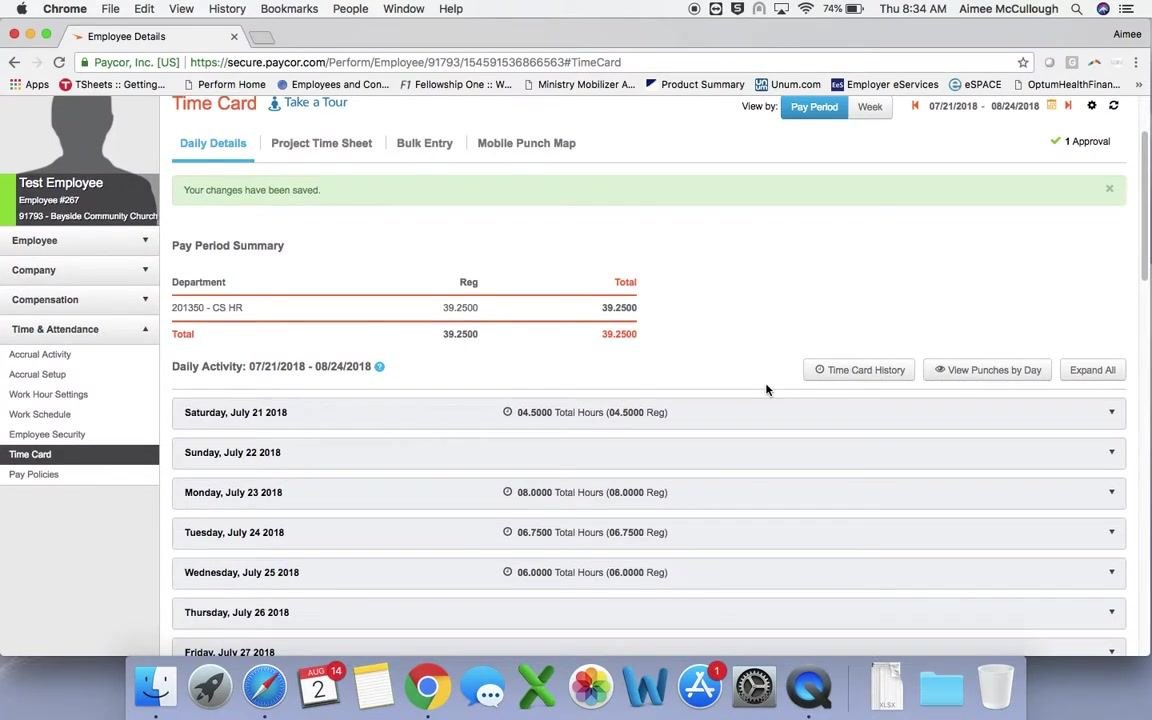
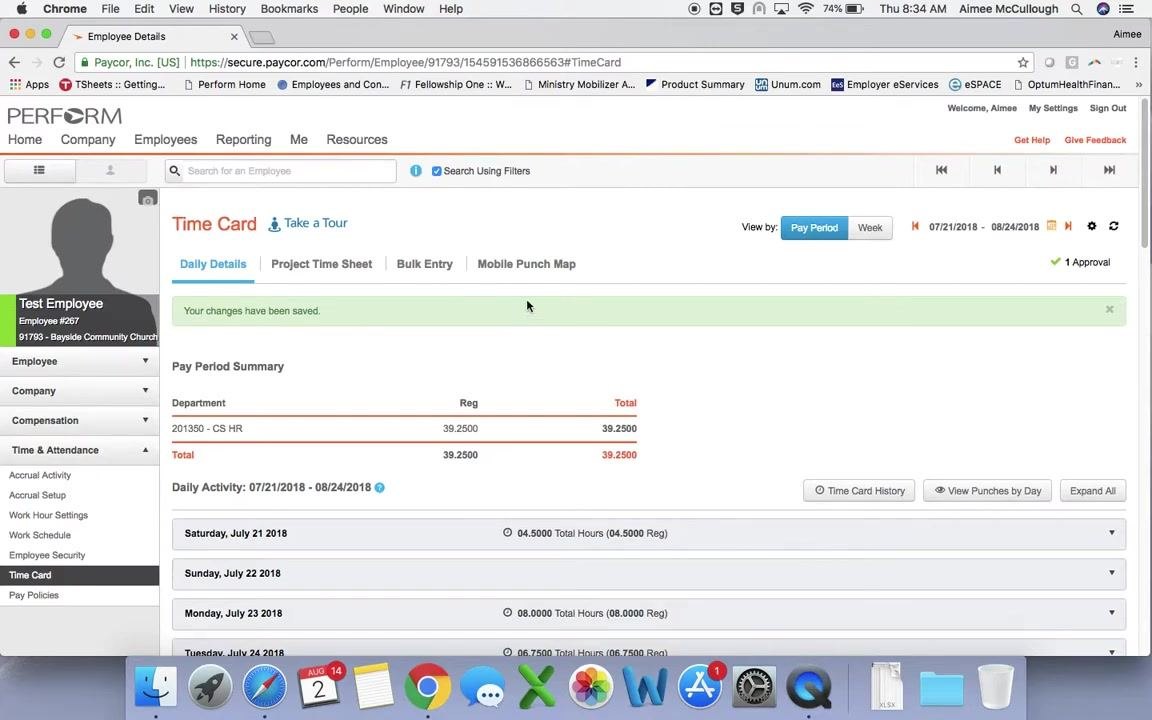
On the employee's profile, open the Time Card section. Check the Pay Period Summary for total hours worked, then scroll through the Daily Activity list to review hours worked each day within the pay period.
Identify days with exceptions
Look for days highlighted in red or marked with a red exclamation point — these indicate exceptions or errors, such as missed punches. For example, you might locate the first flagged day, such as "Sunday, July 29th."
View details for the exception day
Click the red-highlighted day (for example, "Sunday, July 29th") to expand it and view the details for that day.
Review the exception and add a missing punch
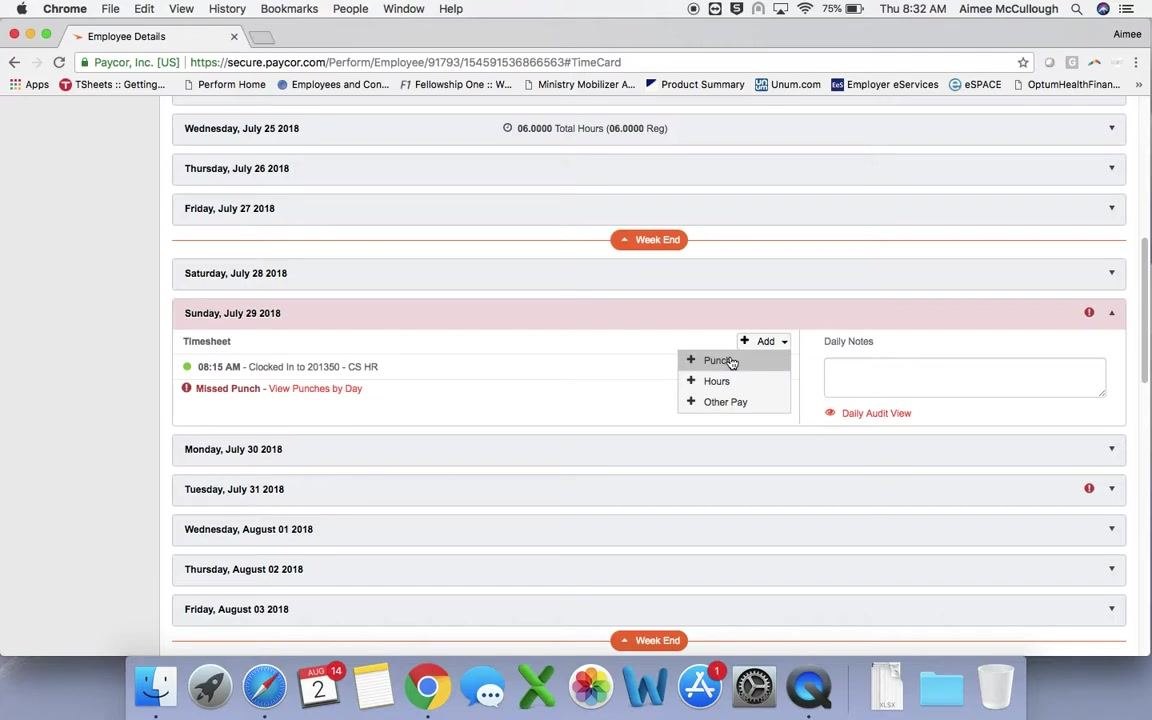
In the expanded details, review the timesheet entries. You may see something like:
- "08:15 AM – Clocked In"
- "Missed Punch – View Punches by Day"
If you have the correct clock-out time — from an email or by asking the employee — add a punch by clicking the Add button and selecting Punch from the dropdown menu.
Enter the missing punch details
In the Add Punch dialog:
- Enter the correct Punch Time (for example, "01:15 PM")
- Set the Status Type to "Out" (or as appropriate)
- Leave the Activity Type (for example, "Work") and Department (for example, "201350 - CS HR") unchanged
- Click Save to apply the correction
Approve or deny missed punch requests
Approve or deny missed punch requests
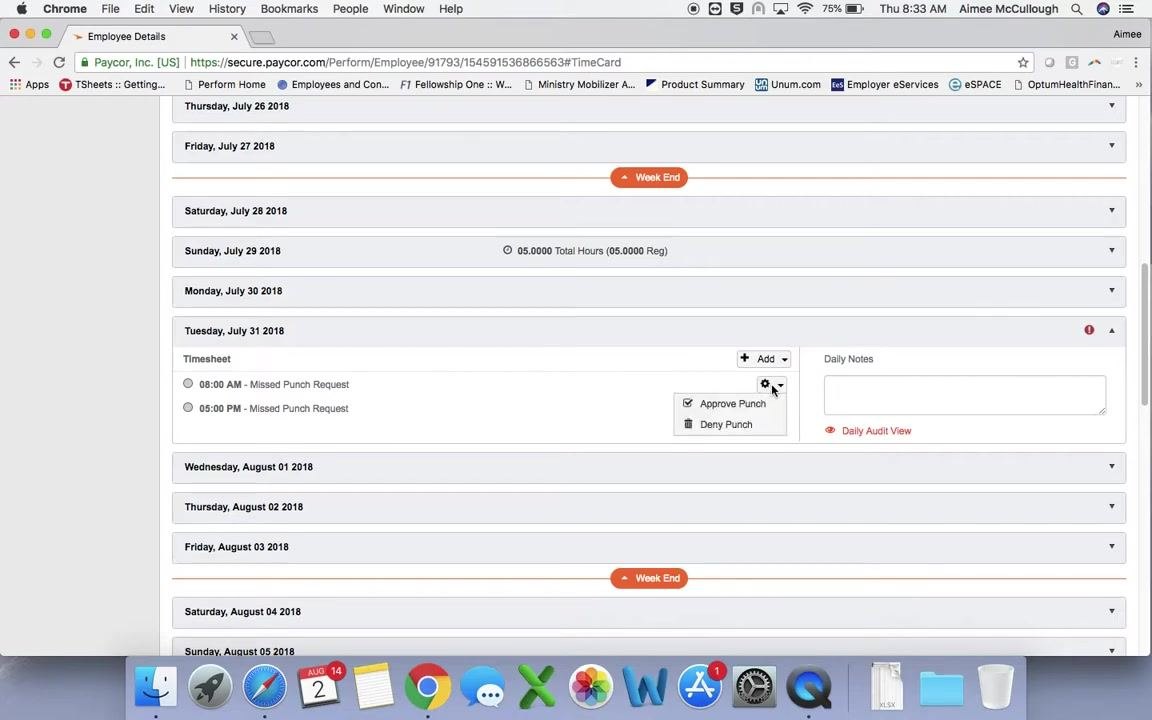
Identify the next day with an error, such as "Tuesday, July 31, 2018" (highlighted or marked with an exception), and click on it to expand the timesheet details. Review the missed punch requests listed, for example "08:00 AM – Missed Punch Request" and "05:00 PM – Missed Punch Request."
Hover over the gear icon next to each missed punch request to reveal the dropdown menu, then select Approve Punch to approve the employee's request, or Deny Punch if the request is not valid. Repeat this process for each missed punch request on that day.
Review employee notes for missed punches
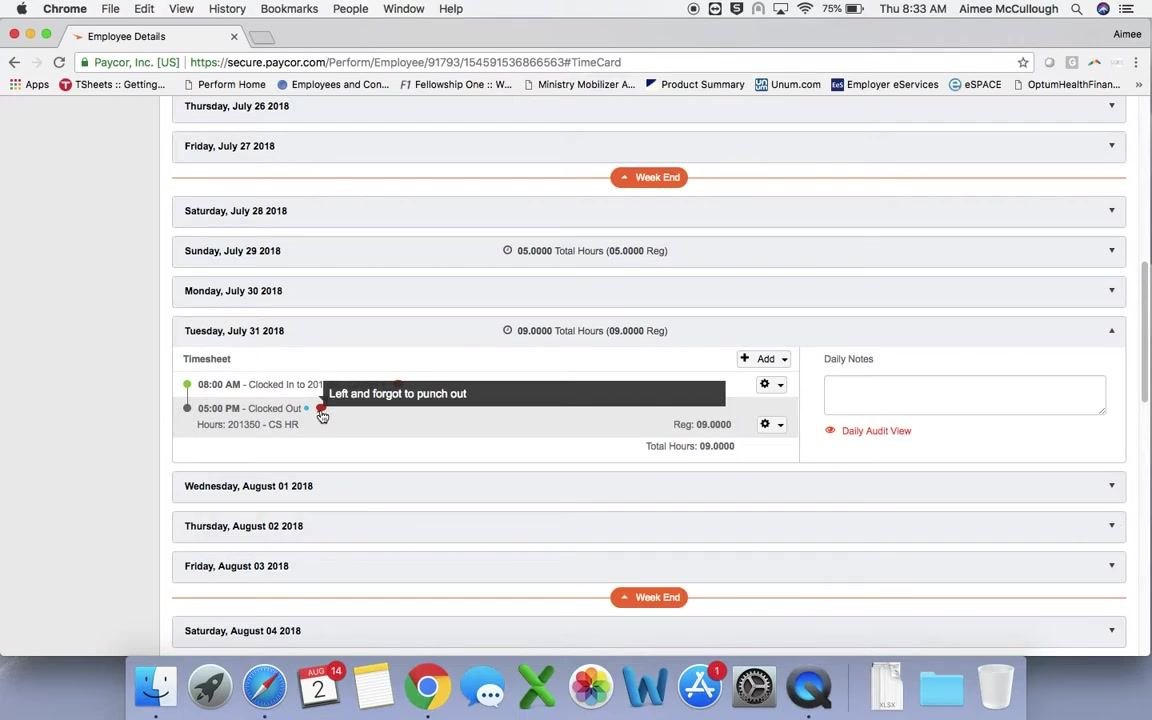
Look for an orange bubble next to a punch time — this indicates the employee has left a note explaining the missed punch. Hover over the bubble to read the note, for example "Forgot to clock in" or "Left and forgot to punch out."
Review any additional daily notes shown on the right side of the screen, or leave your own note for the employee if needed.
Approve the time card
Approve the time card for the pay period
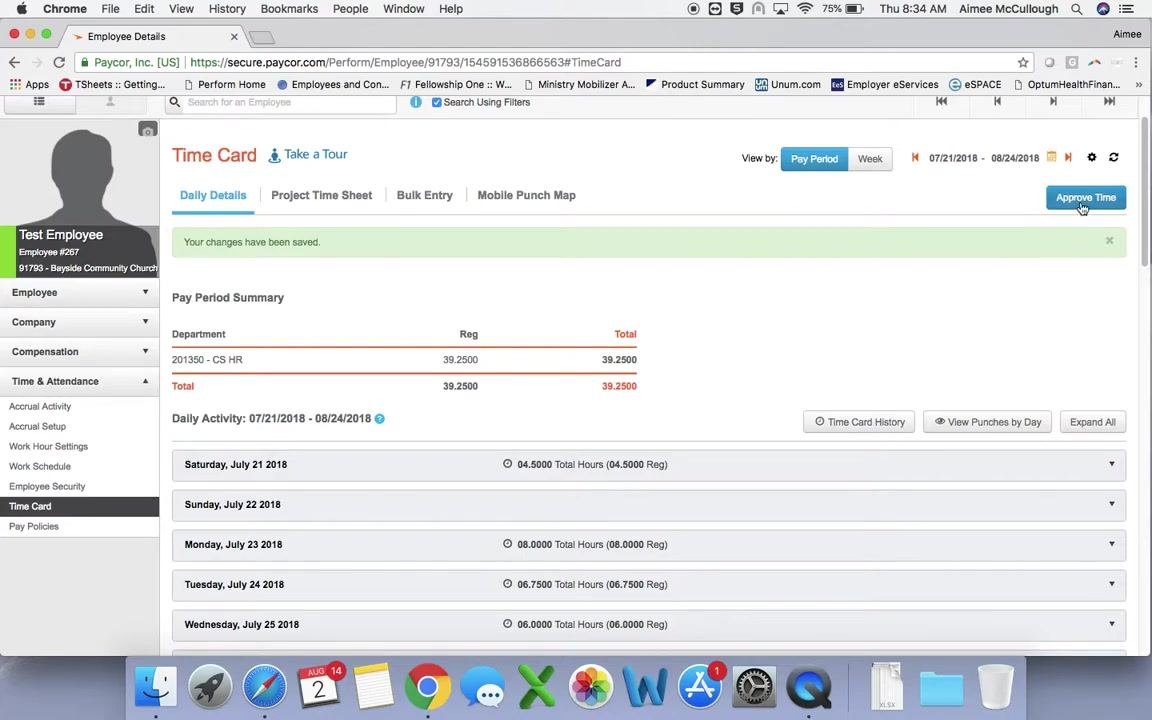
After reviewing and correcting all exceptions for the pay period, scroll to the top of the screen and click the blue Approve Time button. Certify that the time card is correct, then submit the approval to finalize the time card for payroll processing.
Review time weekly
Understand employee access limitations
Employees can log into the Paycor website to edit and correct their own punches, but they cannot make these changes from the mobile app.
Review time entries weekly
Log into Paycor at least once a week to review time entries. This is especially important during the initial period of using Paycor — check for errors or critical errors in time punches throughout the pay period and address any issues as soon as they are identified to ensure accurate payroll processing.
Guidance and additional assistance
Use the "Take a Tour" feature for guidance
If you need help navigating or understanding the Paycor Time Card interface, click the Take a Tour link at the top of the Time Card page for step-by-step guidance on using the system.
Contact HR for additional assistance
If you have questions or need further help with the time card process, reach out to your HR representative. For this example, support is available at hr@mybayside.church.
What's next
By following these steps, you can review and correct employee time card exceptions, approve or deny missed punch requests, and approve the time card in Paycor to ensure accurate payroll processing. Make reviewing time entries a weekly habit, and use the Take a Tour feature or your HR representative if you need additional help along the way.
Generation details: cost, quality tiers
Docsie billed 2,000 credits ($1.40) to analyze this 4-minute video at standard quality. The rewrite, template fill and Word/PDF exports were included. The same video at each quality tier:
| Quality | Frames sampled | Credits | Approx. cost |
|---|---|---|---|
| Draft | every 16-30 s | 1,000 | $0.70 |
| Standard (this guide) | every 8-15 s | 2,000 | $1.40 |
| Detailed | every 4-7 s | 4,000 | $2.80 |
| Ultra | every 1-3 s | 8,000 | $5.60 |
Credits priced at $0.70 per 1,000; plans include a monthly allowance. Enterprise customers on on-premise or bring-your-own-model deployments run this on their own inference and pay no per-video credits.
Generated by Docsie Video-to-Docs on 2026-10-12 from a 3-minute video. Screenshots are frames from the source video and belong to their creator, HR for Staff, whose original is embedded above. If you own this video and want the guide removed or credited differently, contact us and we will act within one business day.