
How to Terminate an Employee in Oracle Fusion
This guide walks you through how to terminate an employee in Oracle Fusion using the Person Management and Work Relationship screens. Follow these steps to locate an employee record, enter termination details, configure user access and rehire recommendations, and confirm the termination.
Video: 31. How to Terminate an Employee in Oracle HCM Cloud by Oracle HCM Cloud (2020). All credit for the demonstration goes to the creator; watch the original on YouTube. The written guide below was generated from this video by Docsie. Creator? Request a change or removal.
This guide walks you through how to terminate an employee in Oracle Fusion using the Person Management and Work Relationship screens. Follow these steps to locate an employee record, enter termination details, configure user access and rehire recommendations, and confirm the termination.
Prerequisites
- Access to Oracle HCM Cloud (Oracle Fusion) with permissions to the My Client Groups and Person Management areas.
- The employee's name or identifying details to locate their record.
Open Oracle Fusion and navigate to Person Management
Log in to Oracle Fusion
Open Oracle HCM Cloud and log in to your account.
Open the Navigator menu
Click the Navigator icon on the Oracle Applications home screen to open the main menu.
In the Navigator menu, locate the My Client Groups section and click Person Management.
Find the employee record
Search for the employee
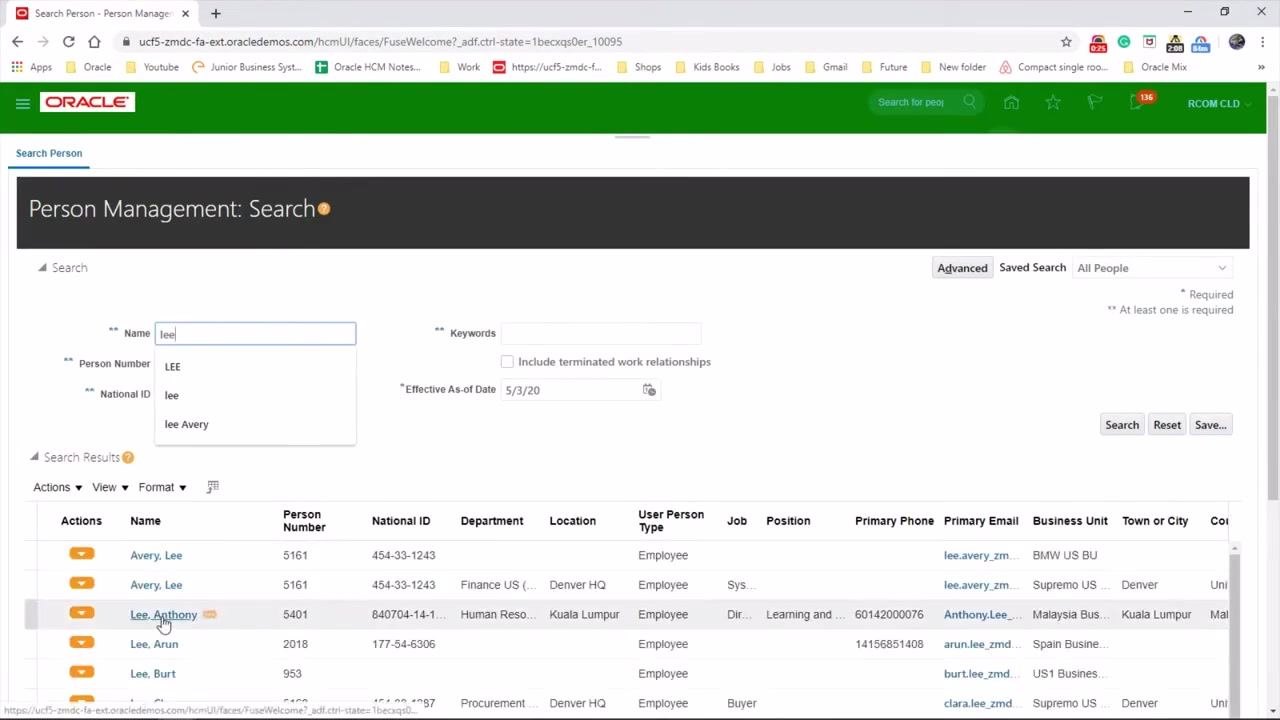
In the Person Management: Search screen, enter the employee's name in the Name field. For example, type "lee" to search for employees with that name.
Select the employee from the search results
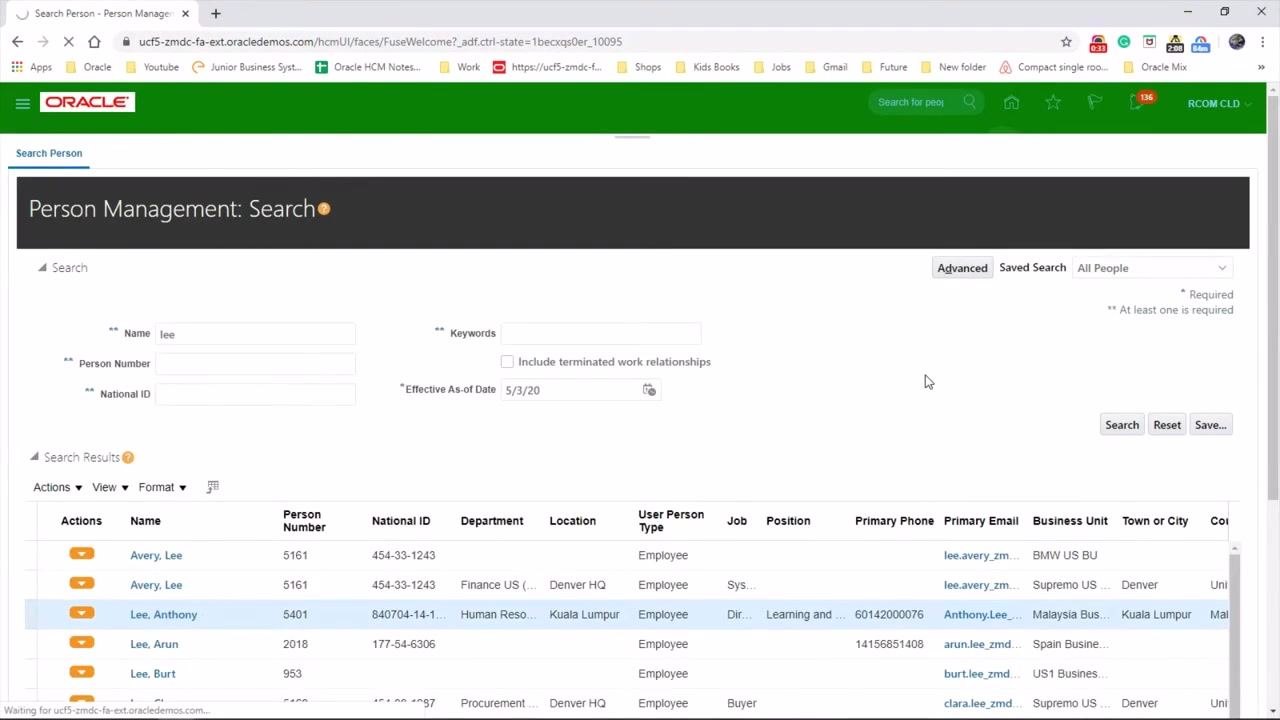
Review the search results and locate the employee you wish to terminate. For example, select Lee, Anthony from the list by clicking on the corresponding row.
Review the employee's profile
After you select the employee, their Person Management profile opens. Review the employment details to confirm you have the correct person.
Open the Work Relationship section
In the right-hand task area, scroll down and click Work Relationship under the "Personal and Employment" section.
Terminate the work relationship
Start the termination action
In the Work Relationship screen, click the Actions button and select Terminate from the dropdown menu.
Enter termination details
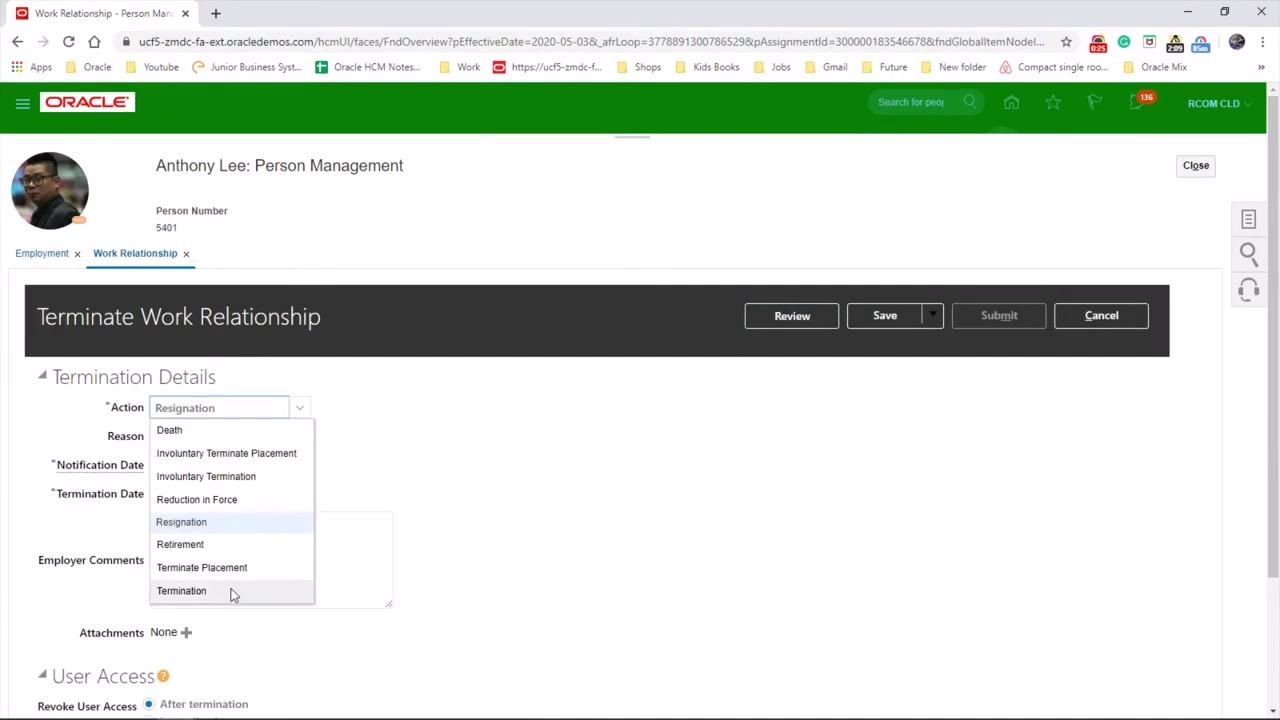
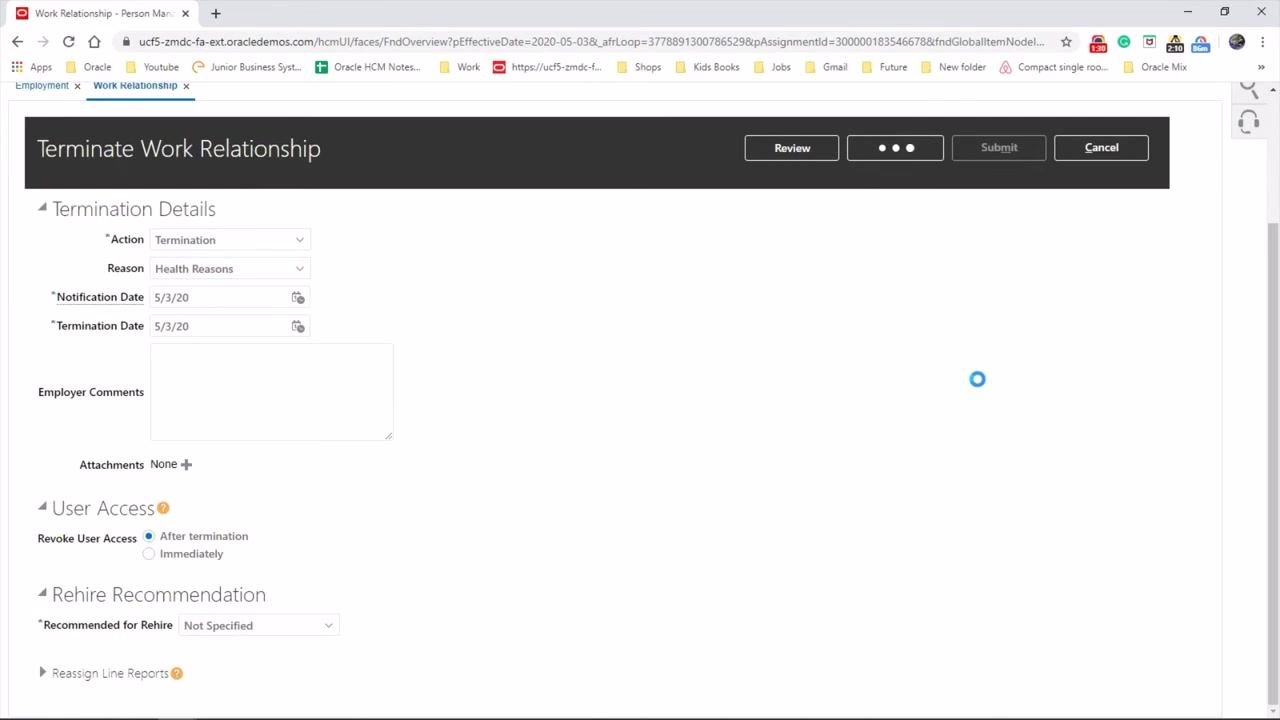
In the Terminate Work Relationship window, set the following fields under Termination Details:
- Action: Select "Termination" from the dropdown menu.
- Reason: Choose the appropriate reason for termination (for example, "Health Reasons," "Disciplinary," "Performance," or "Work Incident or Work Related Illness").
- Notification Date: Enter the date the employee was notified (for example, 5/3/20).
- Termination Date: Enter the effective termination date (for example, 5/3/20).
- Employer Comments: Optionally, enter any relevant comments regarding the termination.
Set user access revocation timing
Under User Access, choose when to revoke the employee's access:
- Select After termination to revoke access after the termination date.
- Select Immediately to revoke access right away, regardless of the termination date.
Set the rehire recommendation
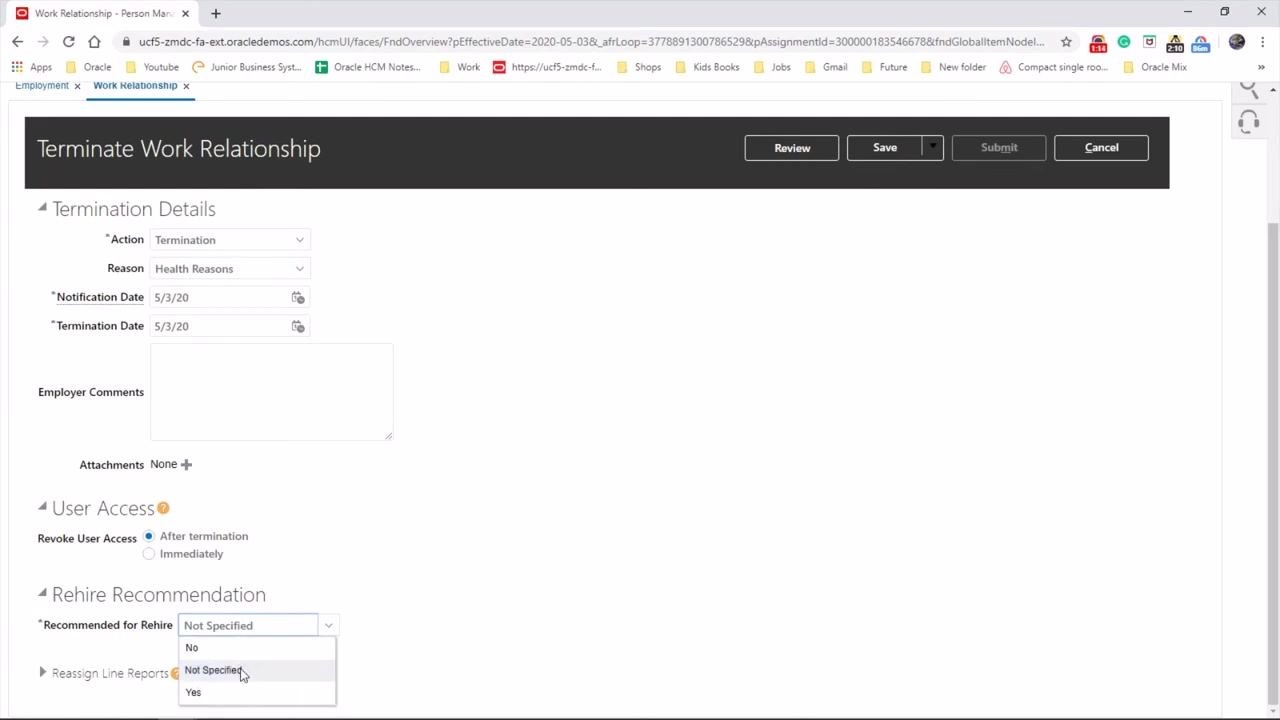
In the Rehire Recommendation section, set the Recommended for Rehire field:
- Select Yes if the employee is eligible for rehire in the future.
- Select No if the employee should not be considered for rehire.
- Select Not Specified if you do not wish to provide a recommendation.
- Optionally, check Reassign Line Reports if you need to reassign the employee's direct reports.
Review and submit the termination
Click Review to check the details, then click Save or Submit to finalize the termination process.
Confirm your changes were saved
Click OK in the confirmation dialog that appears, indicating your changes were saved.
Verify the termination is complete
Verify that the process is complete and the termination has been successfully recorded.
Summary
By following these steps, you can successfully terminate an employee in Oracle Fusion, ensuring that termination details, user access settings, and rehire recommendations are properly configured. Once you confirm the saved changes, the termination process is complete.
Generation details: cost, quality tiers
Docsie billed 1,500 credits ($1.05) to analyze this 3-minute video at standard quality. The rewrite, template fill and Word/PDF exports were included. The same video at each quality tier:
| Quality | Frames sampled | Credits | Approx. cost |
|---|---|---|---|
| Draft | every 16-30 s | 750 | $0.52 |
| Standard (this guide) | every 8-15 s | 1,500 | $1.05 |
| Detailed | every 4-7 s | 3,000 | $2.10 |
| Ultra | every 1-3 s | 6,000 | $4.20 |
Credits priced at $0.70 per 1,000; plans include a monthly allowance. Enterprise customers on on-premise or bring-your-own-model deployments run this on their own inference and pay no per-video credits.
Generated by Docsie Video-to-Docs on 2026-10-19 from a 2-minute video. Screenshots are frames from the source video and belong to their creator, Oracle HCM Cloud, whose original is embedded above. If you own this video and want the guide removed or credited differently, contact us and we will act within one business day.