
How to Create an Employee User in Oracle Fusion
This guide walks you through how to create an employee user in Oracle Fusion, from signing in and navigating to the user management task, through entering personal and employment details, linking a user account, and assigning roles. Follow the steps below in order to complete the process successfully.
Video: How to Create employee user & link with an existing User in Oracle Fusion Cloud by Oracle Fusion Financial Hub (2021). All credit for the demonstration goes to the creator; watch the original on YouTube. The written guide below was generated from this video by Docsie. Creator? Request a change or removal.
This guide walks you through how to create an employee user in Oracle Fusion, from signing in and navigating to the user management task, through entering personal and employment details, linking a user account, and assigning roles. Follow the steps below in order to complete the process successfully.
Prerequisites
- Access to Oracle Applications Cloud with a valid User ID and Password.
- Permissions to access Setup and Maintenance and the Manage Users task.
- An active implementation project (for example, "ASM Implementation project") configured in your environment.
Setup and maintenance
Log in to Oracle Applications Cloud
Navigate to the Oracle Applications Cloud sign-in page. Enter your User ID and Password, confirm the language is set to "English" (or your preferred language), and click Sign In.
Access Setup and Maintenance
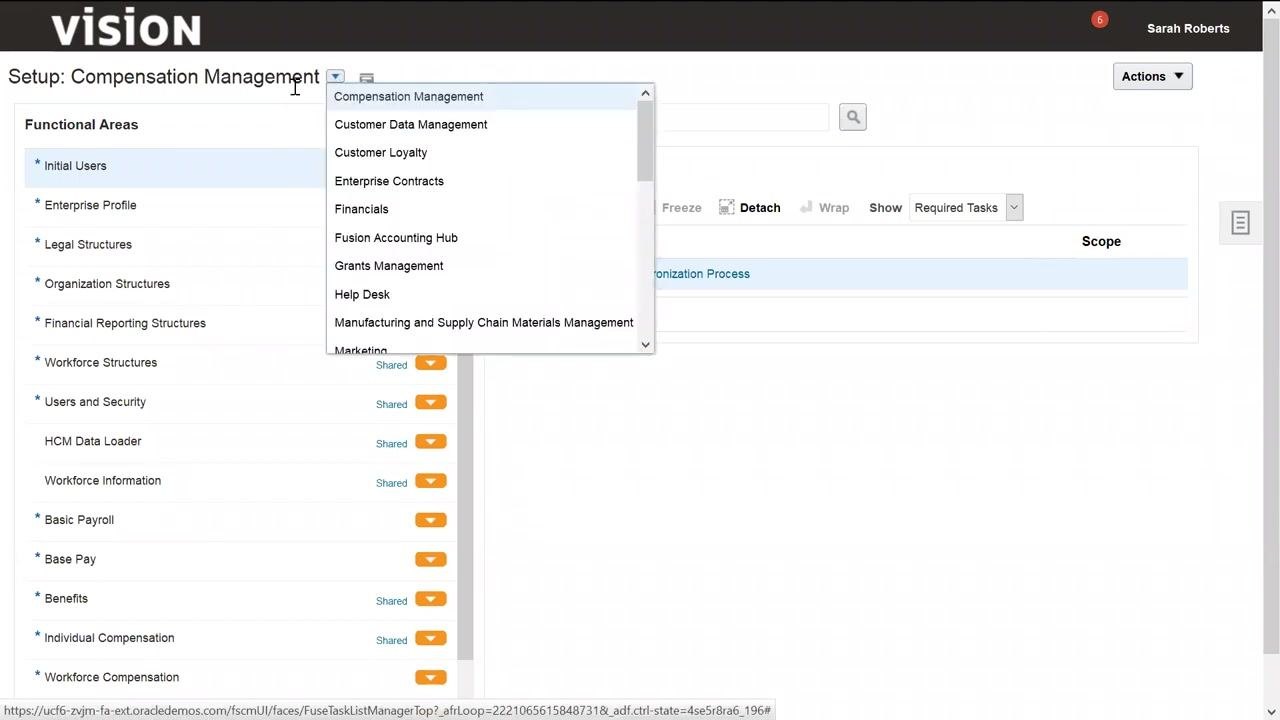
Once logged in, locate your user name in the top right corner and click it to open the Settings and Actions menu. Under the Administration section, select Setup and Maintenance.
Open your implementation project
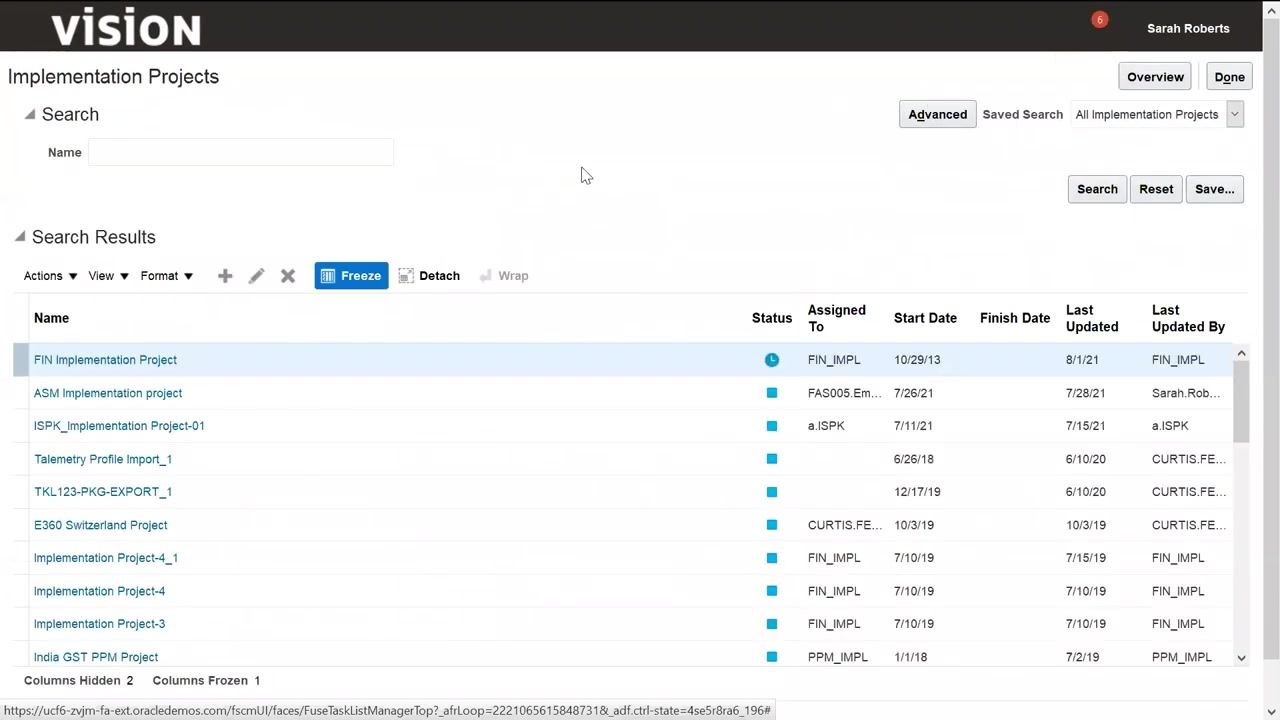
On the right side of the tasks pane, locate and select your implementation project (for example, "ASM Implementation project"). This displays the list of tasks associated with the selected project.
Find the Manage Users task
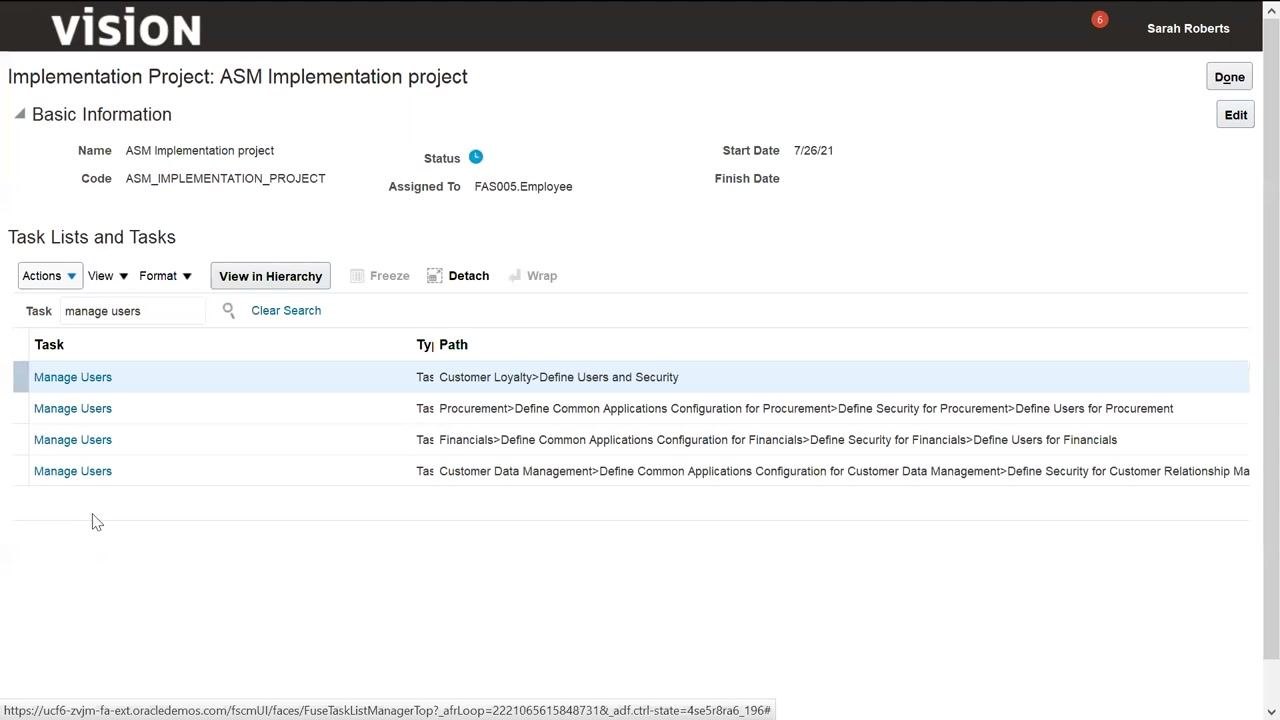
Use the search bar above the task list to search for "manage users." Identify the Manage Users task under the relevant path (for example, Financials > Define Users for Financials), then click it to proceed.
Creating the user
Search for an existing person or start a new user
On the Search Person screen, you can search for an existing person by entering keywords and clicking the search icon. If no existing person is found, click the + (Add) button to create a new user.
Complete the personal and employment details
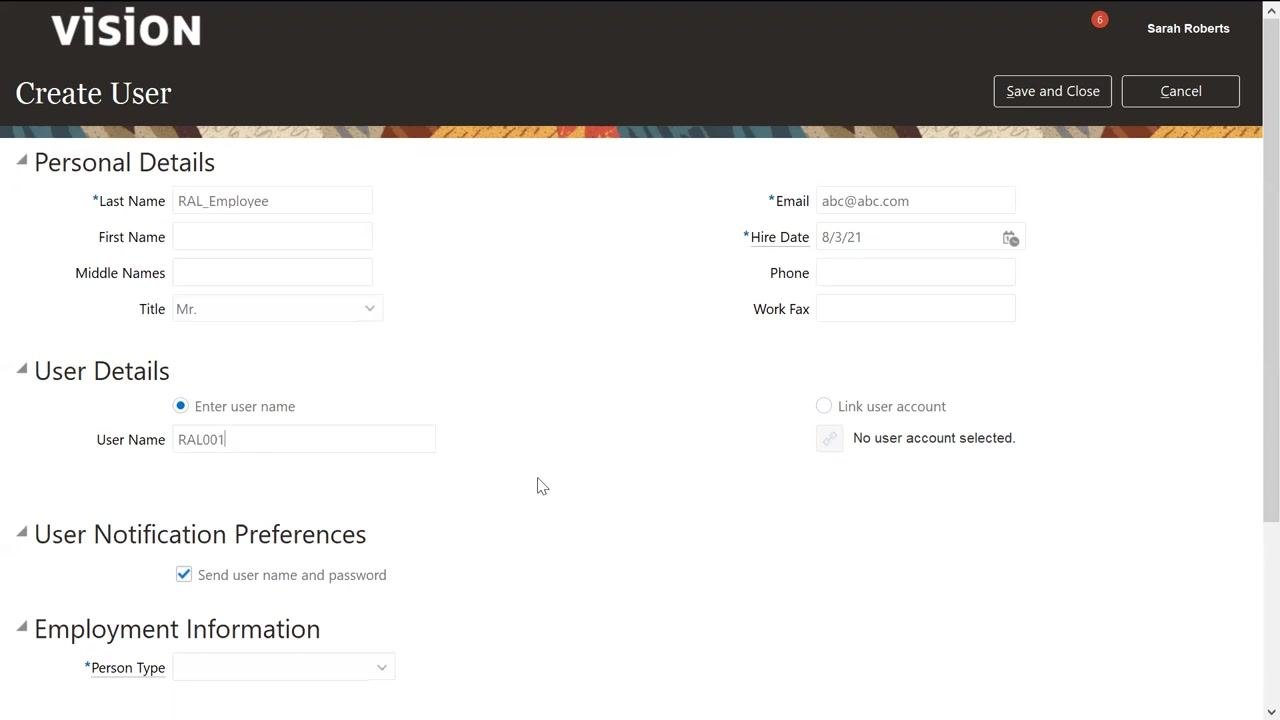
On the Create User screen, fill in all required fields under Personal Details:
- Enter the Last Name, for example
RAL_Employee. - Optionally, enter First Name and Middle Names.
- Select a Title from the dropdown, for example
Mr..
Under User Details, make sure "Enter user name" is selected and enter the User Name, for example REL001. Enter the user's Email address, for example abc@abc.com, and set the Hire Date, for example 8/3/21. You can optionally enter Phone and Work Fax numbers.
Under User Notification Preferences, make sure the "Send user name and password" checkbox is checked so the user is notified of their credentials. In the Employment Information section, select the appropriate Person Type, such as Employee.
Linking a user account
Choose to link an existing user account
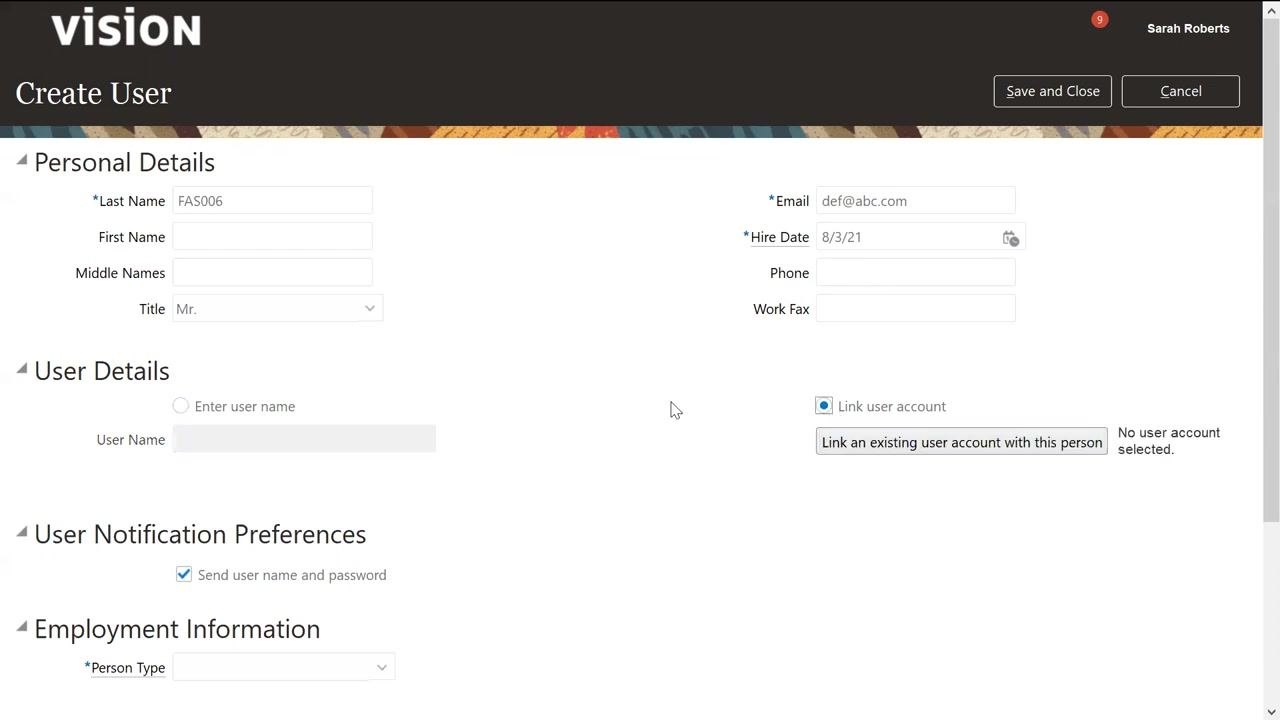
In the User Details section, select the Link user account radio button. The system displays "No user account selected," and the link icon becomes active.
Open the Link User Account dialog
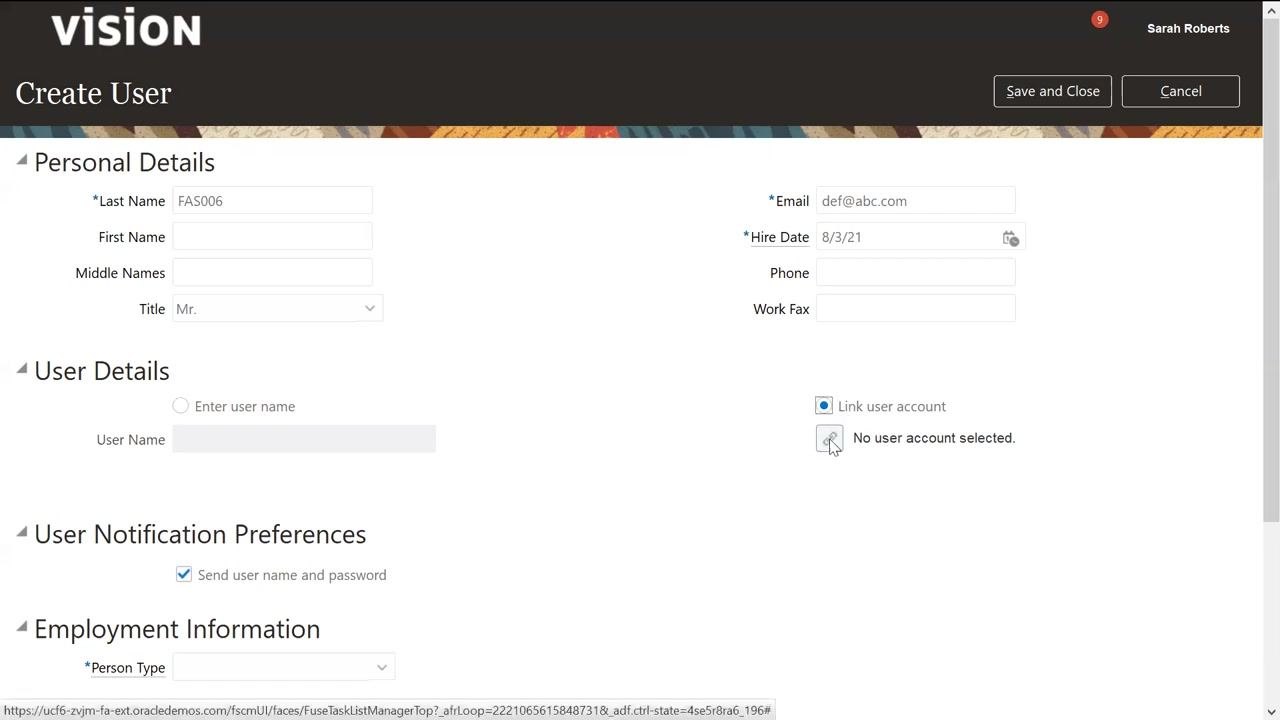
Click the link icon next to "No user account selected." A dialog box titled Link User Account opens, allowing you to search for existing user accounts.
Search for a user account
In the Search field of the dialog, enter the user login or a partial value with a wildcard, for example FAS005%, and click the search icon (magnifying glass). If no matching accounts exist, the message "No data to display" appears.
Broaden the search if needed
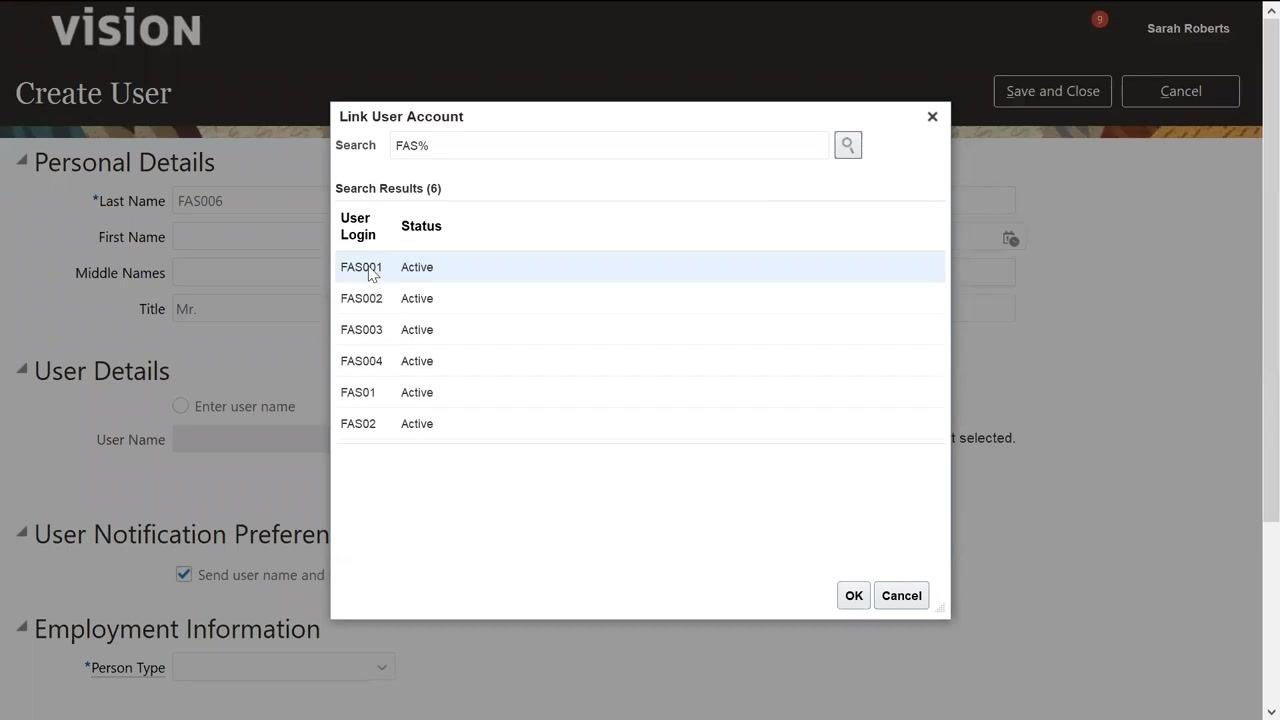
If your initial search returns no results, broaden the search criteria, for example by entering FAS%, and click the search icon again. The dialog displays a list of matching accounts with their User Login and Status, such as FAS001 (Active), FAS002 (Active), FAS003 (Active), FAS004 (Active), FAS01 (Active), and FAS02 (Active).
Select the account to link
Review the list of available user logins and statuses, then click the desired user login, for example "FAS001" with status "Active," to select it. Click OK to confirm the selection and close the dialog.
Entering employment information and requesting roles
Select the employment type
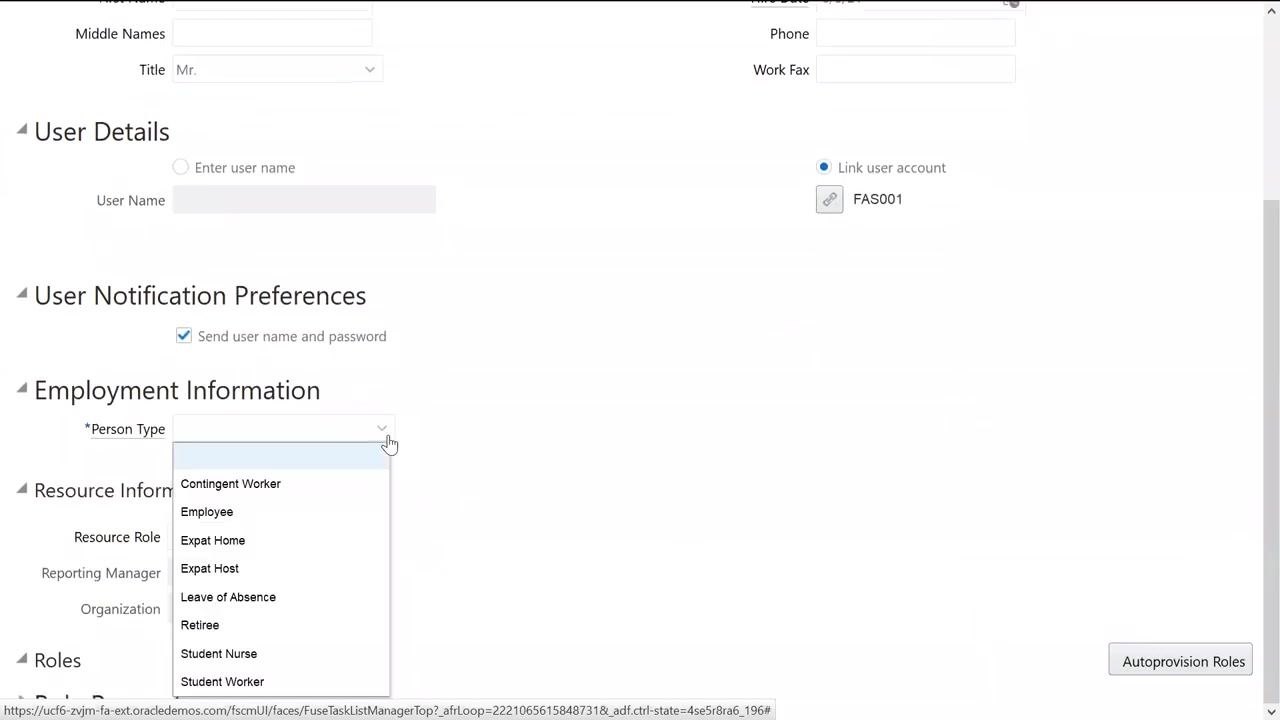
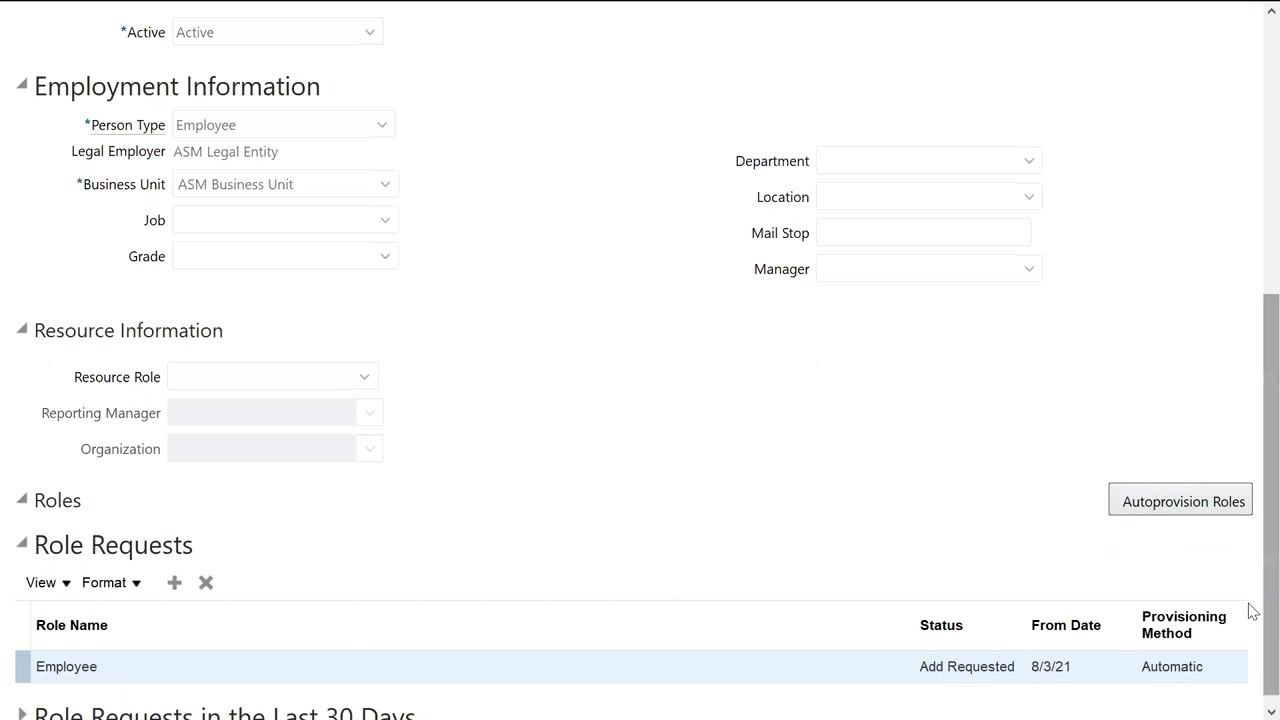
In the Employment Information section, click the Person Type dropdown and choose the appropriate employment type for the new user. For this example, select Employee. Other available options include Contingent Worker, Expat Home, Expat Host, Leave of Absence, Retiree, Student Nurse, and Student Worker.
Enter the legal employer and business unit
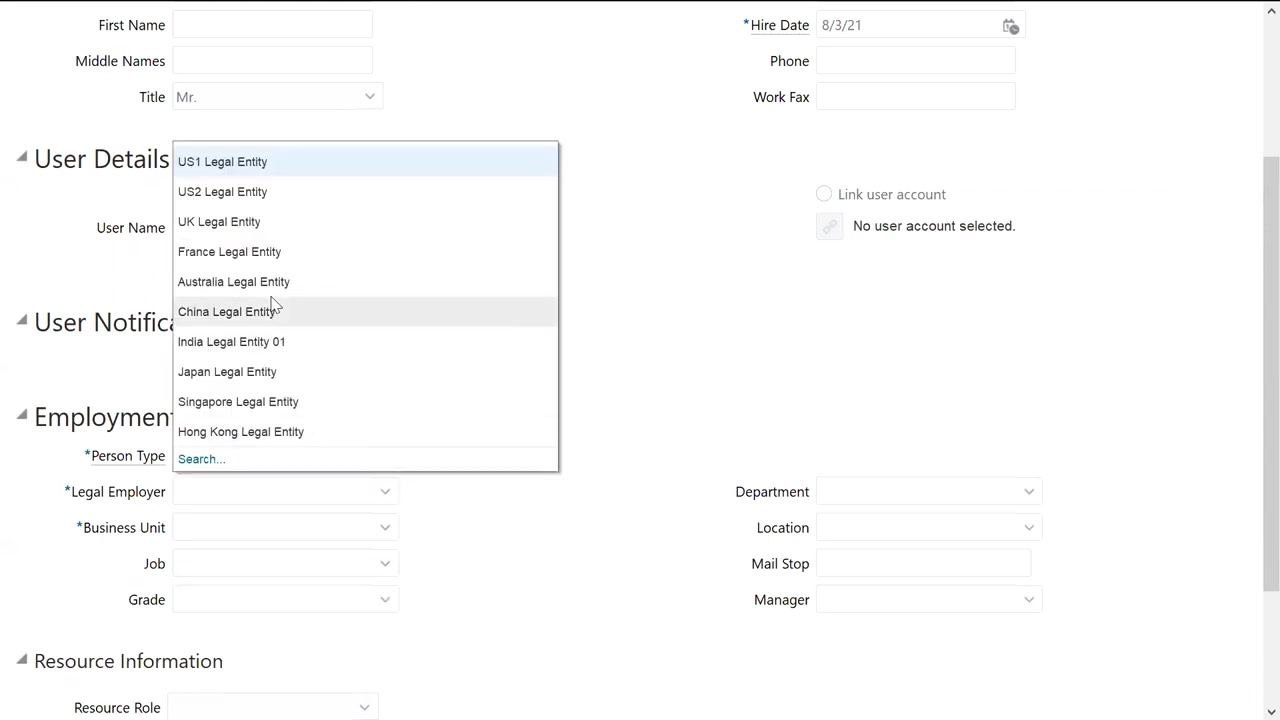
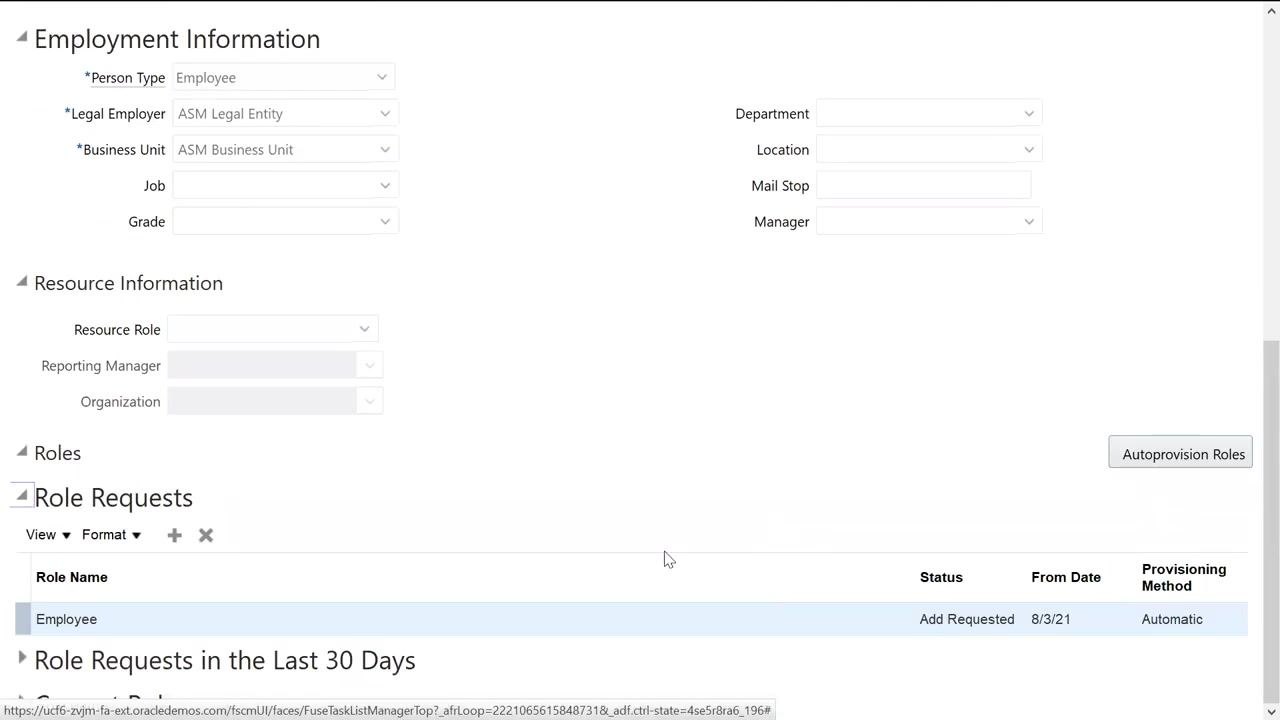
In the Legal Employer field, click the dropdown and select the relevant legal entity. If the entity isn't immediately visible, use the search function, for example by entering ASM% to filter for ASM-related entities. Click Search, select the appropriate legal employer from the results, and click OK to confirm.
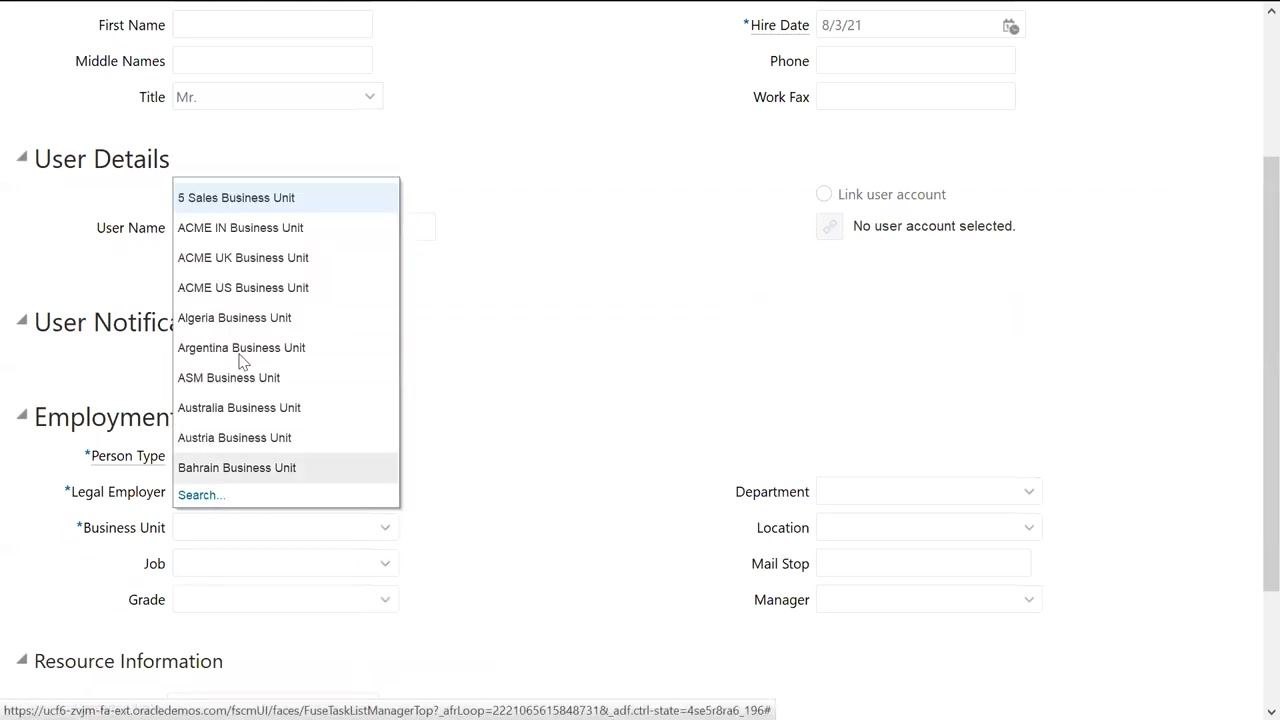
In the Business Unit field, click the dropdown and select the relevant business unit. For this example, choose ASM Business Unit.
Enter additional employment details (optional)
You can fill in any additional fields as needed:
- Job: Click the search icon to select a job.
- Grade: Select the appropriate grade if applicable.
- Department: Choose the department from the dropdown.
- Location: Select the location from the dropdown.
- Mail Stop: Enter the mail stop code if needed.
- Manager: Assign a manager from the dropdown.
These fields are optional but help further define the employee's role and reporting structure.
Assign a role manually
Scroll to the Role Requests section at the bottom of the screen and click the plus (+) icon to add a new role. In the Add Role dialog, enter the desired role name in the Role Name field, for example "General Accountant." Click Search, select the appropriate role from the results, and click OK to assign it to the user.
By completing this step, you specify the employment type, legal employer, business unit, and any additional employment details for the new user, and you initiate the process of assigning a specific role, such as "General Accountant," to the employee.
Assign roles using auto provisioning
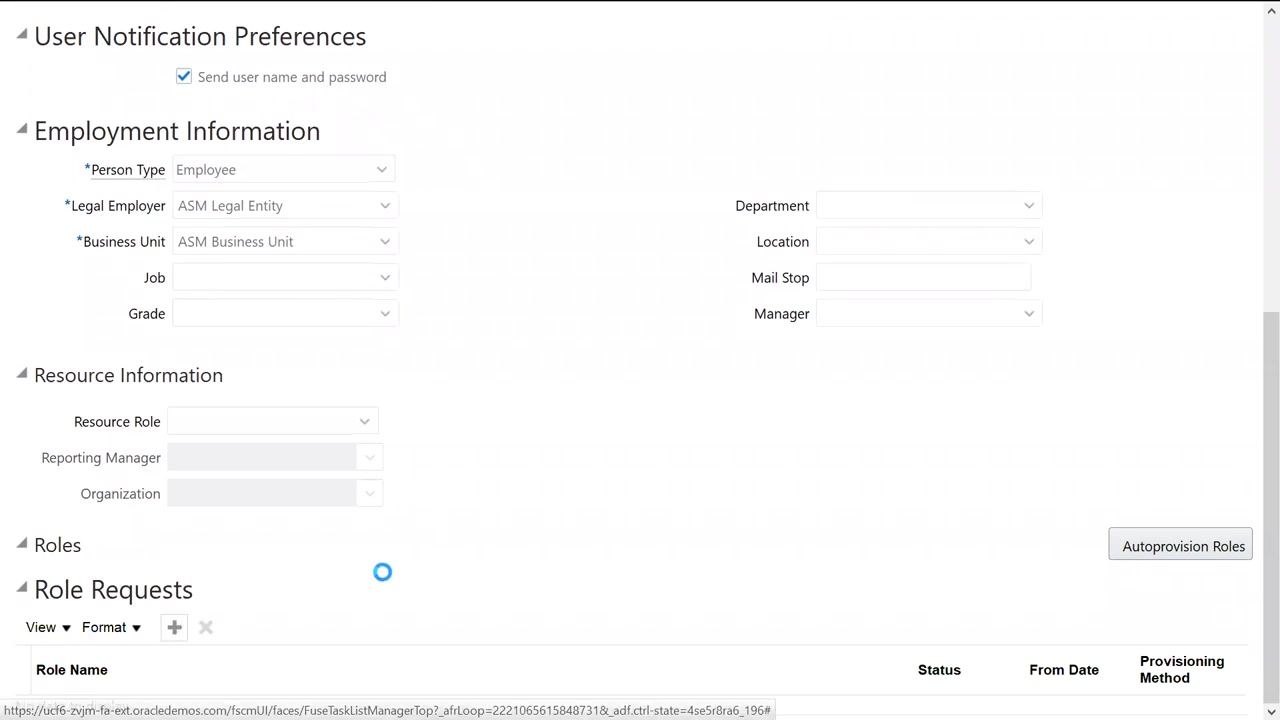
As an alternative to manual role assignment, locate the Autoprovision Roles button on the right side of the Roles section and click it. The system automatically assigns roles based on the user's employment information.
Verify the automatic role assignment
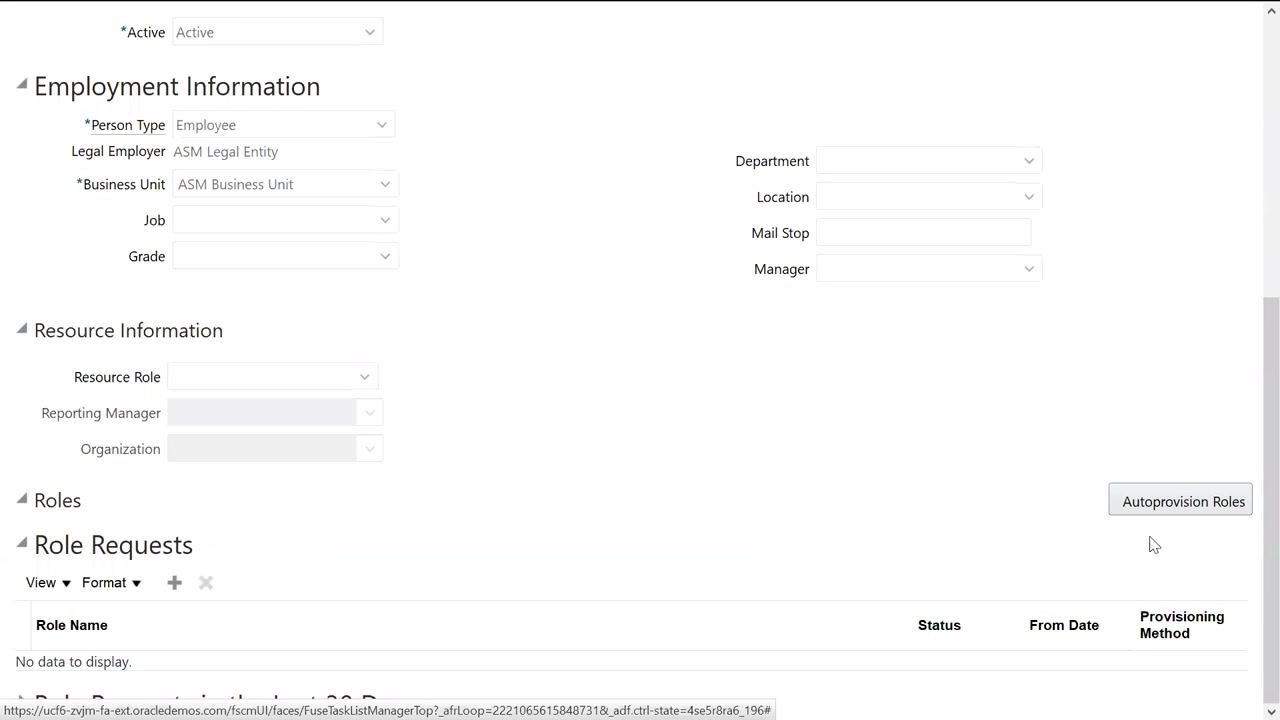
After clicking Autoprovision Roles, check the Role Requests section to confirm that the "Employee" role has been added with the following details:
- Status: Add Requested
- From Date: 8/3/21
- Provisioning Method: Automatic
This confirms that the user, defined as an employee, has automatically received the "Employee" role.
Save and close the user record
Review all entered information for accuracy, then click Save and Close at the top right of the screen to finalize the user creation and linking process. A loading indicator may appear while the system processes the request.
Summary
You have now learned how to create an employee user in Oracle Fusion: signing in, navigating to the Manage Users task, entering personal and employment details, linking an existing user account, specifying employment information such as legal employer and business unit, and assigning a role either manually or through auto provisioning. Saving and closing the record completes the user creation process.
Generation details: cost, quality tiers
Docsie billed 5,000 credits ($3.50) to analyze this 10-minute video at standard quality. The rewrite, template fill and Word/PDF exports were included. The same video at each quality tier:
| Quality | Frames sampled | Credits | Approx. cost |
|---|---|---|---|
| Draft | every 16-30 s | 2,500 | $1.75 |
| Standard (this guide) | every 8-15 s | 5,000 | $3.50 |
| Detailed | every 4-7 s | 10,000 | $7.00 |
| Ultra | every 1-3 s | 20,000 | $14.00 |
Credits priced at $0.70 per 1,000; plans include a monthly allowance. Enterprise customers on on-premise or bring-your-own-model deployments run this on their own inference and pay no per-video credits.
Generated by Docsie Video-to-Docs on 2026-10-19 from a 9-minute video. Screenshots are frames from the source video and belong to their creator, Oracle Fusion Financial Hub, whose original is embedded above. If you own this video and want the guide removed or credited differently, contact us and we will act within one business day.