
How to Create an AP Invoice in Oracle Fusion
This guide walks you through how to create an AP invoice in Oracle Fusion, from understanding the required invoice fields to entering invoice lines, calculating taxes, validating the invoice, and confirming it in the Manage Invoices screen. Follow these steps to ensure your Accounts Payable invoice is complete, accurate, and ready for approval.
Video: How to create AP invoice in Oracle fusion | AP Invoice creation | AP Invoice #oic #fusion #education by The Cloud Campus (2025). All credit for the demonstration goes to the creator; watch the original on YouTube. The written guide below was generated from this video by Docsie. Creator? Request a change or removal.
This guide walks you through how to create an AP invoice in Oracle Fusion, from understanding the required invoice fields to entering invoice lines, calculating taxes, validating the invoice, and confirming it in the Manage Invoices screen. Follow these steps to ensure your Accounts Payable invoice is complete, accurate, and ready for approval.
What is an AP invoice
An Accounts Payable (AP) Invoice is a document created to record a business's obligation to pay a vendor or supplier for goods or services received. It is an essential part of the Accounts Payable process in financial management.
Key details required in an AP invoice
An AP invoice must capture the following information:
- Invoice Number: A unique identifier for the invoice.
- Invoice Date: The date the invoice was issued.
- Supplier Details: The name, address, and contact information of the vendor.
- Company Details: The name and address of the buyer (your organization).
- Description of Goods/Services: Details of what is being charged.
- Amount: The total payable amount, including taxes.
- Payment Terms: The due date and payment method (for example, bank transfer or check).
- Purchase Order Reference (if applicable): A link to a specific purchase order, if one exists.
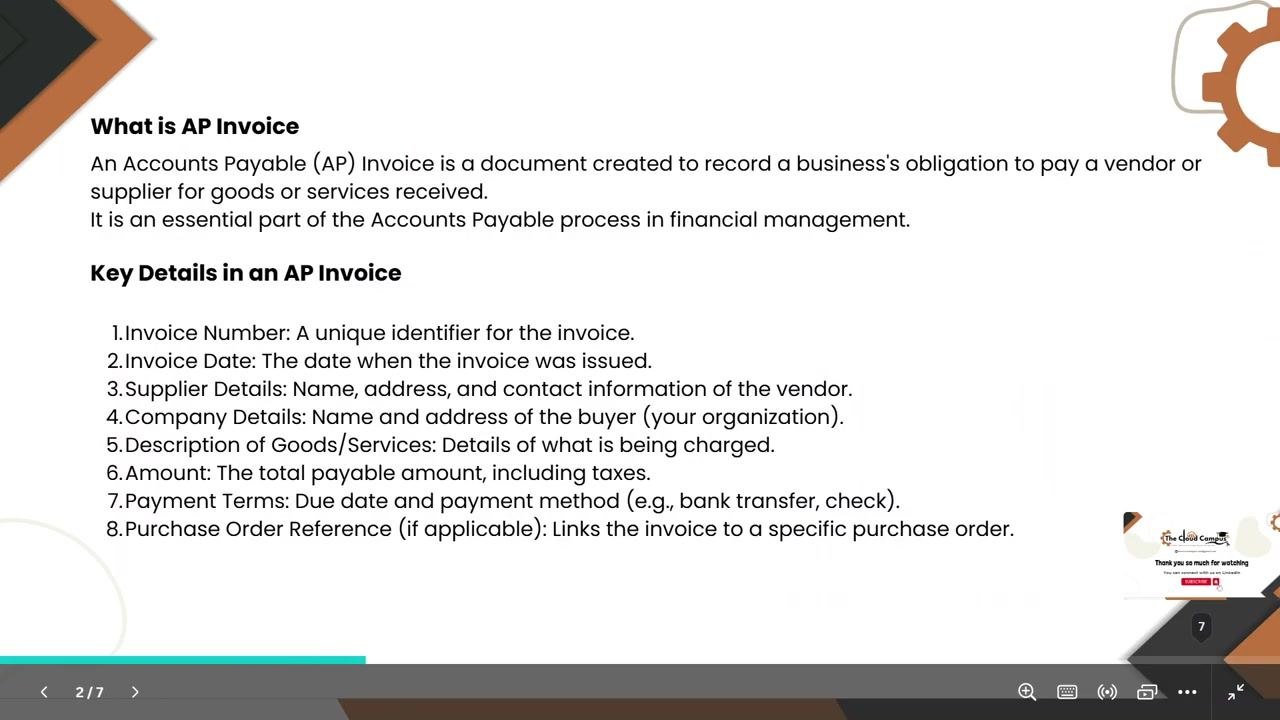
Each field serves a specific purpose: the Invoice Number ensures every invoice is uniquely tracked, the Invoice Date records when the obligation was created, and Supplier Details and Company Details identify both parties in the transaction. The Description of Goods/Services clarifies what is being purchased, the Amount field ensures the correct total (including taxes) is recorded, Payment Terms define when and how payment should be made, and the Purchase Order Reference links the invoice to prior purchase agreements for traceability.
With these fundamentals in mind, you're ready to create an AP invoice directly in Oracle Fusion.
Prerequisites
Before you begin, make sure you have:
- Valid Oracle Fusion login credentials (username and password).
- Access to the Payables module.
- Supplier, business unit, and purchase order details (if applicable) ready for entry.
Log in to Oracle Fusion
Open your web browser and navigate to the Oracle Fusion login page. Enter your username and password, then click Sign In to access the Oracle Fusion dashboard.
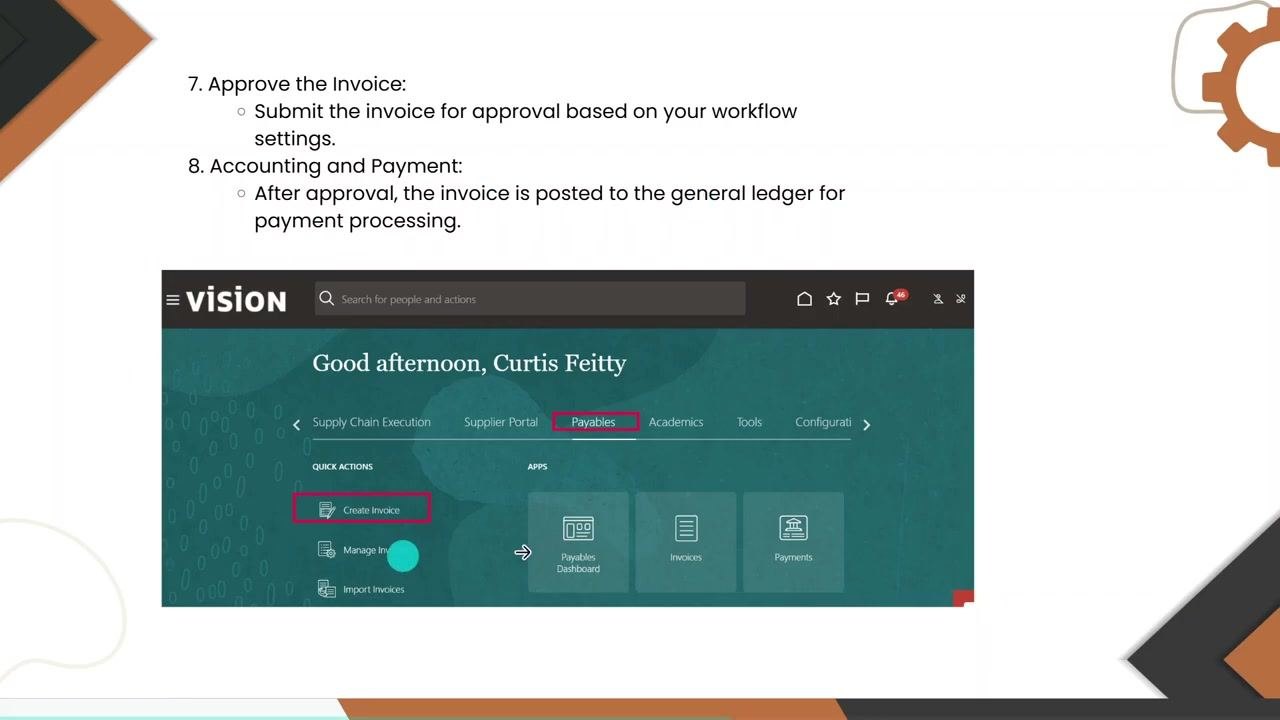
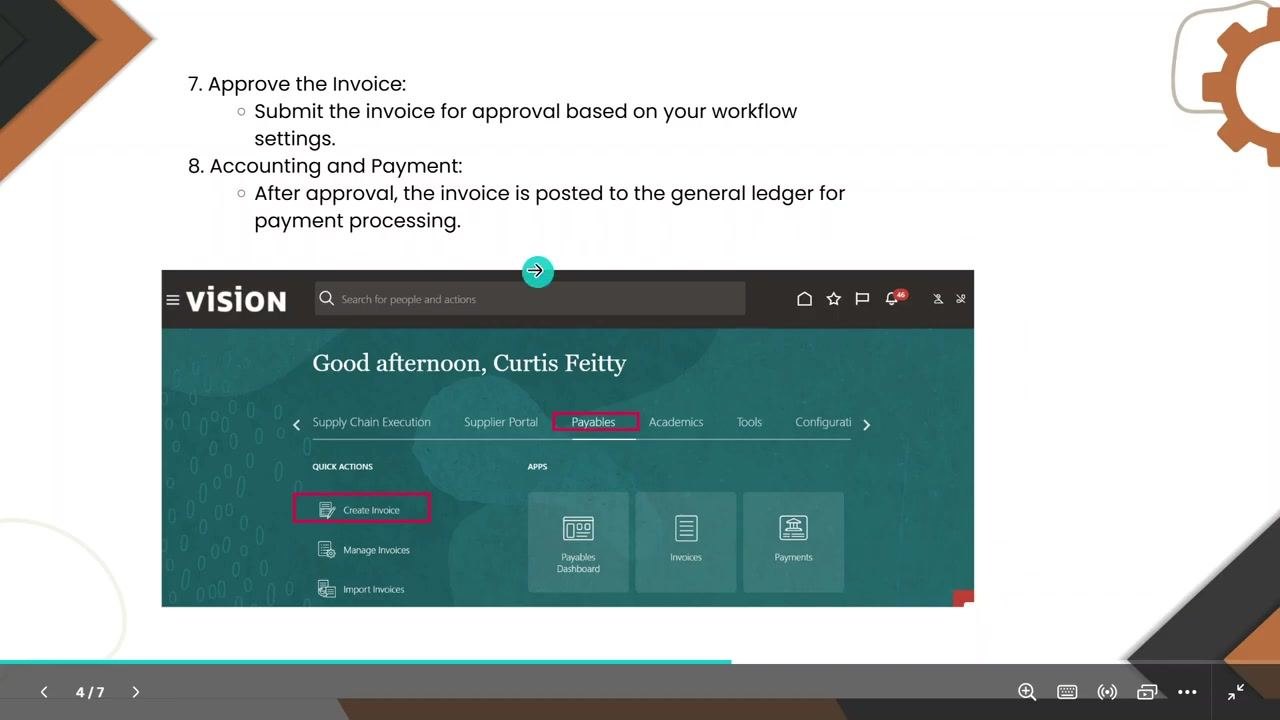
Once logged in, you land on the main dashboard. It displays a welcome message and navigation tabs for modules such as Supply Chain Execution, Supplier Portal, Payables, Academics, Tools, and Configuration. Quick Actions and Apps are also visible, including options like Add Absence, Calendar, My Compensation, My Payslips, Personal Information, Connections, and Journeys.
Navigate to the Payables module
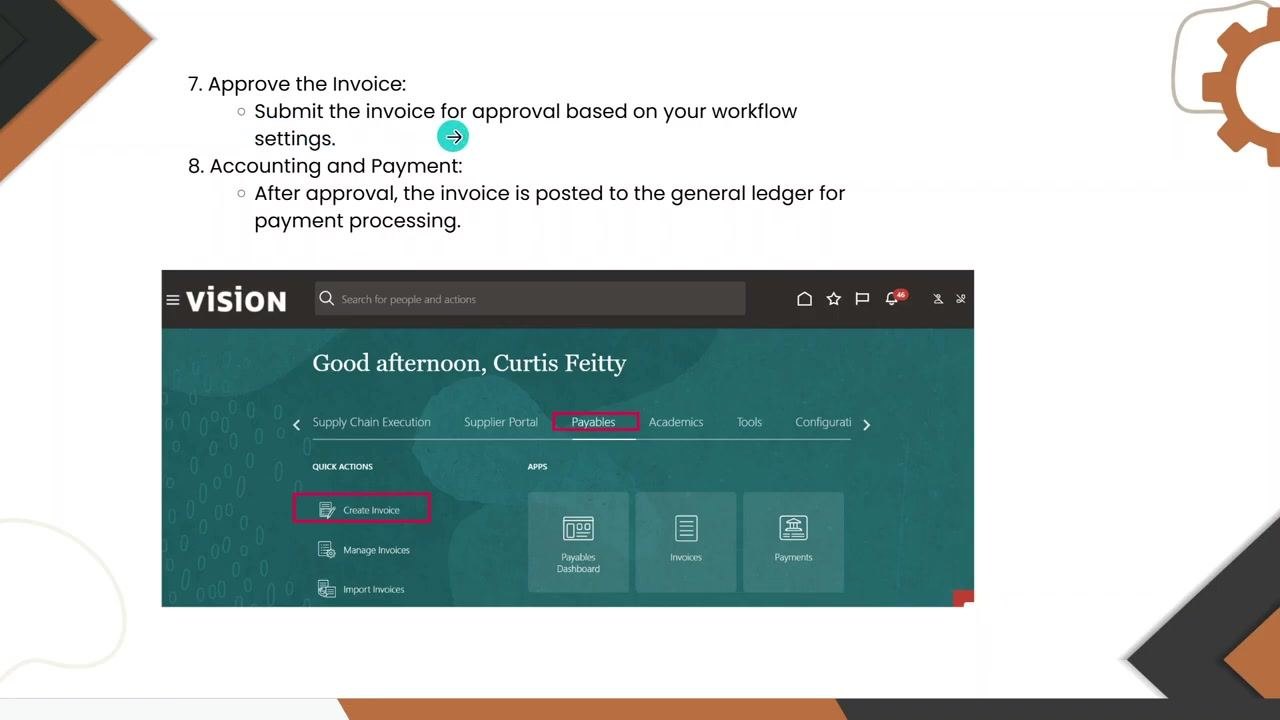
Click the Payables tab in the navigation bar to access payables-related functions. Confirm you are now in the Payables module, then locate and click Create Invoice under Quick Actions to open the invoice creation dashboard.
Open the invoice creation screen
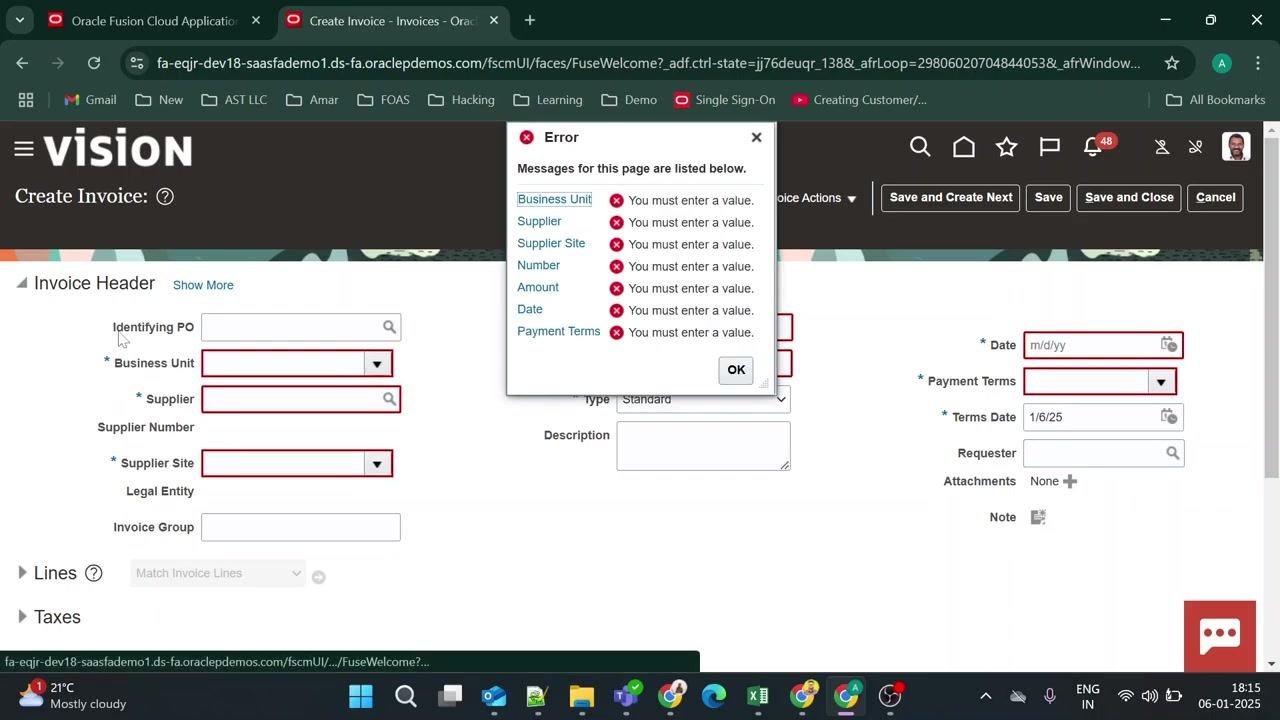
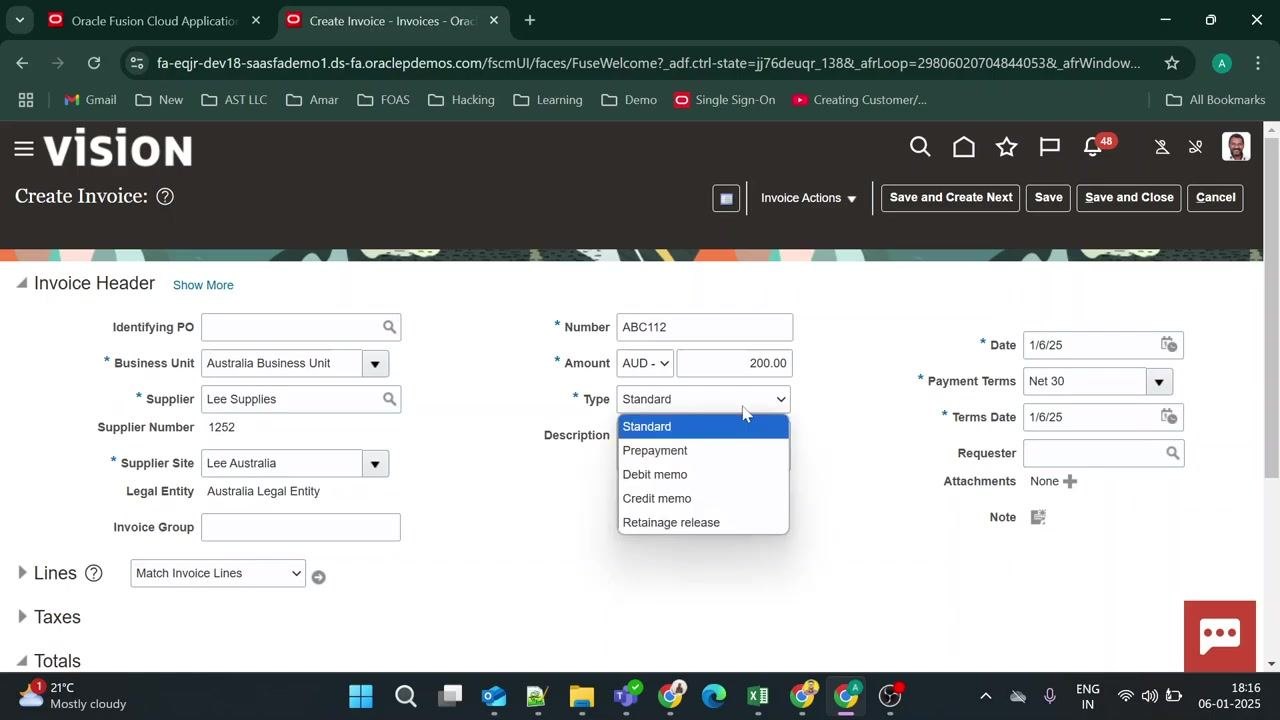
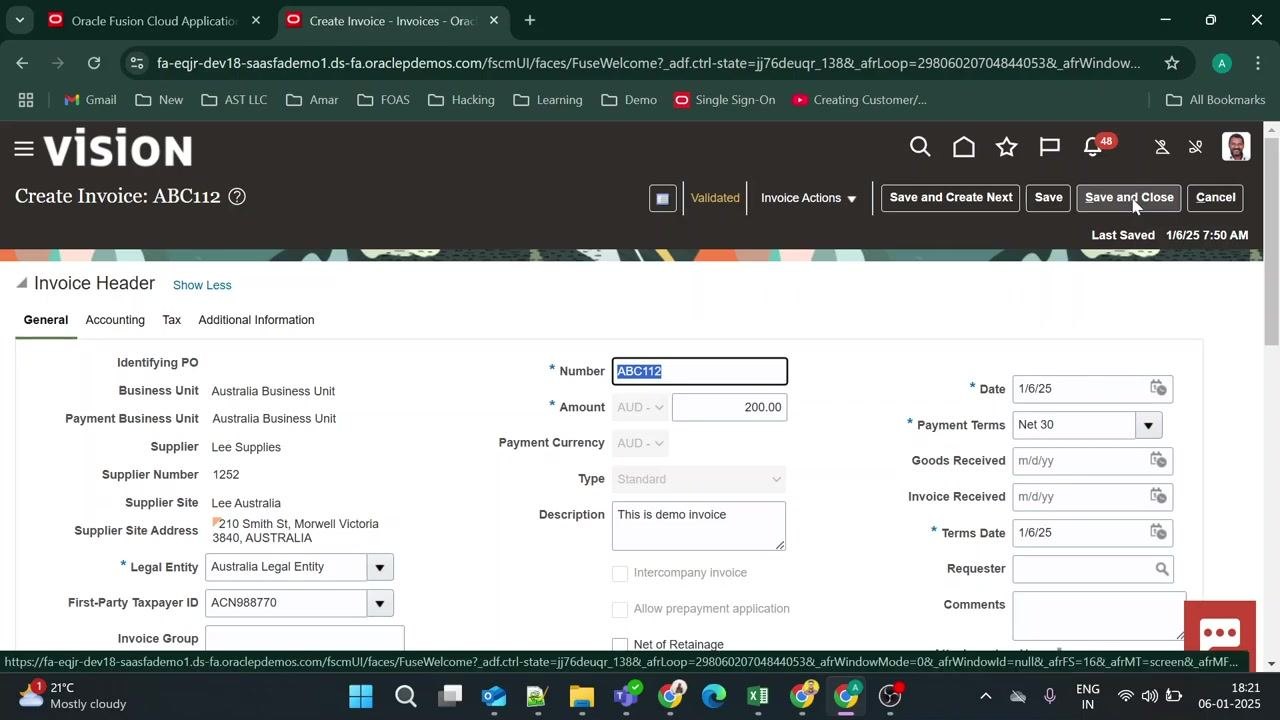
The Create Invoice screen appears, displaying the Invoice Header section. This section includes fields for Identifying PO, Business Unit, Supplier, Supplier Number, Supplier Site, Legal Entity, Invoice Group, Number, Amount, Type, Description, Date, Payment Terms, Terms Date, Requester, Attachments, and Note.
Action buttons at the top of the screen include Invoice Actions, Save and Create Next, Save, Save and Close, and Cancel.
Identify the mandatory fields
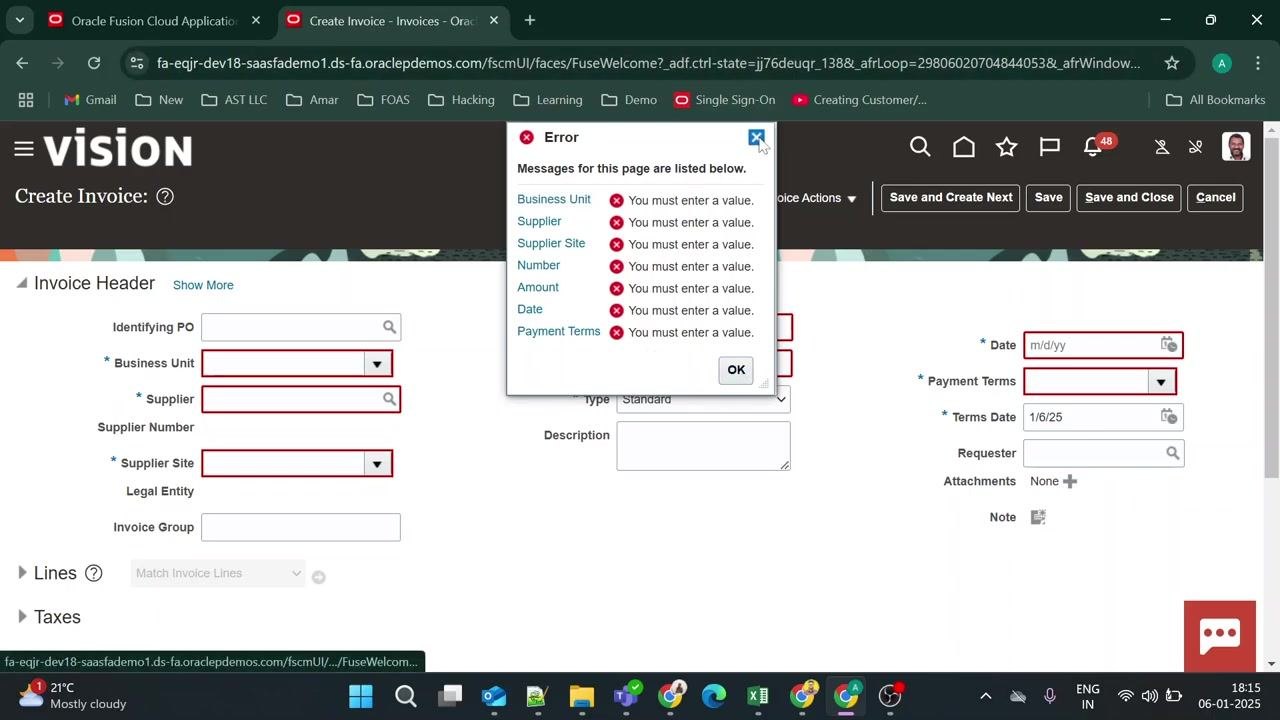
On the invoice creation screen, fields marked in red are mandatory and must be filled in to avoid errors during submission. These include:
- Business Unit
- Supplier
- Supplier Site
- Number
- Amount
- Date
- Payment Terms
Select the business unit
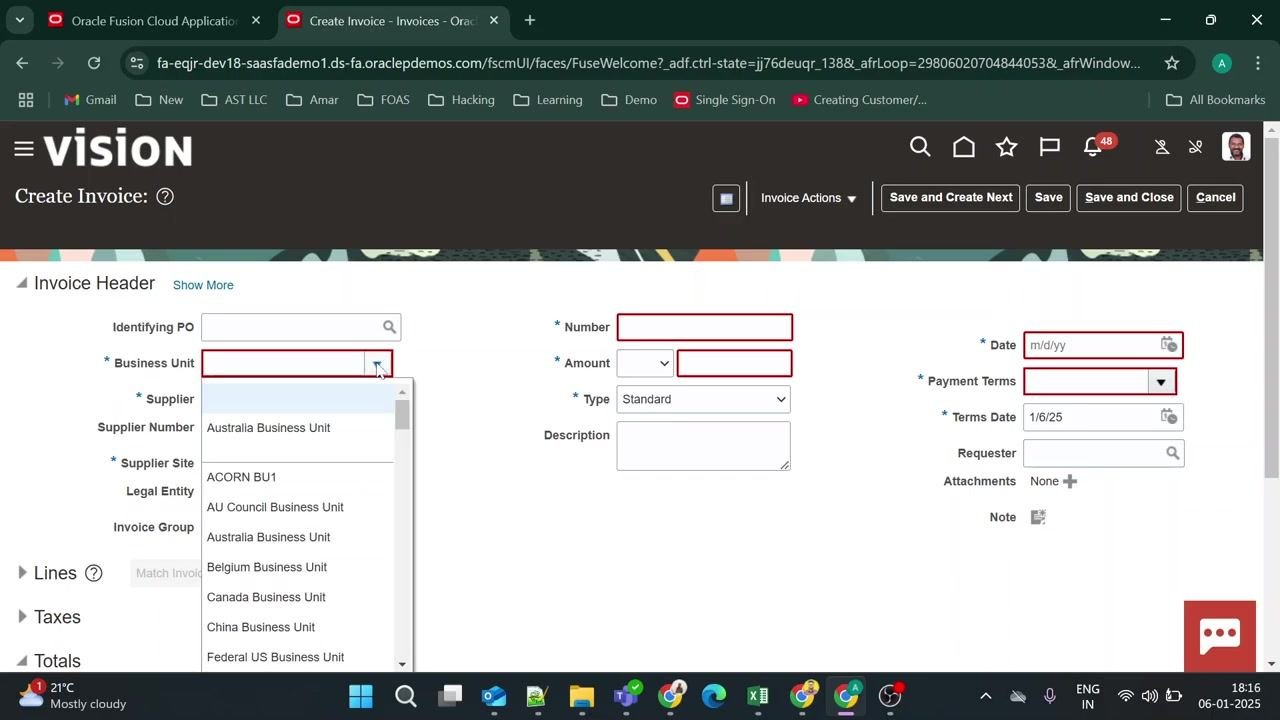
Click the dropdown for Business Unit and select Australia Business Unit from the list of available business units.
Enter the supplier information
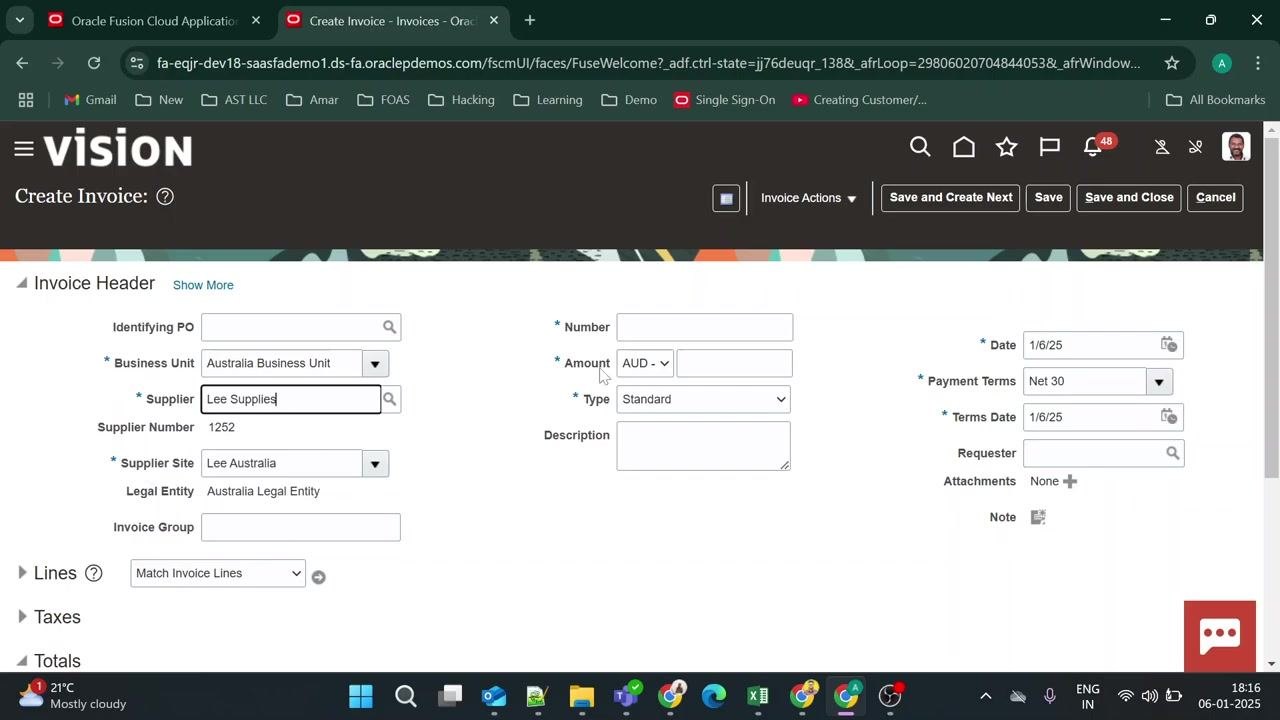
In the Supplier field, type or select Lee Supplies. The following fields auto-fill based on your selection:
- Supplier Number: 1252
- Supplier Site: Lee Australia
- Legal Entity: Australia Legal Entity
The remaining fields — Number, Amount, Type, Description, Date, Payment Terms, and Terms Date — still need to be completed.
Enter a unique invoice number
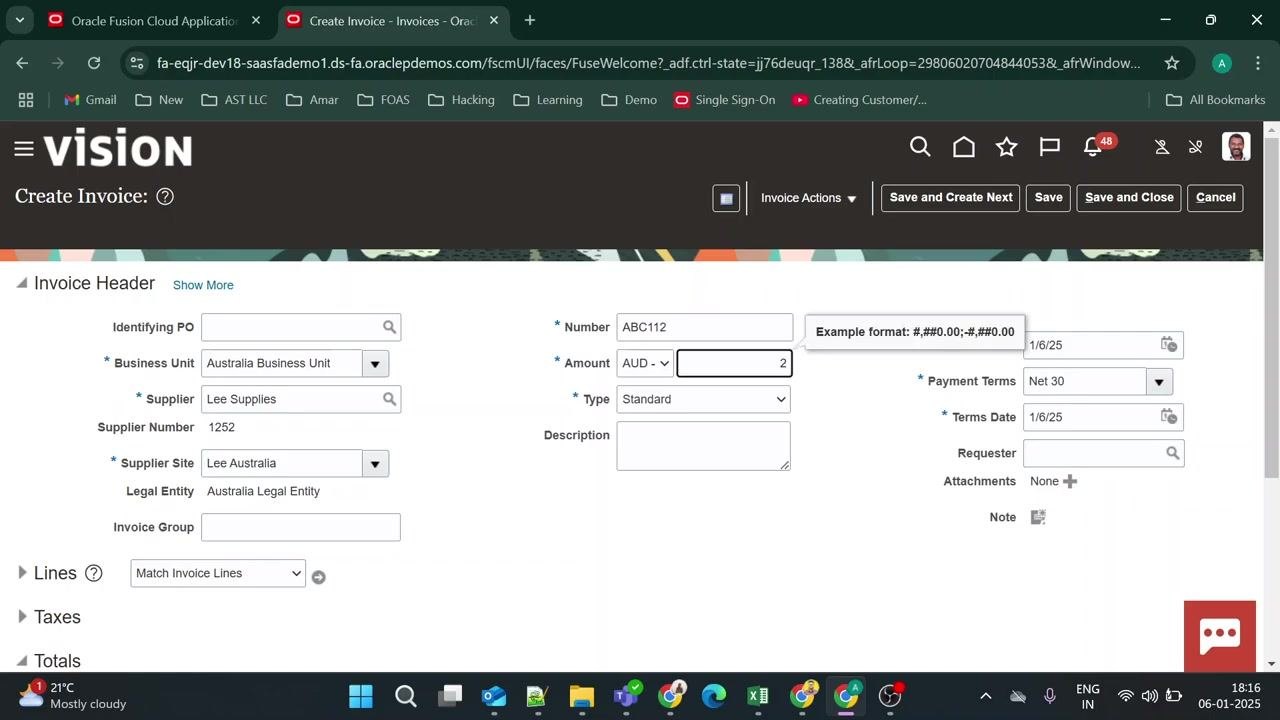
In the Number field under the Invoice Header, type ABC112. Make sure the invoice number is unique for each invoice you create.
Enter the invoice amount
In the Amount field, select the currency as AUD and enter the amount as 200.00.
Select the invoice type
In the Type dropdown, choose Standard. The available types are Standard, Prepayment, Debit memo, Credit memo, and Retainage release.
Enter a description for the invoice
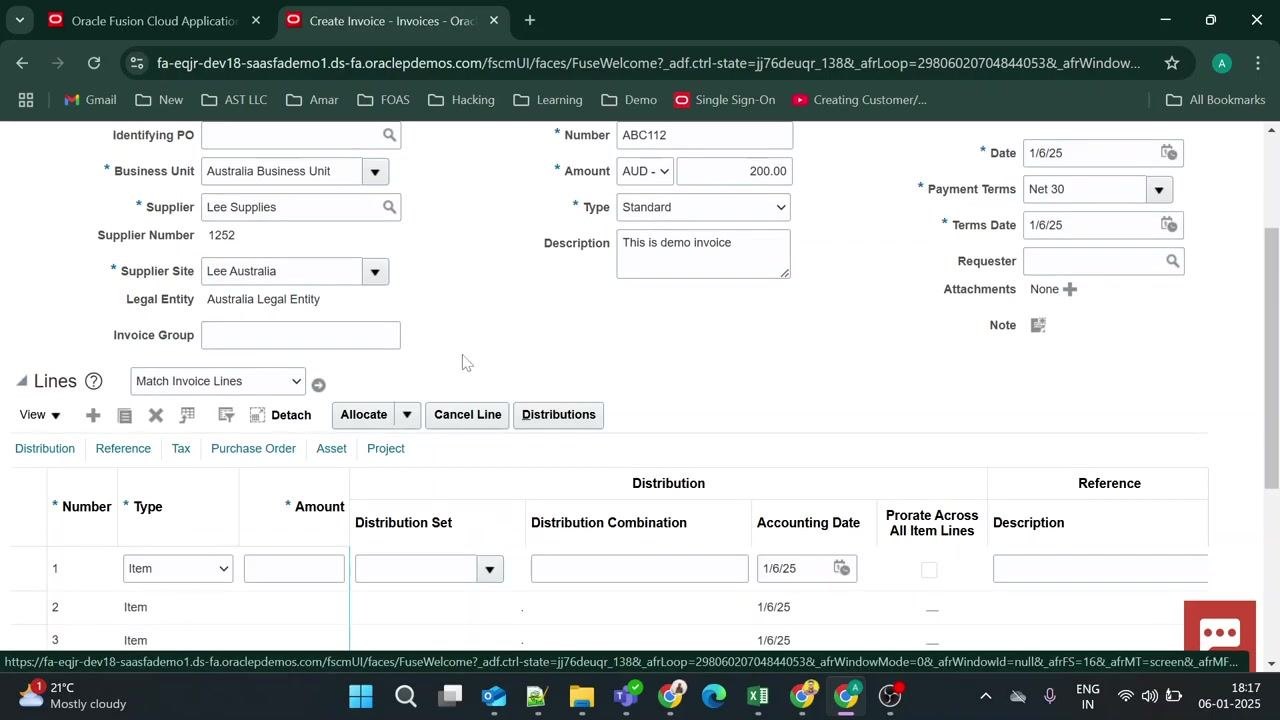
In the Description field, type This is demo invoice.
Set the type for the first invoice line
With the Invoice Header complete, scroll down to the Lines section. It displays columns for Number, Type, Amount, Distribution Set, Distribution Combination, Accounting Date, and other project-related fields.
In the first line, under Type, select Item from the dropdown. Available options are Item, Freight, and Miscellaneous.
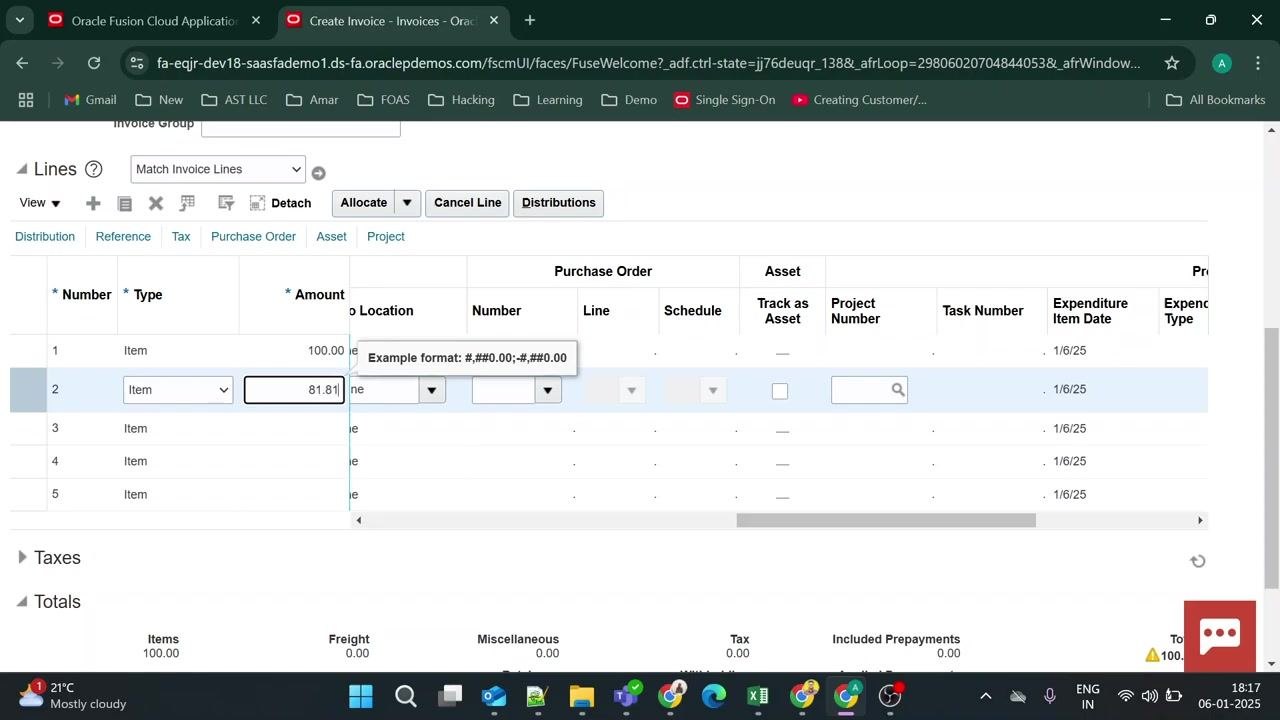
Enter amounts for each invoice line
In the Amount column, enter 100.00 for the first line. Add a second line and enter 81.81 as its amount.
Open the distributions for the invoice line
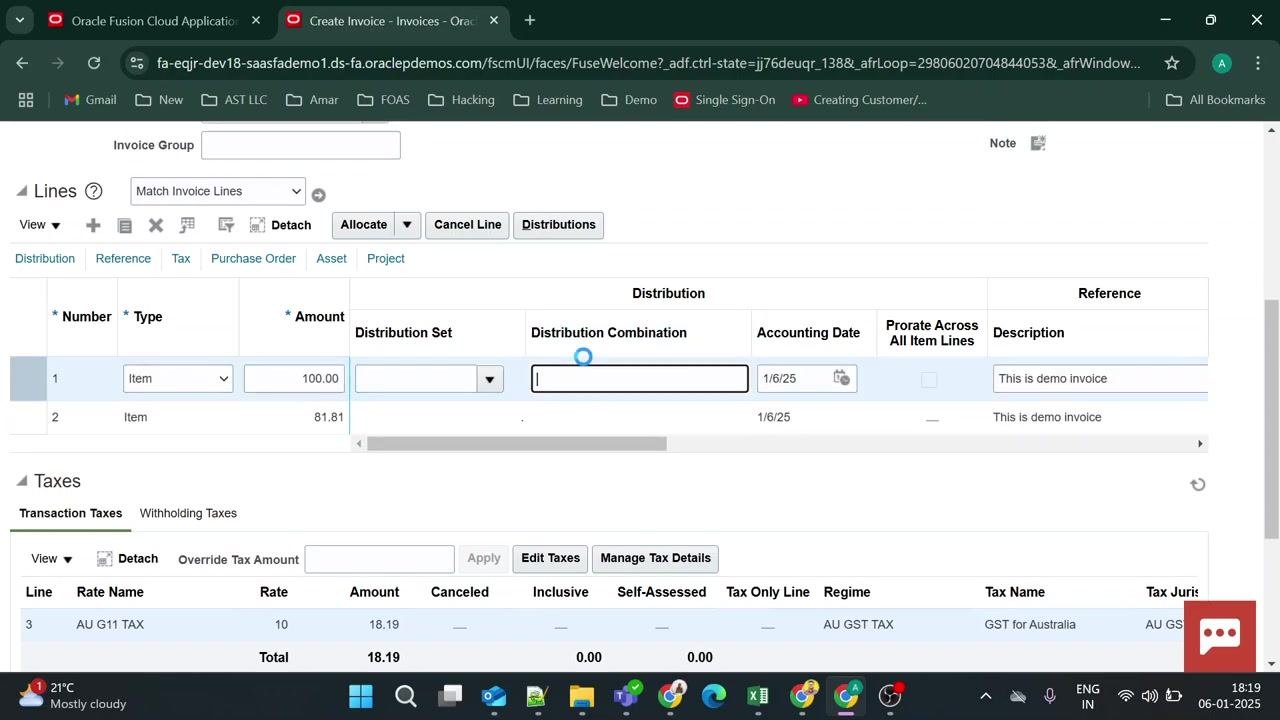
Click Distributions to begin entering the distribution combination for the invoice line. The distributions screen shows fields for Number, Type, Amount, Distribution Set, Distribution Combination, Accounting Date, Prorate Across All Item Lines, and Description.
Enter the distribution combination
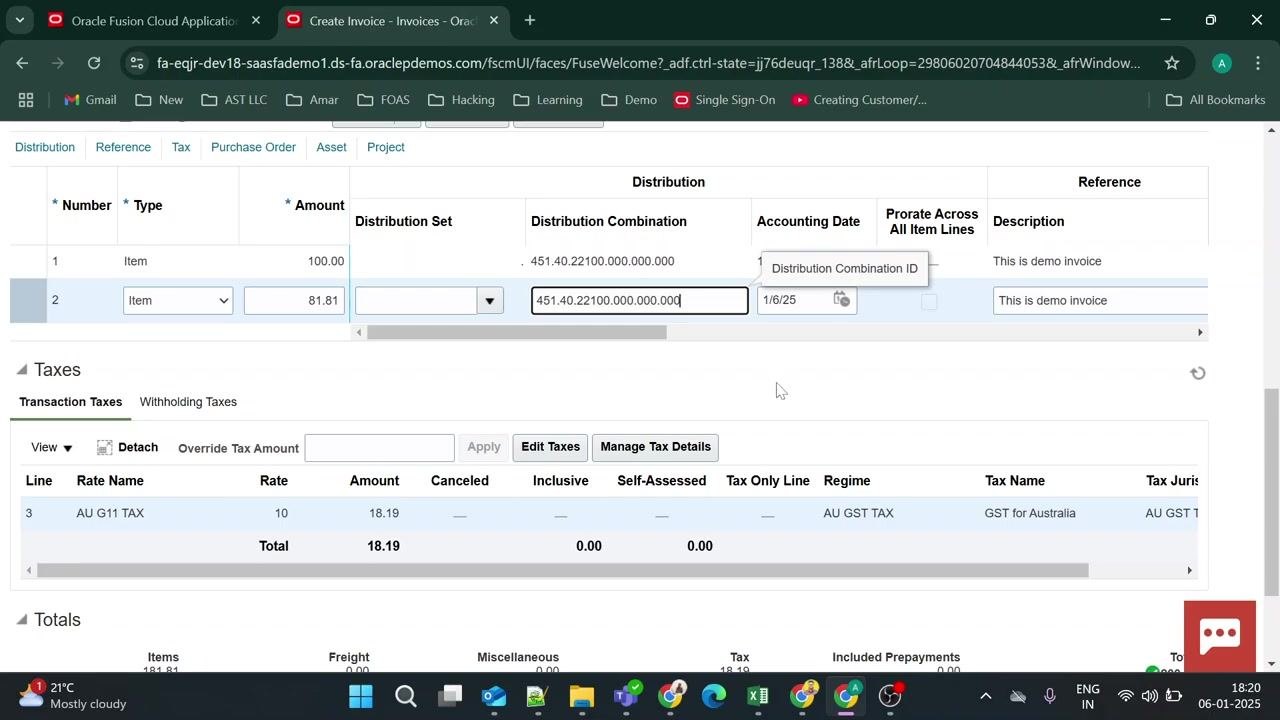
In the Distribution Combination field for each invoice line, enter the required combination value. For example, for line 2, enter 451.40.22100.000.000.000. Set the accounting date (for example, 1/6/25) and confirm the description is filled in as "This is demo invoice."
Review distribution and accounting date details
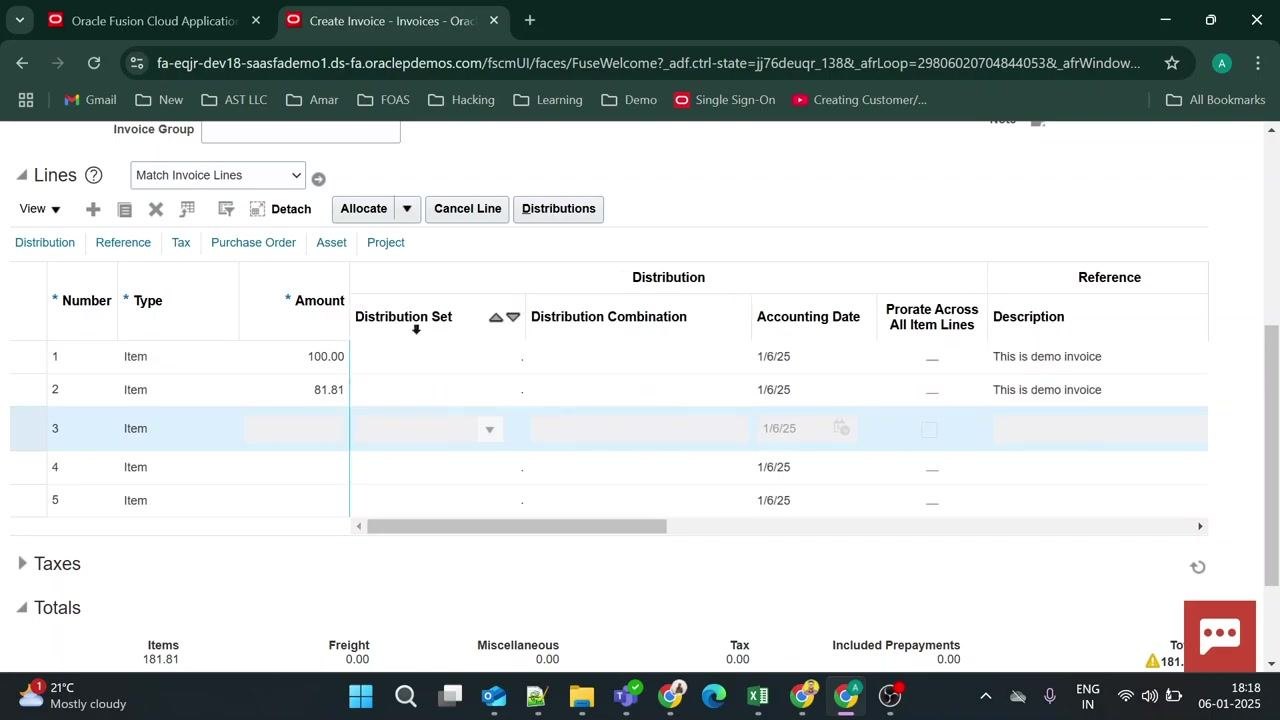
Check the Distribution Set and Distribution Combination columns for each line, and confirm the Accounting Date is set correctly (for example, 1/6/25 for each line). Verify that Prorate Across All Item Lines and Description columns are accurate.
Verify the ship-to location
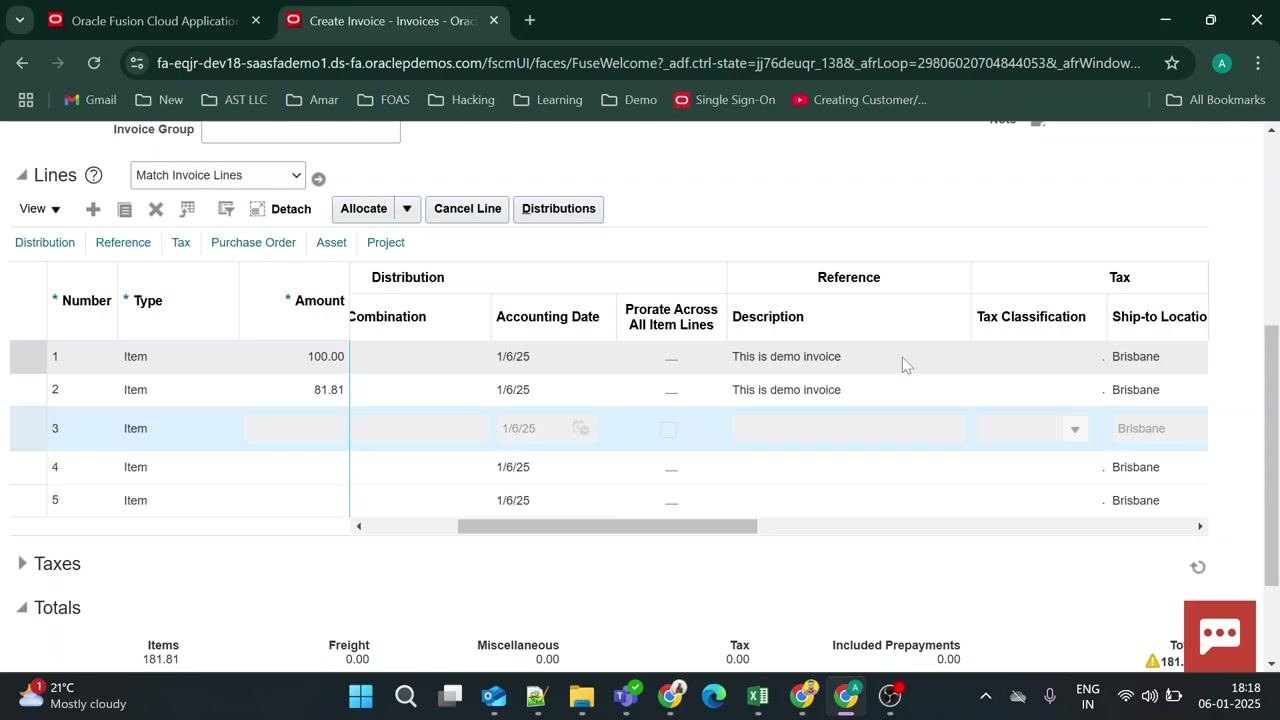
In the Tax section of each line, confirm the Ship-to Location is set to Brisbane. This indicates where the items will be shipped.
Review system warnings
Click the Tax section to review tax details. The system may display a warning, such as: "This invoice has the same supplier, invoice date, amount, and currency as invoice AUDI001. Verify that it isn't a duplicate." You can choose Continue or Review Later.
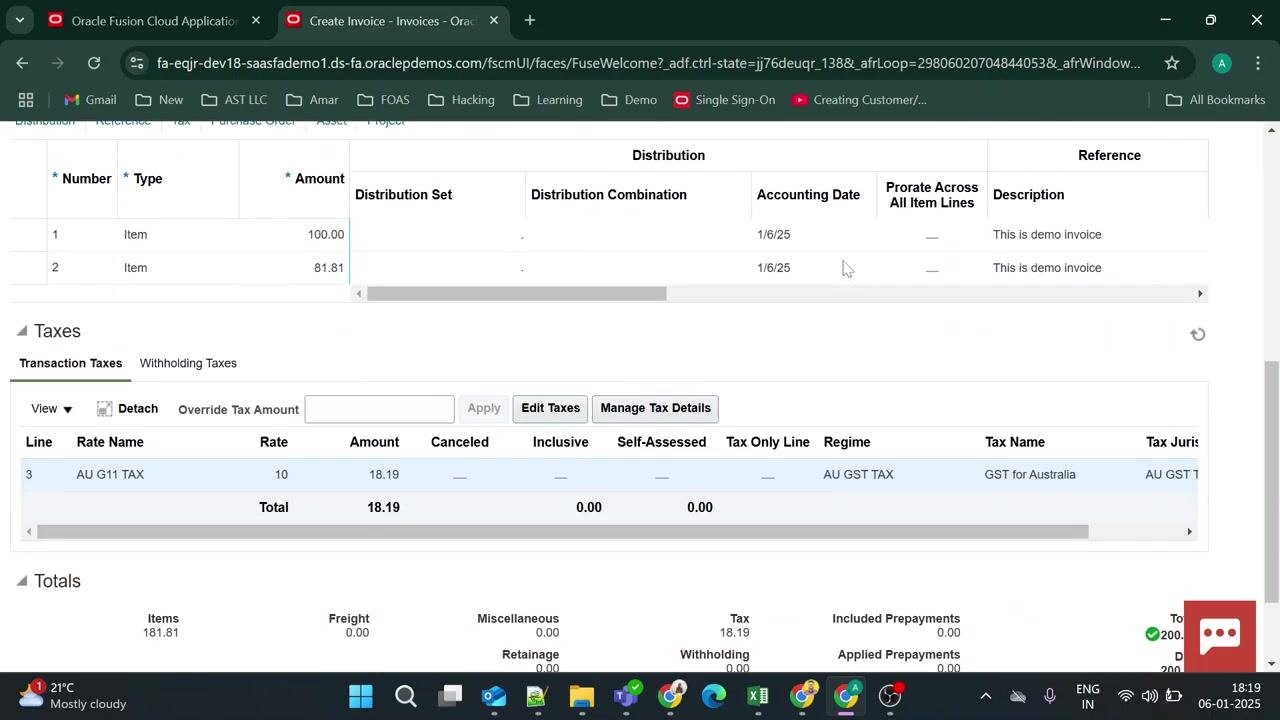
Review calculated tax amounts
After clicking Tax, check the Transaction Taxes section. Confirm the tax rate and amount are calculated correctly — for example, AU G11 TAX, Rate: 10, Amount: 18.19.
The Totals section at the bottom should show:
- Items: 181.81
- Freight: 0.00
- Miscellaneous: 0.00
- Tax: 18.19
- Total: 181.81
- Due: 200.00
Review the full invoice summary
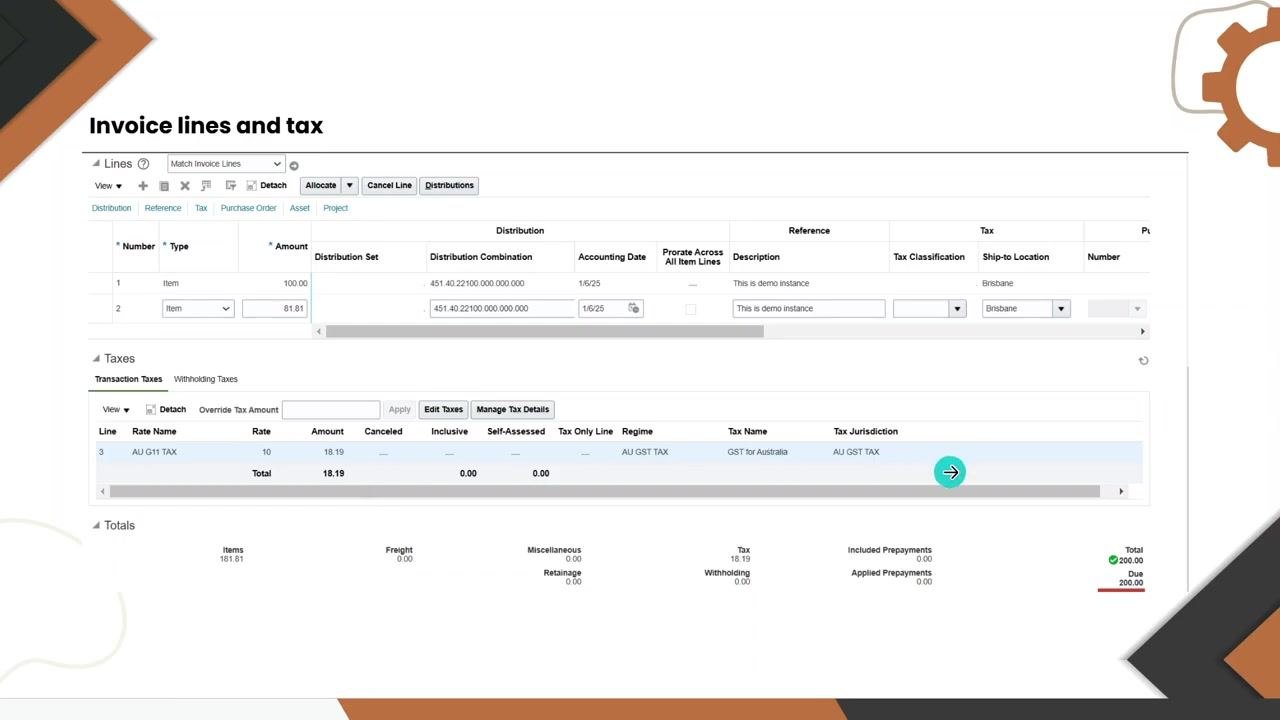
On the invoice lines and tax screen, confirm the following details:
- Two item lines are present: one for 100.00 and another for 81.81.
- The Taxes section lists a transaction tax: AU G11 TAX, Rate: 10, Amount: 18.19, Regime: AU GST TAX, Tax Name: GST for Australia, Tax Jurisdiction: AU GST TAX.
- The Totals section shows Items: 181.81, Freight: 0.00, Miscellaneous: 0.00, Tax: 18.19, Included Prepayments: 0.00, Applied Prepayments: 0.00, Total: 200.00, Due: 200.00.
Confirm the invoice total is 200.00 and the due amount matches at 200.00.
Validate the invoice
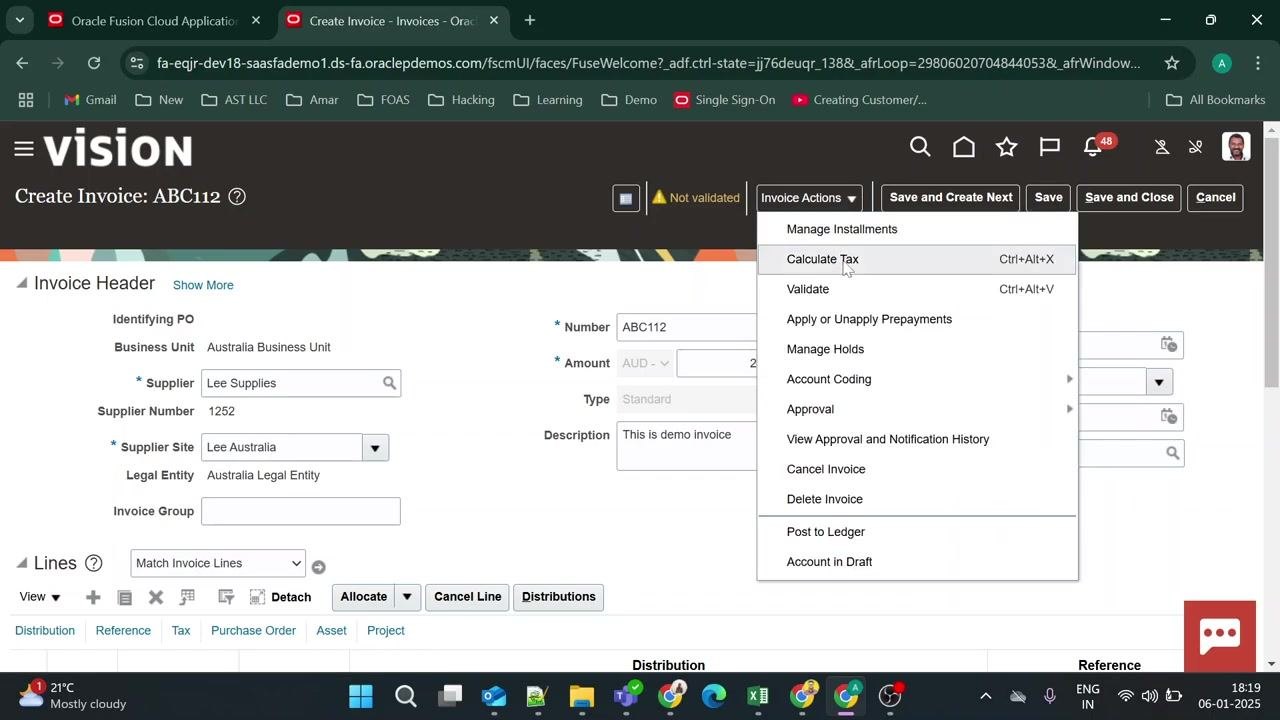
Go to the Invoice Actions menu at the top of the screen and select Validate (or use the shortcut Ctrl+Alt+V). The system checks the invoice for completeness and correctness, and updates the invoice status accordingly if validation succeeds.
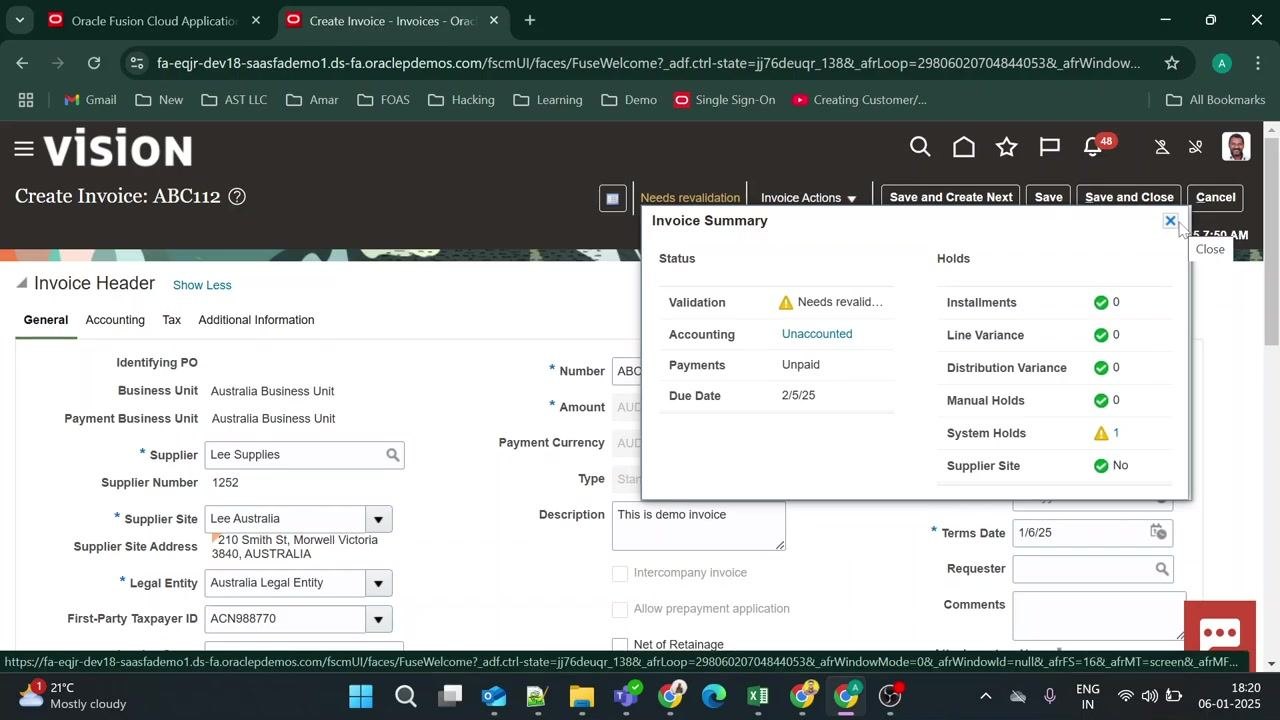
Review system holds
If a system hold is present — indicated by a warning icon and the message "Needs revalidation" — review the invoice summary. Check the System Holds section for issues, noting statuses such as Validation (Needs revalidation), Accounting (Unaccounted), Payments (Unpaid), and Due Date (2/5/25).
Manage and remove holds
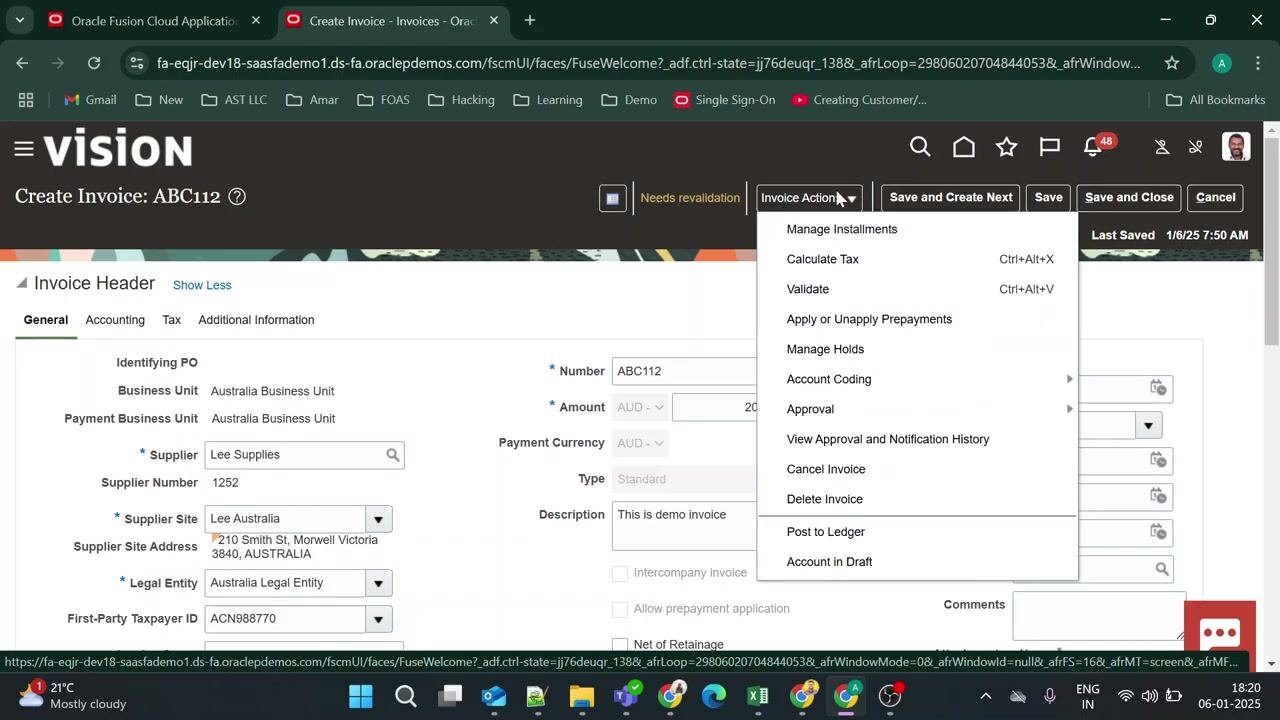
To remove a system hold, go to Invoice Actions again and click Manage Holds from the dropdown menu.
Confirm the invoice is validated
After resolving any holds and revalidating, look for the Validated status at the top of the screen to confirm the invoice has passed validation.
Submit the invoice for approval
Once validated, submit the invoice for approval according to your organization's workflow settings. Ensure it is routed through the appropriate approval chain as defined in your workflow configuration. This step is mandatory for the invoice to proceed to accounting and payment.
Save and close the invoice
Click Save and Close to complete the process and exit the invoice entry screen.
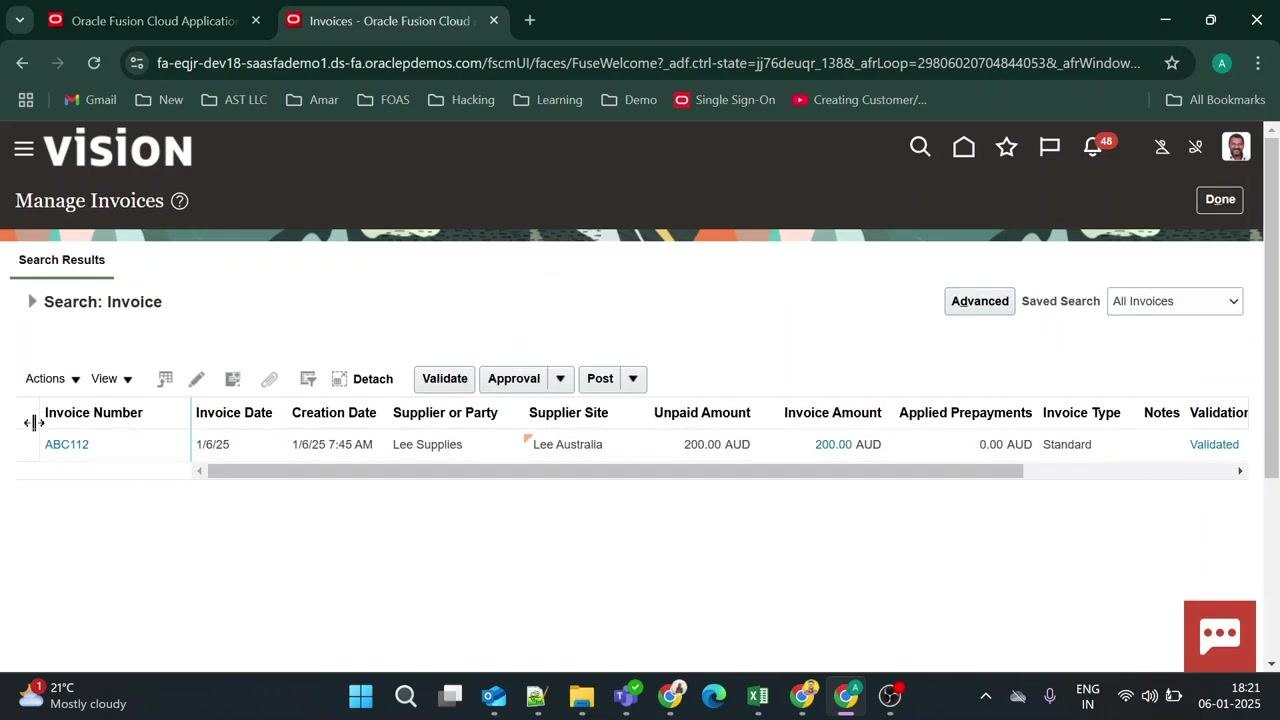
Confirm the invoice in Manage Invoices
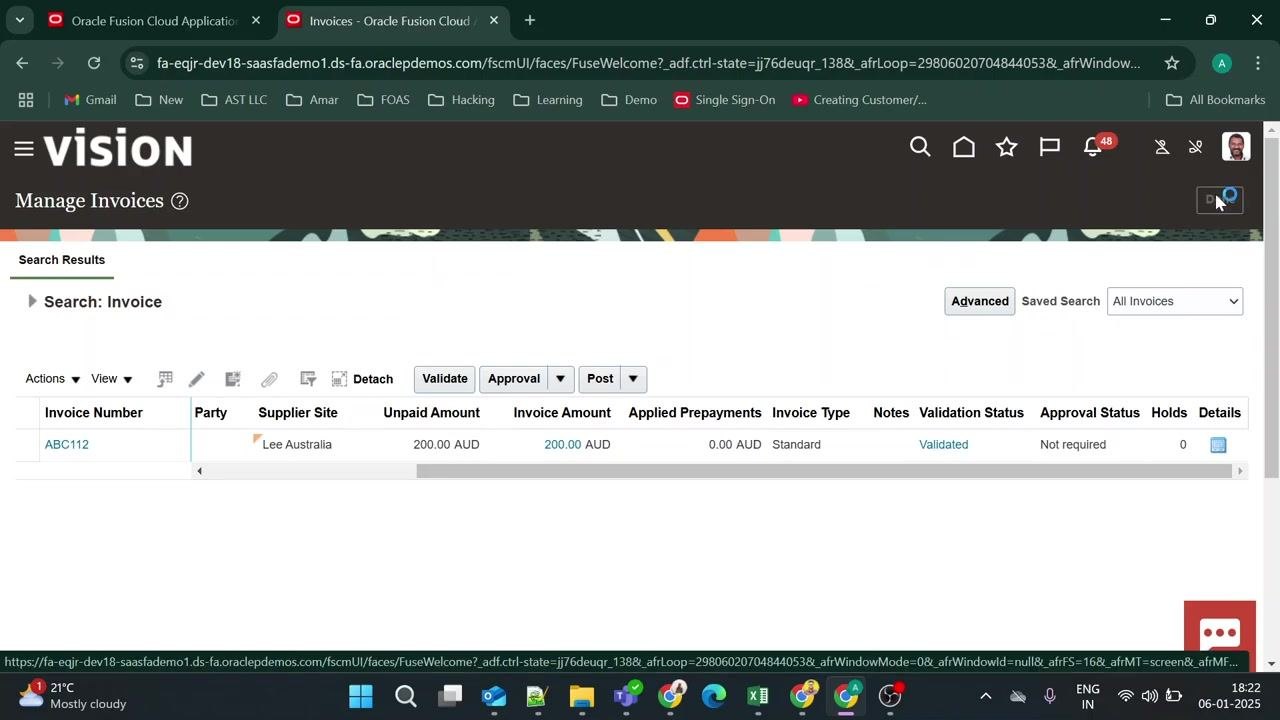
After saving and closing, you are redirected to the Manage Invoices screen. Locate your invoice in the search results — for example, invoice number ABC112 — and review the key details in the results grid:
- Invoice Number: ABC112 (clickable link)
- Invoice Date: 1/6/25
- Creation Date: 1/6/25 7:45 AM
- Supplier or Party: Lee Supplies
- Supplier Site: Lee Australia
- Unpaid Amount: 200.00 AUD
- Invoice Amount: 200.00 AUD
- Applied Prepayments: 0.00 AUD
- Invoice Type: Standard
- Validation Status: Validated
Confirm the status reads "Validated" to verify successful processing.
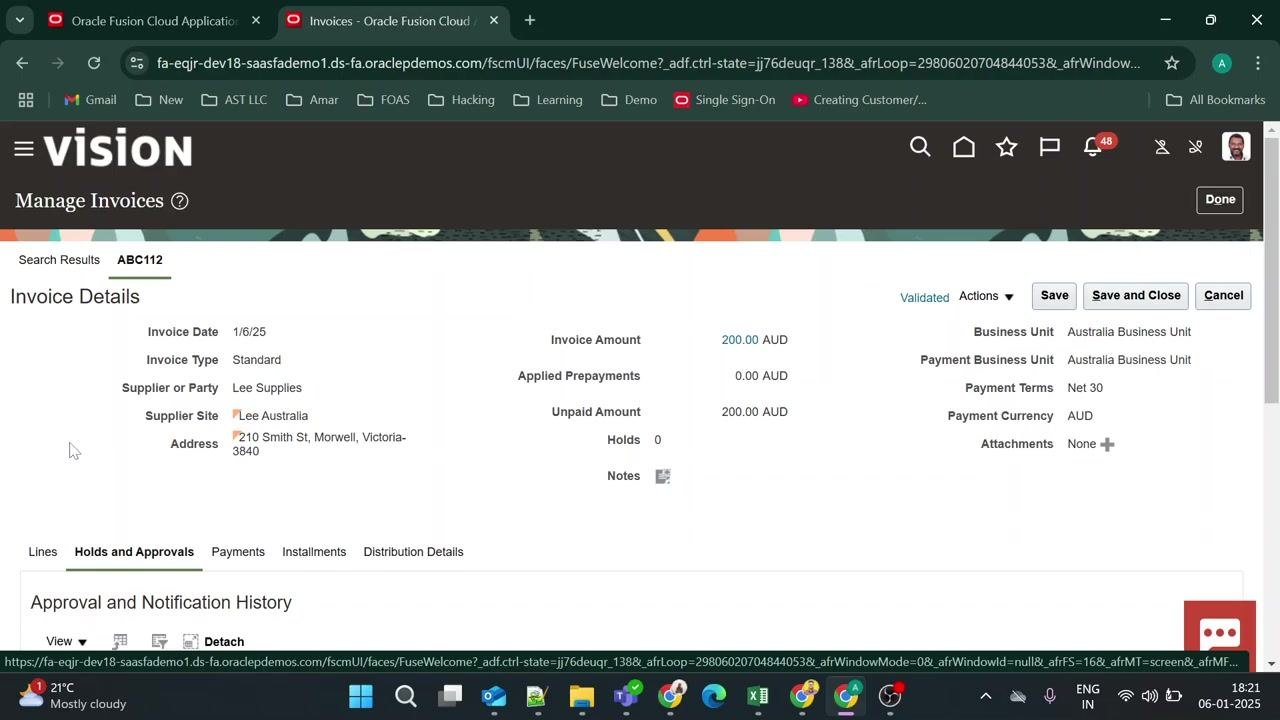
Review the full invoice details
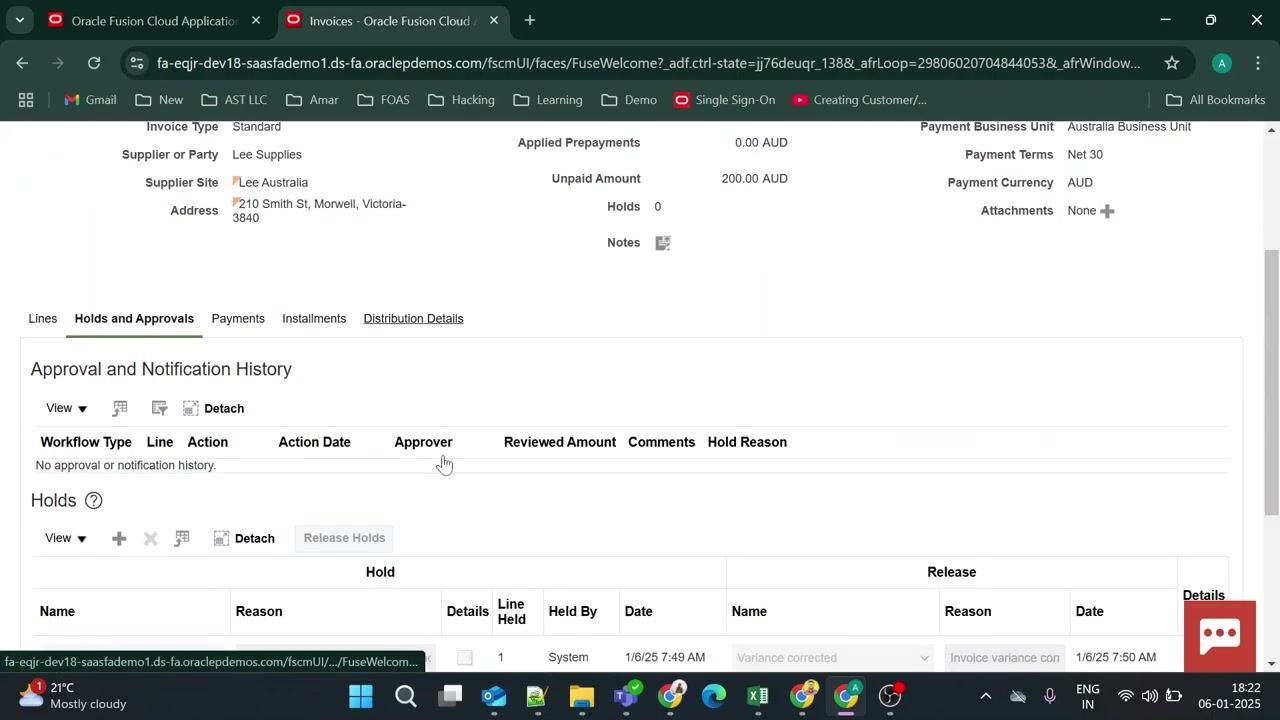
Click the invoice number (for example, ABC112) to open the invoice details page. Verify all entered information:
- Invoice Date: 1/6/25
- Invoice Type: Standard
- Supplier or Party: Lee Supplies
- Supplier Site: Lee Australia
- Address: 210 Smith St, Morwell, Victoria-3840
- Invoice Amount: 200.00 AUD
- Applied Prepayments: 0.00 AUD
- Unpaid Amount: 200.00 AUD
- Business Unit: Australia Business Unit
- Payment Terms: Net 30
- Payment Currency: AUD
- Attachments: None
- Validation Status: Validated
Use Save, Save and Close, or Cancel as needed.
Inspect invoice lines and additional details
Scroll down to the Lines tab to review item details. Check the Items section for order, receipt, consumption advice, ship-to location (for example, Brisbane), and multiperiod accounting if applicable. Review Shipping and Handling for any charges — none in this example.
Use the other tabs — Holds and Approvals, Payments, Installments, and Distribution Details — to verify all related information.
Review approval and hold history
In the Holds and Approvals tab, check the Approval and Notification History section. Confirm there are no outstanding approvals or holds — it should display "No approval or notification history" and "Holds: 0." If any holds were present and released, details appear in the Holds section.
Return to Manage Invoices
After reviewing, click Done or use the navigation to return to the main invoice list. Confirm your invoice (for example, ABC112) remains listed with "Validated" status and all correct details.
Summary
By following these steps, you have learned how to create an AP invoice in Oracle Fusion — from entering the invoice header and lines to reviewing distribution combinations, calculating taxes, validating the invoice, and confirming it in the Manage Invoices screen. All entered details, statuses, and related information can be reviewed at any time from the Manage Invoices and Invoice Details screens.
What's next
With your AP invoice validated and submitted for approval, you can track its progress through your organization's approval workflow. Once approved, the invoice proceeds to accounting and payment processing in Oracle Fusion.
Generation details: cost, quality tiers
Docsie billed 6,500 credits ($4.55) to analyze this 13-minute video at standard quality. The rewrite, template fill and Word/PDF exports were included. The same video at each quality tier:
| Quality | Frames sampled | Credits | Approx. cost |
|---|---|---|---|
| Draft | every 16-30 s | 3,250 | $2.27 |
| Standard (this guide) | every 8-15 s | 6,500 | $4.55 |
| Detailed | every 4-7 s | 13,000 | $9.10 |
| Ultra | every 1-3 s | 26,000 | $18.20 |
Credits priced at $0.70 per 1,000; plans include a monthly allowance. Enterprise customers on on-premise or bring-your-own-model deployments run this on their own inference and pay no per-video credits.
Generated by Docsie Video-to-Docs on 2026-10-19 from a 12-minute video. Screenshots are frames from the source video and belong to their creator, The Cloud Campus, whose original is embedded above. If you own this video and want the guide removed or credited differently, contact us and we will act within one business day.