
How to Create a Scheduled Process in Oracle Fusion
This guide explains how to create a scheduled process in Oracle Fusion HCM. You will learn how to navigate to the Scheduled Processes tool, select and configure a process, set scheduling options such as frequency and time zone, submit the process, and monitor its execution status.
Video: How to Schedule Processes in Oracle Fusion HCM by HCM Solutions Hub (2023). All credit for the demonstration goes to the creator; watch the original on YouTube. The written guide below was generated from this video by Docsie. Creator? Request a change or removal.
This guide explains how to create a scheduled process in Oracle Fusion HCM. You will learn how to navigate to the Scheduled Processes tool, select and configure a process, set scheduling options such as frequency and time zone, submit the process, and monitor its execution status.
Prerequisites
- Access to the Oracle Fusion Cloud Applications portal with login credentials.
- Permissions to view and use the Scheduled Processes tool.
Navigate to Scheduled Processes
Log in to the Oracle Fusion Cloud Applications portal. Open the navigation menu and scroll to the Tools section.
Locate and select Scheduled Processes from the list of tools. Other tools such as Set Preferences, Announcements, Deep Links, Developer Connect, Approvals, and Spaces are also visible in this menu.
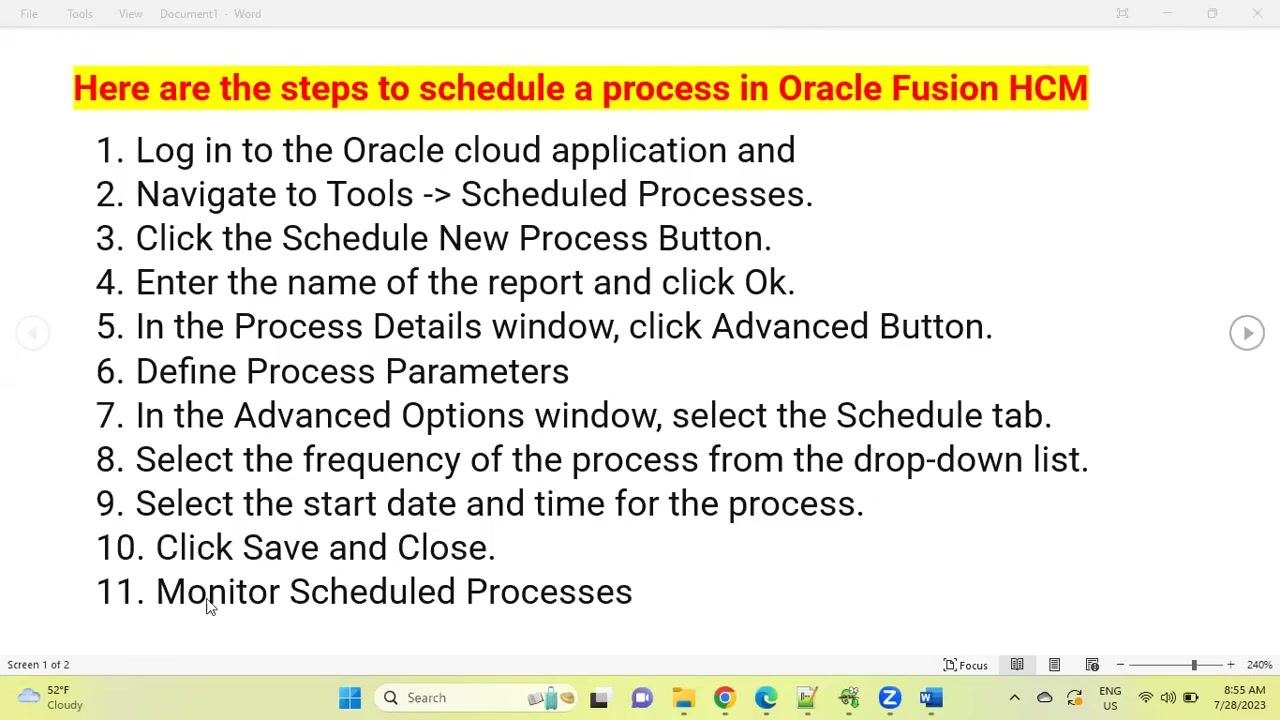
Open the Scheduled Processes page
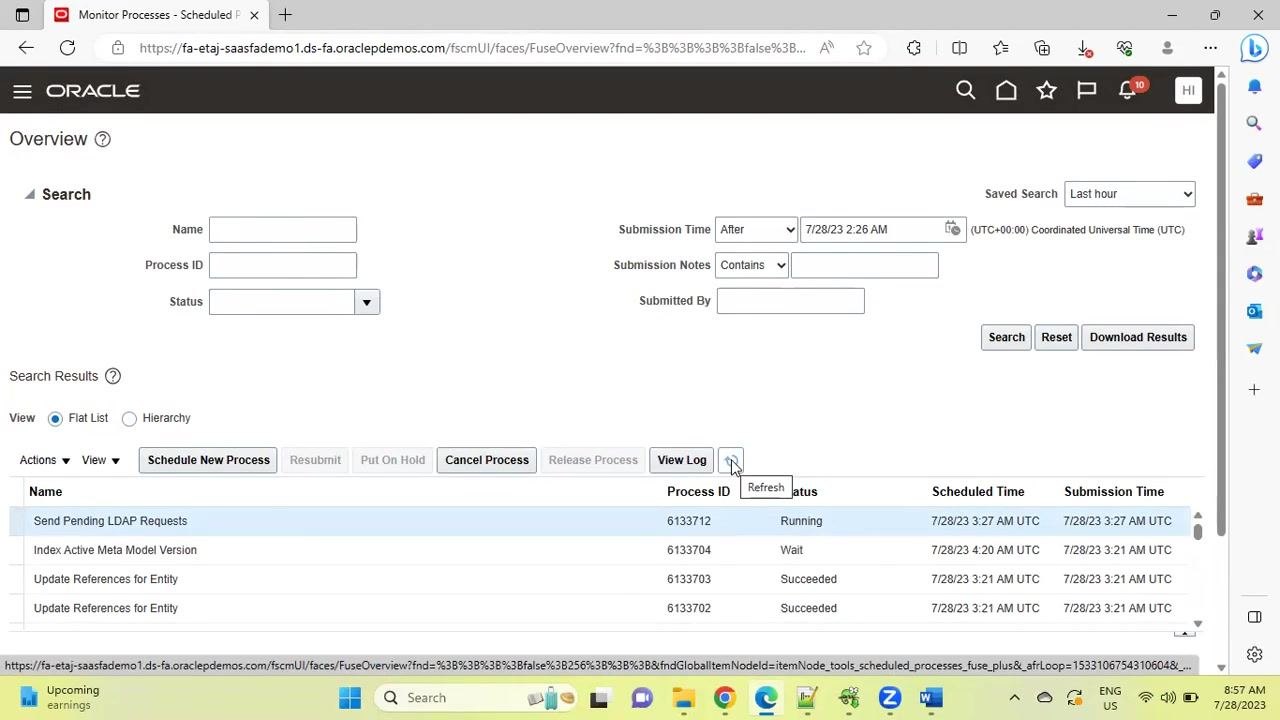
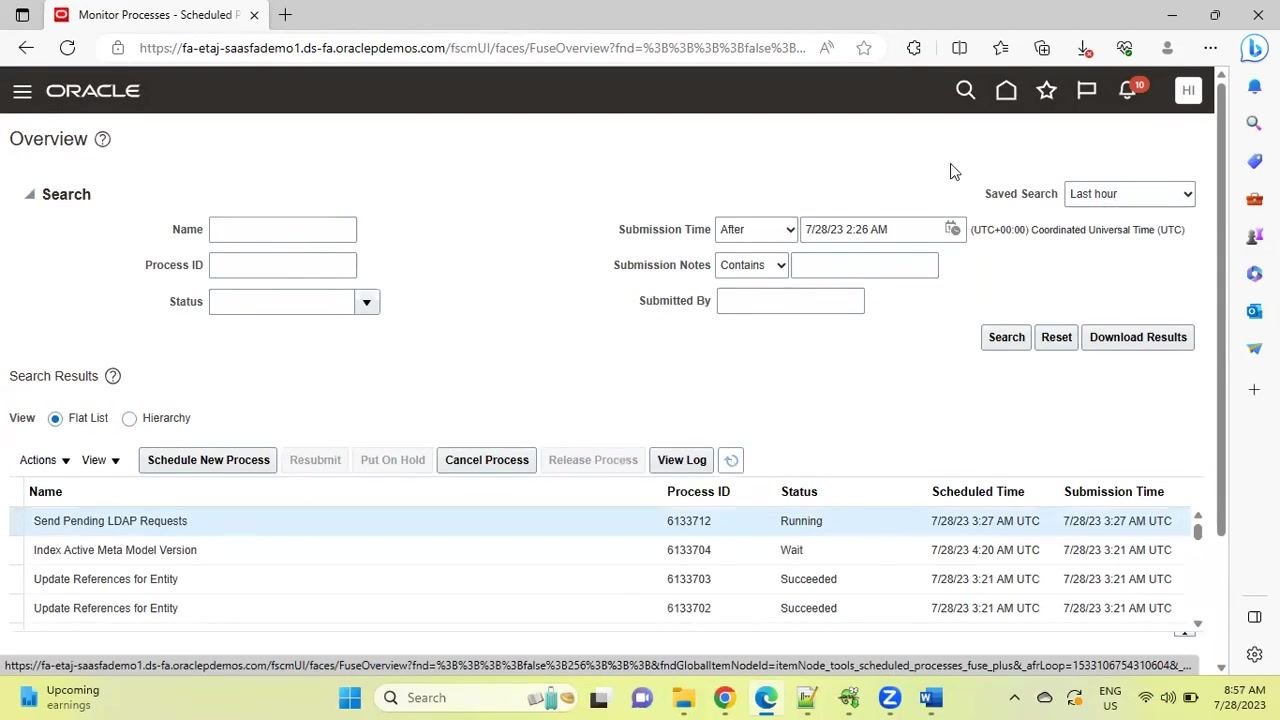
The Monitor Processes - Scheduled Processes page opens, displaying a list of previously scheduled processes. The list includes columns for Name, Process ID, Status, Scheduled Time, and Submission Time.
Click the Schedule New Process button to begin scheduling a new process.
Select and name the new process
In the Schedule New Process dialog, make sure Job is selected as the Type. Click the drop-down menu under Name to view the available processes.
Select the desired process from the list, for example "ABC-PO Info" or "Evaluate Certification Updates." The process list is scrollable and searchable, making it easy to find the process you need.
Enter process details
The Process Details window appears. Enter or confirm the process name, for example "Send Pending LDAP Requests," and review or enter a description for the process.
Optionally, check Notify me when this process ends if you want to receive a notification once the process completes. Enter any necessary submission notes.
Under Basic Options, set parameters such as User Type (for example, "All") and Batch Size (for example, "A"). Click the Advanced button to access additional scheduling options.
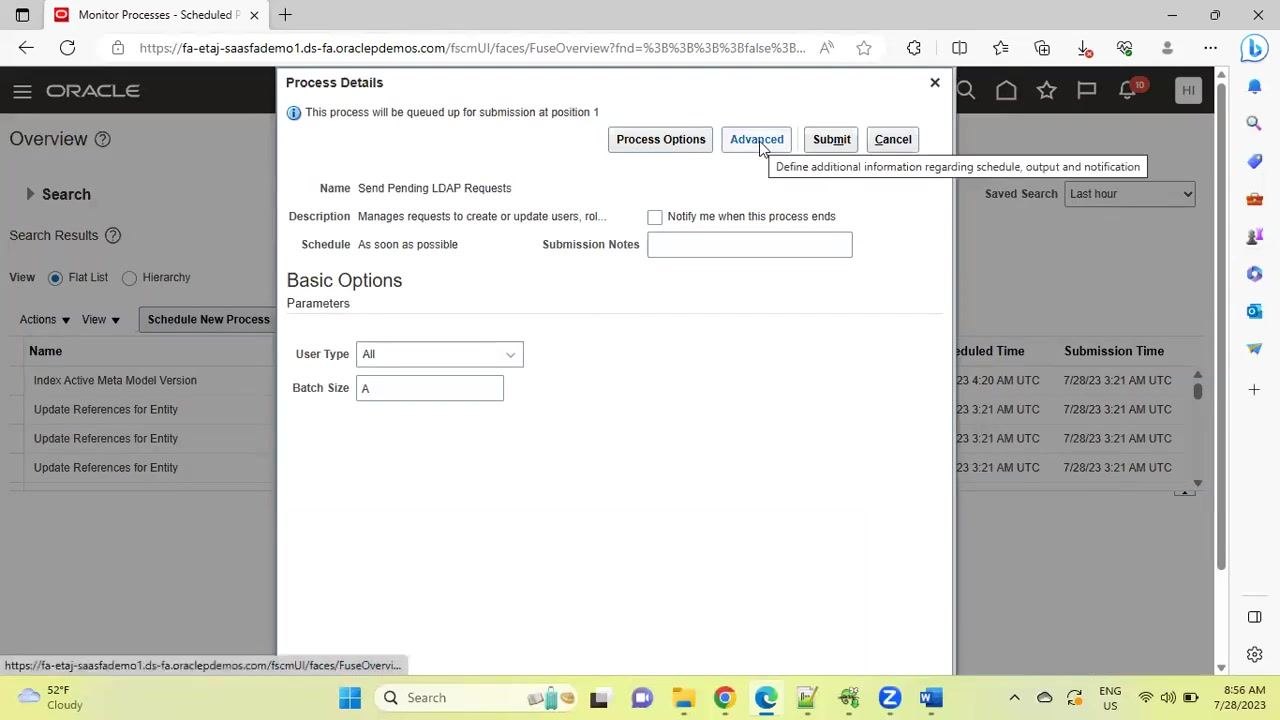
Configure advanced scheduling options
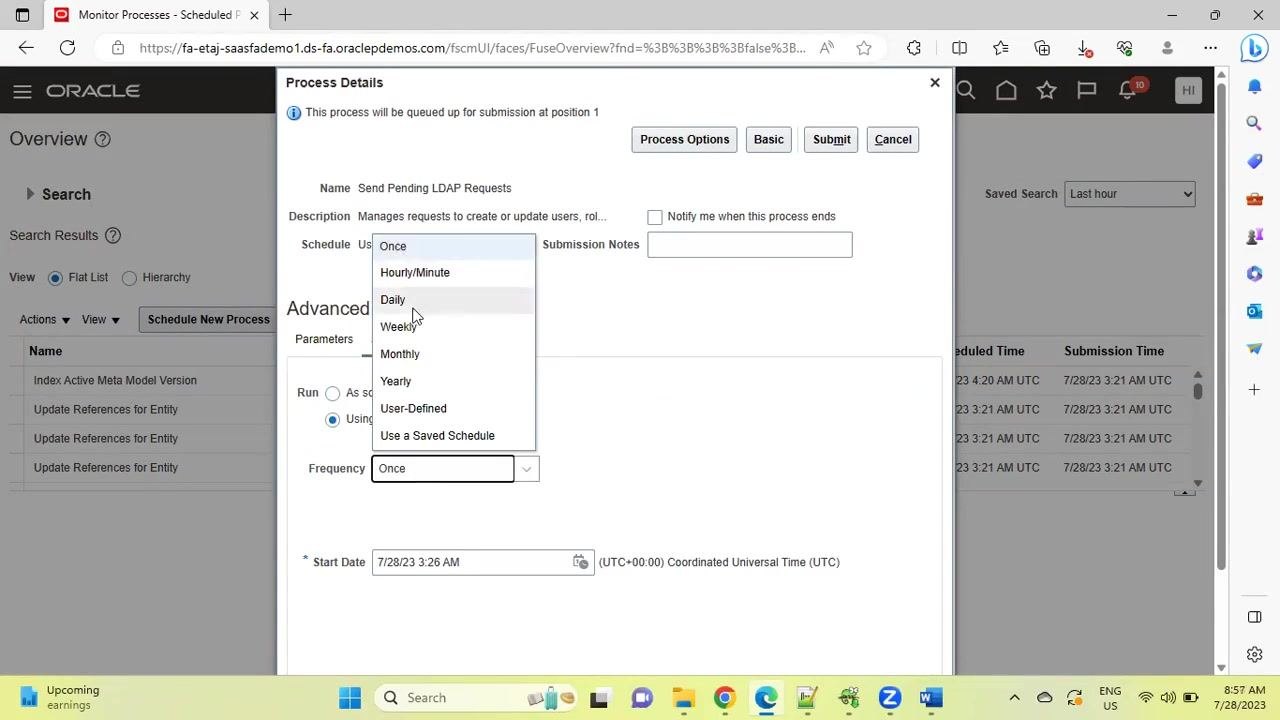
In the Advanced Options section, click the Schedule tab. Under Frequency, open the drop-down menu and select how often the process should run.
Available frequency options include Once, Hourly/Minute, Daily, Weekly, Monthly, Yearly, User-Defined, or Use a Saved Schedule.
Set the Start Date and Time for the process using the provided fields, for example 7/28/23 3:26 AM UTC.
Select frequency and time zone
In the Process Details window, under Advanced Options and the Schedule tab, set the scheduling parameters for the process. Click the Frequency drop-down menu to display the available scheduling options: Once, Hourly/Minute, Daily, Weekly, Monthly, Yearly, User-Defined, and Use a Saved Schedule. In this example, "Once" is selected.
Confirm that the Start Date field is visible and editable. The current value shown is "7/28/23 3:26 AM (UTC+00:00) Coordinated Universal Time (UTC)."
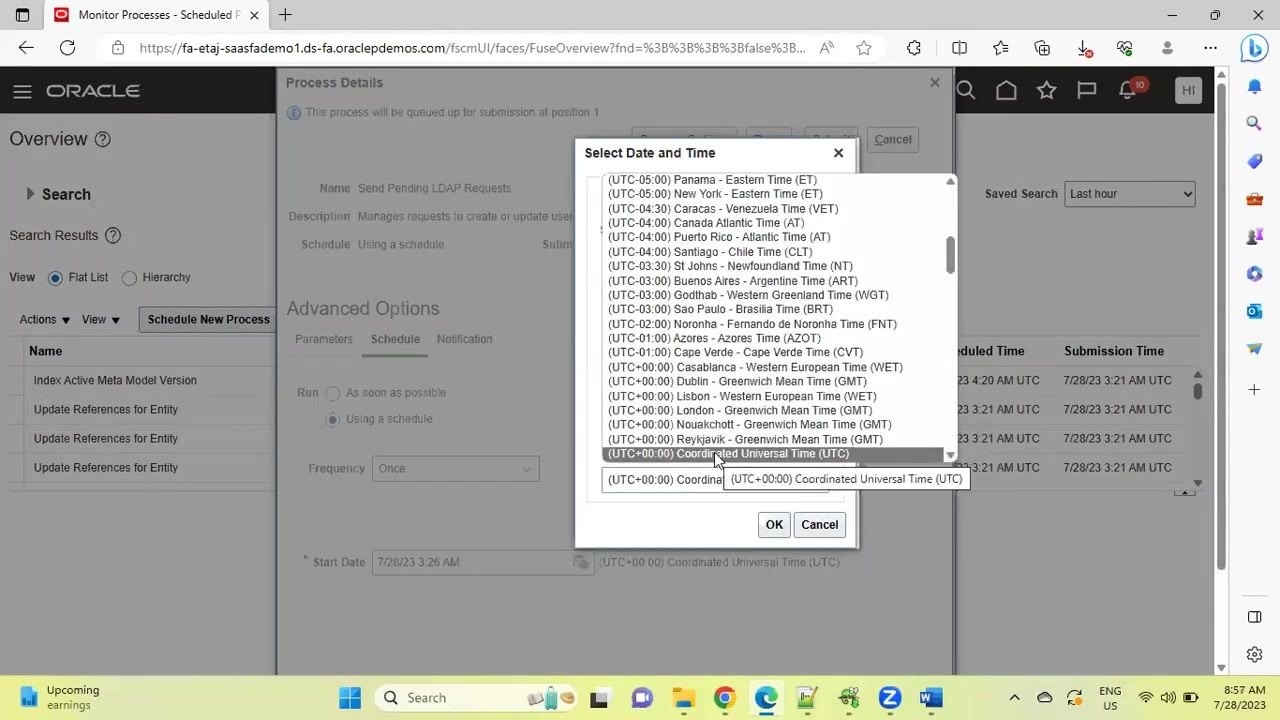
If you need to change the time zone, click the calendar icon next to the Start Date field. A Select Date and Time dialog appears, listing multiple time zones such as New York - Eastern Time, London - Greenwich Mean Time, Reykjavik - Greenwich Mean Time, and Coordinated Universal Time.
- Scroll through the list and select the desired time zone, in this case "Coordinated Universal Time (UTC)."
- Click OK to confirm your selection.
- The Start Date and Time update accordingly.
Submit the scheduled process
Review all entered details in the Process Details window before submitting:
- Name: "Send Pending LDAP Requests"
- Description: "Manages requests to create or update users, rol..."
- Schedule: "Using a schedule"
- Frequency: "Once"
- Start Date: "7/28/23 3:26 AM (UTC+00:00) Coordinated Universal Time (UTC)"
Optionally, check Notify me when this process ends if you want to receive a notification. Click the Submit button at the top right of the Process Details window to schedule the process.
Monitor the scheduled process
After submission, you return to the Monitor Processes - Scheduled Processes page. The newly scheduled process, "Send Pending LDAP Requests," appears in the list of processes.
The list columns include Name, Process ID, Status, Scheduled Time, and Submission Time. The status of the new process is initially "Running." Example details:
- Name: Send Pending LDAP Requests
- Process ID: 6133712
- Status: Running
- Scheduled Time: 7/28/23 3:27 AM UTC
- Submission Time: 7/28/23 3:27 AM UTC
Other processes in the list may show statuses such as "Wait" or "Succeeded."
Refresh and view process logs
To check the latest status of your scheduled process, click the Refresh button, shown as a circular arrow icon, next to the View Log button. The process list updates to show the most current status for each process.
To view detailed logs for a process, select the process and click View Log.
Confirm process status
Continue monitoring the process until its status changes from "Running" to either "Succeeded" or another final state.
Use the search and filter options at the top of the page to locate specific processes by Name, Process ID, Status, Submission Time, or Submission Notes. Download results if needed by clicking the Download Results button.
Summary
By following these steps, you have successfully learned how to create a scheduled process in Oracle Fusion HCM: navigating to the Scheduled Processes tool, selecting and naming a process, configuring advanced scheduling options including frequency and time zone, submitting the process, and monitoring its execution. Use the refresh and log viewing features to track progress and troubleshoot as needed.
Generation details: cost, quality tiers
Docsie billed 1,500 credits ($1.05) to analyze this 3-minute video at standard quality. The rewrite, template fill and Word/PDF exports were included. The same video at each quality tier:
| Quality | Frames sampled | Credits | Approx. cost |
|---|---|---|---|
| Draft | every 16-30 s | 750 | $0.52 |
| Standard (this guide) | every 8-15 s | 1,500 | $1.05 |
| Detailed | every 4-7 s | 3,000 | $2.10 |
| Ultra | every 1-3 s | 6,000 | $4.20 |
Credits priced at $0.70 per 1,000; plans include a monthly allowance. Enterprise customers on on-premise or bring-your-own-model deployments run this on their own inference and pay no per-video credits.
Generated by Docsie Video-to-Docs on 2026-10-19 from a 2-minute video. Screenshots are frames from the source video and belong to their creator, HCM Solutions Hub, whose original is embedded above. If you own this video and want the guide removed or credited differently, contact us and we will act within one business day.