
How to Create a Purchase Requisition in Oracle Fusion
This guide explains how to create a purchase requisition in Oracle Fusion, from entering requisition line details through submission, approval tracking, and automatic purchase order generation. Follow these steps to complete the procurement process from start to finish.
Video: How To Create Purchase Requisition and Generate Purchase Order in Oracle Cloud ERP (Fusion Apps) by Ora Trainings (2021). All credit for the demonstration goes to the creator; watch the original on YouTube. The written guide below was generated from this video by Docsie. Creator? Request a change or removal.
This guide explains how to create a purchase requisition in Oracle Fusion, from entering requisition line details through submission, approval tracking, and automatic purchase order generation. Follow these steps to complete the procurement process from start to finish.
Prerequisites
Before you begin, make sure you have access to the Procurement work area in Oracle Fusion and the necessary permissions to create and submit purchase requisitions.
Navigate to the Procurement tab
From the Oracle Fusion home screen, locate the top navigation bar and click the Procurement tab. A welcome message appears along with several procurement options, including Purchase Requisitions, Purchase Agreements, Purchase Orders, My Receipts, Negotiations, Catalogs, and Suppliers.
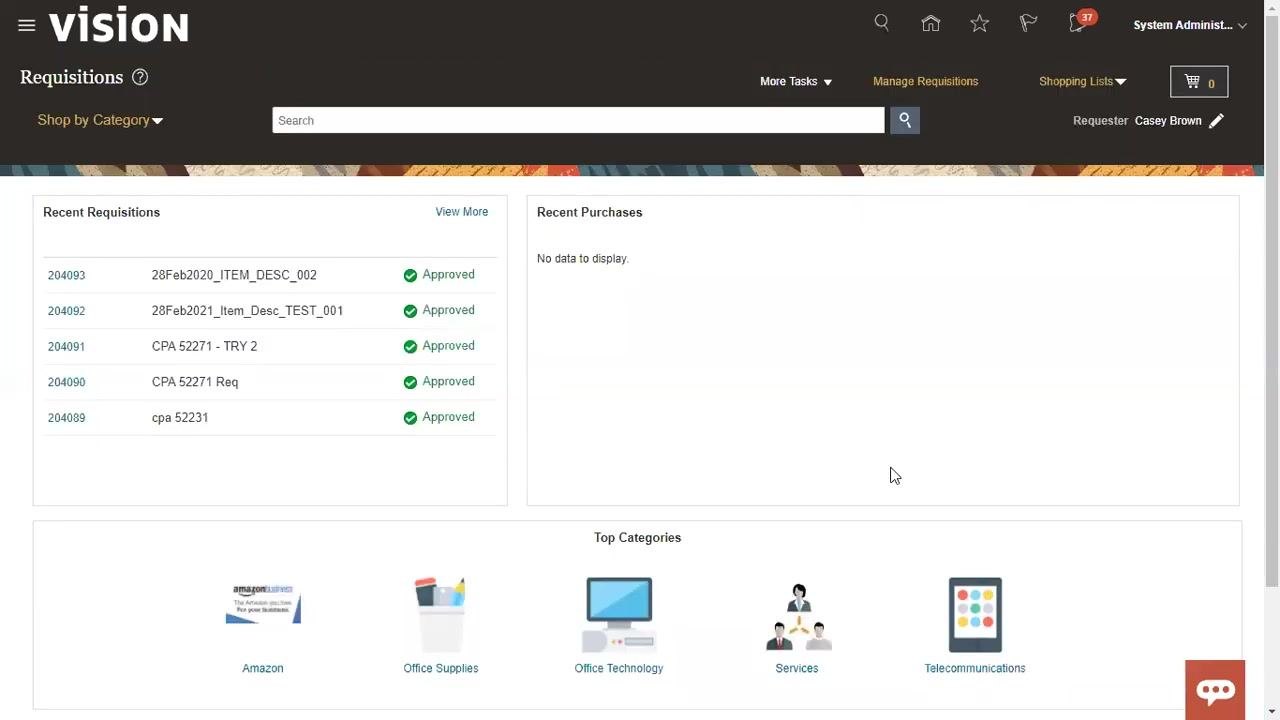
Access Purchase Requisitions
In the Procurement section, click the Purchase Requisitions tile. This takes you to the Requisitions page, where you can begin building your requisition.
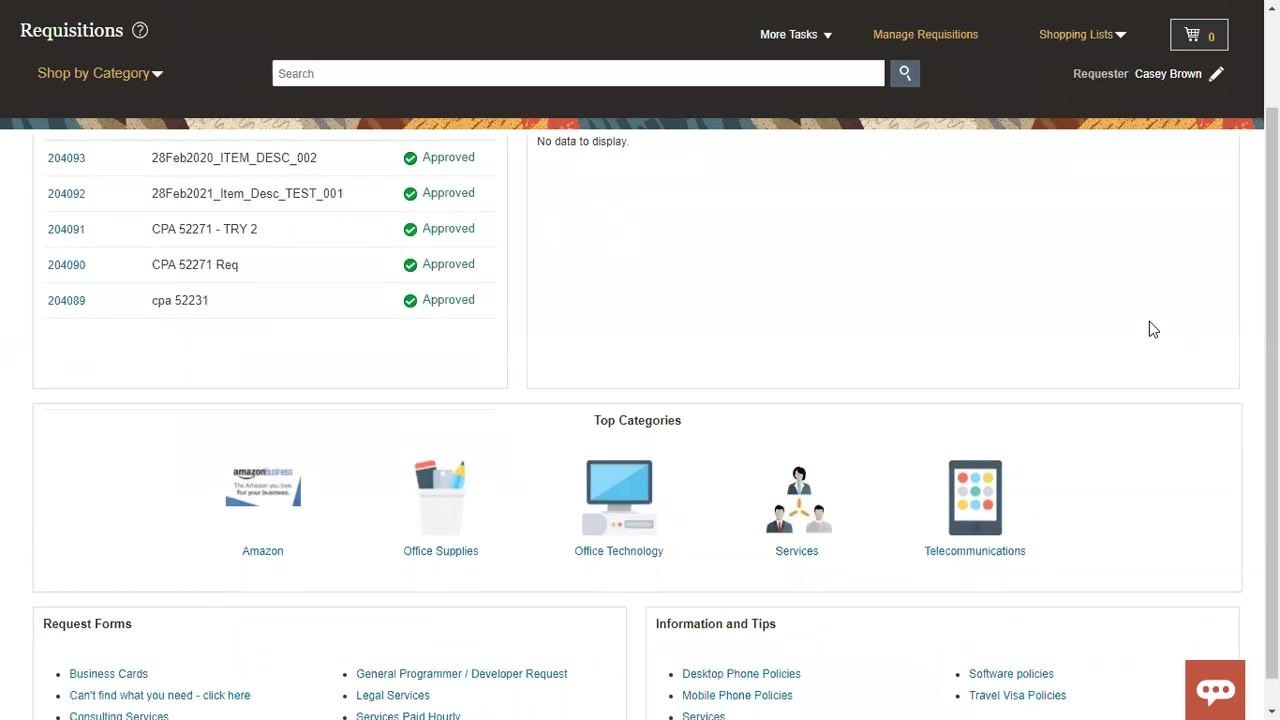
Open the Enter Requisition Line page
At the top right of the Requisitions page, locate the More Tasks dropdown menu. This menu provides additional actions such as entering a requisition line, requesting a non-catalog item, requesting a new supplier, and updating requisition preferences.
Click More Tasks, then select Enter Requisition Line. This opens the Enter Requisition Line page, where you enter the details for your requisition.
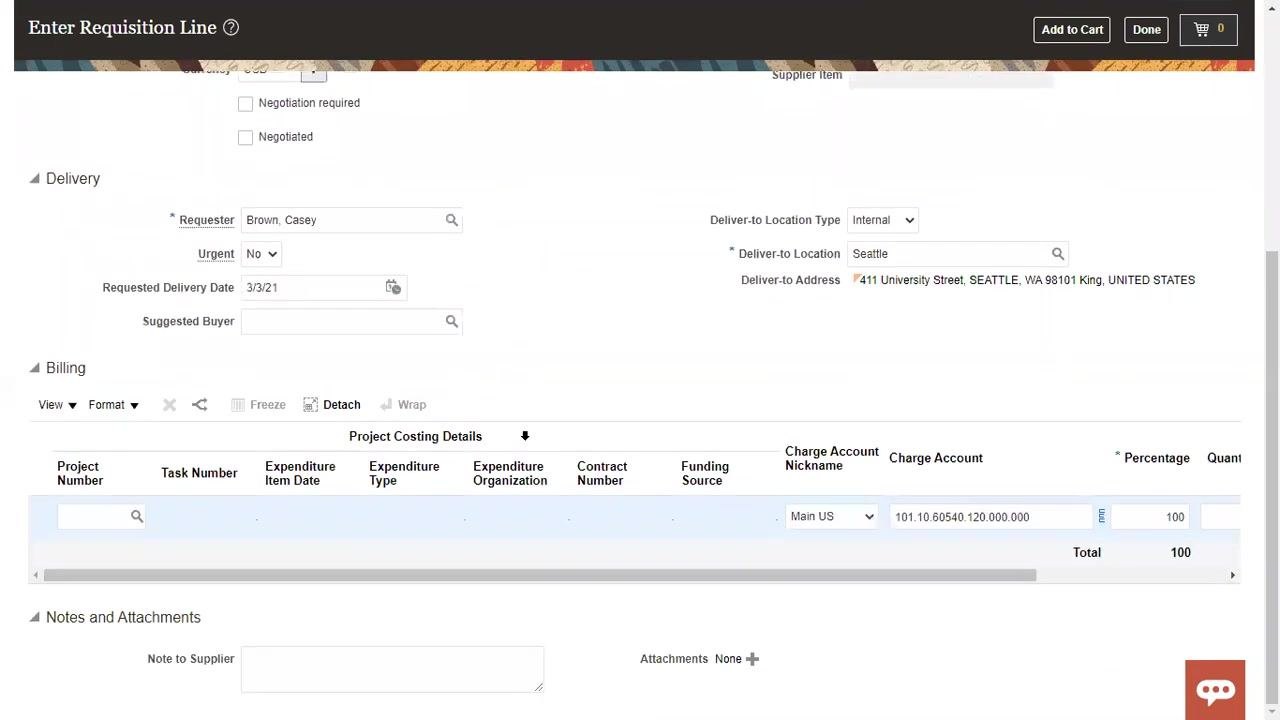
Fill in requisition line details
On the Enter Requisition Line page, complete the following sections:
- Line Information: Set the Line Type (default is "Goods"; other options include Fixed Price Goods, Fixed Price Services, General Hourly Services, General Monthly Services, and Rate Based Services). Enter a mandatory Item Description, specify the Category Name, enter the Quantity (default is 1), select the UOM Name, enter the Price, confirm the Currency (default is USD), and check Negotiation required or Negotiated if applicable.
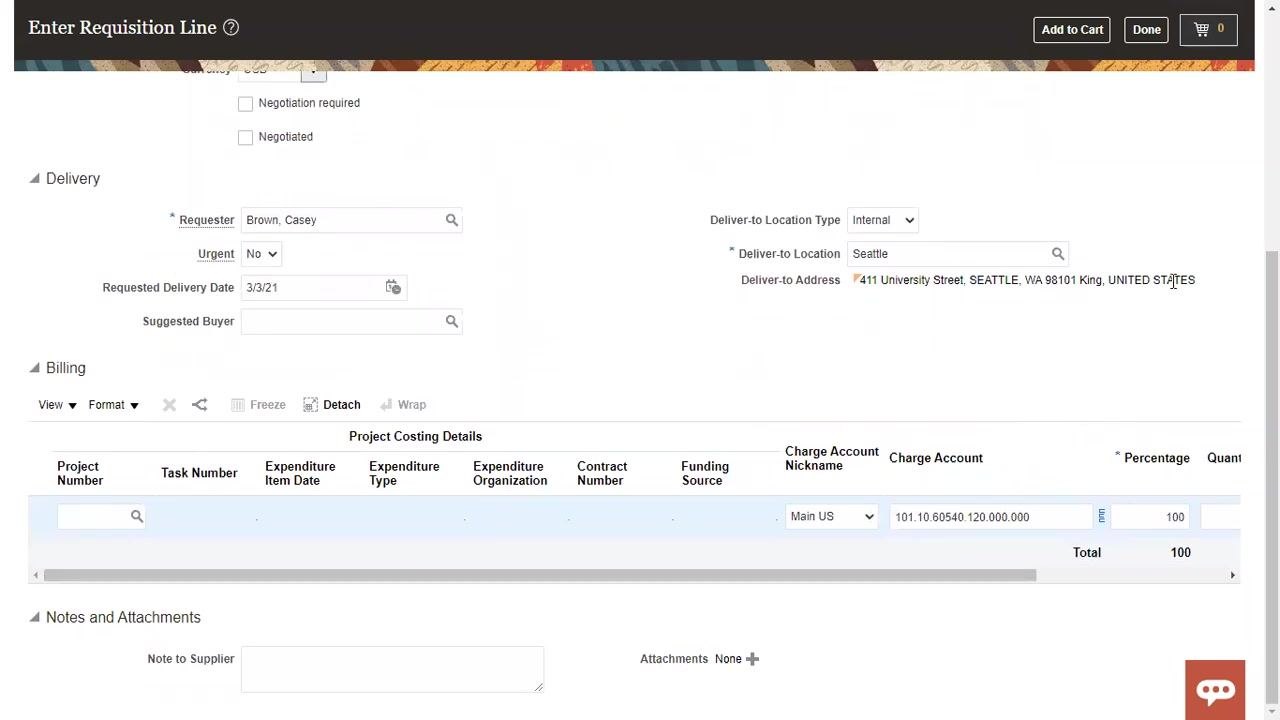
- Delivery Information: Confirm or select the Requester (e.g., Brown, Casey), indicate whether the request is Urgent (default is No), enter the Requested Delivery Date (e.g., 3/3/21), select the Deliver-to Location Type (default is Internal), specify the Deliver-to Location (e.g., Seattle), confirm the Deliver-to Address (e.g., 411 University Street, SEATTLE, WA 98101 King, UNITED STATES), and optionally enter a Suggested Buyer.
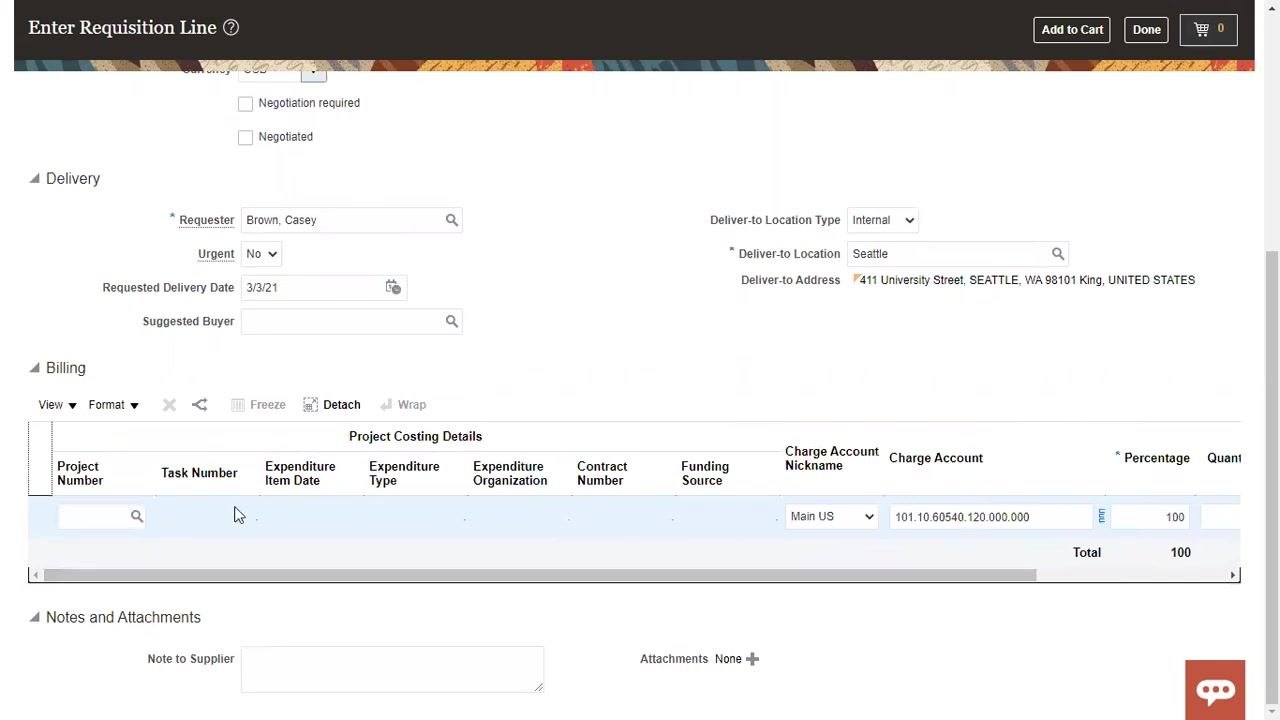
- Billing Information: Fill in project costing details as required, including Project Number, Task Number, Expenditure Type, Organization, Contract Number, Funding Source, Charge Account Nickname, Charge Account, Percentage, and Quantity.
- Notes and Attachments: Add any notes to the supplier or attach relevant documents.
Enter category, quantity, and unit of measure
In the Category Name field, select the appropriate category (e.g., "Activators & Appliers"). Enter 1 in the Quantity field, select Ea (Each) in the UOM Name dropdown, enter 1.00 in the Price field, and confirm that Currency is set to USD.
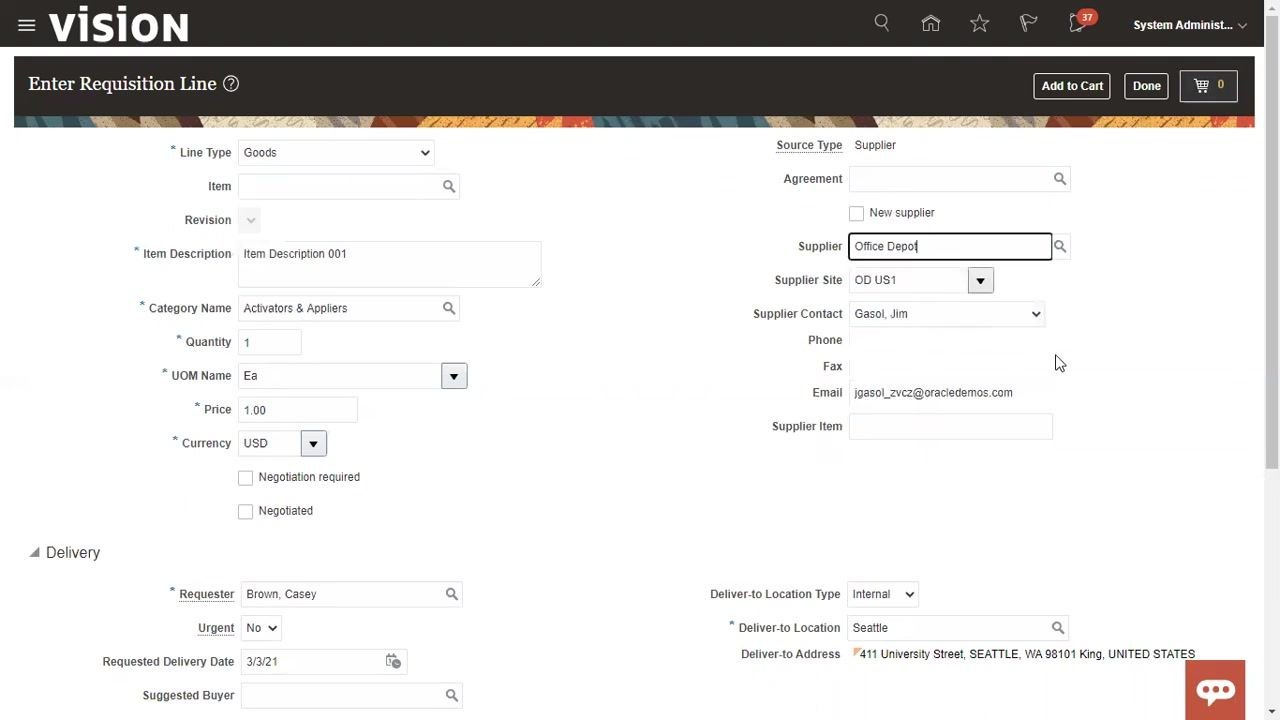
Specify an agreement or supplier (optional)
If you want to base the request on a contract purchase agreement (CPA) or blanket purchase agreement (BPA), enter the agreement details in the Agreement field. If you want to base the request on a supplier, enter the supplier name in the Supplier field (for example, start typing "Office Depot" and select the correct supplier). The system automatically populates the Supplier Site, Supplier Contact, and Email fields based on the supplier configuration.
Review defaulted delivery and billing information
Confirm that the Requester (e.g., "Brown, Casey"), Deliver-to Location (e.g., "Seattle"), and Deliver-to Address (e.g., "411 University Street, SEATTLE, WA 98101 King, UNITED STATES") are correct. Review the Project Costing Details under the Billing section — the Charge Account Nickname (e.g., "Main US") and Charge Account (e.g., "101.10.60540.120.000.000") should be defaulted based on your user configuration, and the Percentage field should automatically calculate to 100.
Add notes and attachments (optional)
In the Notes and Attachments section, enter any relevant notes to the supplier or attach supporting documents as needed.
Select the Negotiated flag
Check the Negotiated box to ensure a purchase order is created from this requisition. If the Negotiated flag is not selected, a purchase order will not be generated from the requisition.
Add to cart and submit the requisition
Click Add to Cart at the top right of the Enter Requisition Line page to add your requisition line to the cart. After reviewing your cart, click Submit to send the requisition for approval.
Confirm requisition submission
Wait for the confirmation popup indicating that your requisition has been submitted (e.g., "Requisition 204094 was submitted"). Optionally, click View PDF to download a copy of the submitted requisition. Note the requisition number (e.g., 204094) for tracking purposes.
Monitor approval status
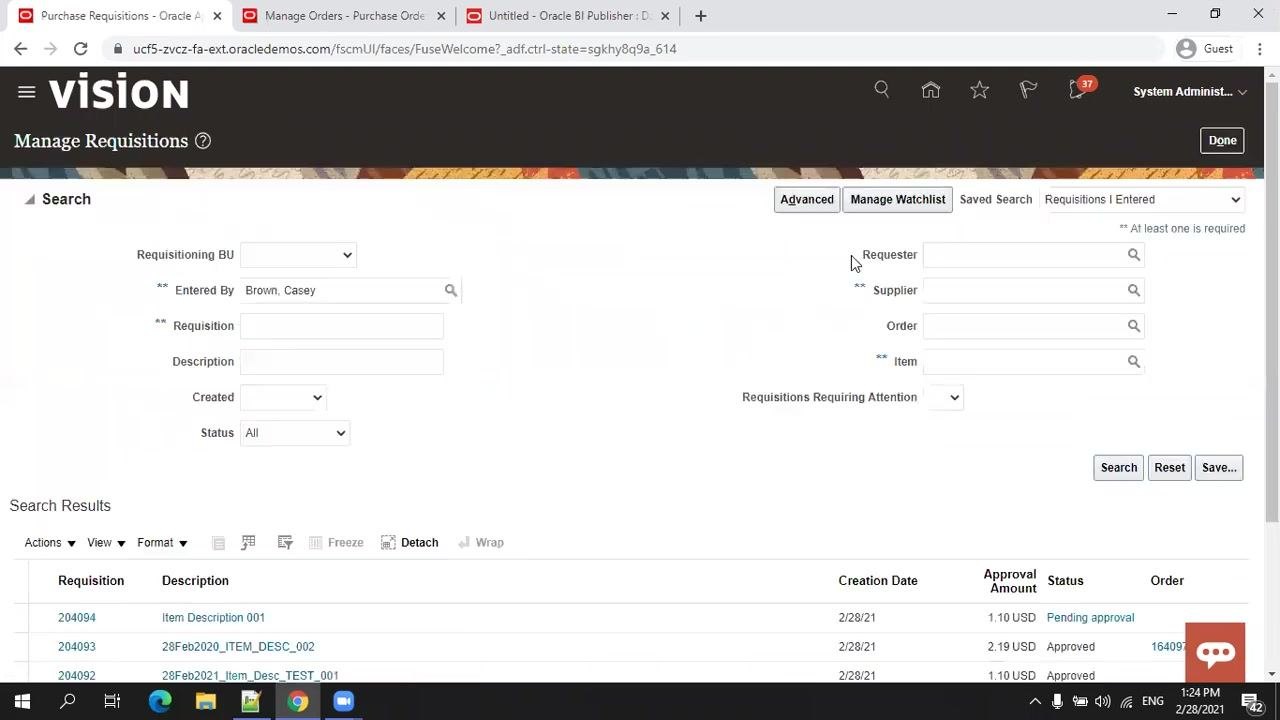
Navigate to the Manage Requisitions page to check the status of your requisition. Locate your requisition in the list (e.g., 204094 with description "Item Description 001"). The Status column initially shows "Pending approval."
Check for purchase order creation
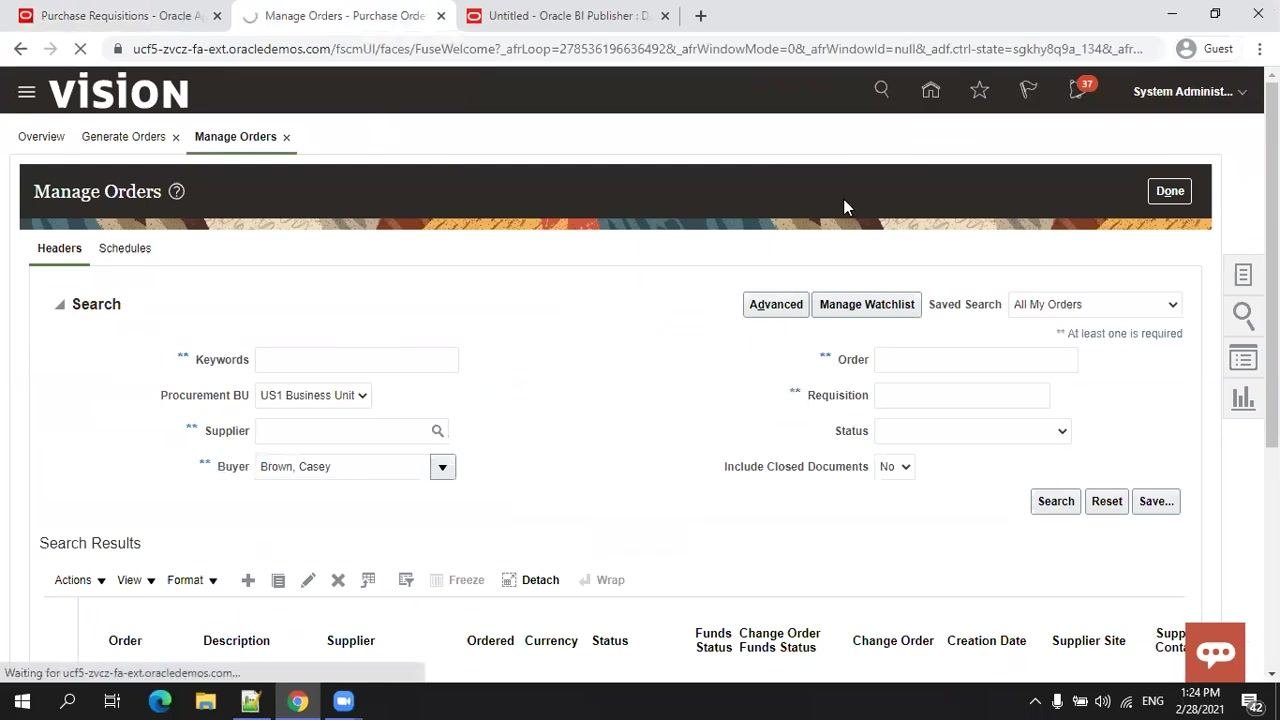
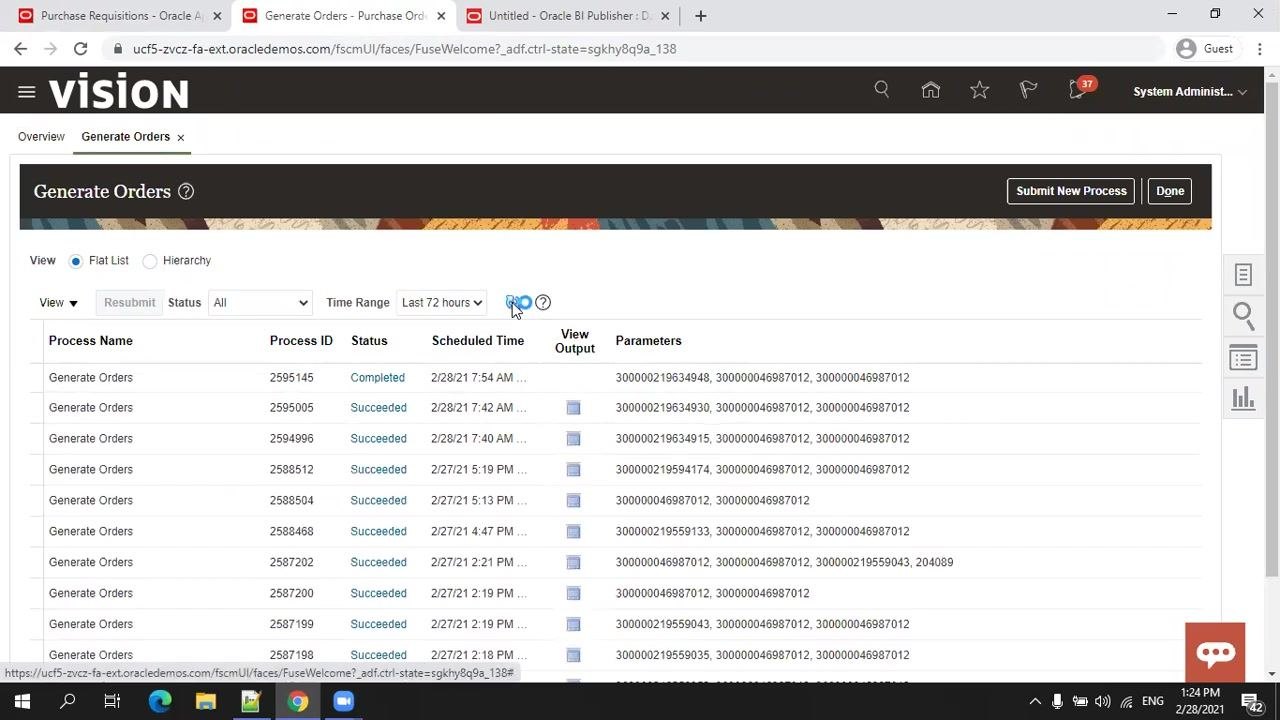
Go to the Procurement menu and select Purchase Orders, then click Manage Orders to view existing purchase orders. Optionally, use the Generate Orders function to trigger the creation of purchase orders for approved requisitions.
Monitor the order generation process
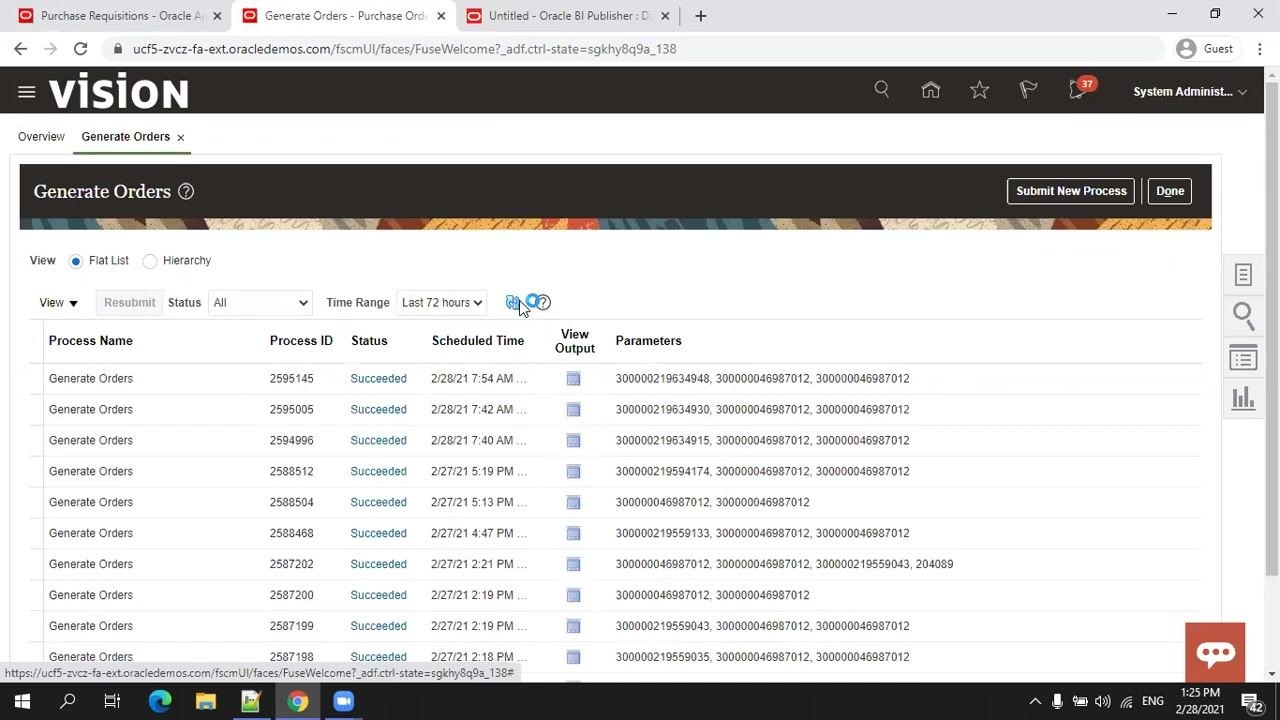
On the Generate Orders page, review the list of processes. Look for the most recent "Generate Orders" process and check its status (e.g., "Completed" or "Succeeded"). Wait for the process associated with your requisition to complete.
Refresh and confirm purchase order creation
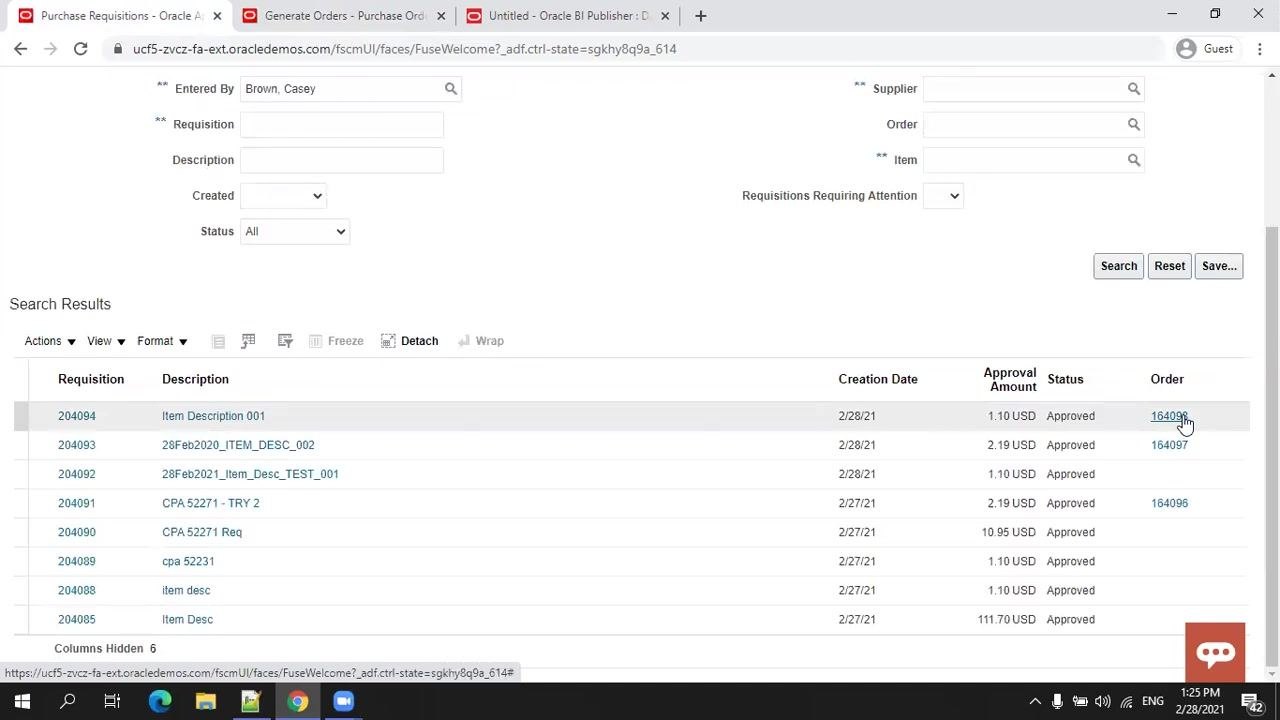
Return to the Manage Requisitions page and, if prompted, confirm any form resubmission to refresh the page. Check the Status column for your requisition; it should now show "Approved." In the Order column, verify that a purchase order number (e.g., 164098) has been generated and linked to your requisition.
Working with multiple-line requisitions
A purchase order is automatically created for each approved requisition. You can create requisitions with either a single line or multiple lines. For requisitions with multiple lines, add each line as needed — each line can be associated with a different Contract Purchase Agreement (CPA) or Blanket Purchase Agreement (BPA). The system generates purchase orders based on the agreements and lines specified in your requisition. After approval, verify that each requisition line has resulted in the appropriate purchase order(s).
On the Manage Requisitions page, search for your requisitions using filters such as "Entered By," "Requisition," or "Status." The search results table displays:
- Requisition number (e.g., 204094, 204093, 204092)
- Description (e.g., "Item Description 001," "28Feb2020_ITEM_DESC_002")
- Creation Date (e.g., 2/28/21)
- Approval Amount (e.g., 1.10 USD, 2.19 USD)
- Status (e.g., Approved)
- Order number (e.g., 164098, 164097)
Click the order number link in the Order column to view the generated purchase order details.
Summary
By following these steps, you have successfully submitted a purchase requisition in Oracle Fusion, monitored its approval, and confirmed the automatic creation of a purchase order. This ensures your procurement process is complete and traceable from requisition entry through purchase order generation.
Generation details: cost, quality tiers
Docsie billed 3,000 credits ($2.10) to analyze this 6-minute video at standard quality. The rewrite, template fill and Word/PDF exports were included. The same video at each quality tier:
| Quality | Frames sampled | Credits | Approx. cost |
|---|---|---|---|
| Draft | every 16-30 s | 1,500 | $1.05 |
| Standard (this guide) | every 8-15 s | 3,000 | $2.10 |
| Detailed | every 4-7 s | 6,000 | $4.20 |
| Ultra | every 1-3 s | 12,000 | $8.40 |
Credits priced at $0.70 per 1,000; plans include a monthly allowance. Enterprise customers on on-premise or bring-your-own-model deployments run this on their own inference and pay no per-video credits.
Generated by Docsie Video-to-Docs on 2026-10-19 from a 5-minute video. Screenshots are frames from the source video and belong to their creator, Ora Trainings, whose original is embedded above. If you own this video and want the guide removed or credited differently, contact us and we will act within one business day.