
How to Create a Customer in Oracle Fusion
Creating a customer record in Oracle Fusion ERP involves setting up several linked entities — the party, the account, the site, and the site usage — within Oracle's Trading Community Architecture (TCA) data model. This guide walks you through how to create a customer in Oracle Fusion, from understanding the underlying data model to entering organization details, configuring payment and communication information, and reviewing the resulting records. The guide also explains the key database tables behind each entity for users who need this information for reporting or integration purposes.
Video: Oracle Fusion ERP (SaaS) - Create Customers and Table Details by Ora Trainings (2022). All credit for the demonstration goes to the creator; watch the original on YouTube. The written guide below was generated from this video by Docsie. Creator? Request a change or removal.
Creating a customer record in Oracle Fusion ERP involves setting up several linked entities — the party, the account, the site, and the site usage — within Oracle's Trading Community Architecture (TCA) data model. This guide walks you through how to create a customer in Oracle Fusion, from understanding the underlying data model to entering organization details, configuring payment and communication information, and reviewing the resulting records. The guide also explains the key database tables behind each entity for users who need this information for reporting or integration purposes.
Prerequisites
- Access to your Oracle Fusion ERP instance with valid login credentials.
- Permissions required to create and manage customer records.
- Basic familiarity with the Receivables and Billing areas of Oracle Fusion.
Understanding TCA before you begin
Learn what TCA (Trading Community Architecture) is
TCA is the data model Oracle uses to define customer entities. It manages complex information about parties (customers), including organizations, locations, and their hierarchical relationships, and is used in both Oracle E-Business Suite and Fusion ERP. While TCA also supports suppliers, this guide focuses specifically on the customer side.
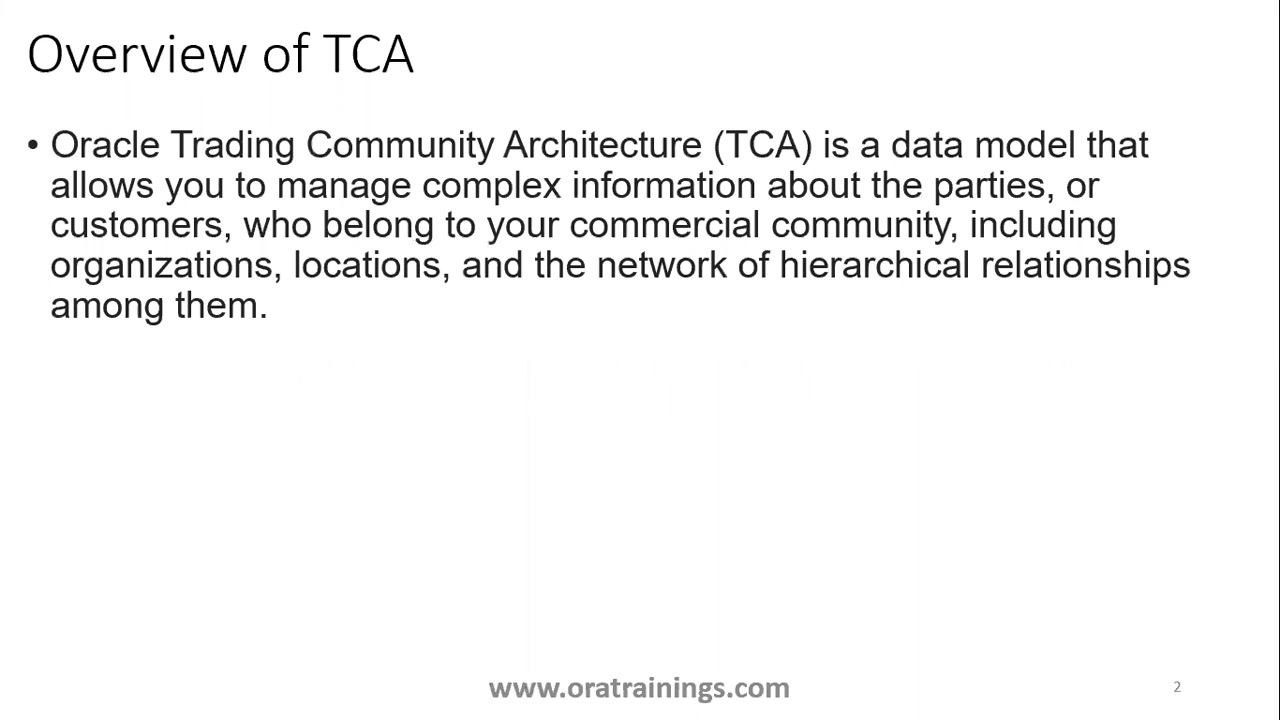
Understand the key entities and sub-entities in TCA
You can think of TCA entities and sub-entities as tables in the data model. The main components are:
- Parties (Person, Organization, or Relationship)
- Party Sites (addresses for specific purposes)
- Customers (parties with whom you have a selling relationship)
- Customer Accounts (business relationships between you and your customers)
- Customer Account Sites (party sites used for specific account purposes, such as ship-to or bill-to)
- Locations (geospatial points, usually defined by an address)
- Contacts (people with a contact or employment relationship)
- Contact Points (means of contact, such as phone or email)
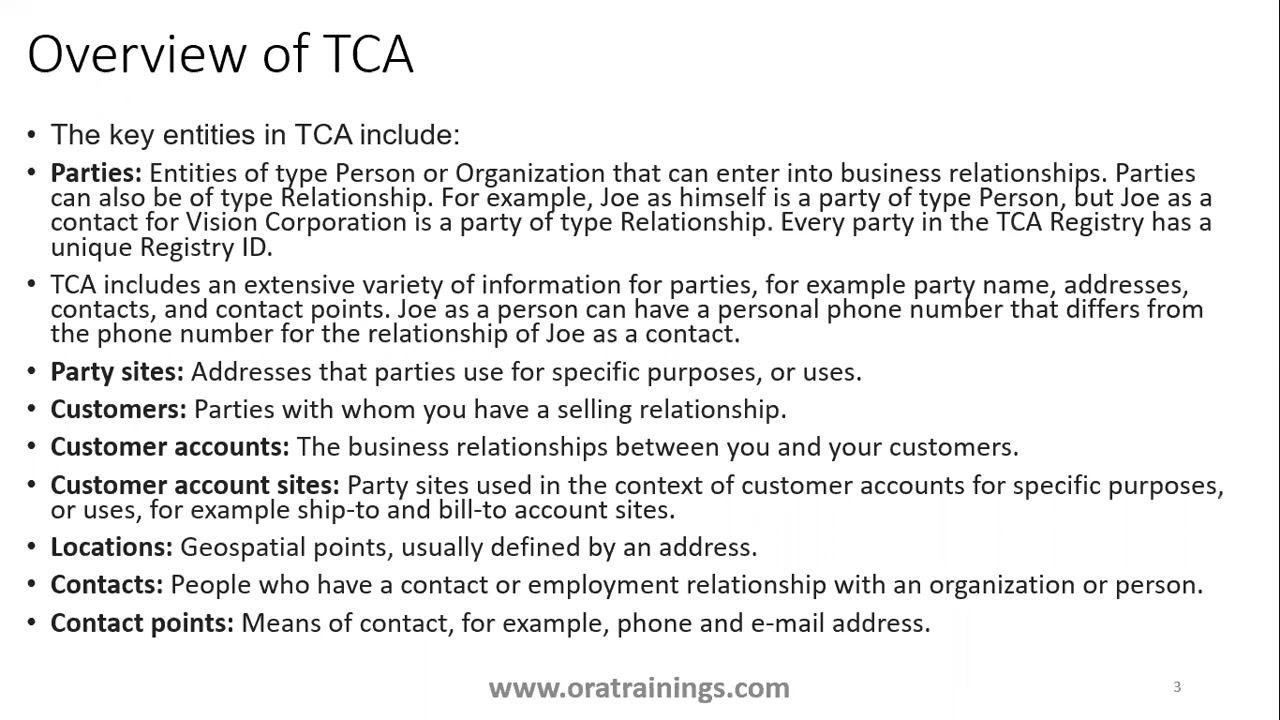
Creating an organization customer
Access the Oracle Fusion ERP instance
Log in to your Oracle Fusion ERP instance. Make sure you have the necessary permissions to create customers before proceeding.
Navigate to the Billing application
On the Oracle Applications home screen, locate the Receivables tab. Under Apps, click the Billing tile to open the Billing dashboard, where you can manage customer-related tasks.
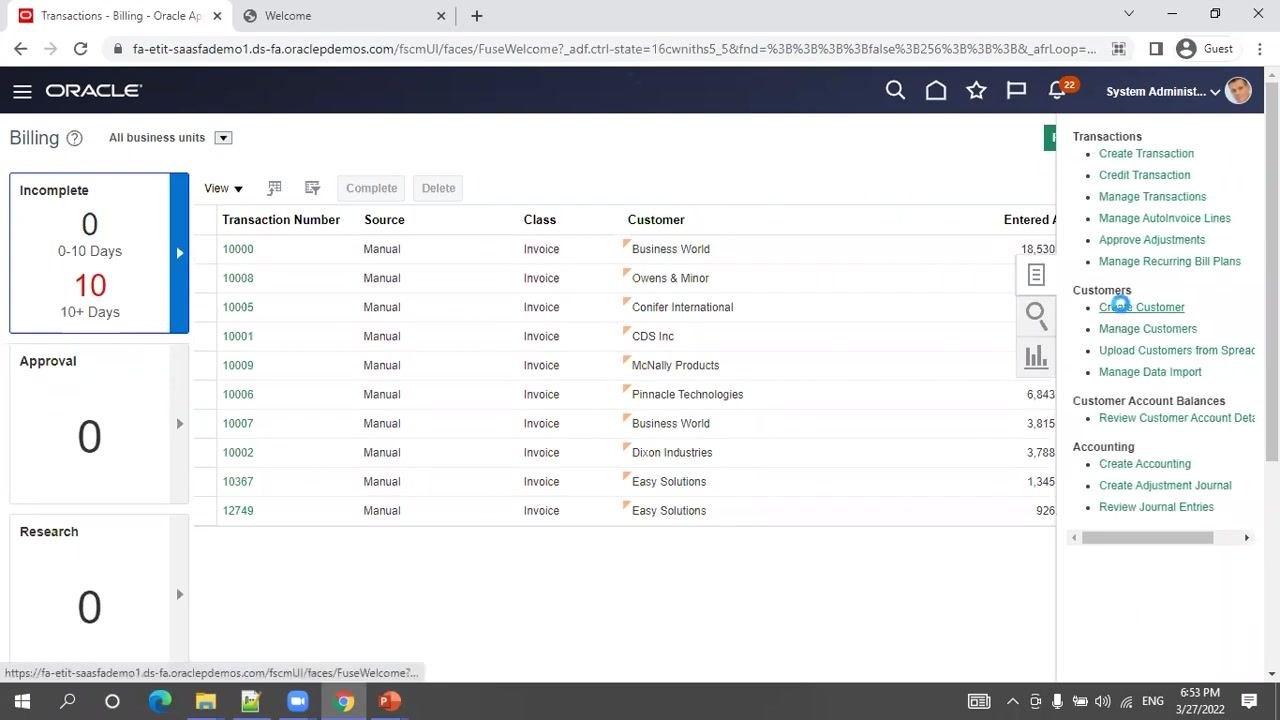
Open the Billing dashboard and access customer tasks
In the Billing dashboard, review the list of transactions and available actions. On the right-hand side, under the Customers section, click Create Customer to open the customer creation form.
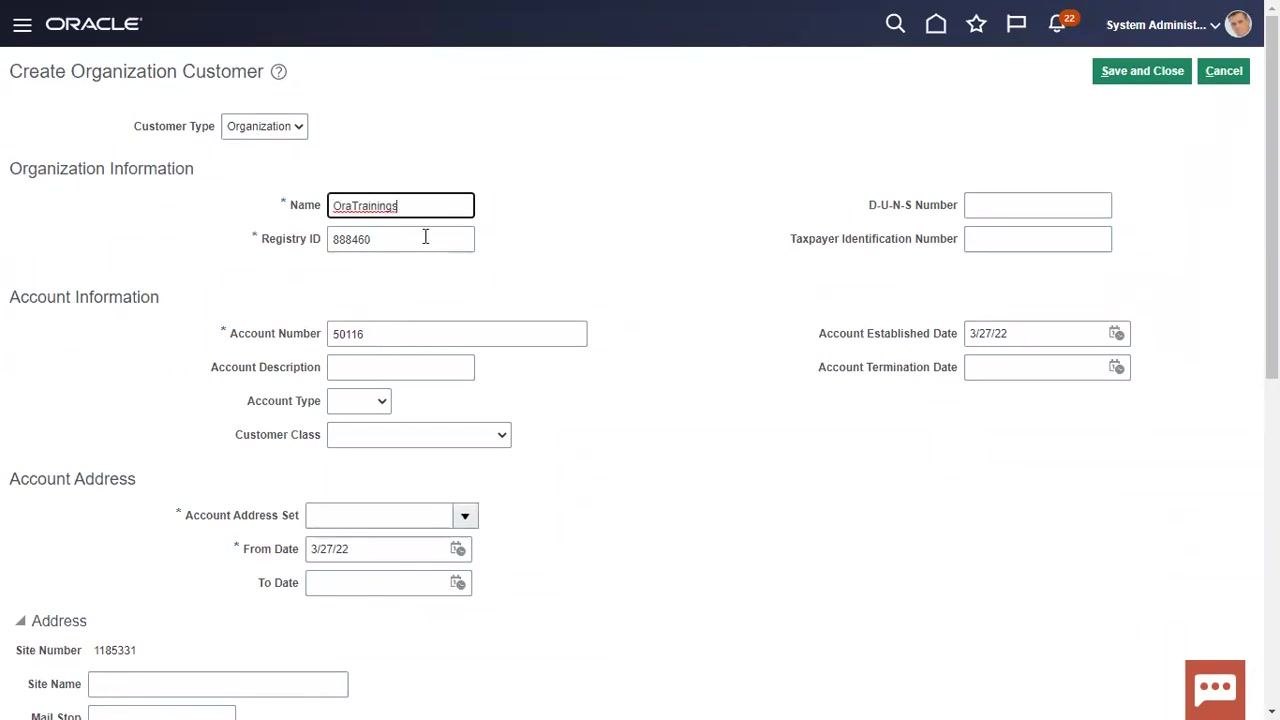
Review the Create Customer screen structure
The Create Organization Customer screen is divided into several sections:
- Customer Type: Select either "Organization" or "Person" from the dropdown.
- Organization Information: Enter details such as Name and Registry ID.
- Account Information: Enter Account Number, Description, Type, Customer Class, and relevant dates.
- Account Address: Specify the Account Address Set and effective dates.
- Address: Enter site-specific address details.
These top-level sections correspond to the TCA entities Party (Organization), Account, and Site.
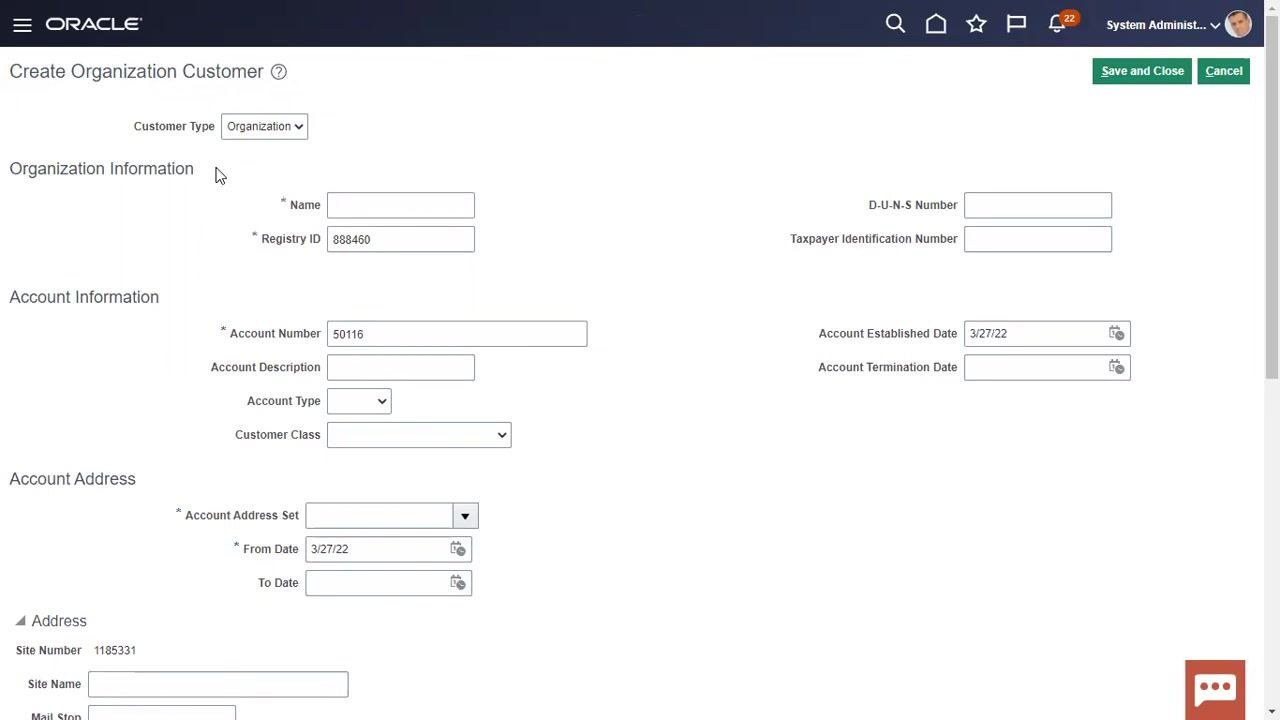
Understand required and optional fields
The following fields are mandatory for customer creation:
- Customer Type (Organization or Person)
- Name (for Organization)
- Registry ID
- Account Number
- Account Address Set
- From Date (for Account Address)
The following fields are optional but generally recommended for completeness:
- D-U-N-S Number
- Taxpayer Identification Number
- Account Description
- Account Type
- Customer Class
- Account Termination Date
- Site Name, Mail Stop, and other address details
Select the customer type
In the Create Organization Customer screen, set Customer Type to Organization from the dropdown menu.
Enter organization information
In the Organization Information section, enter OraTrainings in the Name field. Verify that the Registry ID is auto-generated (for example, 888460); this field represents the party number. Optionally, enter values for D-U-N-S Number and Taxpayer Identification Number if available.
Enter account information
In the Account Information section, enter 50116 in the Account Number field — a unique identifier for the customer account. Optionally enter an Account Description, select an Account Type, and select a Customer Class. Enter the Account Established Date as 3/27/22, and optionally enter an Account Termination Date if applicable.
Specify the account address
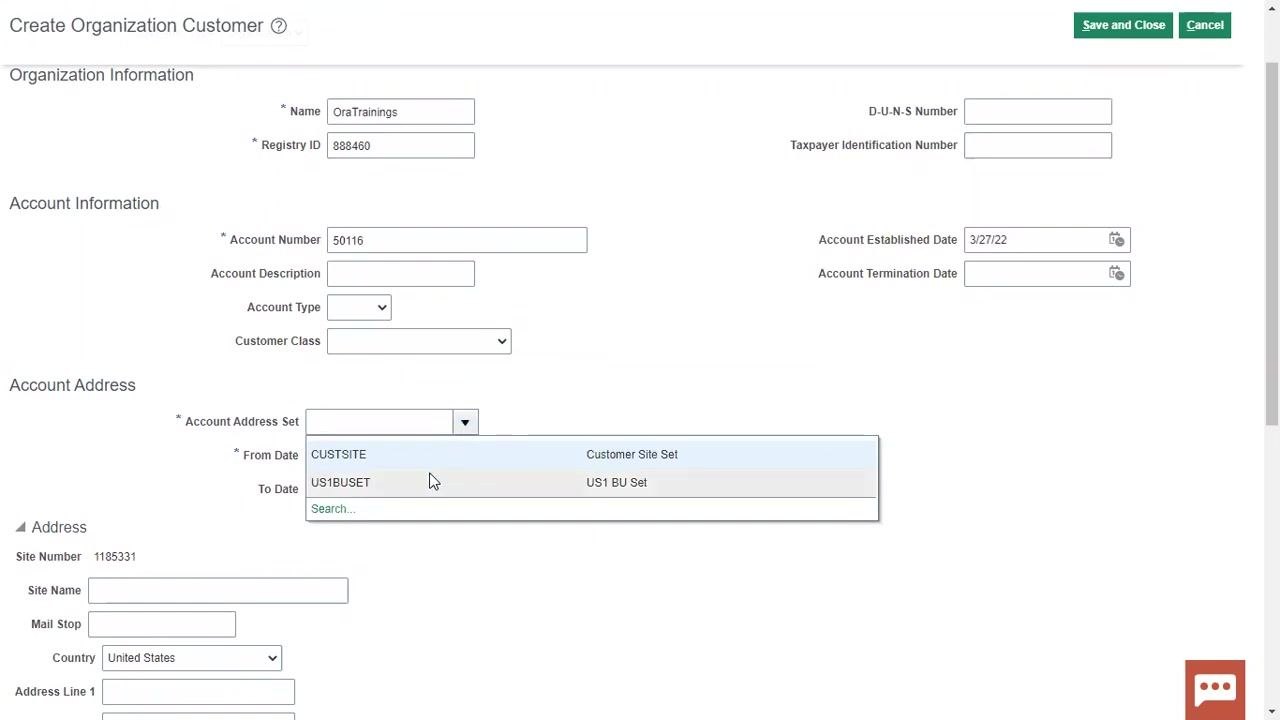
In the Account Address section, select US1BUSET from the Account Address Set dropdown; this setting determines how information is shared across business units. Enter the From Date as 3/27/22, and optionally enter a To Date if the address is only valid for a specific period.
Enter address details
In the Address section, confirm that the Site Number is auto-generated (for example, 1185331), and enter Site Name in the Site Name field. Optionally enter a value in Mail Stop. Select India from the Country dropdown, and enter AL 1 in Address Line 1. Enter Hyderabad in City or Town, 500032 in Pin Code, and select Telangana from the State dropdown.
Set account address details (optional)
In the Account Address Details section, you can optionally select a Customer Category Code and a Site Language, enter a Translated Customer Name, check the Key Account box if applicable, and enter values for Trading Partner Identifier and EDI Location Code if applicable.
Setting up address purposes
Add a new address purpose row
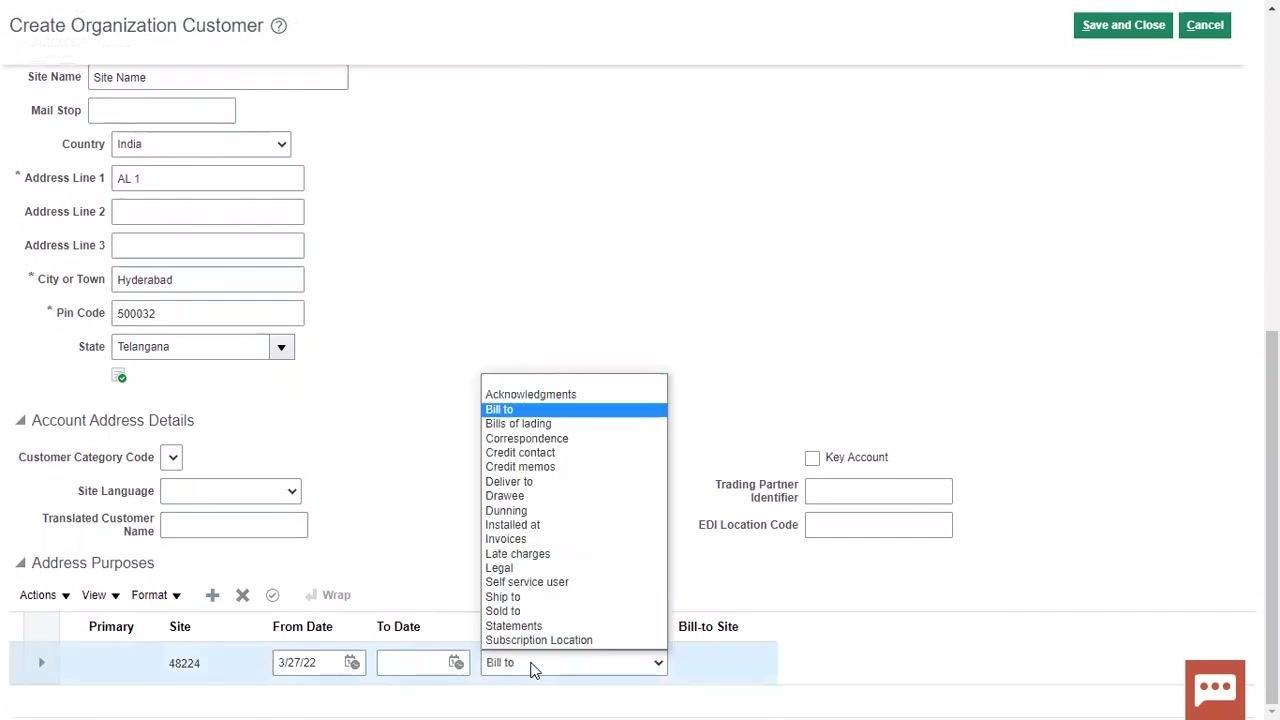
In the Address Purposes section, click the "+" (Add Row) button to insert a new row for address purposes.
Select the address purpose
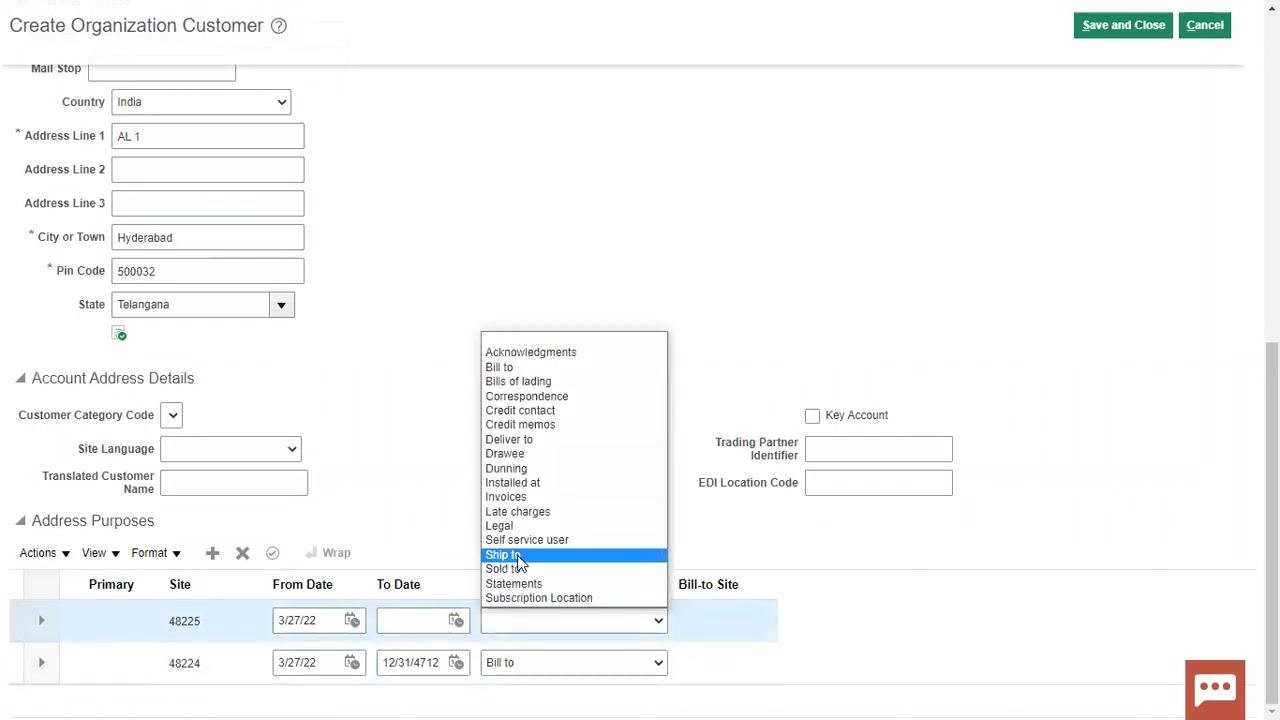
In the new row, click the dropdown under the Purpose column and select Bill to as the address purpose. Other available options include: Acknowledgments, Bills of lading, Correspondence, Credit contact, Credit memos, Deliver to, Drawee, Dunning, Installed at, Invoices, Late charges, Legal, Self service user, Ship to, Sold to, Statements, and Subscription Location.
Mark the address as primary
In the same row, check the Primary checkbox to designate this address as the main address for the selected purpose.
Verify site and dates
Ensure the Site field is populated (for example, 48224), and confirm the From Date is set (for example, 3/27/22). Optionally enter a To Date if the address purpose is only valid for a specific period.
Complete and save the customer record
Review all entered organization and account information, including Customer Type (Organization), Name (OraTrainings), Registry ID (888460), Account Number (50116), Account Established Date (3/27/22), Account Address Set (US1BUSET), From Date (3/27/22), and Site Number (1185331). After confirming accuracy, click Save and Close to create the customer record.
Managing and reviewing the new customer
Search for the newly created customer
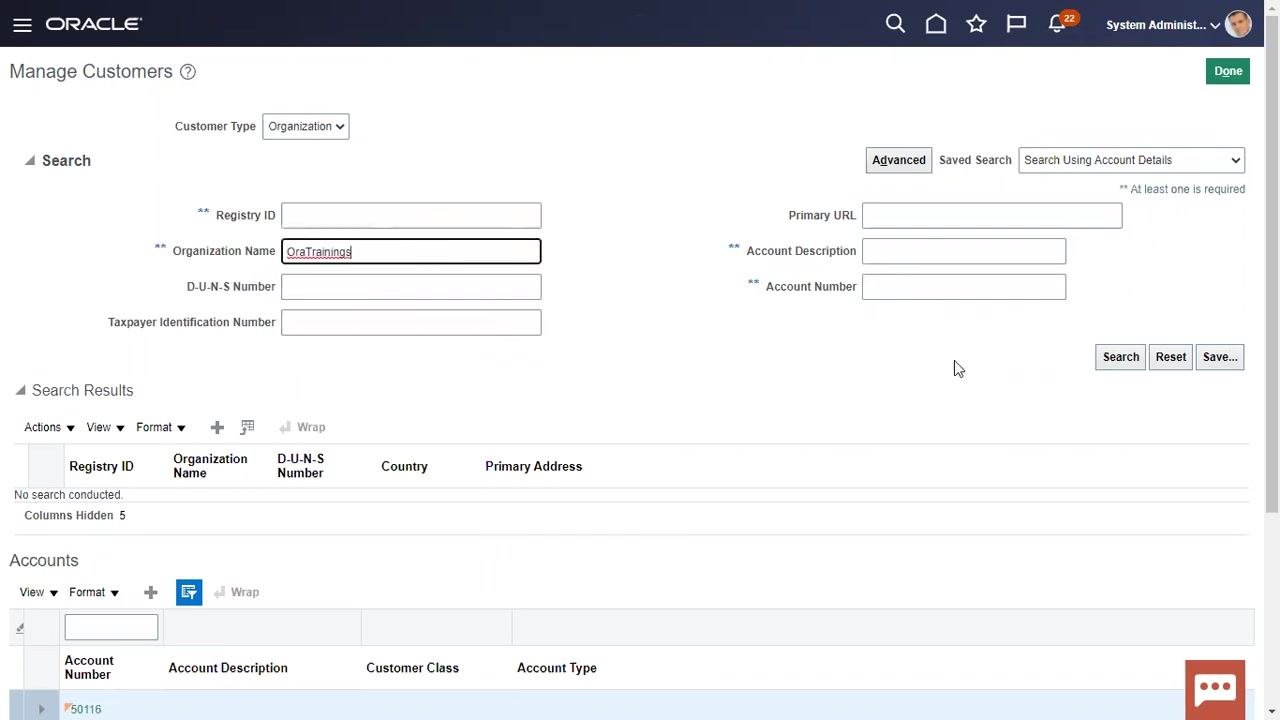
Navigate to the Manage Customers screen and set Customer Type to Organization. If you do not remember the party number, search using the Organization Name or Registry ID instead. Enter OraTrainings in the Organization Name field and click Search.
Review the search results
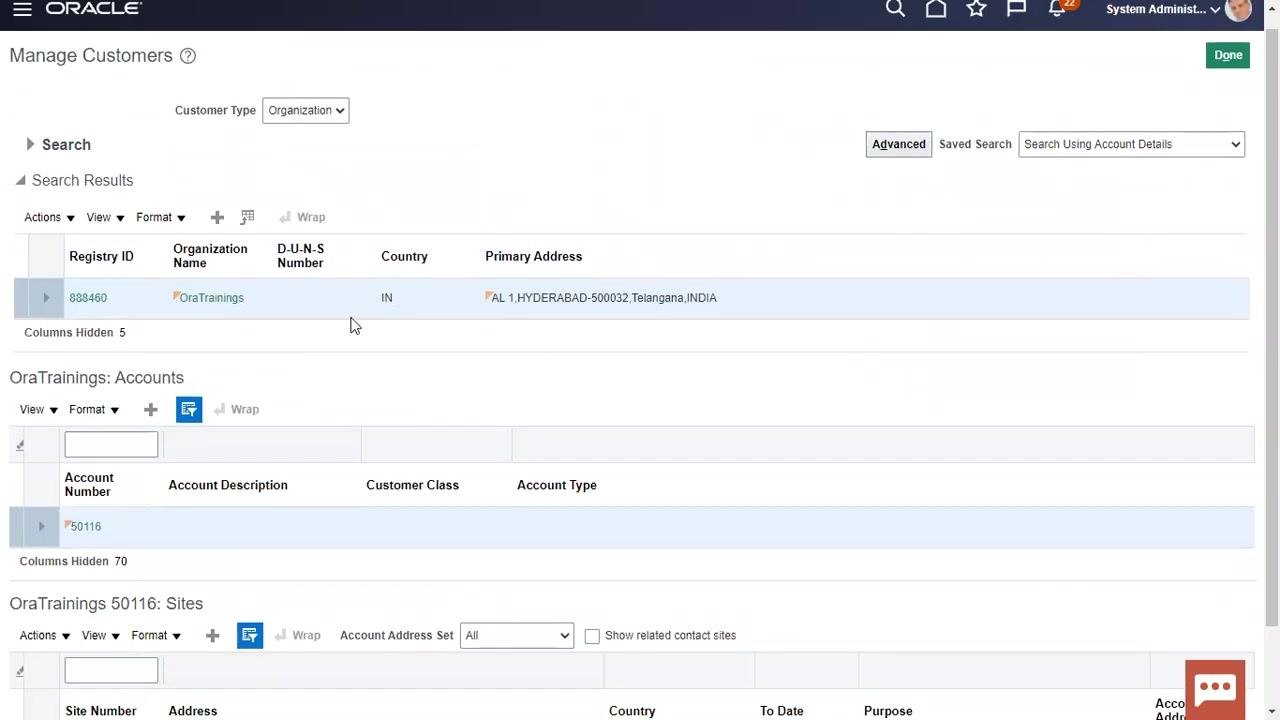
Locate the customer in the search results, showing Registry ID 888460, Organization Name OraTrainings, Country IN, and Primary Address AL 1, HYDERABAD-500032, Telangana, INDIA. The associated account number (50116) and site number (1185331) appear in the lower sections.
View account and site details
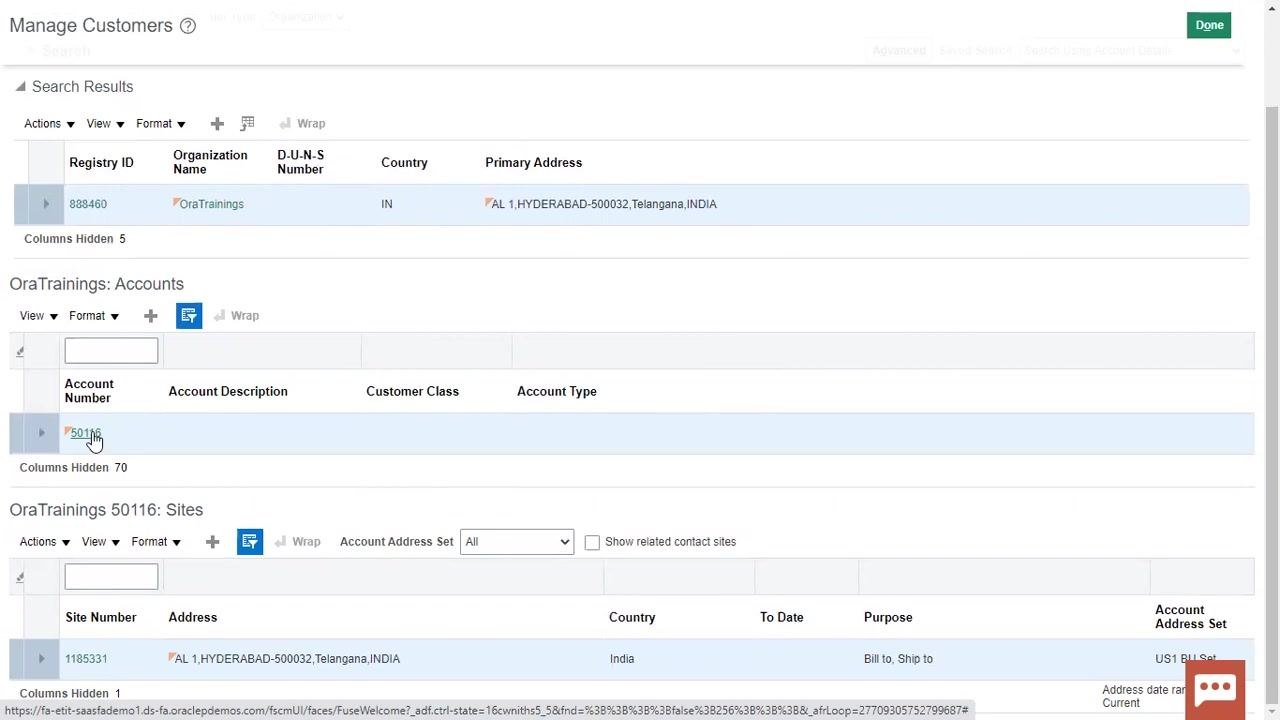
Under OraTrainings: Accounts, verify account number 50116. Under OraTrainings 50116: Sites, confirm site number 1185331 and its address details, along with the site's purpose (for example, "Bill to, Ship to") and account address set (for example, "US1 Bill Set").
Editable fields and dropdowns allow you to customize the customer record as needed. Use the search functionality to quickly locate customers by name, registry ID, or account number. The lower sections of the Manage Customers screen provide a hierarchical view of the accounts and sites associated with the organization.
Configuring payment details
Access the customer account details
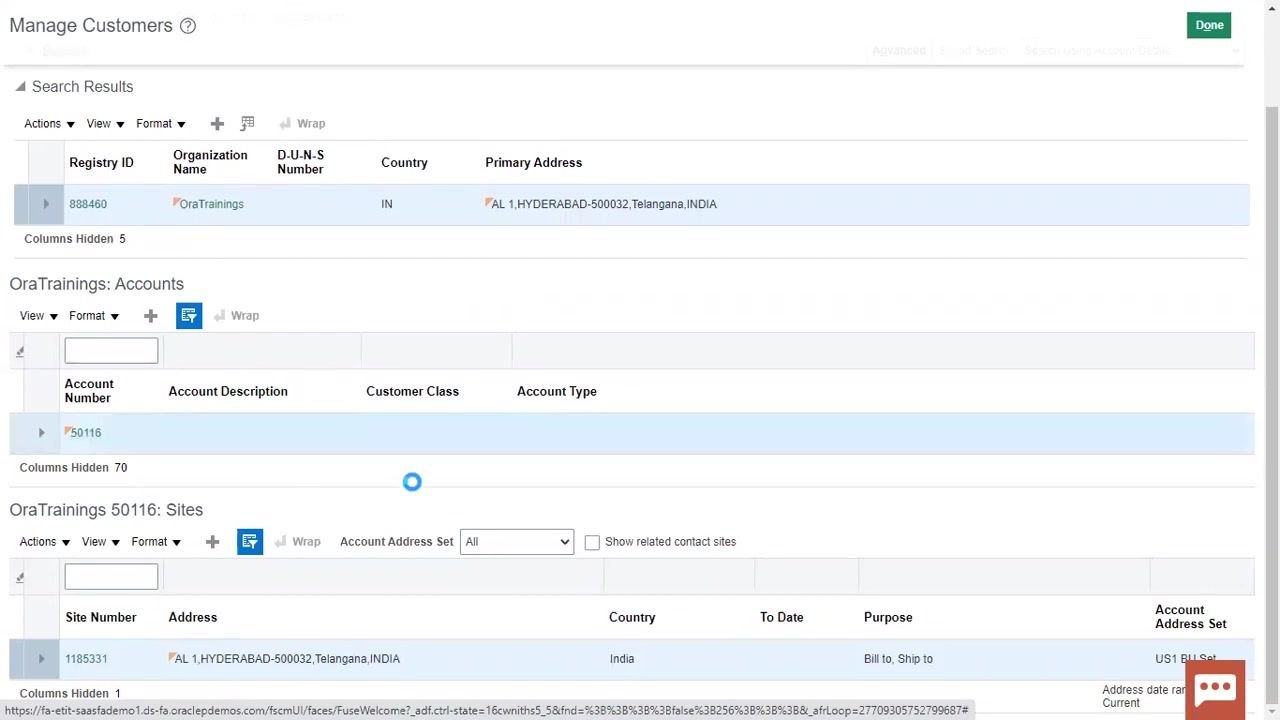
In the Manage Customers screen, locate your organization (for example, OraTrainings). Under OraTrainings: Accounts, click the account number (50116) to open the account details.
Add a receipt method
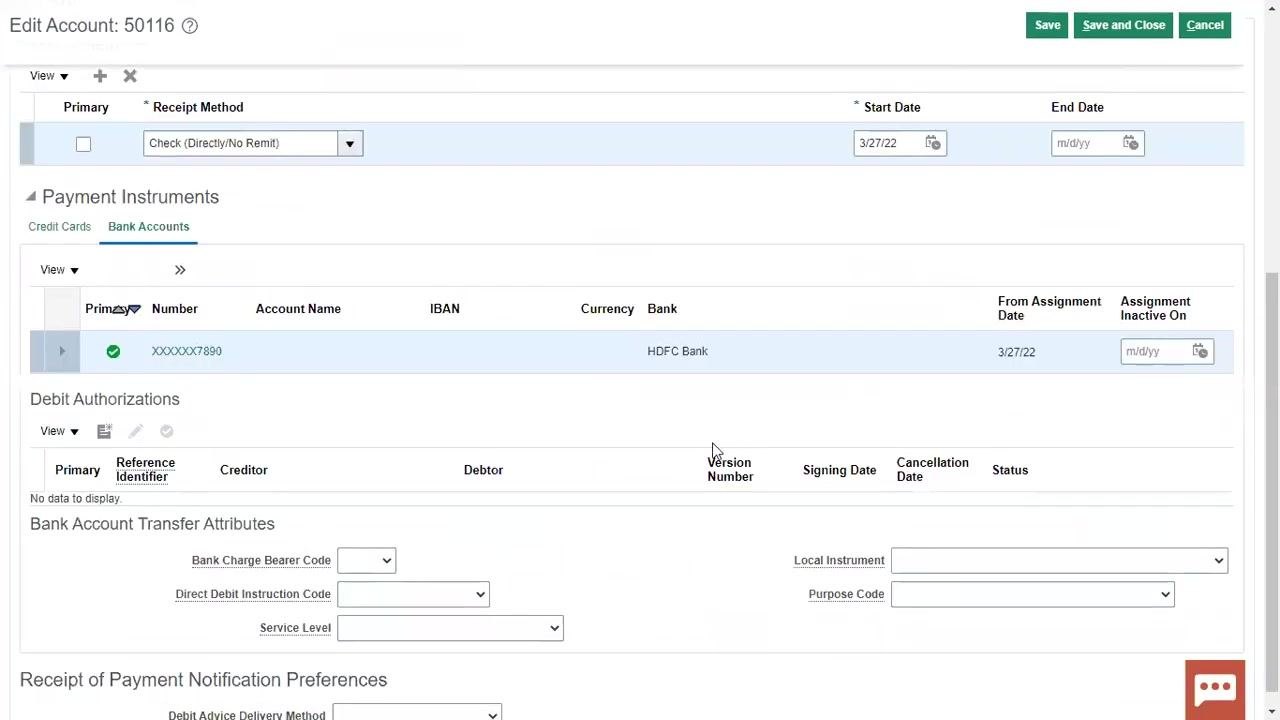
In the Edit Account: 50116 screen, go to the Payment Details tab. Under Receipt Methods, click the dropdown and choose the appropriate method (for example, Check (Directly/No Remit)). Enter the Start Date as 3/27/22 and leave the End Date blank if not applicable.
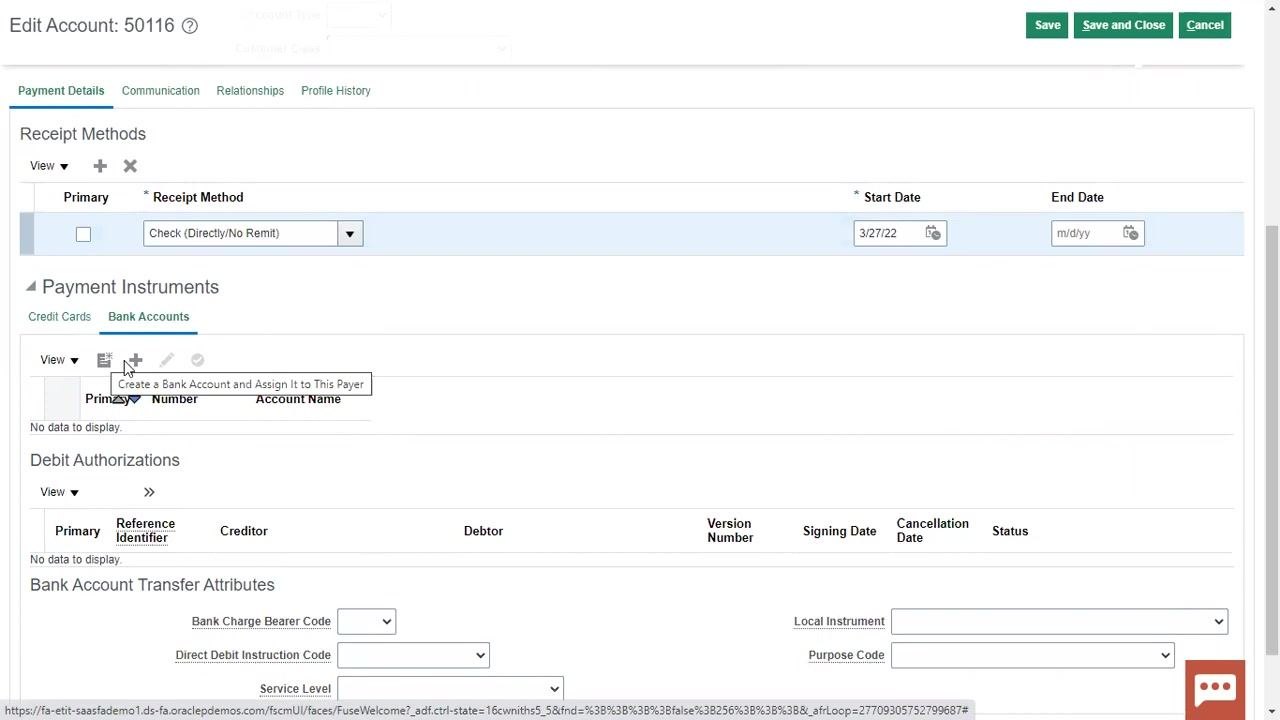
Assign a bank account
In the Payment Instruments section, select the Bank Accounts tab, then click the plus (+) icon labeled "Create a Bank Account and Assign It to This Payer".
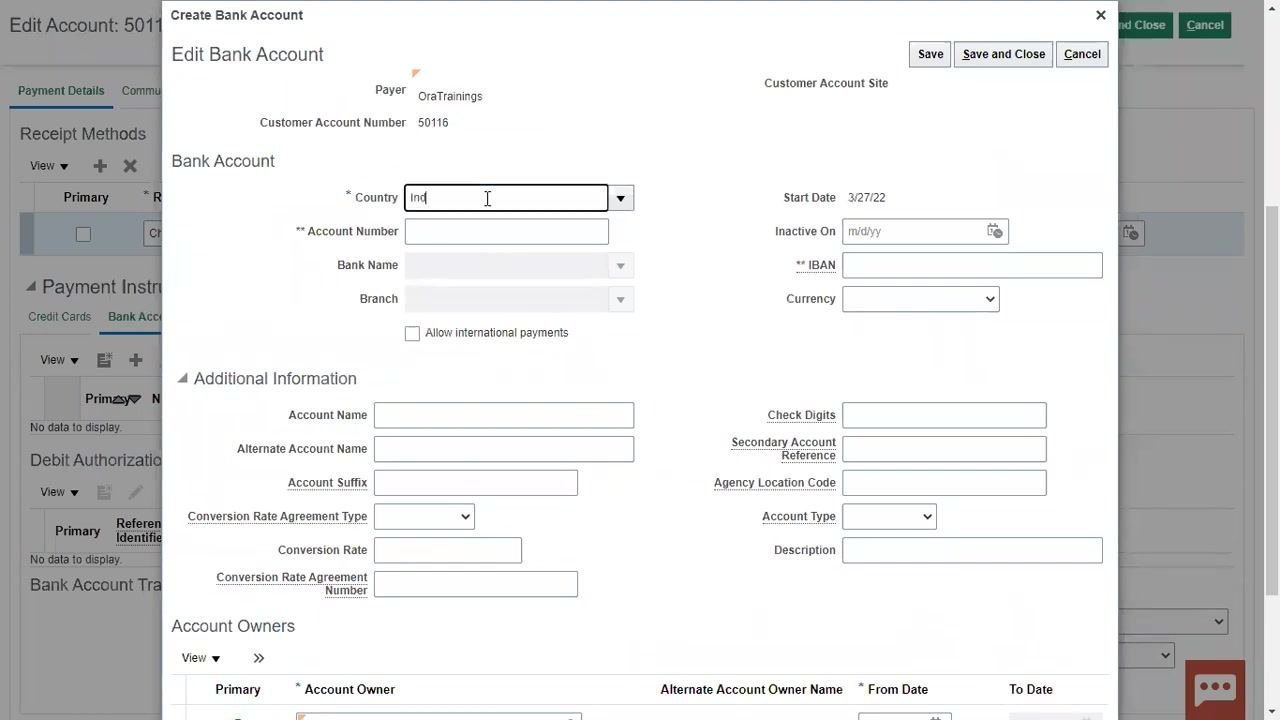
Create the bank account
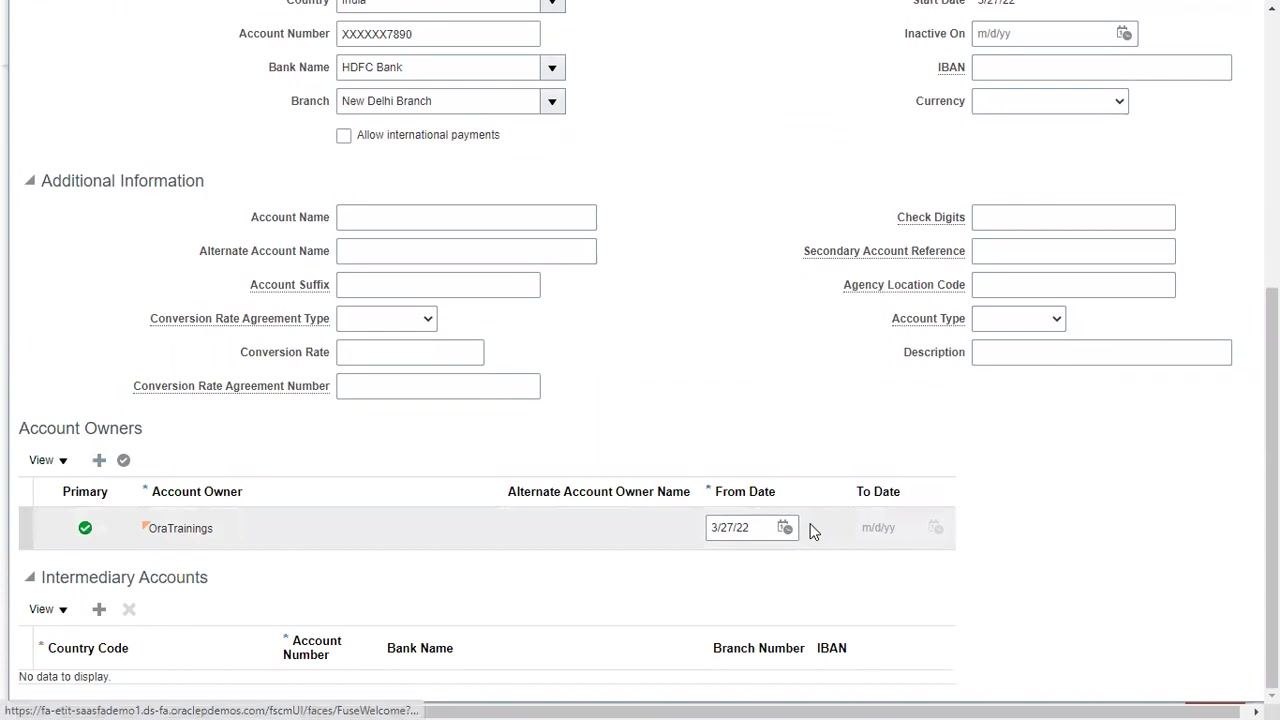
In the Create Bank Account dialog, enter Country (India), Account Number (1234567890), Bank Name (HDFC Bank), Branch (New Delhi Branch), and Start Date (3/27/22). Optionally fill in IBAN, Currency, and any additional information. The Account Owner is set to OraTrainings by default.
Confirm that the Account Owner is automatically set to the organization name (OraTrainings), with the From Date set to 3/27/22. No additional entry is required unless you want to add alternate or multiple account owners.
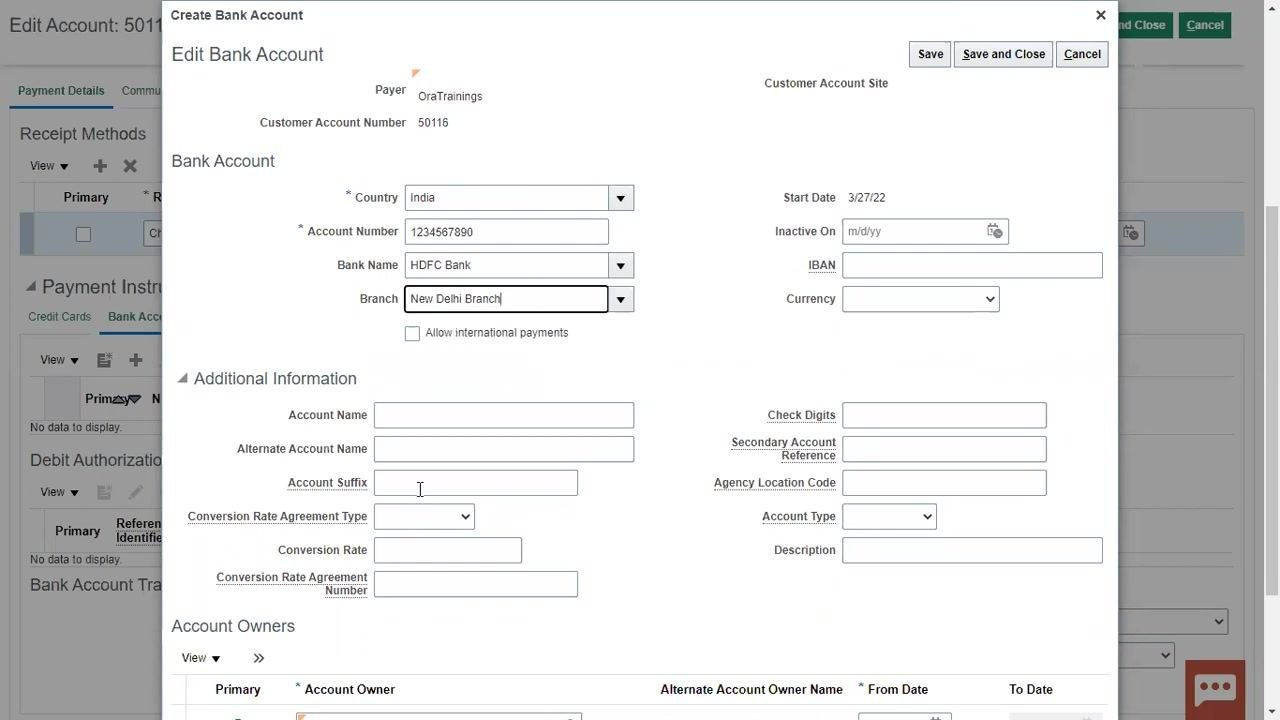
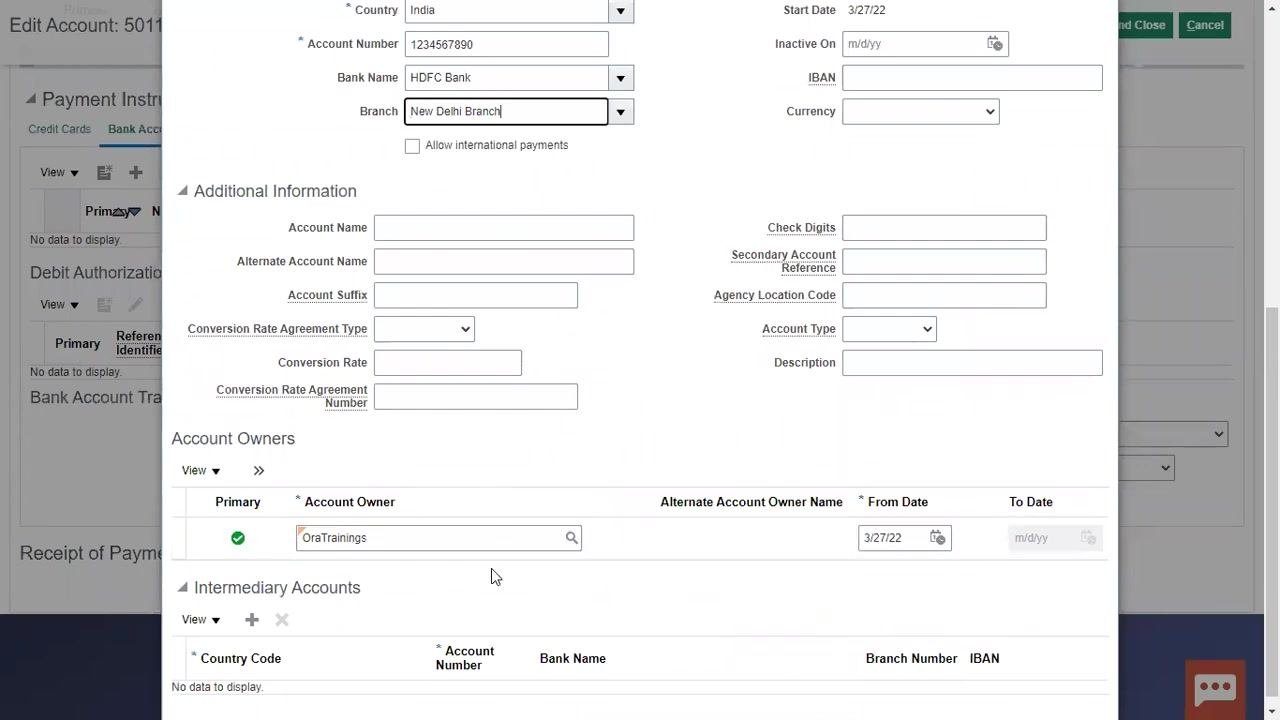
Save the bank account
Click Save and Close to save the bank account details. A confirmation message appears stating "Your bank account has been saved." Click OK to close the confirmation dialog. The new bank account now appears under Payment Instruments > Bank Accounts for the customer, showing a masked account number, bank name, and assignment date.
You can add multiple bank accounts and assign multiple account owners if required. The account owner defaults to the legal name of the customer but can be edited or expanded as needed. Always review all entered details for accuracy before saving.
Add or edit account owners (if required)
Scroll to the Account Owners section. To add another owner, click the plus (+) icon, enter the party name for the new account owner, and specify the From Date for the ownership assignment. You can leave the To Date blank if the ownership is ongoing.
Setting up communication details
Navigate to the Communication tab
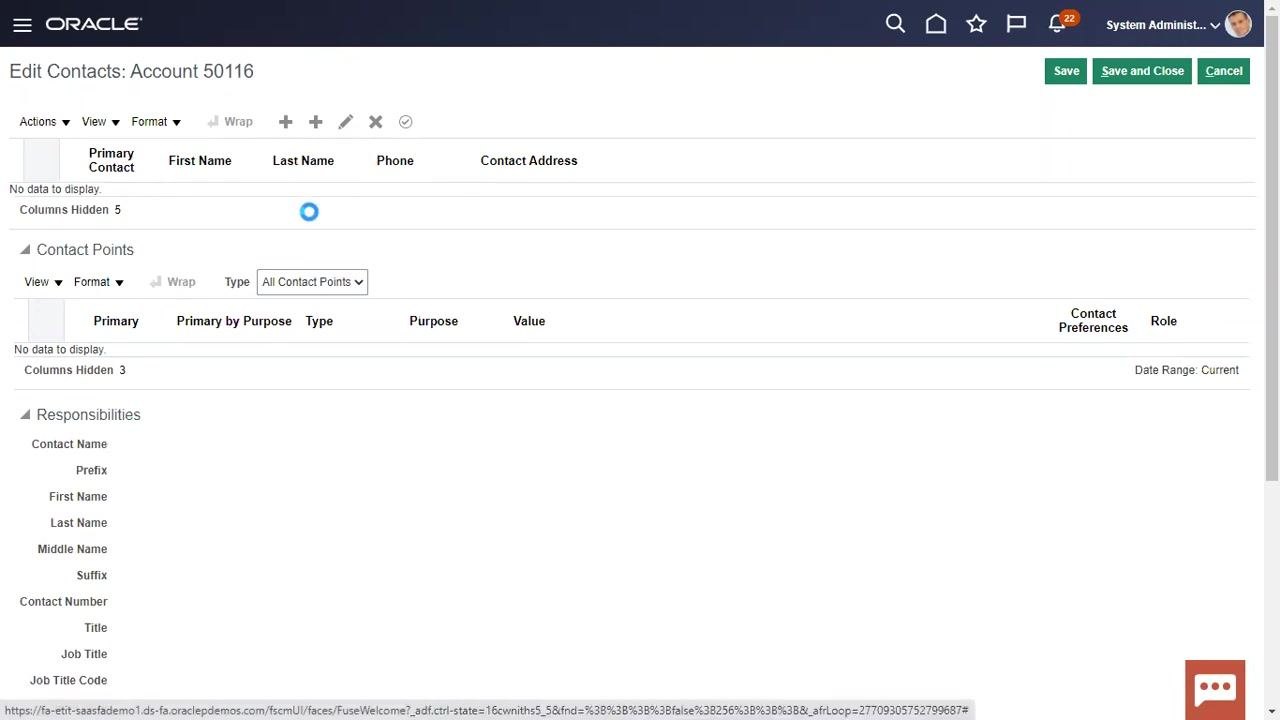
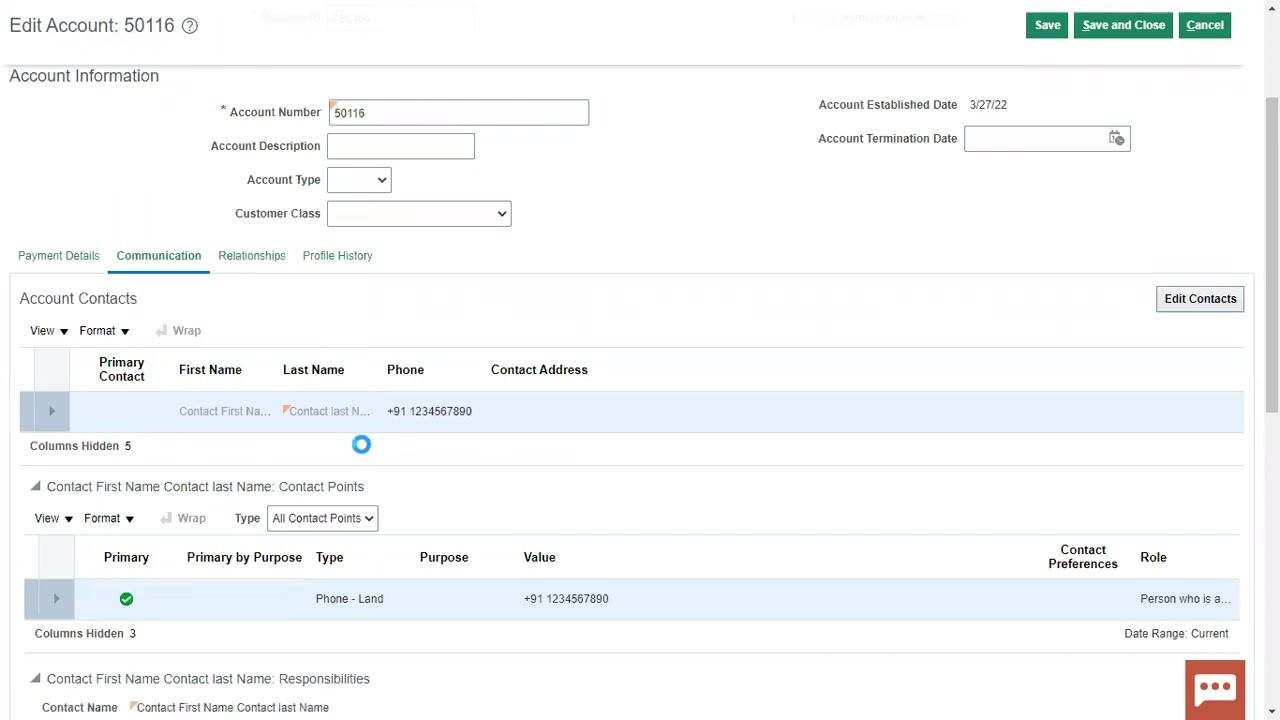
Click the Communication tab next to Payment Details. The Account Contacts section displays, initially showing no contacts. Click Edit Contacts to begin adding a new contact.
Create a new account contact
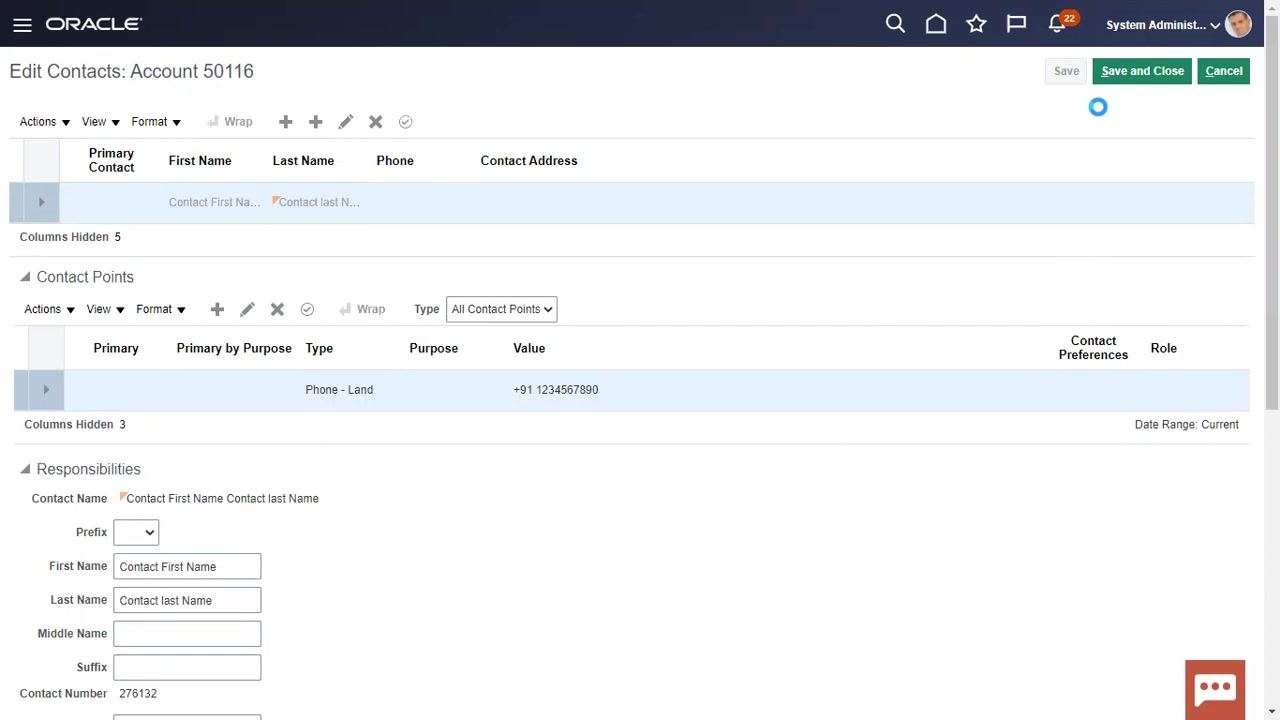
In the Edit Contacts: Account 50116 window, click the plus (+) icon to add a new contact. In the Create Contact dialog, enter First Name (Contact First Name), Last Name (Contact last Name), and Contact Number (276132). You can leave other fields (Prefix, Middle Name, Suffix, Title, Job Title, Job Title Code, Role Type) blank if not required. Click OK to save the contact.
Add another contact point (if required)
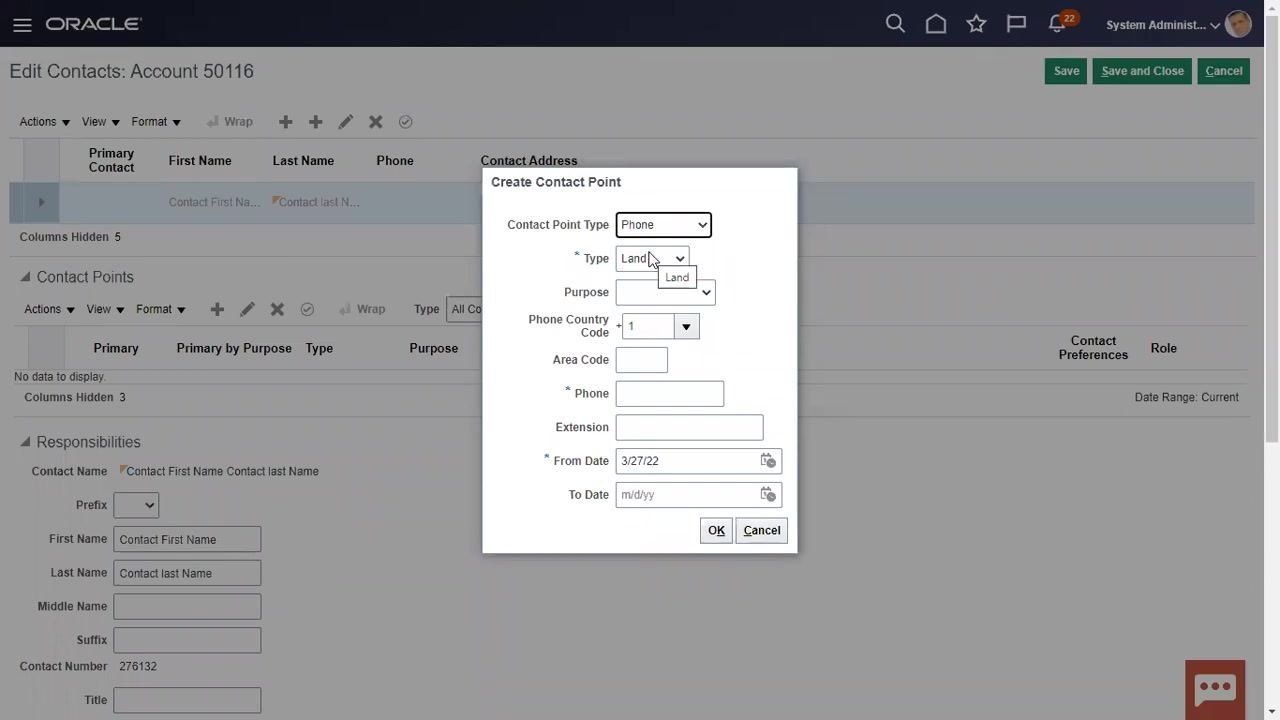
To add another contact point, click the plus (+) icon in the Contact Points section. In the Create Contact Point dialog, select the desired Contact Point Type (for example, Phone, Email, or Fax). For a Phone type, select the Type (Land or Mobile), enter an optional Purpose (such as "Work" or "Personal"), the Phone Country Code (for example, 1 for USA), the Area Code and Phone number, and an Extension if applicable. Set the From Date (for example, 3/27/22), and optionally a To Date if the contact point is temporary. Click OK to save.
Understand auto-generated and editable fields
Some fields in the contact or account creation process may be auto-generated based on system configuration or profile values. You can control whether certain fields are auto-generated or editable by adjusting profile values according to your organization's requirements. Not all options are available for every entity; available choices depend on the specific entity being configured.
Assign a role responsibility
In the Responsibilities section, locate the Role Type dropdown. Click the dropdown and select the appropriate role based on the contact's purpose. Common options include Bill to, Dunning, Acknowledgments, Credit contact, Ship to, Statements, and Subscription Location. For this example, select Bill to.
Save the contact role assignment
Ensure the selected role appears in the Responsibilities section. The contact point and assigned role are now visible in the account's contact details.
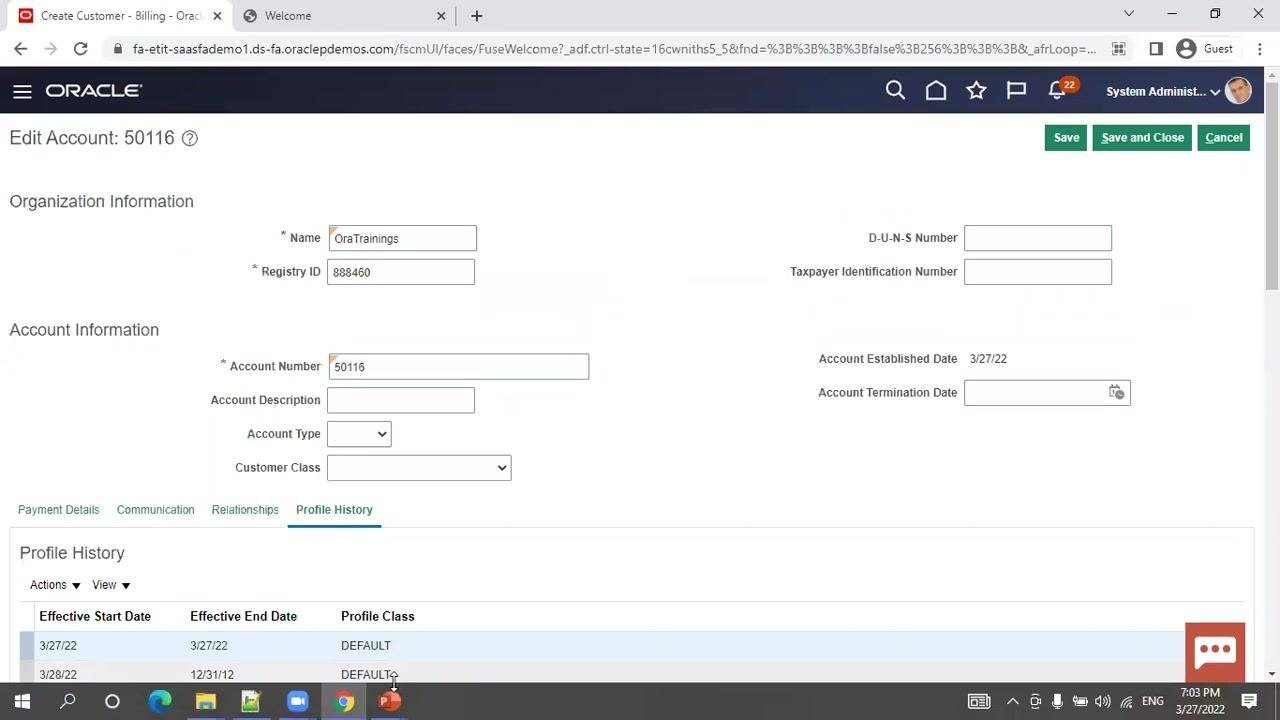
Reviewing profile history
Review the auto-generated profile
Navigate to the Profile History tab and confirm that a profile has been auto-generated for the account, with details such as Profile Class (DEFAULT), Effective Start Date (3/27/22), and Effective End Date (12/31/12 or as shown).
Create or correct an account profile record
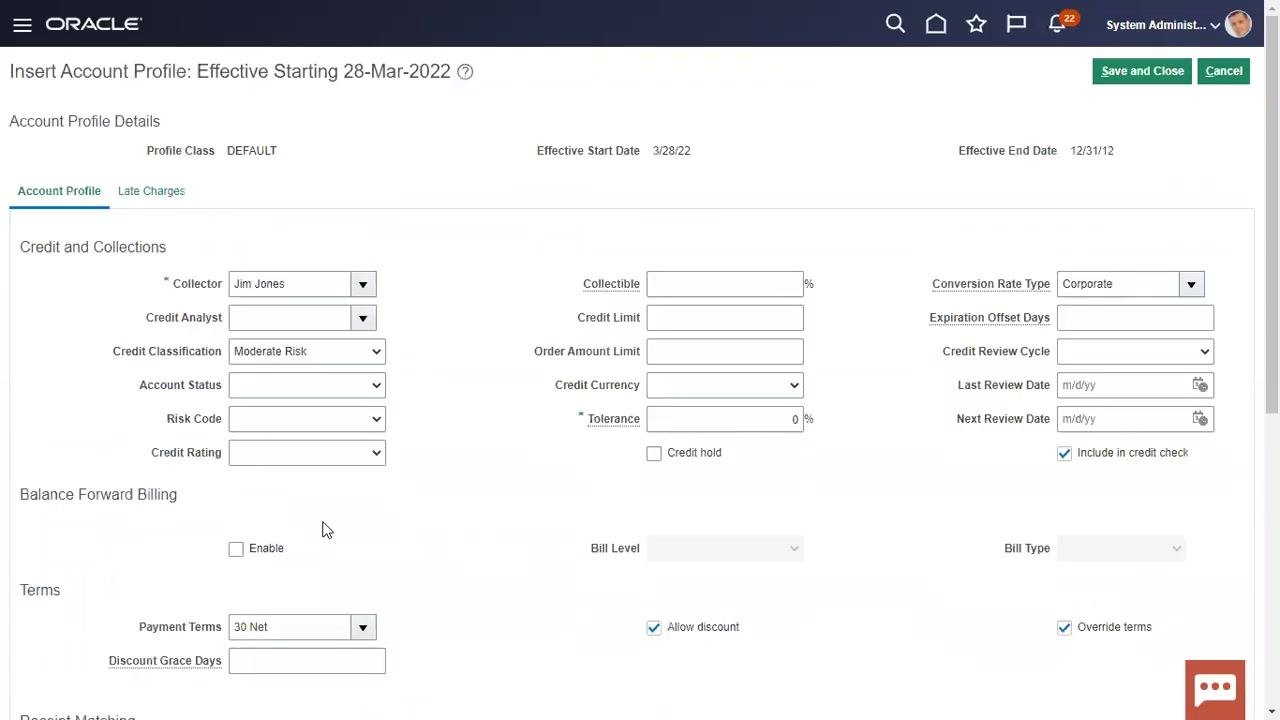
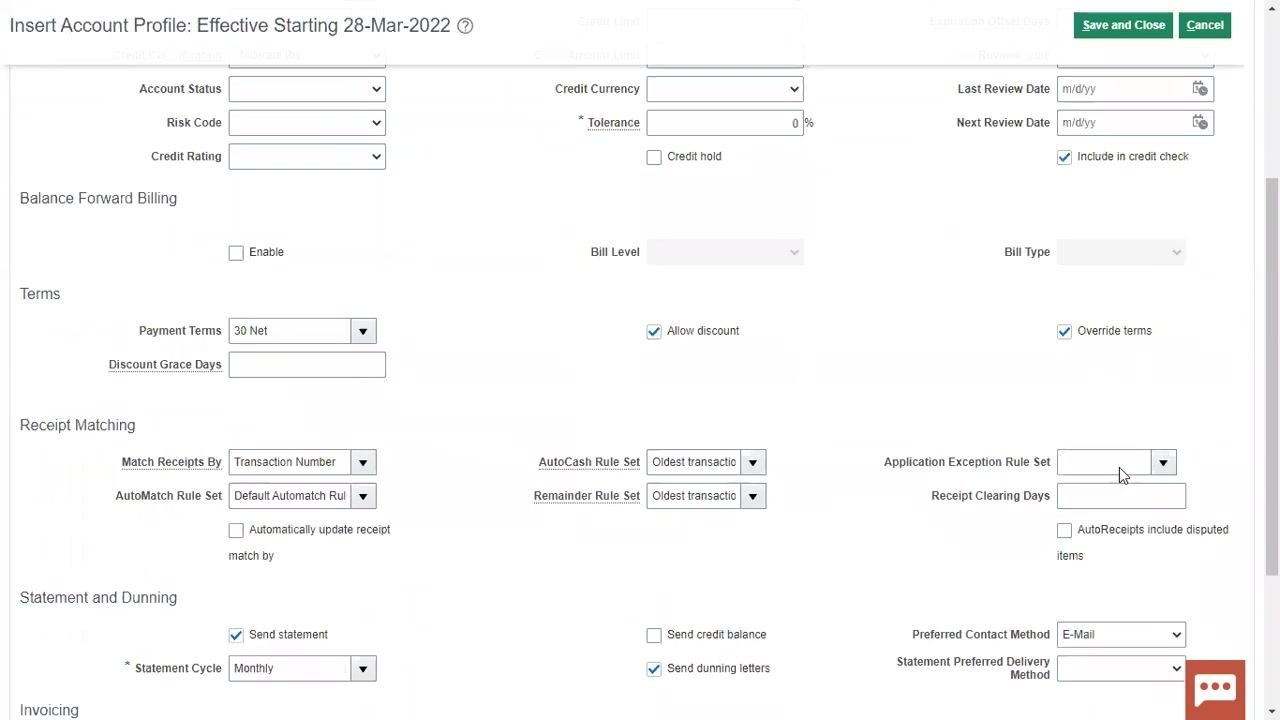
In the Profile History section, click the Actions dropdown and select either Insert Record to create a new profile or Correct Record to update an existing one. Fill in the required profile details, such as Collector (Jim Jones), Credit Classification (Moderate Risk), Tolerance (0%), Payment Terms (30 Net), Statement Cycle (Monthly), and other fields as needed (such as Credit Analyst, Account Status, Risk Code, or Credit Rating).
Save and close the account profile
After entering or updating the profile information, click Save and Close in the upper right corner to save your changes.
Understanding account level vs. site level data
Review the four key entities created
The process involves creating and linking four main entities:
- Party (the parent entity, typically the organization or customer)
- Account (financial account associated with the party)
- Site (physical or logical location related to the account)
- Site Usage (defines how the site is used, such as for billing or shipping)
The Party entity is the parent for the other entities.
Search and reference entities
When searching for or referencing entities, you can use the Organization Name, Registry ID, or Account Number (recommended if you do not remember the party number). The site address you create is automatically set as the primary address for the party.
Understand account level vs. site level data
Account-level information is not shared with the site level, and vice versa. For example, details entered at the account level — such as account profile or contact information — do not automatically appear at the site level. Similarly, information specific to a site remains at the site level and is not visible at the account level. Always verify whether you are working at the account or site level before entering or updating data to ensure it is stored in the correct context.
Reference: TCA entities and tables
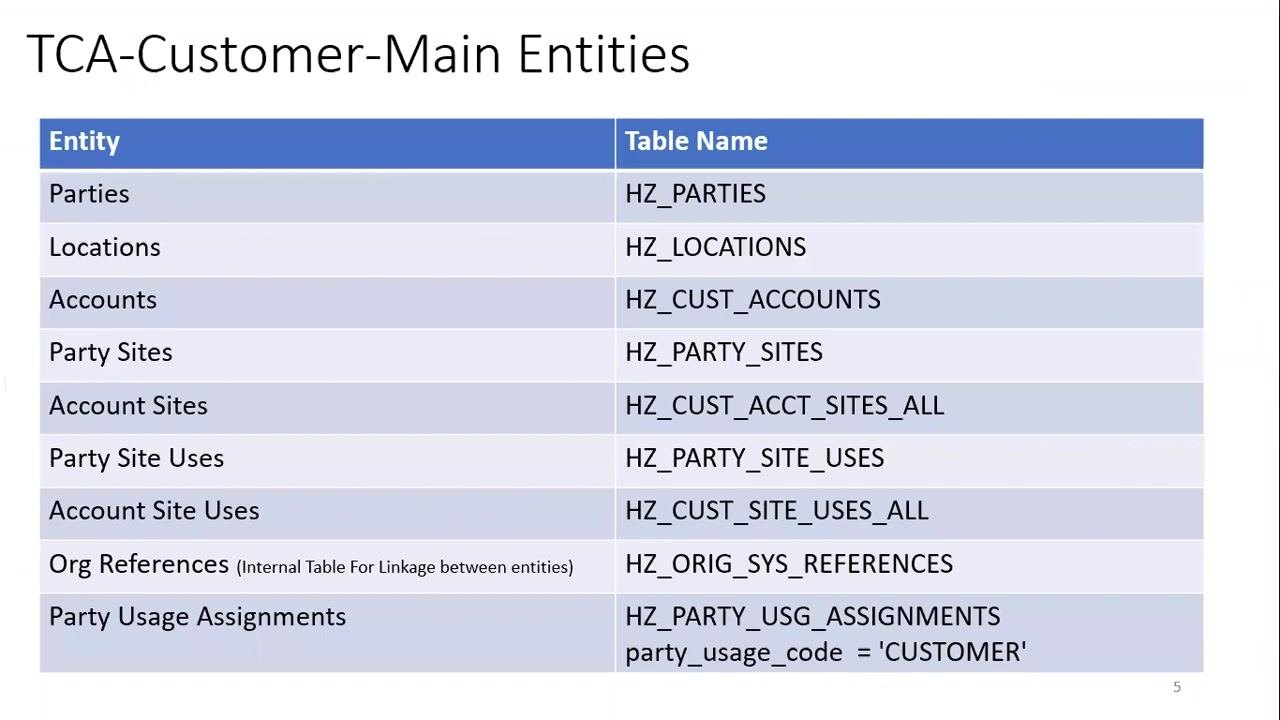
Main TCA entities and tables
Oracle uses a set of core tables to manage customer, account, and site data. Understanding these tables is useful for designing integrations, reports, or customizations. The following table summarizes the main TCA entities and their corresponding table names:
| Entity | Table Name | Notes |
|---|---|---|
| Parties | HZ_PARTIES | Stores party (customer, organization, person) details |
| Locations | HZ_LOCATIONS | Stores address/location information |
| Accounts | HZ_CUST_ACCOUNTS | Stores customer account records |
| Party Sites | HZ_PARTY_SITES | Links parties to locations |
| Account Sites | HZ_CUST_ACCT_SITES_ALL | Stores account site records |
| Party Site Uses | HZ_PARTY_SITE_USES | Stores usage types for party sites |
| Account Site Uses | HZ_CUST_SITE_USES_ALL | Stores usage types for account sites |
| Org References | HZ_ORIG_SYS_REFERENCES | Internal table for linkage between entities |
| Party Usage Assignments | HZ_PARTY_USG_ASSIGNMENTS | Assigns usage codes (such as CUSTOMER) to parties |
The party number is equivalent to the registry ID shown on Oracle screens. The party tables (such as HZ_PARTIES, HZ_PARTY_SITES, and HZ_PARTY_SITE_USES) are interlinked and are also used in other modules. The HZ_PARTY_USG_ASSIGNMENTS table assigns usage codes (such as CUSTOMER) to parties, and the HZ_ORIG_SYS_REFERENCES table is used internally for linking between entities.
When designing reports or integrations, link the HZ_PARTY_USG_ASSIGNMENTS table with the HZ_PARTIES table using the party ID. Use the registry ID (party number) as a key identifier for parties. Party sites and party site uses are critical for mapping addresses and their purposes, and the org references table should be considered for advanced data relationships.
Understand payment details sub-entities
Bank Accounts store payment instrument details such as bank account numbers and ownership. Key tables include:
- IBY_PMT_INSTR_USES_ALL
- IBY_EXTERNAL_PAYERS_ALL
- IBY_EXT_BANK_ACCOUNTS
- IBY_ACCOUNT_OWNERS
Receipt Methods store information about how payments are received. Key tables include:
- RA_CUST_RECEIPT_METHODS
- AR_RECEIPT_METHODS
Understand communication sub-entities
Account Contacts store information about contacts associated with the account, in the key table HZ_CUST_ACCOUNT_ROLES. Contact Points store communication details such as phone numbers and email addresses, in the key table HZ_CONTACT_POINTS. Roles/Responsibilities store roles and responsibilities assigned to contacts, in the key table HZ_ROLE_RESPONSIBILITY.
Understand profile sub-entities
Profiles store customer profile information, including credit limits, payment terms, and other account- or site-specific settings. Key tables include:
- HZ_CUSTOMER_PROFILES_F
- HZ_CUST_PROFILE_CLASSES
Key identifiers
Always use the customer account ID and site ID to link sub-entity records to the correct account or site. These IDs ensure that payment, communication, and profile details are associated with the correct customer records.
What's next
By understanding the separation of account-level and site-level data, along with the structure of the main TCA tables, you can more effectively manage and report on customer information within Oracle. This foundational knowledge supports both functional users and technical implementers working with Oracle Customer Data Management. With your customer record now created and configured, you can proceed to manage additional sub-entities, update profile information as business needs evolve, or use the account and site structure to support billing, shipping, and reporting processes.
Generation details: cost, quality tiers
Docsie billed 7,500 credits ($5.25) to analyze this 15-minute video at standard quality. The rewrite, template fill and Word/PDF exports were included. The same video at each quality tier:
| Quality | Frames sampled | Credits | Approx. cost |
|---|---|---|---|
| Draft | every 16-30 s | 3,750 | $2.62 |
| Standard (this guide) | every 8-15 s | 7,500 | $5.25 |
| Detailed | every 4-7 s | 15,000 | $10.50 |
| Ultra | every 1-3 s | 30,000 | $21.00 |
Credits priced at $0.70 per 1,000; plans include a monthly allowance. Enterprise customers on on-premise or bring-your-own-model deployments run this on their own inference and pay no per-video credits.
Generated by Docsie Video-to-Docs on 2026-10-19 from a 14-minute video. Screenshots are frames from the source video and belong to their creator, Ora Trainings, whose original is embedded above. If you own this video and want the guide removed or credited differently, contact us and we will act within one business day.