
How to Make a Reservation in Opera PMS
This guide walks you through how to make a reservation in Opera PMS, from opening a new reservation and checking available rates to entering guest details, setting payment information, and sending the confirmation to the guest. Follow each step in order to complete a booking correctly in the system.
Video: Opera PMS - How To Create A Reservation by Reception Academy. All credit for the demonstration goes to the creator; watch the original on YouTube. The written guide below was generated from this video by Docsie. Creator? Request a change or removal.
This guide walks you through how to make a reservation in Opera PMS, from opening a new reservation and checking available rates to entering guest details, setting payment information, and sending the confirmation to the guest. Follow each step in order to complete a booking correctly in the system.
Prerequisites
- Access to the Opera PMS reservation screen.
- The guest's basic stay details (arrival date, length of stay, number of guests).
- The guest's contact details (phone number and email address) and, if paying by card, their credit card information.
New reservation
Open a new reservation
To begin creating a reservation in Opera PMS, do one of the following:
- Press F7 on your keyboard, or
- Click the New Reservation button in the Opera PMS interface.
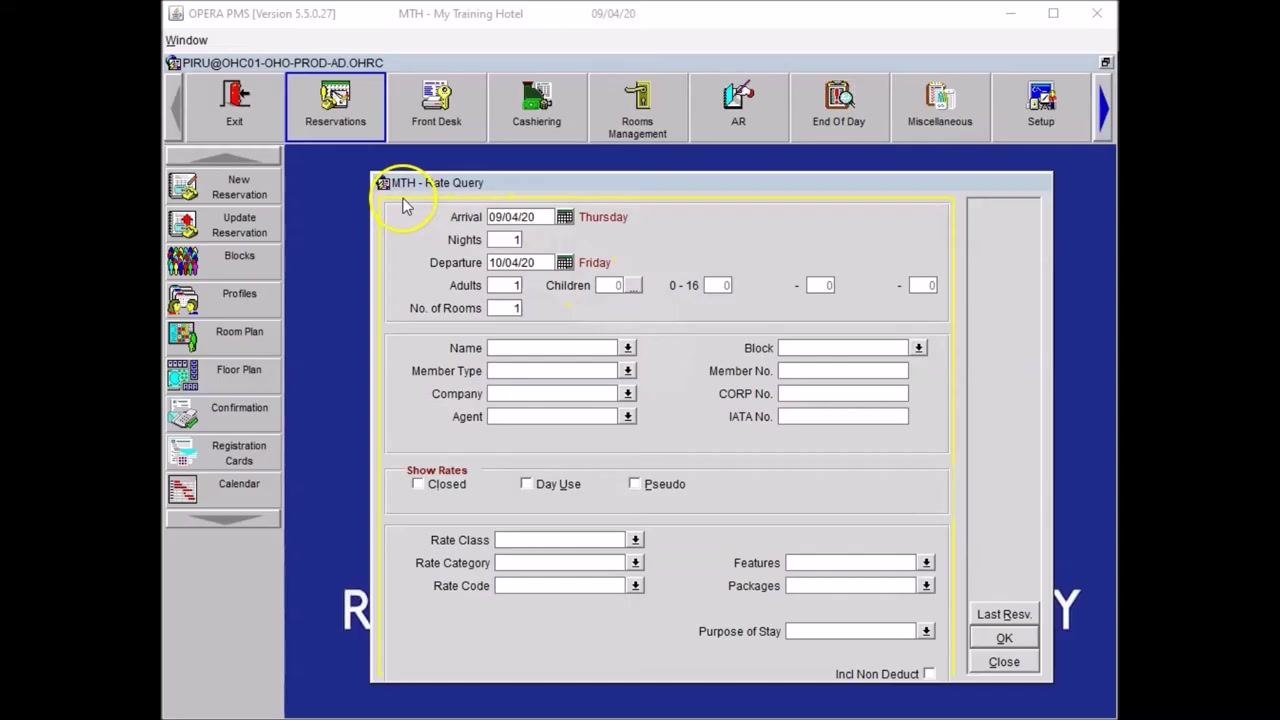
Once you start a new reservation, the Rate Query window opens. You must enter the minimum required information to display available rates:
- Date of stay (Arrival)
- Number of nights
- Number of guests (Adults and Children)
Set the date of arrival
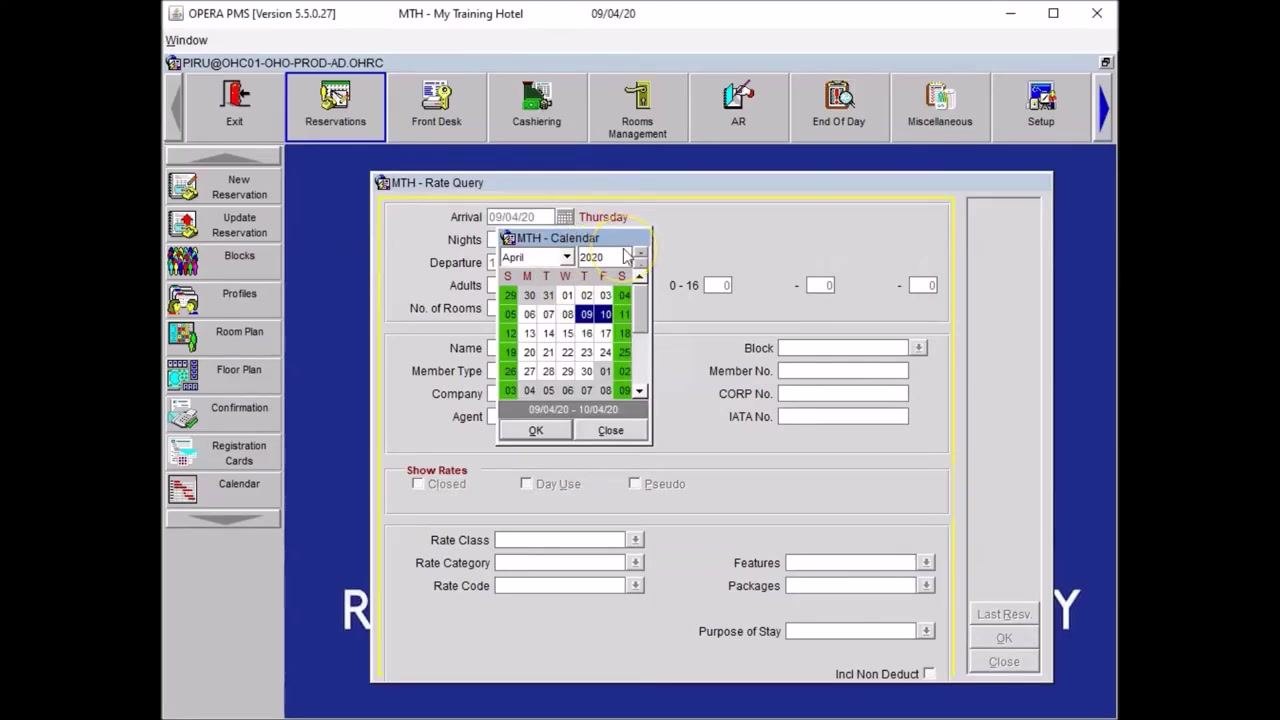
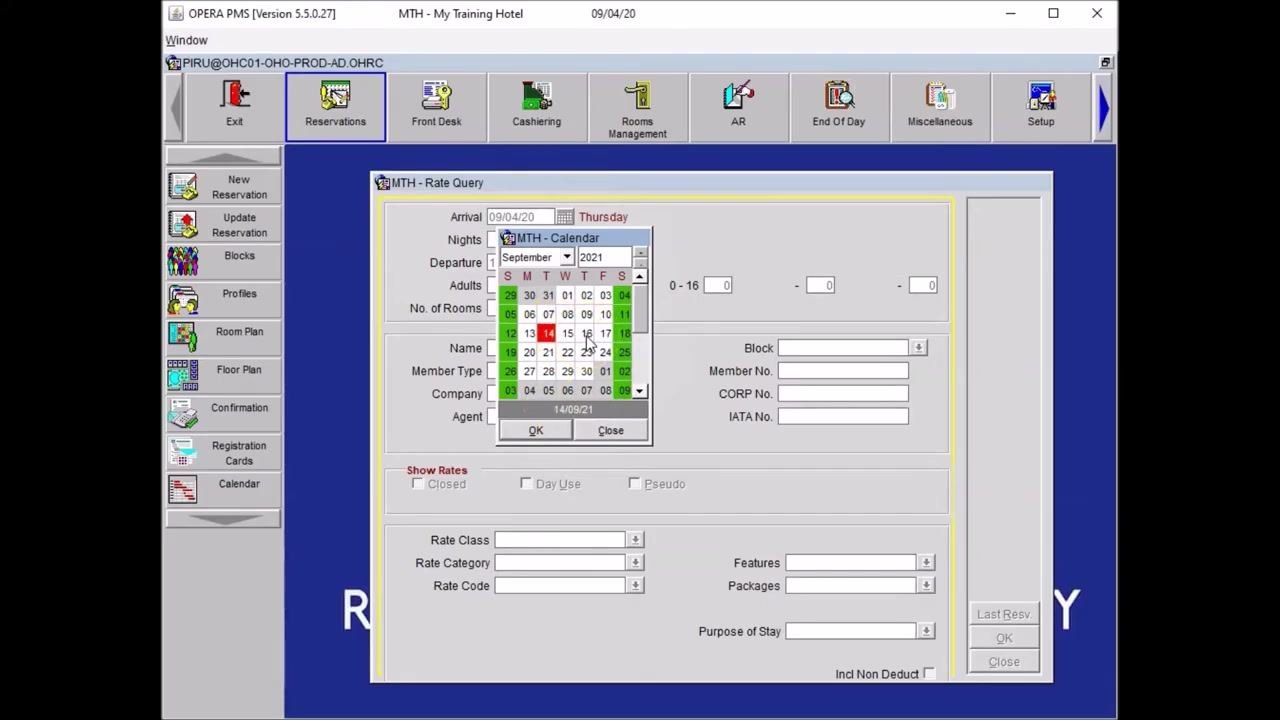
To update the date of arrival, you can either type the date directly into the Arrival field, or click the calendar icon next to it to open the calendar selector.
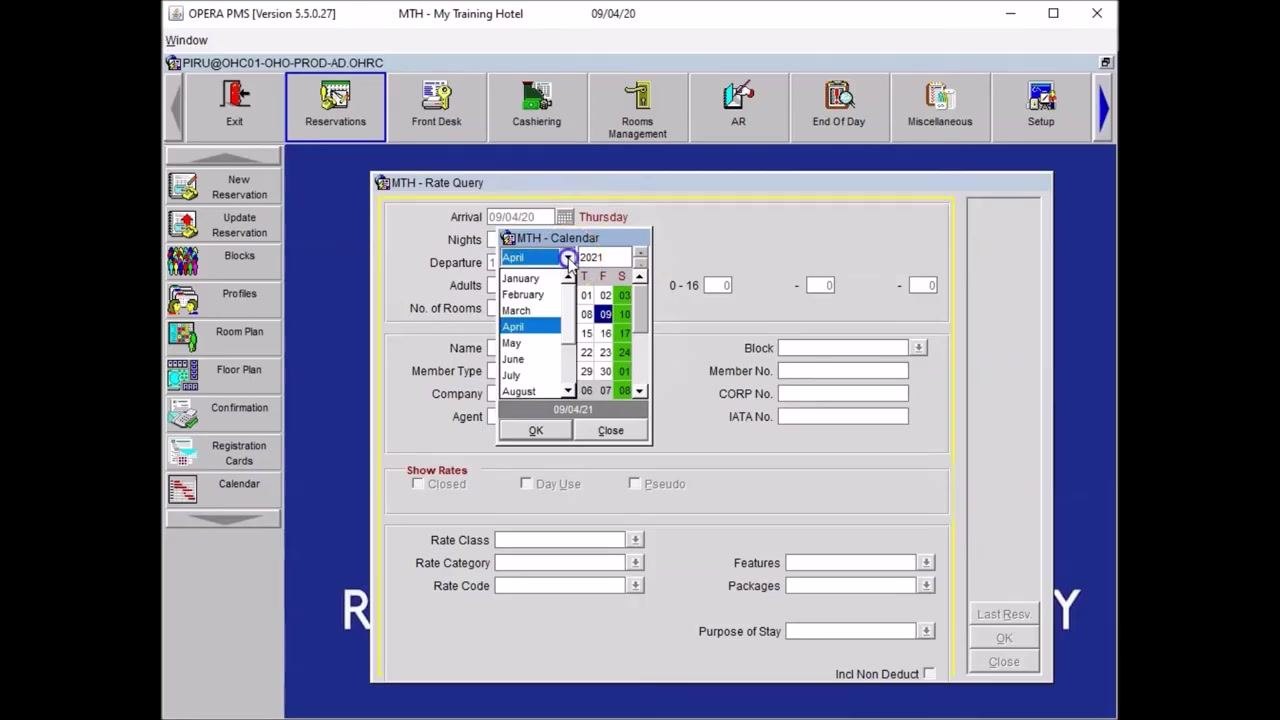
In the calendar selector, select the year using the dropdown (for example, increase the year by one if the guest wants to book for next year). Then click the month dropdown and select the desired month, such as September.
Select the arrival and departure dates
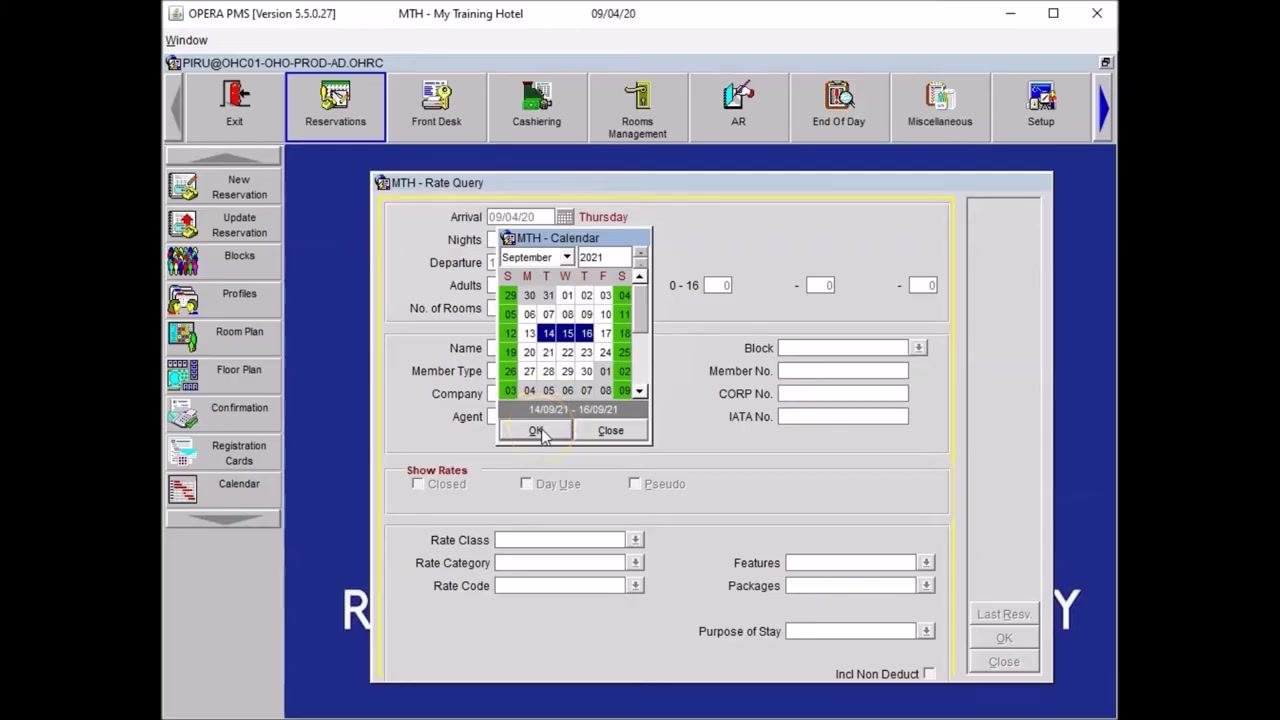
Click once on the desired arrival date, for example 14th September 2021. To book a stay of two nights, click on the departure date, for example 16th September 2021. Confirm that the selected dates are highlighted in the calendar and displayed below the calendar window.
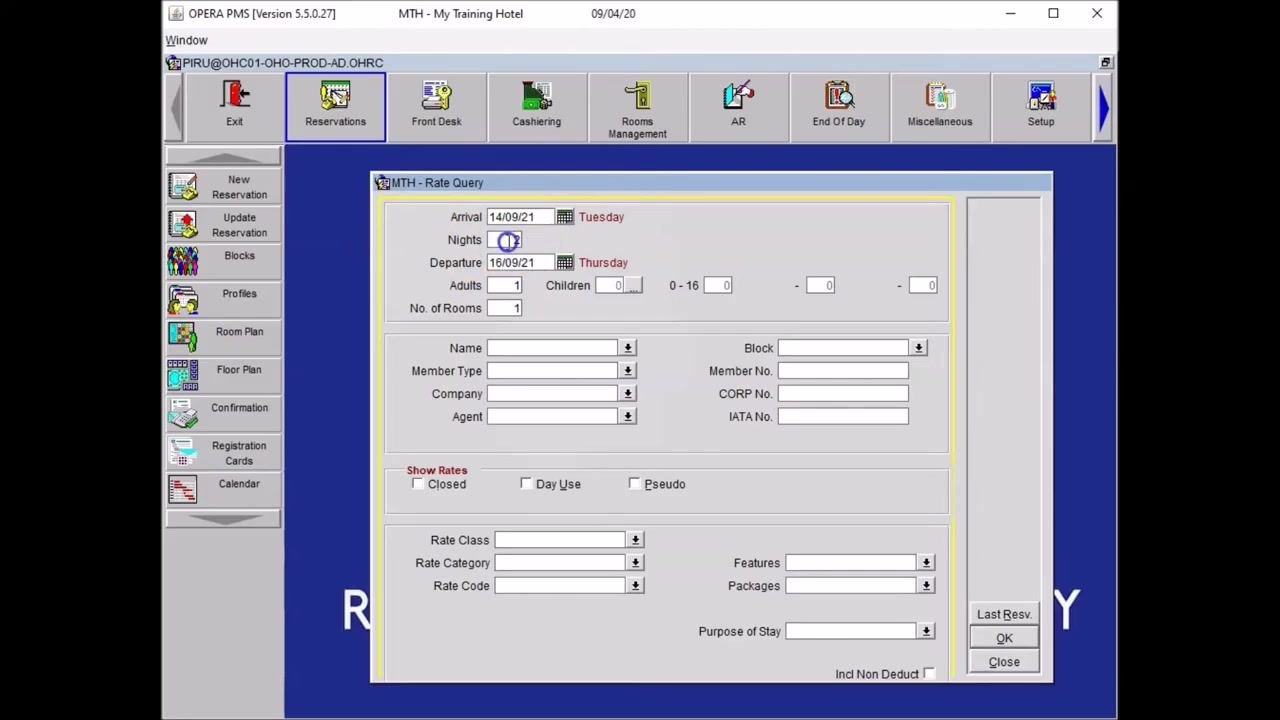
Press the OK button in the calendar window to confirm your chosen dates. The system updates the Arrival, Nights, and Departure fields accordingly.
Adjust the number of nights if needed
If you need to change the number of nights, click into the Nights field and type the new number, for example 3 for a three-night stay. Click into the next field, such as Departure, to update the departure date automatically.
Enter the number of guests
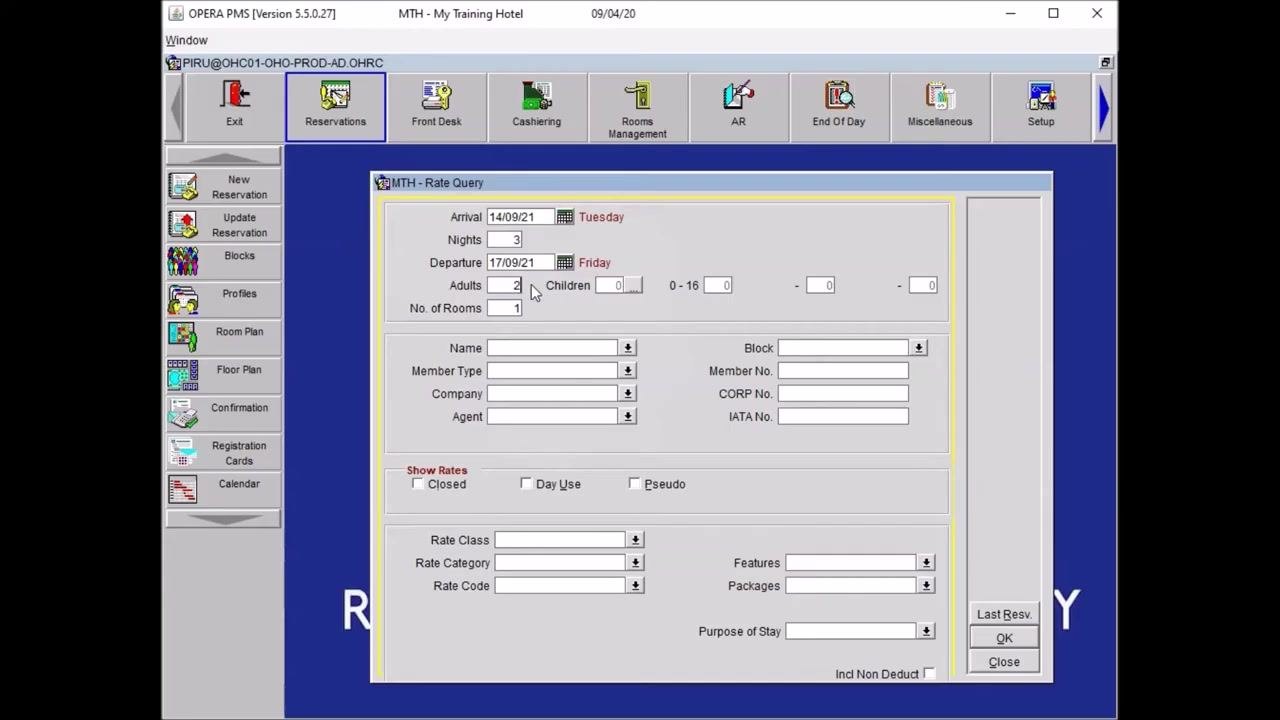
In the Adults field, type the number of adult guests, for example 2. If you want to add children, click the ellipsis (...) button next to the Children field and enter the age(s) of the child(ren) as prompted. Children aged 0–16 can stay in the room with parents. If no children are staying, leave the field at 0.
Review your reservation query
Ensure the following fields are correctly filled:
- Arrival: 14/09/21 (Tuesday)
- Nights: 3
- Departure: 17/09/21 (Friday)
- Adults: 2
- Children: 0
- No. of Rooms: 1
If all information is correct, proceed to the next step.
Confirm the query
Press OK to move to the next page and view the available rates and room types.
Rate query details
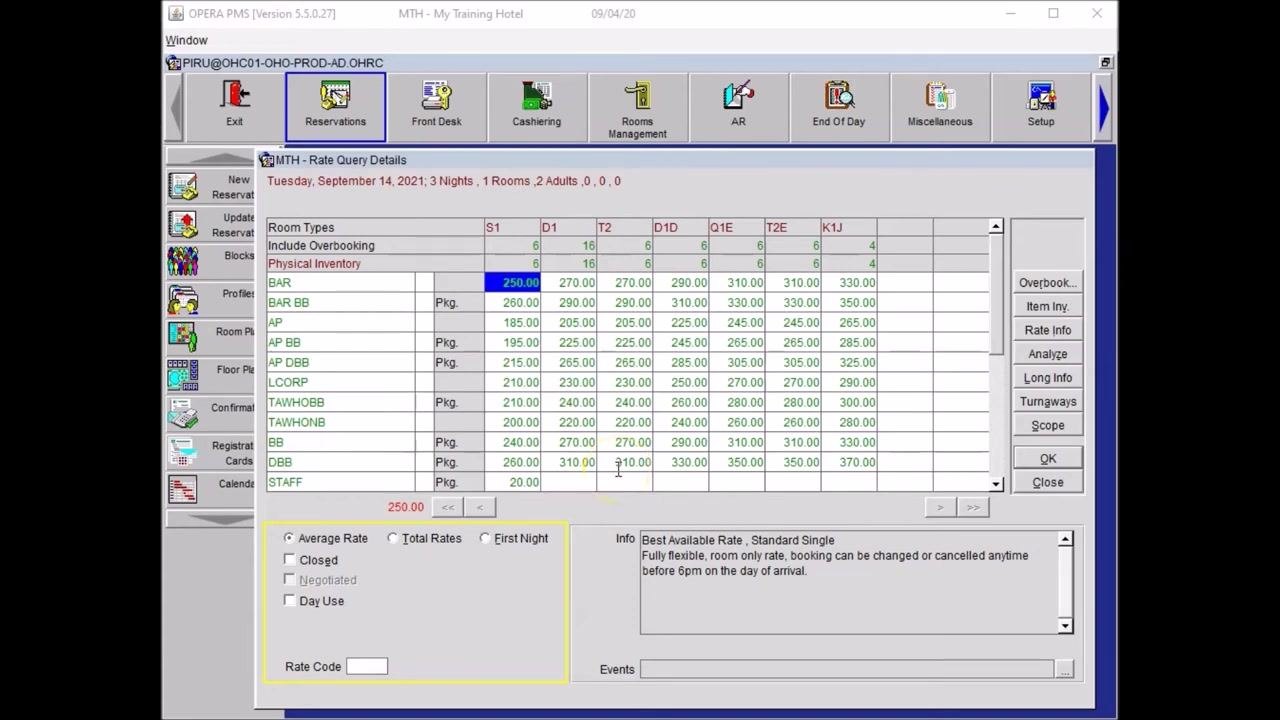
Review the Rate Query Details grid
At the top of the grid, confirm your reservation summary: Tuesday, September 14, 2021; 3 Nights; 1 Room; 2 Adults. View the list of available room types and their rates for your selected dates. The grid displays:
- Room types (for example, BAR, BAR BB, AP, AP BB)
- Rate codes (for example, S1, D1, T2)
- Available inventory (number of rooms left)
- Prices for each room type and rate code
View room type details
For more information about a room type, click on its letter code, for example D1. A description and photo of the room type, such as "Standard Double," is displayed.
Review rate codes and descriptions
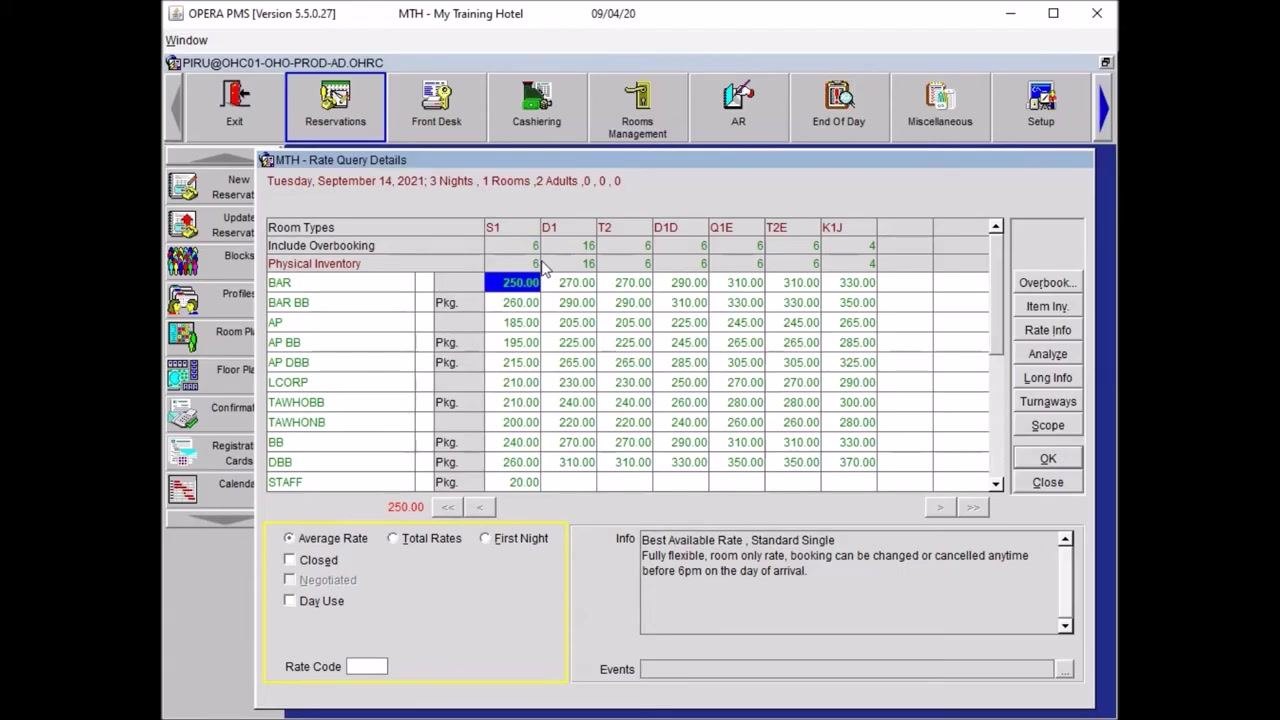
In the Rate Query Details grid, review the list of rate codes (for example, BAR, BAR BB, AP) and their corresponding prices for each room type. The description for the selected rate appears in the Info box at the bottom right of the screen. For example, selecting the BAR rate code for a single room (S1) displays "Best Available Rate, Standard Single. Fully flexible, room only rate, booking can be changed or cancelled anytime before 6pm on the day of arrival."
Select a rate code based on guest requirements
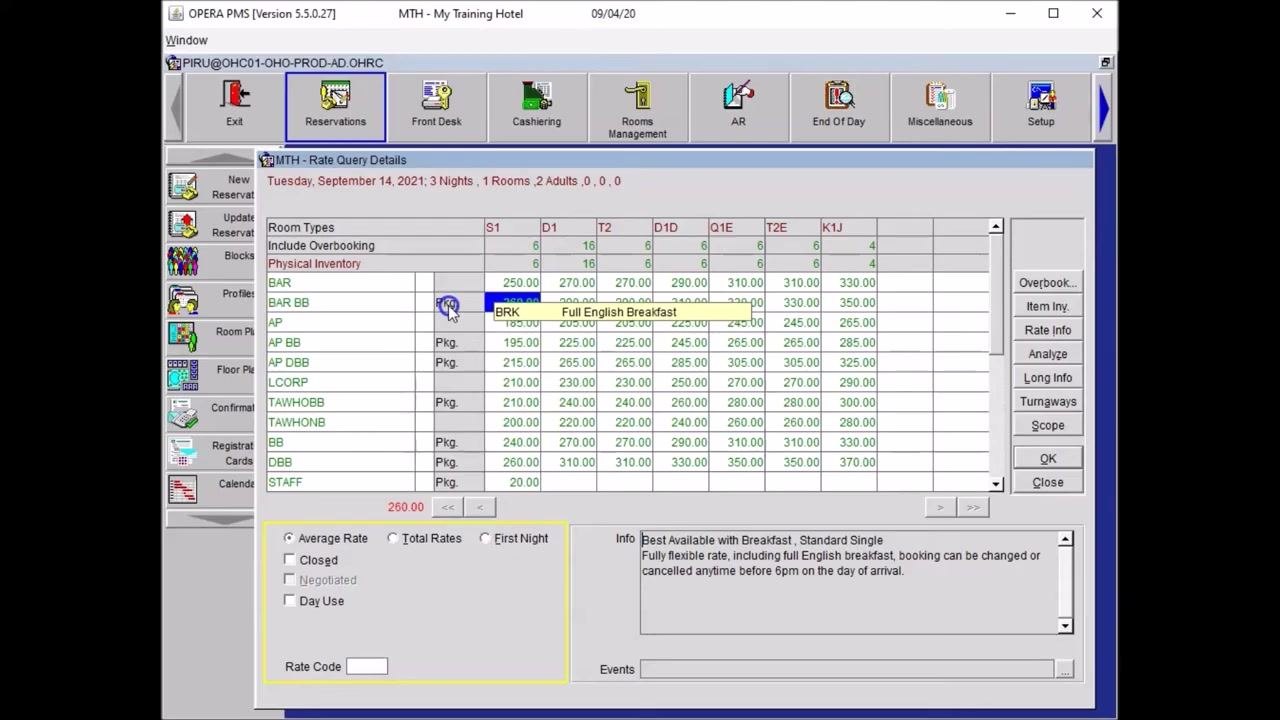
If the guest wants a room with breakfast included, select the next line, for example BAR BB. The "Pkg." label indicates a package rate, such as breakfast included. The Info box updates to show details like "Best Available with Breakfast, Standard Single. Fully flexible rate, including full English breakfast, booking can be changed or cancelled anytime before 6pm on the day of arrival."
Select an appropriate room type for multiple guests
For single occupancy, the breakfast package is charged per guest, for example £10 extra for one guest. If you have selected two adults but try to book a single room, the system displays an error message, so make sure the room type matches the number of guests.
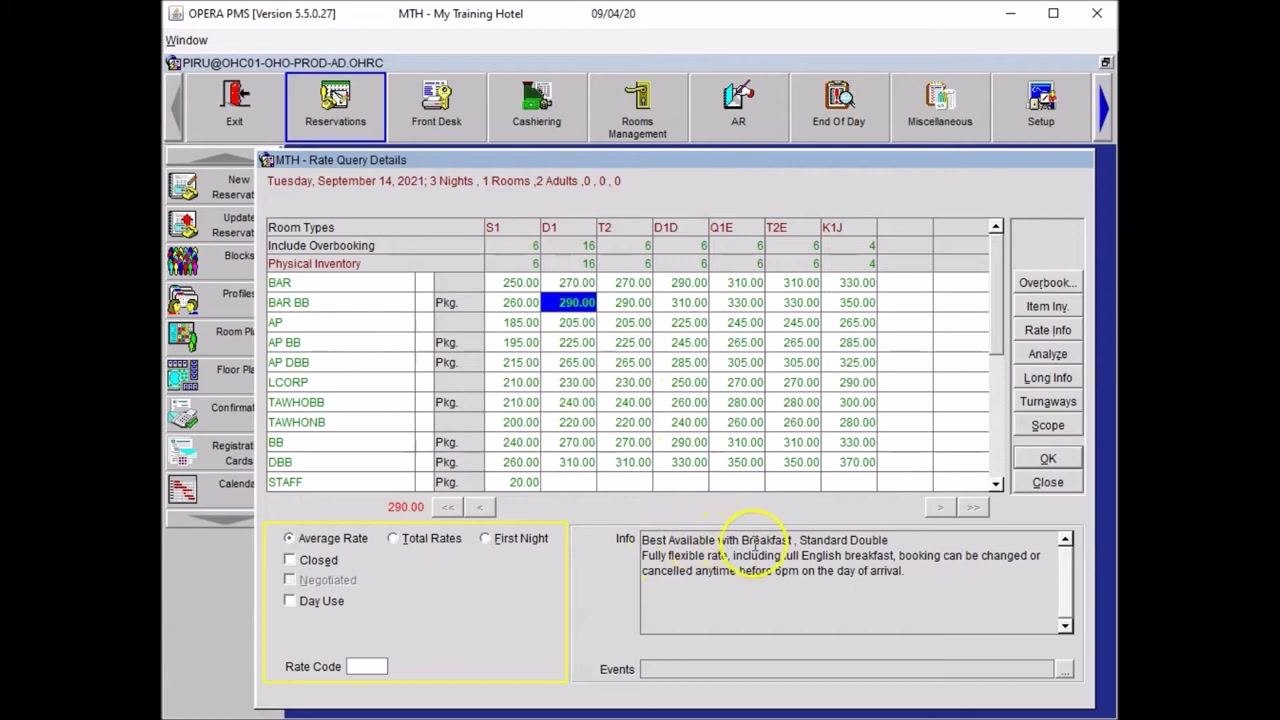
For two adults, select a double room, for example D1 under BAR BB. Click once on the desired rate and room type combination, such as BAR BB for D1 at £290.00. The Info box updates to "Best Available with Breakfast, Standard Double. Fully flexible rate, including full English breakfast, booking can be changed or cancelled anytime before 6pm on the day of arrival."
Confirm your selection
Once you are satisfied with your choice, either double-click the selected rate or press OK to move to the next page.
Reservation mask
Complete the Reservation Mask
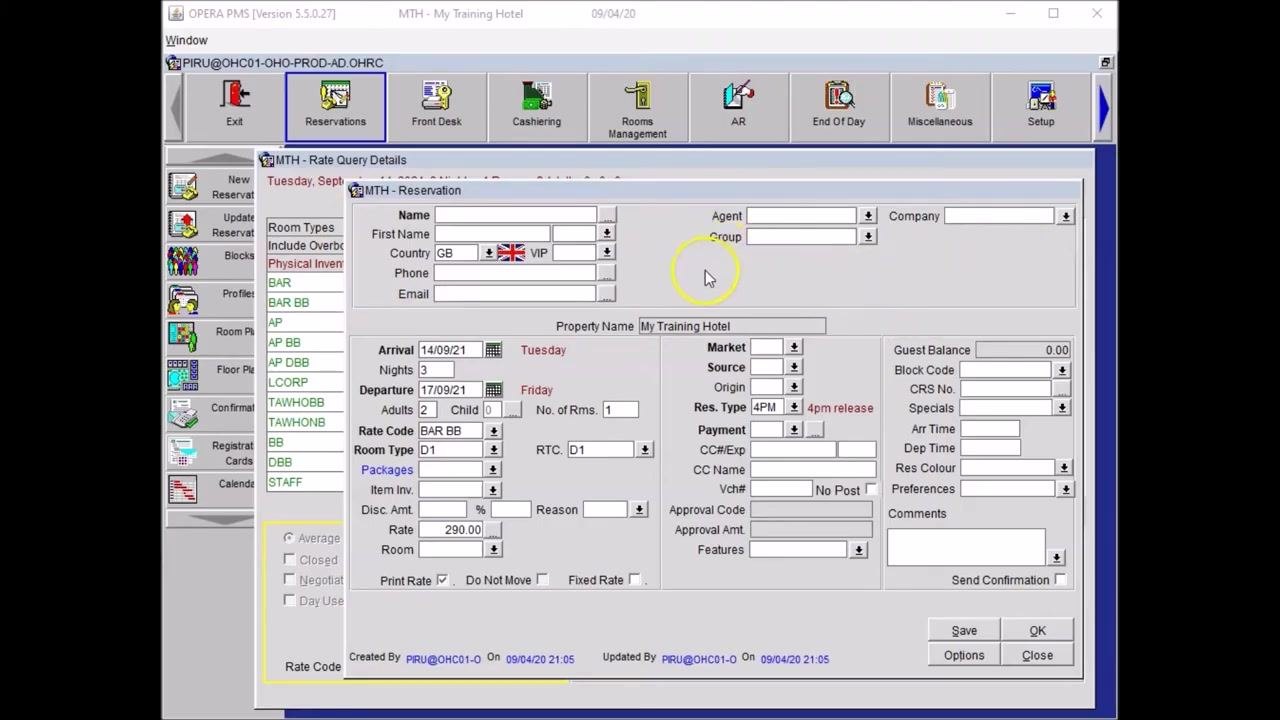
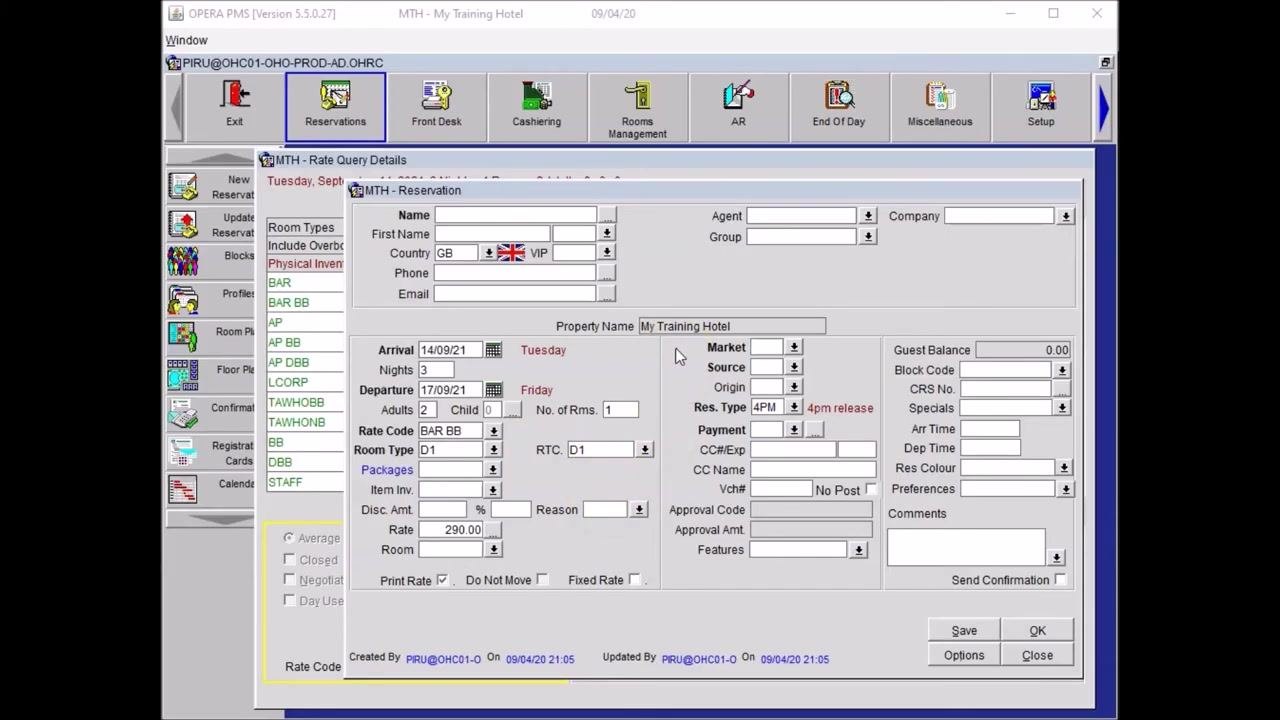
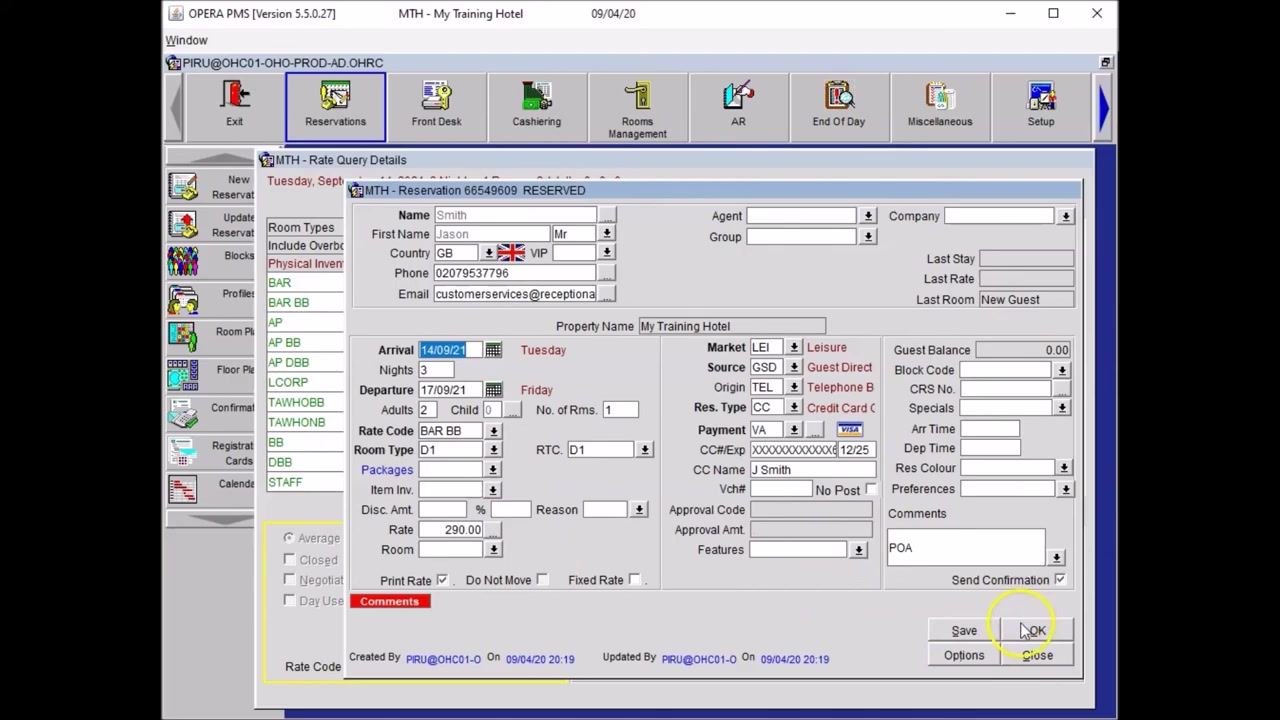
The Reservation Mask window appears, divided into four sections:
- Guest Information: Enter the guest's first name, country, phone, email, and any VIP status.
- Company/Agent/Group: If the guest is associated with a company, travel agency, or group, enter the relevant details in the top right fields.
- Reservation Details: Review and confirm the details carried over from the previous screen, including Arrival 14/09/21 (Tuesday), Nights 3, Departure 17/09/21 (Friday), Adults 2, Children 0, No. of Rooms 1, Rate Code BAR BB, Room Type D1, and Rate 290.00.
- Additional Details: Fill in market, source, payment information, preferences, comments, and any other required fields.
Fields displayed in bold, such as Name, Arrival, and Departure, are mandatory. You must complete all bold fields; the system will not allow you to save or complete the reservation if any are left empty.
Enter the guest's name
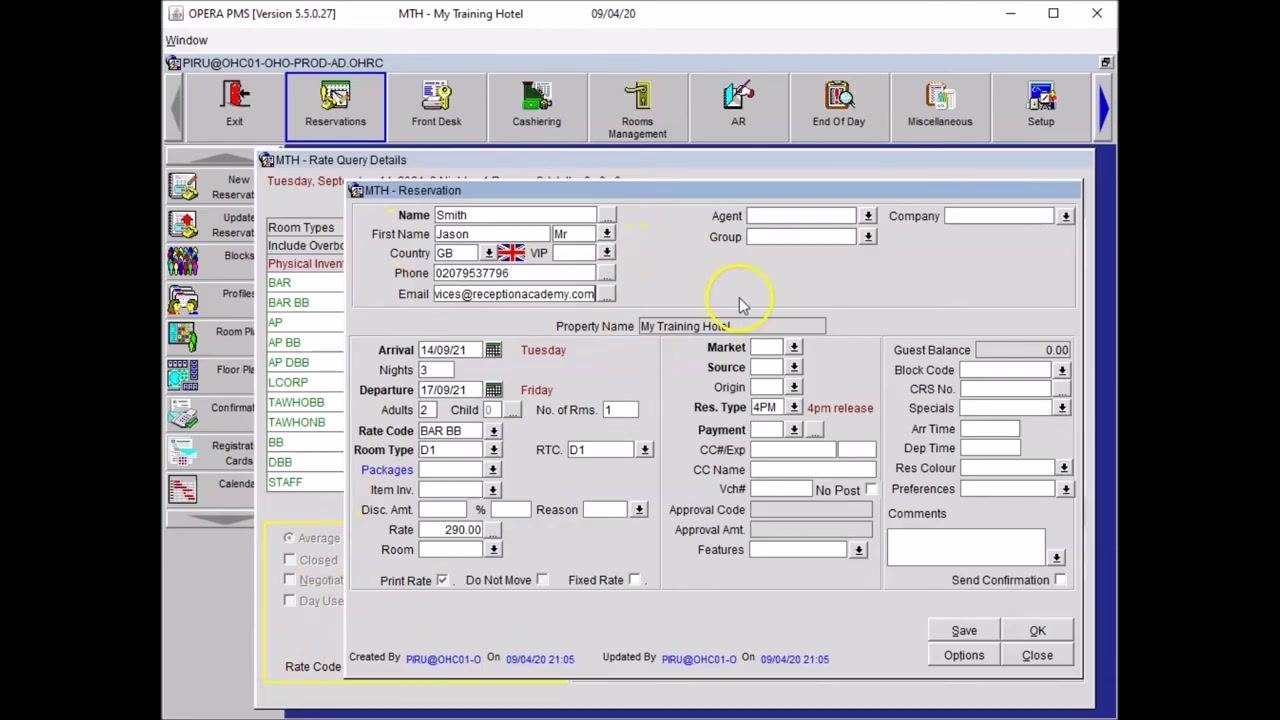
In the "Name" field, type the guest's last name, for example Smith. In the "First Name" field, type the guest's first name, for example Jason.
Handle the duplicate profile check
Press the OK button to save the entered information. If you click elsewhere or attempt to save, the system may prompt you with a profile check window.
If a profile with the same name exists, a new window appears asking you to confirm whether the guest has stayed before. Check the telephone number and email address to verify if it is the same guest. If the guest has never stayed before, press the Close button to dismiss the window. If the guest confirms the details match, select the profile and press OK to use the existing profile.
Select the guest title
In the "Title" field, click the dropdown menu and select the appropriate title, for example Mr for Mister. The "Country" field does not need to be updated during reservation creation; this will be handled during check-in. The "VIP" field is not required at this stage.
Enter the telephone number
In the "Phone" field, type the guest's telephone number, for example 02079537796.
Complete the guest information
In the "Email" field, type the guest's email address, for example customerservices@receptionacademy.com. Ensure all guest information fields are filled as required. The first column of the reservation form should now be complete.
Market, source, origin, reservation type, and payment
Update the market field
After completing the guest and contact details, proceed to the next column on the reservation form. This column includes fields for Market, Source, Origin, Reservation Type, and Payment.
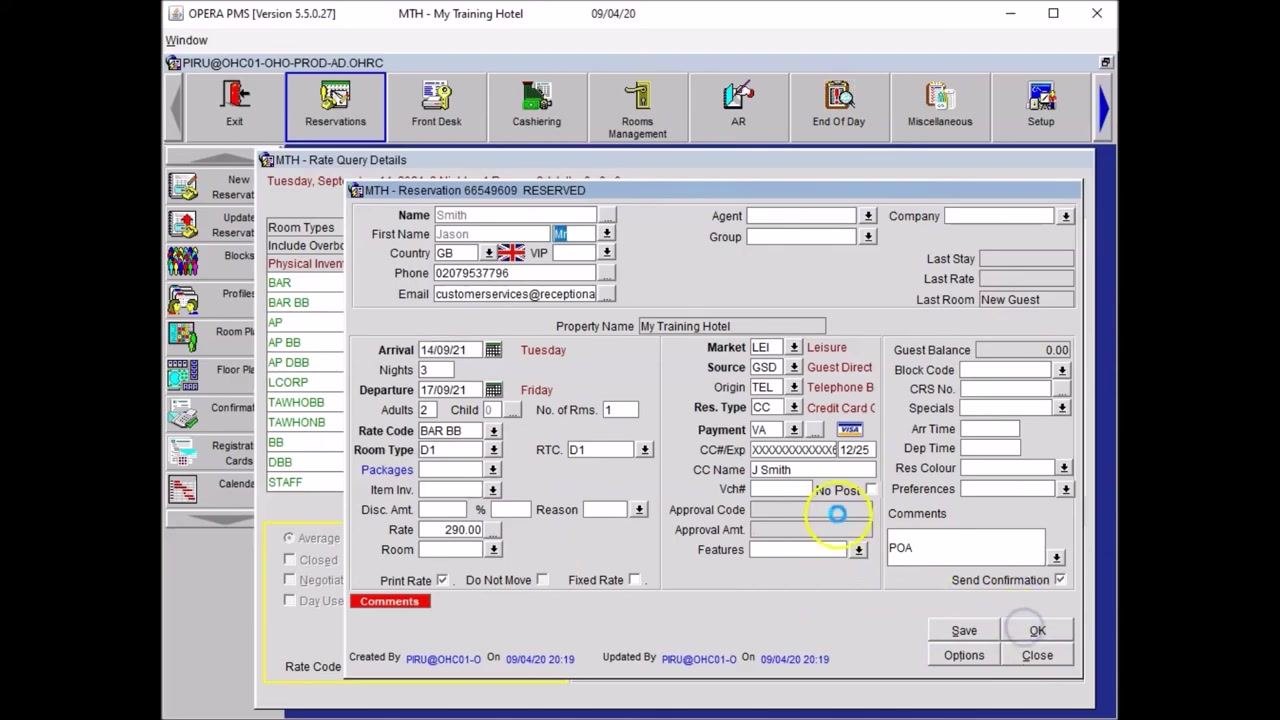
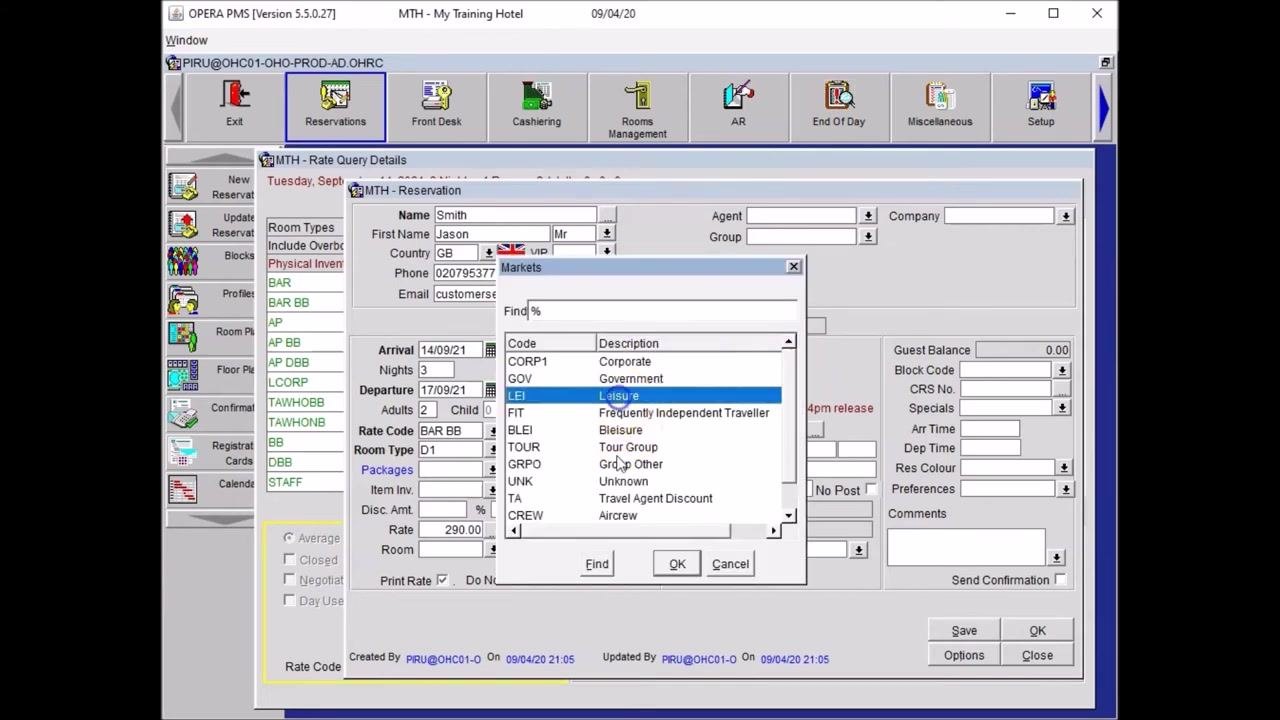
Click on the "Market" field to open the Markets selection window. A list of market codes and descriptions appears, for example CORP1 (Corporate), GOV (Government), LEI (Leisure), FIT (Frequently Independent Traveller), and TOUR (Tour Group). Select the appropriate market for the reservation; for this example, select "LEI" (Leisure).
Select the source
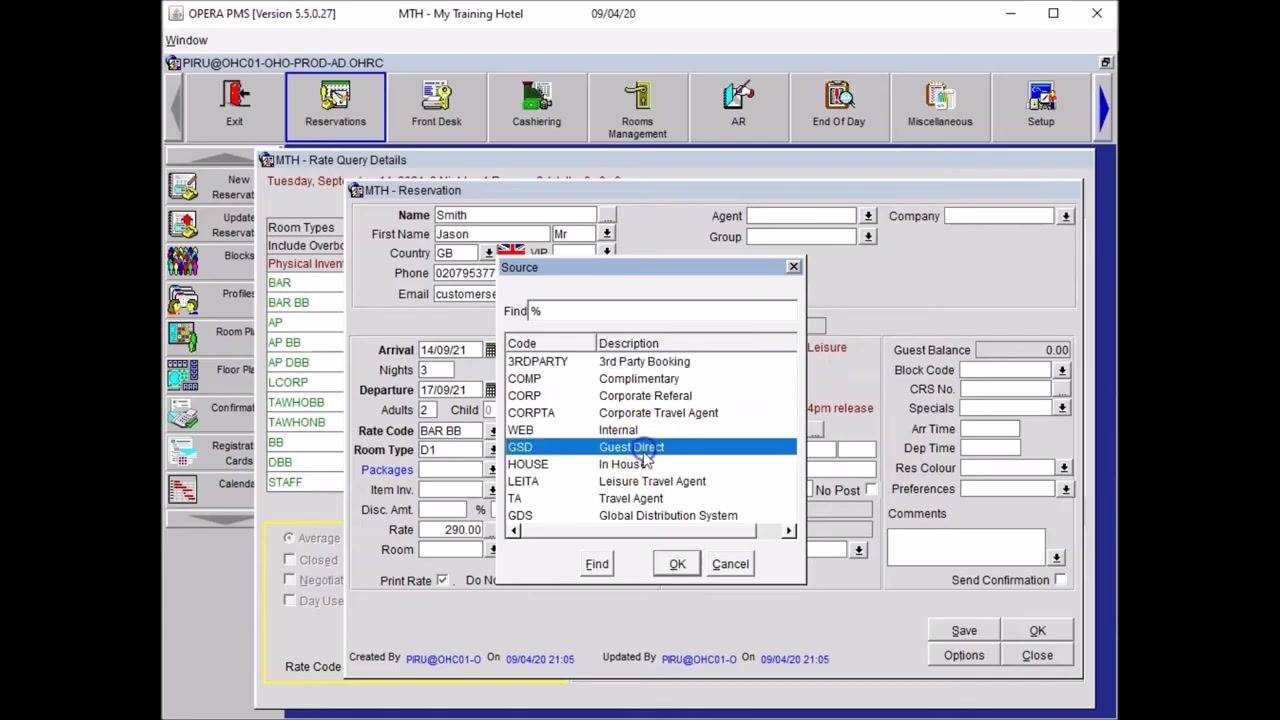
Click on the "Source" field to open the Source selection window. The source indicates who or what made the booking, for example 3RDPARTY (3rd Party Booking), COMP (Complimentary), GSD (Guest Direct), HOUSE (In House), or TA (Travel Agent). For this example, select "GSD" (Guest Direct).
Specify the origin
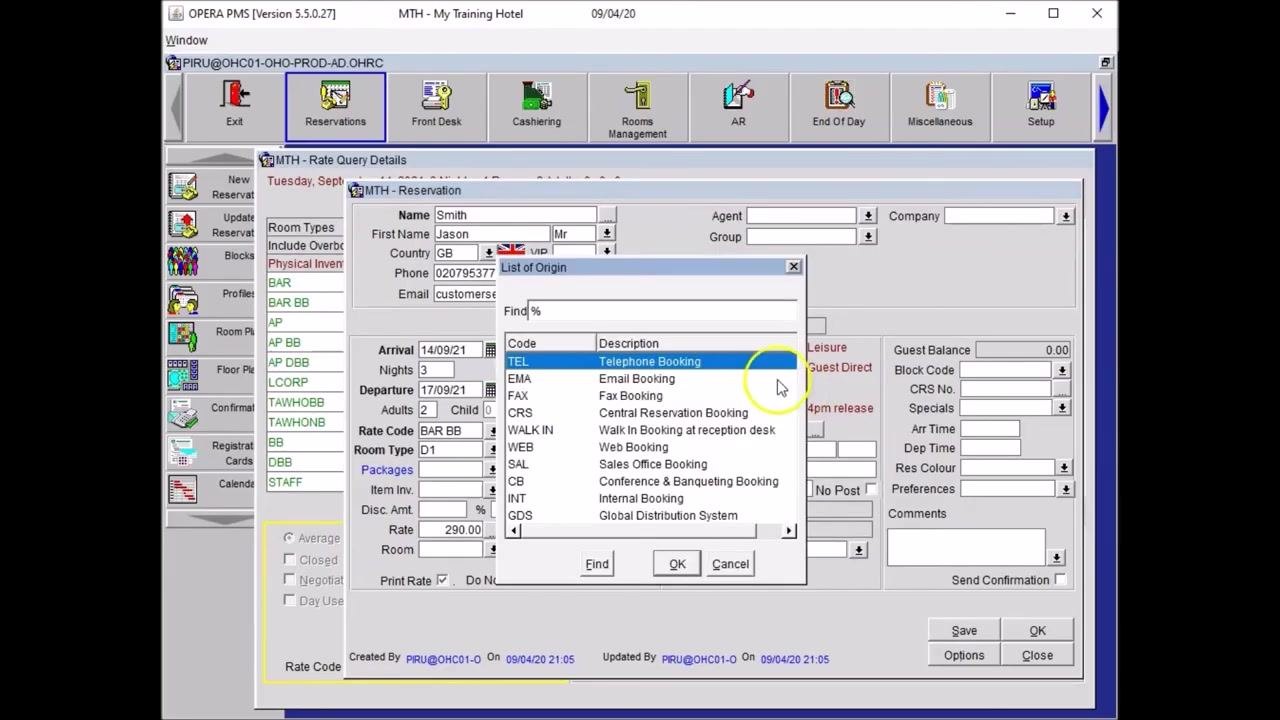
Click on the "Origin" field to open the List of Origin window. The origin field specifies the channel of distribution, meaning how the reservation was made, such as TEL (Telephone Booking), EMA (Email Booking), FAX (Fax Booking), WALK IN (Walk In Booking at reception desk), or WEB (Web Booking). For this example, select "TEL" (Telephone Booking), as the guest called to make the reservation.
Set the reservation type
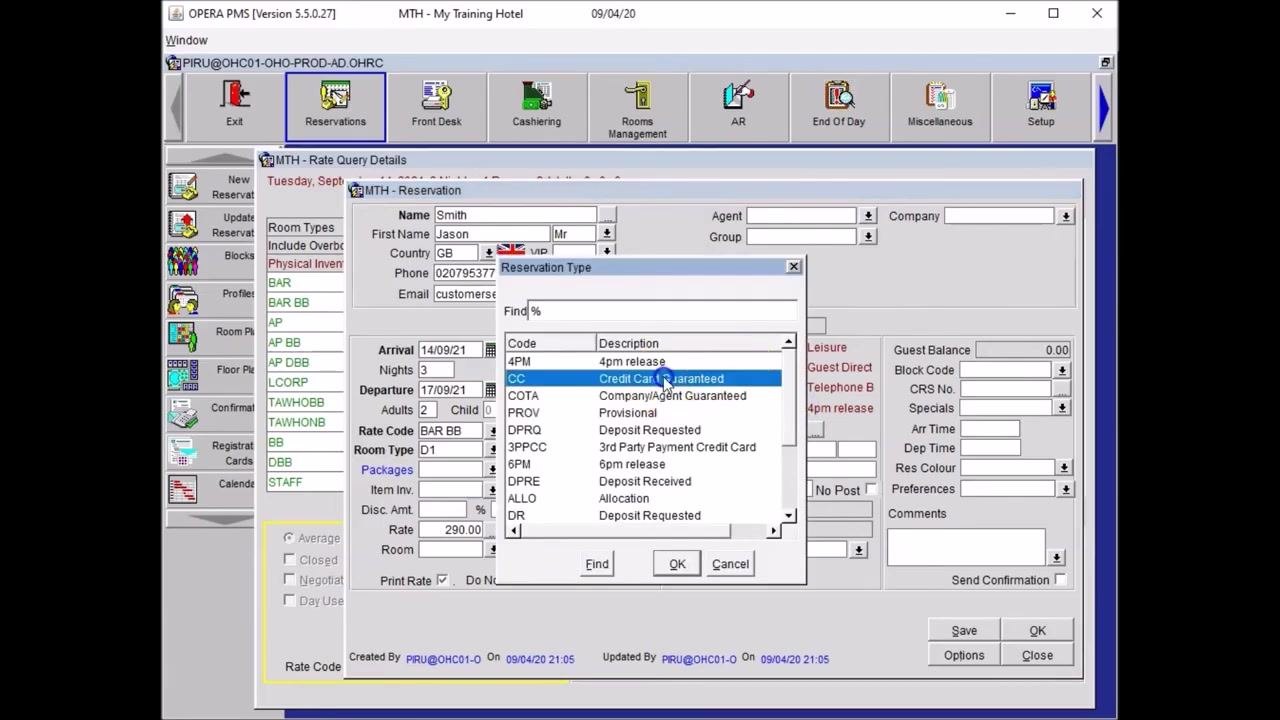
Click on the "Res. Type" (Reservation Type) field to open the Reservation Type selection window. The reservation type determines the guarantee status of the booking, for example 4PM (4pm release), CC (Credit Card Guaranteed), COTA (Company/Agent Guaranteed), or PROV (Provisional). For this example, select "CC" (Credit Card Guaranteed).
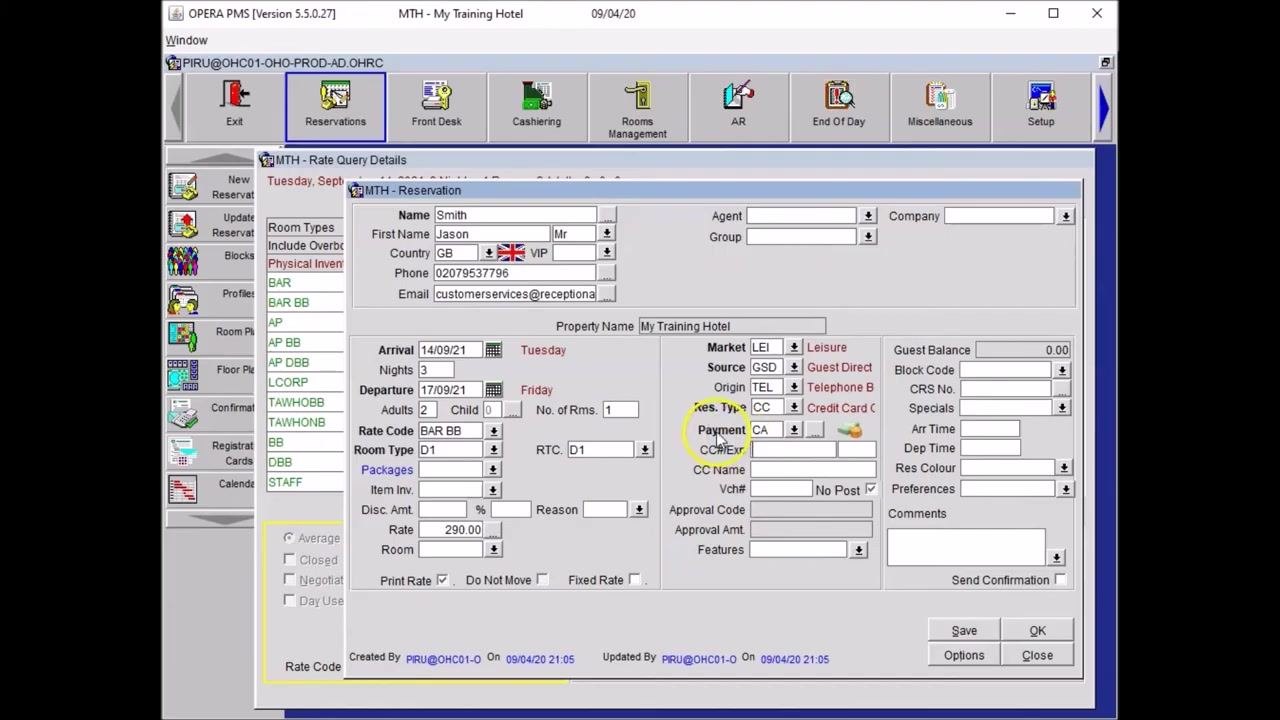
Enter the payment method
In the "Payment" field, select the method of payment. This field is compulsory, but the specific method can be changed later if needed. The example shows "CA" (Cash) initially selected; since the reservation is credit card guaranteed, proceed to enter the credit card details.
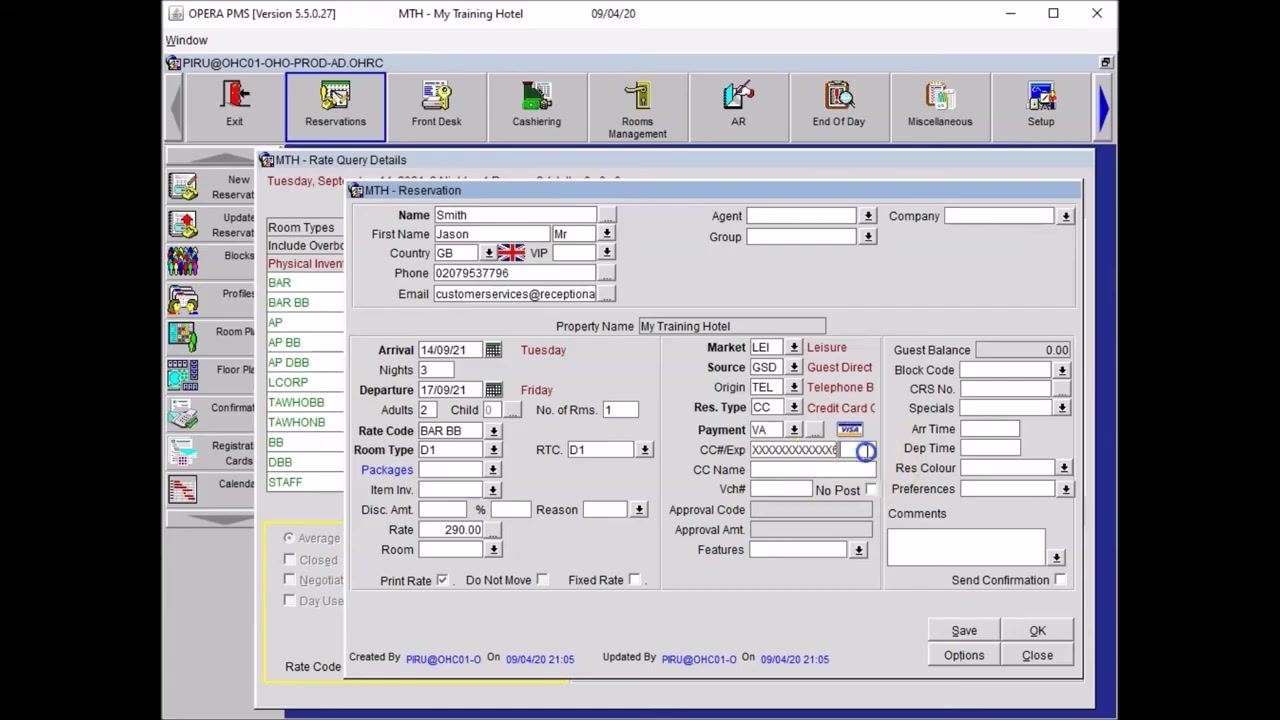
Input the credit card details
Enter the guest's credit card number in the "CC#/Exp" field. After entering the number, click into the next field. The system automatically recognizes the card type, for example VISA, and displays the corresponding icon.
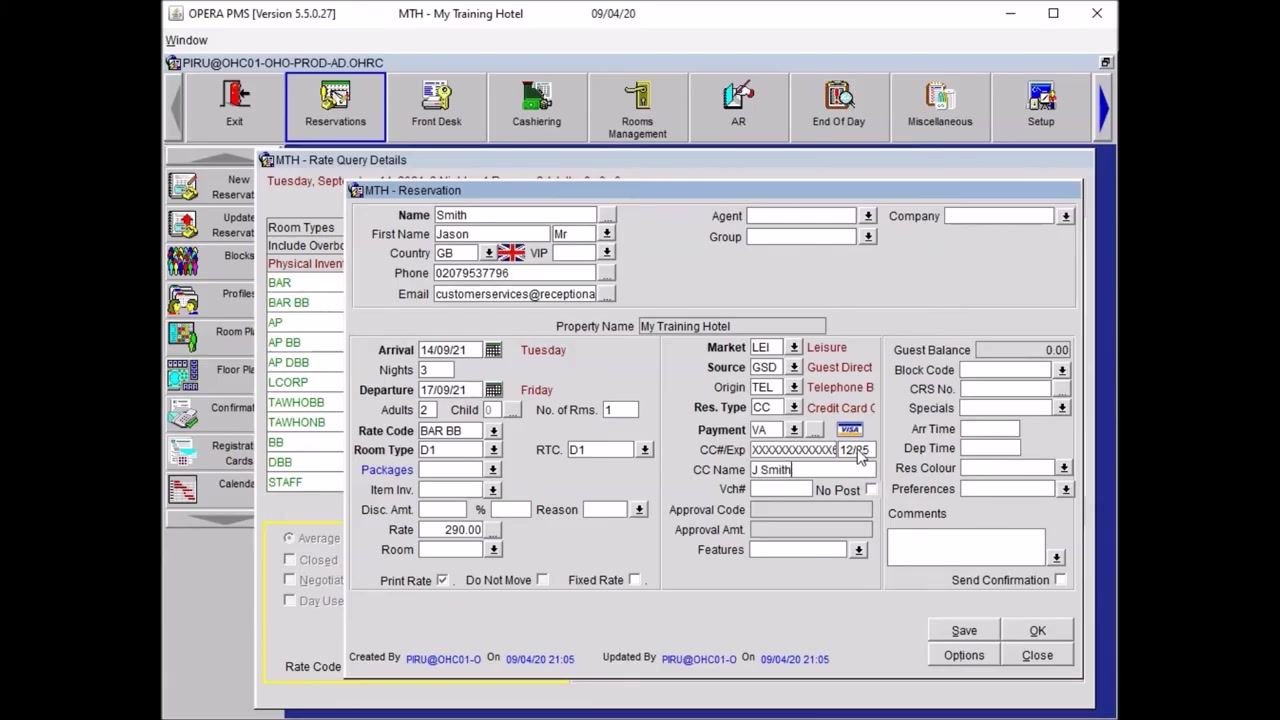
Enter the cardholder's name
In the "CC Name" field, enter the initial of the guest's first name followed by their last name, for example J Smith for guest Jason Smith. This ensures the credit card details are correctly associated with the guest.
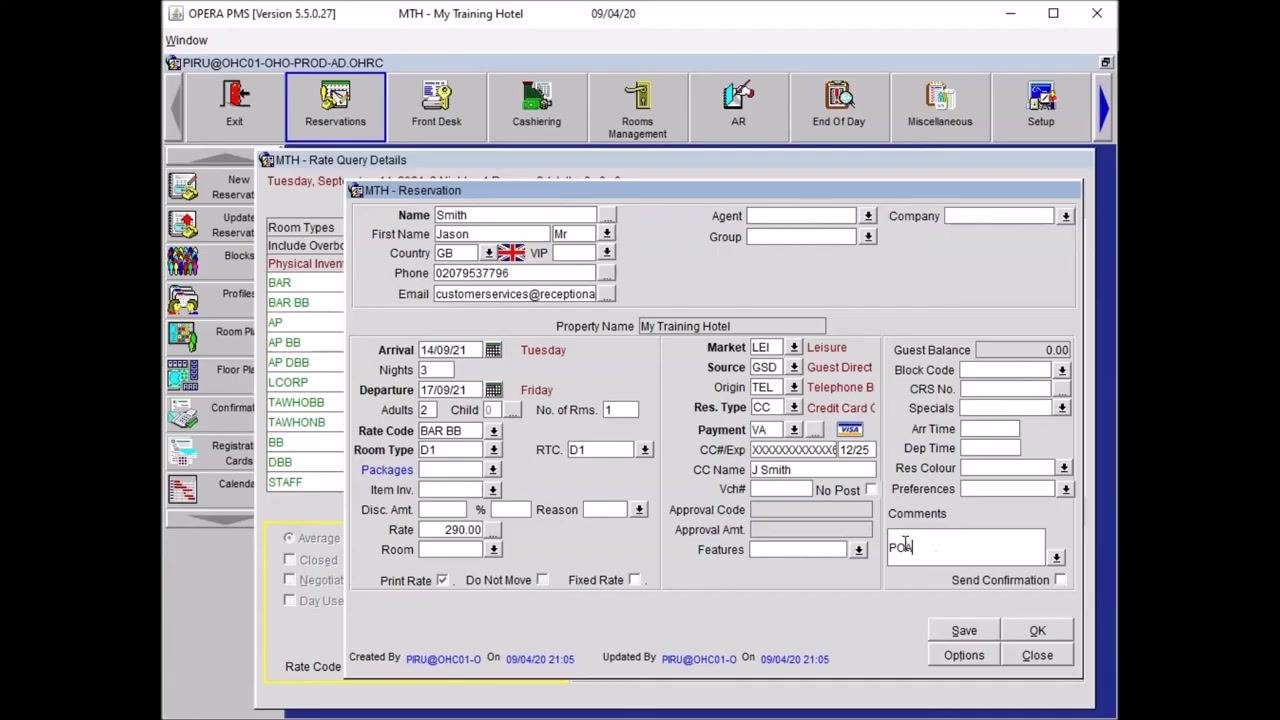
Add a payment responsibility note
In the "Comments" field, enter POA (Pay Own Account). This note indicates that the guest is responsible for paying their own bill, which is standard for individual reservations where the guest covers all charges.
Confirmation
Obtain the confirmation number
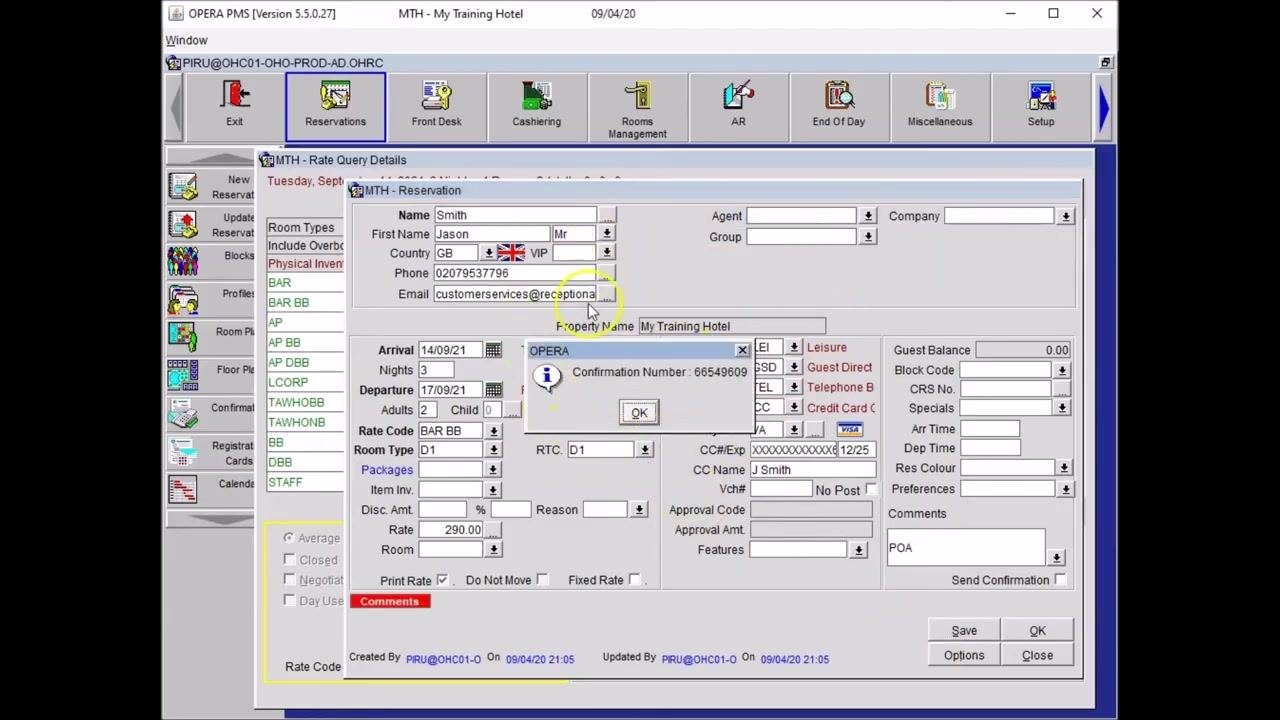
After saving the reservation, the system displays a pop-up window with the confirmation number. Note the confirmation number provided, for example 66549609, and click OK on the confirmation pop-up to proceed.
Verify the reservation status
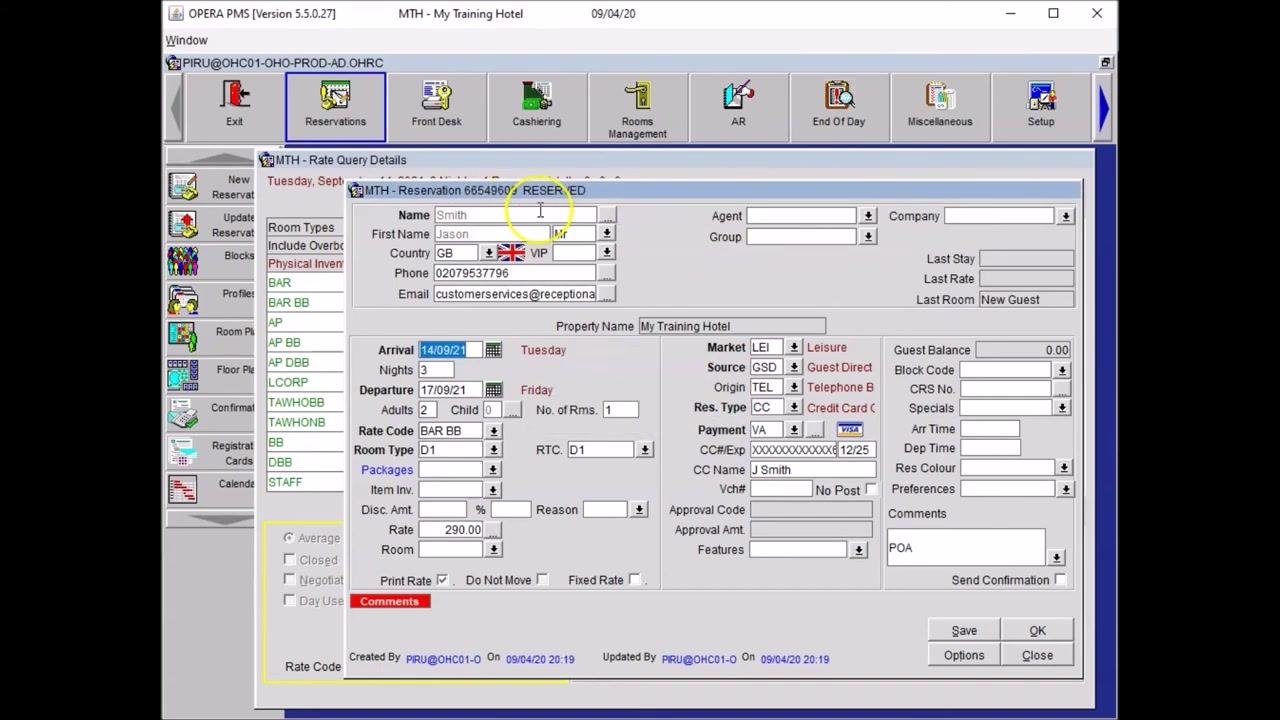
The reservation status at the top of the form updates to show the confirmation number and status as RESERVED. Ensure all details are correct and that the reservation is now marked as reserved.
Send confirmation to the guest
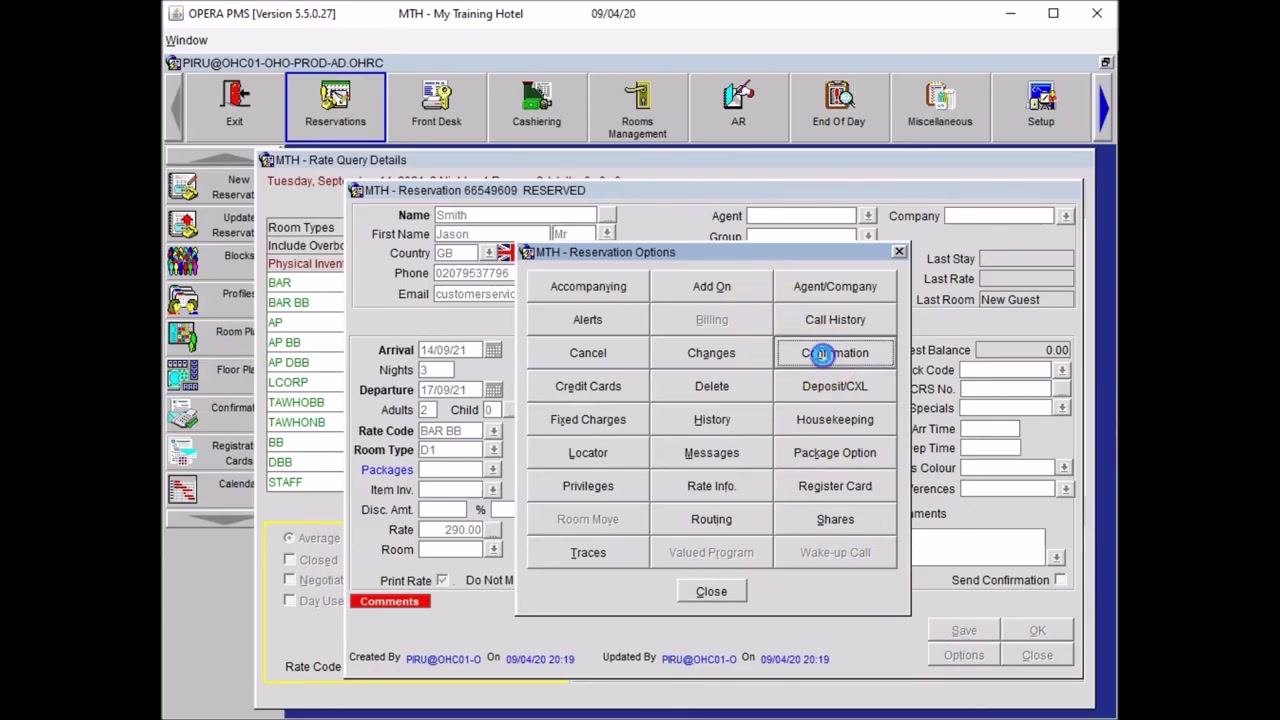
Click the Options button at the bottom right of the reservation form. In the "Reservation Options" window, select Confirmation to open the confirmation delivery options.
Choose email delivery and send
In the "Confirmations" window, select the Email option for delivery. Verify the guest's email address is correct in the "To Email" field, then click the Send button to email the confirmation to the guest. The system processes the request and indicates a successful attempt.
Finalize and exit the reservation
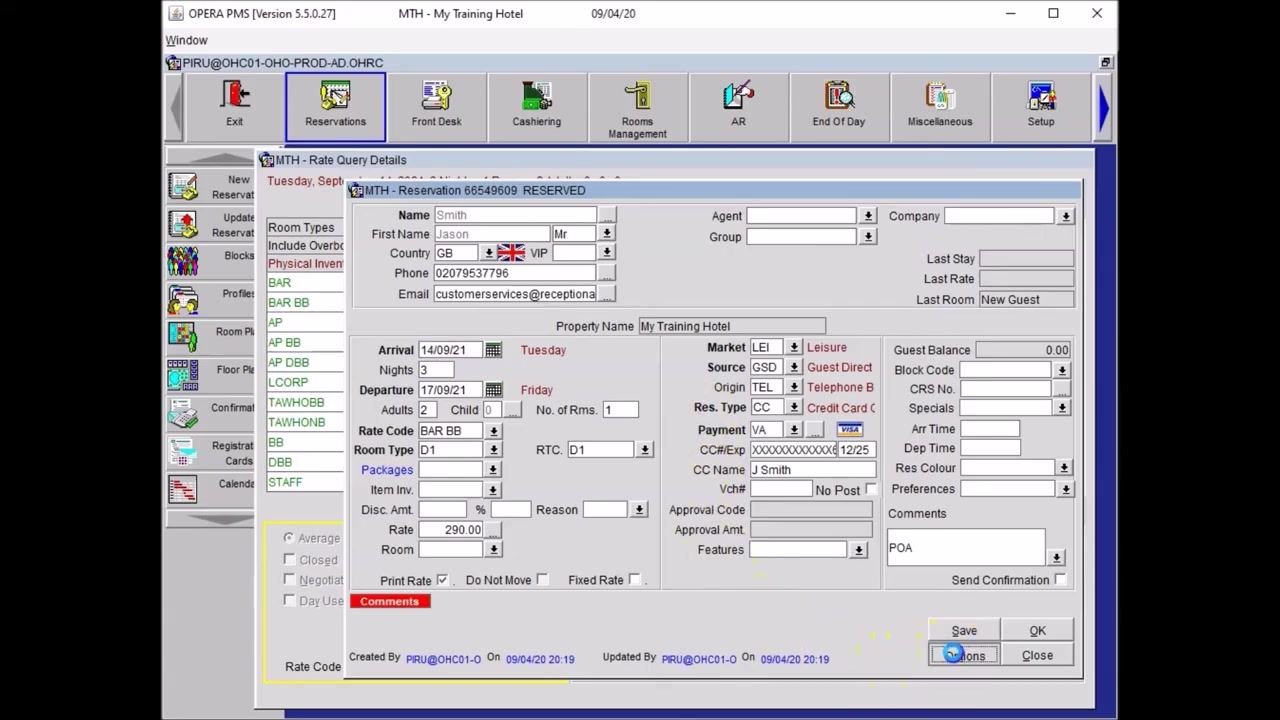
After sending the confirmation, close the Confirmations window. Back on the reservation form, click OK to finalize and exit. The reservation is now complete, and the form is cleared for the next entry.
Summary
By following these steps, you have learned how to make a reservation in Opera PMS from start to finish: opening a new reservation, checking available rates and room types, completing the Reservation Mask with guest and company details, setting the market, source, origin, reservation type, and payment information, and sending the confirmation to the guest.
Key points to remember:
- Fields shown in bold are mandatory and must be completed before the reservation can be saved.
- Always check for duplicate guest profiles using the telephone number and email address.
- Select the market, source, origin, and reservation type that match how and why the booking was made.
- Enter the cardholder's name as an initial plus last name (for example, J Smith) for credit card guaranteed reservations.
- Use
POAin the Comments field when the guest is paying their own account. - Record the confirmation number and send the confirmation to the guest, preferably by email, before finalizing the booking.
What's next
With the reservation confirmed and saved, you can proceed to manage the booking further, such as updating guest preferences, adding additional services, or preparing the reservation for check-in when the guest arrives.
Generation details: cost, quality tiers
Docsie billed 5,500 credits ($3.85) to analyze this 11-minute video at standard quality. The rewrite, template fill and Word/PDF exports were included. The same video at each quality tier:
| Quality | Frames sampled | Credits | Approx. cost |
|---|---|---|---|
| Draft | every 16-30 s | 2,750 | $1.92 |
| Standard (this guide) | every 8-15 s | 5,500 | $3.85 |
| Detailed | every 4-7 s | 11,000 | $7.70 |
| Ultra | every 1-3 s | 22,000 | $15.40 |
Credits priced at $0.70 per 1,000; plans include a monthly allowance. Enterprise customers on on-premise or bring-your-own-model deployments run this on their own inference and pay no per-video credits.
Generated by Docsie Video-to-Docs on 2026-10-12 from a 10-minute video. Screenshots are frames from the source video and belong to their creator, Reception Academy, whose original is embedded above. If you own this video and want the guide removed or credited differently, contact us and we will act within one business day.