
How to Upload a Video to Blackboard
Uploading a video to Blackboard lets you embed course content directly in your Course Content area, making it easy for students to watch videos without leaving the platform. This guide walks you through the full process, from locating the right folder to confirming your video plays correctly.
Video: Uploading a Video File to Blackboard by CCBC - Instructional Technology. All credit for the demonstration goes to the creator; watch the original on YouTube. The written guide below was generated from this video by Docsie. Creator? Request a change or removal.
Uploading a video to Blackboard lets you embed course content directly in your Course Content area, making it easy for students to watch videos without leaving the platform. This guide walks you through the full process, from locating the right folder to confirming your video plays correctly.
Prerequisites
- A Blackboard instructor account with access to the course you want to update.
- The video file saved on your computer and ready to upload.
- Knowledge of where in your course (e.g., a Course Content folder) you want the video to appear.
Steps to upload a video to Blackboard
Access your Blackboard course
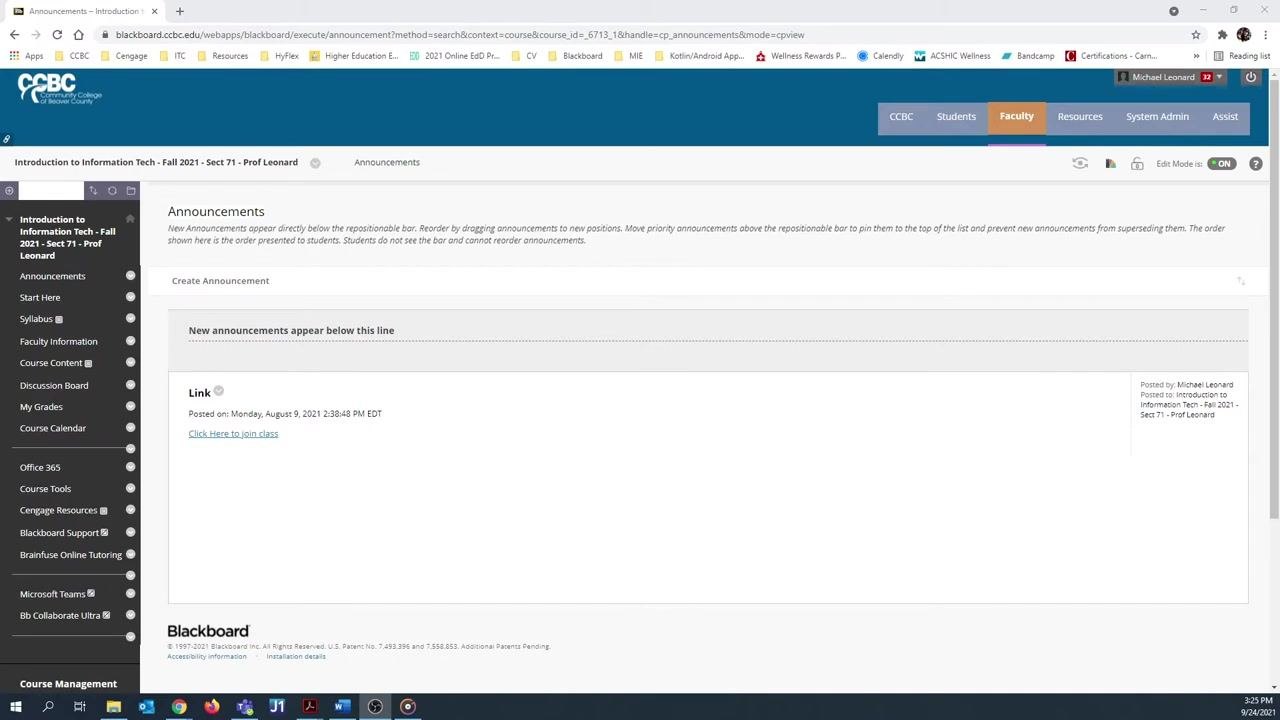
Log in to Blackboard and open the course where you want to upload the video. Decide where in your course the video should live—for example, within a Course Content folder.
Navigate to the Course Content folder
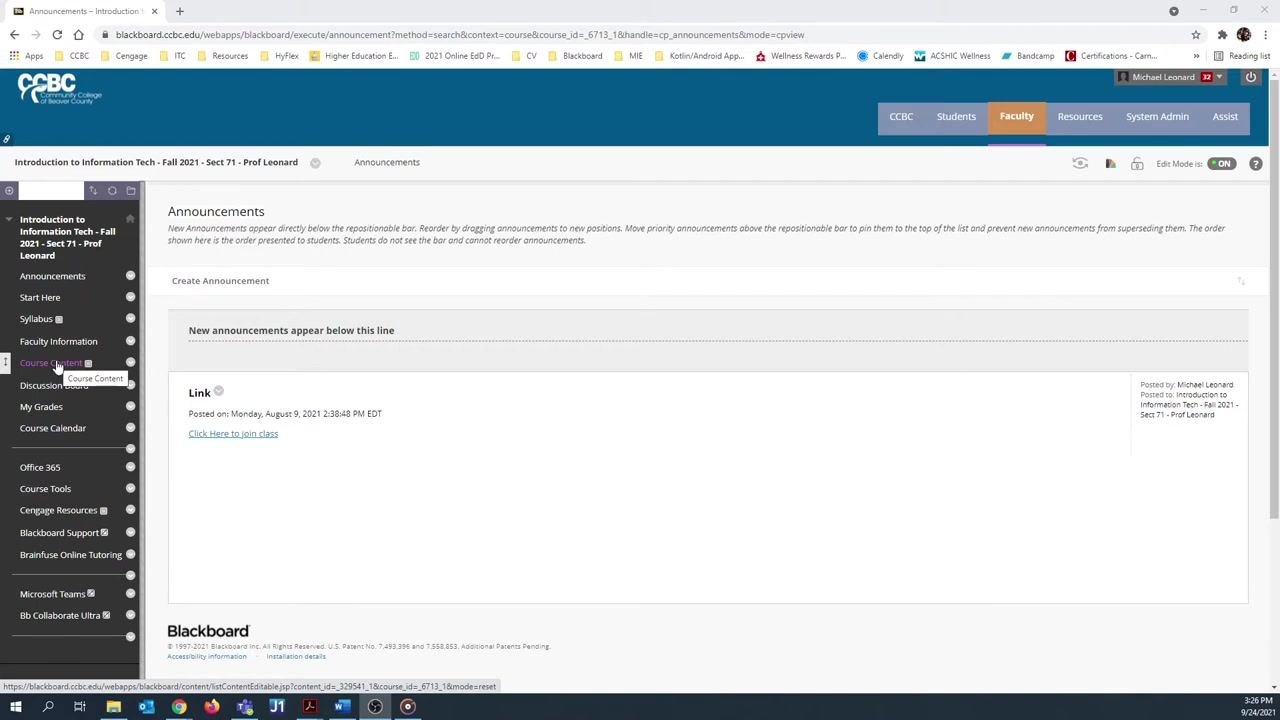
In the left navigation menu, click Course Content to open the folder where you want the video to reside.
Start the video upload process
Inside Course Content, hover over Build Content in the top menu, then select Video from the dropdown. This opens the Create Video dialog.
Enter video details
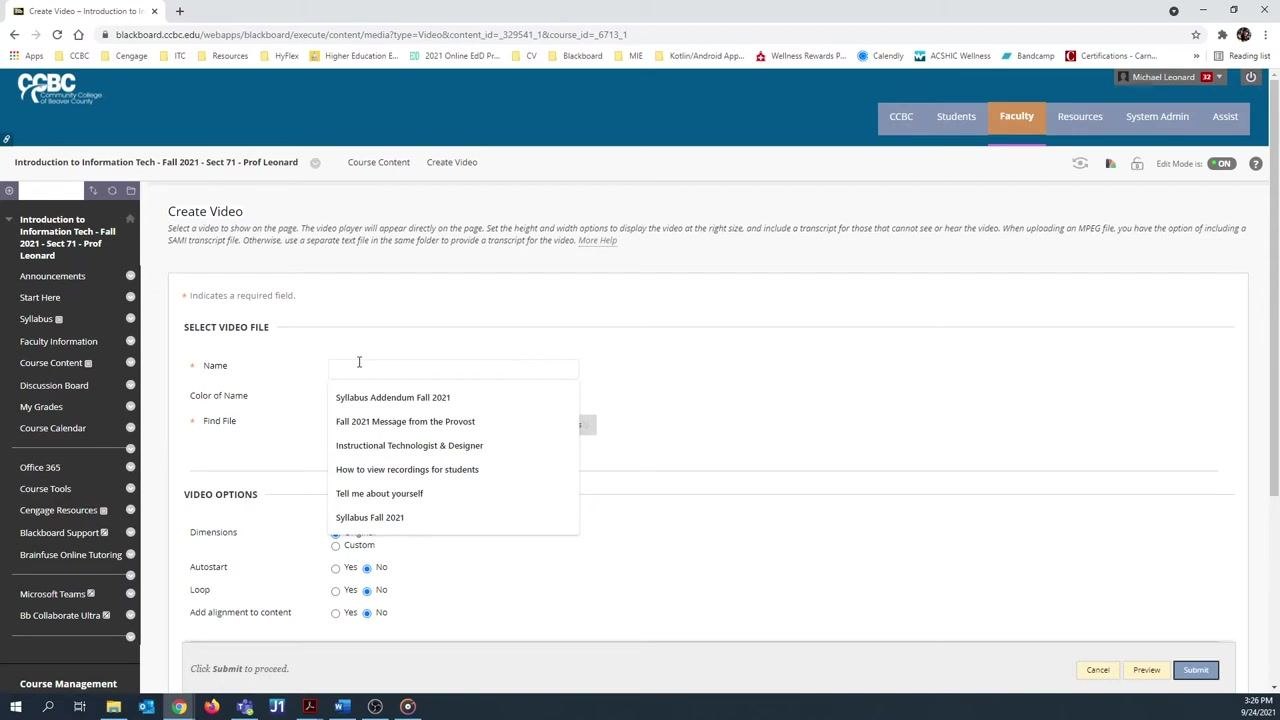
In the Create Video dialog, type a name for your video in the Name field. You can optionally choose a color for the name.
Select and upload your video file
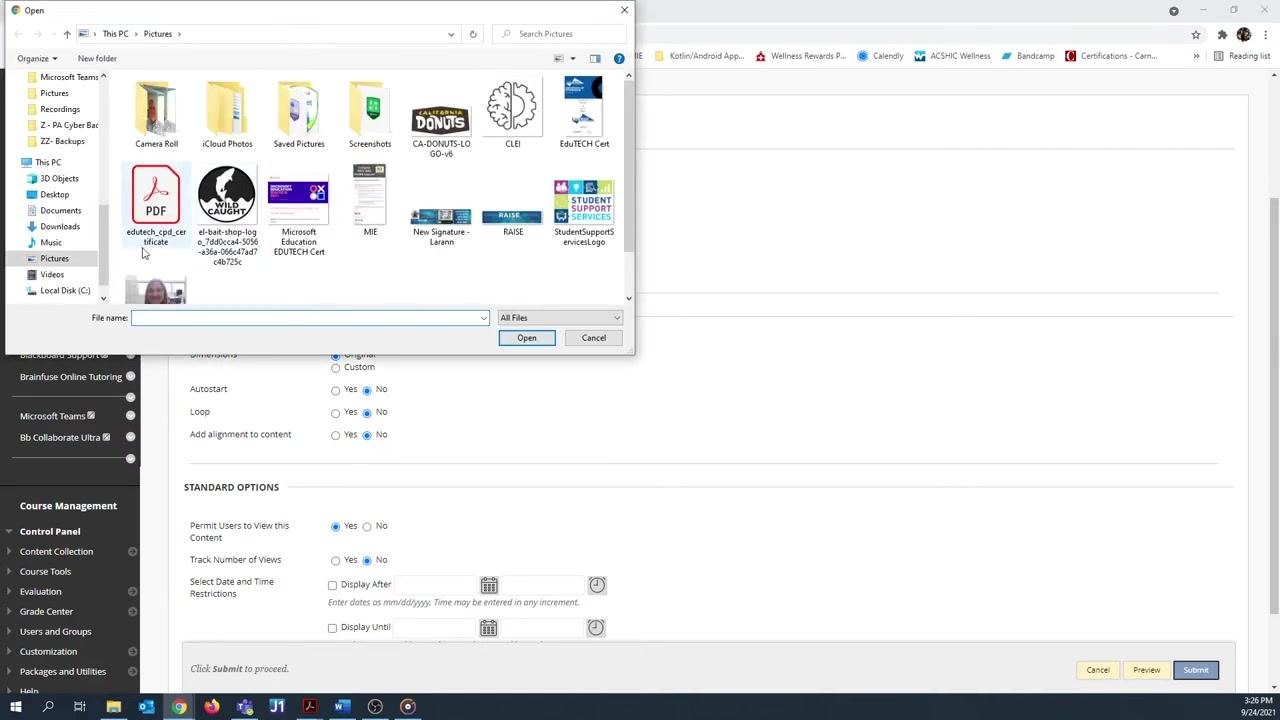
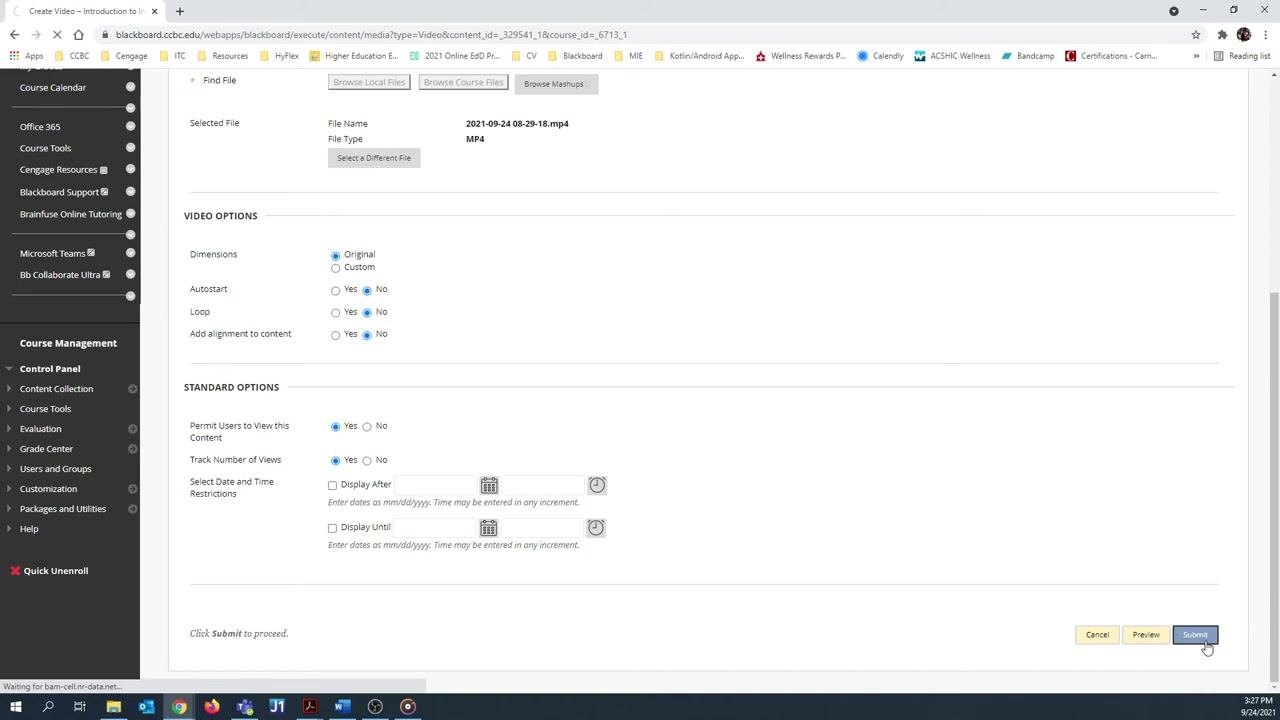
Click Browse Local Files to open your computer's file explorer. Navigate to the folder containing your video—such as a Videos folder—select the file, and click Open to upload it.
Configure video options
Once the file finishes uploading, review and set the following options:
- Dimensions: Select "Original" to preserve the video's native size.
- Autostart: Select "No" so the video doesn't play automatically.
- Loop: Select "No" to prevent the video from repeating.
- Track Number of Views: Select "Yes" to enable view tracking.
- Date and Time Restrictions: Leave blank unless you want to limit when the video is available.
Submit the video
Click Submit at the bottom right of the dialog to complete the upload.
Verify the upload
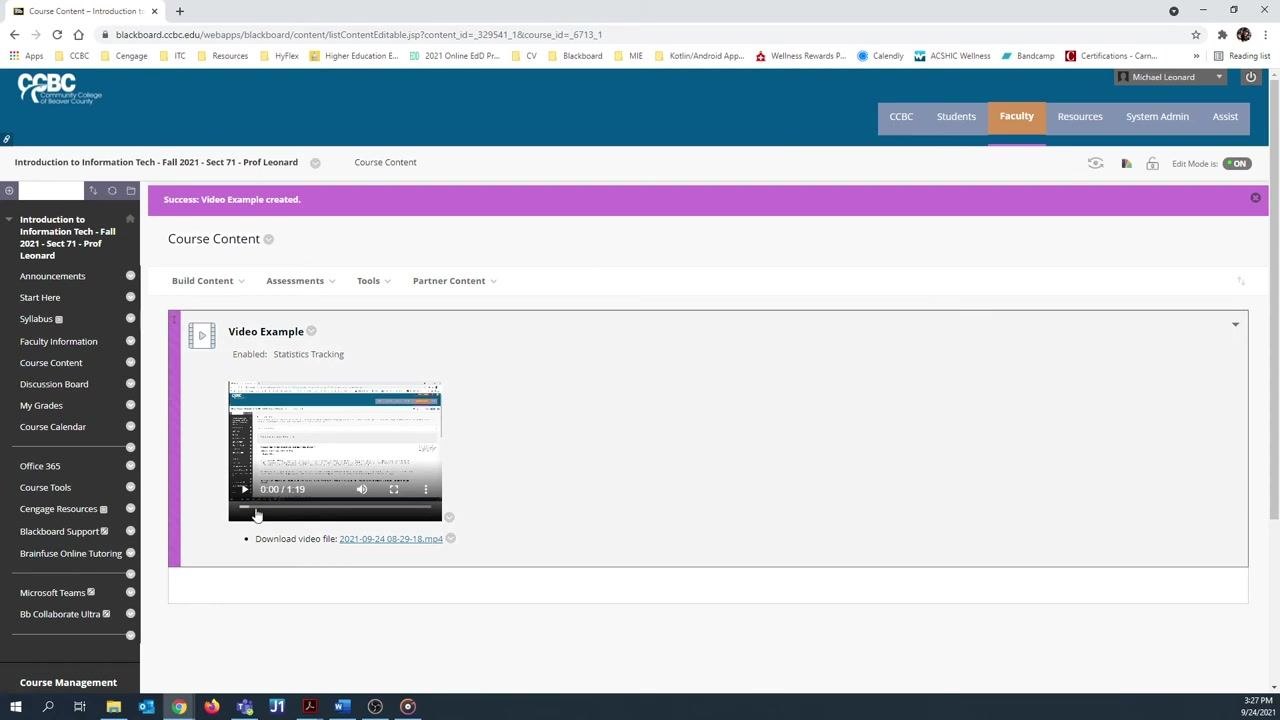
Wait for the upload to finish; the time required depends on your video's file size. Once complete, confirm the video appears embedded in Course Content, and play it directly in Blackboard to verify it uploaded successfully.
Additional option: Download the uploaded video file
After your video is uploaded and embedded, you can also download the file directly from Blackboard for offline access or backup.
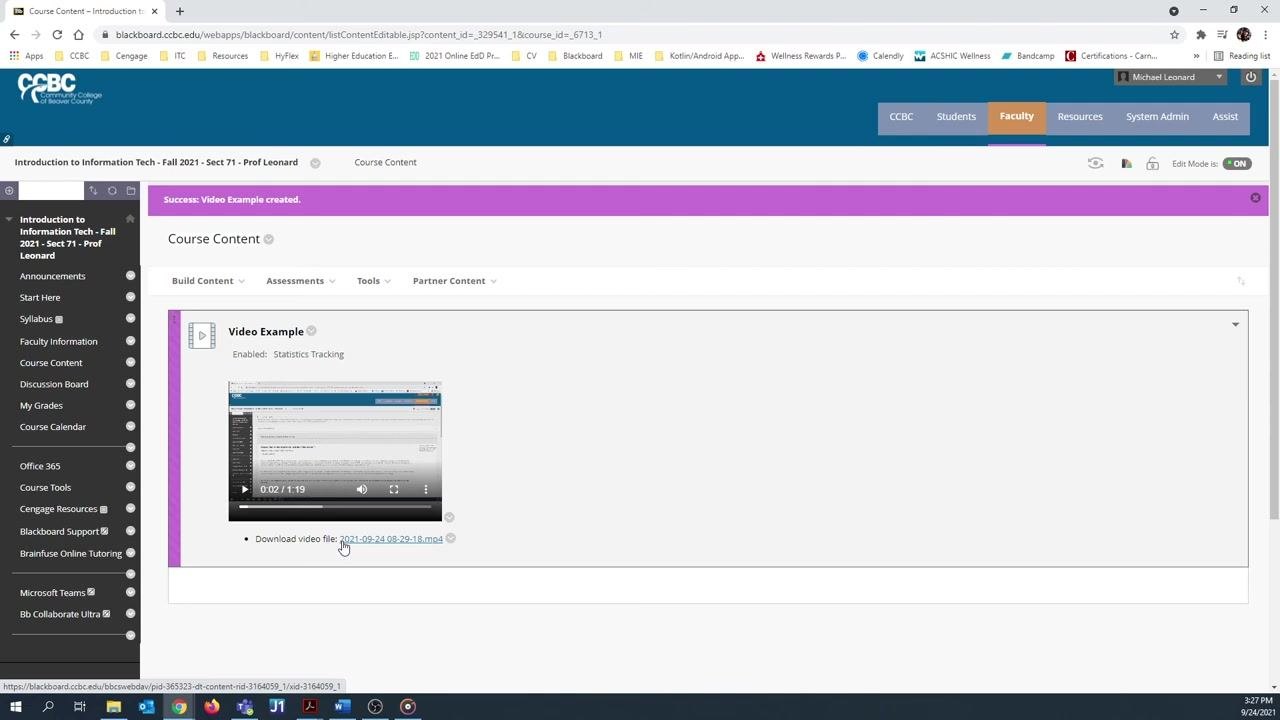
- In Course Content, locate your embedded video (e.g., "Video Example").
- Below the video player, find the link labeled "Download video file" followed by the file name.
- Click the link to download the video file to your computer.
Summary
By following these steps, you can upload and embed a video file in your Blackboard course, making it available for students to view directly within the platform.
Generation details: cost, quality tiers
Docsie billed 1,500 credits ($1.05) to analyze this 3-minute video at standard quality. The rewrite, template fill and Word/PDF exports were included. The same video at each quality tier:
| Quality | Frames sampled | Credits | Approx. cost |
|---|---|---|---|
| Draft | every 16-30 s | 750 | $0.52 |
| Standard (this guide) | every 8-15 s | 1,500 | $1.05 |
| Detailed | every 4-7 s | 3,000 | $2.10 |
| Ultra | every 1-3 s | 6,000 | $4.20 |
Credits priced at $0.70 per 1,000; plans include a monthly allowance. Enterprise customers on on-premise or bring-your-own-model deployments run this on their own inference and pay no per-video credits.
Generated by Docsie Video-to-Docs on 2026-10-12 from a 2-minute video. Screenshots are frames from the source video and belong to their creator, CCBC - Instructional Technology, whose original is embedded above. If you own this video and want the guide removed or credited differently, contact us and we will act within one business day.