
How to Submit an Assignment in Blackboard
This guide walks you through how to submit an assignment in Blackboard, from logging in to your course to submitting a completed file or written entry for grading. Follow the steps below to locate your assignment, choose a submission method, and confirm your work has been sent to your instructor.
Video: How to Submit an Assignment in Blackboard by ACC ESOL Department. All credit for the demonstration goes to the creator; watch the original on YouTube. The written guide below was generated from this video by Docsie. Creator? Request a change or removal.
This guide walks you through how to submit an assignment in Blackboard, from logging in to your course to submitting a completed file or written entry for grading. Follow the steps below to locate your assignment, choose a submission method, and confirm your work has been sent to your instructor.
Prerequisites
- Access to your institution's Blackboard login page
- Your Blackboard login credentials
- Enrollment in the relevant course (e.g., "Writing 2")
- Your completed assignment file saved on your computer, if you plan to upload rather than type your submission directly
Log in to Blackboard
Open your web browser and navigate to your institution's Blackboard login page. Enter your credentials and log in to access your account.
Access your course
From the course list, locate and select your course (for example, "Writing 2") to open its main page.
Navigate to the assignments area
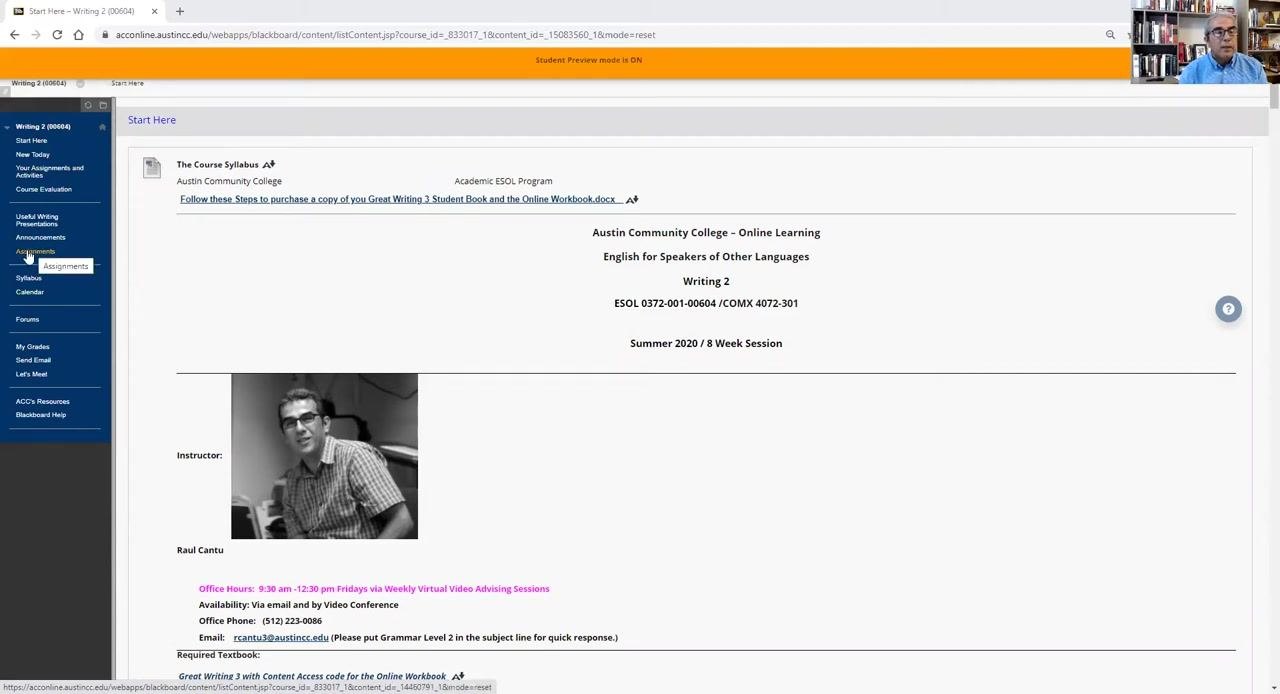
On the left-hand side menu of your course page, click the Assignments button. This menu may also include other options such as "Start Here," "Useful Writing Presentations," "Announcements," "Syllabus," "Calendar," "Forums," "My Grades," "Send Email," "Let's Meet," "ACC's Resources," and "Blackboard Help." Clicking Assignments opens the assignments page, which displays all available assignments for the course.
Select the assignment
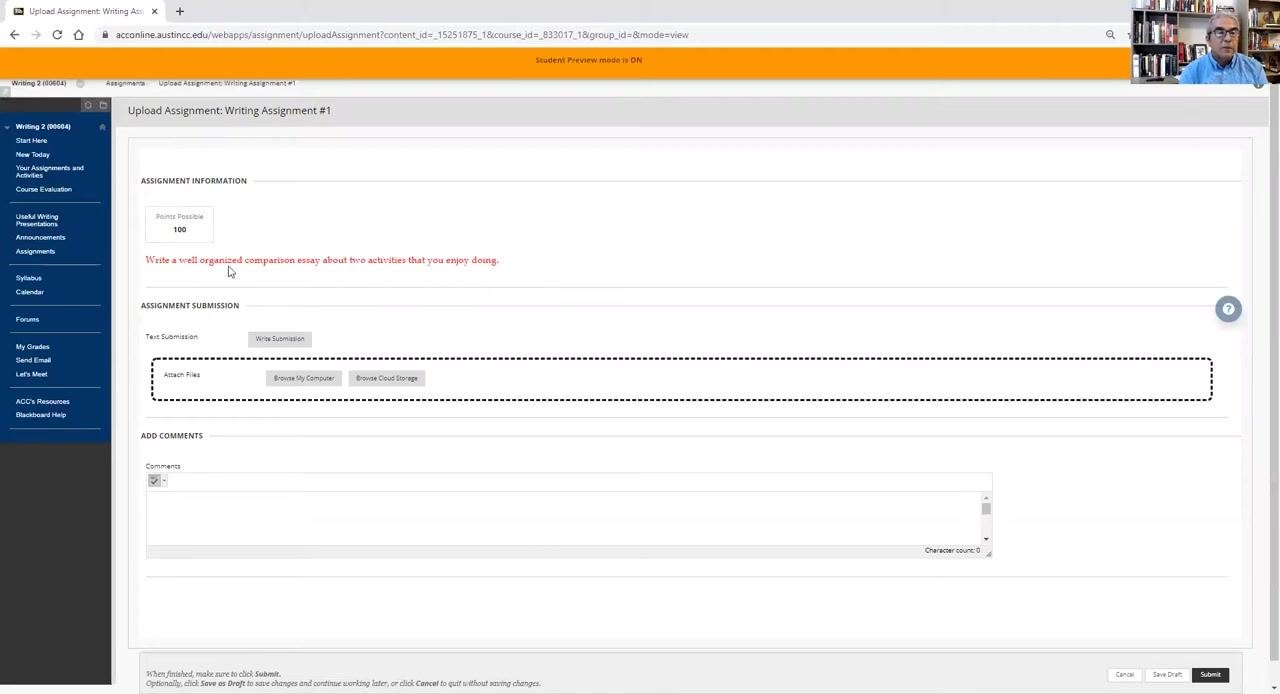
Find the assignment you need to submit, such as Writing Assignment #1. Review the instructions provided (for example, "Write a well-organized comparison essay about two activities that you enjoy doing"). Click on the assignment title to open its submission page.
Review the assignment instructions
On the submission page, carefully read the assignment instructions again to confirm you understand the requirements. Note the points possible for the assignment, such as 100 points.
Choose a submission method
You can submit your assignment in one of two ways:
- Write submission (direct entry): Type your work directly into a text editor on the submission page.
- Upload a file: Attach a file you have already saved on your computer.
Option A: Write your submission directly
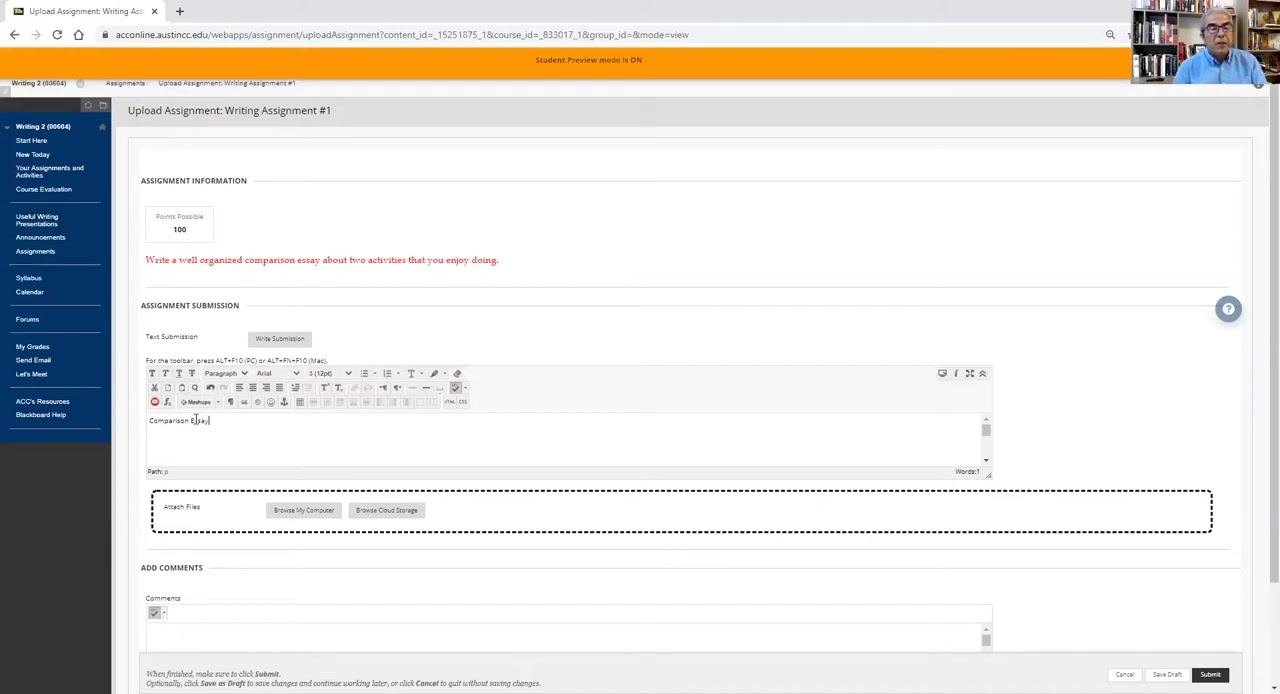
Click the Write Submission button under "Text Submission." A text editor appears where you can type your essay directly into the provided space. For example, you can begin typing your comparison essay in the editor.
Option B: Upload a file from your computer
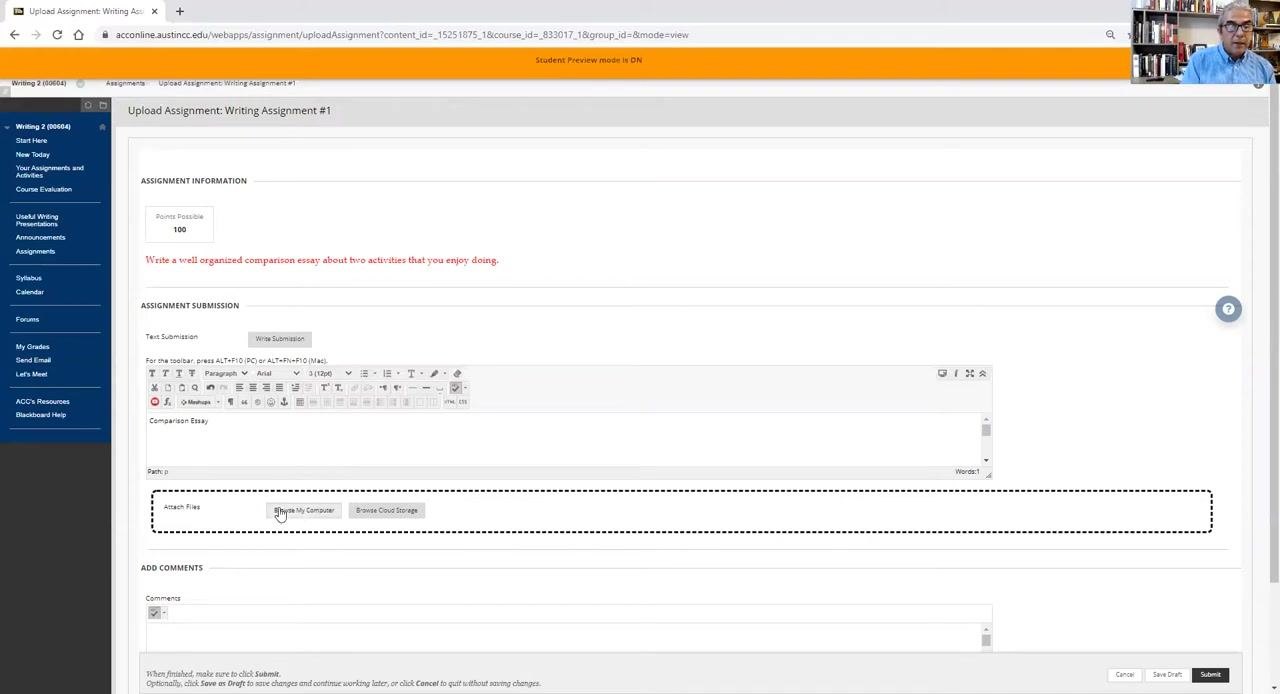
If you have already written your essay and saved it on your computer, click the Browse My Computer button under "Attach Files." A file dialog opens, allowing you to navigate to your file, select it, and confirm.
Upload your assignment file from your computer
If your essay is already saved on your computer (for example, on your Desktop), follow these steps:
- Click the Browse My Computer button under "Attach Files."
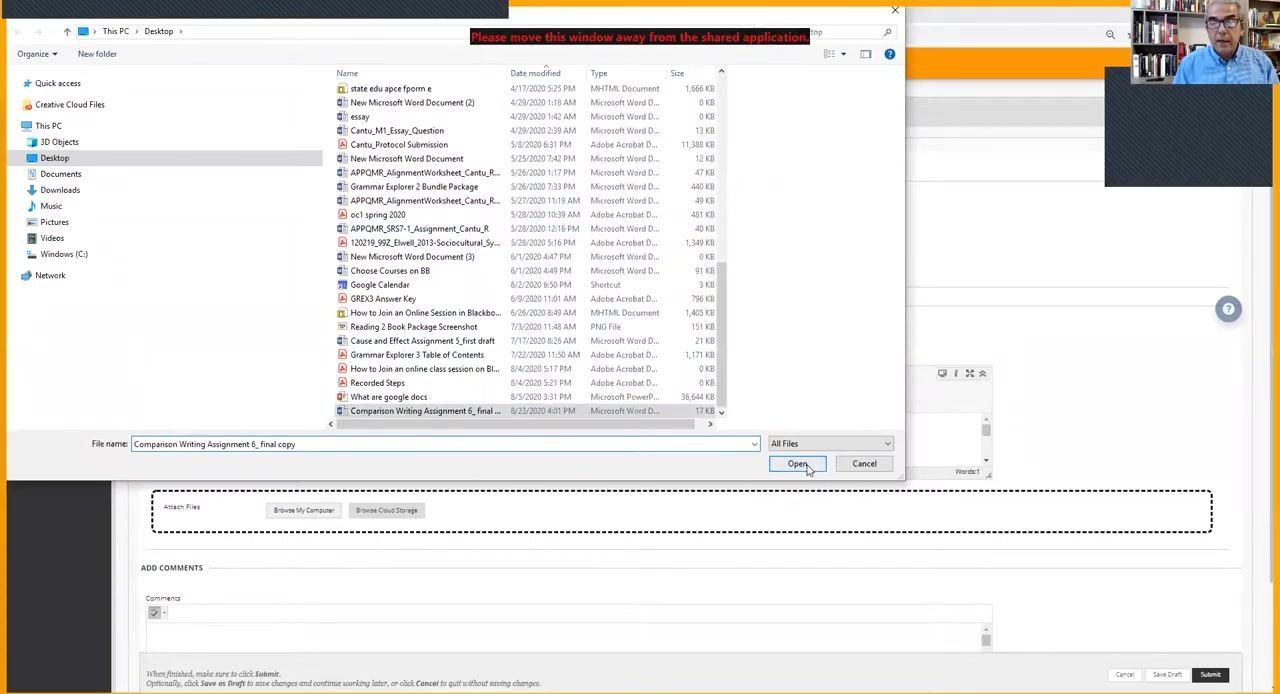
- A file explorer window opens, showing the folders and files on your computer.
- Navigate to the location where your assignment is saved, such as the Desktop.
- Locate and select your assignment file, for example "Comparison Writing Assignment 6_final copy.docx."
- Click the Open button in the file explorer window.
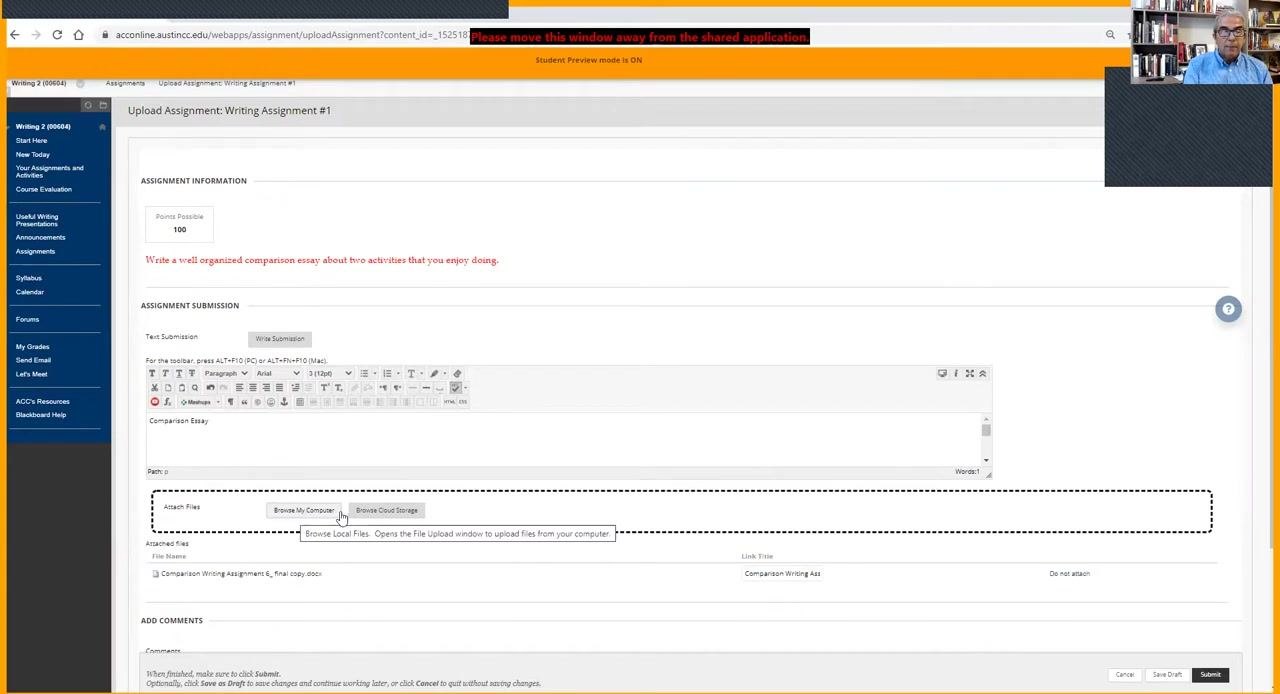
Once you click Open, your file appears as an attached file under "Attached files" on the submission page.
Verify your submission
Confirm that your file is listed under "Attached files" with the correct file name. Double-check that you have either typed your essay in the text editor or attached the correct file before proceeding.
Add comments (optional)
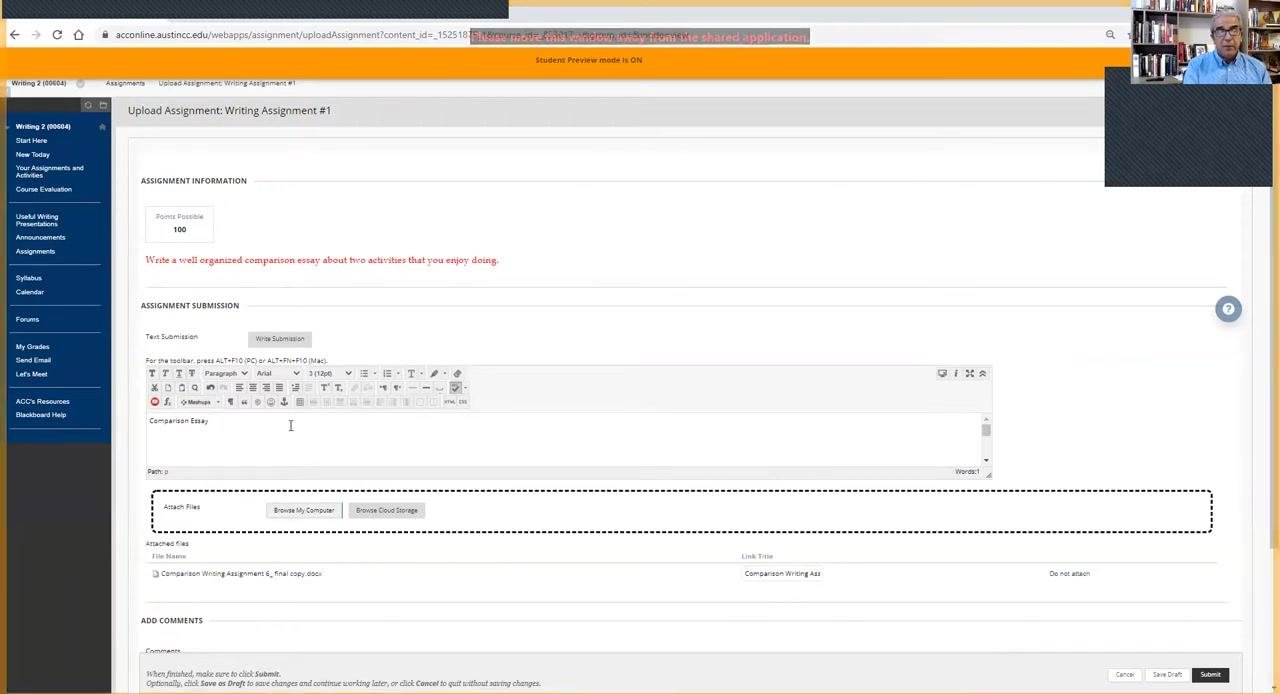
If you want to leave a note for your instructor, type it in the "Comments" box on the submission page.
Submit your assignment
Scroll to the bottom right of the submission page and click the Submit button to send your assignment to your instructor for grading.
Summary
You have now learned how to submit an assignment in Blackboard, including how to log in, locate your course and assignment, choose between writing your submission directly or uploading a file, verify your attachment, and complete the submission process. Once submitted, your assignment is sent to your instructor for grading.
Generation details: cost, quality tiers
Docsie billed 2,000 credits ($1.40) to analyze this 4-minute video at standard quality. The rewrite, template fill and Word/PDF exports were included. The same video at each quality tier:
| Quality | Frames sampled | Credits | Approx. cost |
|---|---|---|---|
| Draft | every 16-30 s | 1,000 | $0.70 |
| Standard (this guide) | every 8-15 s | 2,000 | $1.40 |
| Detailed | every 4-7 s | 4,000 | $2.80 |
| Ultra | every 1-3 s | 8,000 | $5.60 |
Credits priced at $0.70 per 1,000; plans include a monthly allowance. Enterprise customers on on-premise or bring-your-own-model deployments run this on their own inference and pay no per-video credits.
Generated by Docsie Video-to-Docs on 2026-10-12 from a 3-minute video. Screenshots are frames from the source video and belong to their creator, ACC ESOL Department, whose original is embedded above. If you own this video and want the guide removed or credited differently, contact us and we will act within one business day.