
How to Change Direct Reports in BambooHR
This guide walks you through how to change direct reports in BambooHR, from updating the "Reports to" field on an employee's profile to approving the request and confirming the new reporting line in the Org Chart.
Video: How To CHANGE DIRECT REPORTS In BambooHR (QUICK & EASY) 2026 by InstantHowTo. All credit for the demonstration goes to the creator; watch the original on YouTube. The written guide below was generated from this video by Docsie. Creator? Request a change or removal.
This guide walks you through how to change direct reports in BambooHR, from updating the "Reports to" field on an employee's profile to approving the request and confirming the new reporting line in the Org Chart.
Prerequisites
- Access to the People tab in BambooHR.
- Permission to request job information changes for an employee.
- If you are not an administrator, be aware that your request will need admin approval before it takes effect.
Steps to change a direct report
Open the People tab
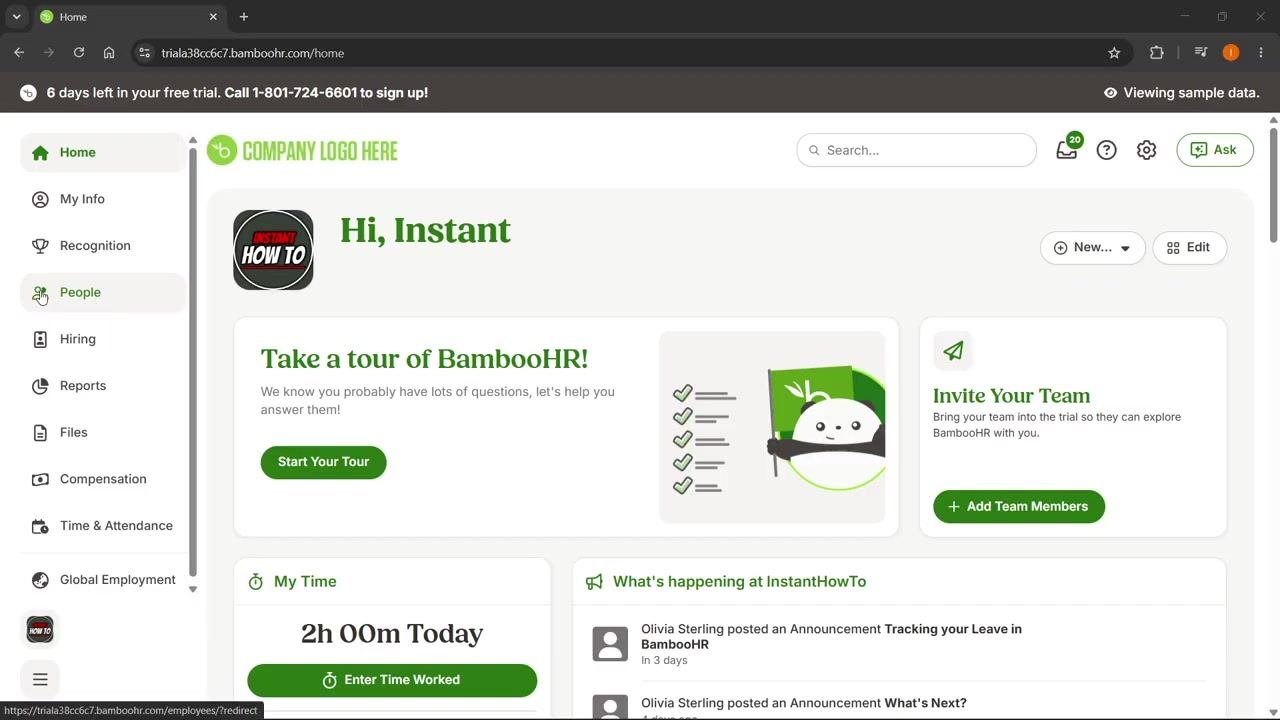
On the left sidebar, click the People tab to access the list of employees. The main dashboard displays options such as "Take a tour of BambooHR!" and "Invite Your Team." If you are working with demo data, you'll see a "Viewing sample data" message in the top right corner.
After clicking the People tab, the employee list appears with columns for Employee Photo, Employee #, Last Name, First Name, Job Title, Location, and Employment Status.
Select the employee whose manager you want to change
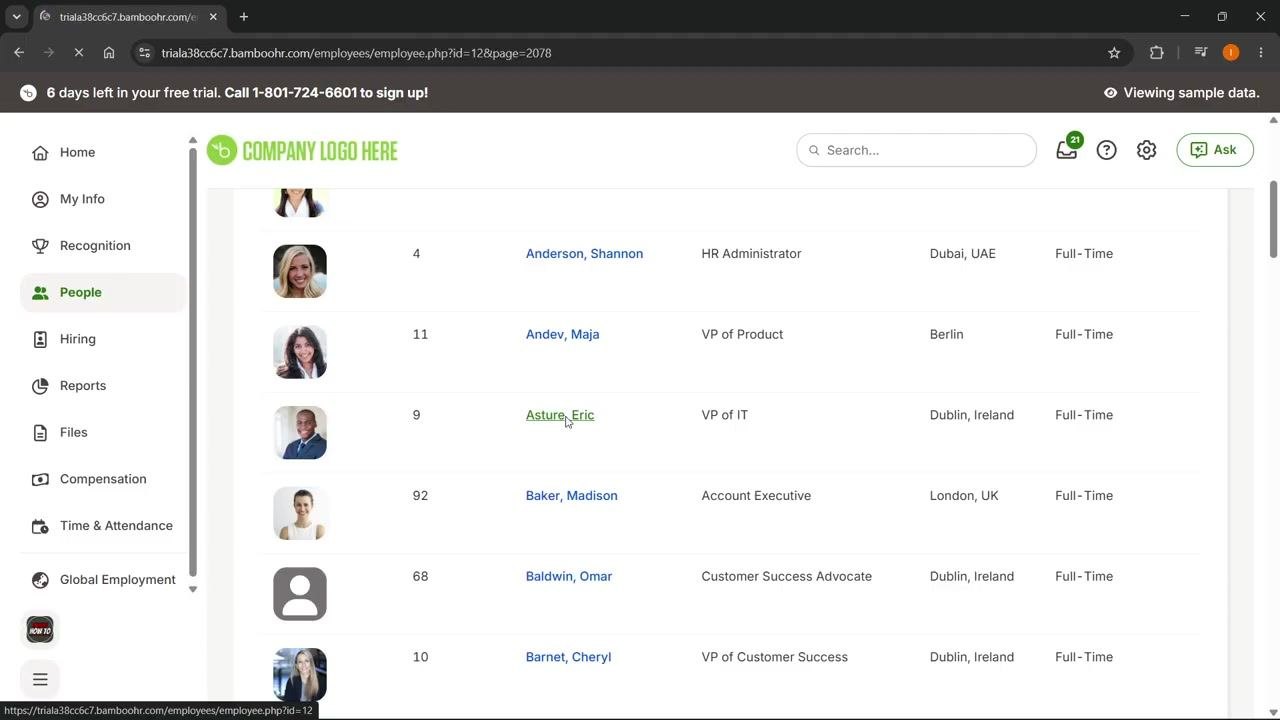
From the employee list, click on the name of the employee whose reporting structure you want to update. For example, click on Eric Asture (VP of IT).
Open the employee's Job tab
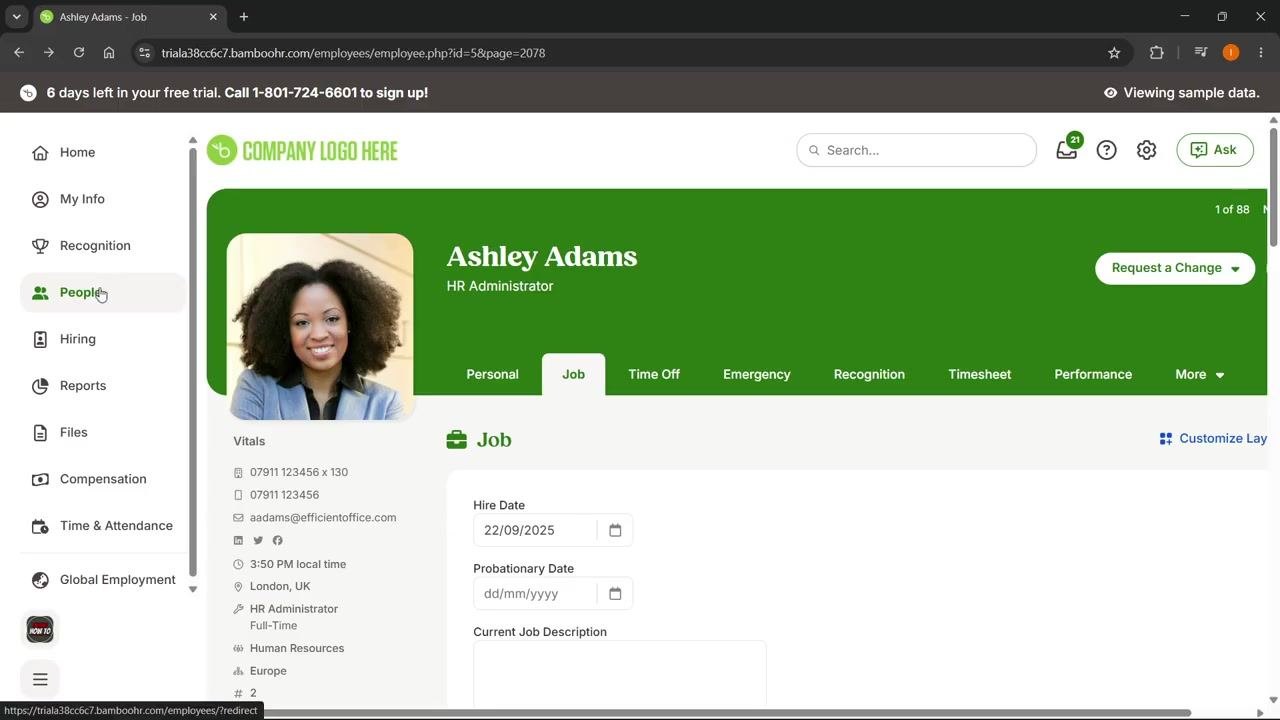
The employee's profile page loads with their details. Make sure you are on the Job tab so you can review the current reporting structure and job information.
Request a change to job information
Click Request a Change at the top right of the profile, then select Job Information from the dropdown. This opens the fields you can edit, including "Reports to."
Edit the reporting structure
In the Job Information section, locate the "Reports to" field. Change the current manager, remove it, or select a new person for the employee to report to, as needed.
Submit the change
Once you've made your edits, click Submit. A confirmation message appears at the top of the page: "Your changes have been requested."
Approve the job information change
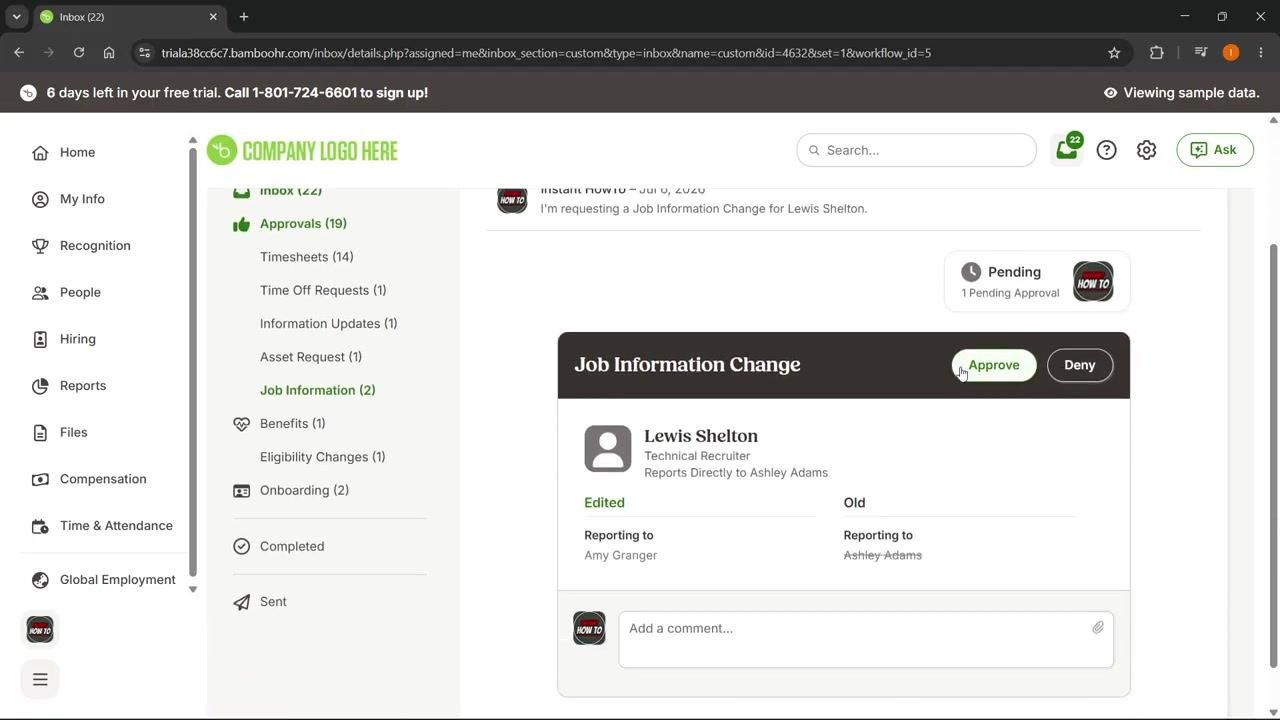
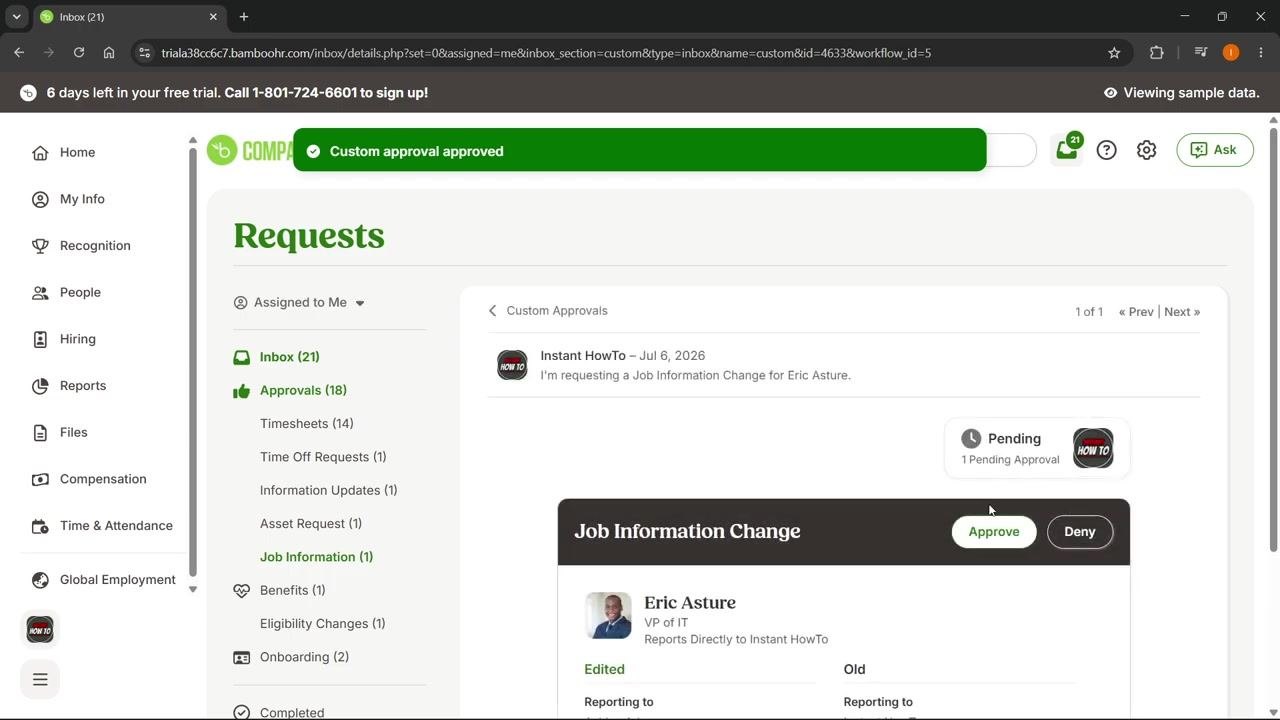
Return to the People tab and open the inbox or approvals section using the bell icon or inbox dropdown in the top right. Locate the pending Job Information Change request for the employee and review it — the "Reporting to" field should show the new manager. Click Approve to confirm the change.
If you are not an administrator, this request will also need to be approved by an admin. Once approved, a green banner confirms: "Custom approval approved."
Verify the change on the manager's profile
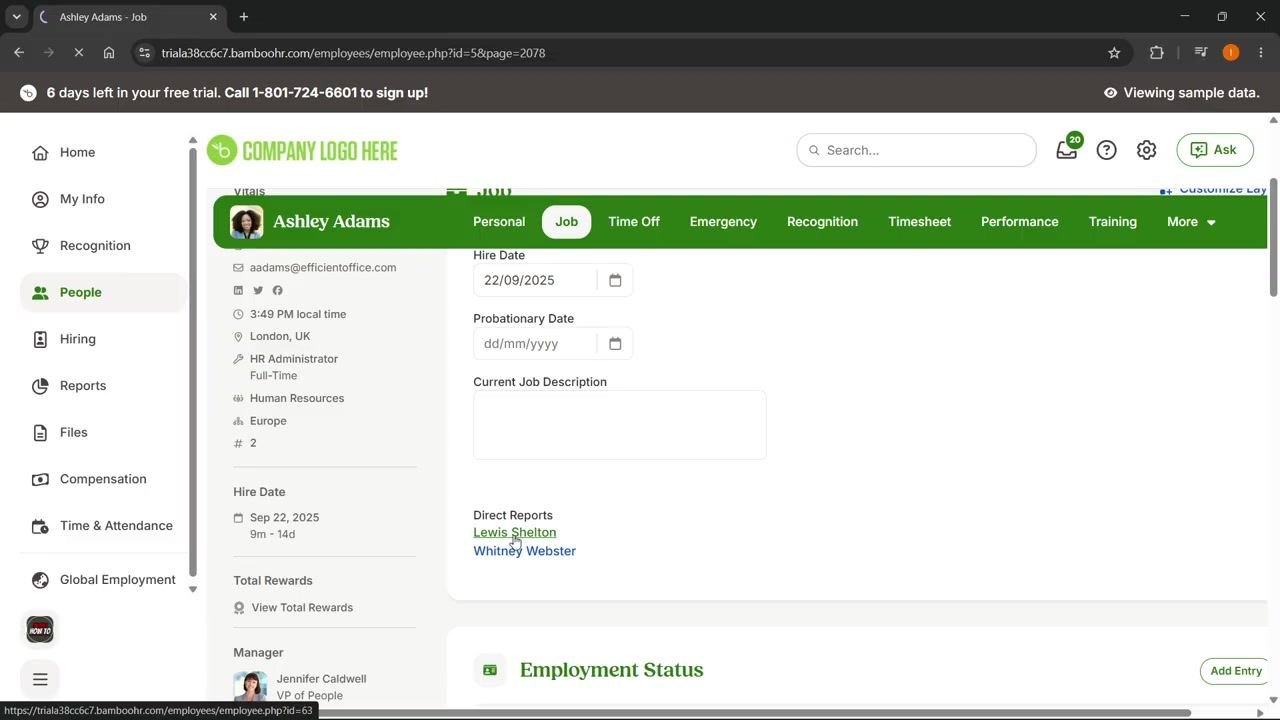
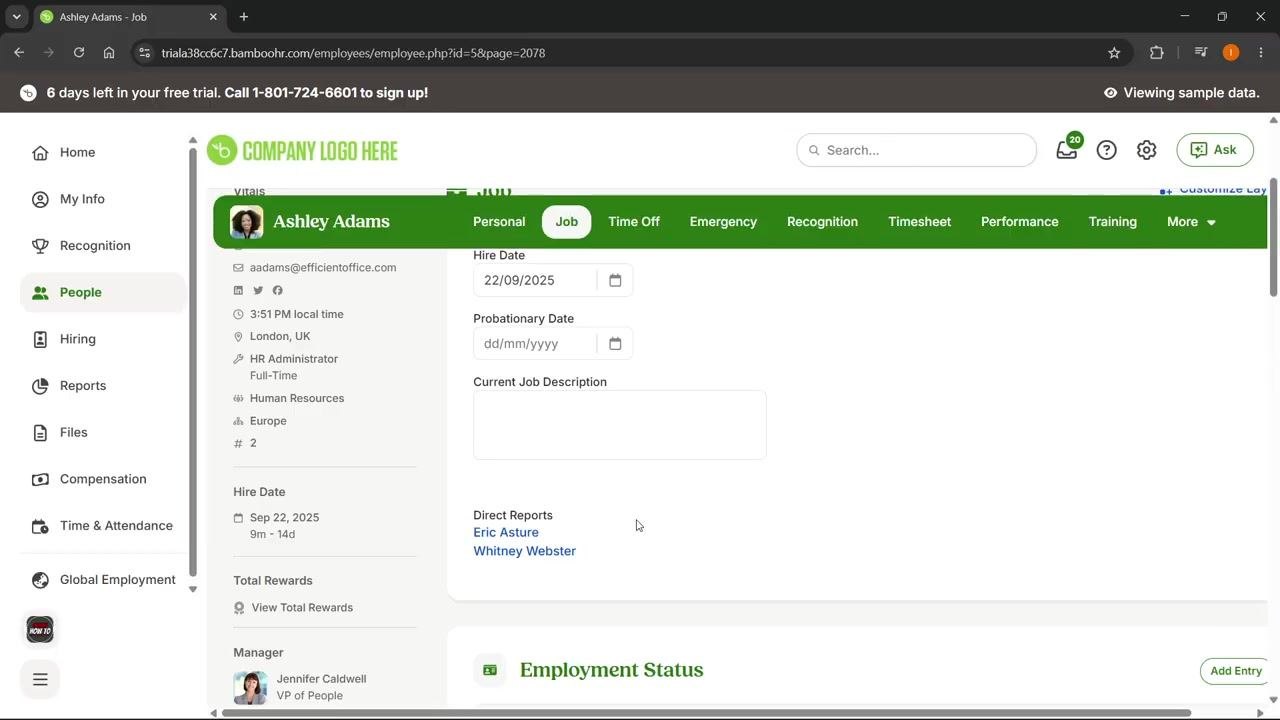
Go back to the People tab and click on the original manager's profile (for example, Ashley Adams). Open the Job tab and scroll to the Direct Reports section to confirm that the updated employee (for example, Eric Asture) now appears under Direct Reports.
Viewing and verifying direct reports in the Org Chart
Access the Org Chart
From the BambooHR dashboard, click the People tab in the left sidebar, then select the Org Chart view at the top right of the main panel, next to List and Directory. The Org Chart displays your organization's hierarchical structure.
Locate an employee in the Org Chart
Use the search bar labeled Jump to an employee... to quickly find a specific employee, or scroll through the chart to visually locate the employee whose direct reports you want to check.
Verify reporting relationships
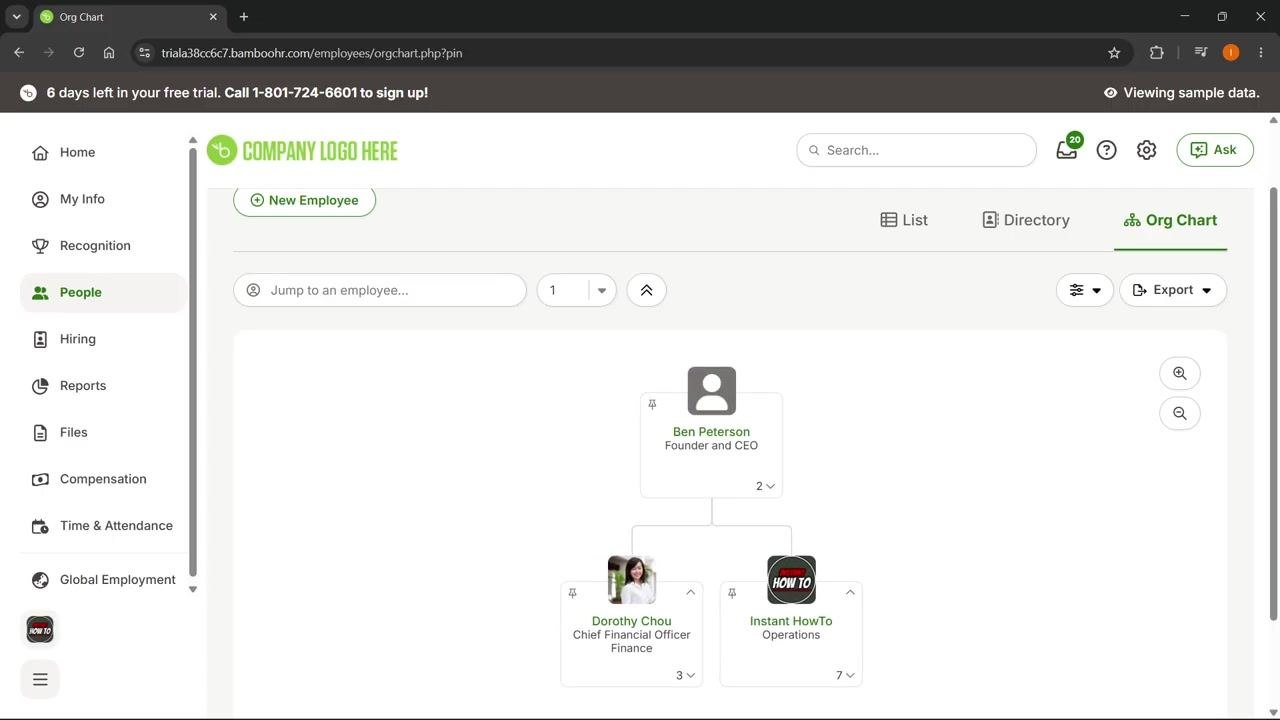
In the Org Chart, each employee appears as a card showing their name, title, and department. Direct reports are displayed as connected cards beneath their manager. For example, Ben Peterson (Founder and CEO) has two direct reports: Dorothy Chou (Chief Financial Officer, Finance) and Instant HowTo (Operations). The number in the bottom right corner of each card indicates how many direct reports that employee has. You can expand or collapse sections of the chart to view more or fewer levels of the hierarchy.
Confirm that the employee you updated now appears as a direct report under the correct manager. You can repeat this process for any employee to see their reporting line.
- The Org Chart gives you a visual overview, making it easy to audit and verify reporting structures after making changes.
- If you don't see the expected changes, make sure all approvals have been completed, then refresh the Org Chart view.
Summary
By following these steps, you can change direct reports in BambooHR and confirm the update through both the employee's Job tab and the Org Chart. Using the Org Chart as a final check helps ensure your organization's reporting structure stays accurate and up to date.
Generation details: cost, quality tiers
Docsie billed 2,000 credits ($1.40) to analyze this 4-minute video at standard quality. The rewrite, template fill and Word/PDF exports were included. The same video at each quality tier:
| Quality | Frames sampled | Credits | Approx. cost |
|---|---|---|---|
| Draft | every 16-30 s | 1,000 | $0.70 |
| Standard (this guide) | every 8-15 s | 2,000 | $1.40 |
| Detailed | every 4-7 s | 4,000 | $2.80 |
| Ultra | every 1-3 s | 8,000 | $5.60 |
Credits priced at $0.70 per 1,000; plans include a monthly allowance. Enterprise customers on on-premise or bring-your-own-model deployments run this on their own inference and pay no per-video credits.
Generated by Docsie Video-to-Docs on 2026-10-12 from a 3-minute video. Screenshots are frames from the source video and belong to their creator, InstantHowTo, whose original is embedded above. If you own this video and want the guide removed or credited differently, contact us and we will act within one business day.