
How to Create a Schedule in ADP
This guide walks you through how to create a schedule in ADP using the Schedule Pattern feature. You'll learn how to locate an employee, set up a recurring weekly shift pattern, apply and save it, and verify the resulting scheduled hours in the planner view.
Video: ADP: How To Set A Schedule by Orsid New York (2022). All credit for the demonstration goes to the creator; watch the original on YouTube. The written guide below was generated from this video by Docsie. Creator? Request a change or removal.
This guide walks you through how to create a schedule in ADP using the Schedule Pattern feature. You'll learn how to locate an employee, set up a recurring weekly shift pattern, apply and save it, and verify the resulting scheduled hours in the planner view.
Prerequisites
- Access to the Manage My Employees section in ADP.
- The employee record you want to schedule must already exist in the system.
Locate the employee in Manage My Employees
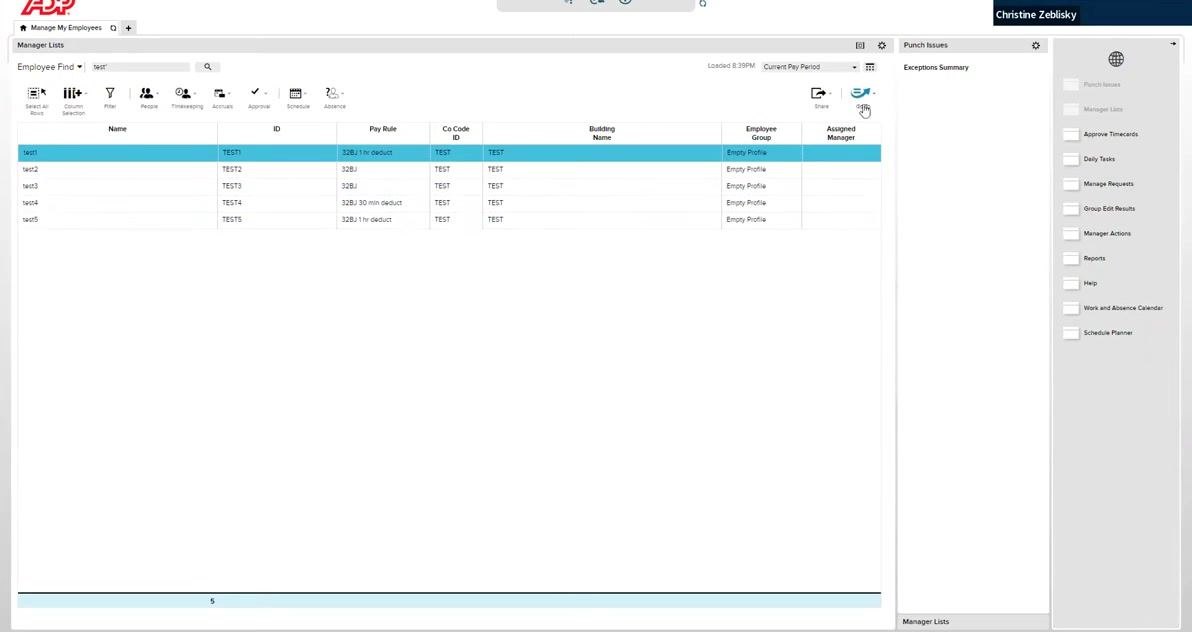
Open the Manage My Employees section and find the employee you want to schedule. For example, locate the row where Name is "test1," ID is "TEST1," and Pay Rule is "32BJ 1 hr deduct." Make sure the correct employee row is highlighted before continuing.
Open the Schedule Pattern menu
Right-click on the selected employee row to open the context menu. From the options that appear, click Schedule Pattern.
Enter the schedule pattern
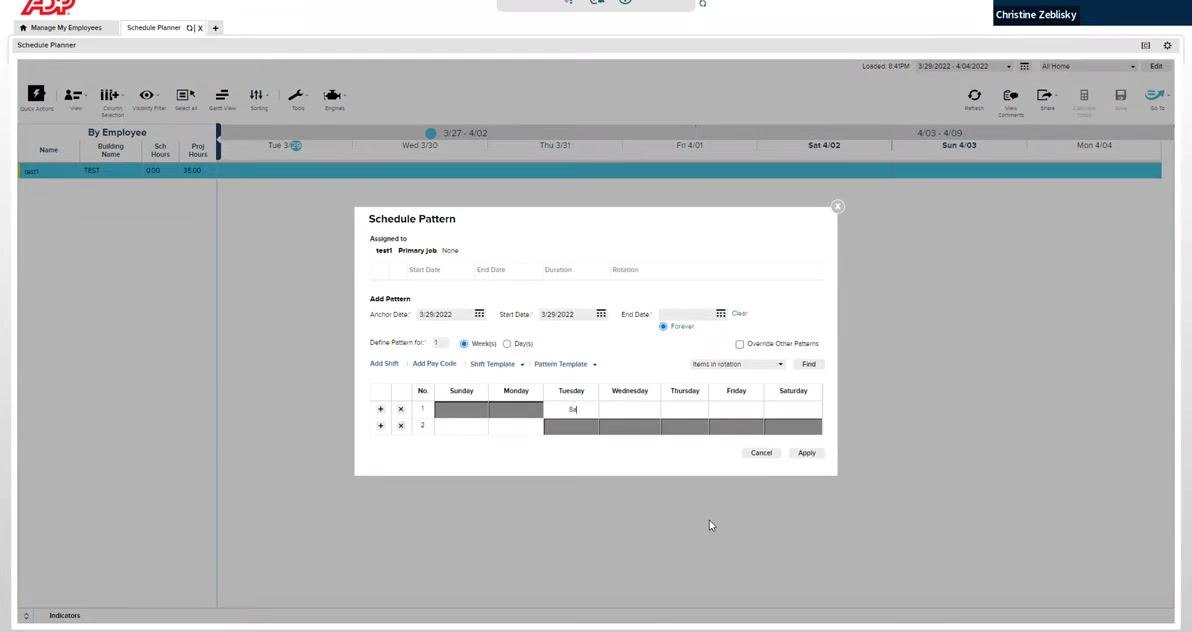
In the Schedule Pattern dialog, confirm that the employee is assigned correctly (for example, "Assigned to: test1"). Then set the Anchor Date and Start Date, such as 3/29/2022, and make sure Forever is selected for the End Date so the pattern continues indefinitely.
Under Add Pattern, enter the shift times for each scheduled day:
- Tuesday: type
8A(shorthand entry — "8A" works the same as "8:00 AM") - Wednesday:
8A to 5P - Thursday:
8A to 5P - Friday:
8A to 5P - Monday:
8A to 5P
If you omit "A" or "P" when entering a time, the system automatically assumes "A" for morning and flags any inconsistency by changing the cell's color.
Review and correct any errors
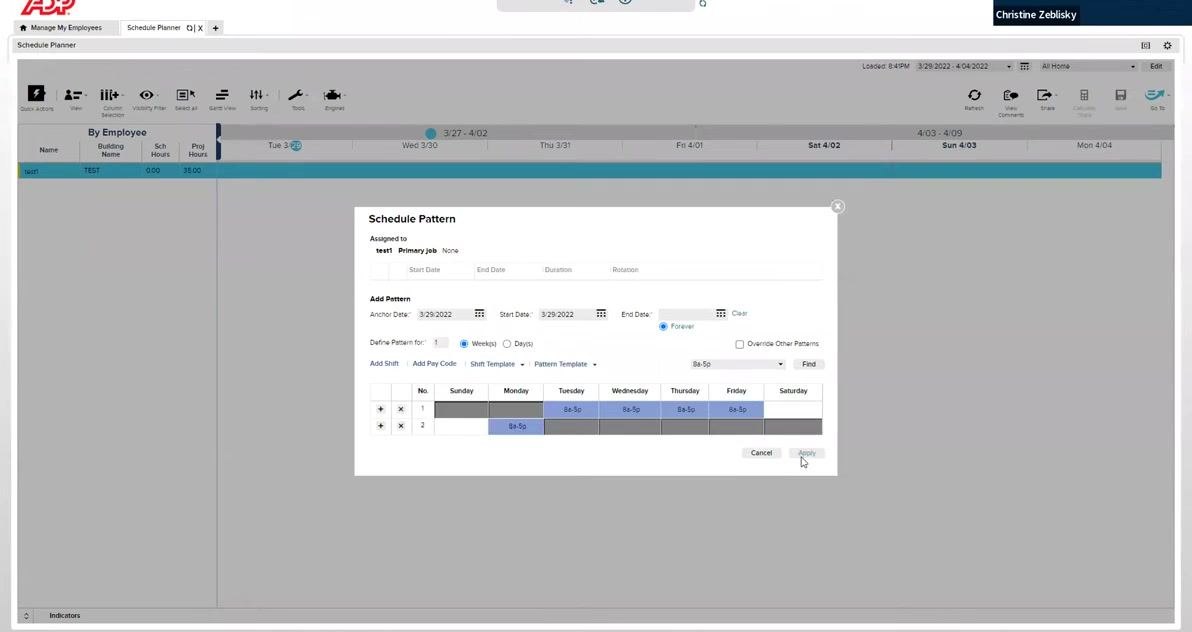
Check each entry for mistakes, such as a missing "A" or "P." If a cell changes color, review and correct that entry. Confirm that every day shows the correct shift, 8A-5P, before moving on.
Apply the schedule pattern
Once all days are filled in correctly, click Apply at the bottom right of the dialog. The schedule now repeats "8A to 5P" for Tuesday, Wednesday, Thursday, Friday, and Monday, starting from the specified payroll period.
Save the schedule pattern
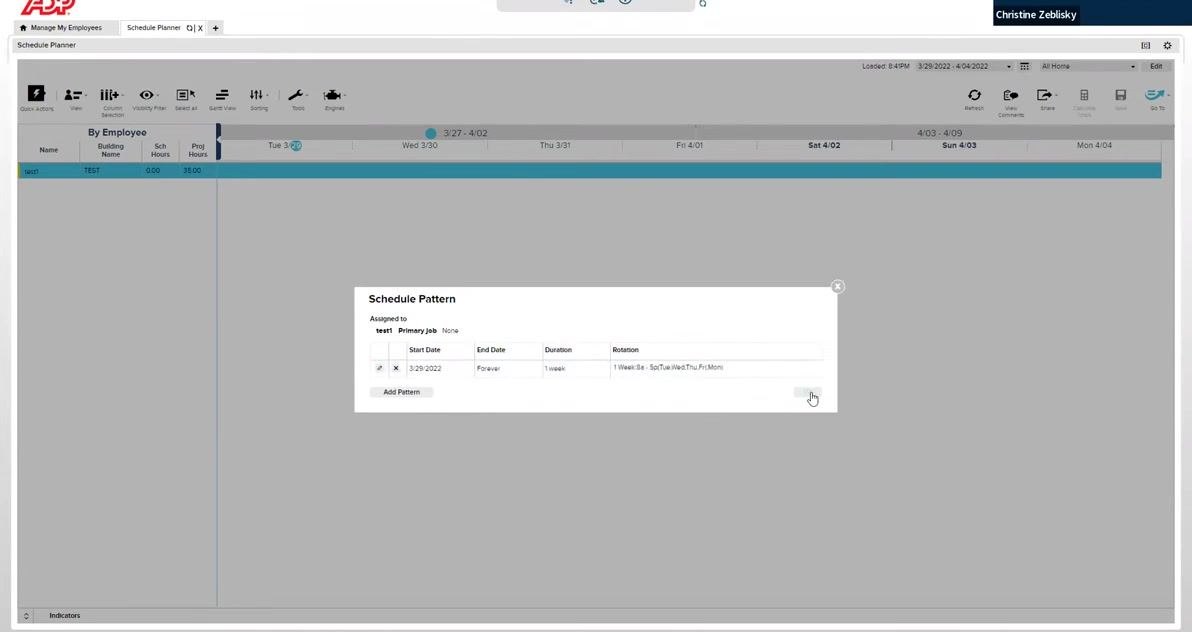
Click Save in the Schedule Pattern dialog to finalize the schedule for the employee. The dialog displays a summary of the assigned employee (for example, test1), the primary job, the start date (for example, 3/29/2022), the end date (Forever), the duration (1 week), and the rotation (Tue, Wed, Thu, Fri, Mon). Review these details for accuracy before saving.
Review the scheduled hours
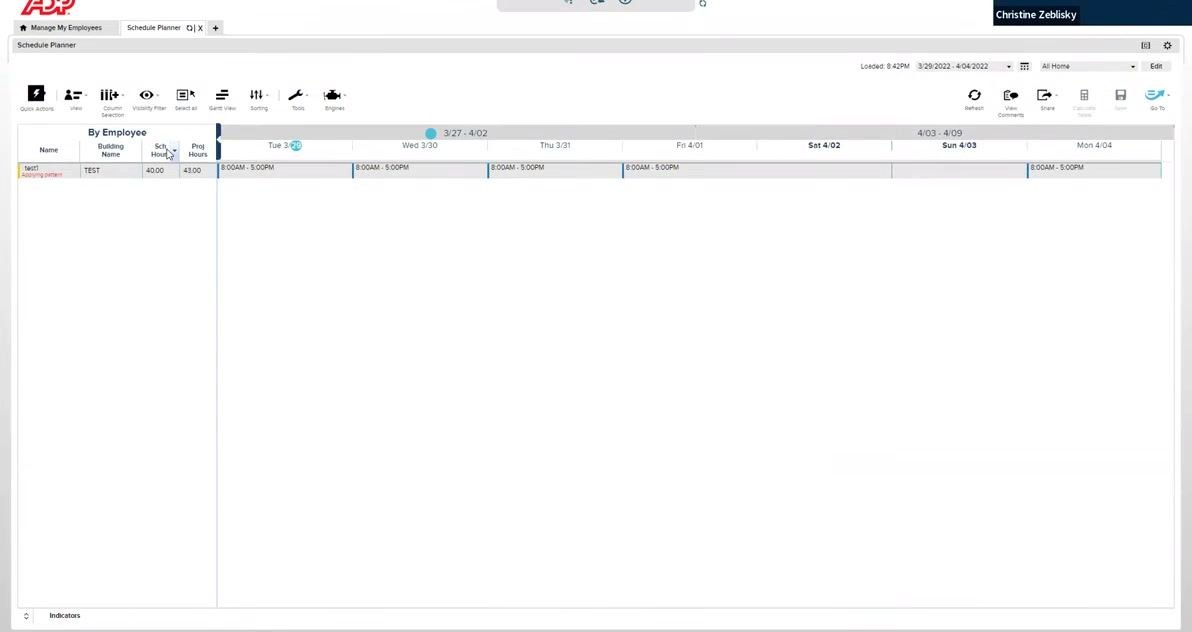
After saving, the system displays the employee's scheduled hours in the main schedule planner view. Verify that the Sch Hours (Scheduled Hours) and Proj Hours (Projected Hours) columns show the correct totals (for example, Sch Hours: 40.00, Proj Hours: 40.00). Check that each scheduled day—Tuesday, Wednesday, Thursday, Friday, and Monday—displays the correct shift times (for example, 8:00AM - 5:00PM), and confirm the schedule appears for the correct date ranges (for example, 3/27 - 4/02 and 4/03 - 4/09).
Summary
You've now learned how to create a schedule in ADP: locating an employee, opening the Schedule Pattern dialog, entering recurring shift times, applying and saving the pattern, and confirming the resulting scheduled hours in the planner view.
Generation details: cost, quality tiers
Docsie billed 1,500 credits ($1.05) to analyze this 3-minute video at standard quality. The rewrite, template fill and Word/PDF exports were included. The same video at each quality tier:
| Quality | Frames sampled | Credits | Approx. cost |
|---|---|---|---|
| Draft | every 16-30 s | 750 | $0.52 |
| Standard (this guide) | every 8-15 s | 1,500 | $1.05 |
| Detailed | every 4-7 s | 3,000 | $2.10 |
| Ultra | every 1-3 s | 6,000 | $4.20 |
Credits priced at $0.70 per 1,000; plans include a monthly allowance. Enterprise customers on on-premise or bring-your-own-model deployments run this on their own inference and pay no per-video credits.
Generated by Docsie Video-to-Docs on 2026-10-19 from a 2-minute video. Screenshots are frames from the source video and belong to their creator, Orsid New York, whose original is embedded above. If you own this video and want the guide removed or credited differently, contact us and we will act within one business day.