4.8
on G2
Upload a PDF and Docsie's AI reads it, finds the main points and writes a PowerPoint (.pptx) deck that summarizes it. You get a first draft of the presentation to edit, not a slide for every page of the PDF.
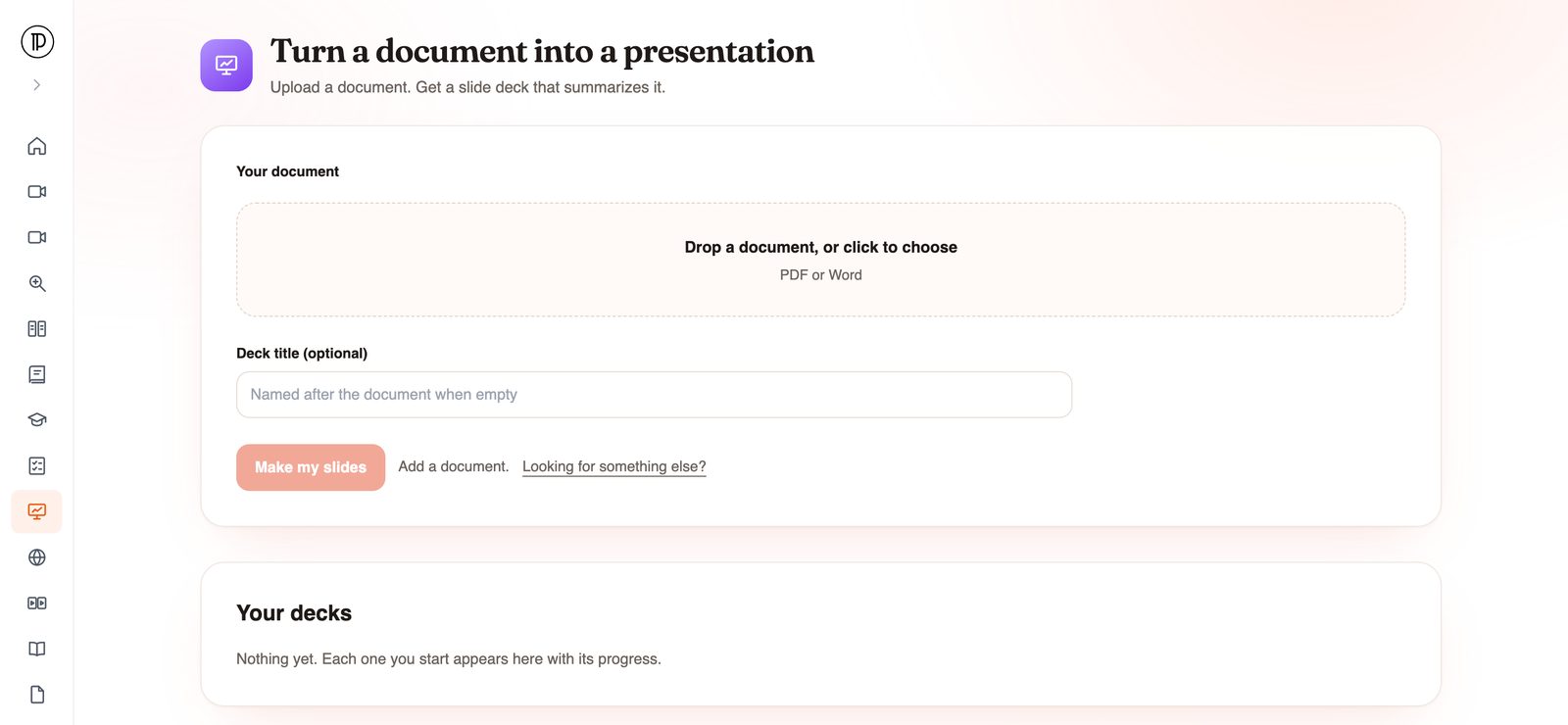
Most PDF to presentation tools move pages onto slides. Docsie writes the slides from what the document says, so a long report turns into a deck you can present.
The output is a standard PowerPoint file. Open it in PowerPoint, Google Slides or Keynote, rewrite any slide, reorder the story and put it in your own template.
The AI works from the text of the document, not its page design. A long report comes back as a summary deck you can trim or extend, not one slide per page.
Drop in a PDF or a Word file. When the document is imported, scanned pages are read with OCR, so a scanned manual still has text for the slides to draw on.
Search for pdf to ppt and you will mostly find layout converters. A PDF to PowerPoint AI tool like this one solves a different problem. Pick the one that matches what you need to walk into the meeting with.
How it works
Four steps, and only the first one needs you.
Open the app and drop in one PDF or Word file. Give the deck a title, or leave the field empty and it is named after the document. You don't need an account to start.
Docsie asks for your email when you submit and sends you a code. That is the only sign-in step.
The file is first imported into a Docsie knowledge base: text is extracted, scanned pages go through OCR and an outline is built. Then the slide step runs on that content, in the background.
You get an email when the deck is ready. Your decks also appear in the app with their progress, so you can check on a run at any time.
Where it helps
Create a presentation from a PDF whenever the reading has already been written and the talk has not.
Turn a paper, white paper or analyst report into slides for a reading group, a lecture or a team briefing.
Build a briefing deck from a manual for a training session, a customer kickoff or a new-hire walkthrough.
Present a new policy, SOP or work instruction at a team meeting without drafting the slides from a blank page.
Summarize a proposal, business case or project report for a review or a steering meeting.
Teachers and trainers can turn a handout into lecture slides, then add their own examples and questions.
If the material is a training video or a screen recording rather than a PDF, use Docsie Video to Slides instead.
Join forward-thinking teams using Docsie






_Leader_Small-Business_Leader.svg)


Common questions
Q: How do I convert a PDF to slides?
A: Open Docsie PDF to Slides, drop in the PDF, and click Make my slides. Confirm your email with the code Docsie sends. The deck is built in the background and you get an email when the .pptx is ready to download.
Q: Is this a PDF to PPT converter?
A: Not in the layout sense. A converter copies each PDF page onto a slide. Docsie uses AI to summarize the document into a new deck. If you need the same pages as slides, use a converter. If you need a presentation that explains the document, use this.
Q: Can AI make a presentation from a PDF?
A: Yes, that is what this app does. It reads the document, works out the main points and writes slides that summarize them. Treat the result as a first draft: check the facts against the source and add your own framing before you present.
Q: Will the slides keep my PDF's images, charts and design?
A: Plan on adding those yourself. The deck is built to summarize what the document says, not to carry over its page design, images or charts. Once you download the .pptx, drop in the visuals you need and apply your own template.
Q: Can I open the deck in Google Slides or Keynote?
A: Yes. The deck is a .pptx file. Google Slides opens it after you upload it to Google Drive, or you can add its slides to an existing deck with File > Import slides. Keynote opens .pptx files directly.
Q: Do I need an account, and does it work with scanned PDFs?
A: You can start without an account; Docsie asks for your email and a one-time code only when you submit. The run uses your workspace's AI credits. Scanned PDFs go through OCR when the document is imported, and Word files work too.
Want to see it on your own documents?
Book a DemoUpload a report, manual or paper. Docsie writes the deck and emails you when the .pptx is ready.
SOC 2 compliant. Your data is never used to train AI models.