4.8
on G2
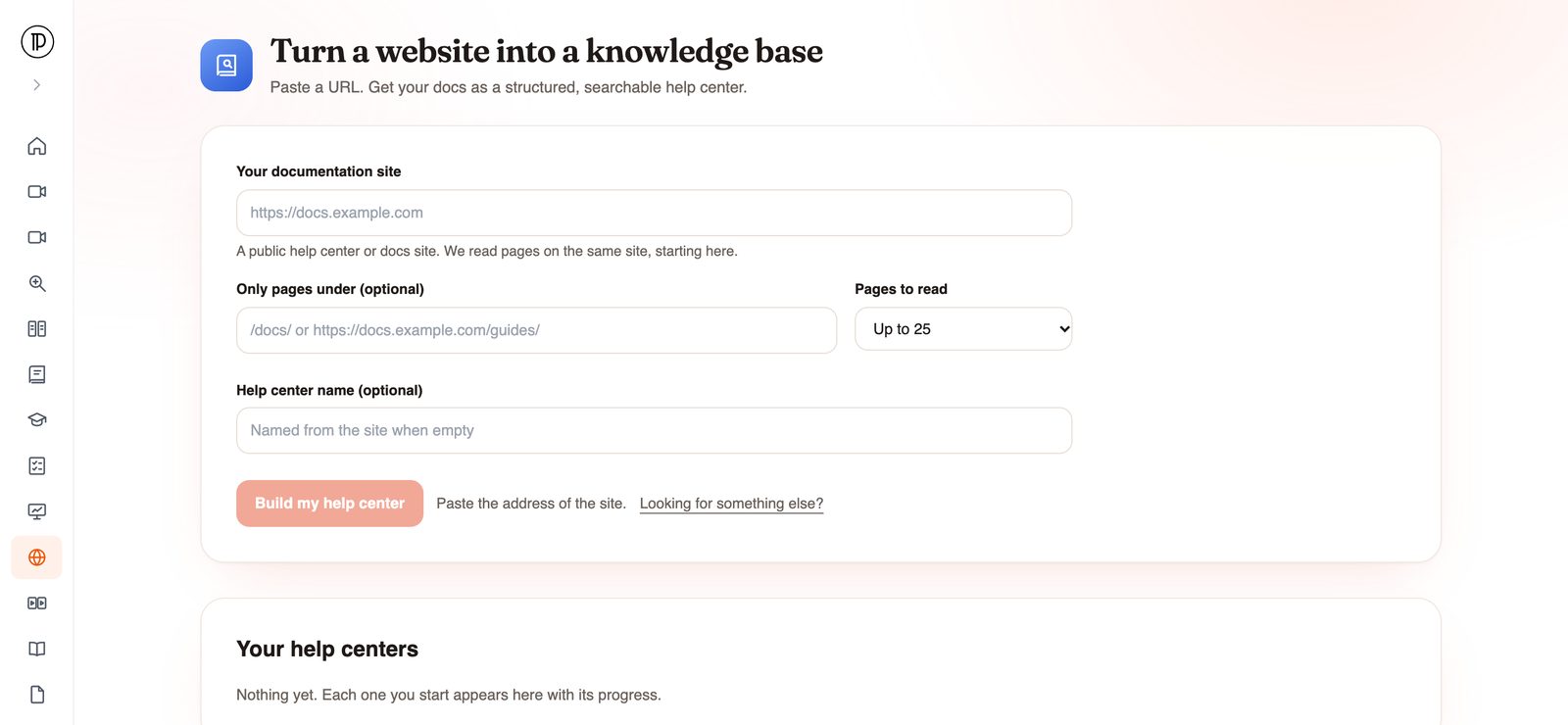
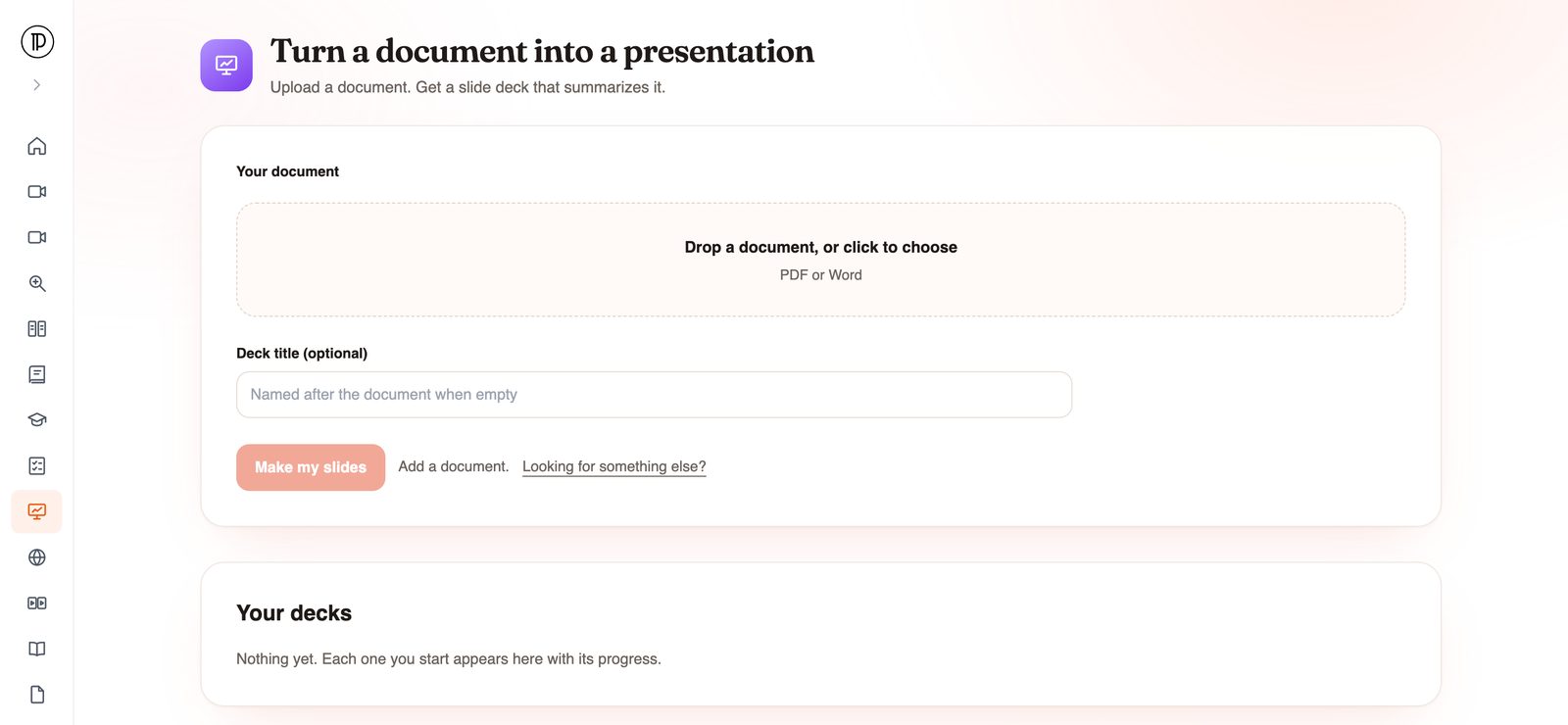
Upload product manuals or policy PDFs and Docsie turns them into a structured, searchable help center, split into chapters and articles, that you publish as a web portal instead of a file people have to download and scroll.
A manual posted as a PDF link is a web page in name only. Docsie turns the content into a knowledge base built for finding answers.
Docsie imports each document, reads it (with OCR for scanned pages), builds an outline and turns it into a help center organized as chapters and articles.
Readers type a question into the help center's search and land on the article that answers it, instead of paging through a PDF viewer.
Publish the help center as a Docsie portal: a website your customers or staff open in a browser. Branding and access options for portals are covered on the white-label help center page.
If you searched for pdf to html, you may want an exact web copy of the file. That is a different job. Docsie rewrites the PDF into help-center pages; it does not reproduce the PDF's layout in HTML.
How it works
Upload the files, confirm your email, and Docsie builds the help center while you do something else.
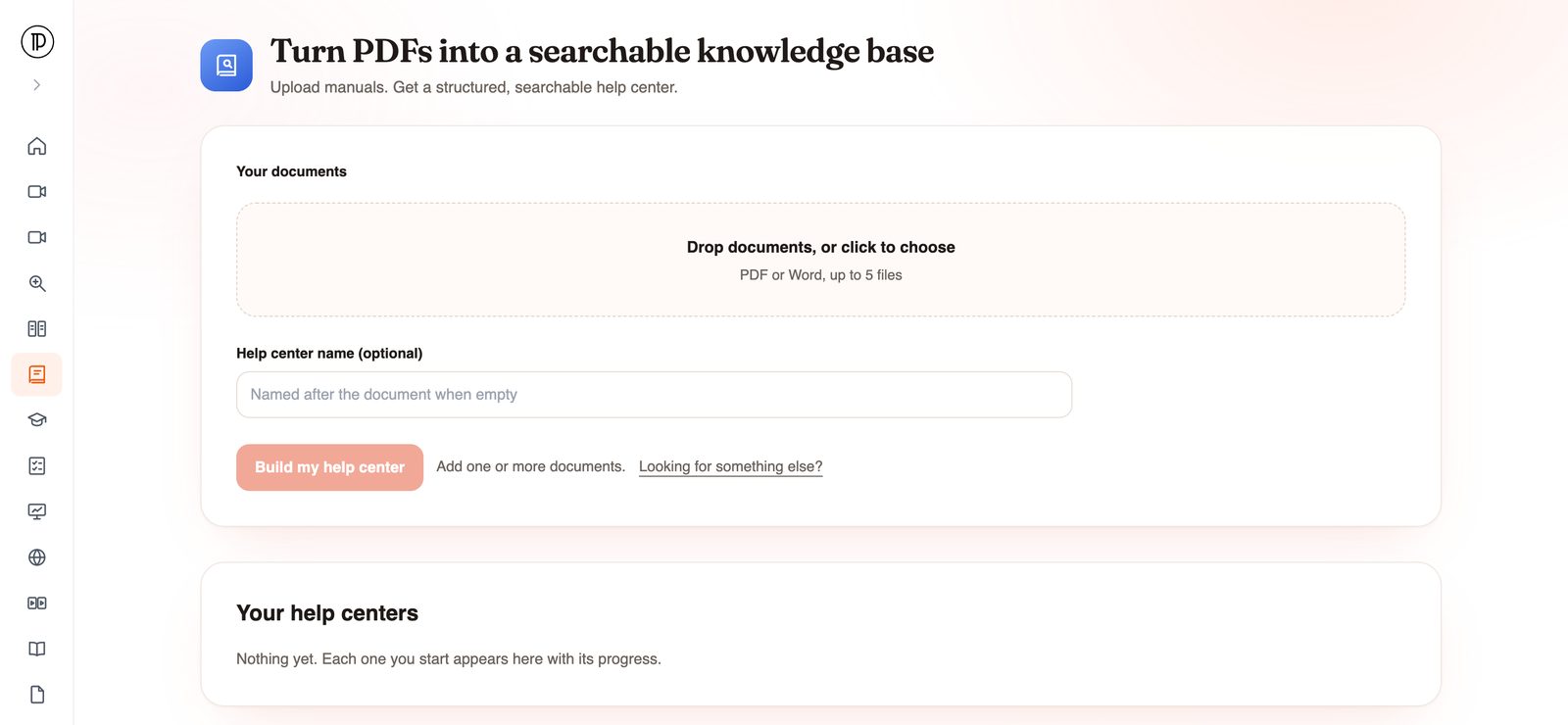
Open the app and drop in PDF or Word files, up to five at a time. Name the help center, or leave the field empty and it is named after the document. No account is needed to start.
Docsie asks for your email when you submit and sends a one-time code. That is the only sign-in step.
Each document is imported into a Docsie knowledge base: text is extracted, scanned pages go through OCR and an outline is built, then the help center is assembled. You get an email when it is ready.
Open the help center in Docsie, check the chapters and articles, make any edits, and publish it as a portal.
Good fits
Anything people consult to answer a question, rather than read once from cover to cover.
Move a user manual to online help so customers search it on any device. For writing new manuals, see user manual software.
Give field technicians and operators a searchable manual instead of a large PDF on a shared drive.
Publish the employee handbook as articles staff can search, so the answer to a leave question is one search away.
Turn a setup PDF into steps customers can find by searching for the problem they have.
Put procedures where people can search them, in a knowledge base your team maintains instead of a folder of file versions.
Each run takes up to five files. If you are moving a large back catalog, read migrating a PDF library to a knowledge base and the legacy document migration page.
Join forward-thinking teams using Docsie






_Leader_Small-Business_Leader.svg)


Common questions
Q: How do I turn a PDF into a website?
A: Upload the PDF to Docsie PDF to Help Center and click Build my help center. Confirm your email with the code Docsie sends. Docsie builds a searchable help center from the document and emails you when it is ready, and you publish it as a portal.
Q: Is this a PDF to HTML converter?
A: No. A PDF to HTML converter tries to reproduce each page in HTML. Docsie rewrites the content into help-center articles with chapters and search, so expect a web help site based on the PDF, not a pixel-for-pixel copy of it.
Q: How do I turn a PDF into a web page I can share?
A: Build the help center, then publish it as a Docsie portal and share its link. Readers open it in a browser and search it; they never download the file.
Q: Can I make a searchable PDF library or a wiki from my PDFs?
A: Yes. Upload up to five PDF or Word files per run and Docsie organizes them into one knowledge base with search, which works much like a wiki your team edits in Docsie. For a large archive, see the PDF migration pages linked above.
Q: Does it work with scanned PDFs?
A: Yes. Documents go through OCR when they are imported, so text in scanned pages can be read. Clean, straight scans give the best results.
Q: Do I need an account to try it?
A: No. You can open the app and add files without one. Docsie asks for your email and a one-time code when you submit. The run uses your workspace's AI credits.
Publishing a large set of manuals?
Book a DemoUpload up to five PDF or Word files. Docsie builds the help center and emails you when it is ready.
SOC 2 compliant. Your data is never used to train AI models.