
How to Reset Your Password in UKG
Forgetting your UKG Pro password doesn't have to disrupt your workday. This guide walks you through how to reset your password in UKG, from locating the official sign-in page to creating a new, secure password. Follow each step in order to regain access to your account quickly and safely.
Video: How To Reset Ukg Pro Password | New Fix by Tutorials With Trevor (2025). All credit for the demonstration goes to the creator; watch the original on YouTube. The written guide below was generated from this video by Docsie. Creator? Request a change or removal.
Forgetting your UKG Pro password doesn't have to disrupt your workday. This guide walks you through how to reset your password in UKG, from locating the official sign-in page to creating a new, secure password. Follow each step in order to regain access to your account quickly and safely.
Prerequisites
- Access to a web browser (such as Chrome, Firefox, or Edge).
- The email address your employer has on file for your UKG Pro account.
- Access to that email inbox to retrieve a verification code.
- If you're unsure which email is linked to your account, contact your HR or IT support before you begin.
Access the UKG Launch sign-in page
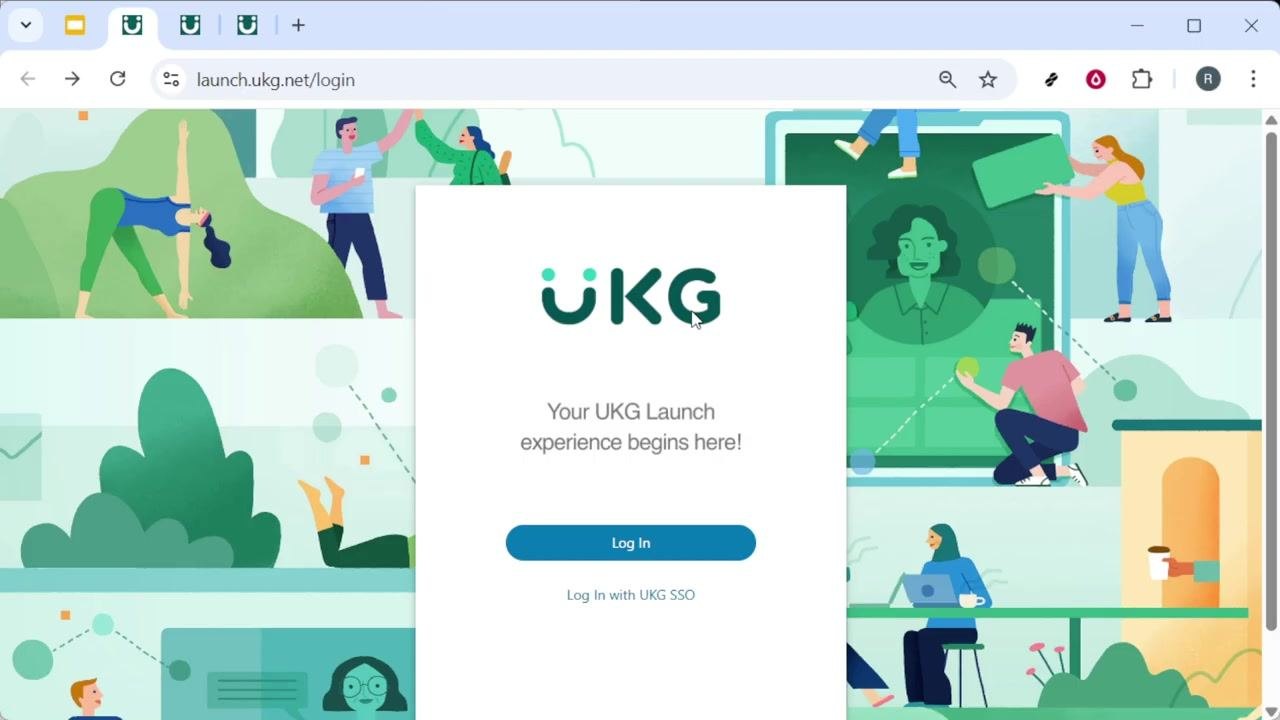
Open your preferred web browser and type UKG Pro into the search bar, then press Enter. Locate and click the official UKG Launch sign-in page.
- Confirm the URL reads
https://launch.ukg.net/login. - Look for official UKG branding and avoid suspicious or unofficial links.
- If your company provides a direct link, you can use that instead.
Start the password reset process
On the UKG Launch sign-in screen, find the regular login area, but do not enter your username or password yet. Instead, look for the link labeled Create or reset your password, typically located just below the username and password fields. Click this link to begin the reset process.
Enter your email address
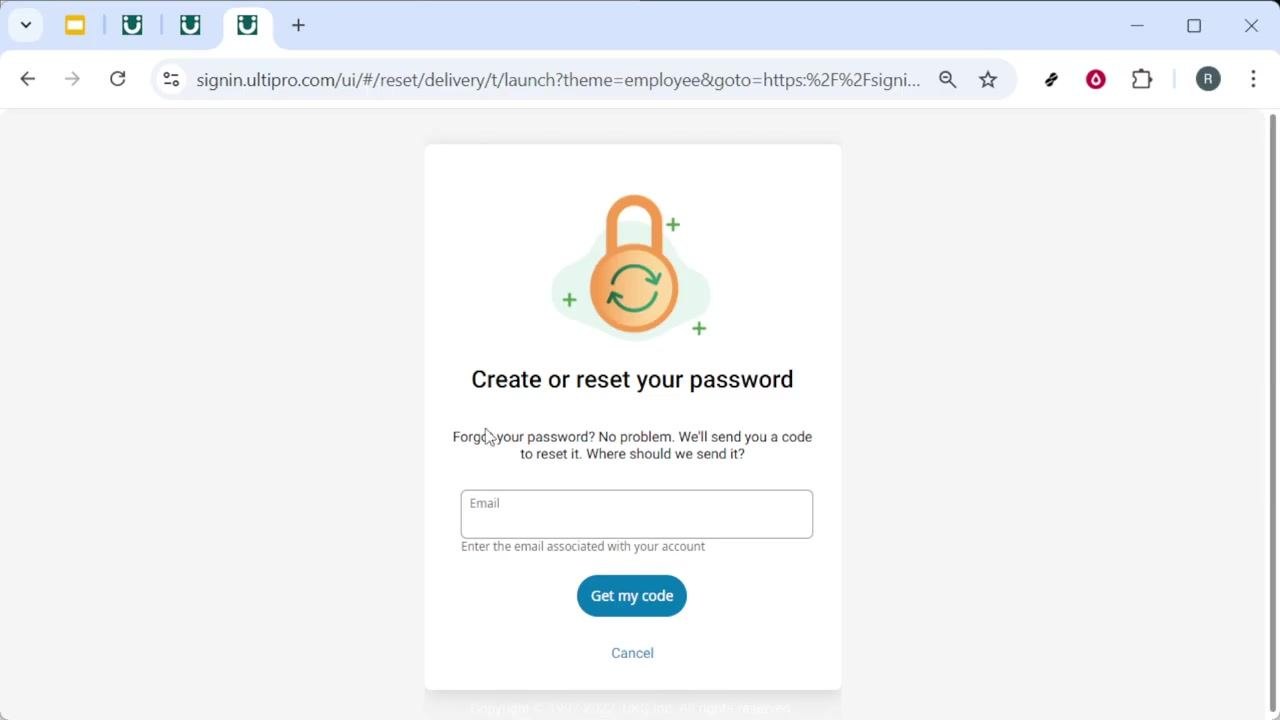
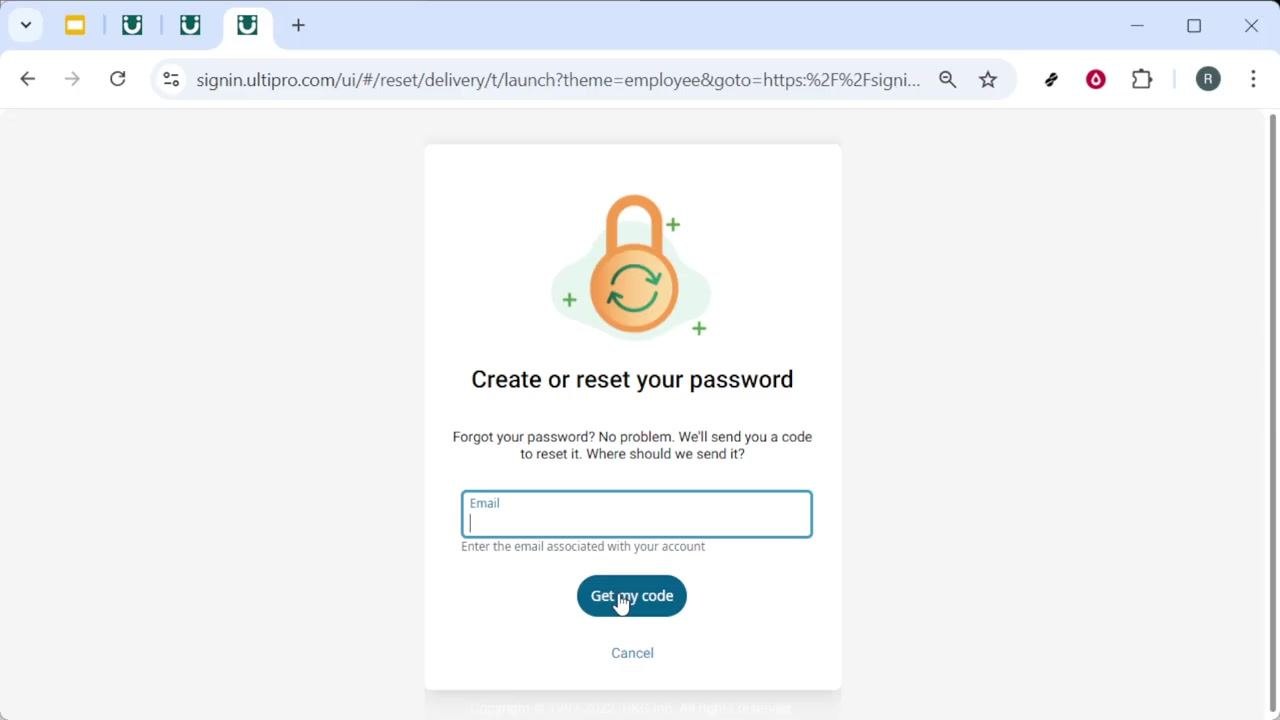
On the Create or reset your password screen, locate the Email field. Enter the email address associated with your UKG Pro account, typing carefully to avoid typos. Use the email address your employer has on file for you.
Request your verification code
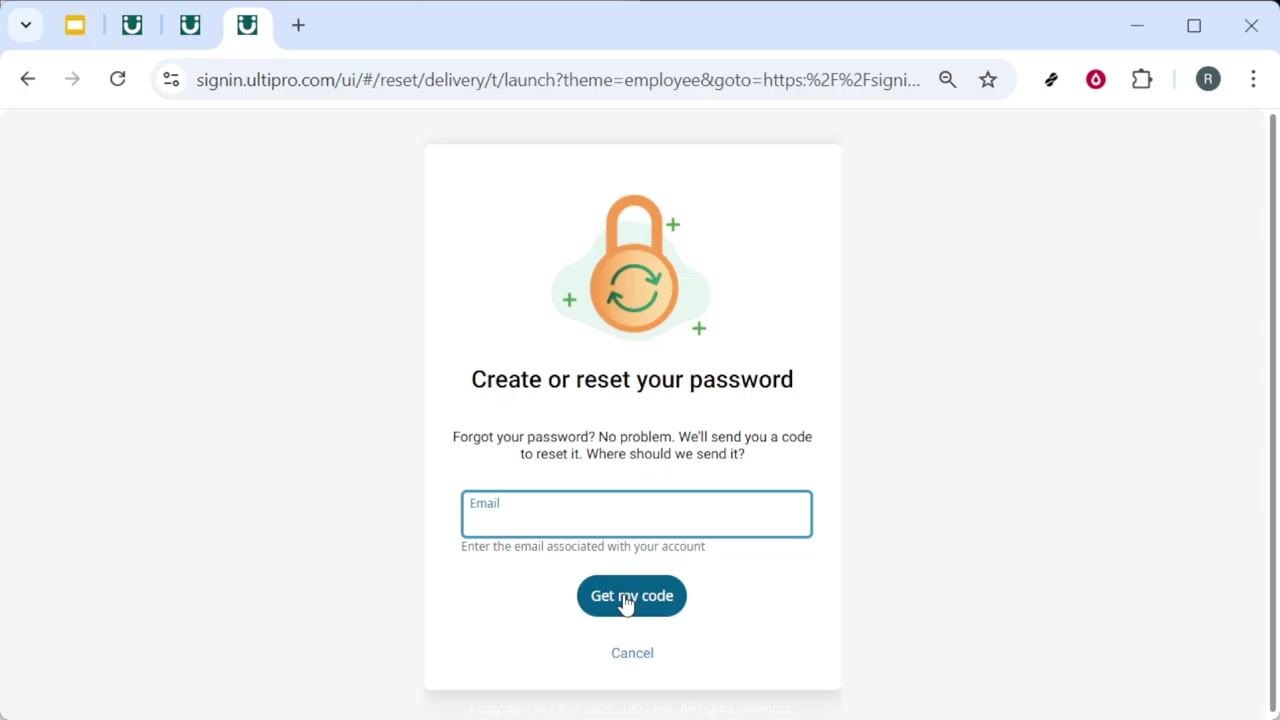
Click the Get my code button. UKG sends a one-time verification code to the email address you provided.
- Wait about a minute for the code to arrive.
- Check your spam or junk folder if you don't see the email.
- Make sure your mailbox isn't full.
- Do not share this code with anyone.
Retrieve and enter the verification code
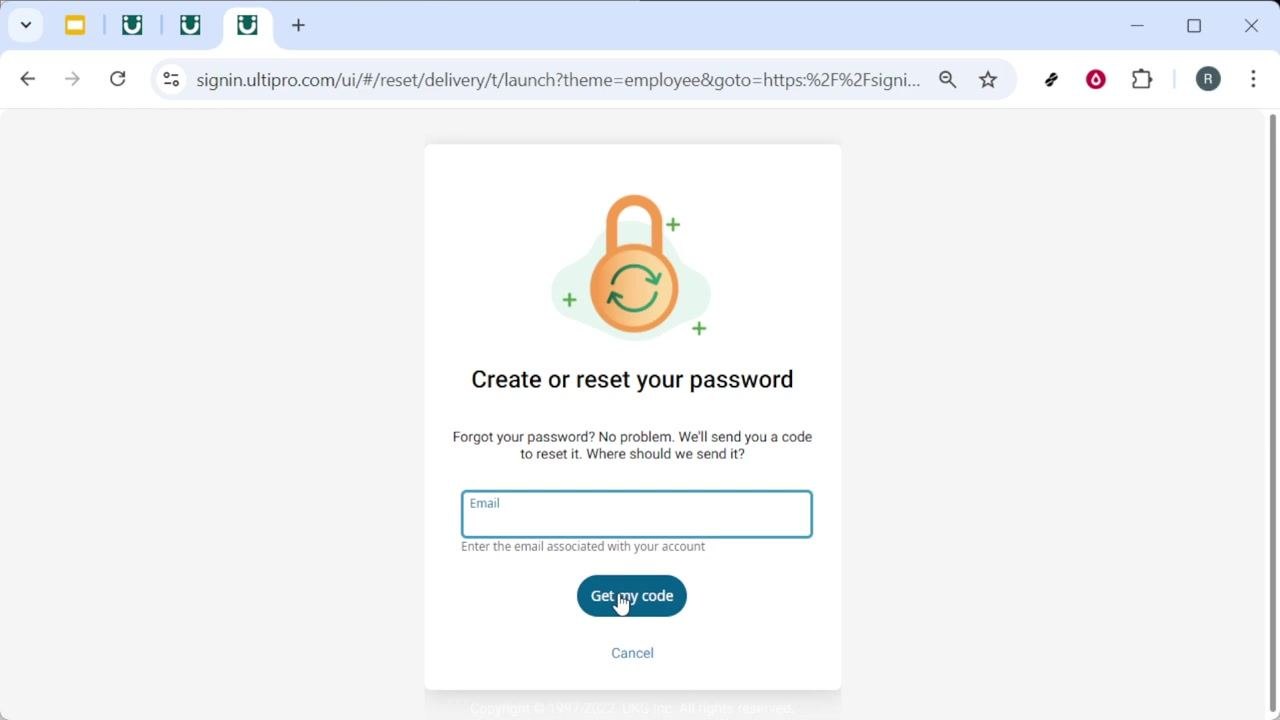
Open your email inbox and locate the message from UKG containing your verification code. Copy the code exactly as it appears, then return to the UKG password reset page and enter it into the verification field.
- Be careful to distinguish between similar characters, such as the letter O and the number 0.
If your verification code has expired, request a new one from the same Create or reset your password screen by clicking the option to resend or request a new code, then wait for it to arrive in your inbox.
Proceed to password creation
After entering the correct verification code, click Next to proceed. This takes you to the password creation screen.
Review the password requirements
On the password creation screen, carefully review the on-screen password requirements. These typically include:
- A minimum password length, often 8 or more characters.
- At least one uppercase letter (A-Z).
- At least one lowercase letter (a-z).
- At least one number (0-9).
- At least one special character (such as !, @, #, $, etc.).
Create and confirm your new password
Enter your new password, ensuring it meets all the listed requirements.
- Choose a strong, unique password you haven't used elsewhere.
- Consider a memorable passphrase with added numbers and symbols, such as "CoffeeMug!2024".
- Optionally, save your new password in a reputable password manager for future reference.
Confirm your new password by entering it again in the confirmation field. Complete any additional prompts on screen to finalize the process, and look for a confirmation message indicating your password has been successfully updated.
Keep your credentials secure
- Do not write your password in plain text or share it with others.
- Store your password securely using a password manager if possible.
What's next
Once your password is successfully updated, you can sign in to UKG Pro with your new credentials. If you encounter any issues—such as not receiving the verification email, a code that doesn't work, or other technical errors—contact your organization's HR or IT support for assistance.
Generation details: cost, quality tiers
Docsie billed 1,500 credits ($1.05) to analyze this 3-minute video at standard quality. The rewrite, template fill and Word/PDF exports were included. The same video at each quality tier:
| Quality | Frames sampled | Credits | Approx. cost |
|---|---|---|---|
| Draft | every 16-30 s | 750 | $0.52 |
| Standard (this guide) | every 8-15 s | 1,500 | $1.05 |
| Detailed | every 4-7 s | 3,000 | $2.10 |
| Ultra | every 1-3 s | 6,000 | $4.20 |
Credits priced at $0.70 per 1,000; plans include a monthly allowance. Enterprise customers on on-premise or bring-your-own-model deployments run this on their own inference and pay no per-video credits.
Generated by Docsie Video-to-Docs on 2026-10-11 from a 2-minute video. Screenshots are frames from the source video and belong to their creator, Tutorials With Trevor, whose original is embedded above. If you own this video and want the guide removed or credited differently, contact us and we will act within one business day.