
How to Post a Goods Issue with VL02N in SAP S/4HANA
Posting a goods issue is a key step in the outbound delivery process, confirming that goods have physically left the warehouse. This guide walks you through how to post a goods issue with VL02N in SAP, from opening the Change Outbound Delivery screen to resolving posting period errors and confirming a successful post.
Video: 09 Post Goods Issue (PGI) T-Code VL02N by RAVICONSULTANCY (2022). All credit for the demonstration goes to the creator; watch the original on YouTube. The written guide below was generated from this video by Docsie. Creator? Request a change or removal.
Posting a goods issue is a key step in the outbound delivery process, confirming that goods have physically left the warehouse. This guide walks you through how to post a goods issue with VL02N in SAP, from opening the Change Outbound Delivery screen to resolving posting period errors and confirming a successful post.
Prerequisites
- Access to the SAP Easy Access main screen.
- The outbound delivery number you want to process (for example,
80015949). - Knowledge of the open posting periods for your company code, since postings outside these periods will trigger an error.
Open the Change Outbound Delivery screen from the SAP menu
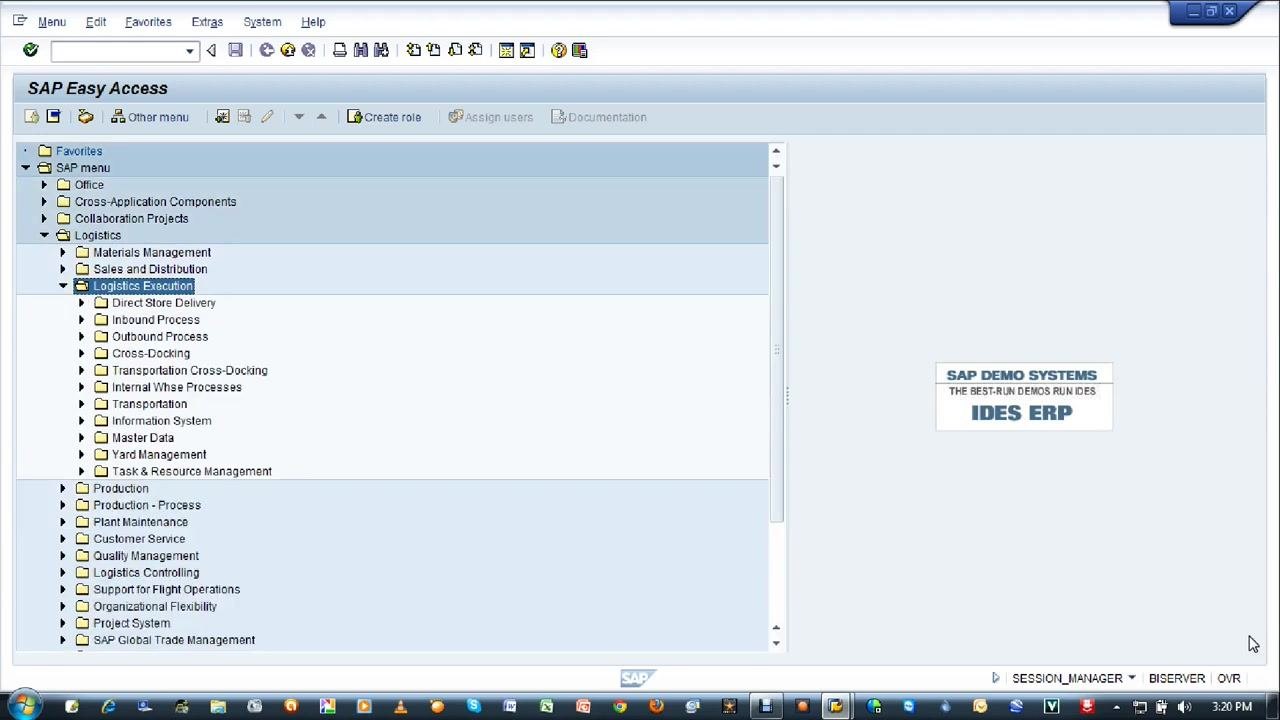
Start from the SAP Easy Access main screen. The screen displays the SAP menu with folders such as Office, Cross-Application Components, Collaboration Projects, Logistics, Accounting, Human Resources, Information Systems, and Tools.
Expand the menu path to reach the transaction:
- Click the arrow next to Logistics to expand it.
- Click the arrow next to Logistics Execution.
- Click the arrow next to Outbound Process.
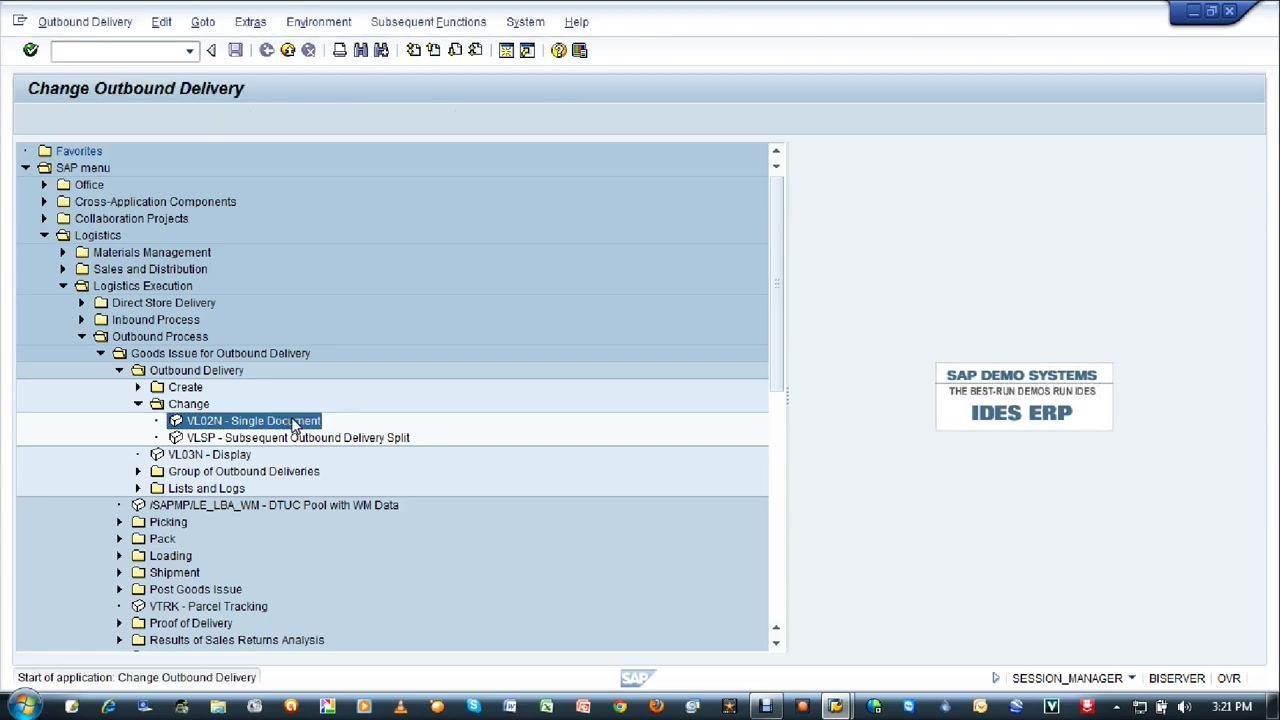
- Click the arrow next to Goods Issue for Outbound Delivery.
- Click the arrow next to Outbound Delivery.
- Select Change, then VL02N - Single Document.
Double-click VL02N - Single Document to open the Change Outbound Delivery screen.
Enter transaction code VL02N in the command field
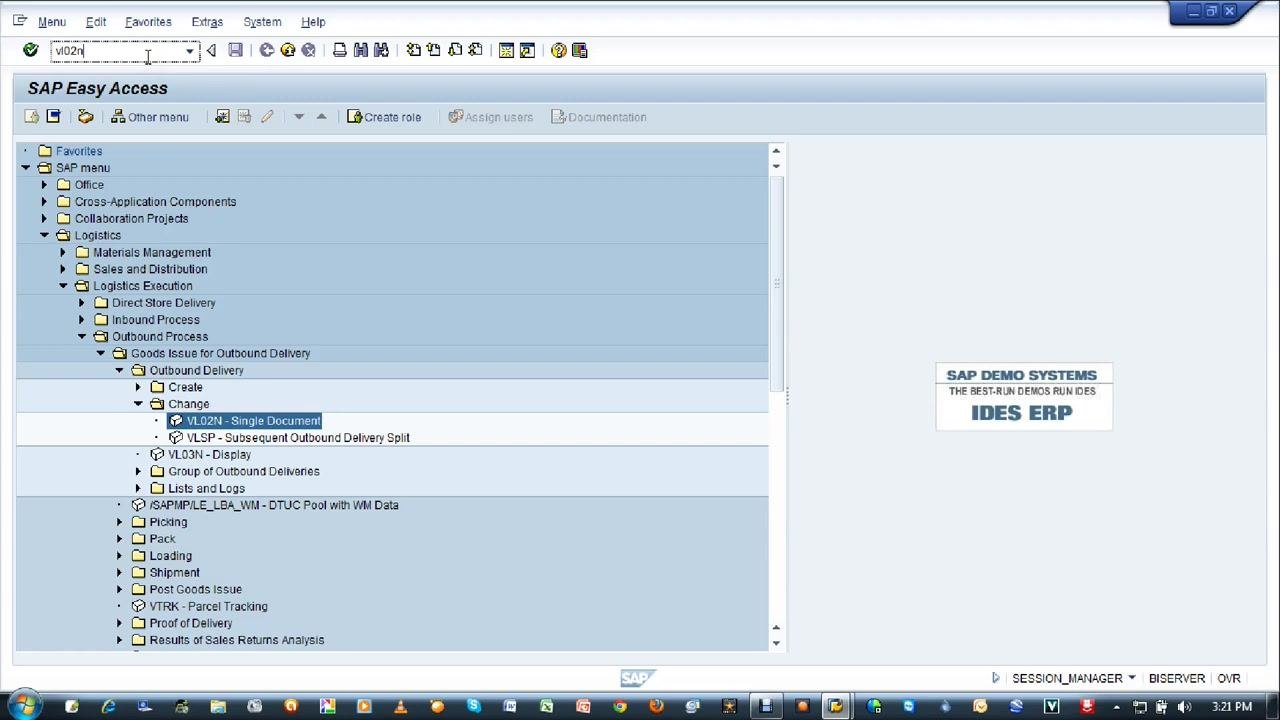
As an alternative to navigating the menu, you can go directly to the transaction using the command field.
In the SAP Easy Access screen, locate the command field at the top left of the window. Enter the transaction code VL02N.
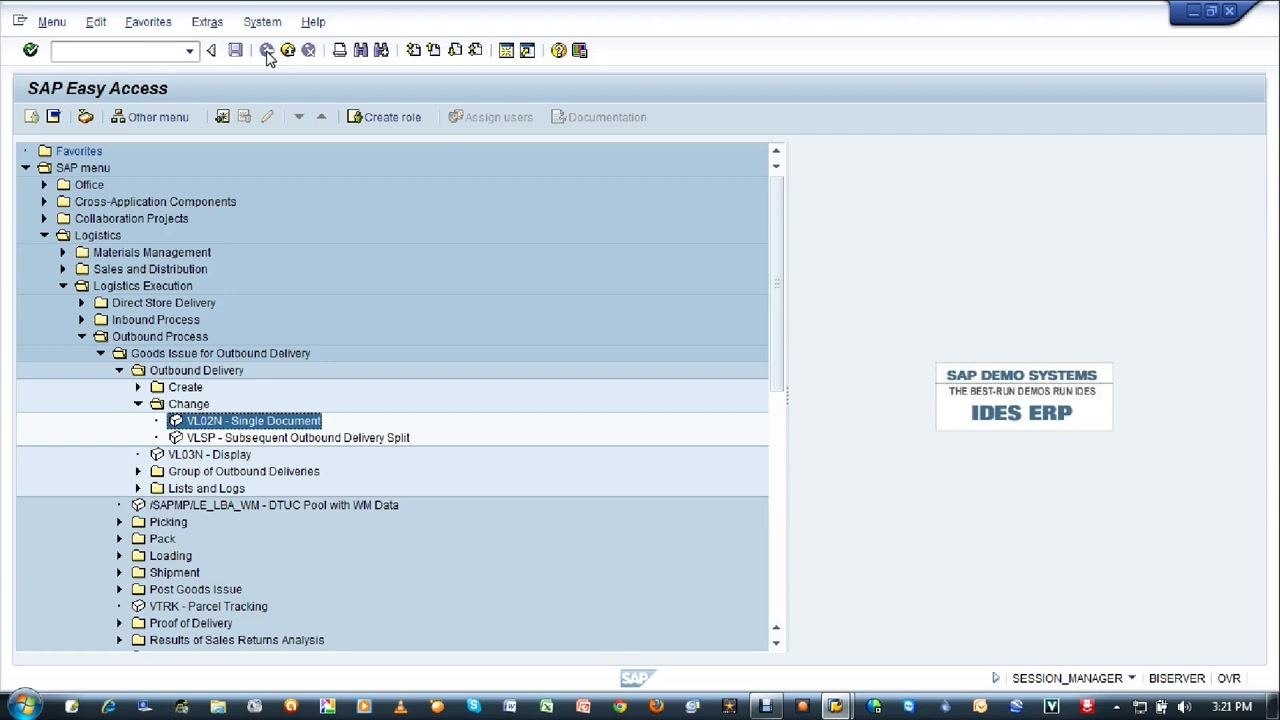
Press Enter to navigate to the Change Outbound Delivery screen.
Enter the outbound delivery number
In the Change Outbound Delivery screen, enter the outbound delivery number you want to process. In this example, enter 80015949 in the Outbound Delivery field.
Press Enter to proceed.
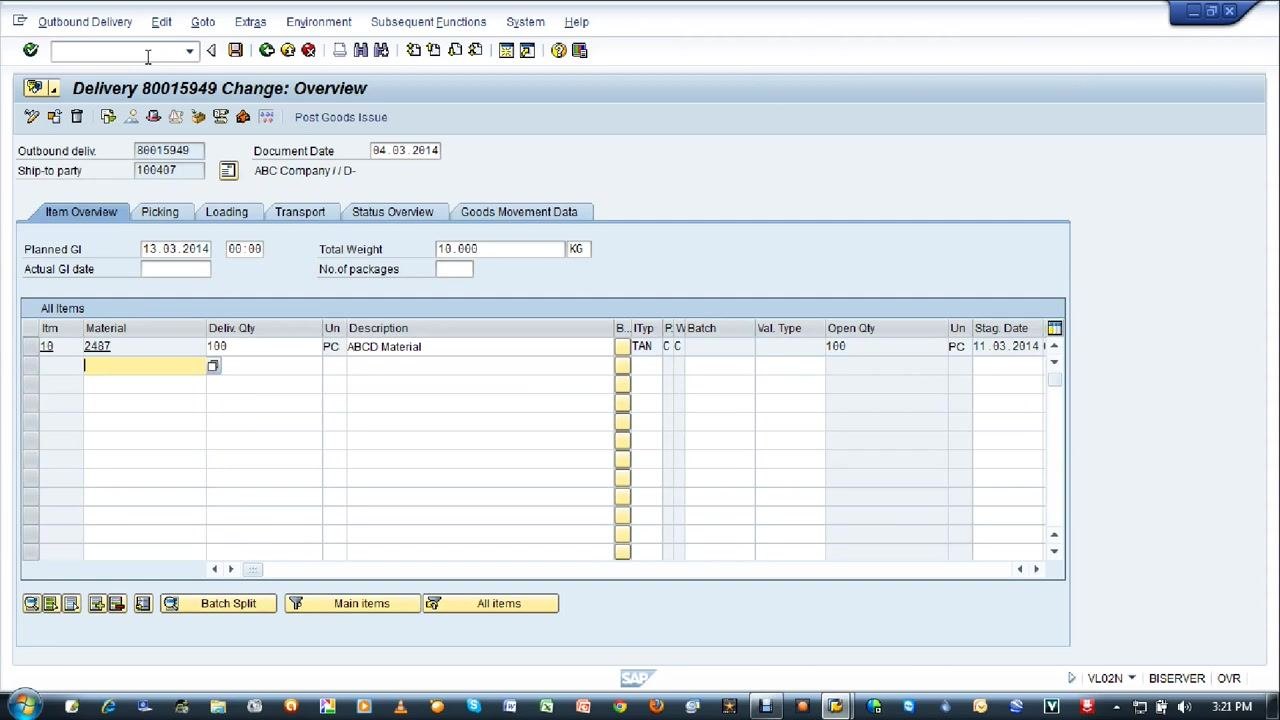
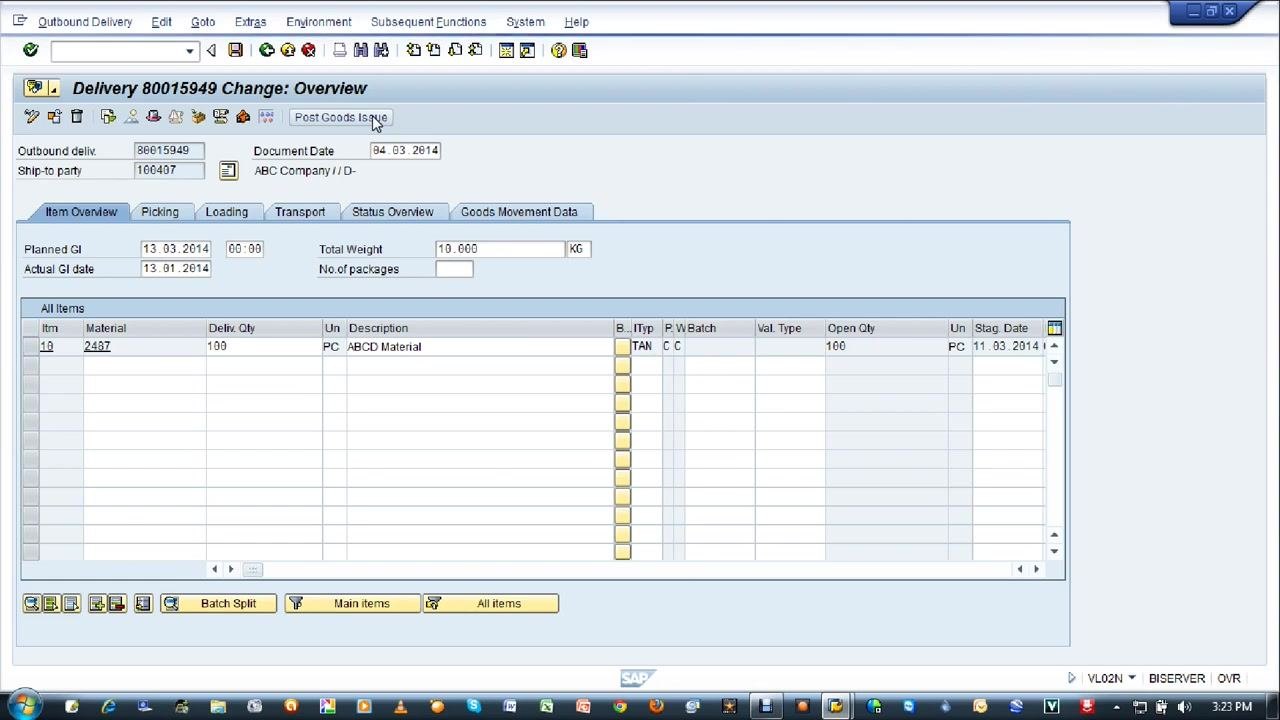
Review the delivery overview details
Before posting, confirm that the delivery details are correct. Check the following fields:
- Outbound deliv.: 80015949
- Document Date: 04.03.2014
- Ship-to party: 1604407 (ABC Company)
- Planned GI: 13.03.2014
- Total Weight: 10.000 KG
- Material: 2487
- Delivery Qty: 100 PC
- Description: ABCD Material
- Stag. Date: 11.03.2014
Ensure all data is correct before proceeding to post the goods issue.
Attempt to post the goods issue
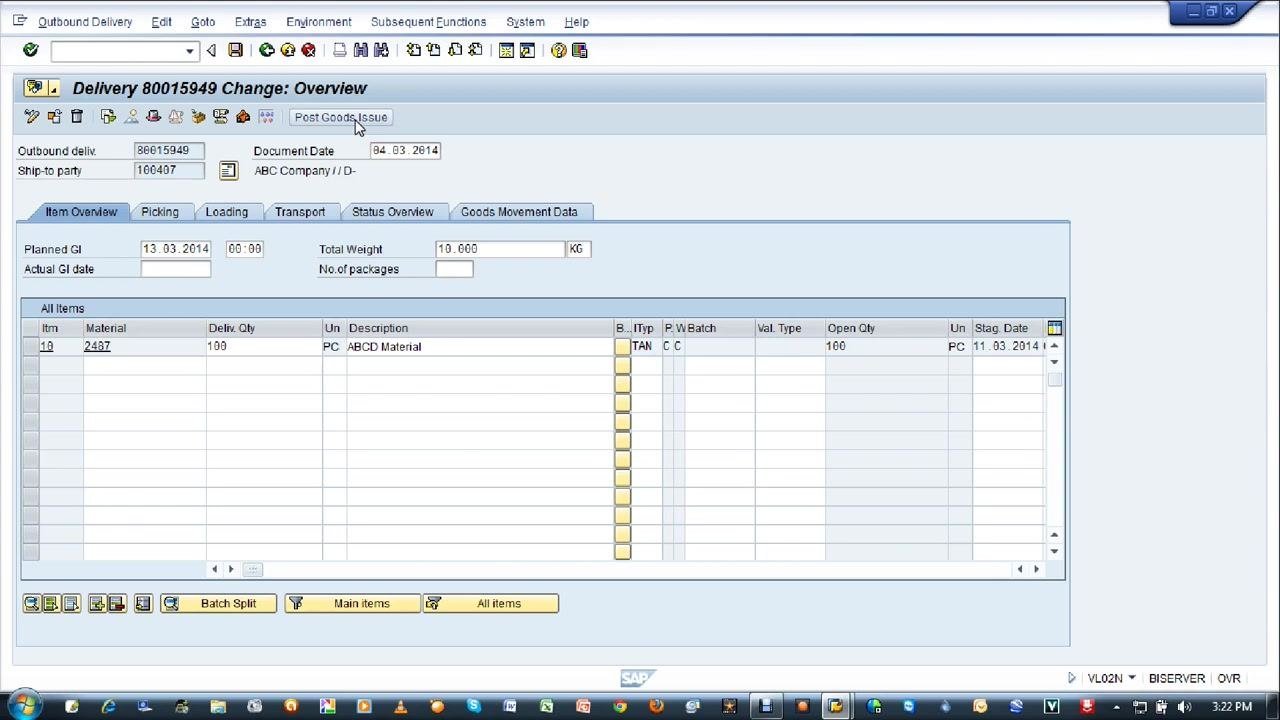
In the Change Outbound Delivery screen, click the Post Goods Issue button.
If the posting period is not open for the entered date, the system displays an error. A Goods movement: Error log screen appears with a message such as:
Posting only possible in periods 2014/02 and 2014/01 in company code 1000
This means goods issues can only be posted for January or February 2014 for company code 1000 in this example.
Enter a valid actual goods issue date
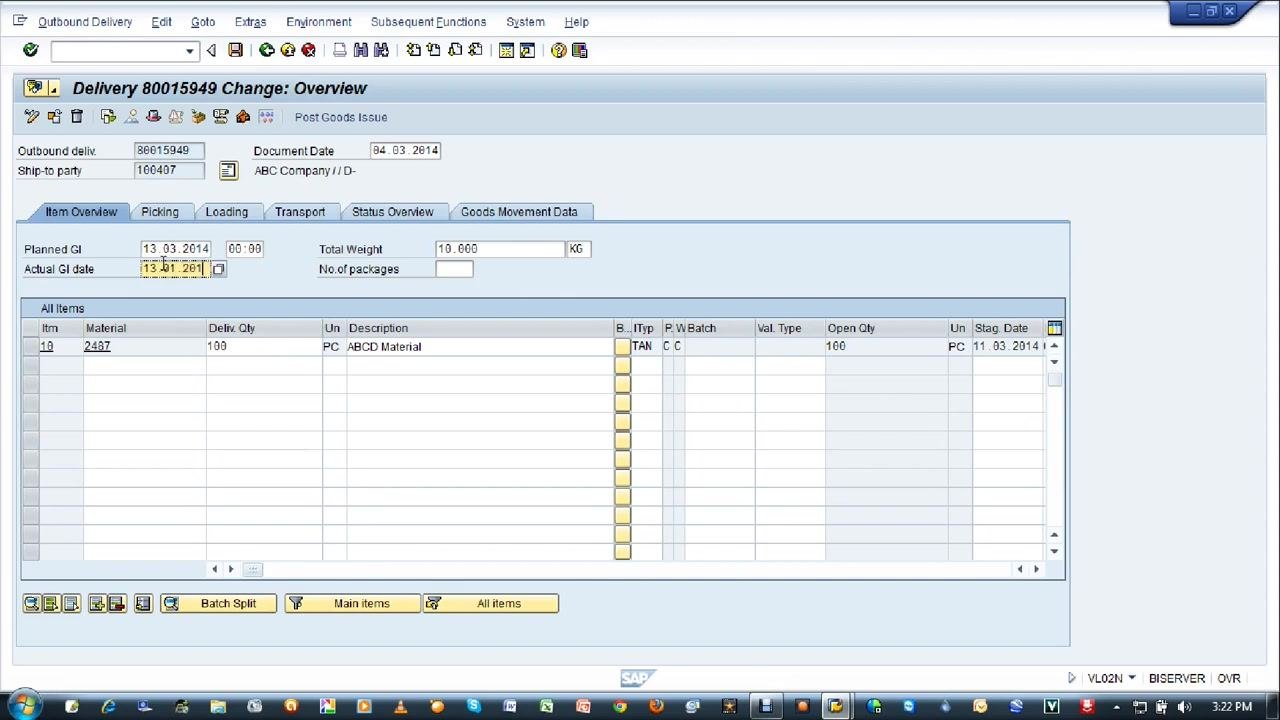
Return to the Change Outbound Delivery screen. In the Actual GI date field, enter a date that falls within the allowed posting periods. For example, enter 13.01.2014 (13 January 2014).
Post the goods issue again
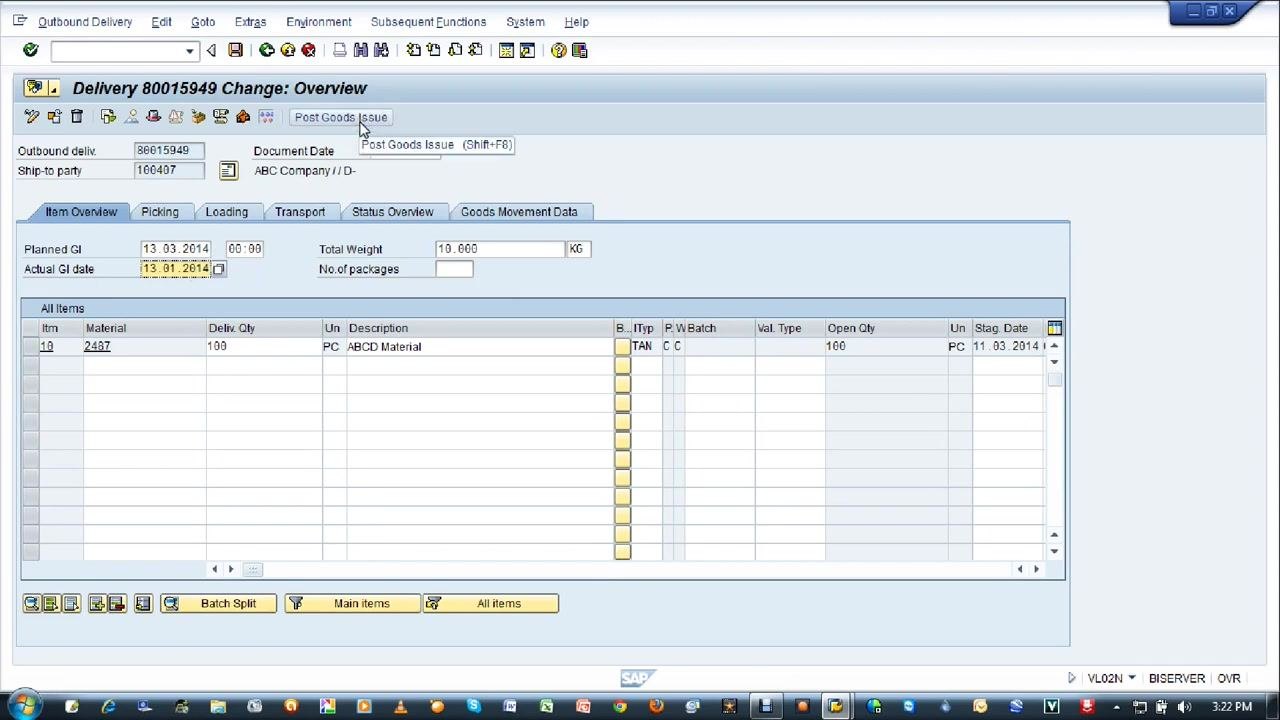
Click the Post Goods Issue button once more. Since the date now falls within the allowed posting period, the system processes the goods issue without error.
Verify successful posting
Once the goods issue posts successfully, the system returns you to the Change Outbound Delivery screen and displays a confirmation message at the bottom:
Delivery 80015949 has been saved
The outbound delivery number (80015949) is now confirmed for the posted goods issue.
Summary
- Always ensure the Actual GI date falls within the open posting periods for your company code.
- If you receive a posting period error, adjust the date in the Actual GI date field and retry.
- Wait for the confirmation message to ensure the goods issue has been successfully posted.
By following these steps, you can resolve posting period errors and complete the process of how to post a goods issue with VL02N in SAP.
Generation details: cost, quality tiers
Docsie billed 2,000 credits ($1.40) to analyze this 4-minute video at standard quality. The rewrite, template fill and Word/PDF exports were included. The same video at each quality tier:
| Quality | Frames sampled | Credits | Approx. cost |
|---|---|---|---|
| Draft | every 16-30 s | 1,000 | $0.70 |
| Standard (this guide) | every 8-15 s | 2,000 | $1.40 |
| Detailed | every 4-7 s | 4,000 | $2.80 |
| Ultra | every 1-3 s | 8,000 | $5.60 |
Credits priced at $0.70 per 1,000; plans include a monthly allowance. Enterprise customers on on-premise or bring-your-own-model deployments run this on their own inference and pay no per-video credits.
Generated by Docsie Video-to-Docs on 2026-10-11 from a 3-minute video. Screenshots are frames from the source video and belong to their creator, RAVICONSULTANCY, whose original is embedded above. If you own this video and want the guide removed or credited differently, contact us and we will act within one business day.