
How to Post a General Ledger Journal Entry with FB50 in SAP S/4HANA
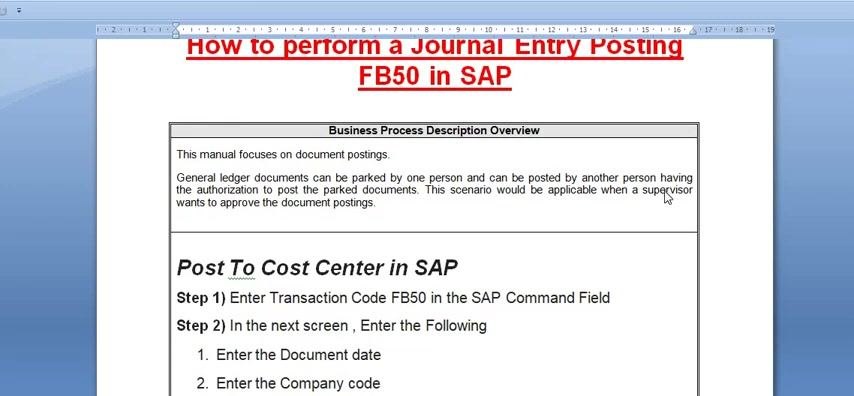
This guide explains how to post a general ledger journal entry with FB50 in SAP. Transaction FB50 lets you enter a G/L account document directly, or park it so another user with the appropriate authorization can review and post it later. This workflow is especially useful when a supervisor needs to approve document postings before they are finalized.
Video: How to perform a Journal Entry Posting FB50 in SAP I FB50 Transaction Tutorial I FB50 POSTING IN SAP by ERP SAP Team (2021). All credit for the demonstration goes to the creator; watch the original on YouTube. The written guide below was generated from this video by Docsie. Creator? Request a change or removal.
This guide explains how to post a general ledger journal entry with FB50 in SAP. Transaction FB50 lets you enter a G/L account document directly, or park it so another user with the appropriate authorization can review and post it later. This workflow is especially useful when a supervisor needs to approve document postings before they are finalized.
Prerequisites
- Access to the SAP system with authorization for transaction FB50.
- Knowledge of the relevant G/L accounts, cost centers, and company code for your transaction.
- Authorization to post documents, or a second user with posting authorization if the document will be parked first.
Open the FB50 transaction
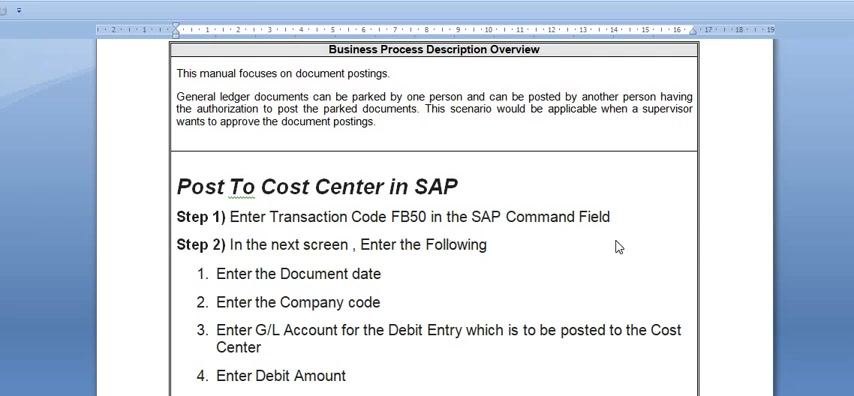
You can access FB50 in two ways: by entering the transaction code FB50 directly in the SAP command field, or by following the menu path Accounting → Financial Accounting → General Ledger → Posting.
Navigate to Accounting > General Ledger > Posting, then click FB50 – Enter G/L Account Document to open the entry screen.
Review the document header fields
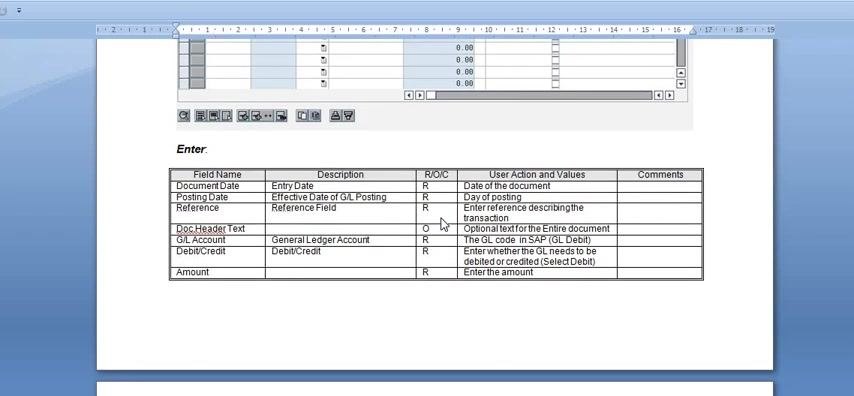
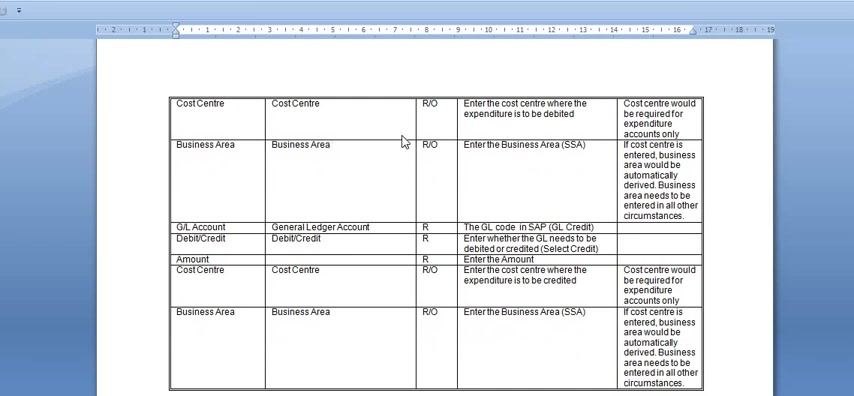
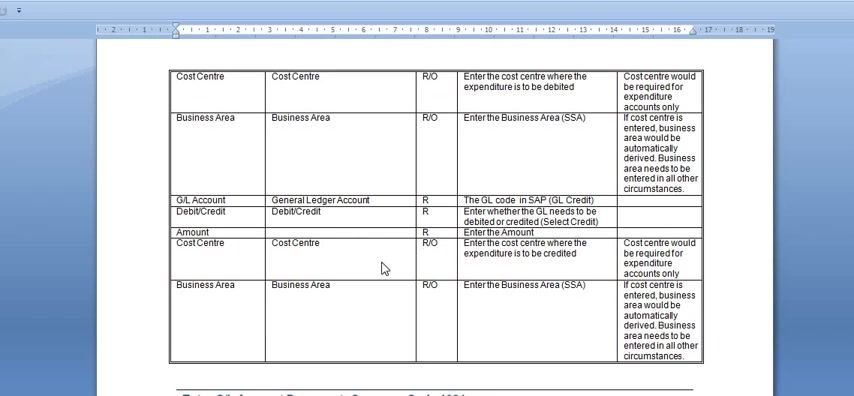
Before entering data, review the required and optional fields on the entry screen:
- Document Date – date of the document (Required)
- Posting Date – effective date of the G/L posting (Required)
- Reference – reference describing the transaction (Required)
- Doc. Header Text – optional text for the entire document (Optional)
- G/L Account – the G/L account in SAP (Required)
- Debit/Credit – specify whether the G/L account is debited or credited (Required)
- Amount – the amount to post (Required)
Enter the document header information
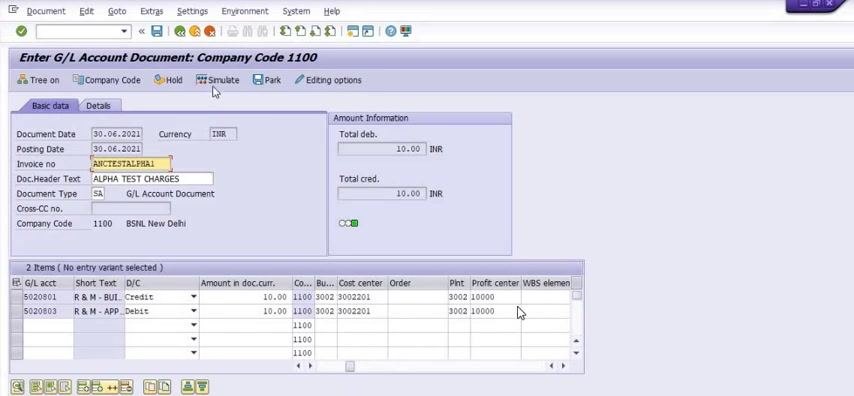
On the FB50 entry screen, fill in the header fields with your transaction details. For example:
- Document Date: 30.06.2021
- Posting Date: 30.06.2021
- Currency: INR
- Invoice No.: ABC TEST ALPHA1
- Doc. Header Text: ALPHA TEST CHARGES
- Document Type: SA (G/L Account Document)
- Company Code: 1100 (BSNL New Delhi)
Enter the line item details
In the line items table at the bottom of the screen, enter the details for each row. For this example:
- G/L acct: 5020801 (Credit), 5020803 (Debit)
- Short Text: Credit or Debit, as appropriate
- D/C: Credit for 5020801, Debit for 5020803
- Amount in doc. curr.: 10.00 for both lines
- Cost center: 30023002201 for both lines
- Order: leave blank
- Pnt: 3002 for both lines
- Profit center: 10000 for both lines
The cost center remains the same for both entries, but the G/L accounts differ. Use the cursor to navigate between fields and confirm that all required fields are filled in correctly.
Complete the additional line item fields
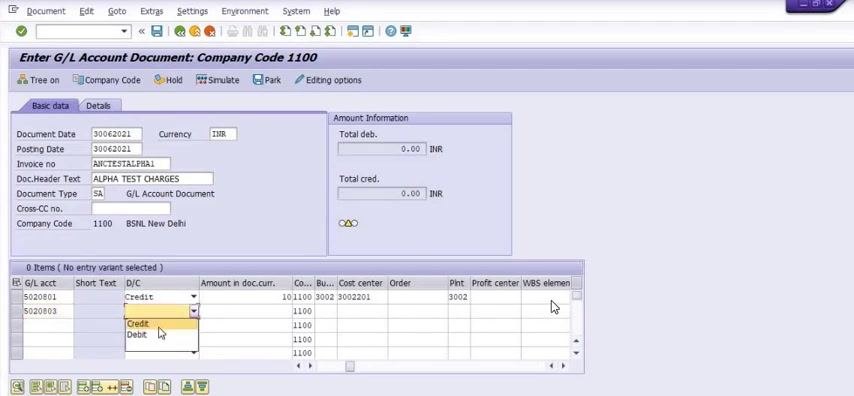
For each line item, also complete:
- Business Area
- Cost Center
- Order
- Profit Center
- WBS Element (if applicable)
For example, on the credit entry, select "Credit" and fill in the corresponding cost center and profit center.
Enter the cost center and business area
Enter the Cost Center where the expenditure should be debited. The cost center is required only for expenditure accounts.
Enter the Business Area (SSA). If you have already entered a cost center, SAP automatically derives the business area. In all other cases, you must enter the business area manually.
Verify the credit entry details
Confirm the credit G/L account, value date, business area, and cost center for the credit line. For example:
- Credit G/L Account: 1320704
- Value Date: 02.06.2010
- Business Area: 2116
- Cost Center: 2116933
Simulate the document
Click Simulate at the top of the screen to check the document for errors and preview the posting before you finalize it. Review the "Amount Information" section for a green indicator, confirming the simulation was successful, with both total debit and credit showing 10.00 INR.
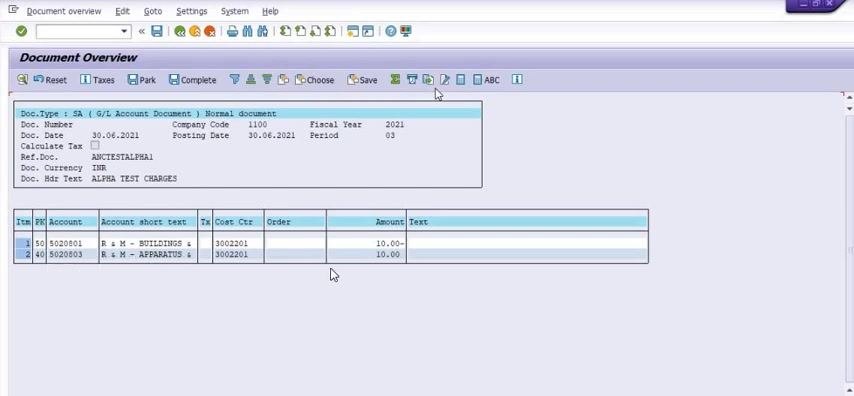
After simulation, SAP opens the "Document Overview" screen. Verify the following details:
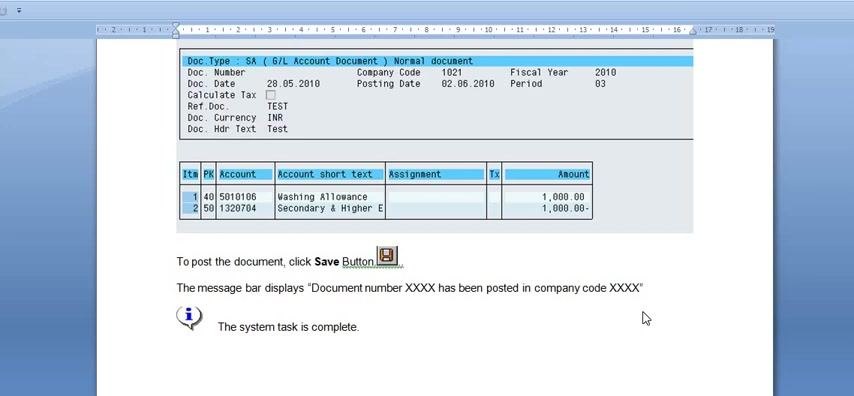
- Doc. Type: SA (G/L Account Document)
- Company Code: 1100
- Fiscal Year: 2021
- Posting Date: 30.06.2021
- Doc. Currency: INR
- Doc. Hdr Text: ALPHA TEST CHARGES
- Line Items: 5020801 (R M - BUILDINGS), Cost Center 3002201, Amount 10.00; 5020803 (R M - APPARATUS), Cost Center 3002201, Amount 10.00
Click Simulate again to review the entries once more before posting. The green indicator confirms all required fields and entries are correct:
- R&M - Buildings is credited with 10 INR.
- Repair and Maintenance of Protection Plant is debited with 10 INR.
This example uses the same cost center for both lines for demonstration purposes. In real scenarios, you may use different cost centers depending on the expenditure being booked.
Post the document
Before posting, note that you have several options:
- Save the document for later completion.
- Park the document if you need to pause and return later.
- Update taxes as required before final posting.
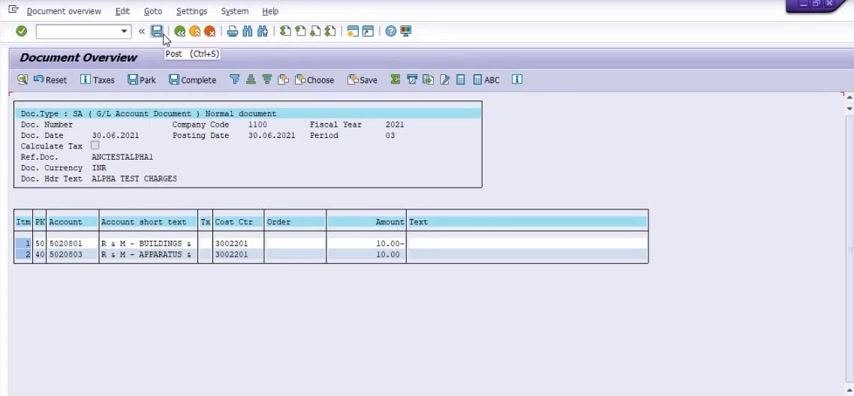
Click Post (or press Ctrl+S) at the top of the screen to finalize the document posting, then wait for the confirmation message.
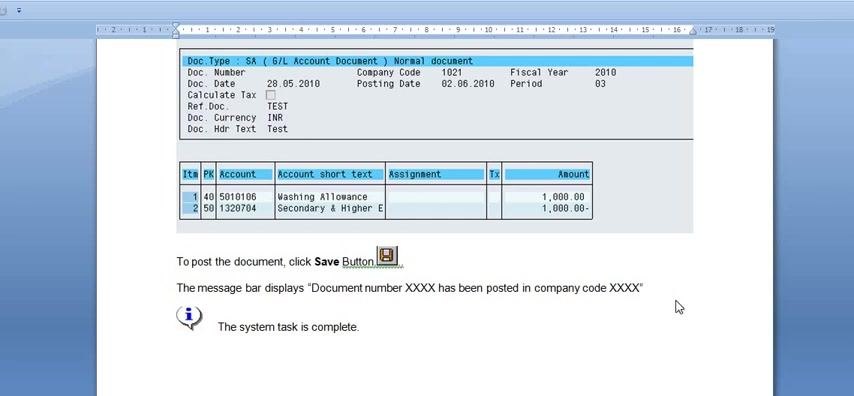
SAP displays a confirmation message once the document is posted, for example: "Document 1000000068 was posted in company code 1100" (Message no.: F5312). This confirms your G/L document was posted in the correct company code (1100).
Open a new session to review the posted document
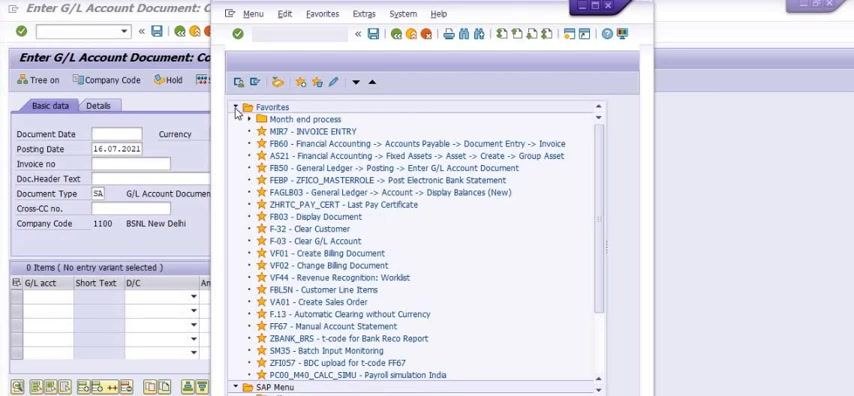
Create a new session to review the document you just posted. Navigate to the SAP Easy Access menu, enter the transaction code FS10N in the command field, and press Enter.
Display G/L account balances for apparatus and plants
On the "Balance Display: G/L Accounts For the Ledger 0L" screen, enter:
- Account Number: 5020803 (R & M - APPARATUS & PLANTS)
- Company Code: 1100
- Fiscal Year: 2021
Ensure the "Display Currency" is set to INR, then review the monthly balances. For June, verify that the Debit amount is 10.00 and the Credit amount is 20.00, and that the balance and cumulative balance reflect the posted amounts.
Scroll to the bottom of the balance display to check the totals. Confirm that the Total Debit is 10.00, Total Credit is 20.00, and the Total Balance is 10.00.
Review G/L account balances for buildings
Open the "Balance Display: G/L Accounts For the Ledger 0L" screen for account 5020801 (R & M - BUILDINGS & BSNL) and confirm:
- June Debit: 20.00
- June Credit: 10.00
- June Balance: 10.00
- Cumulative balance: 10.00
Ensure these balances match the posted entries.
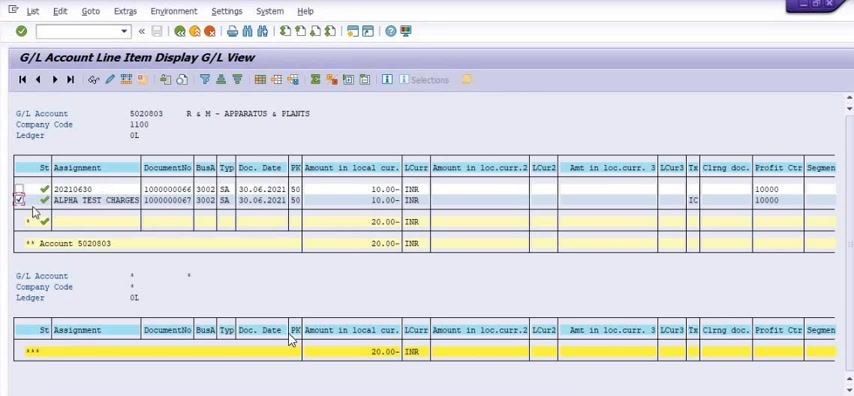
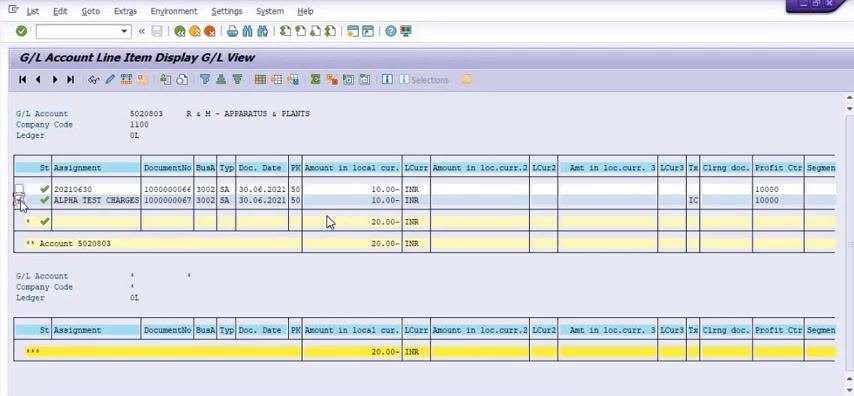
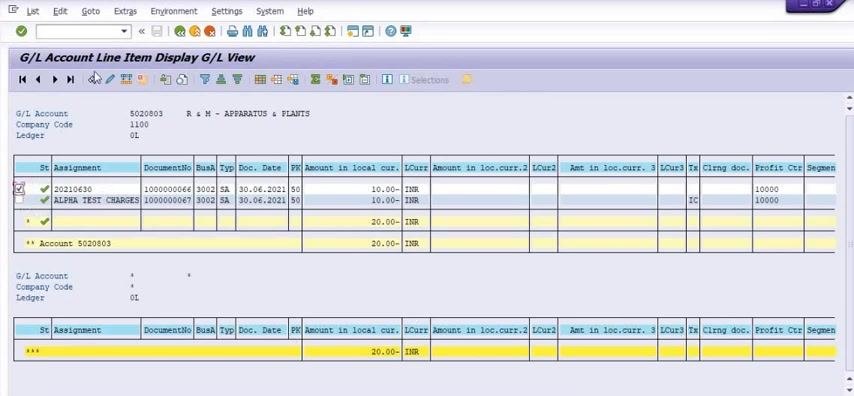
View G/L account line item details for apparatus and plants
Open the G/L Account Line Item Display (transaction code FBL3N or similar) and locate the posted document (Document No.: 1000000067). Verify:
- Assignment: 20210630
- Document No.: 1000000067
- Business Area: 3002
- Doc. Date: 30.06.2021
- Amount in local currency: 10.00 INR (for both debit and credit)
- Text: ALPHA TEST CHARGES
- Profit Center: 10000
Open the "G/L Account Line Item Display G/L View" screen for account 5020803 (R & M - APPARATUS & PLANTS) and confirm the same details, with the total for this account equal to 20.00 INR.
Check that the document is posted in the correct month (June 2021) and that both debit and credit entries are reflected in the same period.
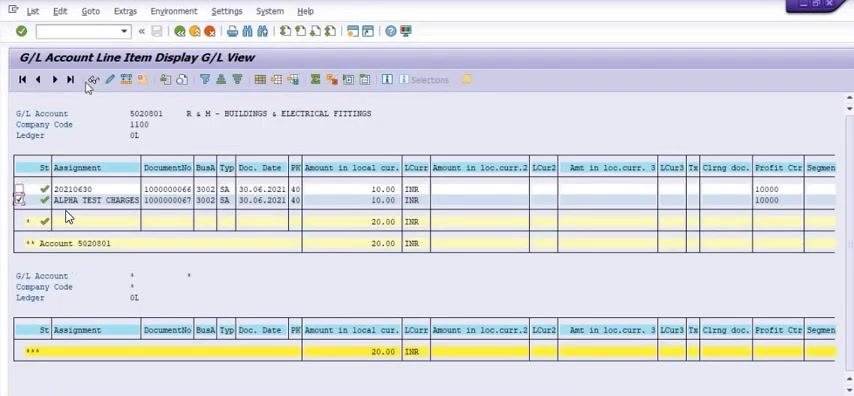
Review G/L account line item details for buildings
Open the "G/L Account Line Item Display G/L View" screen for account 5020801 (R & M - BUILDINGS & ELECTRICAL FITTINGS) and confirm:
- Assignment: 20210630
- Document No.: 1000000067
- Business Area: 3002
- Document Date: 30.06.2021
- Amount in local currency: 10.00 INR (debit)
- Text: ALPHA TEST CHARGES
- Profit Center: 10000
Ensure the total for this account is 20.00 INR.
Display the document entry view
Open the "Display Document: Data Entry View" screen for the posted document and confirm:
- Document Number: 1000000067
- Company Code: 1100
- Fiscal Year: 2021
- Document Date: 30.06.2021
- Posting Date: 30.06.2021
- Invoice No.: ANCTESTALPHA1
- Currency: INR
Review the line items: G/L Account 5020803 (R & M - APPARATUS & PLANTS), Amount 10.00, Cost Center 3002, Text ALPHA TEST CHARGES; and G/L Account 5020801 (R & M - BUILDINGS), Amount 10.00, Cost Center 3002, Text ALPHA TEST CHARGES. Ensure the debit and credit entries are equal and correctly assigned.
Summary
You have now successfully posted a G/L document using FB50, confirmed its posting, and verified the transaction by reviewing account balances and line item details in SAP. Always ensure that amounts, cost centers, and G/L accounts match your intended entries to maintain accurate financial reporting.
What's next
After posting and verifying your G/L document, perform a final review to confirm all entries are correct and to understand how the postings are reflected throughout the SAP system.
Generation details: cost, quality tiers
Docsie billed 5,500 credits ($3.85) to analyze this 11-minute video at standard quality. The rewrite, template fill and Word/PDF exports were included. The same video at each quality tier:
| Quality | Frames sampled | Credits | Approx. cost |
|---|---|---|---|
| Draft | every 16-30 s | 2,750 | $1.92 |
| Standard (this guide) | every 8-15 s | 5,500 | $3.85 |
| Detailed | every 4-7 s | 11,000 | $7.70 |
| Ultra | every 1-3 s | 22,000 | $15.40 |
Credits priced at $0.70 per 1,000; plans include a monthly allowance. Enterprise customers on on-premise or bring-your-own-model deployments run this on their own inference and pay no per-video credits.
Generated by Docsie Video-to-Docs on 2026-10-11 from a 10-minute video. Screenshots are frames from the source video and belong to their creator, ERP SAP Team , whose original is embedded above. If you own this video and want the guide removed or credited differently, contact us and we will act within one business day.