
How to Execute a Payment Run with F110 in SAP S/4HANA
This guide walks you through how to execute a payment run with F110 in SAP, covering the full Automatic Payment Procedure (APP) for a vendor invoice. You will learn how to review an open invoice, configure the payment run parameters, create and verify a payment proposal, execute the payment run, and confirm that the invoice has been cleared.
Video: F110 - Automatic Payment Program in SAP by Aon Excellence. All credit for the demonstration goes to the creator; watch the original on YouTube. The written guide below was generated from this video by Docsie. Creator? Request a change or removal.
This guide walks you through how to execute a payment run with F110 in SAP, covering the full Automatic Payment Procedure (APP) for a vendor invoice. You will learn how to review an open invoice, configure the payment run parameters, create and verify a payment proposal, execute the payment run, and confirm that the invoice has been cleared.
Prerequisites
- Access to the SAP Easy Access menu with an active user session (for example, "User Menu for S4H21SL05").
- Authorization to use transactions FBL1N and F110.
- A vendor invoice that is open and ready for payment (in this example, an invoice for 10,000 INR dated 03.10.2024).
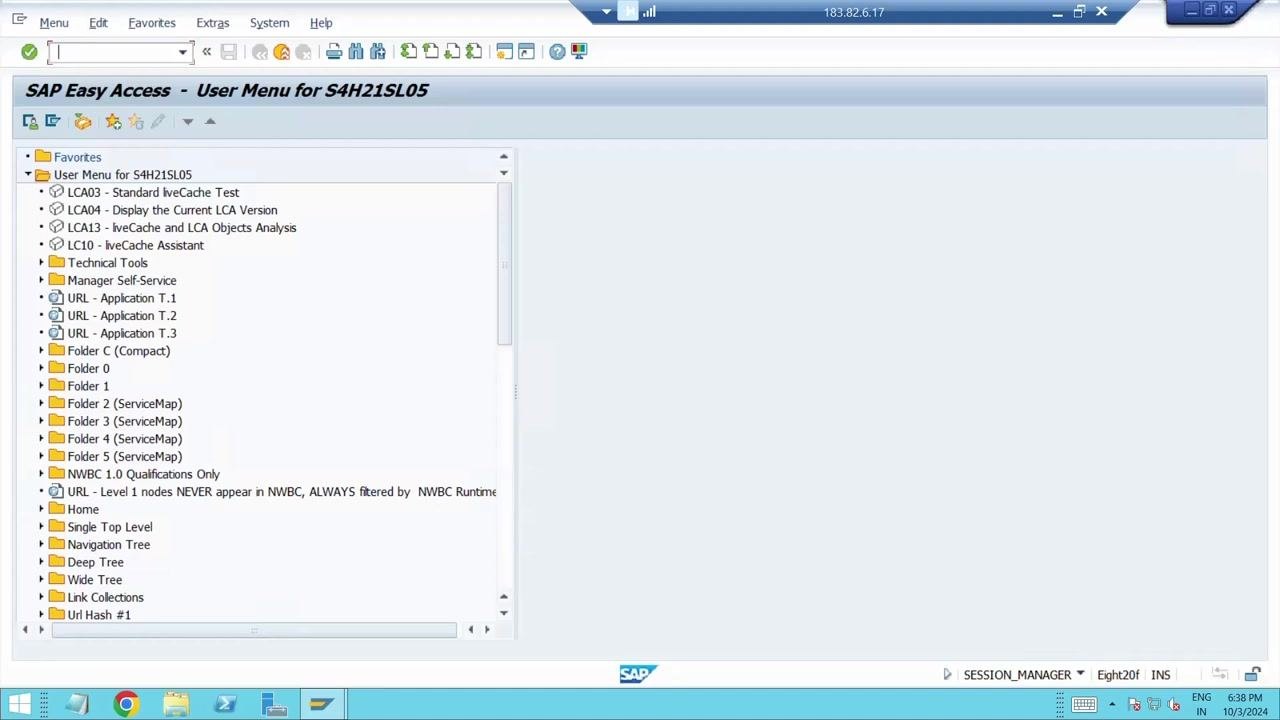
Open the SAP Easy Access menu
Launch SAP and confirm you are on the SAP Easy Access screen, in the correct user menu. The left pane displays folders and transaction shortcuts that you will use throughout this process.
Open the vendor line item display
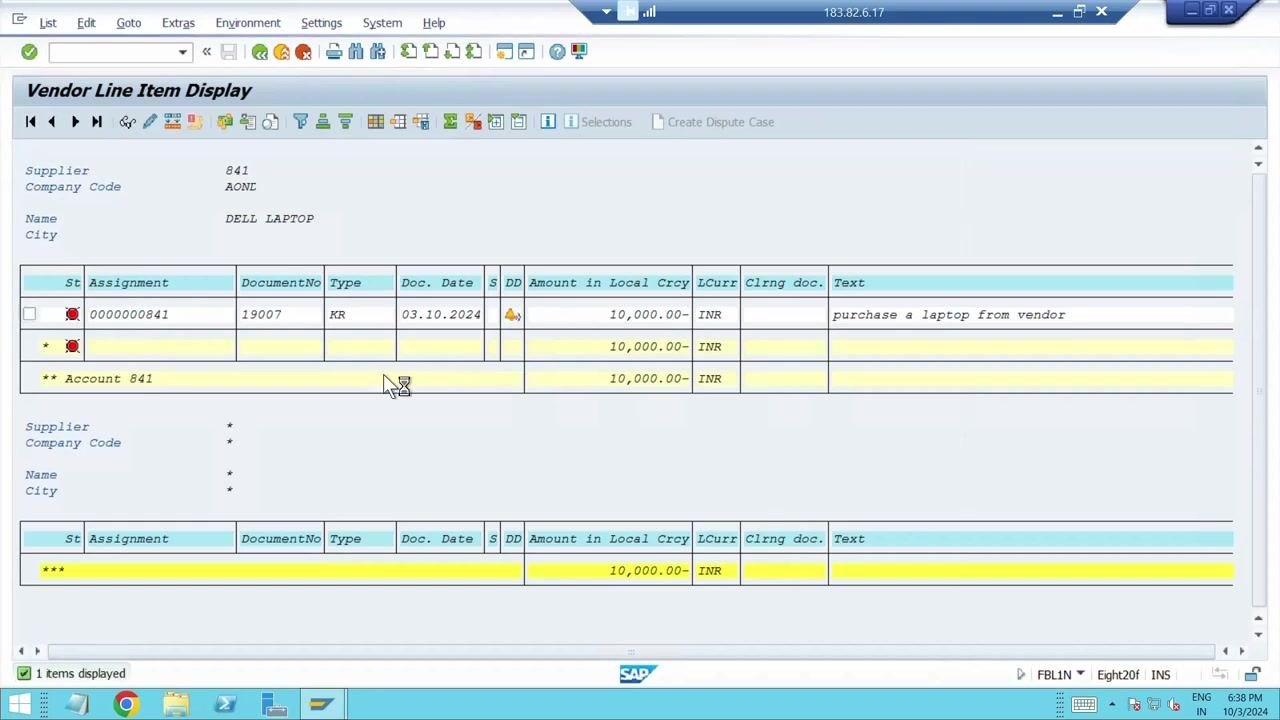
In the command field at the top of the screen, enter FBL1N and press Enter. This opens the Vendor Line Item Display screen, where you can locate the invoice you plan to pay.
Review the invoice details
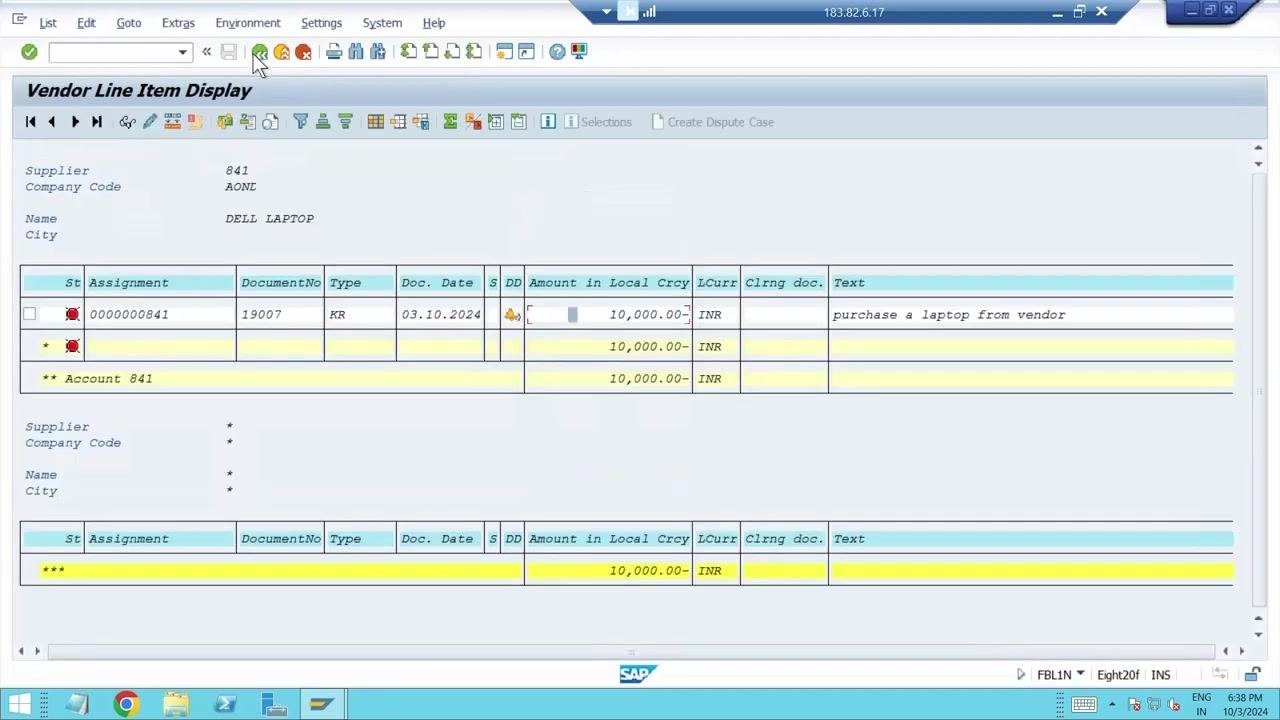
On the Vendor Line Item Display screen, locate the relevant invoice and confirm the following details:
- Supplier: 841
- Company Code: AONL
- Document Number: 19007
- Type: KR
- Document Date: 03.10.2024
- Amount: 10,000.00 INR
- Text: "purchase a laptop from vendor"
Confirm the invoice is correct and ready for payment before proceeding.
Start the automatic payment transaction
Return to the SAP Easy Access screen. In the command field, enter F110 and press Enter. This opens the Automatic Payment Transactions: Status screen, where you will set up the payment run.
Enter the payment run parameters
On the Automatic Payment Transactions: Status screen, enter the Run Date as 03.10.2024. In the Identification field, enter a unique identifier for this run, such as APPC.
Fill in the payment parameters
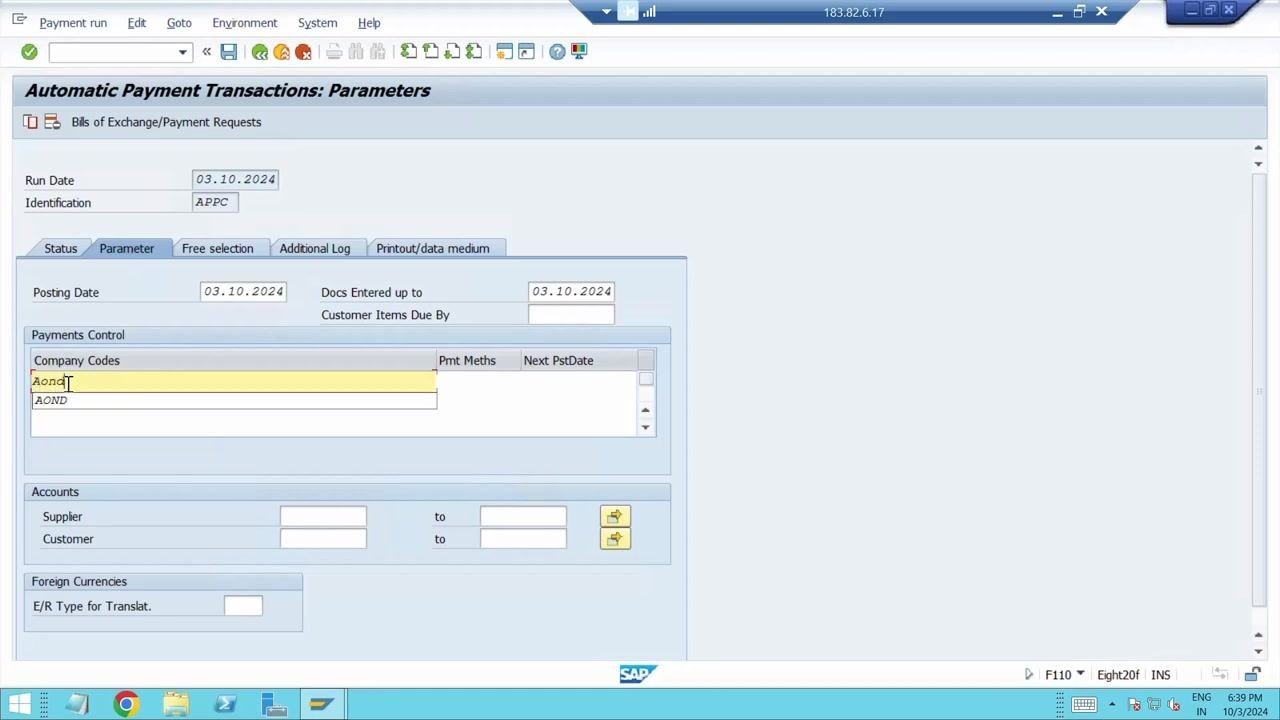
Click the Parameter tab and enter the following:
- Posting Date:
03.10.2024 - Docs Entered up to:
03.10.2024 - Company Codes:
AOND - Any other relevant fields, such as Payment Methods, Supplier, or Customer, as required.
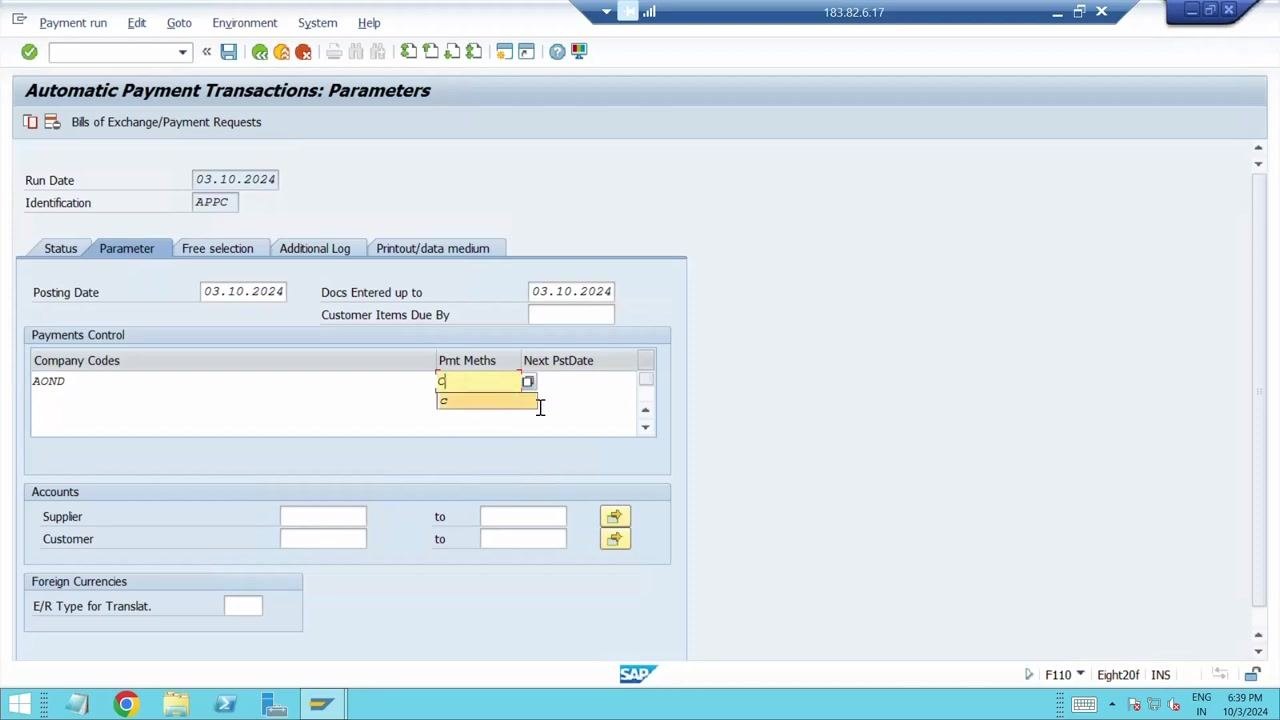
Select the payment method
In the Payments Control section, under the Pmt Meths (Payment Methods) column, enter the payment method you have defined for this run, for example C.
Set the next posting date
In the Next PstDate (Next Posting Date) column, enter the date for the next posting. For example, if you want to process the payment the following day, enter 04.10.2024.
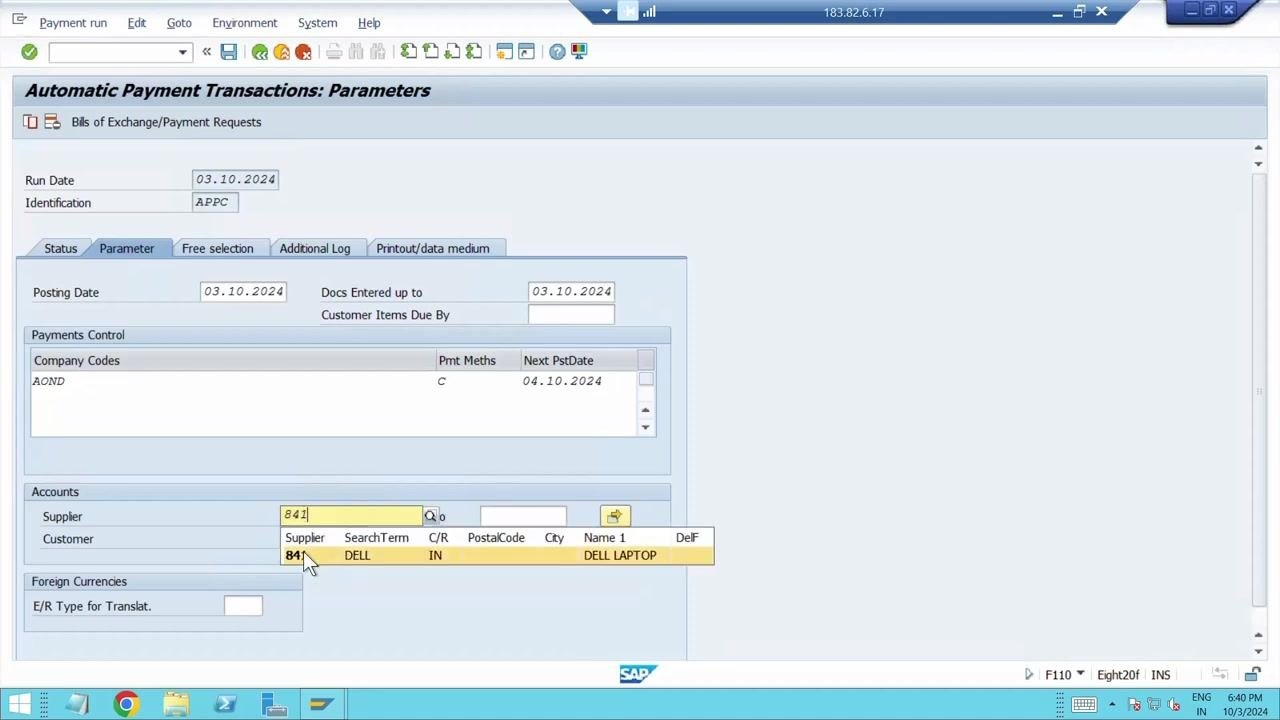
Add the supplier information
In the Accounts section, under Supplier, enter the supplier number (for example, 841) and confirm that the supplier details, such as the name DELL LAPTOP, are correct.
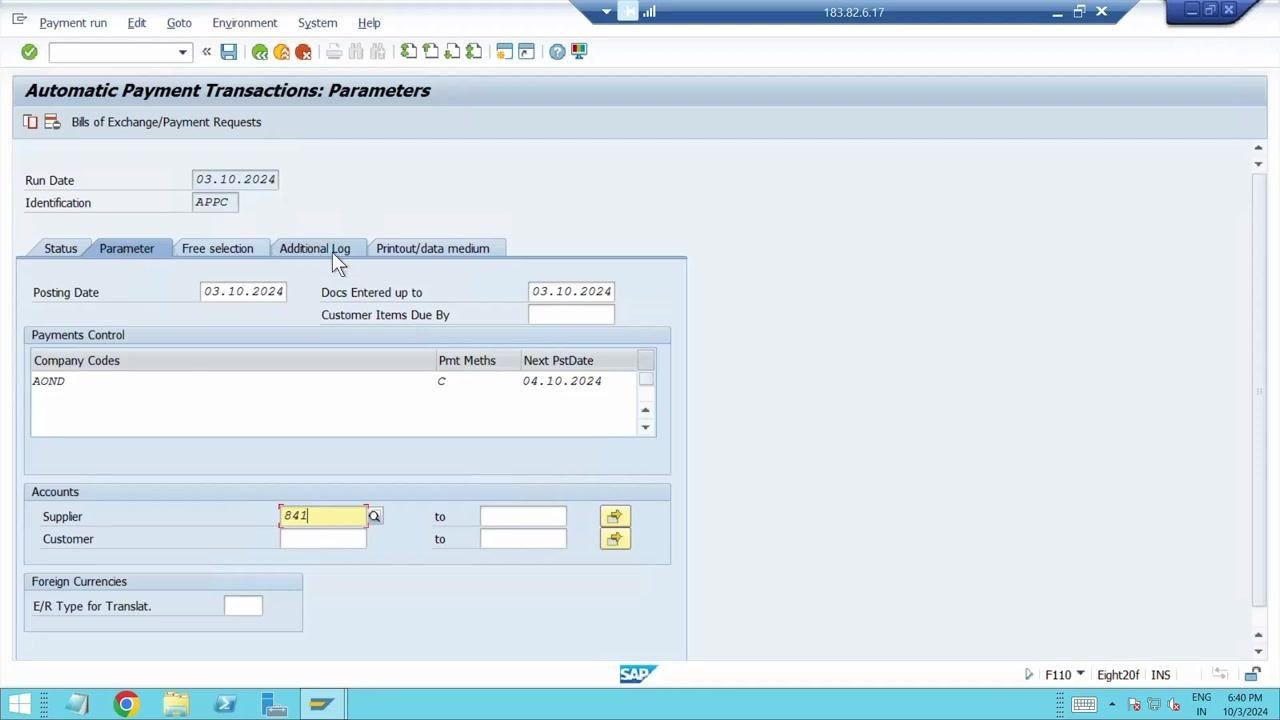
Open the Additional Log tab
Click the Additional Log tab at the top of the screen to configure logging options for the payment run.
Configure the additional log settings
In the Required logging type section, ensure the following options are checked:
- Due Date Check
- Payment Method Selection in All Cases
- Pmnt Method Selection If Not Successful
- Line Items of the Payment Documents
In the Accounts required section, enter the vendor number in both the Vendors From and Vendors To fields (for example, 841 to 841).
Save the parameters
When prompted with "Do you want to save the data first?", click Yes to save your entries.
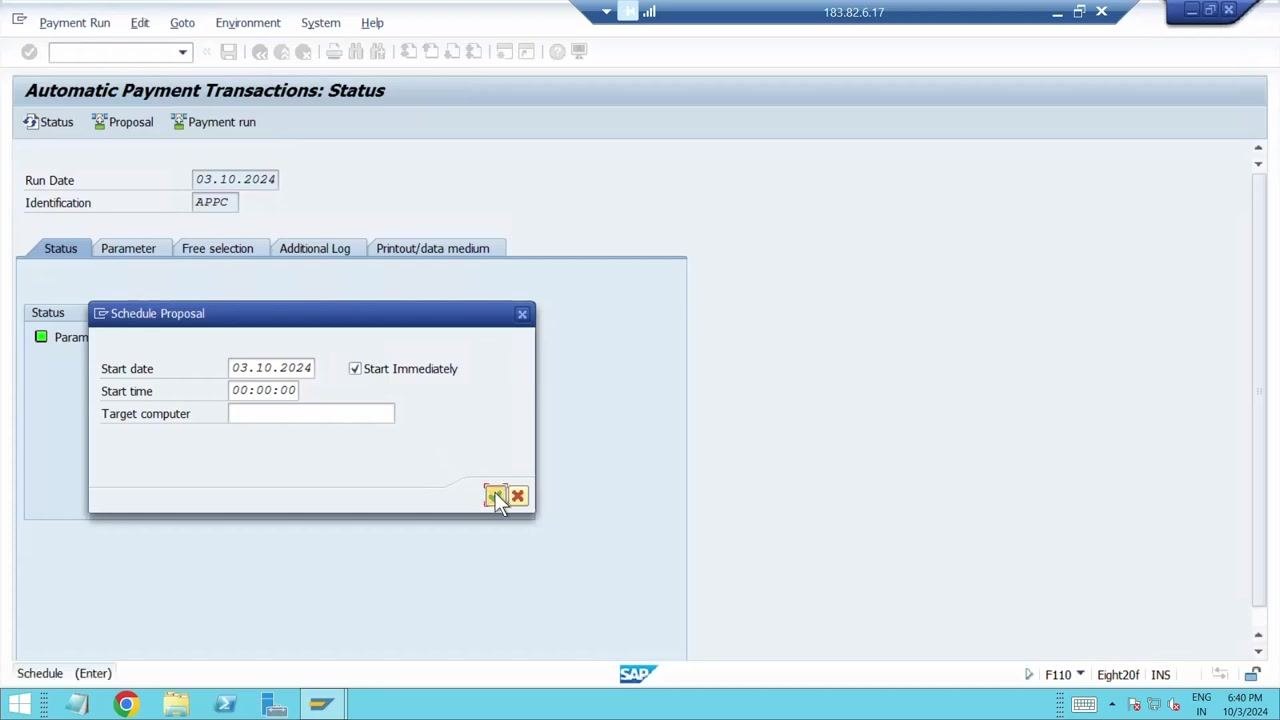
Create the payment proposal
Click the Proposal tab. In the Schedule Proposal dialog, confirm the Start Date (for example, 03.10.2024), ensure Start Immediately is checked, and click the green checkmark to proceed.
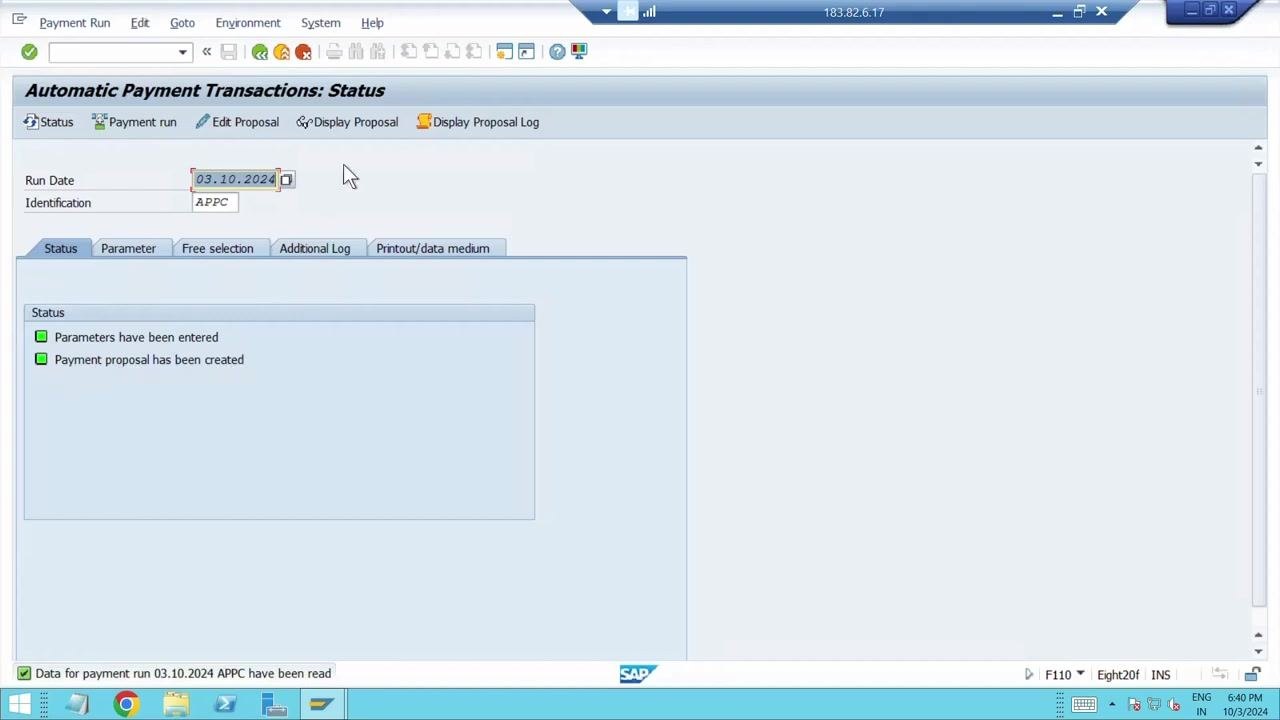
Verify that the proposal was created
On the Automatic Payment Transactions: Status screen, confirm that "Parameters have been entered" and "Payment proposal has been created" are both shown with green checkmarks.
Edit and review the payment proposal
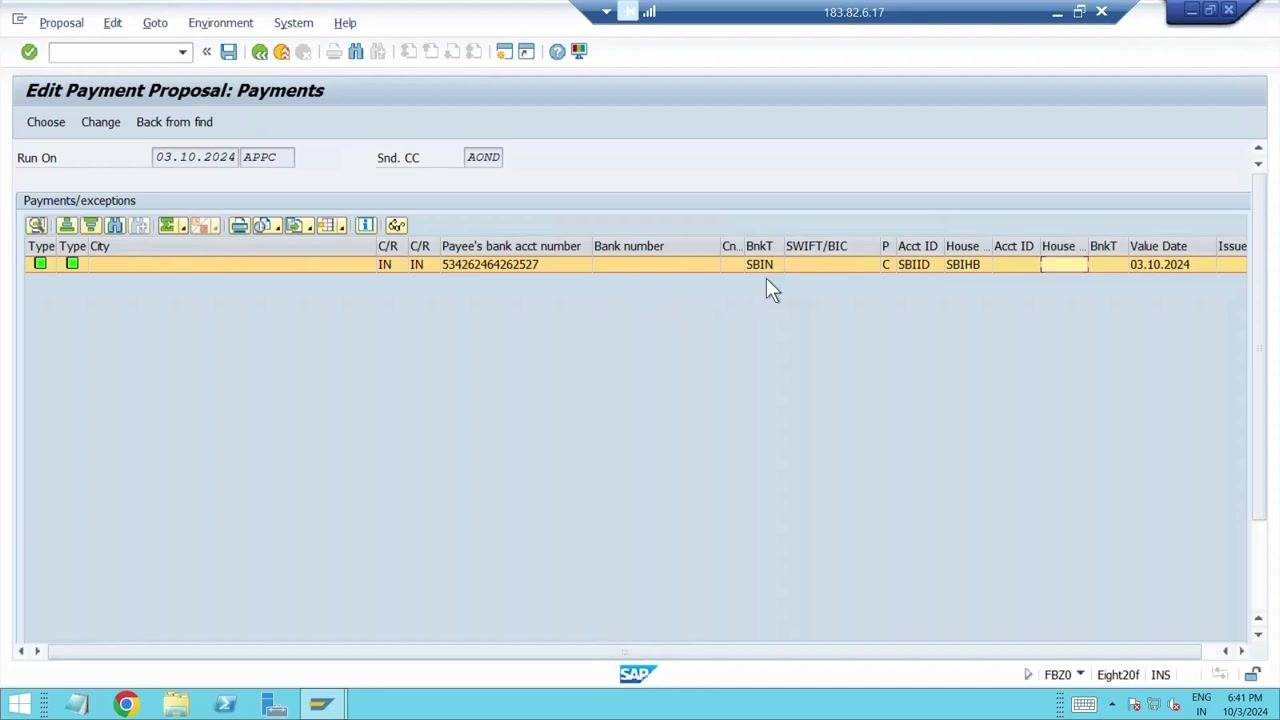
Click Edit Proposal to review the payment details, and verify the following information:
- Run On:
03.10.2024 - Identification:
APPC - Sending Company Code:
AOND - Payee's bank account number:
534262646262527 - Bank Key:
SBIN - Account ID:
SBIID - House Bank:
SBIHB - Value Date:
03.10.2024
Navigate to the payment run
After reviewing the payment proposal, proceed to execute the payment run. In the SAP menu, locate and click the Payment Run option, select Start Immediately, and press Enter to confirm and initiate the payment run.
Monitor the payment run status
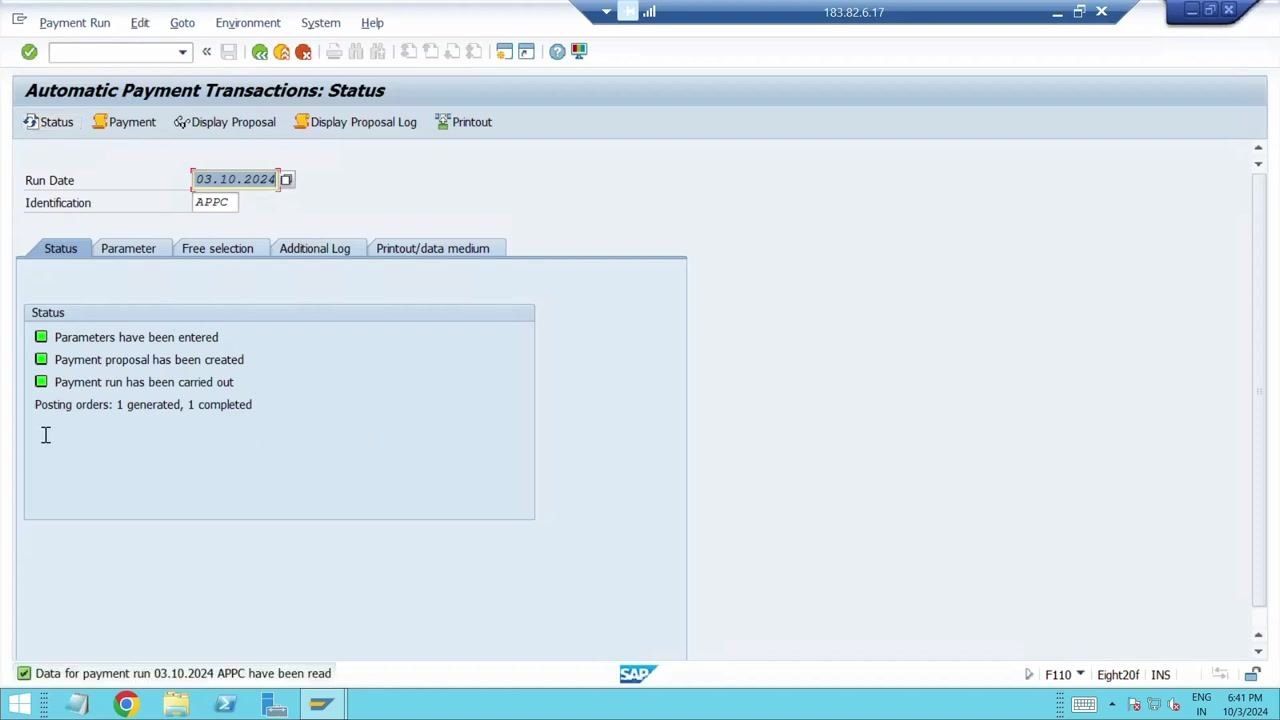
Wait for the payment run to process and observe the status messages, such as "Payment run is running" and "Posting order: 1 generated, 1 completed." Confirm that the payment run has been carried out successfully.
Verify payment completion
Ensure that the following status indicators are all green:
- Parameters have been entered
- Payment proposal has been created
- Payment run has been carried out
Confirm that the posting order is both generated and completed before moving on.
Check vendor open items
To verify that the payment has cleared the vendor invoice, enter transaction code /nFBL1N in the command field and press Enter.
Enter the vendor, company code, and item status
In the Vendor Line Item Display screen, enter 841 in the Vendor account field and AOND in the Company code field. In the Line item selection section, select Open items and set Open at key date to 03.10.2024, or select Cleared items to view cleared transactions.
Display and review the line items
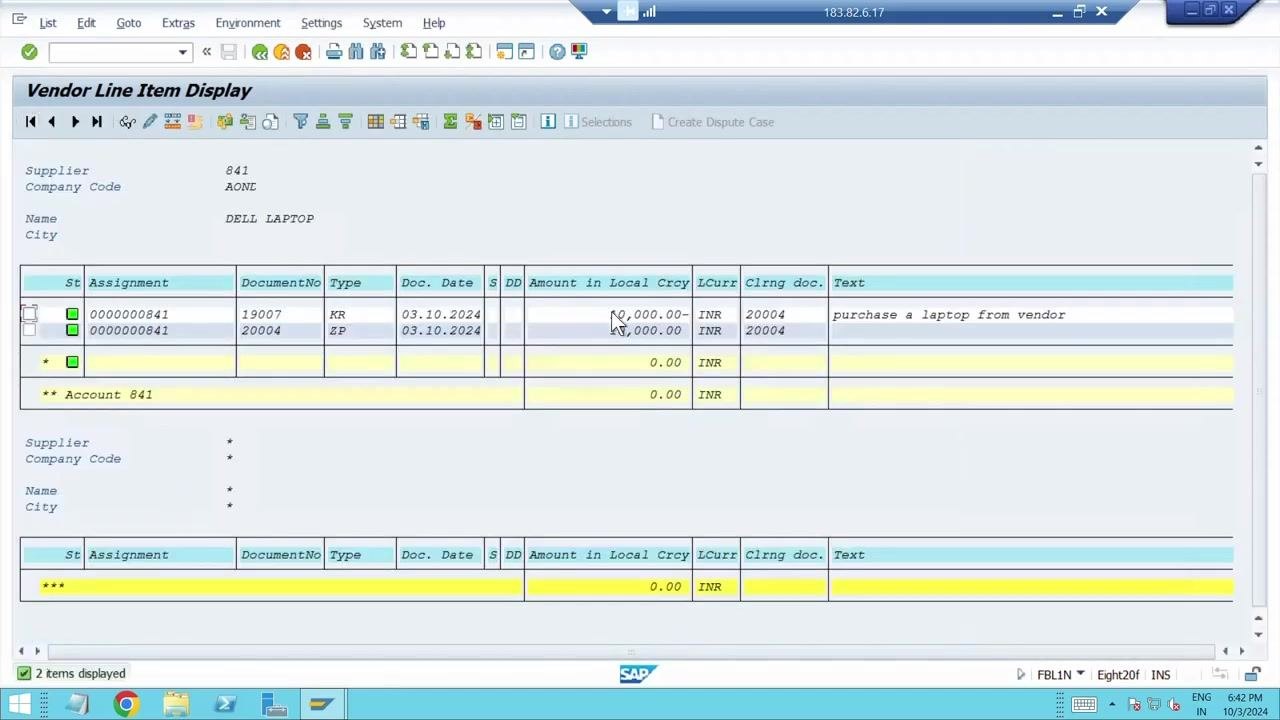
Execute the report to display the vendor line items, then review the results. Confirm that the invoice (Type KR, Amount 10,000.00 INR, Doc. Date 03.10.2024) is present, and that the payment document (Type ZP, Amount 10,000.00 INR, Doc. Date 03.10.2024) is present and linked to the clearing document. Check the Text column for the description, such as "purchase a laptop from vendor."
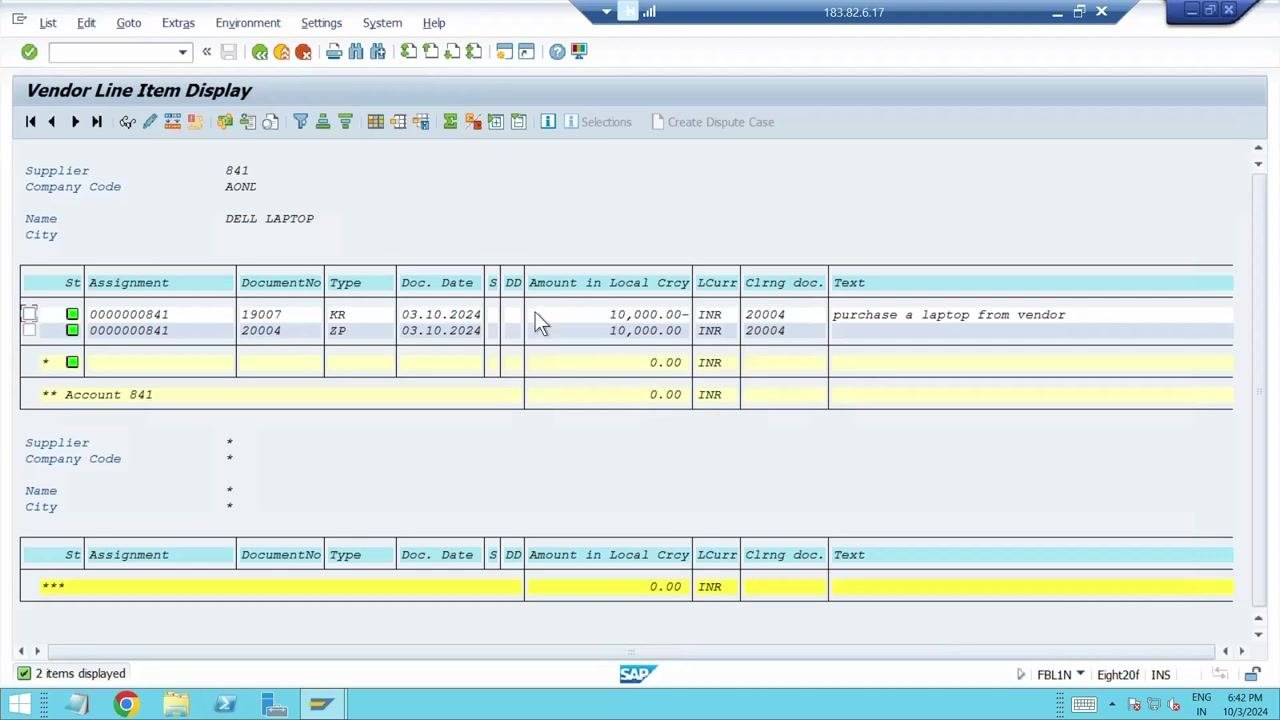
Confirm that the open items are cleared
Ensure that no open items remain for the vendor as of the key date. Both the invoice and the payment should be marked as cleared, confirming that the payment was processed successfully.
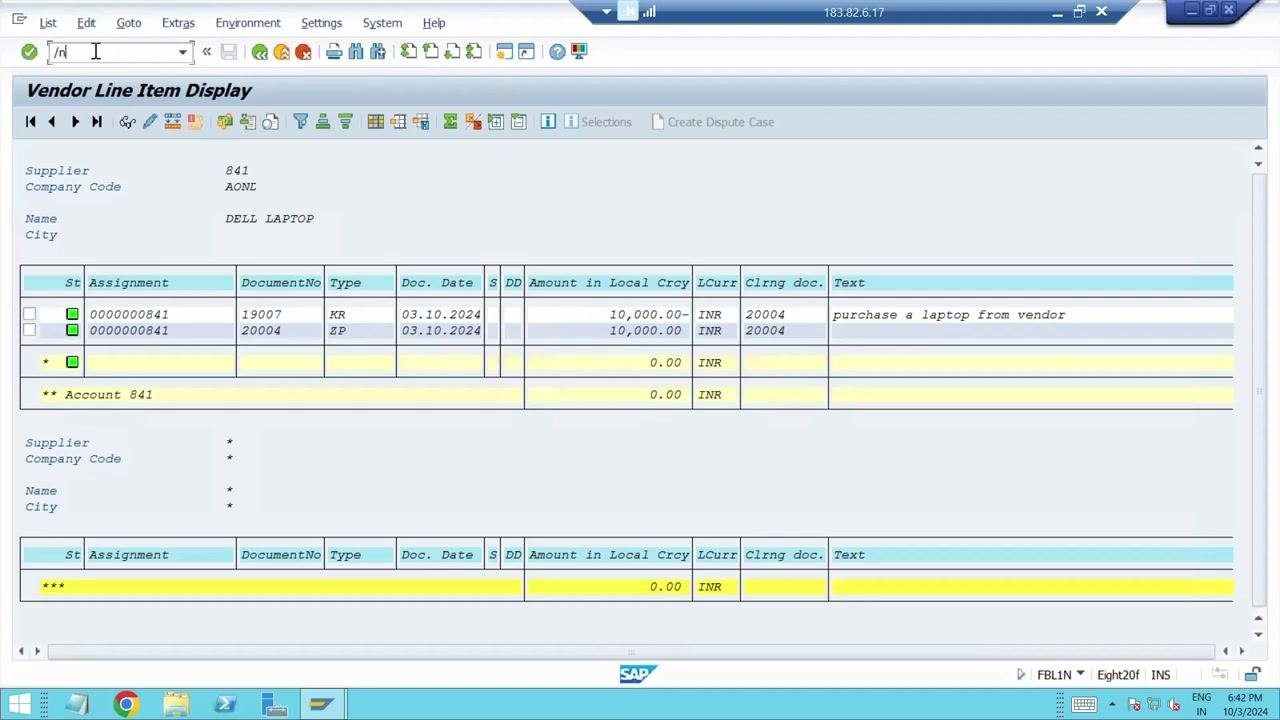
Return to the SAP Easy Access menu
After verifying the clearing of the vendor invoice, return to the SAP Easy Access screen. It should display the "User Menu for S4H21SL05" with your available favorites and menu options, with no active transactions or open forms remaining.
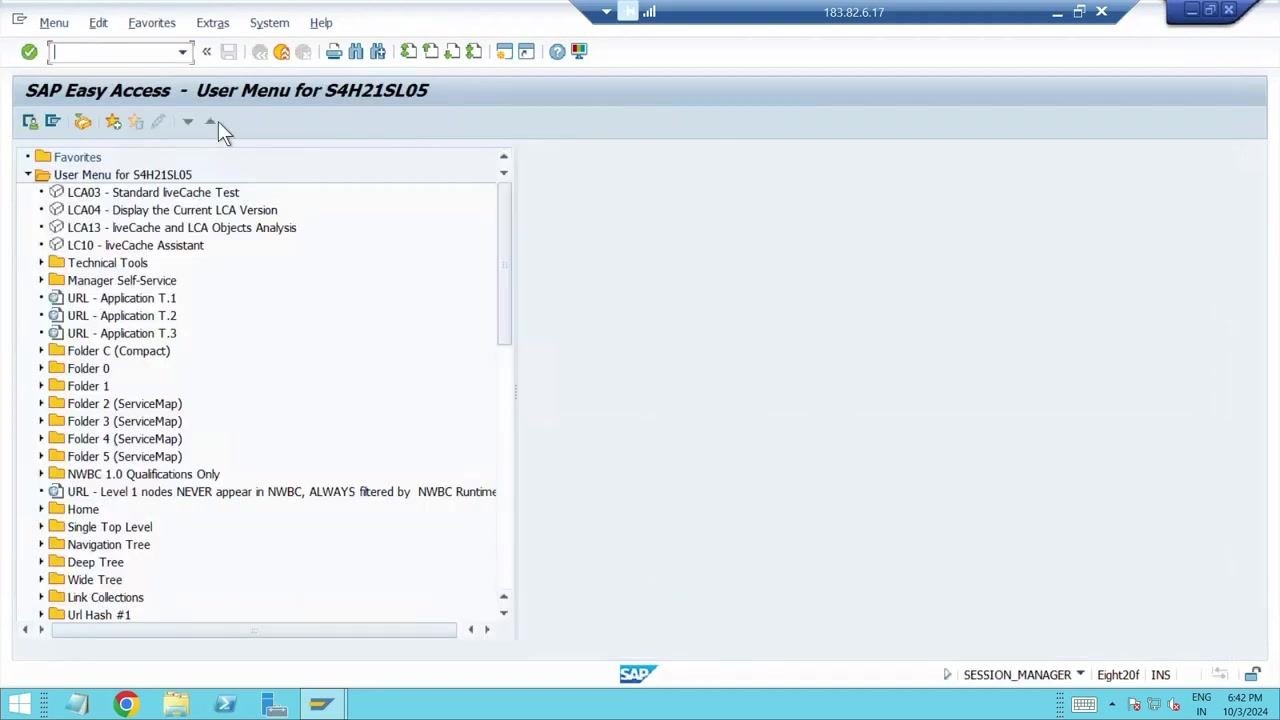
End the SAP session
Confirm that the SAP session is idle and ready for closure. Check the bottom right of the screen for session details, such as SESSION_MANAGER, user information, date, and time. If you have completed all required tasks, log out of SAP by clicking the Log off button (door icon) in the toolbar, or close the SAP GUI window. Ensure all work is saved and no unsaved changes remain.
Summary
You have now executed a full payment run with F110 in SAP: you reviewed an open vendor invoice, configured the payment run parameters, created and verified a payment proposal, executed the payment run, and confirmed that the invoice and payment document were cleared. Always follow your organization's process for documentation and audit requirements, and remember to log out securely once your session is complete.
Generation details: cost, quality tiers
Docsie billed 3,000 credits ($2.10) to analyze this 6-minute video at standard quality. The rewrite, template fill and Word/PDF exports were included. The same video at each quality tier:
| Quality | Frames sampled | Credits | Approx. cost |
|---|---|---|---|
| Draft | every 16-30 s | 1,500 | $1.05 |
| Standard (this guide) | every 8-15 s | 3,000 | $2.10 |
| Detailed | every 4-7 s | 6,000 | $4.20 |
| Ultra | every 1-3 s | 12,000 | $8.40 |
Credits priced at $0.70 per 1,000; plans include a monthly allowance. Enterprise customers on on-premise or bring-your-own-model deployments run this on their own inference and pay no per-video credits.
Generated by Docsie Video-to-Docs on 2026-10-06 from a 5-minute video. Screenshots are frames from the source video and belong to their creator, Aon Excellence, whose original is embedded above. If you own this video and want the guide removed or credited differently, contact us and we will act within one business day.