
How to Check the Stock Overview with MMBE in SAP S/4HANA
The MMBE transaction code lets you check the stock overview for any material in SAP, breaking down quantities by company code, plant, storage location, and batch. This guide walks you through opening the Stock Overview screen, filtering by plant and stock type, reading the resulting report, and cross-checking on-order quantities against purchasing documents.
Video: MMBE SAP | Stock Overview In SAP by My Support Solutions. All credit for the demonstration goes to the creator; watch the original on YouTube. The written guide below was generated from this video by Docsie. Creator? Request a change or removal.
The MMBE transaction code lets you check the stock overview for any material in SAP, breaking down quantities by company code, plant, storage location, and batch. This guide walks you through opening the Stock Overview screen, filtering by plant and stock type, reading the resulting report, and cross-checking on-order quantities against purchasing documents.
Prerequisites
- Access to the SAP Easy Access screen with authorization to run the MMBE transaction.
- The material code(s) you want to check (for example,
100-100). - The plant code(s) relevant to your search (for example,
1000for New York or1100for Chicago). - Optional: access to SPRO / the SAP Customizing Implementation Guide if you plan to adjust decimal place settings for a unit of measure.
Open the SAP Easy Access screen and launch MMBE
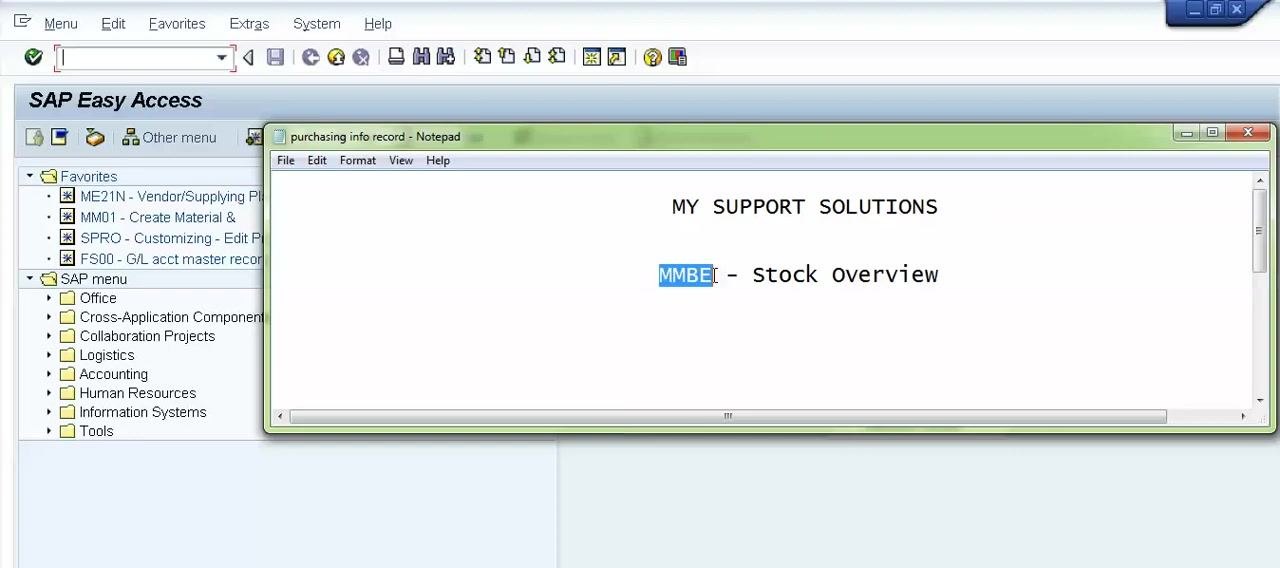
Start from the SAP Easy Access main screen. In the command box at the top, enter the transaction code MMBE and press Enter.
Review the Stock Overview screen layout
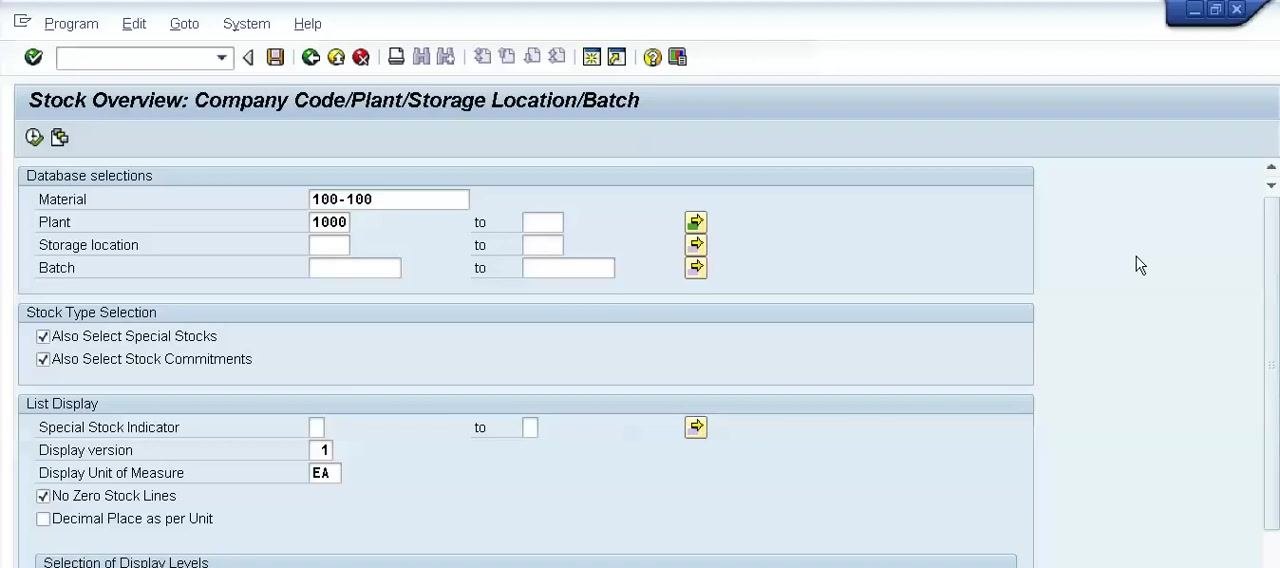
The Stock Overview: Company Code/Plant/Storage Location/Batch screen opens. It is divided into three main sections:
- Database selections: Material, Plant, Storage location, Batch
- Stock Type Selection: options for special stocks and stock commitments
- List Display: display version, unit of measure, and other display options
Enter the material code
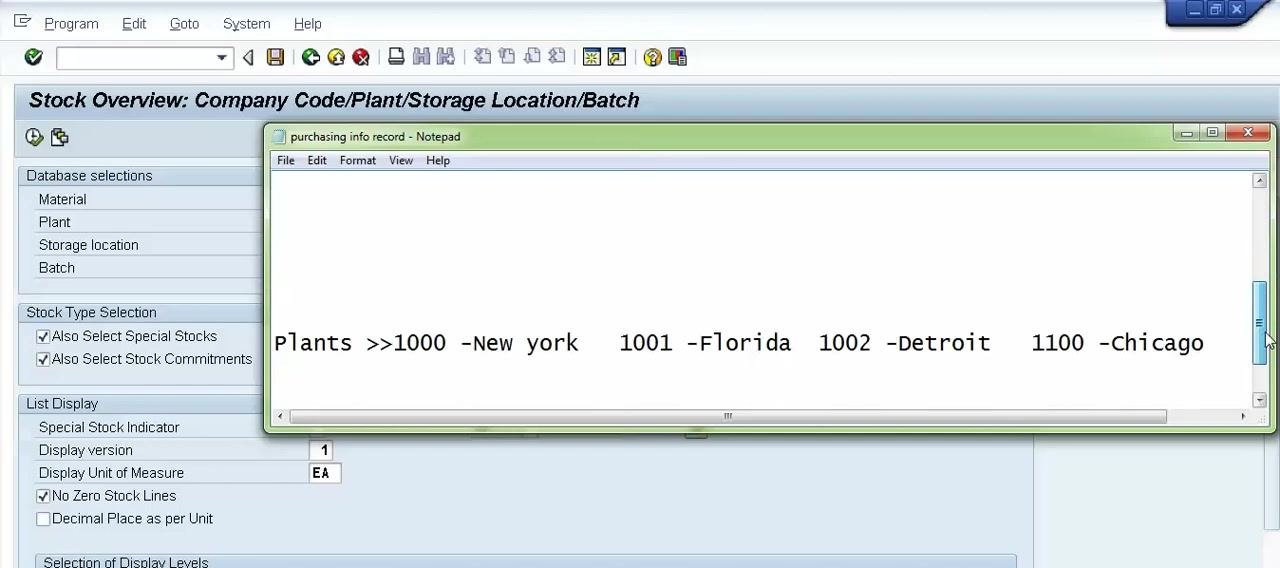
In the Material field under Database selections, enter the material code you want to check, for example 100-100. Only one material code can be entered at a time in MMBE — multiple selection is not possible at the material level.
Enter one or more plant codes
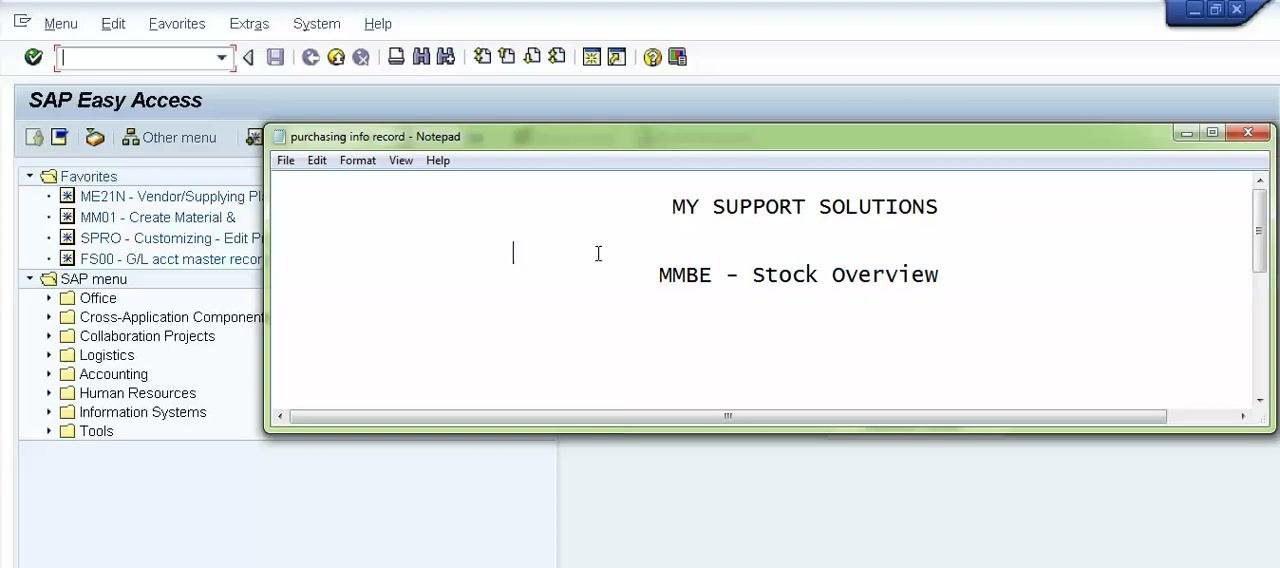
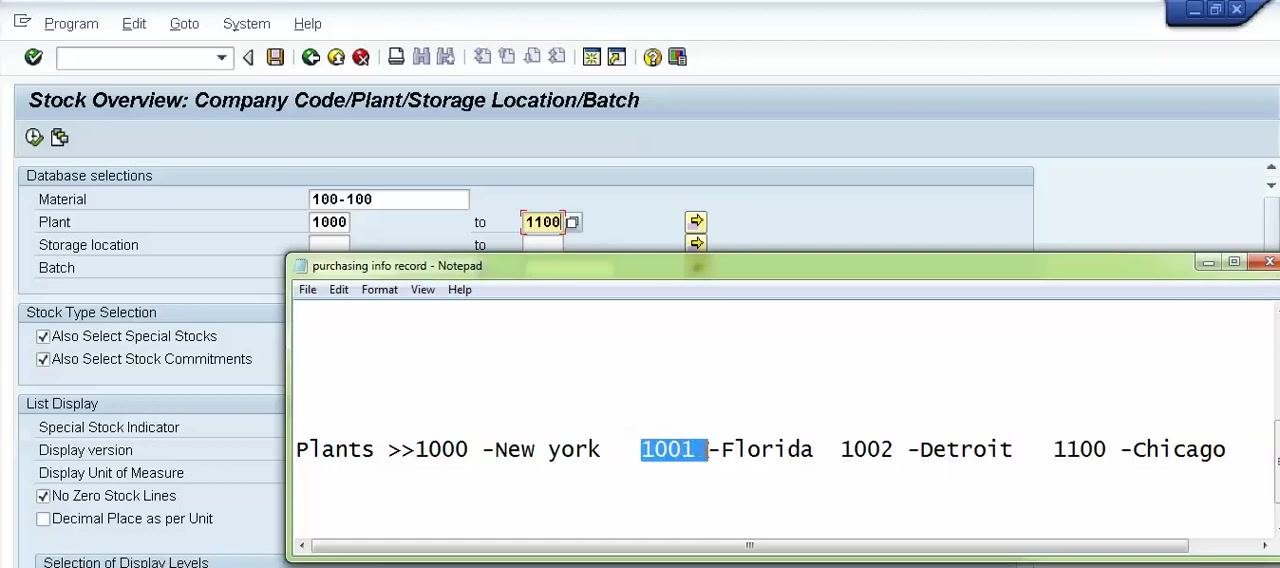
In the Plant field, you can enter one or more plant codes to check stock across several locations, for example:
1000– New York1001– Florida1002– Detroit1100– Chicago
If you leave the Plant field empty, the report covers all plants. If you enter a range (for example, 1000 to 1100), the report includes every plant within that range.
Open multiple selection for the Plant field
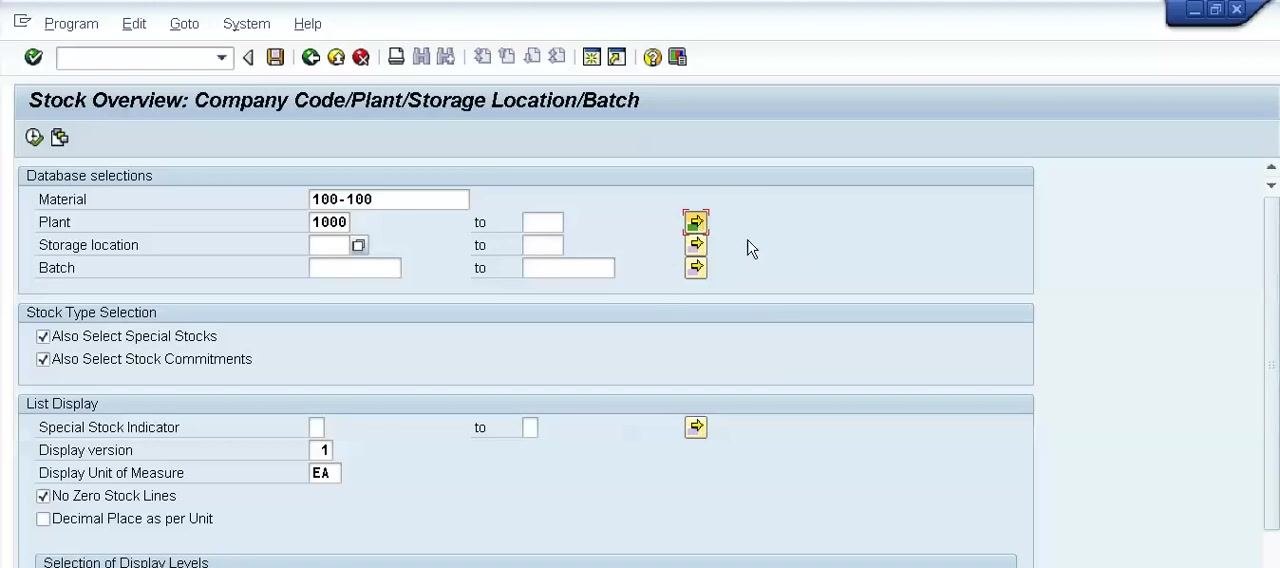
To report on specific, non-consecutive plants only (for example, New York 1000 and Chicago 1100), click the Multiple Selection button (the icon with two yellow arrows) to the right of the Plant field.
Enter the specific plant codes in the dialog
In the Multiple Selection for Plant dialog, under the Select Single Values tab, enter the plant codes you want to include, for example 1000 and 1100 on separate rows. Confirm by clicking the green checkmark or pressing Enter. Leave the Storage location field blank if you want the report to cover all storage locations within the selected plants.
Include special stocks in the report
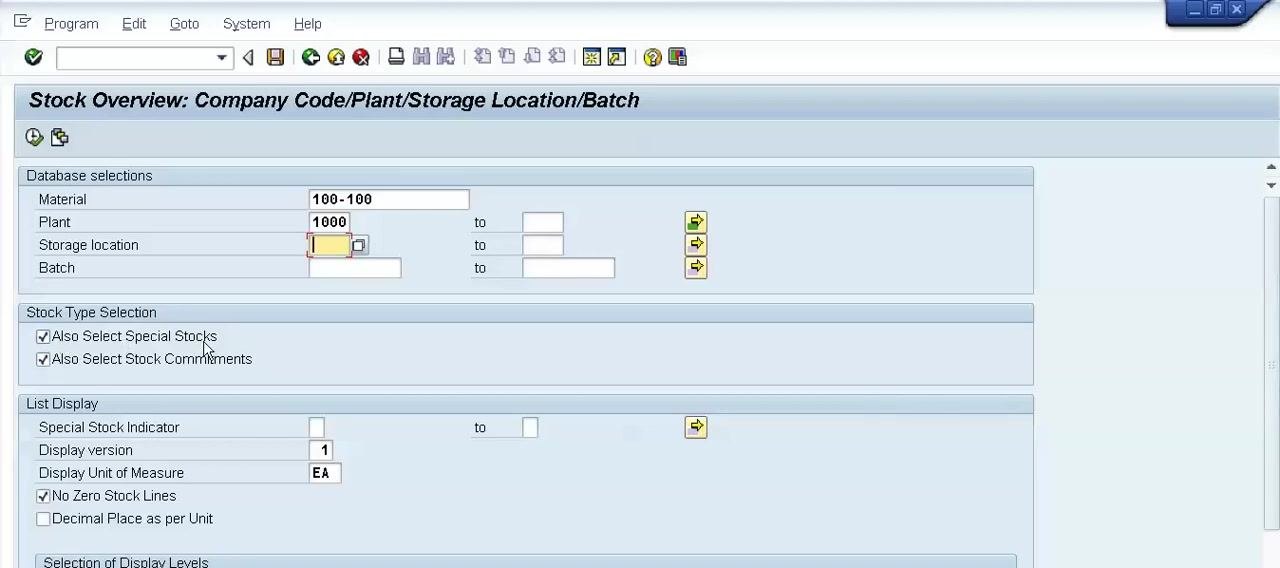
The Also Select Special Stocks checkbox controls whether special stocks appear in the report. Special stocks include consignment stock, returnable transport packaging (RTP) stock to customer, sales order stock, project stock, parts provided by the vendor, and RTP stock from vendor. Check this box to include all these types.
Include stock commitments in the report
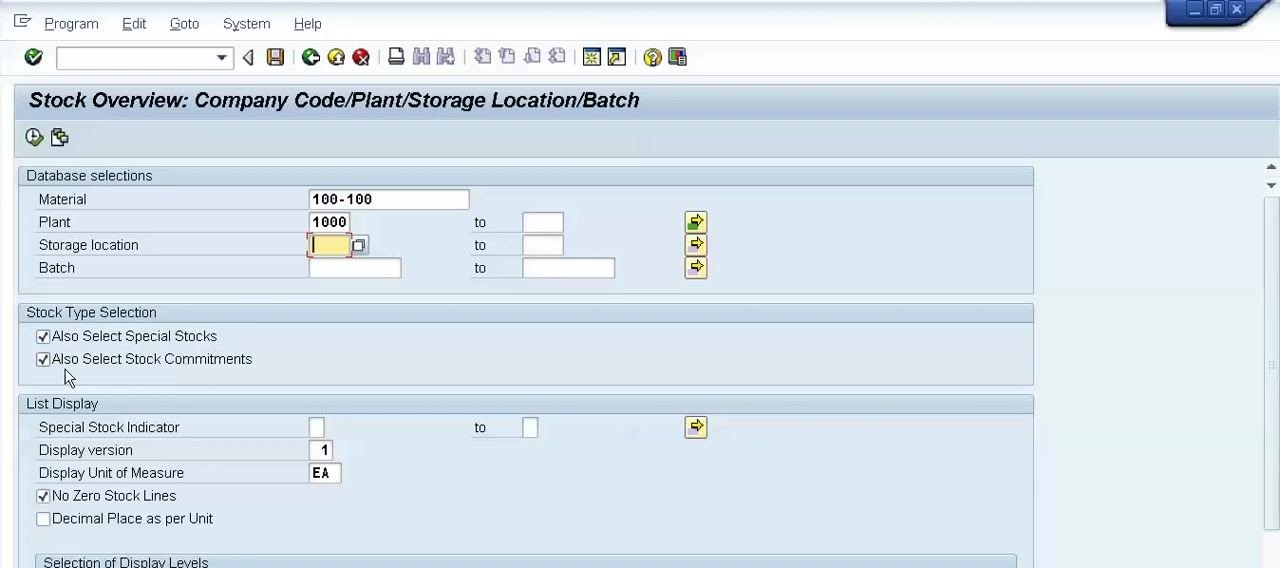
The Also Select Stock Commitments checkbox controls whether commitments appear in the report. Commitments include open purchase order quantities, stock in transfer, reservations, goods receipt blocked stock, and open deliveries. Check this box to have the system read and include these commitments.
Position the cursor in the Special Stock Indicator field
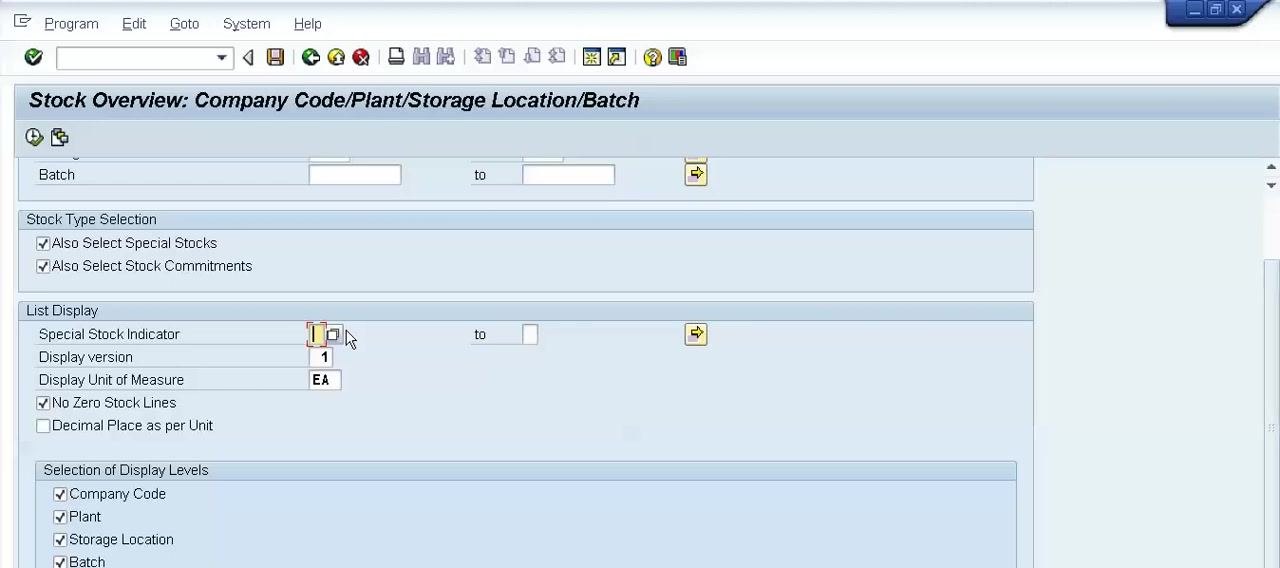
To display only certain types of special stocks, go to the Special Stock Indicator field in the List Display section and position your cursor there, ready for entry.
Open the special stock indicator selection list
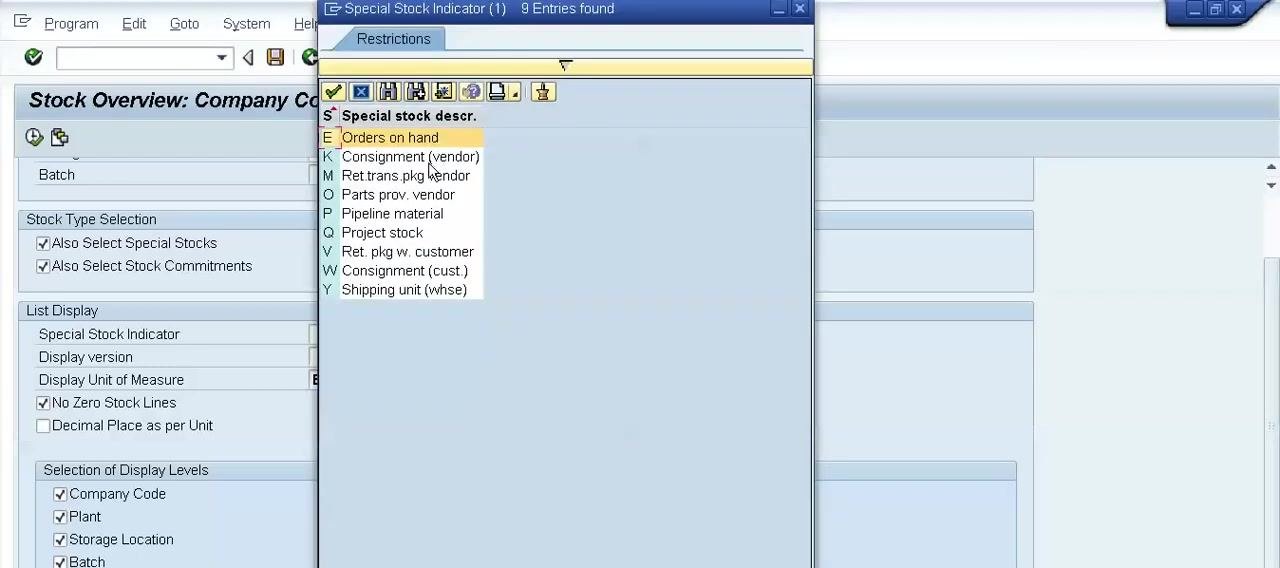
Click the search icon (binoculars) next to the Special Stock Indicator field to open the list of available indicators.
Review the available special stock indicators
A pop-up window titled Special Stock Indicator lists all available codes and descriptions, including:
- E: Orders on hand
- K: Consignment (vendor)
- M: Ret. trans. pkg vendor
- P: Parts prov. vendor
- Q: Pipeline material
- Q: Project stock
- W: Ret. pkg w. customer
- W: Consignment (cust.)
- Y: Shipping unit (whse)
You can select a single indicator or use multiple selection to filter by more than one. Close the window without selecting an indicator if you want the report to cover all special stock types.
Exclude zero stock lines
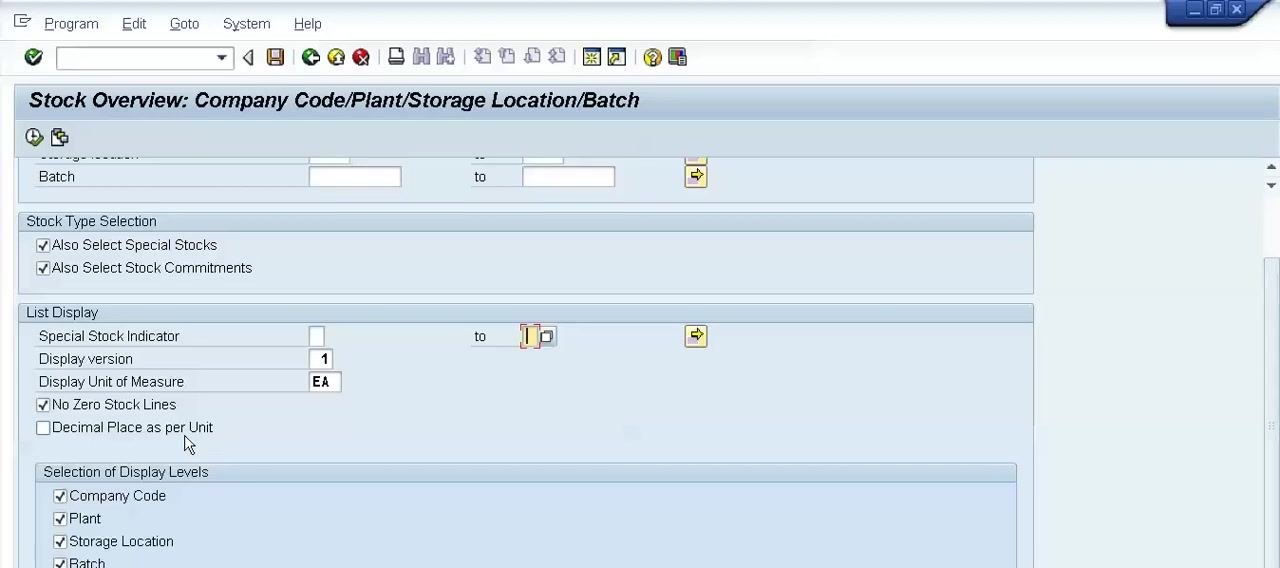
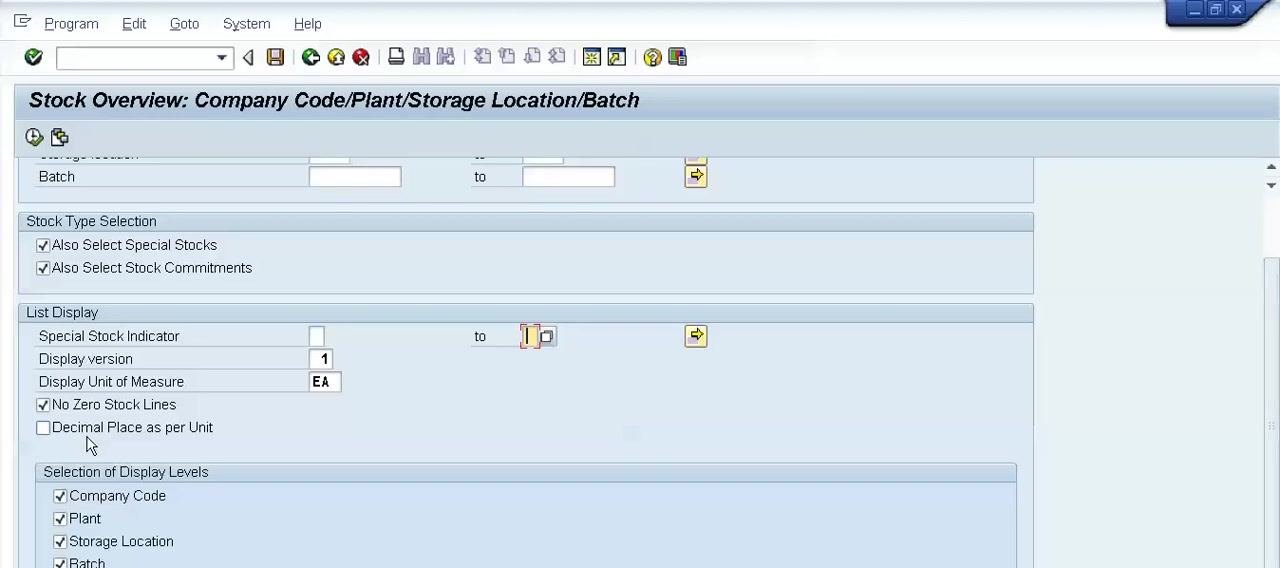
Check the No Zero Stock Lines checkbox so that stock lines with zero quantity are not displayed in the report.
Display decimal places per unit of measure
By default, stock values display with up to three decimal places. Check Decimal Place as per Unit to have the report show values up to the number of decimal places defined for each unit of measure.
Prepare to configure decimal places (optional, advanced)
To define how many decimal places are shown for a specific unit, you need to access a separate configuration area. Open a new SAP session to continue.
Open the Customizing: Execute Project screen
In the new session, enter SPRO in the command field and open the Customizing: Execute Project screen. The left pane shows favorites and the SAP menu, with folders for modules such as Logistics, Accounting, and Human Resources.
Locate your customizing worklist
The screen displays a section titled My Customizing Worklist with columns for Project and Name. If you have an existing project, it is listed here. Otherwise, click Manage Worklist to manage or select one.
Open the SAP Customizing Implementation Guide
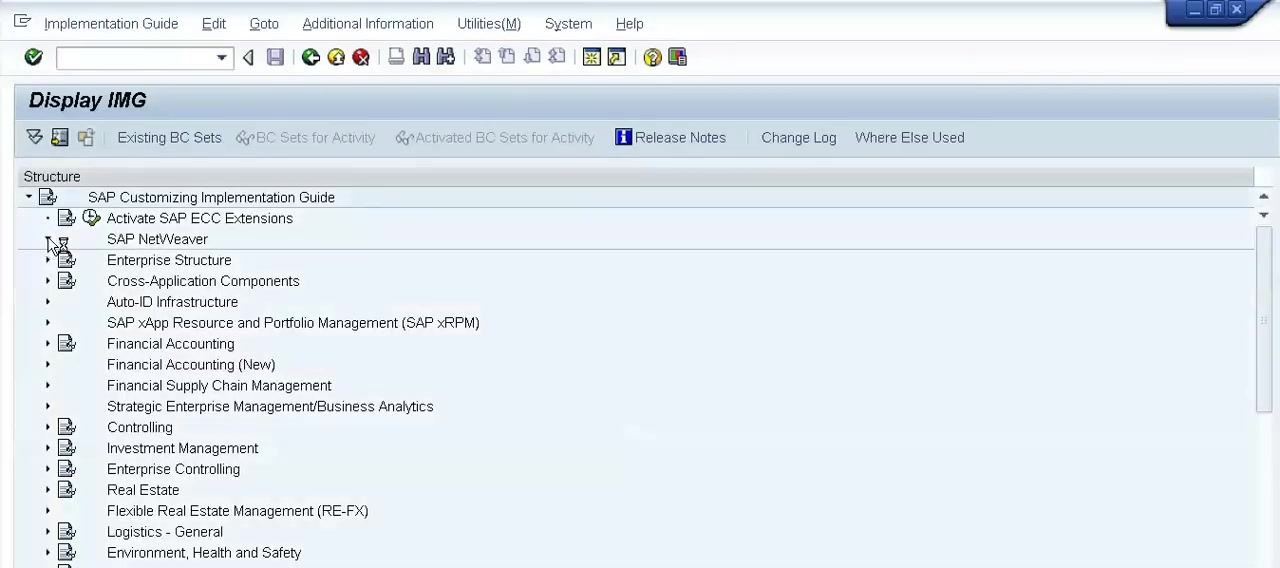
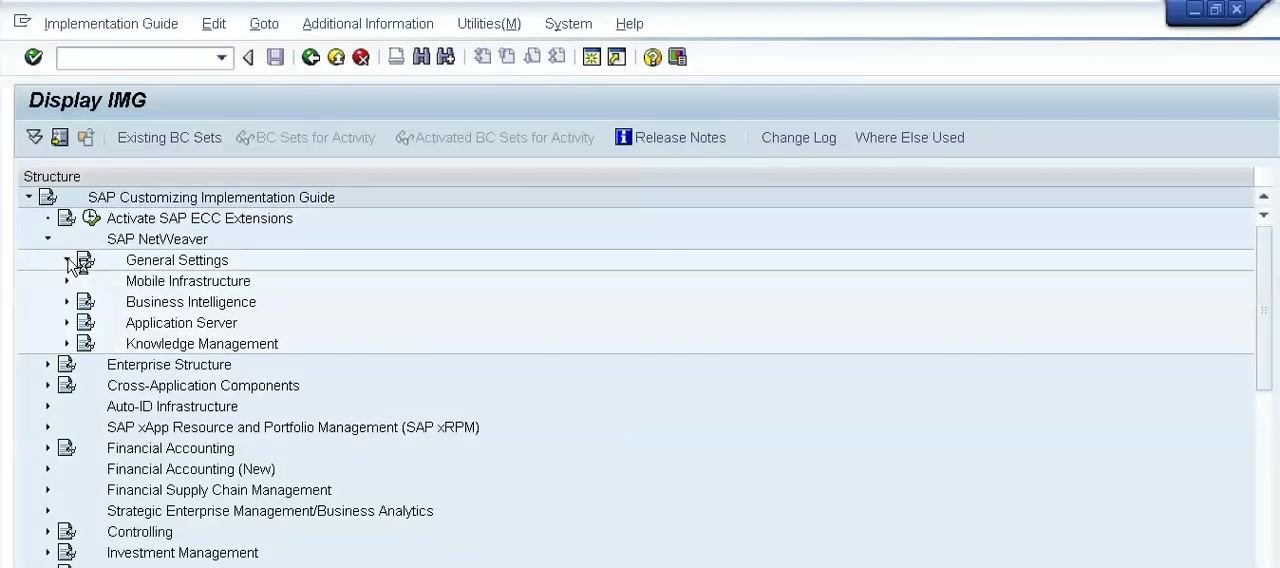
Click the IMG button to open Display IMG. In the structure tree, expand SAP Customizing Implementation Guide, then expand SAP NetWeaver, and select General Settings.
Navigate to Check Units of Measurement
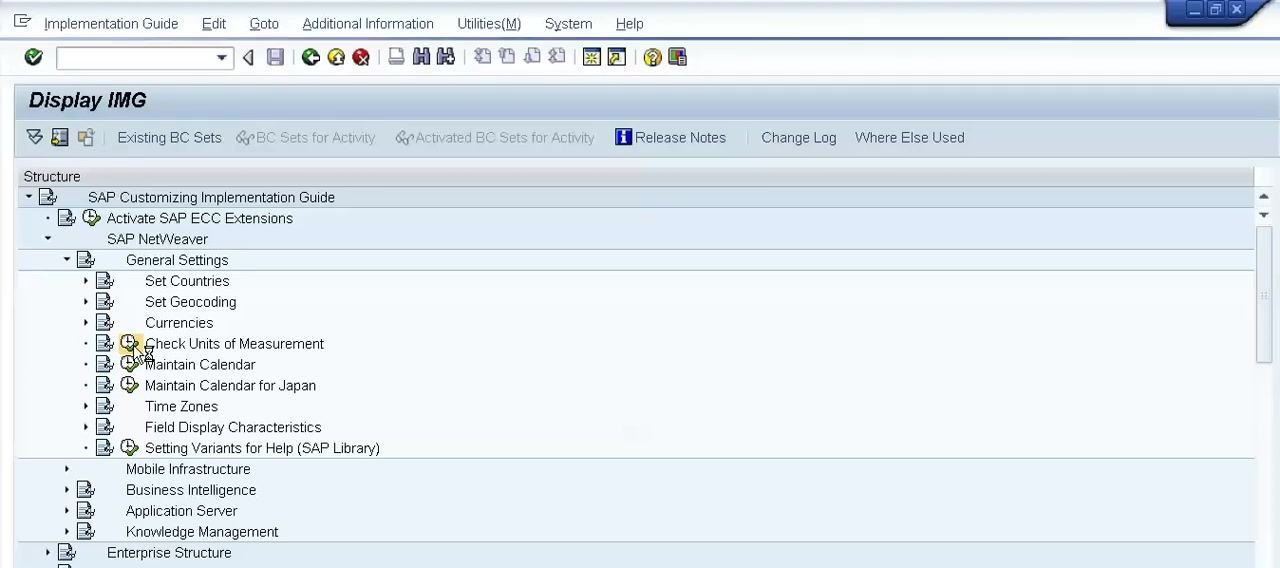
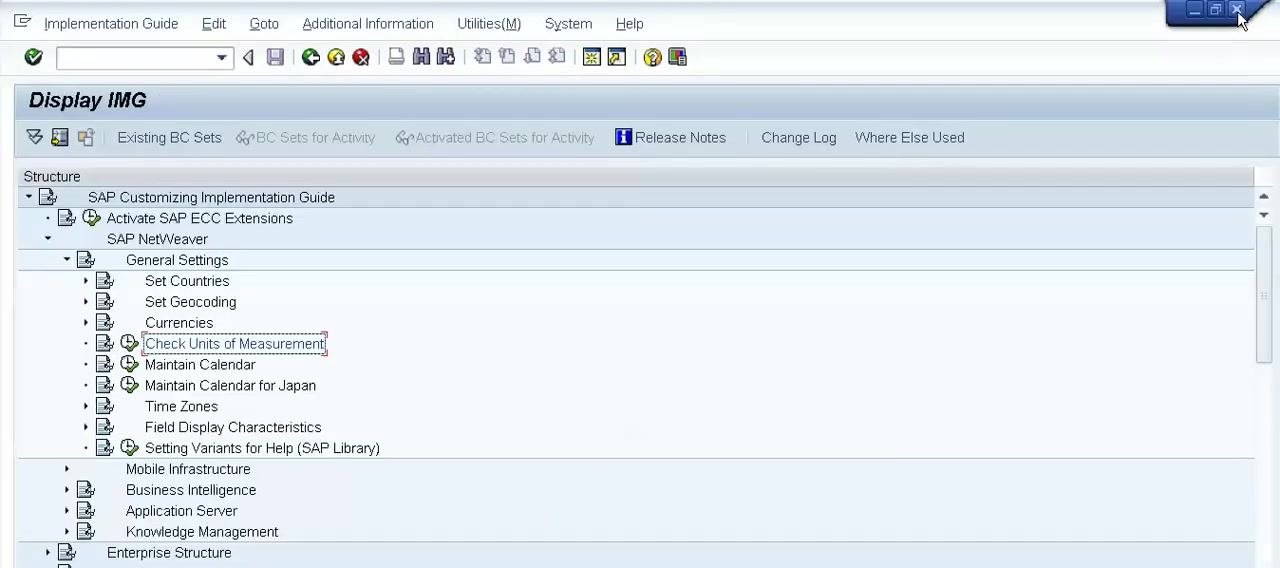
Under General Settings, locate Check Units of Measurement among options such as Set Countries, Set Geocoding, Currencies, Maintain Calendar, and Time Zones. Click Check Units of Measurement to proceed.
Select the unit of measurement to configure
The Change Units of Measurement of Dimension (no dimensions): Overview screen appears, listing units with columns for Unit, Commercial, Technical, and Meas. unit text. Scroll through the list, select the unit you want to configure (for example, EA – Each), and double-click the line to open its details.
Set the number of decimal places
A pop-up window titled Number of decimal places for number display appears. Enter the range you need, for example From = 0 and To = 14. If you do not specify decimal places, the system uses the default settings (three decimal places).
Save your changes
Save your changes and return to the Change Units of Measurement of Dimension overview screen to verify the configuration.
Execute the configuration
Return to the Display IMG screen and click Execute to apply your configuration and complete the decimal place setup.
Review the Stock Overview: Basic List screen
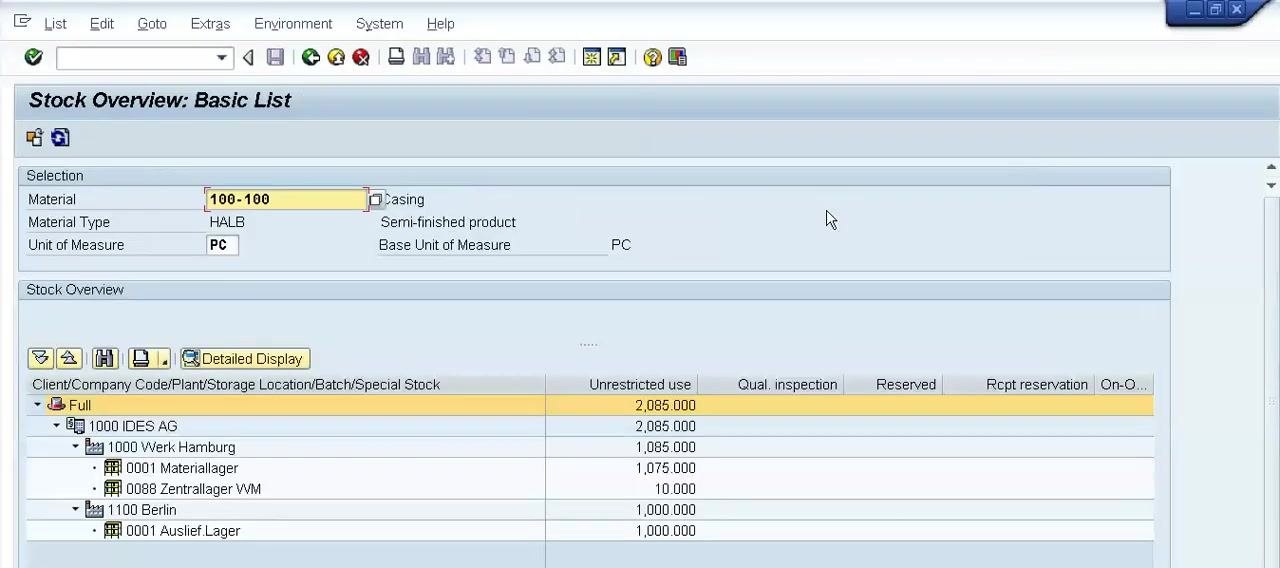
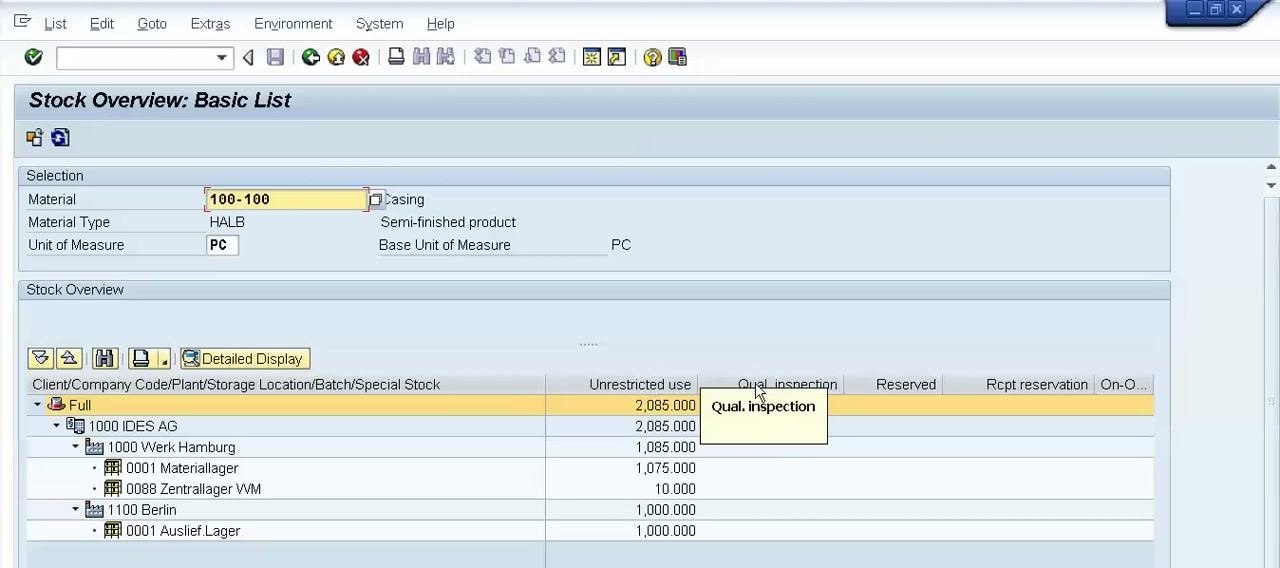
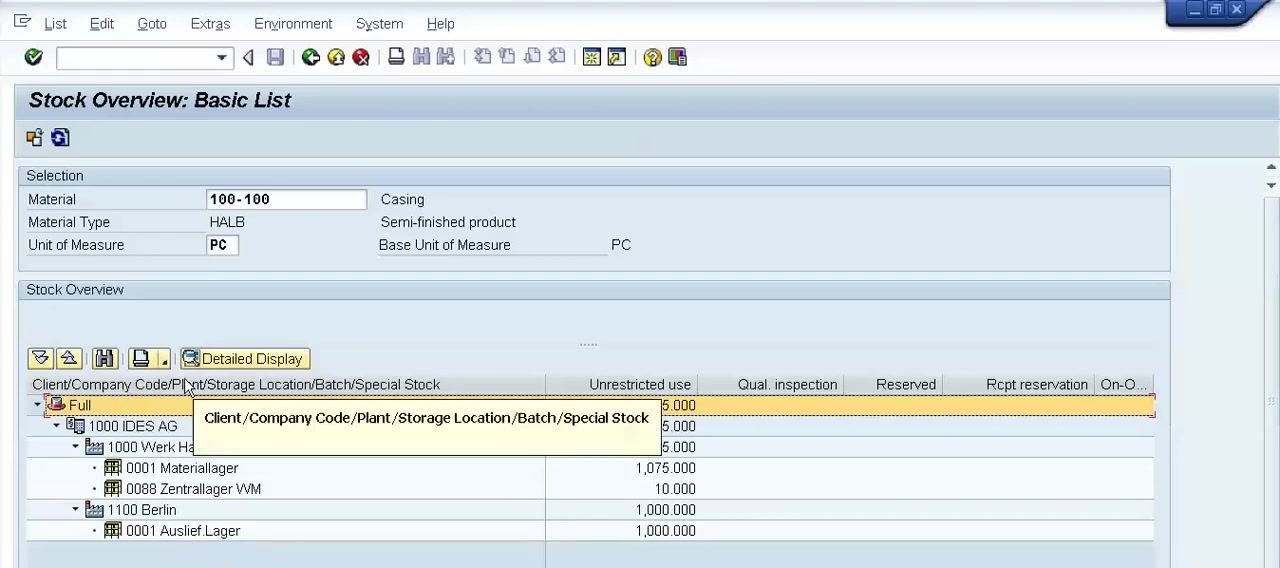
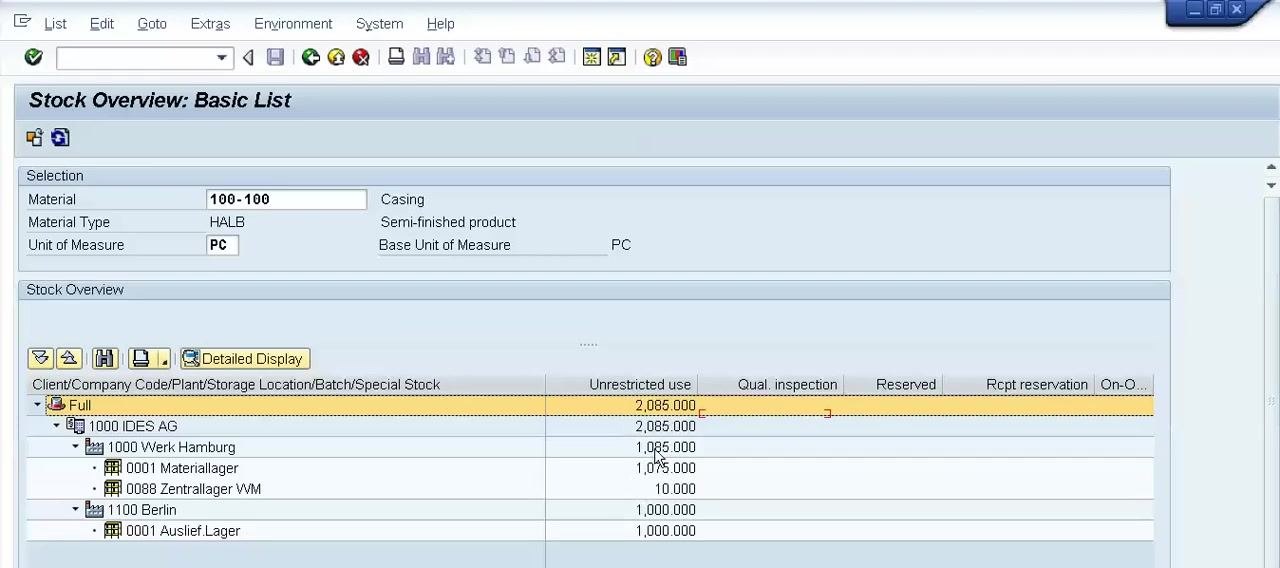
Once you execute the report (clicking the Execute button, the clock icon with a green checkmark, from the Stock Overview selection screen), the Stock Overview: Basic List screen opens with two main sections: Selection and Stock Overview. The Selection section shows Material 100-100 (Casing), Material Type HALB (Semi-finished product), and Unit of Measure PC. The Stock Overview table lists quantities by Client/Company Code/Plant/Storage Location/Batch/Special Stock, with columns for Unrestricted use, Qual. inspection, Reserved, Rcpt reservation, and On-Order Stock. The Detailed Display button is available for more information, and the total unrestricted use for this example is 2,085.000.
Understand the Selection and Stock Overview groups
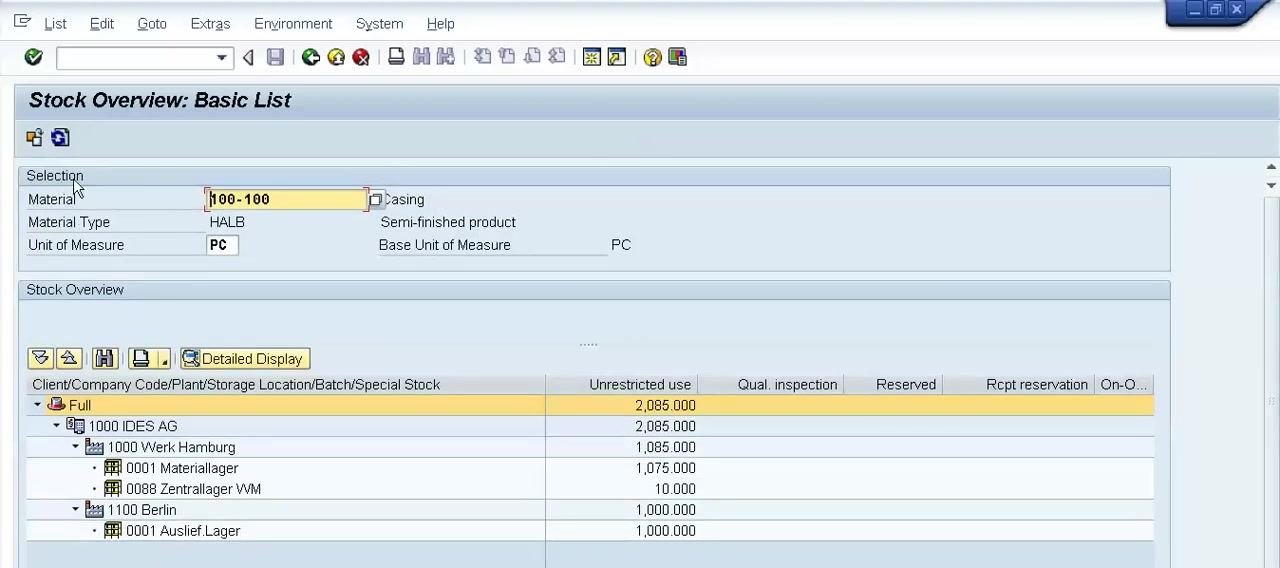
The screen is organized into two groups: Selection, which provides a brief description of the material and stock, and Stock Overview, which lists stock types with their respective quantities.
Examine the Selection group
The Selection group summarizes the material being viewed: Material 100-100, Description Casing, Material Type HALB, and Unit of Measure PC. Use this section to confirm you are viewing the correct material and stock type.
Examine the Stock Overview group
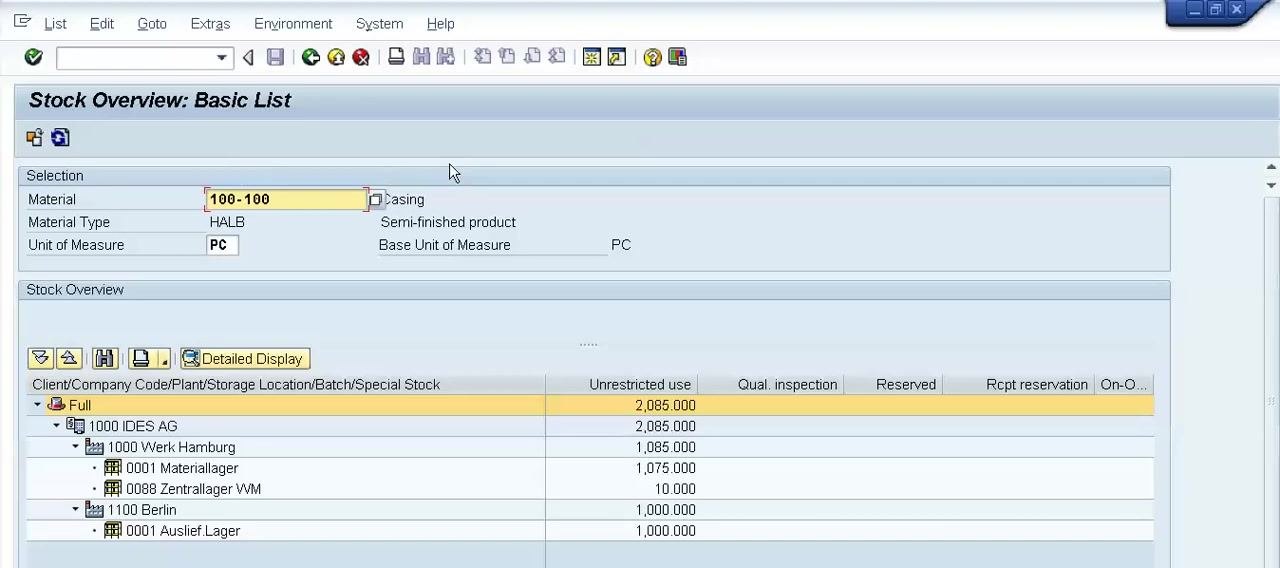
The Stock Overview group lists stock types and their quantities, including Unrestricted use, Qual. inspection (Quality inspection), Reserved, and Rcpt reservation (Receipt reservation), broken down by location.
Identify stock types using column tooltips
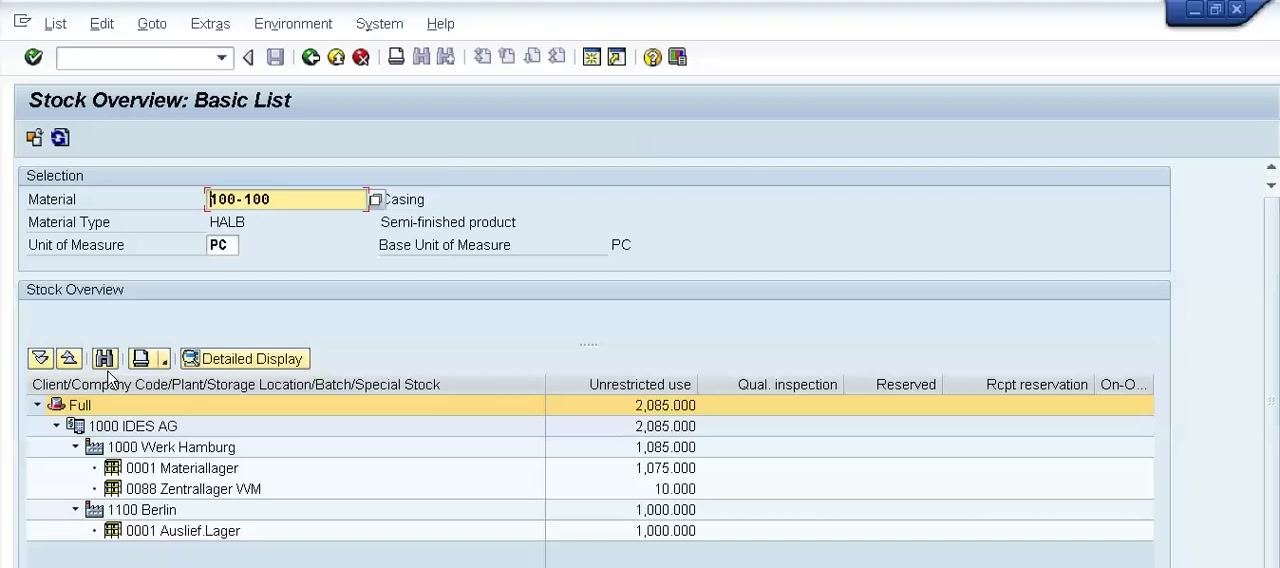
Hover over any column header to display a tooltip explaining the stock type. Unrestricted use is good stock available for use, Quality inspection is stock under quality check, Reserved is stock reserved for specific purposes, and Rcpt reservation is stock reserved for receipt.
Review quantities for each stock type
The table shows quantities for each stock type at every location. For example, under Unrestricted use, the total is 2,085.000, broken down by plant and storage location.
Expand or collapse the stock structure
Use the Expand subtree or Collapse subtree buttons to show or hide details for each plant or storage location. Expanding the tree reveals detailed stock information for each storage location.
Check the print preview of the report
You can check the print preview of the stock overview report. The report includes all stock types — Unrestricted use, Quality inspection, Reserved, and so on — with Unrestricted use described as "good stock" available for use.
Recap filtering and configuration options
To filter the report, use the Find button next to the stock type indicator field to select one or more special stock indicators. Check No zero stock lines to hide entries with no available stock, and check Decimal place as per unit to display values beyond the default three decimal places. To customize the number of decimal places for a unit, open a new session, enter SPRO in the command field, and click IMG to reach the configuration area.
Open the Stock Overview: Basic List for a material
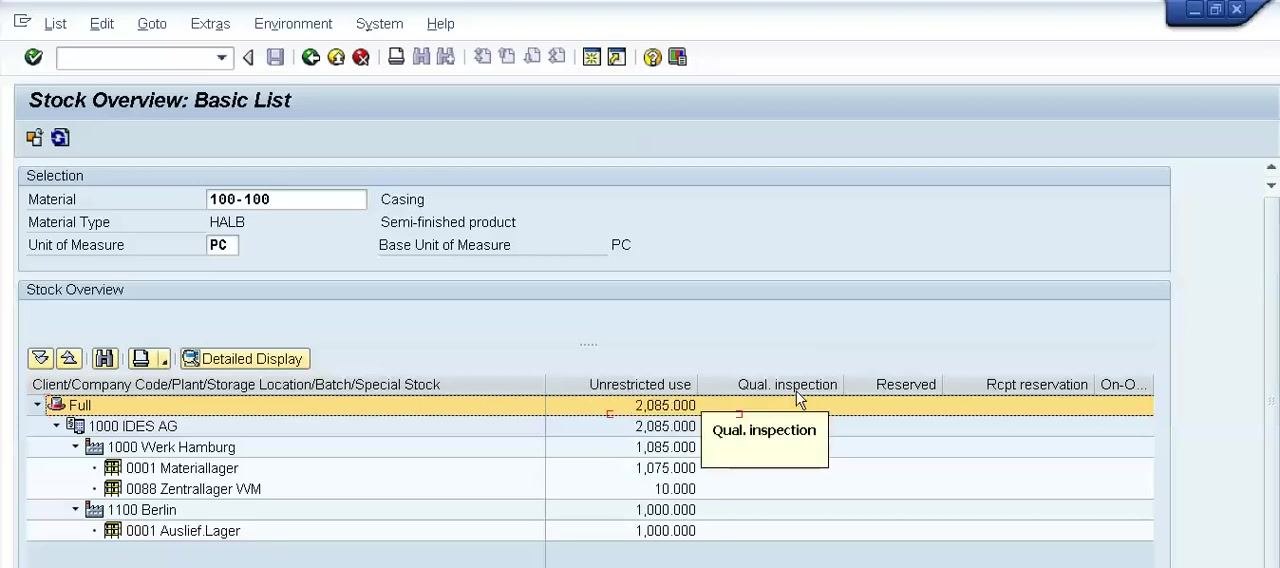
Open the Stock Overview: Basic List screen for material 100-100. The fields show Material 100-100, Material Type HALB (Semi-finished product), and Unit of Measure PC, with the stock table listing quantities by plant and storage location.
Identify the Unrestricted use stock
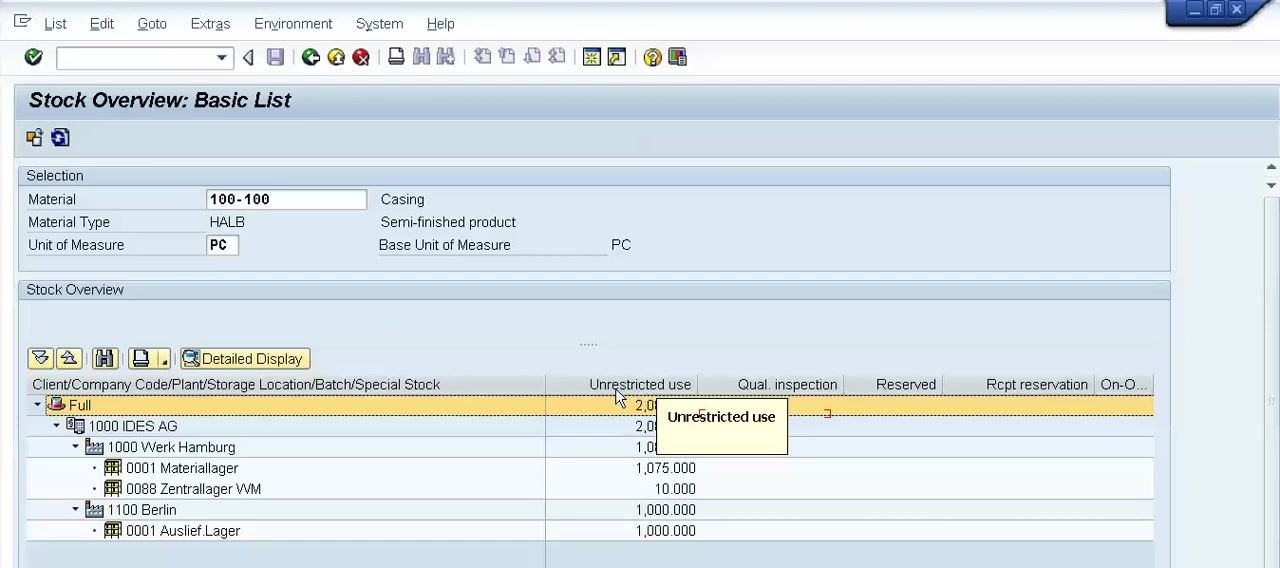
The Unrestricted use column shows the quantity available for sale or use — in this example, 2,085.000 units distributed across plants and storage locations.
Analyze stock distribution by plant
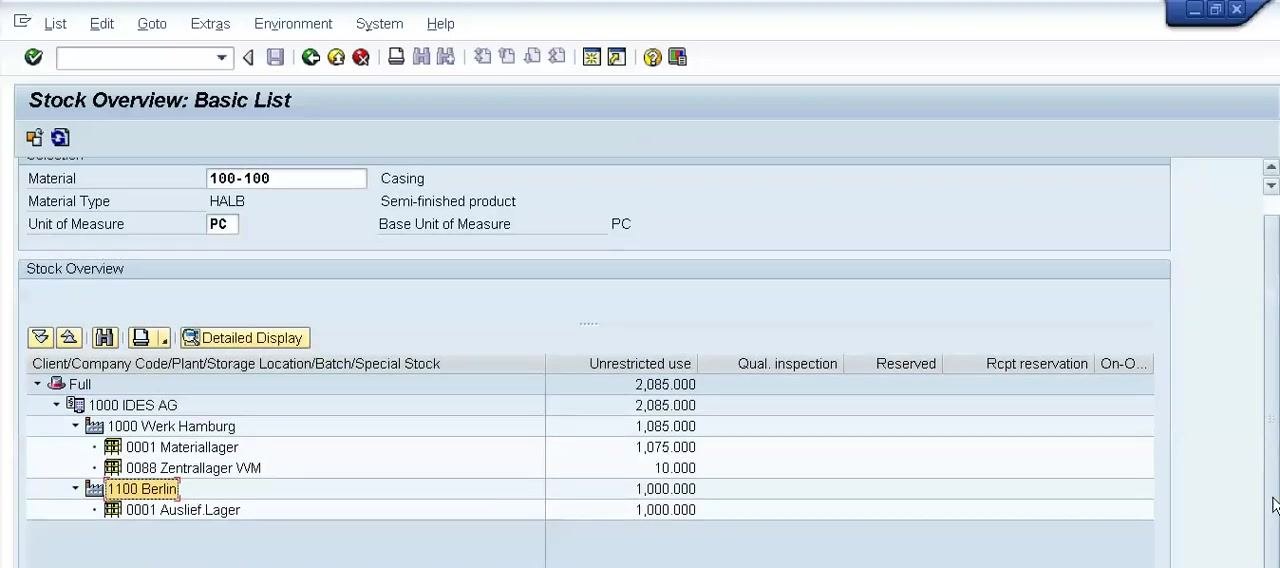
The overview breaks down unrestricted stock by location: 1000 Werk Hamburg shows 1,085.000 units in Zentrallager VVM, and 1100 Berlin shows 1,000.000 units in Auslief.Lager. The total unrestricted stock is the sum of these amounts.
Note other stock types on the screen
Besides Unrestricted use, other stock types such as Qual. inspection and Reserved may be visible in other columns or tabs of the same report.
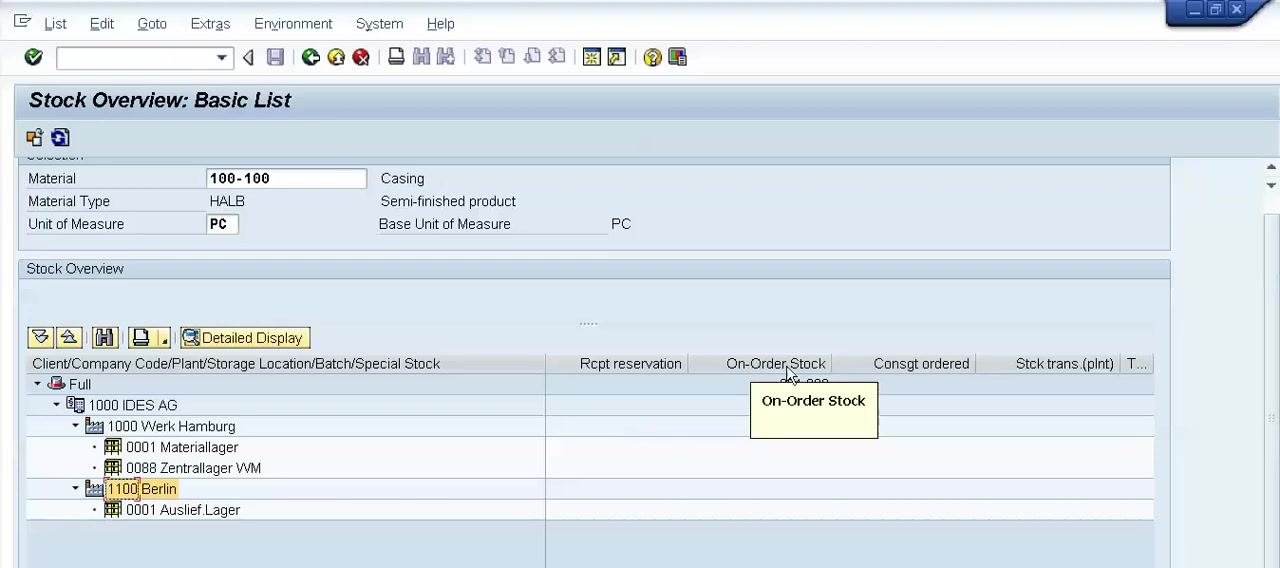
Review the On-Order Stock column
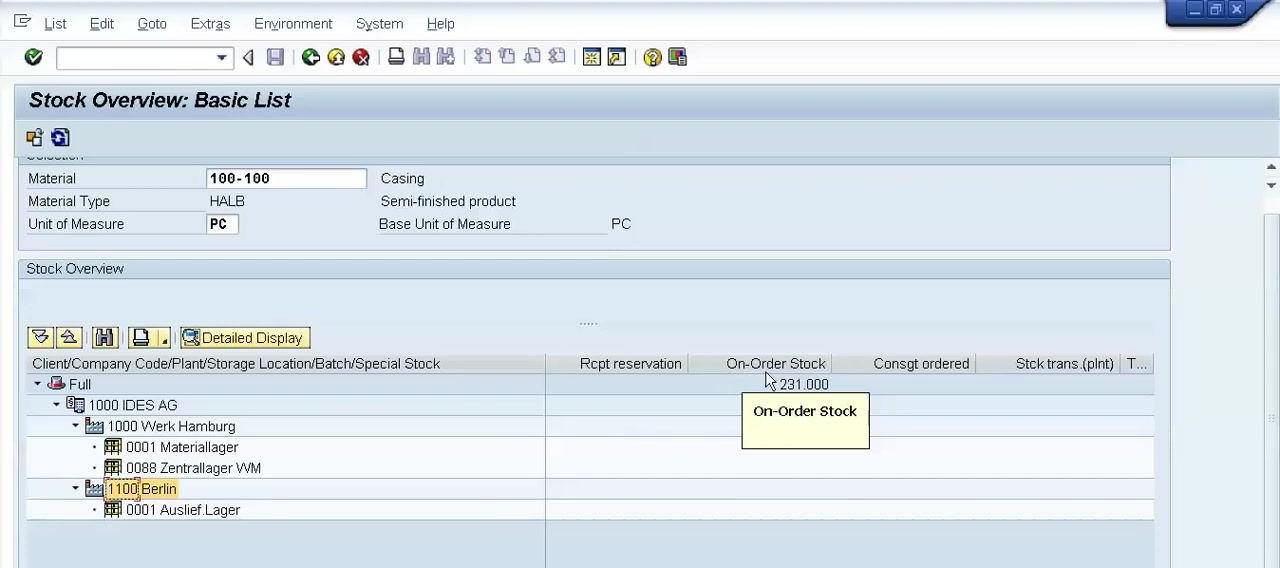
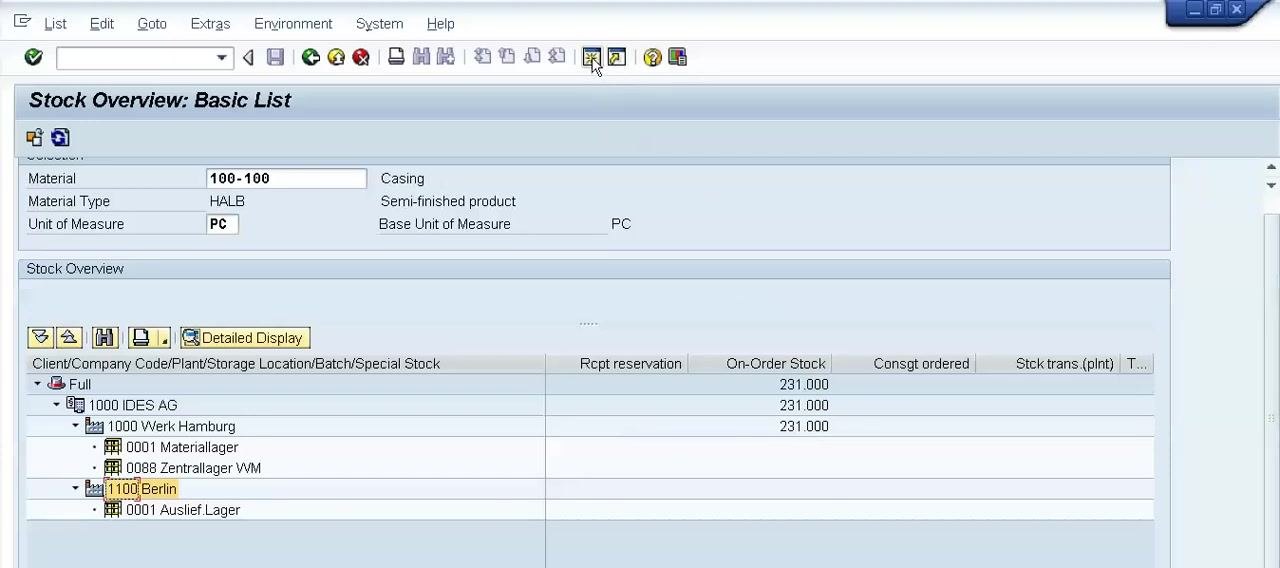
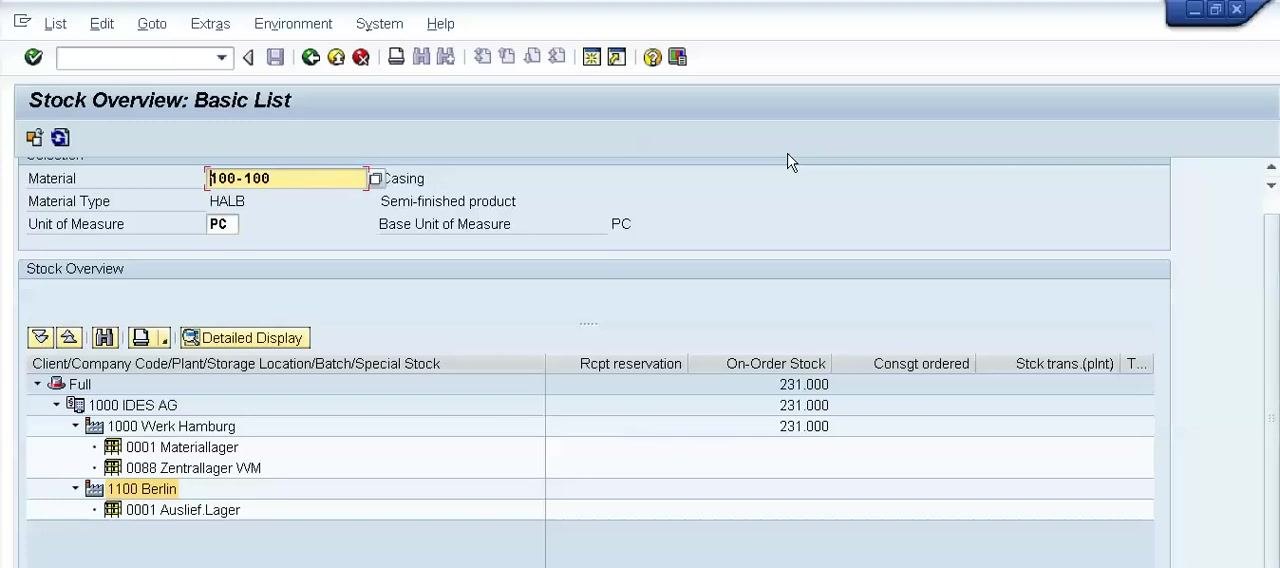
The On-Order Stock column displays quantities that have been ordered but not yet received. In this example, 231.000 units appear as On-Order Stock for both 1000 Werk Hamburg and 1100 Berlin; hovering over the column confirms the label.
Understand on-order stock
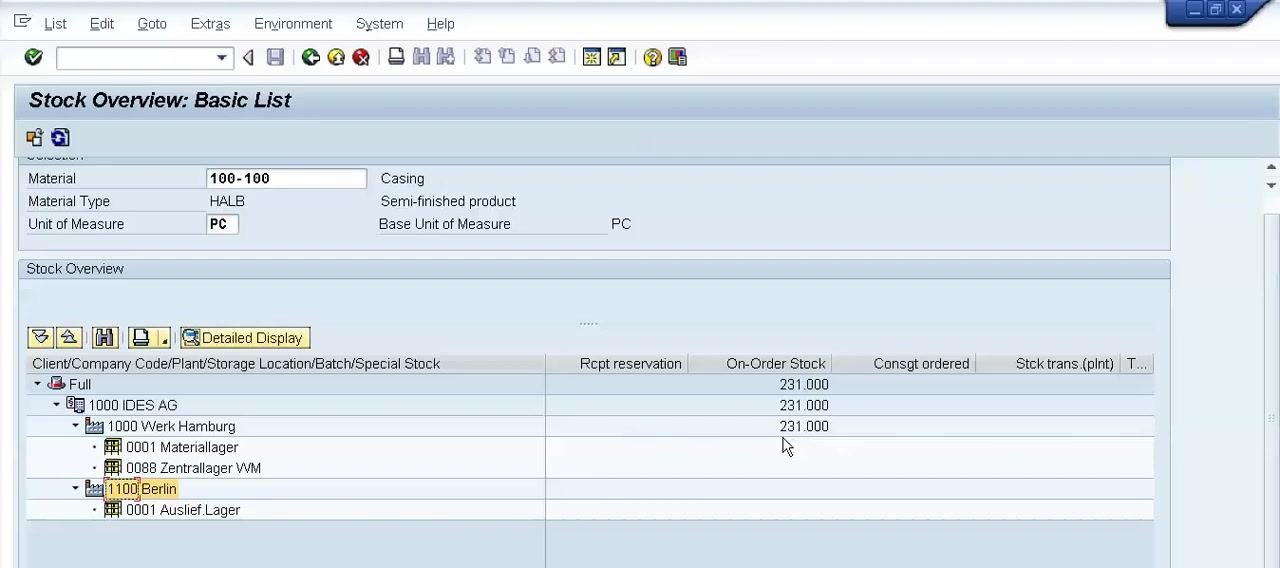
On-order stock represents quantities for which purchase orders have been created, but goods receipt has not yet been processed — meaning the vendor has not dispatched the material to the plant.
Confirm the on-order stock quantity
Verify that the On-Order Stock column shows a total of 231.000 units. This quantity is pending receipt and not yet available for use.
Create a new session to review purchasing documents
Click Create New Session in the SAP toolbar (the icon with a white square and yellow star). In the new session, enter transaction code ME2N and press Enter to open the Purchasing Documents per Document Number screen.
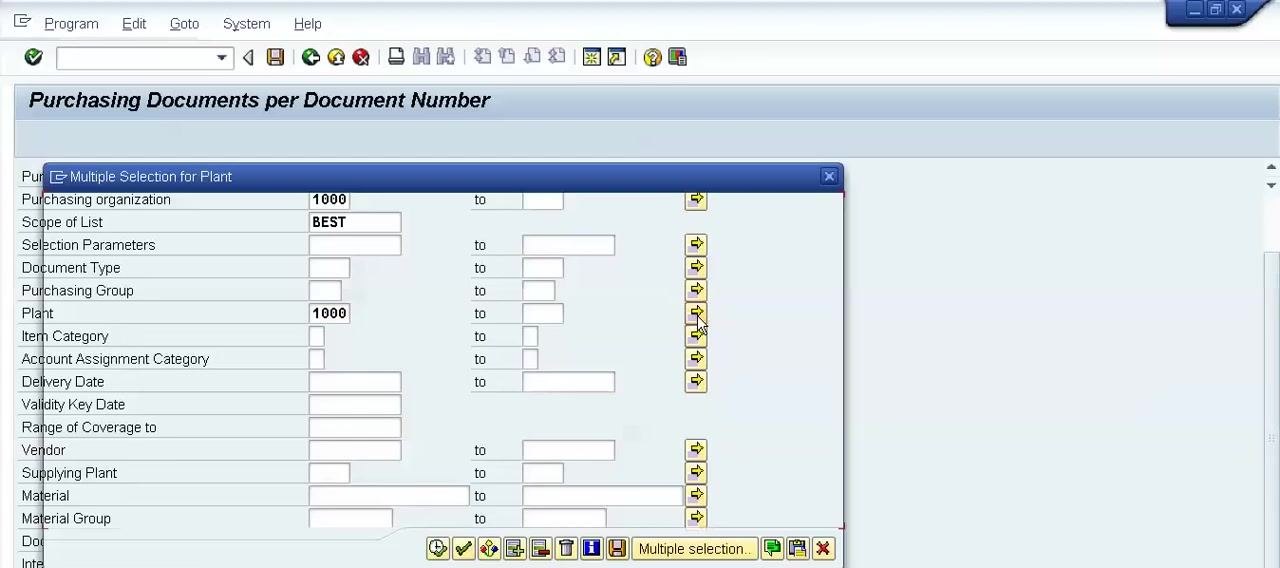
Review the Purchasing Documents per Document Number screen
The screen lets you filter purchasing documents using criteria such as Purchasing organization 1000, Scope of List BEST, and Plant 1000. Adjust the plant code or other parameters as needed.
Select multiple plants for the purchasing document search
Click Multiple selection next to the Plant field to open the Multiple Selection for Plant dialog and enter the plant codes relevant to your search, for example 1000.
Enter the material number and execute the search
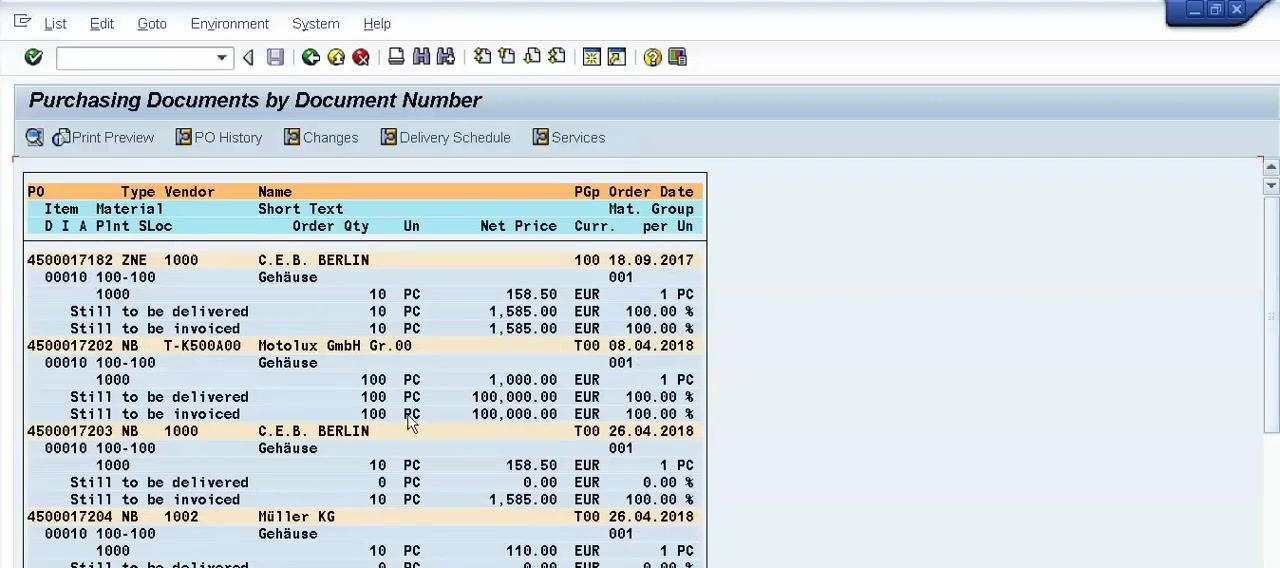
In the Material field, enter 100-100, confirm the other relevant fields (Purchasing organization 1000, Scope of List BEST, Plant 1000), and click Execute (the clock with a green checkmark icon) to run the search.
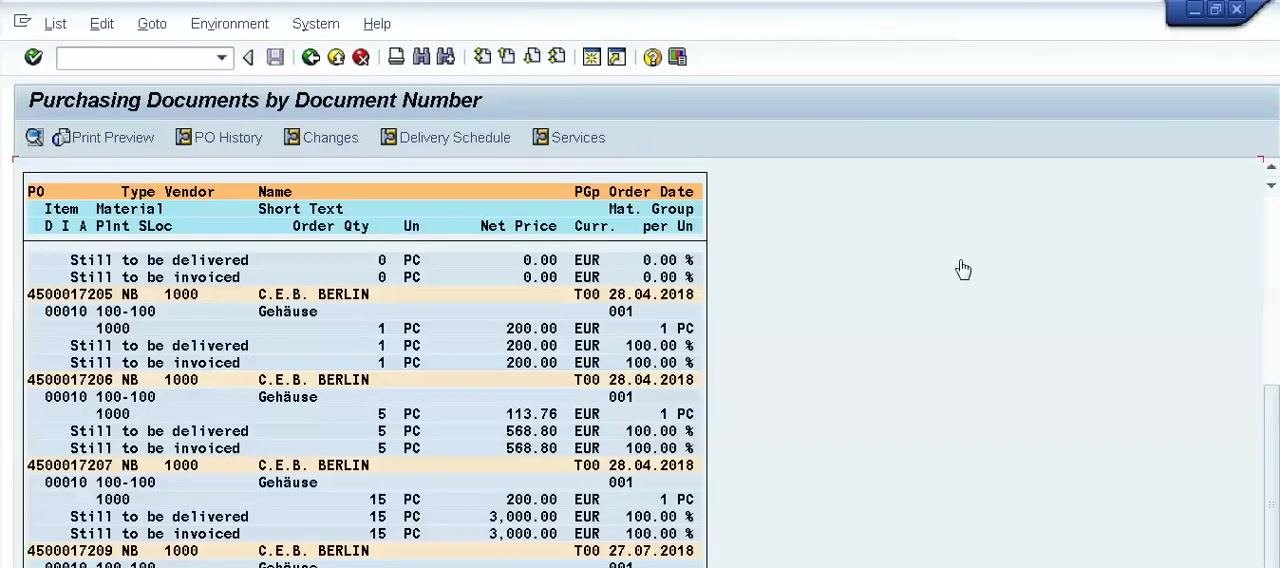
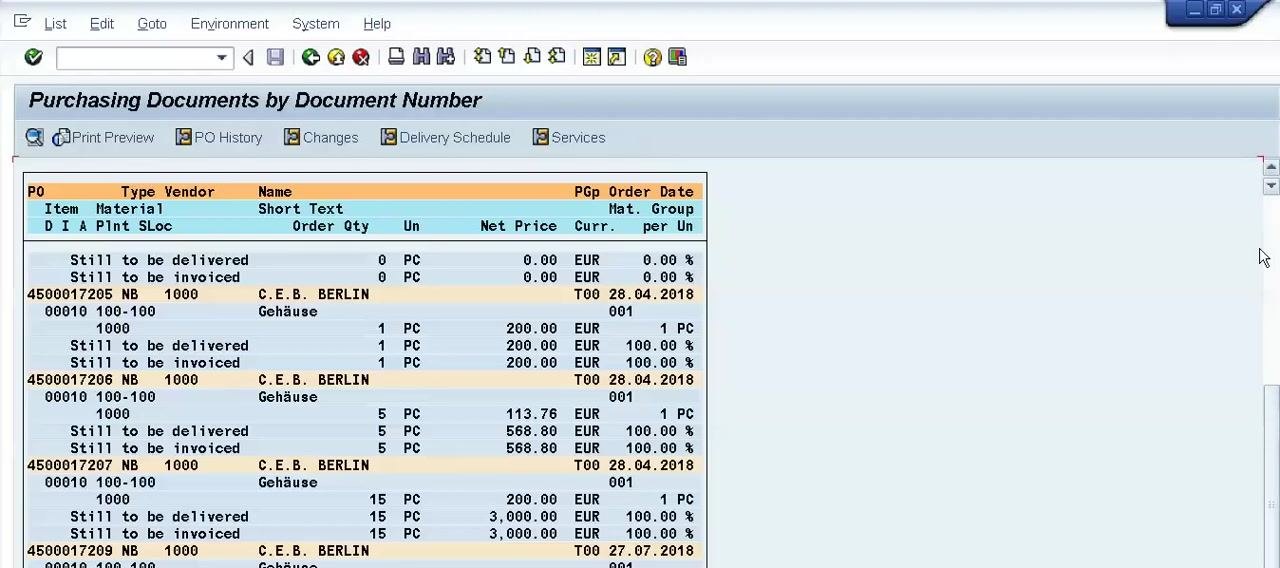
Verify on-order stock against purchasing documents
Review the resulting Purchasing Documents by Document Number list and check the Still to be delivered column for each purchase order, for example:
- PO 4500017205: 1 PC still to be delivered
- PO 4500017206: 5 PC still to be delivered
- PO 4500017207: 15 PC still to be delivered
- PO 4500017202: 100 PC still to be delivered
Compare these quantities to the On-Order Stock value from the stock overview.
Review additional stock type columns
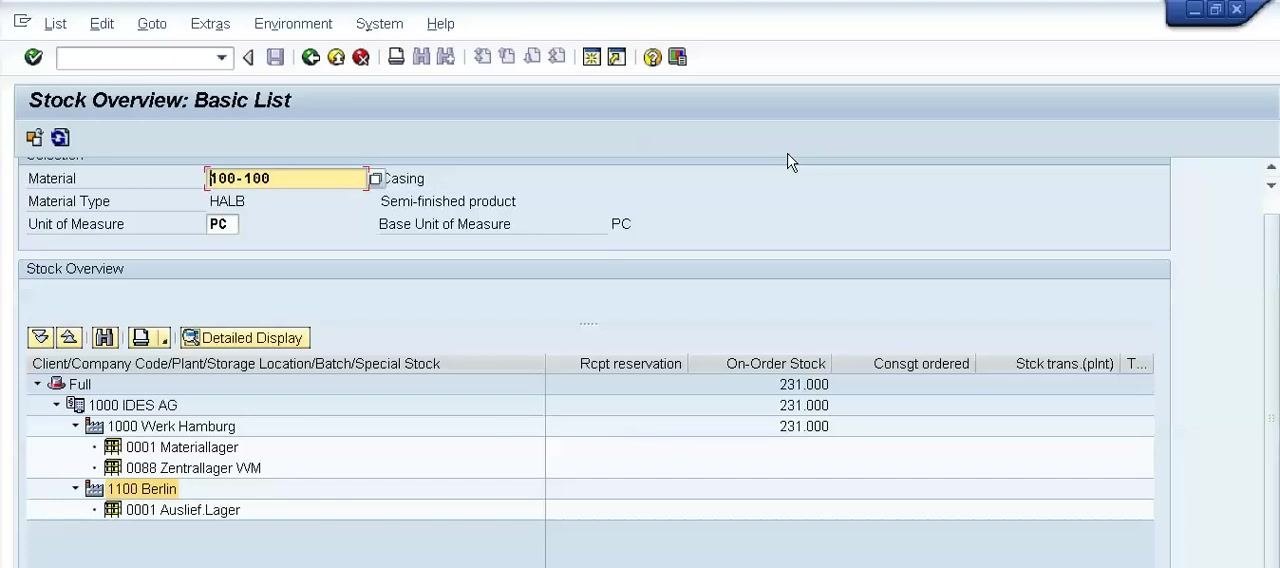
Return to the Stock Overview: Basic List screen for material 100-100 and review additional columns such as Rcpt reservation (Receipt reservation), On-Order Stock, Consgt ordered (Consignment ordered), and Stck trans.(plnt) (Stock transfer between plants). Hover over each header for a tooltip; in this example, both Werk Hamburg and Berlin show 231.000 units in On-Order Stock.
Use MMBE to check the stock overview for any material
Use transaction code MMBE to access the Stock Overview: Basic List for any material. Enter the material number (for example, 100-100) and review all relevant stock types and quantities, using the Detailed Display button for more in-depth information.
Summary
By following these steps, you can use MMBE to check the stock overview for a material across one or more plants, filter the report by special stock type and indicator, exclude zero stock lines, and configure decimal place display. You can also interpret the Selection and Stock Overview groups, distinguish between stock types such as Unrestricted use, Quality inspection, Reserved, and On-Order Stock, and verify on-order quantities against purchasing documents using ME2N.
What's next
- Repeat the MMBE process for other materials or plant combinations as part of routine inventory checks.
- Use transaction ME2N whenever you need to cross-check on-order stock against open purchase orders.
- Revisit the SPRO / Check Units of Measurement configuration if you need different decimal precision for other units of measure.
Generation details: cost, quality tiers
Docsie billed 7,000 credits ($4.90) to analyze this 14-minute video at standard quality. The rewrite, template fill and Word/PDF exports were included. The same video at each quality tier:
| Quality | Frames sampled | Credits | Approx. cost |
|---|---|---|---|
| Draft | every 16-30 s | 3,500 | $2.45 |
| Standard (this guide) | every 8-15 s | 7,000 | $4.90 |
| Detailed | every 4-7 s | 14,000 | $9.80 |
| Ultra | every 1-3 s | 28,000 | $19.60 |
Credits priced at $0.70 per 1,000; plans include a monthly allowance. Enterprise customers on on-premise or bring-your-own-model deployments run this on their own inference and pay no per-video credits.
Generated by Docsie Video-to-Docs on 2026-10-06 from a 13-minute video. Screenshots are frames from the source video and belong to their creator, My Support Solutions, whose original is embedded above. If you own this video and want the guide removed or credited differently, contact us and we will act within one business day.