
How to Create a Sales Order with Reference in SAP Fiori (VA01)
This tutorial walks you through the complete process of creating a sales order with reference in the SAP Fiori interface, from initiating the order to completing item data, resolving incompletion logs, and finally displaying, editing, and billing the resulting sales order. This workflow is useful whenever you need to create a new sales order based on an existing reference document (such as a quotation, contract, or another order) rather than starting from scratch. By the end of this guide, you'll know how to create a sales order with reference, complete required item data such as the cost center, resolve incompletion logs, and process delivery and billing for a sales order.
Video: VA01 - How to Create a Sales Order with SAP Fiori in SAP S/4HANA by S4HCLUB - Learning SAP (2024). All credit for the demonstration goes to the creator; watch the original on YouTube. The written guide below was generated from this video by Docsie. Creator? Request a change or removal.
This tutorial walks you through the complete process of creating a sales order with reference in the SAP Fiori interface, from initiating the order to completing item data, resolving incompletion logs, and finally displaying, editing, and billing the resulting sales order. This workflow is useful whenever you need to create a new sales order based on an existing reference document (such as a quotation, contract, or another order) rather than starting from scratch. By the end of this guide, you'll know how to create a sales order with reference, complete required item data such as the cost center, resolve incompletion logs, and process delivery and billing for a sales order.
Note: This guide is based on a step-by-step demonstration in the SAP Fiori Launchpad using the Manage Sales Orders application and the Create Sales Order – VA01 transaction.
1. Access the Manage Sales Orders app
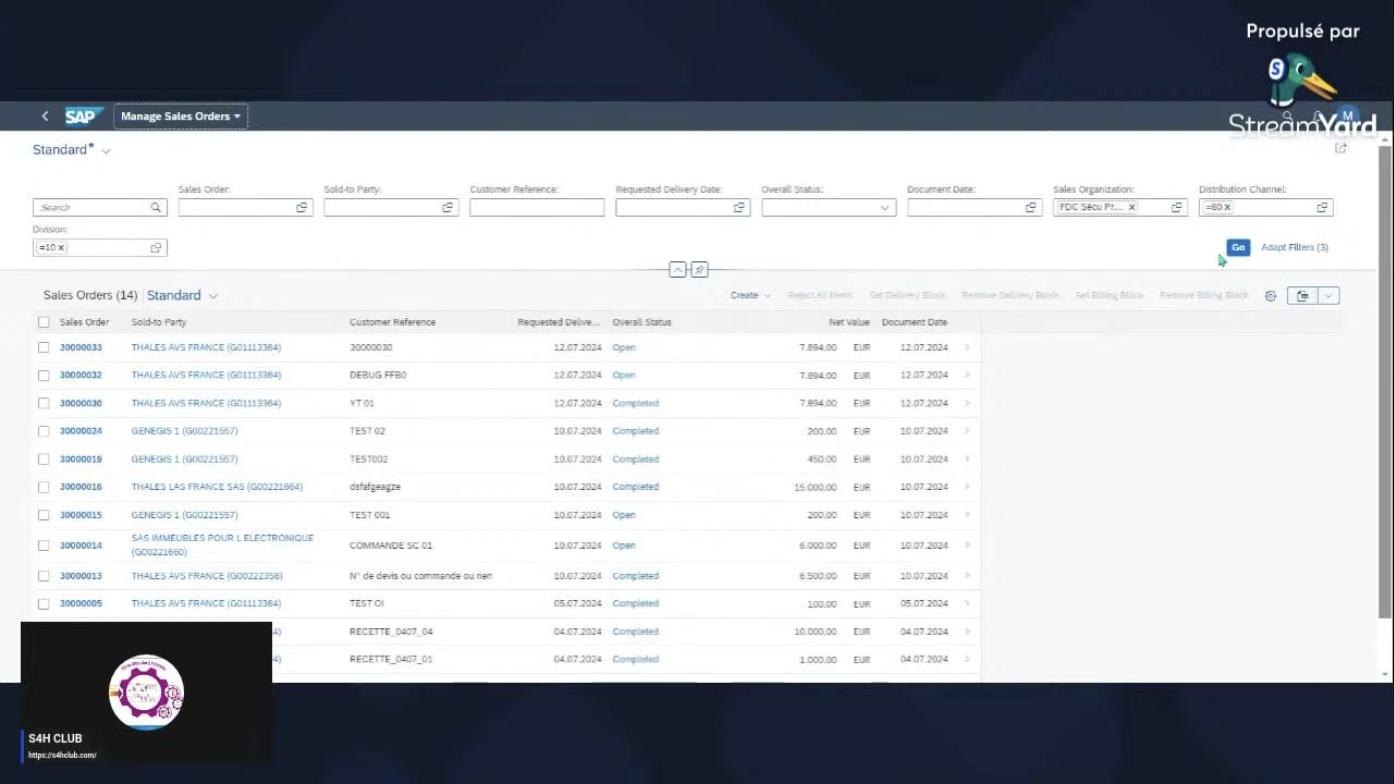
Open the SAP Fiori Launchpad and navigate to the Manage Sales Orders application. The main screen displays a list of sales orders with columns such as Sales Order, Sold-to Party, Customer Reference, Requested Delivery Date, Overall Status, Net Value, and Document Date.
Filters are available at the top for Sales Order, Sold-to Party, Customer Reference, Requested Delivery Date, Overall Status, Document Date, Sales Organization, Distribution Channel, and Division. The Go button applies the selected filters, and the Create button above the sales order list lets you initiate new sales orders.
2. Initiate sales order creation
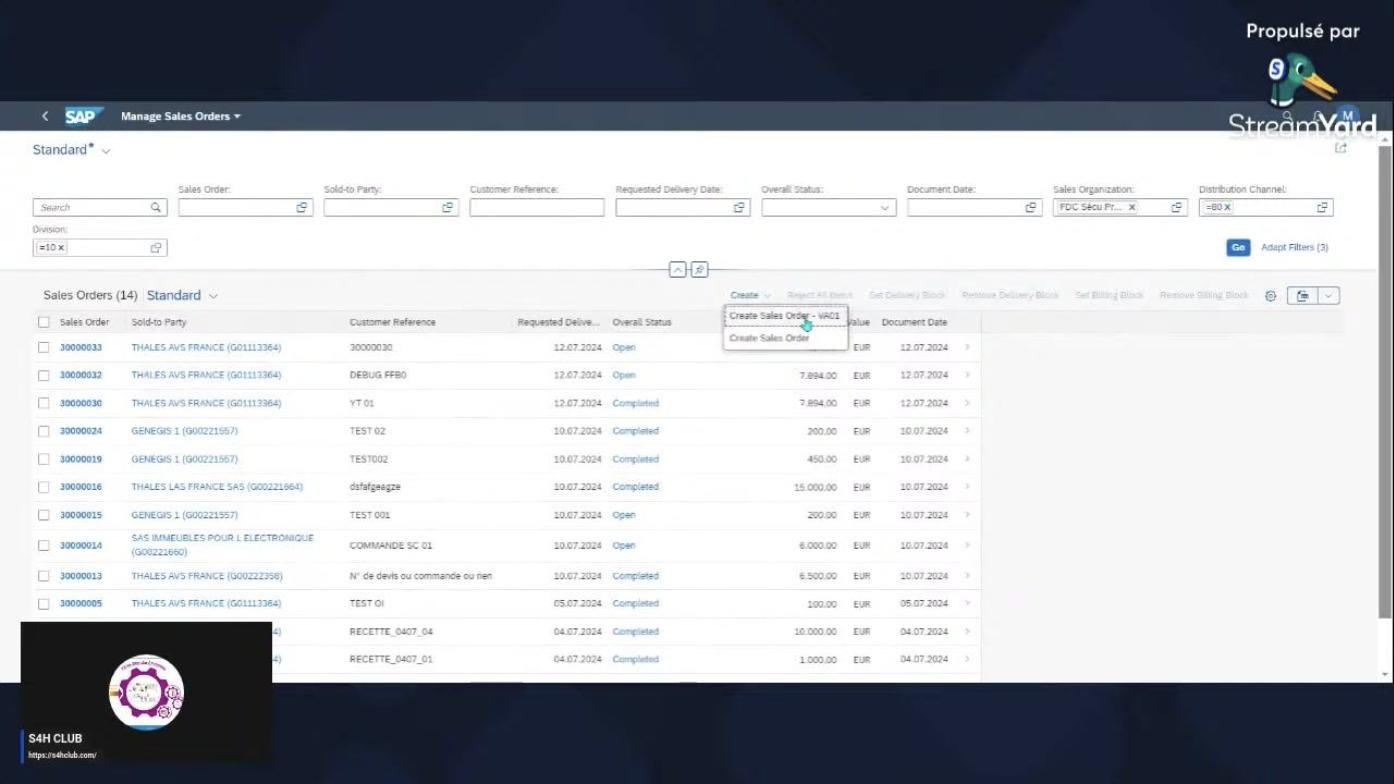
Click the Create button above the sales order list. A dropdown menu appears with two options:
- Create Sales Order – VA01
- Create Sales Order
Select Create Sales Order – VA01 from the dropdown to proceed with creating a sales order using reference.
3. Open the Create with Reference dialog
A modal window titled Create with Reference appears, containing several tabs: Inquiry, Quotation, Order, Contract, SchedAgree, and BillDoc. The Order tab is selected by default.
The following fields are available for input:
- Order (dropdown)
- Requested Delivery Date
- Search Criteria: Cust. Reference, Sold-to Party, Delivery, WBS Element, Material
- Option to Read from Archive
Action buttons at the bottom of the dialog include Search, Copy, Item Selection, Cancel, Continue, and Create with Reference. At this point, no data has been entered yet.
4. Enter the reference order number
In the Order field, enter the reference sales order number 38009806. The rest of the fields remain empty. The Item Selection button at the bottom is highlighted, indicating the next action to take.
5. Select items and proceed
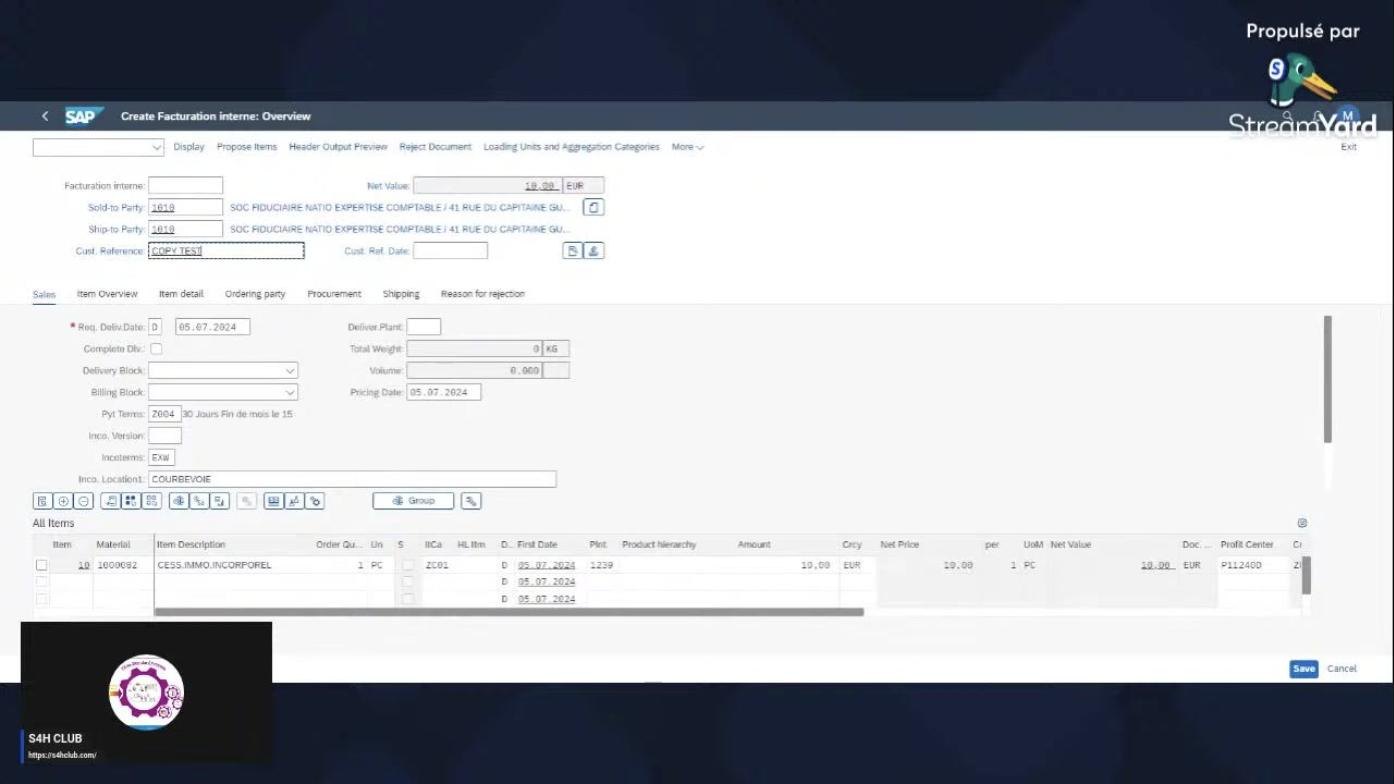
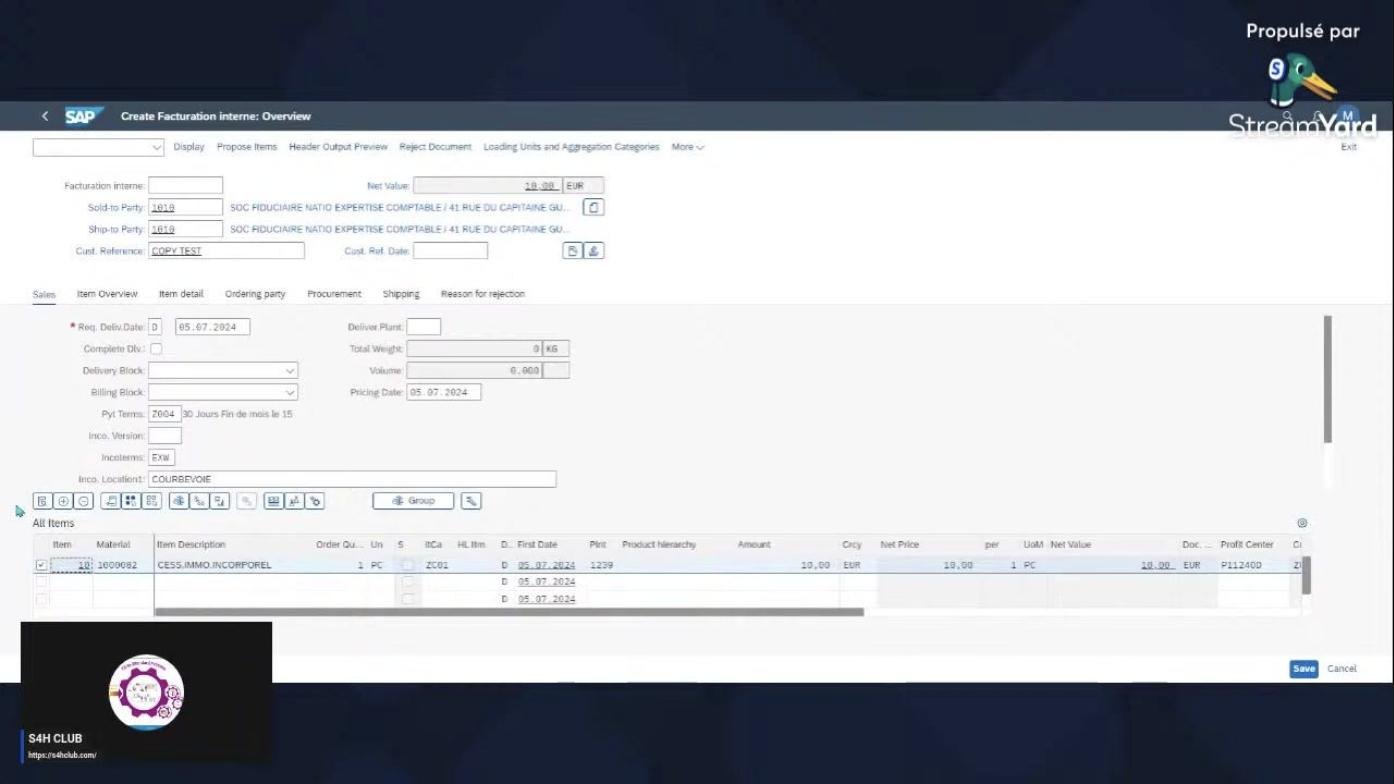
Click the Item Selection button. The system navigates to the Create Facturation interne: Overview screen, where the following key fields and values are visible:
- Facturation interne: (blank)
- Net Value: 10.00 EUR
- Sold-to Party: 1010 SOC FIDUCIAIRE NATO EXPERTISE COMPTABLE / 41 RUE DU CAPITAINE GU...
- Ship-to Party: 1010 SOC FIDUCIAIRE NATO EXPERTISE COMPTABLE / 41 RUE DU CAPITAINE GU...
- Cust. Reference: COPY TEST
- Req. Deliv.Date: 05.07.2024
- Pricing Date: 05.07.2024
- Incoterms: EXW
- Incoterms Location: COURBEVOIE
The All Items section lists:
- Item: 10
- Material: 10000842
- Item Description: CESS.INMO.INCORFORFEL
- Order Quantity: 1 PC
- Net Price: 10.00 EUR
- Net Value: 10.00 EUR
- Profit Center: P11240D
The Save and Cancel buttons are available at the bottom right of the screen.
6. Edit the profit center (if required)
If you need to edit the profit center, a modal titled Profit Center (1) appears, with the following fields:
- Profit center in company code (dropdown)
- Company Code (input)
- Items (list, currently empty)
Action buttons on this modal include Go, Hide Filters, and Cancel. Click Cancel to close the modal and return to the overview screen.
7. Review and finalize the sales order
Return to the Create Facturation interne: Overview screen and review all entered and copied details for accuracy, including customer, item, pricing, delivery, and profit center information. Click the Save button at the bottom right to finalize and create the sales order.
8. Edit and complete item data
Once the sales order is created, you may need to review and complete additional item data, such as account assignment and cost center information.
8.1 Review and edit the item overview
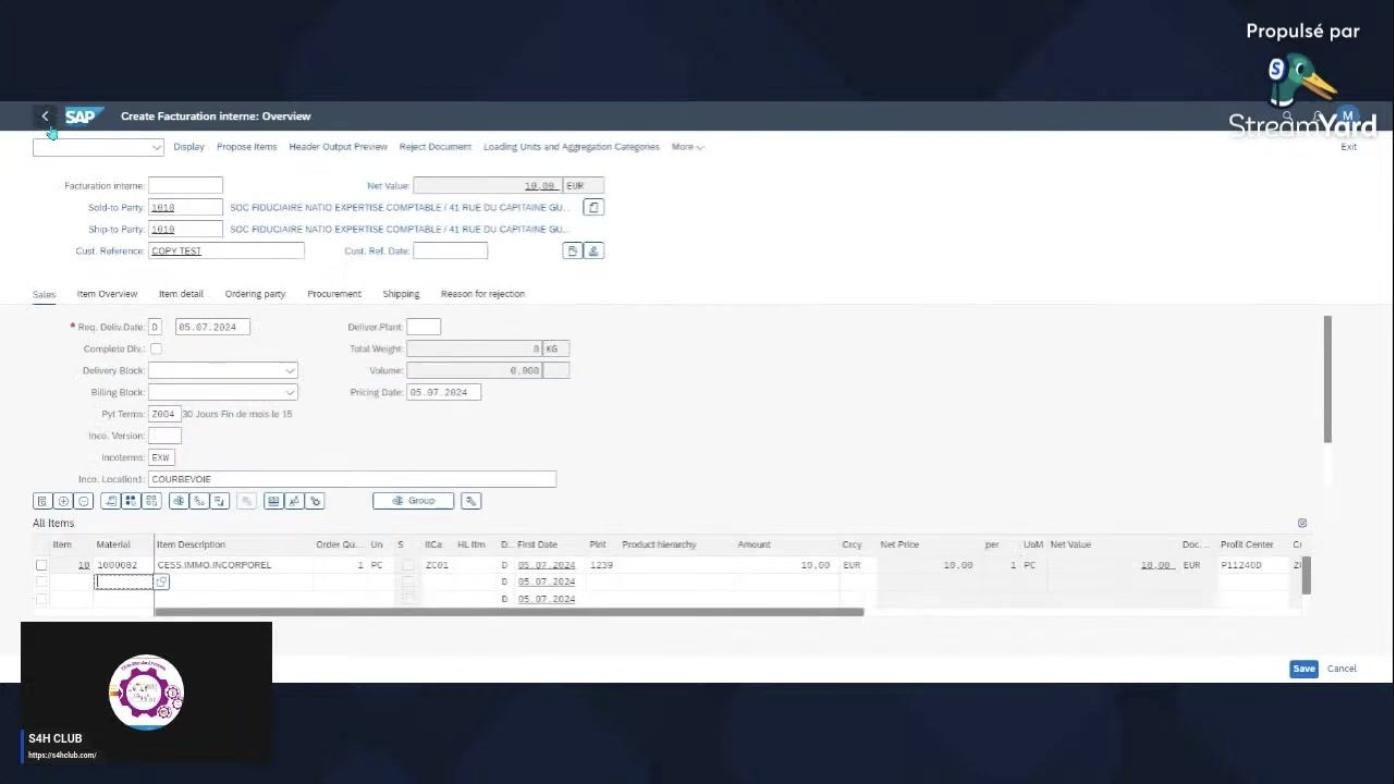
On the Create Facturation interne: Overview screen, review the sales order header and item details:
- Facturation interne: (blank)
- Net Value: 10.00 EUR
- Sold-to Party: 1010 SOC FIDUCIAIRE NATO EXPERTISE COMPTABLE / 41 RUE DU CAPITAINE GU...
- Ship-to Party: 1010 SOC FIDUCIAIRE NATO EXPERTISE COMPTABLE / 41 RUE DU CAPITAINE GU...
- Cust. Reference: COPY TEST
- Req. Deliv. Date: 05.07.2024
- Pricing Date: 05.07.2024
- Incoterms: EXW
- Incoterms Location: COURBEVOIE
In the All Items section, verify:
- Item: 10
- Material: 10000842
- Item Description: CESS.INMO.INCORFORFEL
- Order Quantity: 1 PC
- Net Price: 10.00 EUR
- Net Value: 10.00 EUR
- Profit Center: P11240D
The Save and Cancel buttons are available at the bottom right.
8.2 Access and edit item data tabs
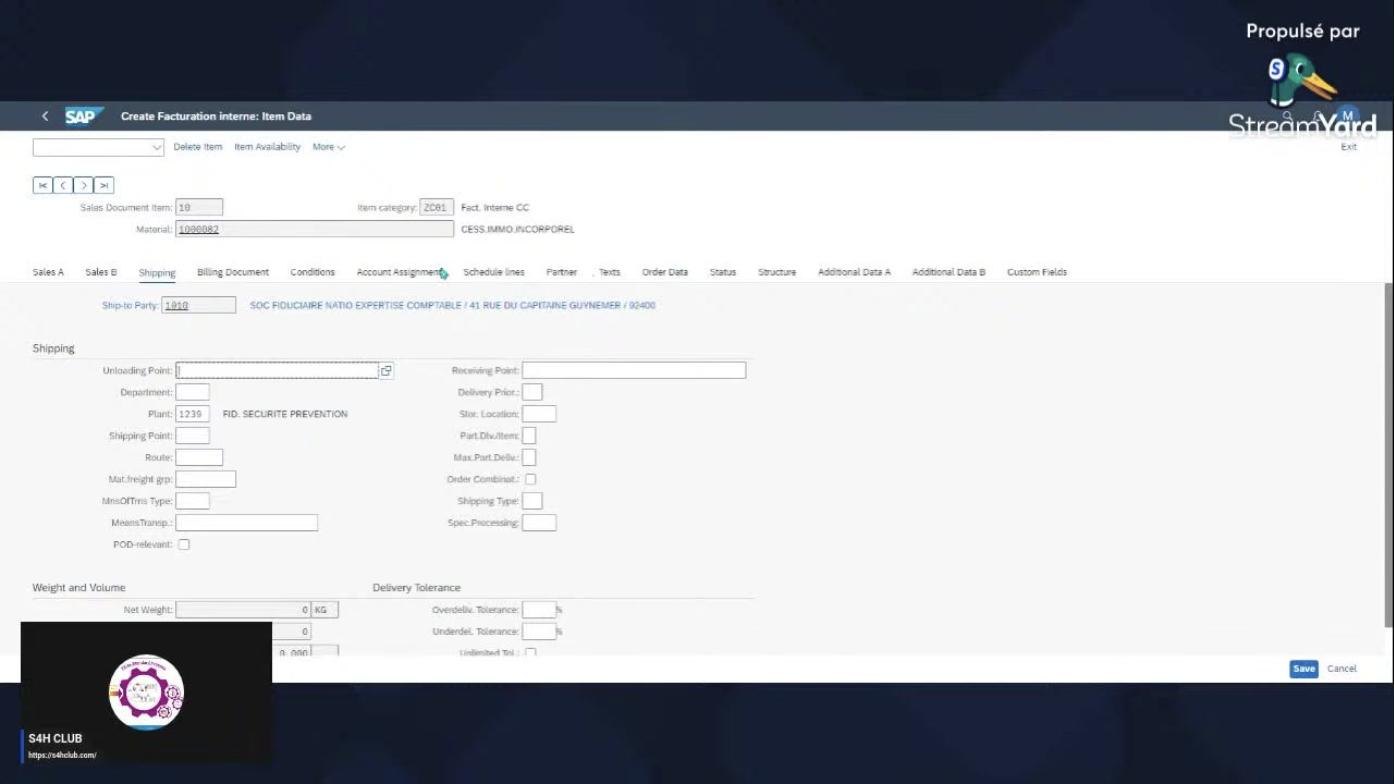
Click on the item line to open detailed item data. The Create Facturation interne: Item Data screen appears with tabs for Sales A, Sales B, Shipping, Billing Document, Conditions, Account Assignment, Schedule lines, Partner, Texts, Order Data, Status, Structure, Additional Data A, Additional Data B, and Custom Fields.
The Shipping tab is selected, displaying:
- Ship-to Party: 1010 SOC FIDUCIAIRE NATO EXPERTISE COMPTABLE / 41 RUE DU CAPITAINE GUY NEMER / 92400
- Plant: 1239 FID. SECURITE PREVENTION
Other fields (Unloading Point, Receiving Point, Delivery Priority, etc.) are blank. Save and Cancel buttons are at the bottom right.
8.3 Edit the profit center assignment
Select the Account Assignment tab. The Profit Center (1) modal appears for editing profit center details, with the following fields:
- Profit center in company code (dropdown)
- Company Code: 1239
- Items (0)
Action buttons on this modal include Go, Hide Filters, and Cancel. Here you enter or confirm the company code for profit center assignment.
8.4 Complete account assignment
In the Account Assignment tab, review and complete the following fields:
- Order: 3800001
- Profit Center: P11250B1
- Profit Segment: (blank)
- WBS element: (blank)
Data relevant for cost accounting (Costing sheet, Overhead key) is also available but not filled in this step. Click the Save button at the bottom right to confirm changes.
8.5 Address the incompletion log
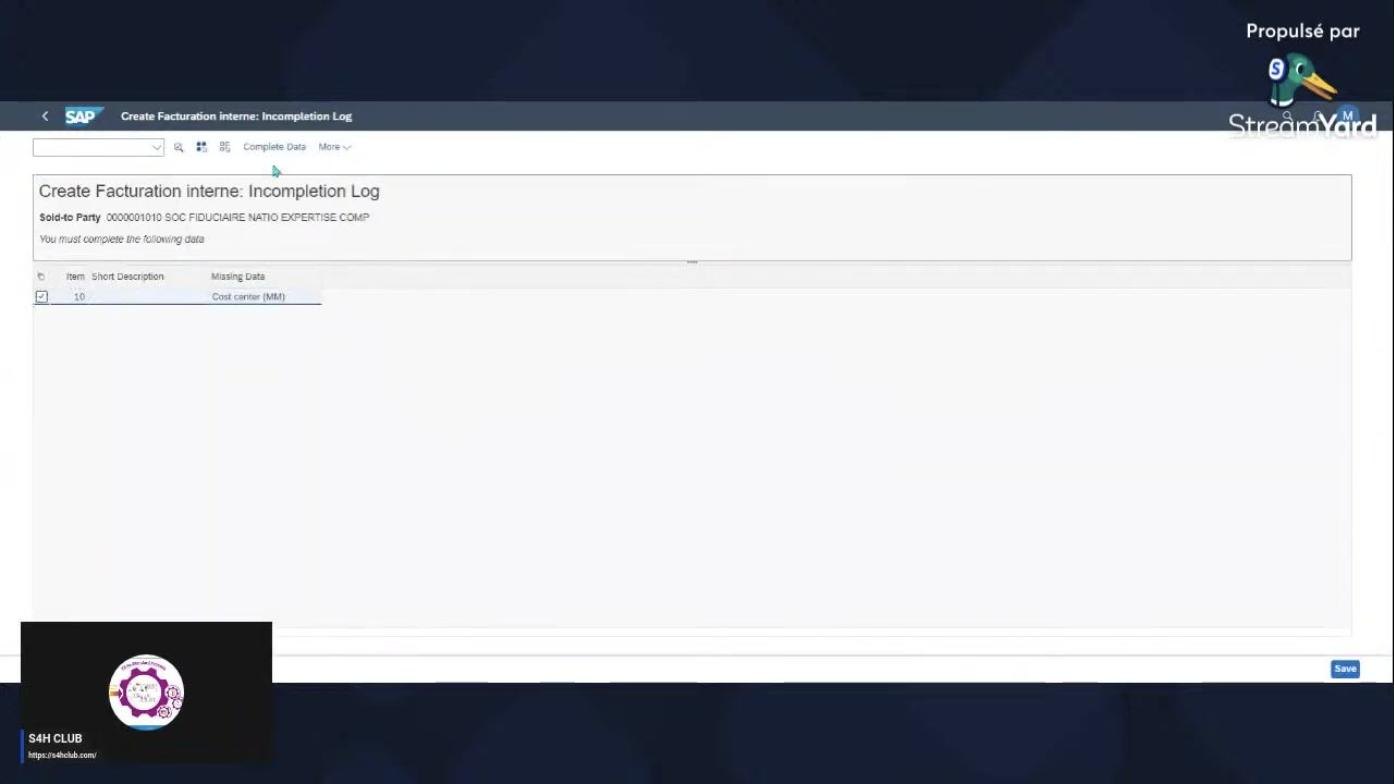
If required fields are missing, the Create Facturation interne: Incompletion Log screen appears, listing the missing data:
- Item: 10
- Short Description: (blank)
- Missing Data: Cost center (MM)
The system prompts you to complete the missing cost center information before proceeding.
8.6 Enter custom fields
Navigate to the Custom Fields tab in the item data and enter the required value for Cost center (MM): C09011E. Other custom fields (Augmentation, Indice, Date d'application, etc.) are available but remain blank. This step resolves the incompletion log by providing the missing cost center.
8.7 Return to the overview and save
Return to the Create Facturation interne: Overview screen. The sales order header and item details are now updated, with key fields reset or ready for a new entry:
- Facturation interne: (blank)
- Net Value: 0.00 EUR
- Sold-to Party: (blank)
- Ship-to Party: (blank)
- Cust. Reference: (blank)
- Req. Deliv. Date: 12.07.2024
- Pricing Date: 12.07.2024
The All Items section is empty or ready for new data, and the Save and Cancel buttons are available at the bottom right.
8.8 Return to Manage Sales Orders
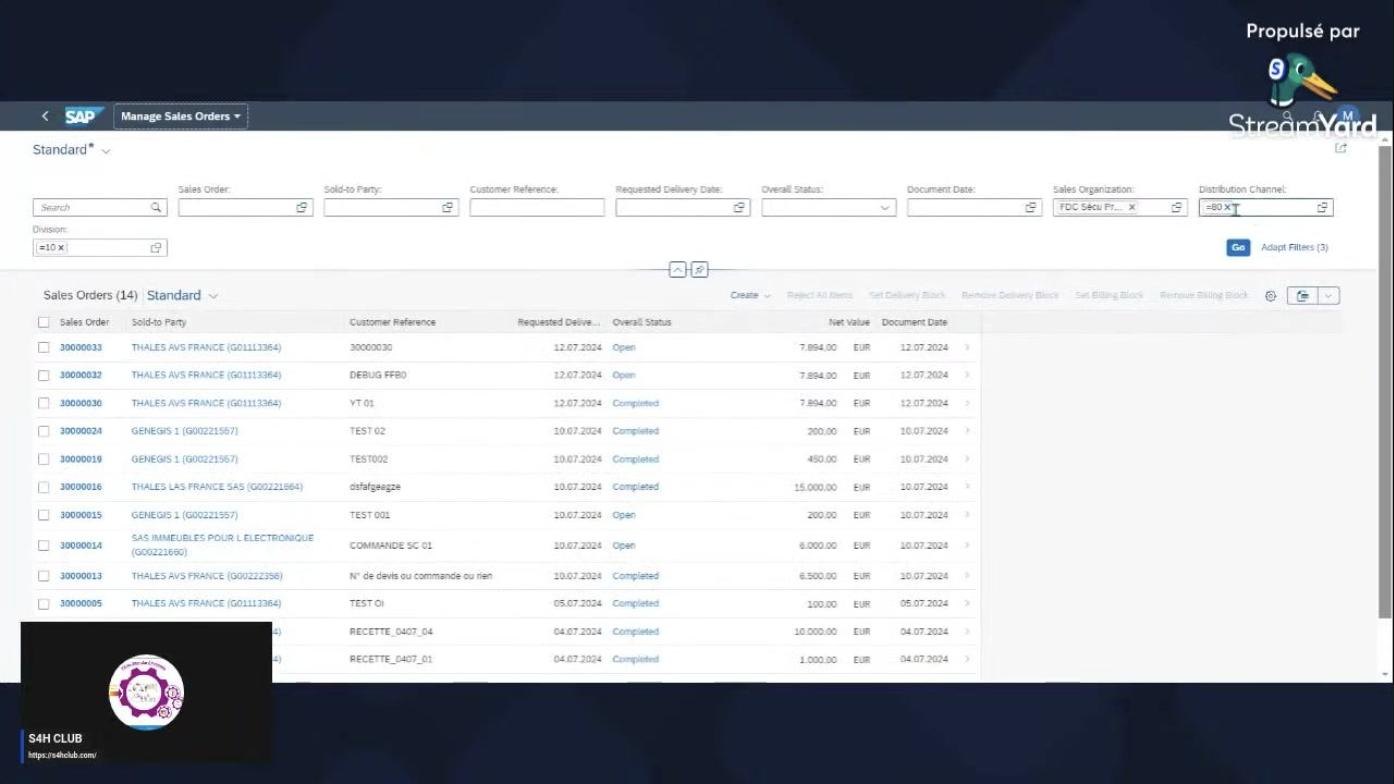
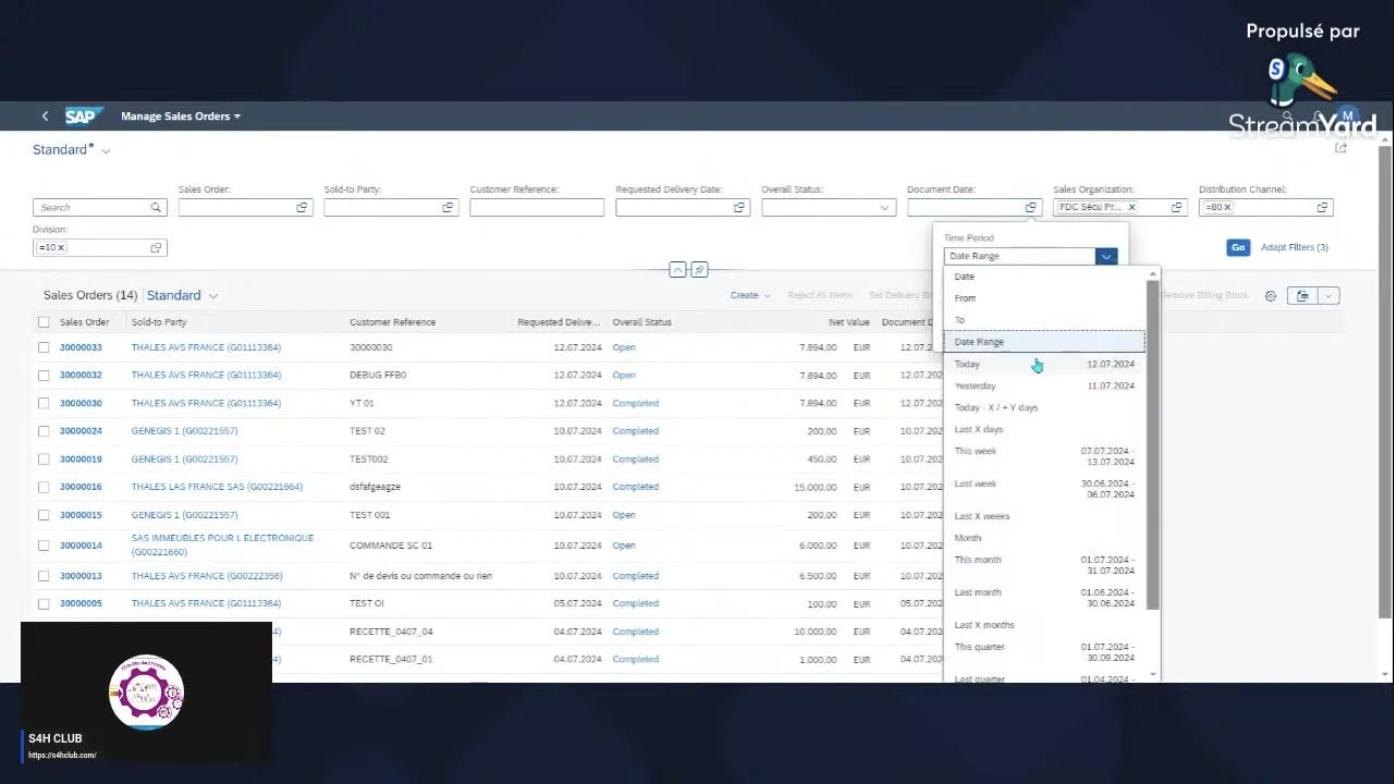
The system navigates back to the Manage Sales Orders app. The sales order list is displayed with columns for Sales Order, Sold-to Party, Customer Reference, Requested Delivery Date, Overall Status, Net Value, and Document Date. Filters at the top allow searching by Sales Order, Sold-to Party, Customer Reference, Requested Delivery Date, Overall Status, Document Date, Sales Organization, and Distribution Channel. The Create button remains available for new sales orders.
8.9 Filter sales orders by date range
In the Manage Sales Orders app, open the filter for Requested Delivery Date. A dropdown menu appears for selecting the time period, with options including:
- Today
- Yesterday
- Today - X / + Y days
- Last X days
- This week
- Last week
- This month
- Last month
- This quarter
- Last quarter
Select the desired date range to filter the sales orders accordingly.
9. Display, edit, and bill sales orders
After creating and completing your sales order, you can display, edit, and bill it directly from the Manage Sales Orders app.
9.1 Review sales orders with filters
On the Manage Sales Orders screen, review the list of sales orders filtered by specific criteria. The current filter values are:
- Sales Order: (blank)
- Sold-to Party: (blank)
- Customer Reference: (blank)
- Requested Delivery Date: (blank)
- Overall Status: (blank)
- Document Date: Today (12.07.2024)
- Sales Organization: FDC Secu Prév...
- Distribution Channel: =80 X
- Division: =10 X
The Go button applies filters. The sales order list displays columns for Sales Order, Sold-to Party, Customer Reference, Requested Delivery Date, Overall Status, Net Value, and Document Date. Three sales orders are listed, all for THALES AVS FRANCE (G01113364), with different customer references and statuses ("Open" and "Completed"). The Create button remains available for new sales orders.
9.2 Display all sales orders
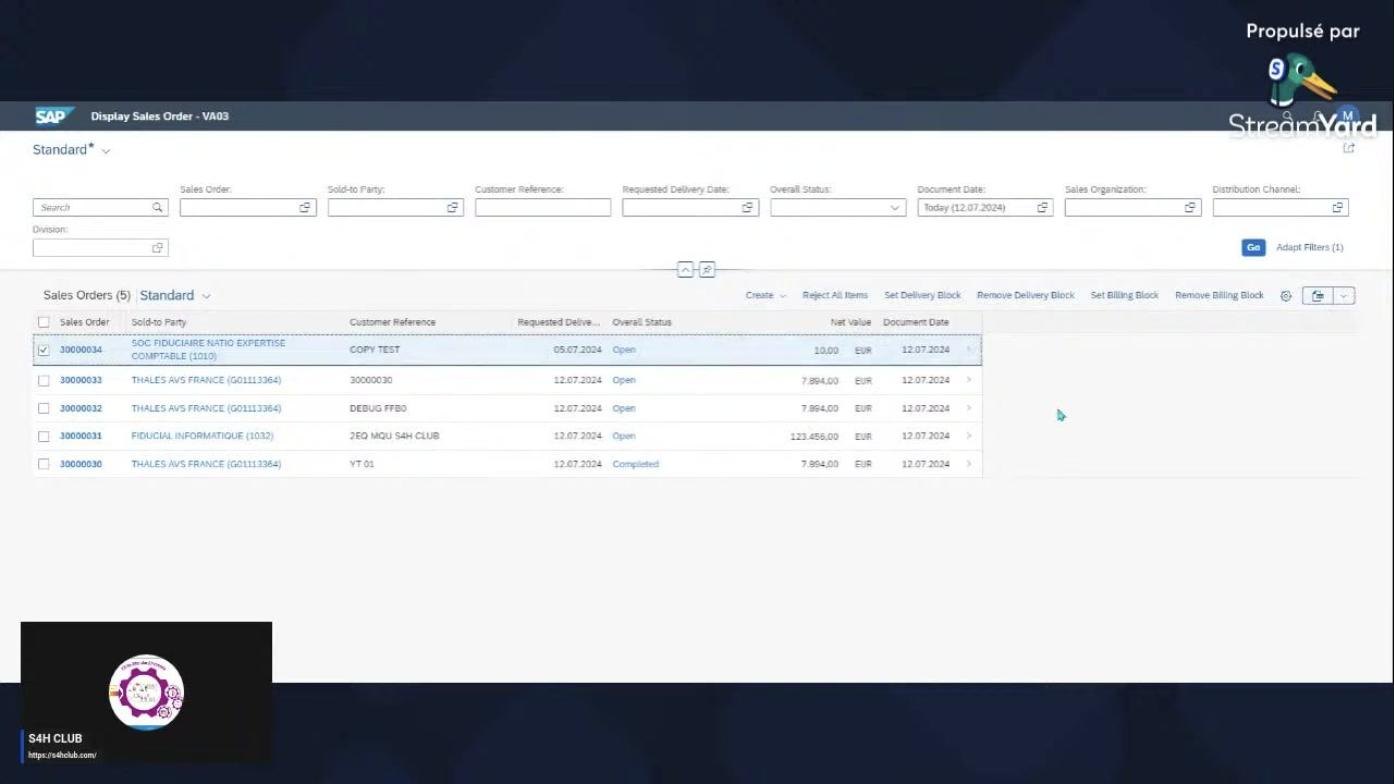
Navigating to a broader view now displays five sales orders, and the screen title changes to Display Sales Order - VA03. Additional sales orders visible include:
- 30000034 for SOC FIDUCIAIRE NATO EXPERTISE COMPTABLE (1010), with customer reference "COPY TEST", requested delivery date "05.07.2024", status "Open", net value "10.00 EUR"
- 30000031 for FIDUCIAL INFORMATIQUE (1032), with customer reference "2EQ MQU S4H CLUB", net value "123,456.00 EUR"
The first sales order (30000034) is selected. Action buttons above the list include Create, Reject All Items, Set Delivery Block, Remove Delivery Block, Set Billing Block, and Remove Billing Block.
9.3 Open and edit sales order details
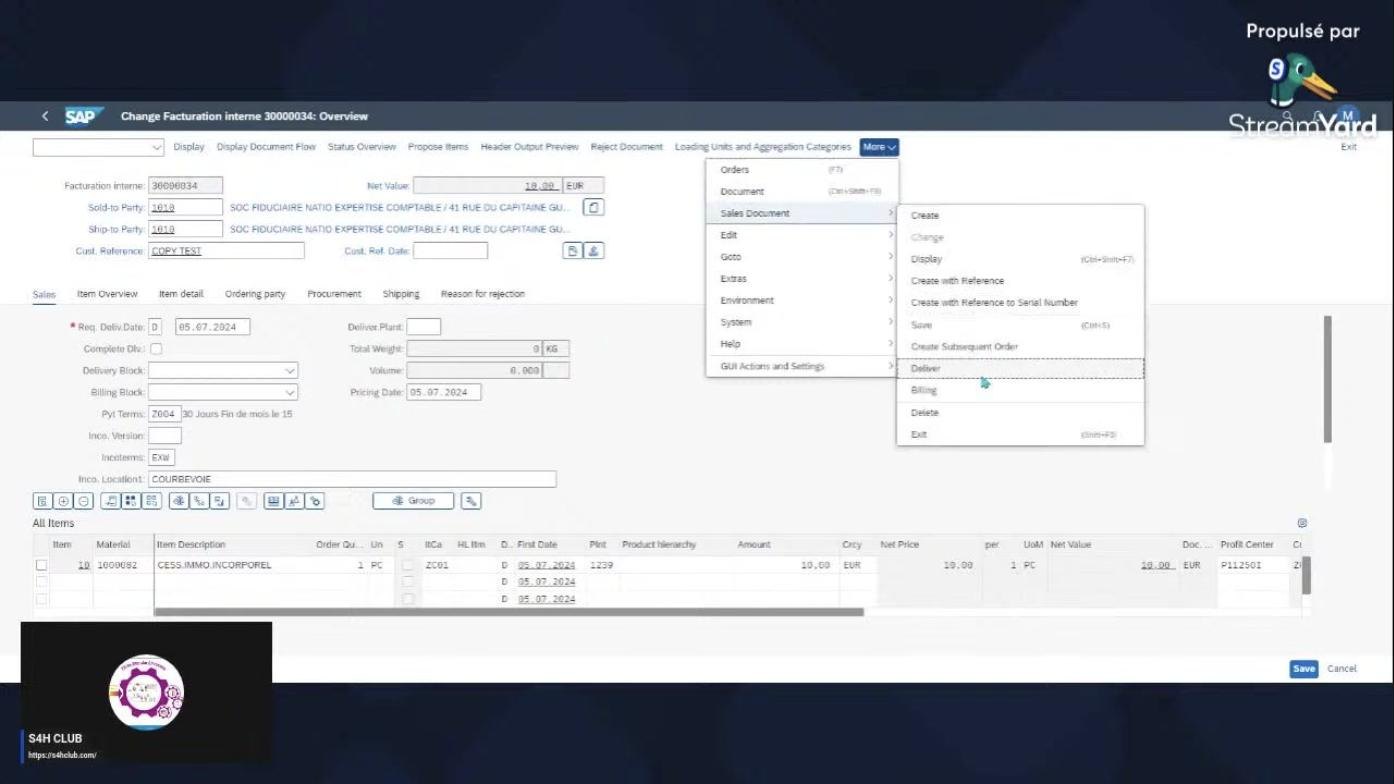
The Change Facturation interne 30000034: Overview screen is displayed, with the following key header fields:
- Facturation interne: 30000034
- Net Value: 10.00 EUR
- Sold-to Party: 1010 SOC FIDUCIAIRE NATO EXPERTISE COMPTABLE / 41 RUE DU CAPITAINE GU...
- Ship-to Party: 1010 SOC FIDUCIAIRE NATO EXPERTISE COMPTABLE / 41 RUE DU CAPITAINE GU...
- Cust. Reference: COPY TEST
The Sales tab is active, showing:
- Req. Deliv. Date: 05.07.2024
- Pricing Date: 05.07.2024
- Incoterms: EXW
- Incoterms Location: COURBEVOIE
In the All Items section:
- Item: 10
- Material: 10000842
- Item Description: CESS.IMMO.INCORFORFEL
- Order Quantity: 1 PC
- Net Price: 10.00 EUR
- Net Value: 10.00 EUR
- Profit Center: P11250I
Save and Cancel buttons are available at the bottom right.
9.4 Initiate delivery or billing from the sales order
Click the More dropdown menu at the top of the Change Facturation interne screen and select the menu path Sales Document > Deliver. Other options in this menu include Create, Change, Display, Create with Reference, Save, Create Subsequent Order, Billing, Delete, and Exit. This action initiates the delivery process for the selected sales order.
9.5 System processes billing items
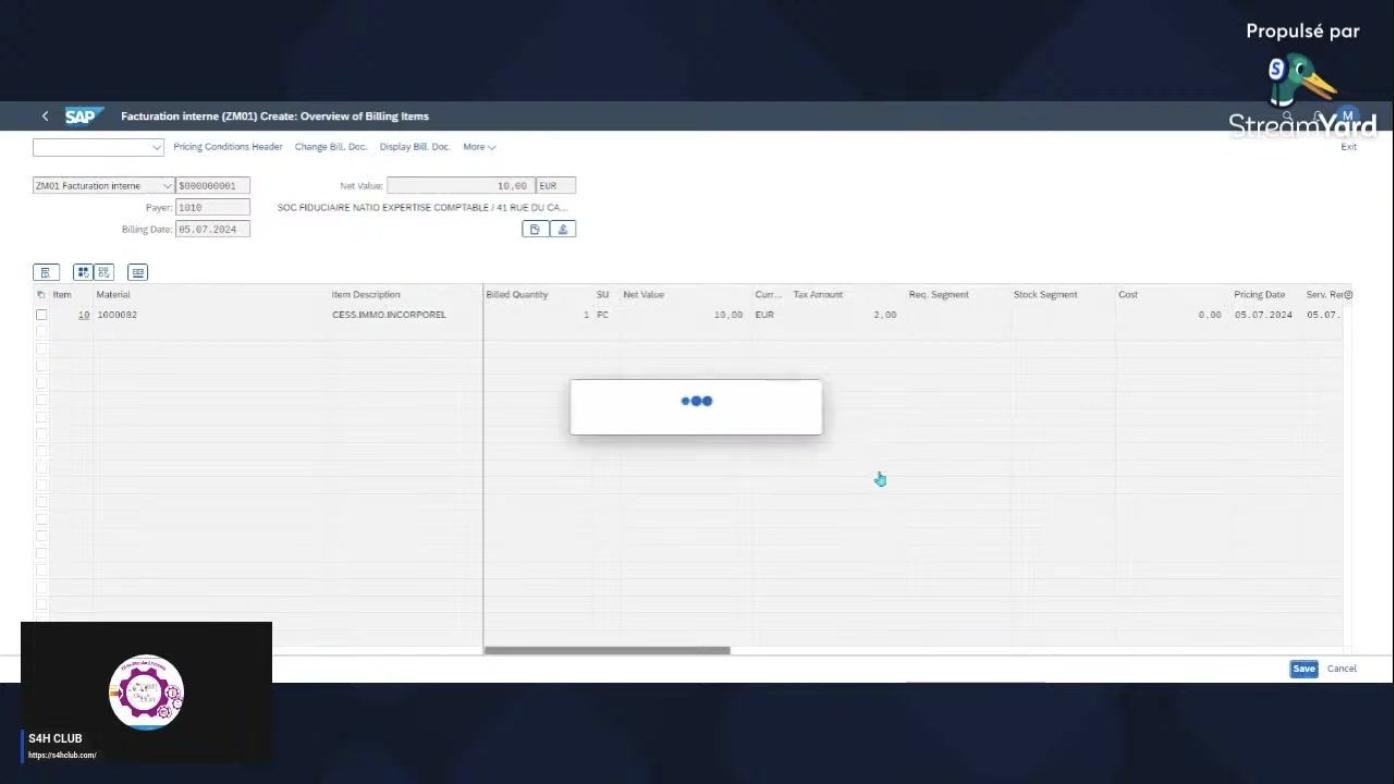
The Facturation interne (ZM01) Create: Overview of Billing Items screen appears, with a loading indicator (three blue dots) displayed in the center while the system processes the billing items. Key fields and values visible:
- ZM01 Facturation interne: 900000061
- Net Value: 10.00 EUR
- Payer: 1010
- Billing Date: 05.07.2024
The item table shows:
- Item: 10
- Material: 10000842
- Item Description: CESS.IMMO.INCORPOREL
- Billed Quantity: 1 PC
- Net Value: 10.00 EUR
- Tax Amount: 2.00 EUR
- Cost: 6.00 EUR
- Pricing Date: 05.07.2024
Save and Cancel buttons are available at the bottom right.
9.6 Review and save the billing item
The Facturation interne 100000029 (ZM01) Change: Overview of Billing Item screen is displayed, with billing item details now fully loaded and editable. Key fields and values:
- ZM01 Facturation interne: 100000029
- Net Value: 10.00 EUR
- Payer: 1010
- Billing Date: 05.07.2024
The item table confirms:
- Item: 10
- Material: 10000842
- Item Description: CESS.IMMO.INCORPOREL
- Billed Quantity: 1 PC
- Net Value: 10.00 EUR
- Tax Amount: 2.00 EUR
- Cost: 6.00 EUR
- Pricing Date: 05.07.2024
Save and Cancel buttons are available at the bottom right.
9.7 Return to Manage Sales Orders
The system returns to the Manage Sales Orders screen, where the sales order list is initially empty with the message "No data found. Try adjusting the search or filter criteria." This indicates that the previous sales order may have been processed or filtered out based on the current criteria.
9.8 Refresh and display updated sales orders
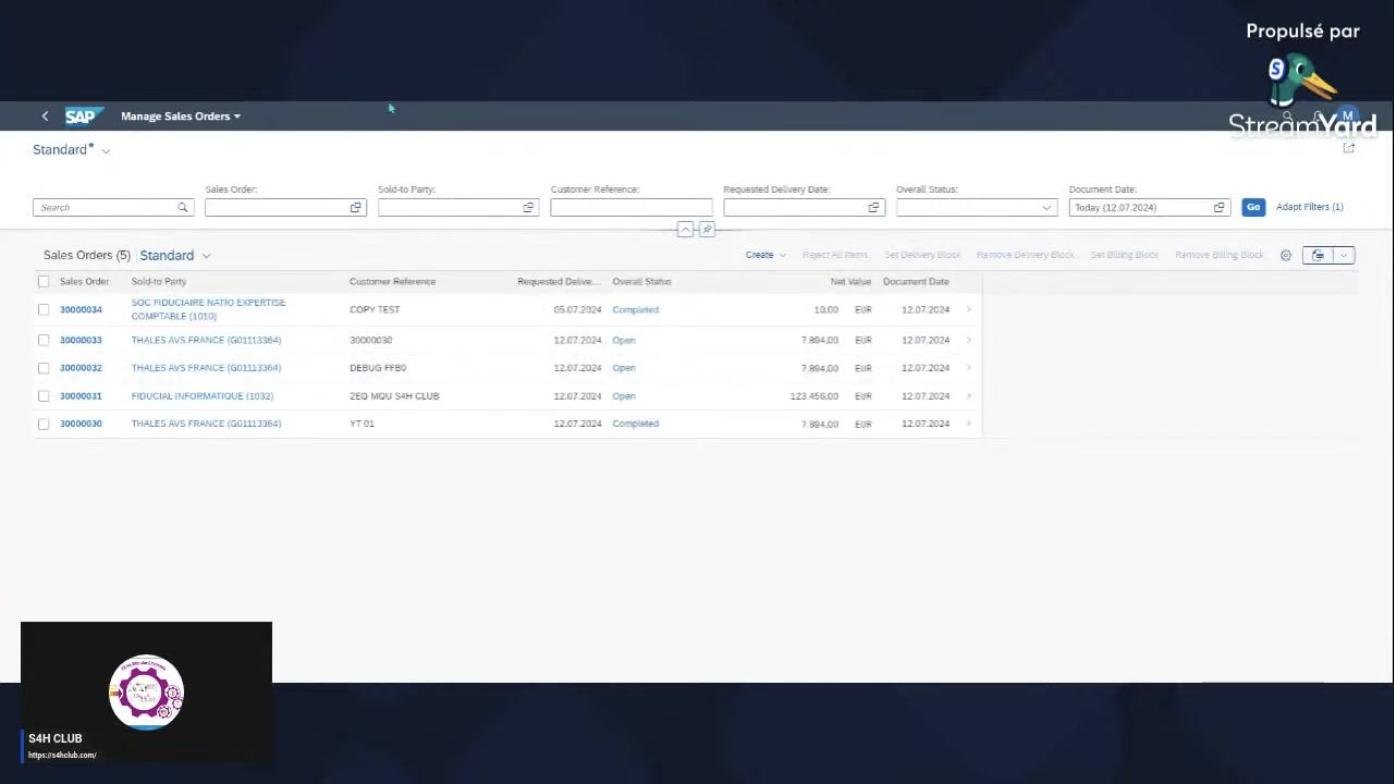
Refreshing the sales order list displays five sales orders again, including the previously processed sales order (30000034) with its status now updated to "Completed". Other sales orders and their statuses are also visible, and the screen is ready for further actions or review.
Tip: After billing, refresh the Manage Sales Orders list if a processed order doesn't appear immediately — the status update ("Open" to "Completed") may take a moment to reflect.
What's next
You've now completed the full cycle of creating a sales order with reference, completing item data, resolving incompletion logs, and processing delivery and billing in SAP Fiori. From here, you can explore filtering sales orders by additional criteria such as Overall Status or Sales Organization, or review other sales orders in the Manage Sales Orders app using the same steps outlined above.
Generated by Docsie Video-to-Docs on 2026-09-07 from a 4-minute video. Screenshots are frames from the source video and belong to their creator, S4HCLUB - Learning SAP , whose original is embedded above. If you own this video and want the guide removed or credited differently, contact us and we will act within one business day.