
How to Clear Customer Open Items with F-32 in SAP S/4HANA
Clearing customer open items is a core part of accounts receivable processing in SAP. This guide walks you through how to clear customer open items with F-32 in SAP, starting from posting a customer invoice, verifying the open item, and finally clearing it against a matching entry. By the end, you will know how to confirm that an item has been successfully cleared and understand how open items are handled afterward.
Video: Clearing Customer in SAP(F-32) (Part-16) by MCV Solutions for Learning (2020). All credit for the demonstration goes to the creator; watch the original on YouTube. The written guide below was generated from this video by Docsie. Creator? Request a change or removal.
Clearing customer open items is a core part of accounts receivable processing in SAP. This guide walks you through how to clear customer open items with F-32 in SAP, starting from posting a customer invoice, verifying the open item, and finally clearing it against a matching entry. By the end, you will know how to confirm that an item has been successfully cleared and understand how open items are handled afterward.
Prerequisites
Before you begin, make sure you have:
- Access to the relevant SAP company code (in this example, ALLO All In One Bangalore).
- A valid customer master record (in this example, customer 3000000002).
- Authorization to use transaction codes FB7B, FBL5N, and F-32.
Post a customer invoice
Start by posting a customer invoice that you will later clear.
- Open SAP and navigate to transaction code FB7B to post a customer invoice.
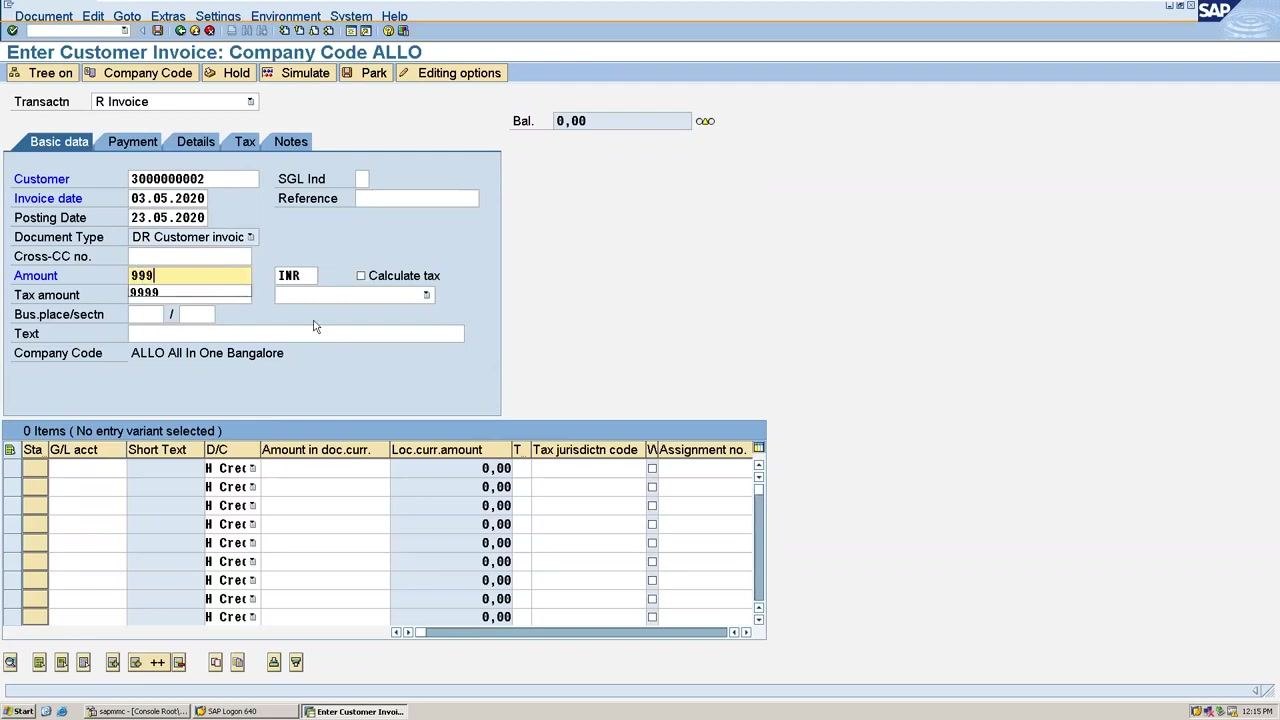
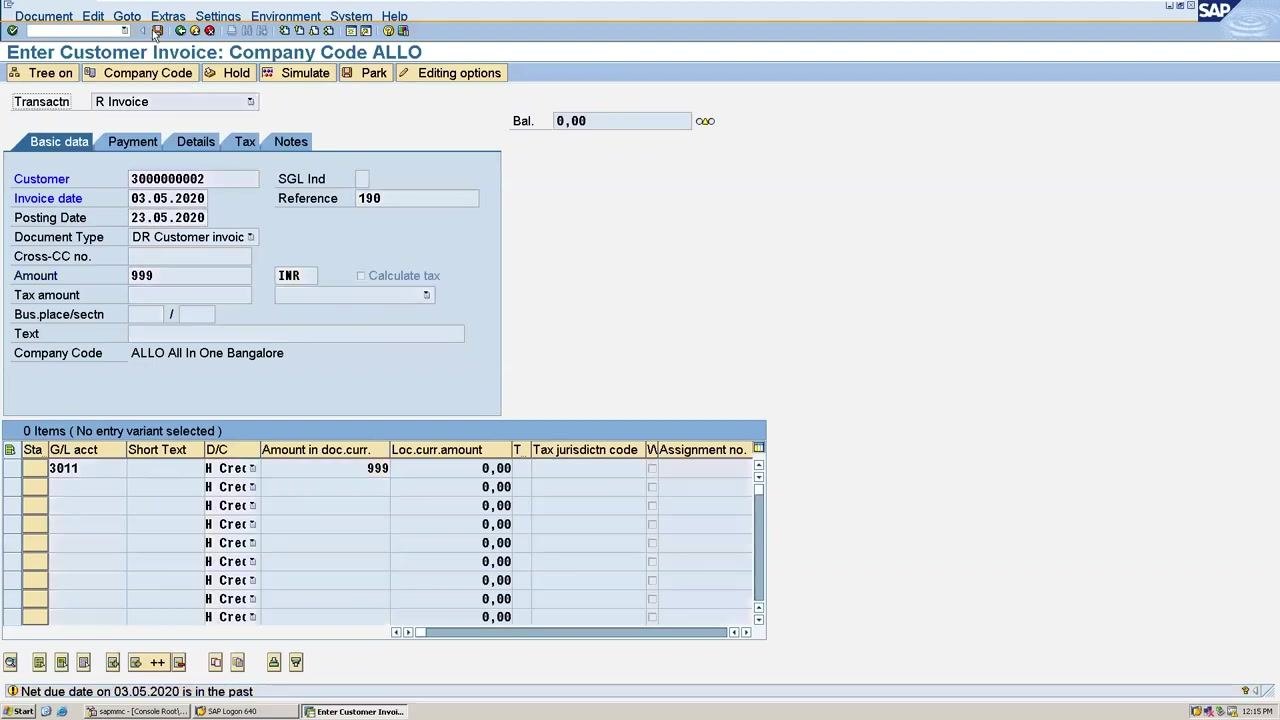
- In the Enter Customer Invoice: Company Code ALLO screen, fill in the following fields:
- Customer: the customer number (for example,
3000000002) - Invoice Date:
03.05.2020 - Posting Date:
23.05.2020 - Document Type:
DR Customer invoice - Amount:
999 - Currency:
INR - Reference: a reference number (for example,
190) - G/L Account: a G/L account number (for example,
3011) - Amount in doc. curr.:
999for the G/L account line item - Company Code:
ALLO All In One Bangalore
- Customer: the customer number (for example,
- Enter all required details and post the document.
Once posted, you see a confirmation message: "Document 709 was posted in company code ALLO."
Check the customer open item
Before clearing, confirm that the invoice appears as an open item on the customer account.
- Go to transaction code FBL5N (Customer Line Item Display), or use the menu path to navigate to Customer Open Items.
- If needed, open a new session in SAP to perform this check without losing your current screen.
Display open items for the customer
Next, display the open items to locate the invoice you just posted.
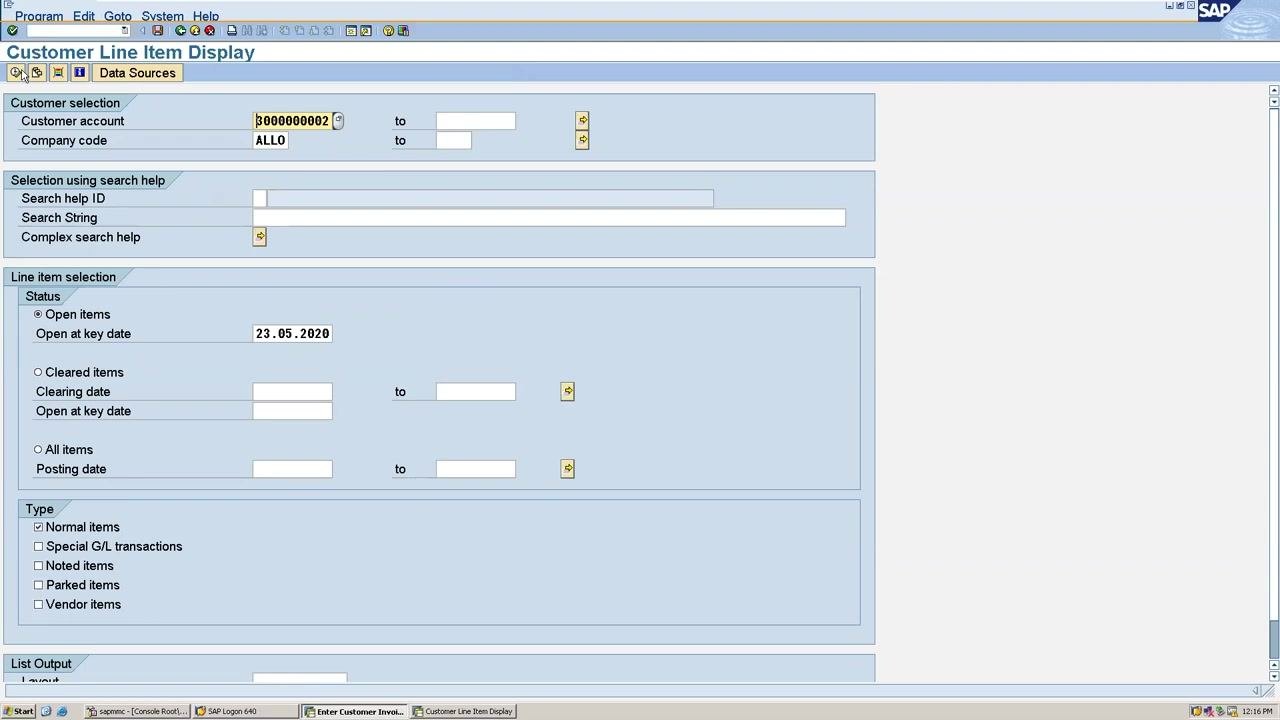
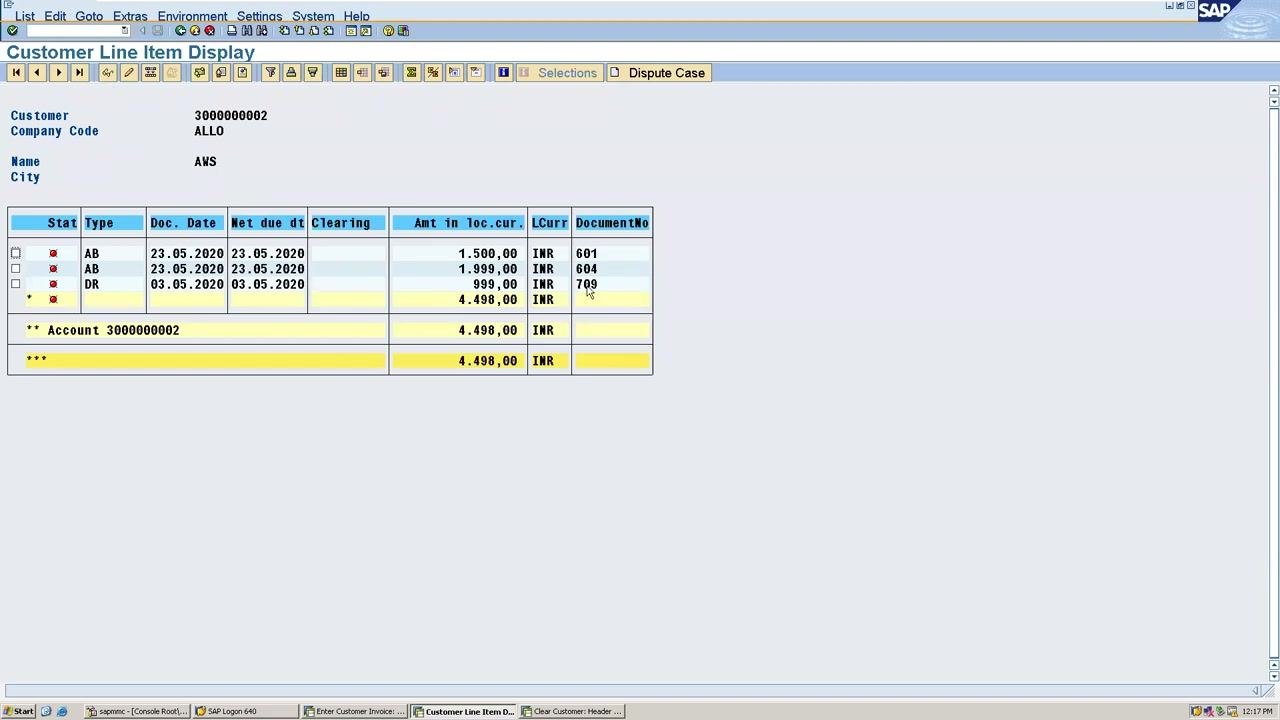
- In the Customer Line Item Display screen, confirm:
- Customer account:
3000000002 - Company code:
ALLO
- Customer account:
- Ensure Open items is selected, with the key date set to
23.05.2020. - Click the execute button to display open items.
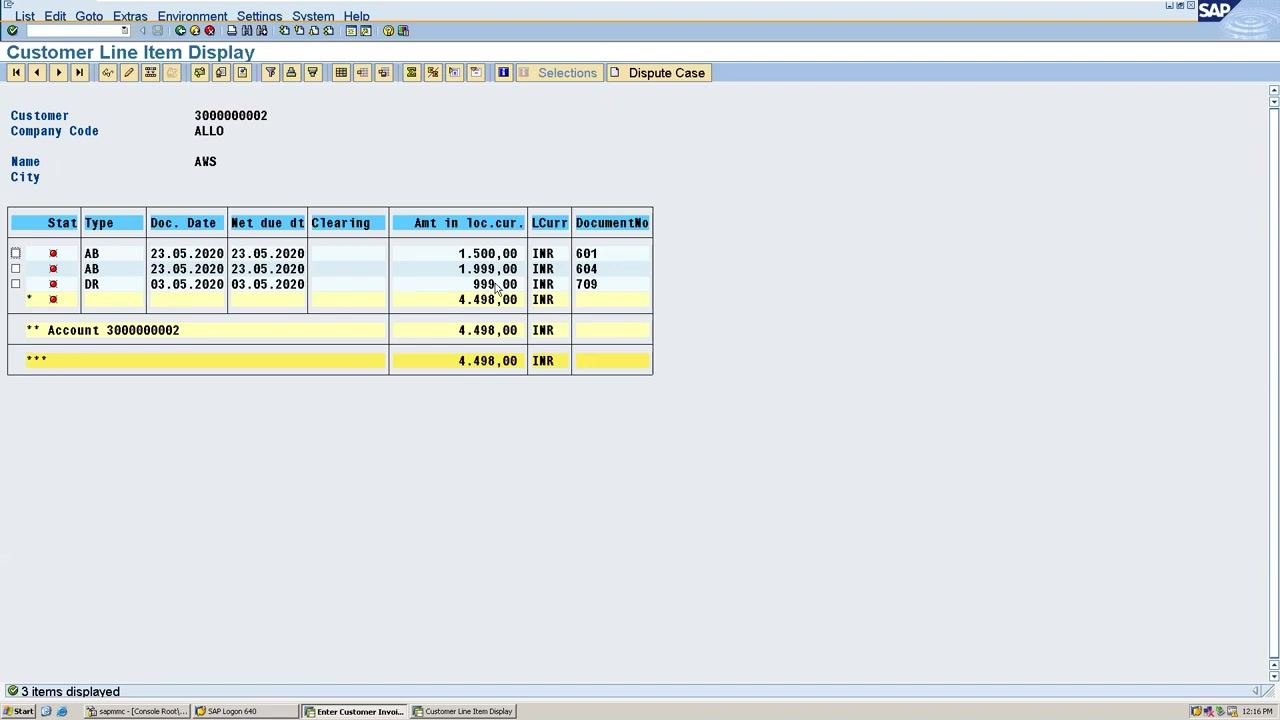
- Review the list of open items and locate the invoice for
999.00 INRwith document number709.
Start the clearing process with F-32
With the open item confirmed, you can now begin the clearing process.
- Open a new SAP session.
- Enter transaction code F-32 (Clear Customer).
- In the Clear Customer: Header Data screen, fill in the following:
- Account:
3000000002 - Clearing date:
23.05.2020 - Period:
2 - Company Code:
ALLO - Currency:
INR - Ensure Normal OI (Open Items) is checked.
- Account:
- Click Process open items to proceed.
- If prompted, select your customer from the list (for example, customer number
3000000002, company codeALLO).
Select the open item to clear
On the open items screen, you choose exactly which item to clear.
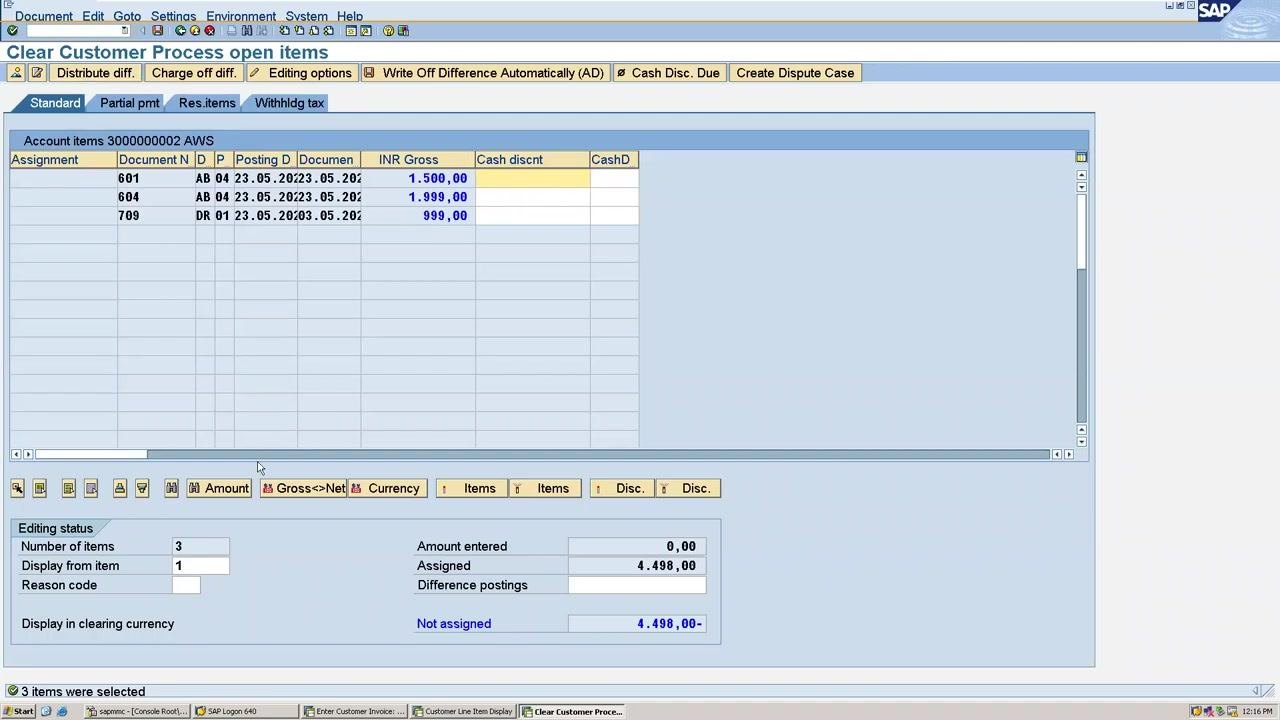
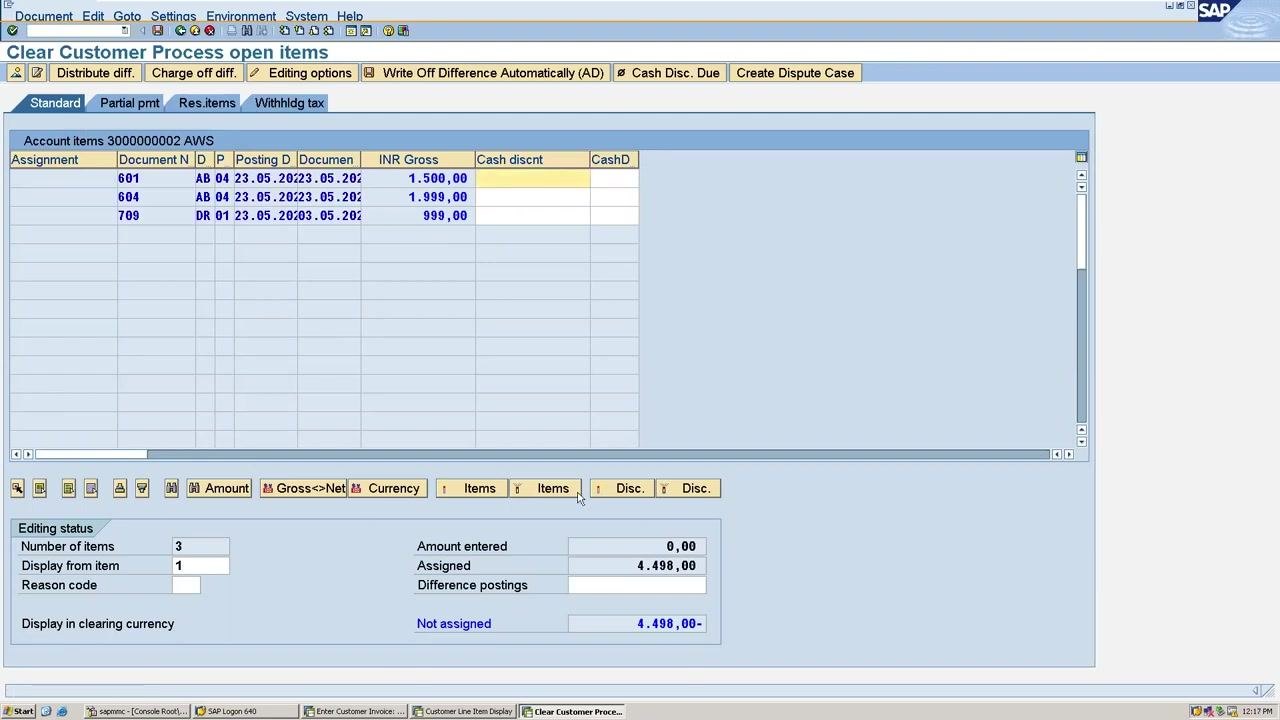
- In the Clear Customer Process open items screen, review the list of account items for the customer.
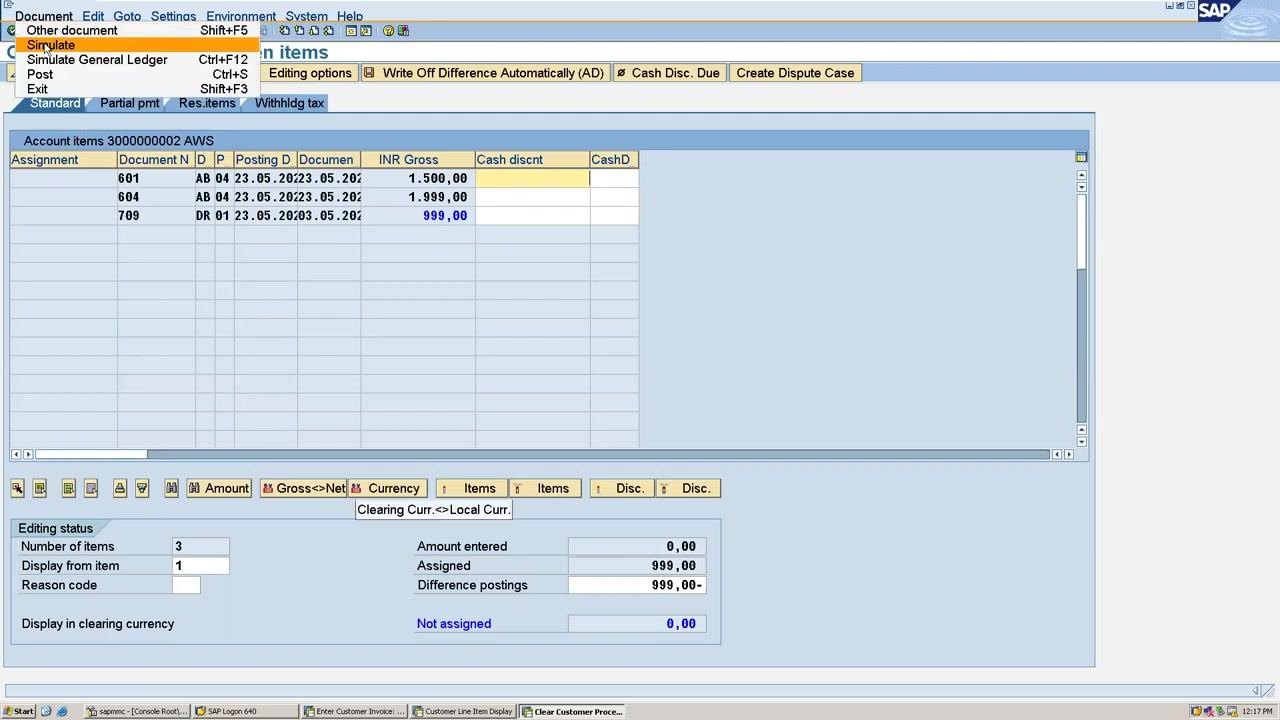
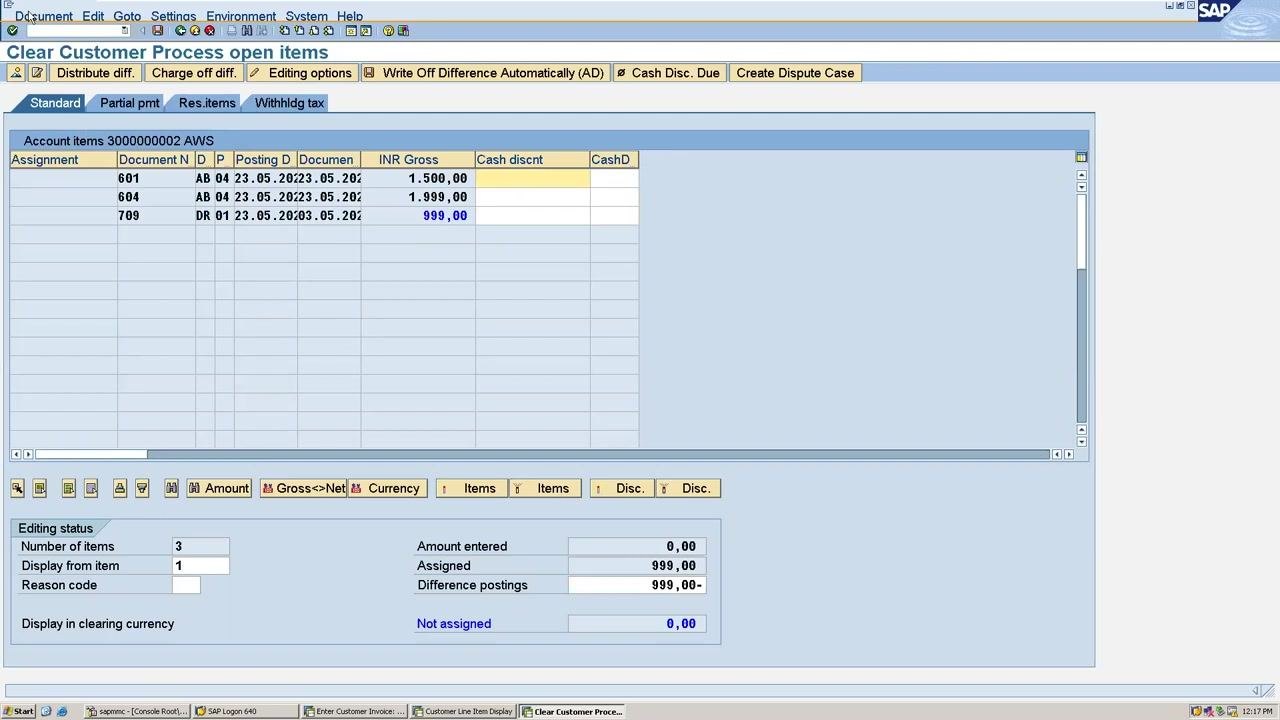
- Select all items initially, then deselect all and select only the line item you want to clear — for example, the one with document number
709and amount999.00 INR. - Confirm that the Assigned and Difference postings fields reflect the correct amounts for clearing.
Simulate and post the clearing document
Before posting, simulate the clearing entry to confirm it is correct.
- From the top menu, select Document > Simulate to preview the clearing entries.
- Review the simulation to make sure the customer account and amounts are correct.
- If everything is correct, post the clearing document.
Once posted, SAP shows a confirmation message, for example: "Document 605 was posted."
At this point, the open item for the customer has been cleared. You can reference the clearing document for future audits or financial reporting.
Verify the clearing result
After clearing, confirm the result in the customer's line item display.
- Open transaction code FBL5N (Customer Line Item Display) to review the customer's line items after clearing.
- Enter the following details:
- Customer:
3000000002 - Company Code:
ALLO
- Customer:
- Select All items (not just open or cleared items) to see the full history.
- Click Execute to display the results.
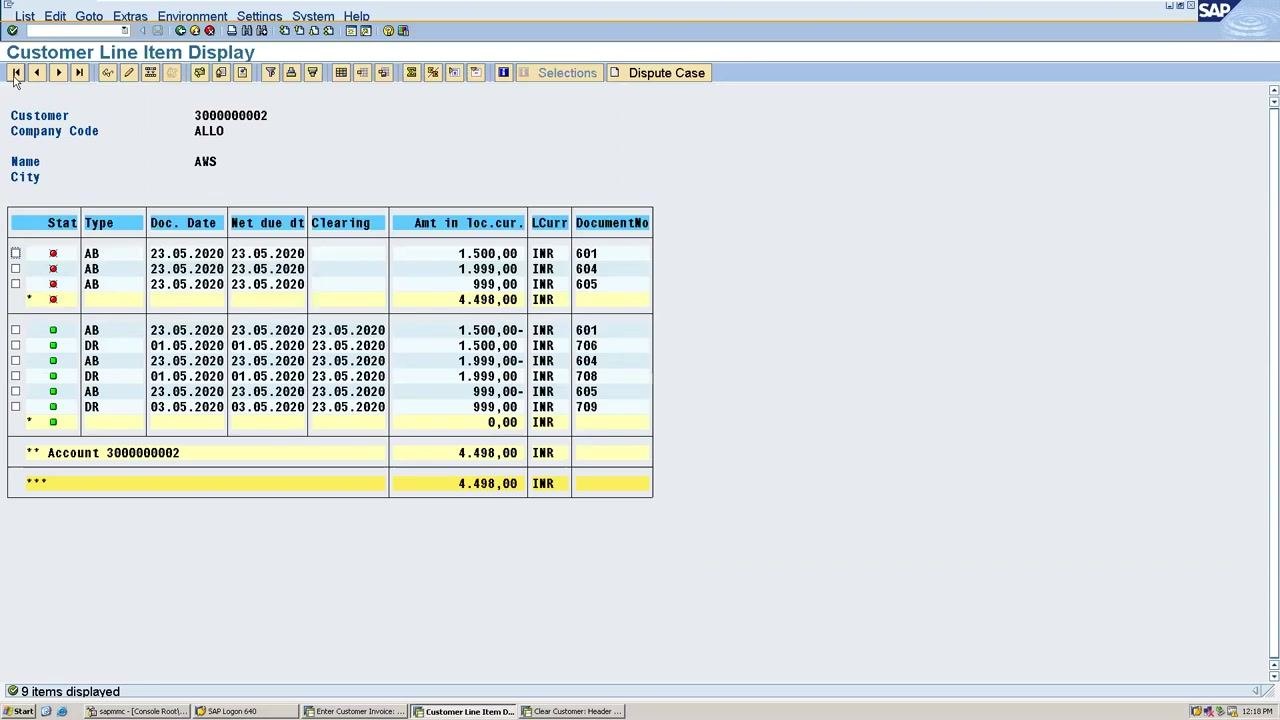
- Notice that a new document number (
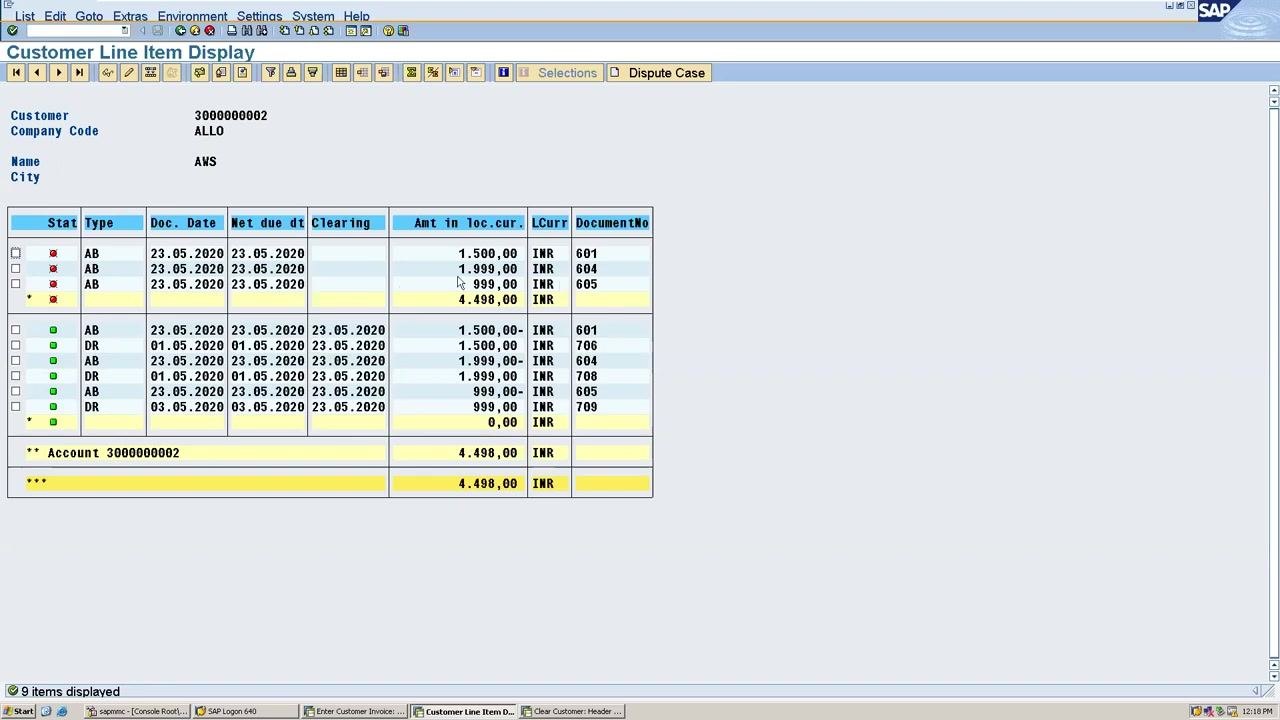
605) has been created as a result of the clearing process. The original invoice (709) now has a corresponding clearing entry (605), showing it has been processed.
-
In the detailed line item display, you see both the original and clearing documents. The clearing document (
605) is linked to the original invoice (709), confirming the clearing action. The lower section of the display may show additional related items, including other invoices and their clearing statuses. -
The system displays the cleared item alongside any remaining open items. The cleared item (
709) is now matched with the clearing document (605), and its status is updated. In the next period, only genuinely open items remain visible as open.
Summary
You have now completed the full cycle of how to clear customer open items with F-32 in SAP:
- Posted a customer invoice using FB7B.
- Verified the open item using FBL5N.
- Cleared the item using F-32, including simulating and posting the clearing document.
- Confirmed the clearing result, including the link between the original invoice and the new clearing document.
What's next
Repeat this process for any additional open items on this or other customer accounts. For future periods, only items that have not yet been cleared will appear as open, so you can use the same FBL5N and F-32 steps to review and clear them as needed.
Generation details: cost, quality tiers
Docsie billed 2,500 credits ($1.75) to analyze this 5-minute video at standard quality. The rewrite, template fill and Word/PDF exports were included. The same video at each quality tier:
| Quality | Frames sampled | Credits | Approx. cost |
|---|---|---|---|
| Draft | every 16-30 s | 1,250 | $0.88 |
| Standard (this guide) | every 8-15 s | 2,500 | $1.75 |
| Detailed | every 4-7 s | 5,000 | $3.50 |
| Ultra | every 1-3 s | 10,000 | $7.00 |
Credits priced at $0.70 per 1,000; plans include a monthly allowance. Enterprise customers on on-premise or bring-your-own-model deployments run this on their own inference and pay no per-video credits.
Generated by Docsie Video-to-Docs on 2026-10-11 from a 4-minute video. Screenshots are frames from the source video and belong to their creator, MCV Solutions for Learning, whose original is embedded above. If you own this video and want the guide removed or credited differently, contact us and we will act within one business day.