
How to Create a Billing Document in SAP VF01
This guide walks you through how to create a billing document in SAP VF01, from reviewing the required transaction codes to generating and printing the final invoice. You will learn how to navigate the SAP SD module, enter the necessary document and header details, save the billing document, and produce a printable PDF invoice using VF02.
Video: How to Create invoice in SAP : How to Generate invoice in SAP (SD) by SAP Information with Rahul sahu. All credit for the demonstration goes to the creator; watch the original on YouTube. The written guide below was generated from this video by Docsie. Creator? Request a change or removal.
This guide walks you through how to create a billing document in SAP VF01, from reviewing the required transaction codes to generating and printing the final invoice. You will learn how to navigate the SAP SD module, enter the necessary document and header details, save the billing document, and produce a printable PDF invoice using VF02.
Prerequisites
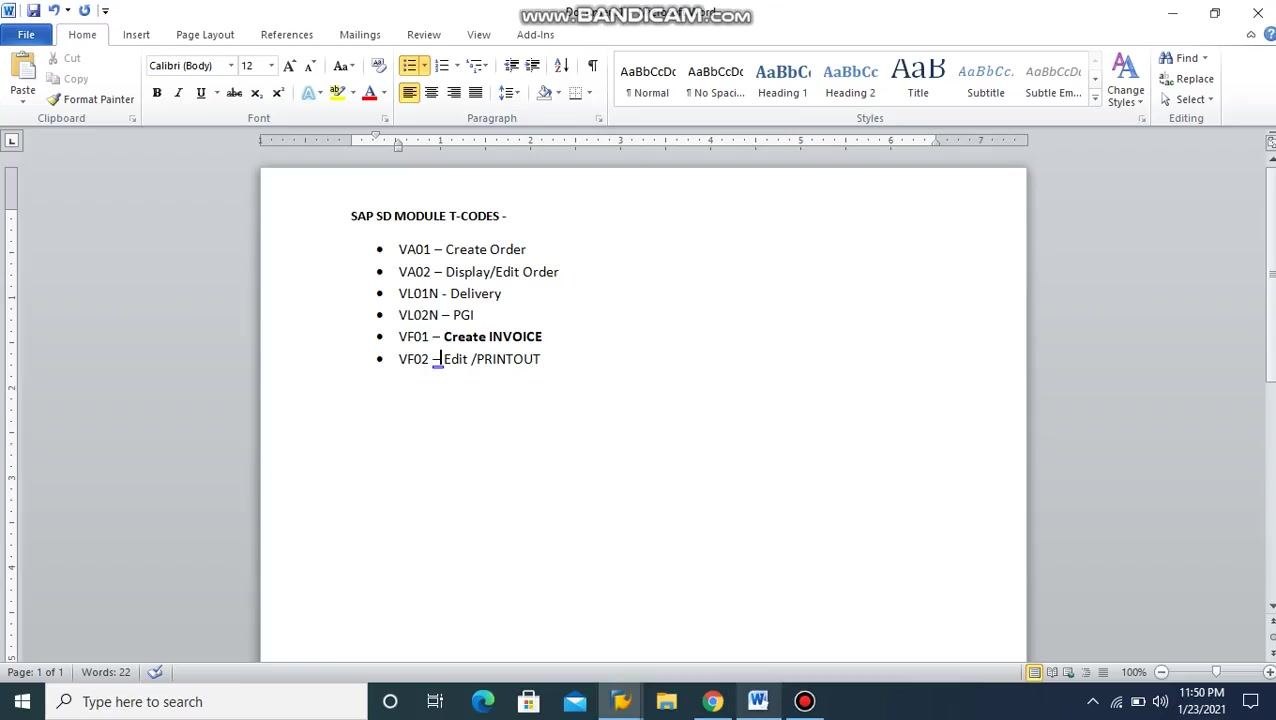
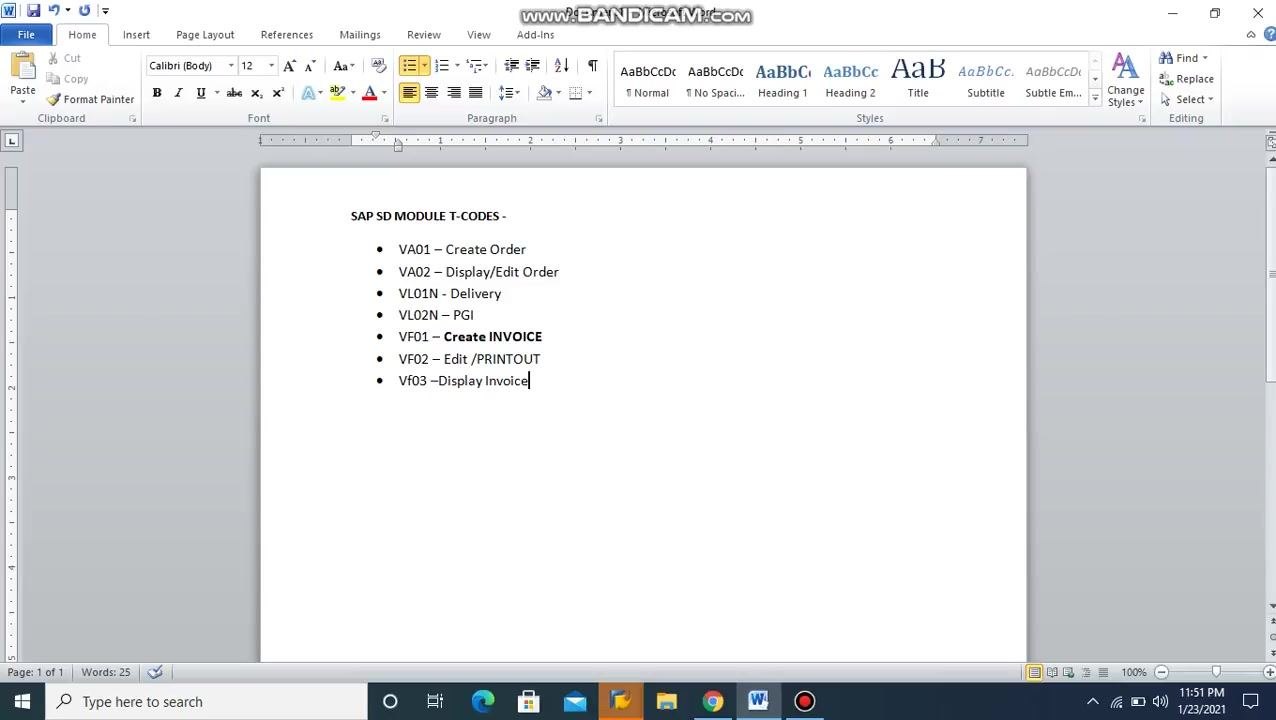
Before you create a billing document, you should be familiar with the sequence of transaction codes used in the SAP SD module:
- VA01 – Create Order
- VA02 – Display/Edit Order
- VL01N – Delivery
- VL02N – PGI (Post Goods Issue)
- VF01 – Create Invoice
- VF02 – Edit/Printout
- VF03 – Invoice Display (for viewing invoices)
Keep this list as a reference throughout the process.
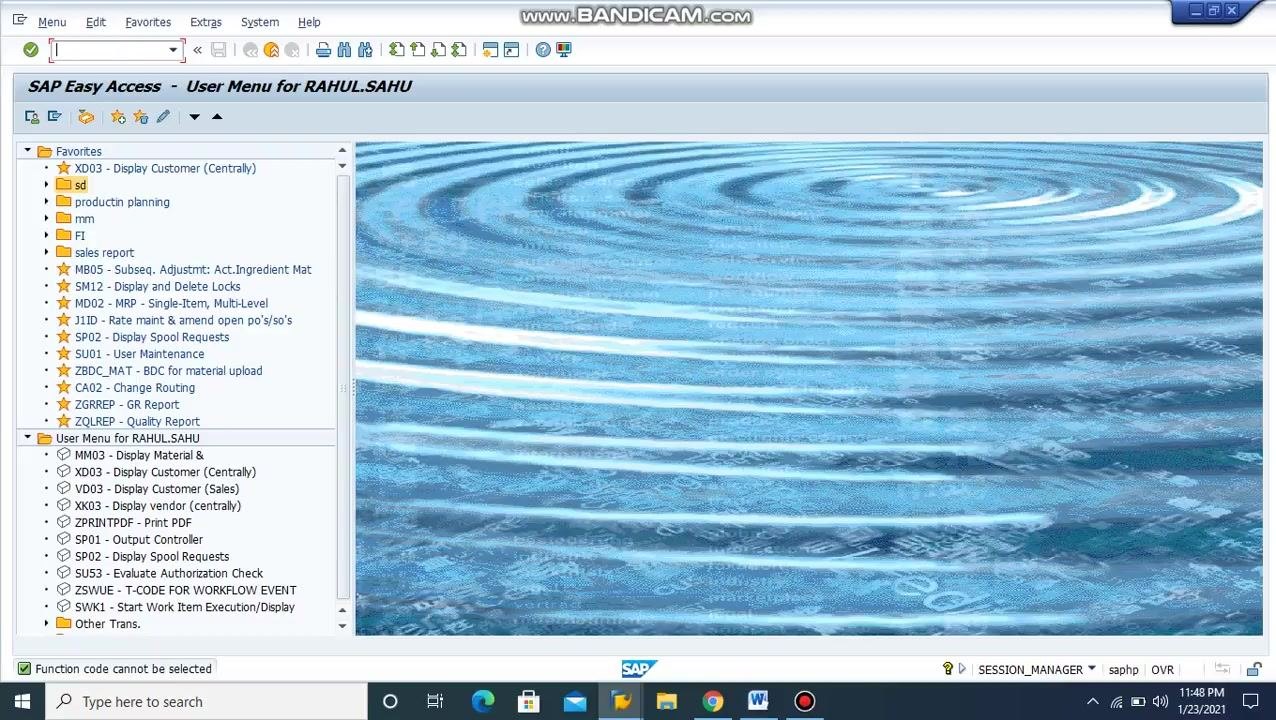
You also need access to the SAP Easy Access screen with your user menu and favorites visible in the left panel.
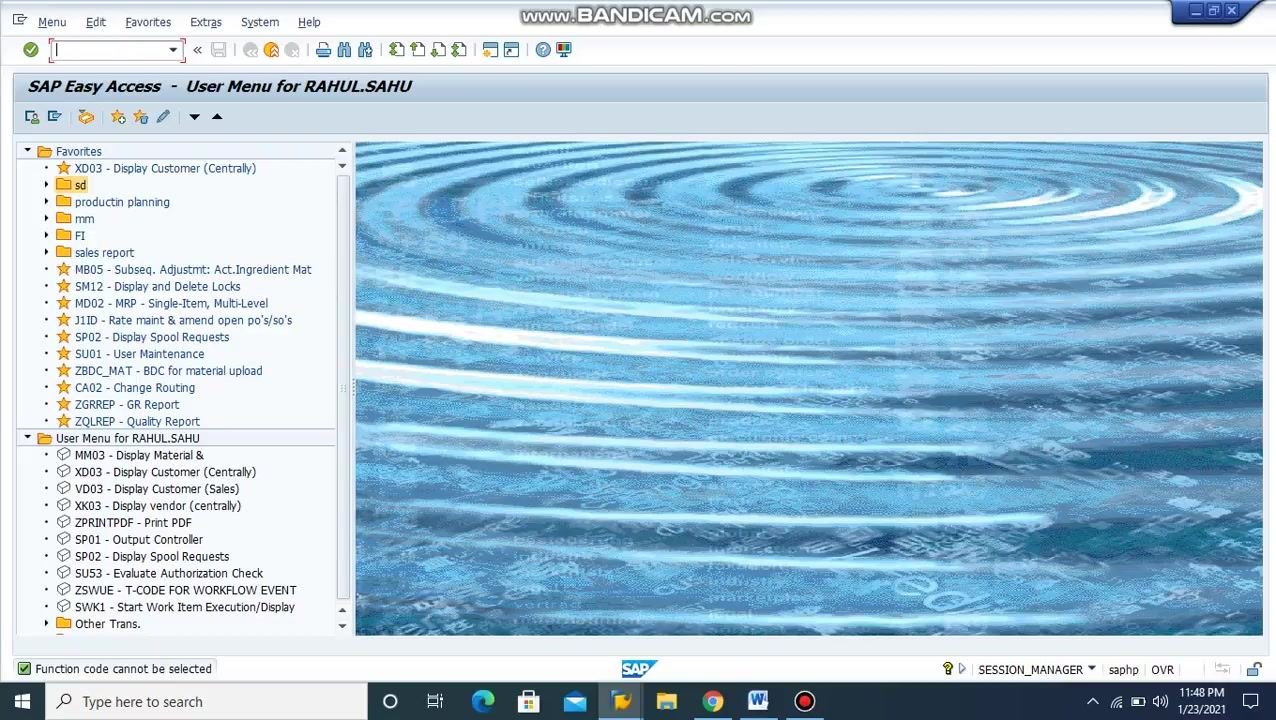
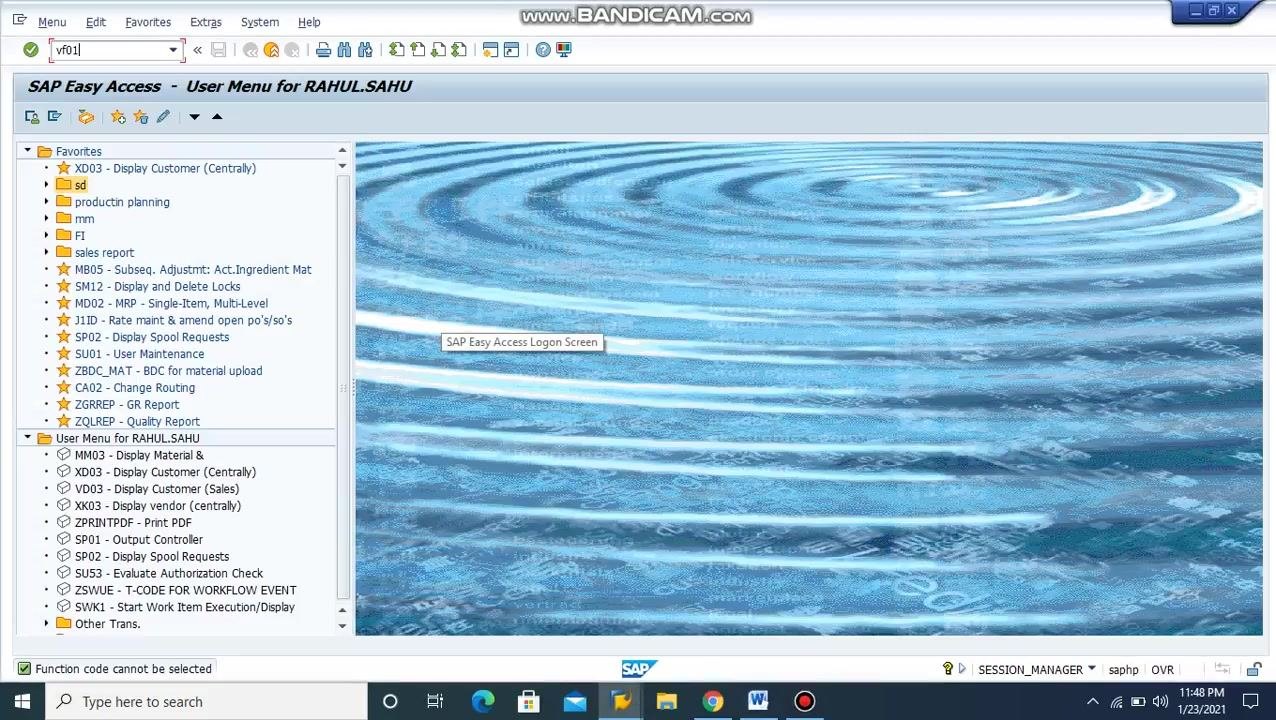
Open the create billing document transaction (VF01)
In the command field at the top of the SAP Easy Access screen, type VF01 and press Enter to open the invoice creation transaction.
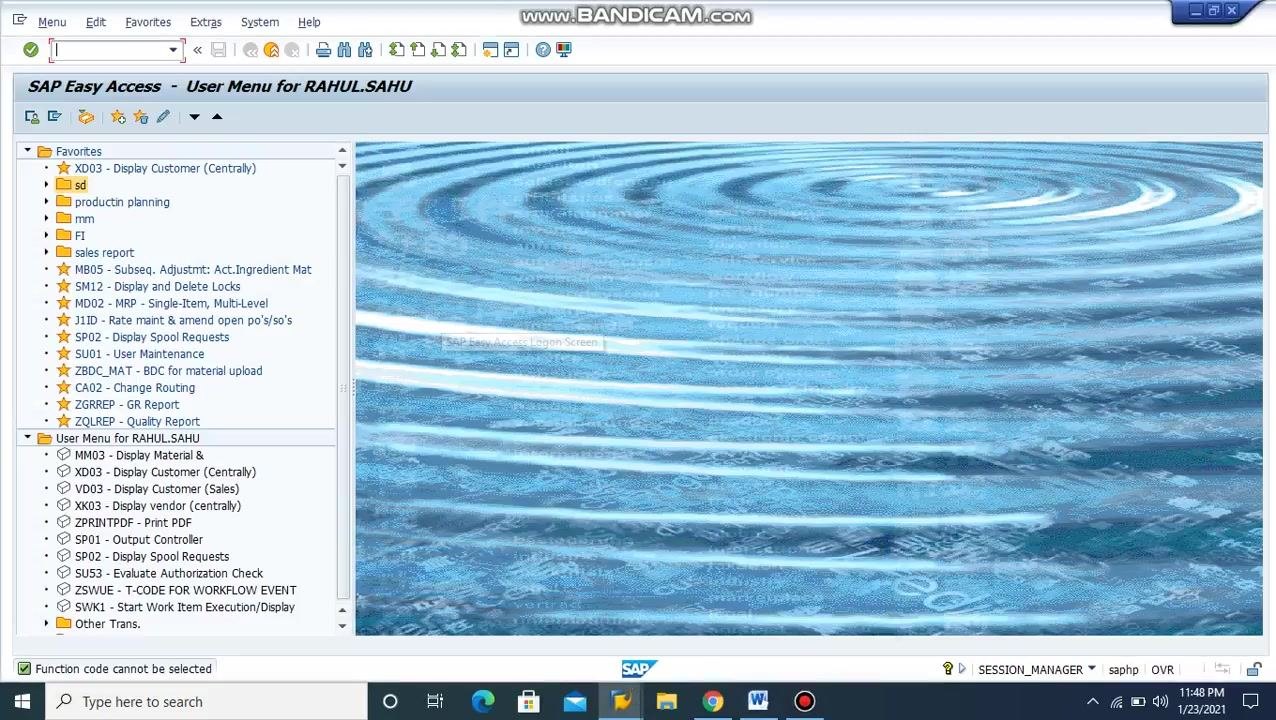
Enter the delivery or PGI number
On the Create Billing Document screen, locate the input field under Docs to be Processed. Enter the relevant delivery or PGI number (for example, 2627002006), then press Enter to continue.
Review the invoice details
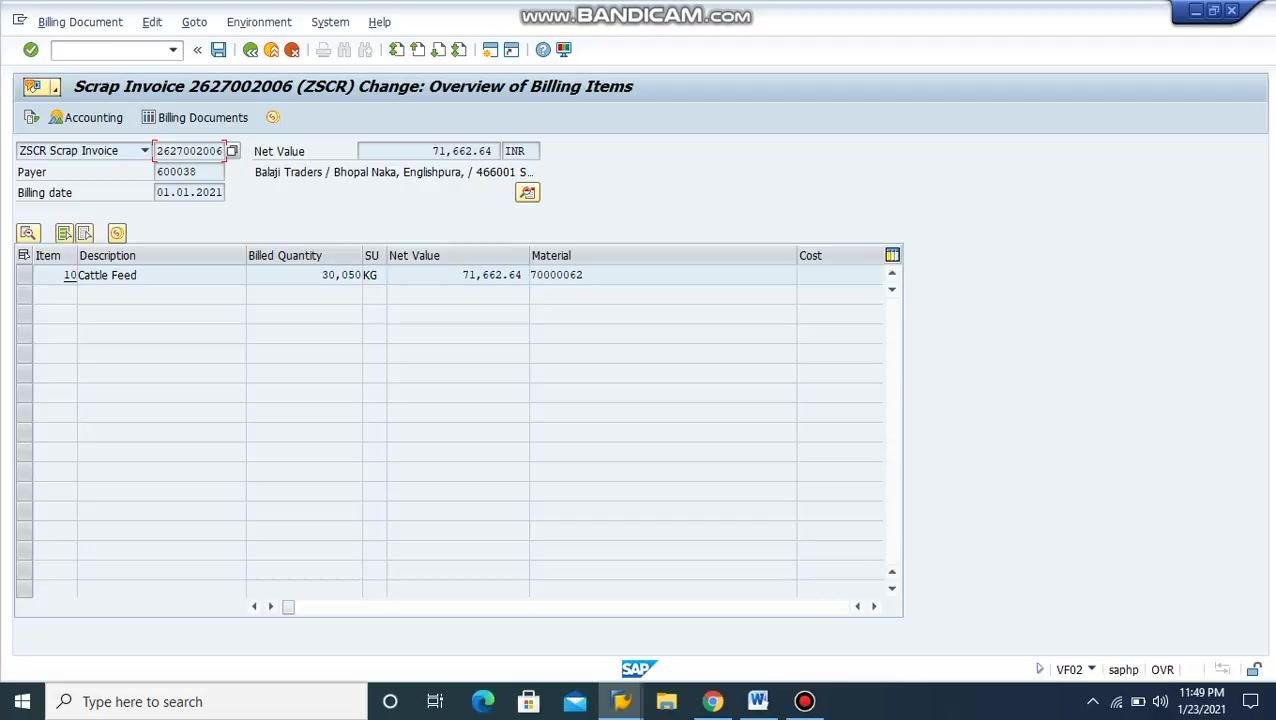
On the invoice overview screen, verify the following details before proceeding:
- Condition – pricing and discounts are correct
- Material – confirm the material code (for example,
70000062for Cattle Feed) - Quantity – check the billed quantity (for example,
30,050 KG) - Net Value – verify the net value (for example,
71,662.64 INR) - Payer – confirm the payer details (for example,
600038– Balaji Traders / Bhopal Naka, Englishpura) - Billing Date – ensure the billing date is accurate (for example,
01.01.2021)
Check additional conditions
Navigate to the display section to review any additional conditions applied to the invoice, such as taxes, surcharges, or discounts. Confirm that all conditions are correct before moving forward.
Verify and add header data
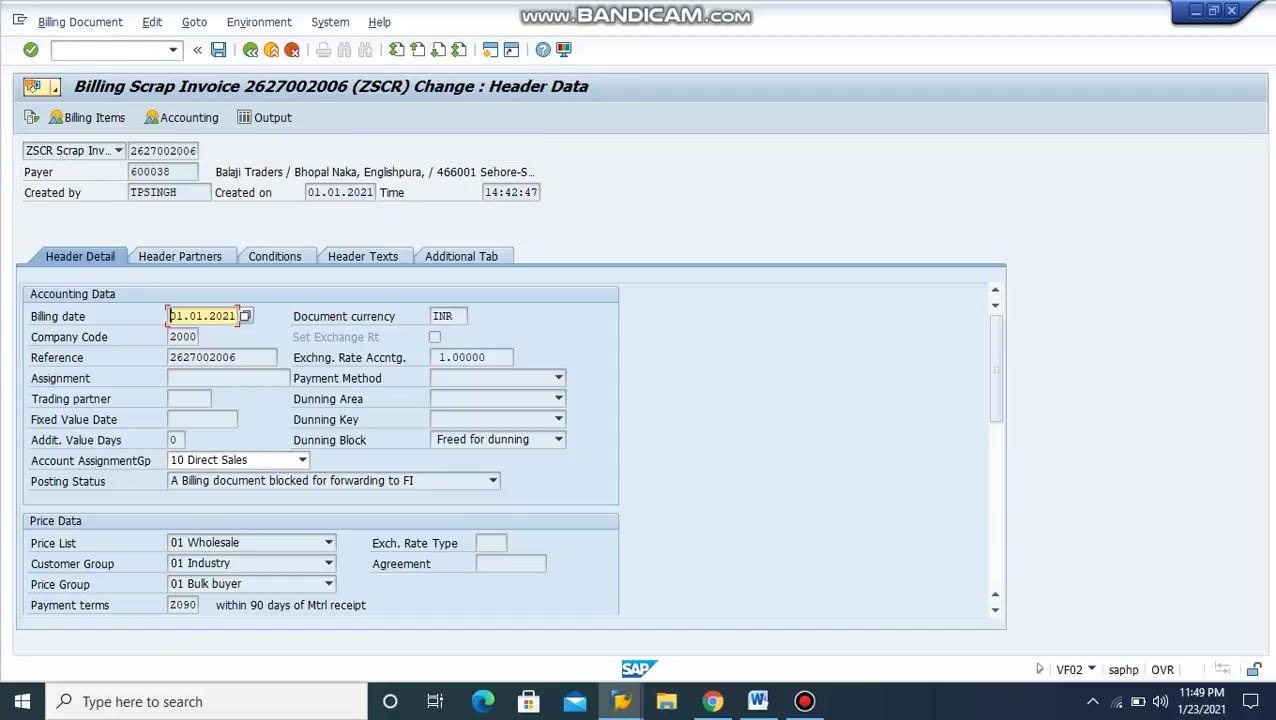
On the Change: Header Data screen for the billing document, review the accounting data:
- Billing date: 01.01.2021
- Company Code: 2000
- Document currency: INR
- Reference: 2627002006
- Account Assignment Gp: 10 Direct Sales
- Payment terms: Z090 (within 90 days of material receipt)
Confirm all accounting and price data fields are correct, then switch to the Header Texts tab to add additional information.
Enter additional header texts
In the Header Texts tab, fill in the relevant fields as required for your transaction, including:
- Lorry No – the vehicle number used for delivery
- LR No, LR Date, Remark, Freight Paid, P.O. No, To Pay, P.O. Date, Chalan ED No/AED, Chalan ED Date/AED – fill in as needed
Use the text entry area to input the vehicle number and any other necessary information.
Save the invoice
Click the Save icon (floppy disk) at the top of the SAP window. SAP generates an invoice number for your billing document upon saving. Note this invoice number, as you will need it for the printing steps.
Open the edit/printout transaction (VF02)
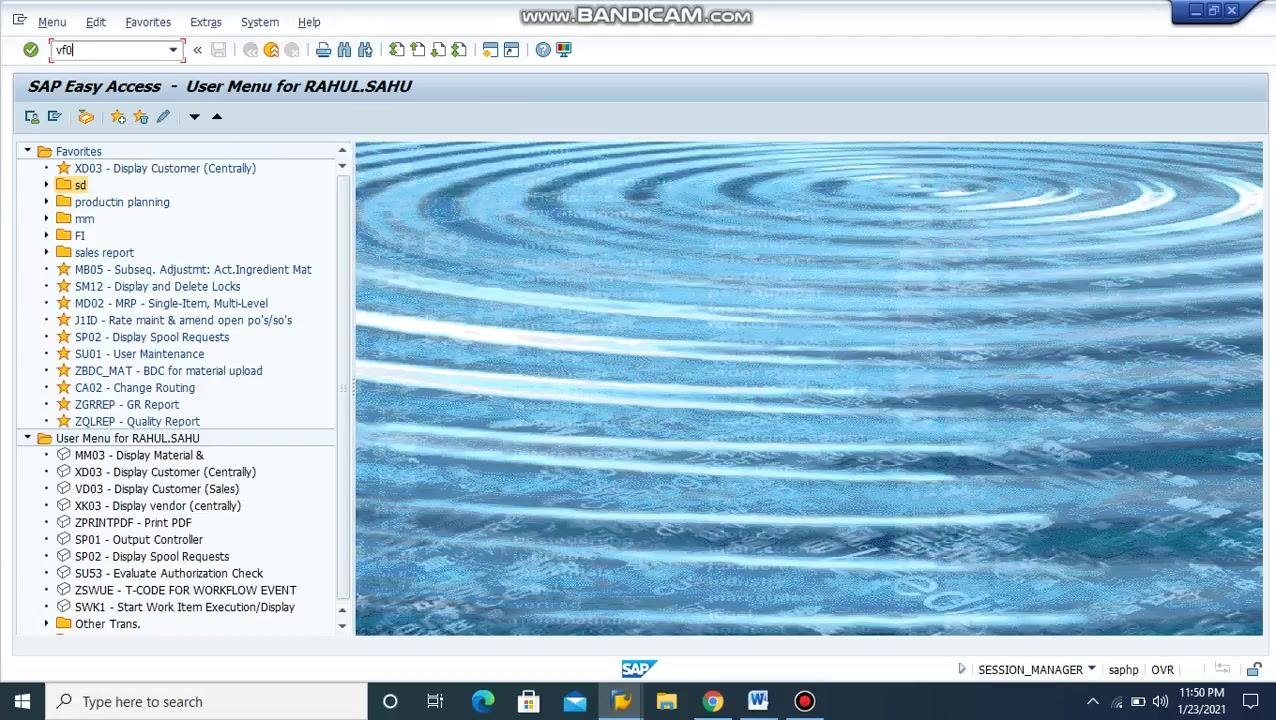
Return to the SAP Easy Access screen. In the command field, enter VF02 and press Enter to open the Edit/Printout transaction for invoices. The invoice number generated in the previous step is automatically picked up, or you can enter it manually if required.
Navigate to the output section
From the menu, select Goto > Header > Output to access the output options for the invoice.
Generate and print the PDF invoice
In the Output section, review the output request details:
- Status: In Preparation
- Output Type: ZSCR
- Receiver: RE 600038
- Channel: PRINT
- Form Template: ZDOM_INV1
Select the output line, choose the PDF option to generate the invoice as a PDF, and wait for the system to process the file. Once the PDF is generated, proceed to print the invoice.
Summary
You have now created a billing document using VF01, verified its details, added header information, saved it, and generated and printed the invoice using VF02. For future reference, keep the following T-codes handy:
- VA01: Create Order
- VA02: Display/Edit Order
- VL01N: Delivery
- VL02N: PGI
- VF01: Create Invoice
- VF02: Edit/Printout
- VF03: Invoice Display (for viewing invoices)
What's next
With the billing document process complete, the next area to explore is e-invoicing, which has become mandatory for GST invoices. Upcoming topics include how to create an e-invoice, the step-by-step e-invoicing process, how to upload an e-invoice, and how to print an e-invoice.
Generation details: cost, quality tiers
Docsie billed 2,500 credits ($1.75) to analyze this 5-minute video at standard quality. The rewrite, template fill and Word/PDF exports were included. The same video at each quality tier:
| Quality | Frames sampled | Credits | Approx. cost |
|---|---|---|---|
| Draft | every 16-30 s | 1,250 | $0.88 |
| Standard (this guide) | every 8-15 s | 2,500 | $1.75 |
| Detailed | every 4-7 s | 5,000 | $3.50 |
| Ultra | every 1-3 s | 10,000 | $7.00 |
Credits priced at $0.70 per 1,000; plans include a monthly allowance. Enterprise customers on on-premise or bring-your-own-model deployments run this on their own inference and pay no per-video credits.
Generated by Docsie Video-to-Docs on 2026-10-01 from a 4-minute video. Screenshots are frames from the source video and belong to their creator, SAP Information with Rahul sahu, whose original is embedded above. If you own this video and want the guide removed or credited differently, contact us and we will act within one business day.