
How to Email Receipts in SAP Concur
SAP Concur gives you several ways to get receipts into Concur Expense without manually retyping data. You can snap a photo of a paper receipt with the mobile app, or learn how to email receipts in SAP Concur so that digital receipts—like hotel confirmations—are processed automatically. Both methods rely on machine learning to extract the details you need and reduce errors in your expense claims.
Video: How to Get Receipts into Concur Expense by SAP Concur. All credit for the demonstration goes to the creator; watch the original on YouTube. The written guide below was generated from this video by Docsie. Creator? Request a change or removal.
SAP Concur gives you several ways to get receipts into Concur Expense without manually retyping data. You can snap a photo of a paper receipt with the mobile app, or learn how to email receipts in SAP Concur so that digital receipts—like hotel confirmations—are processed automatically. Both methods rely on machine learning to extract the details you need and reduce errors in your expense claims.
Prerequisites
- The Concur Expense mobile app installed on your device
- A designated Concur email address for forwarding digital receipts
- A corporate card connected to your Concur profile (for automatic transaction matching)
- Access to the SAP Concur web interface for reviewing and submitting claims
Capture a paper receipt with the mobile app
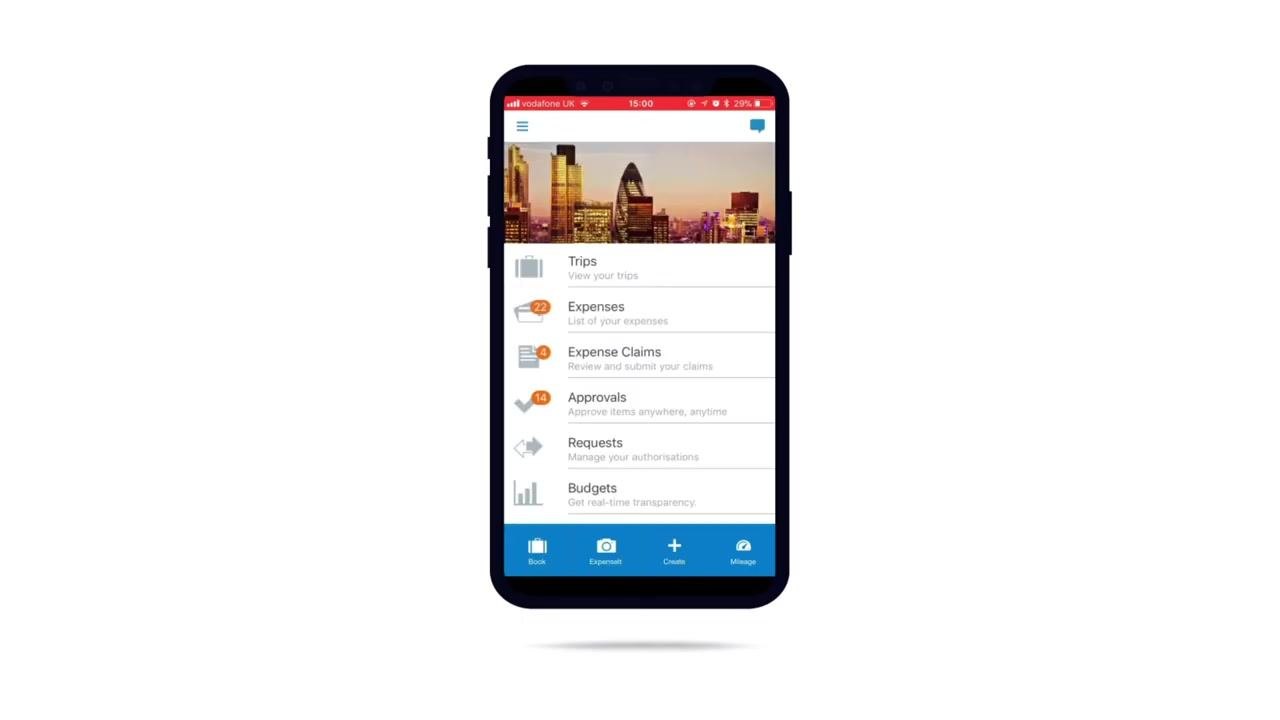
Open the Concur Expense mobile app. The home screen displays options such as Trips, Expenses, Expense Claims, Approvals, Requests, and Budgets. Tap the camera or Expenselt icon at the bottom of the screen to take a picture of your receipt.
Let machine learning process the receipt
Once you capture the image, the app's machine learning technology automatically scans the receipt and extracts the relevant information. An expense line item is created from this scanned data, so you don't need to type in the details yourself.
Add the expense to a claim
Go to the Expense Claims section in the app. Select an existing claim or create a new one, and the app automatically populates the claim details from your scanned receipt. This reduces manual entry and increases visibility into your pending expenses.
Email receipts in SAP Concur for digital documents
For digital receipts—such as a hotel stay paid with a corporate card and confirmed by email—forward the receipt to your designated Concur email address. The same machine learning technology processes the emailed receipt, capturing detailed information like the hotel room rate, breakfast, and any additional charges. This approach ensures policy compliance and accurate, detailed spend reports without any manual data entry.
Review imported expenses in the web interface
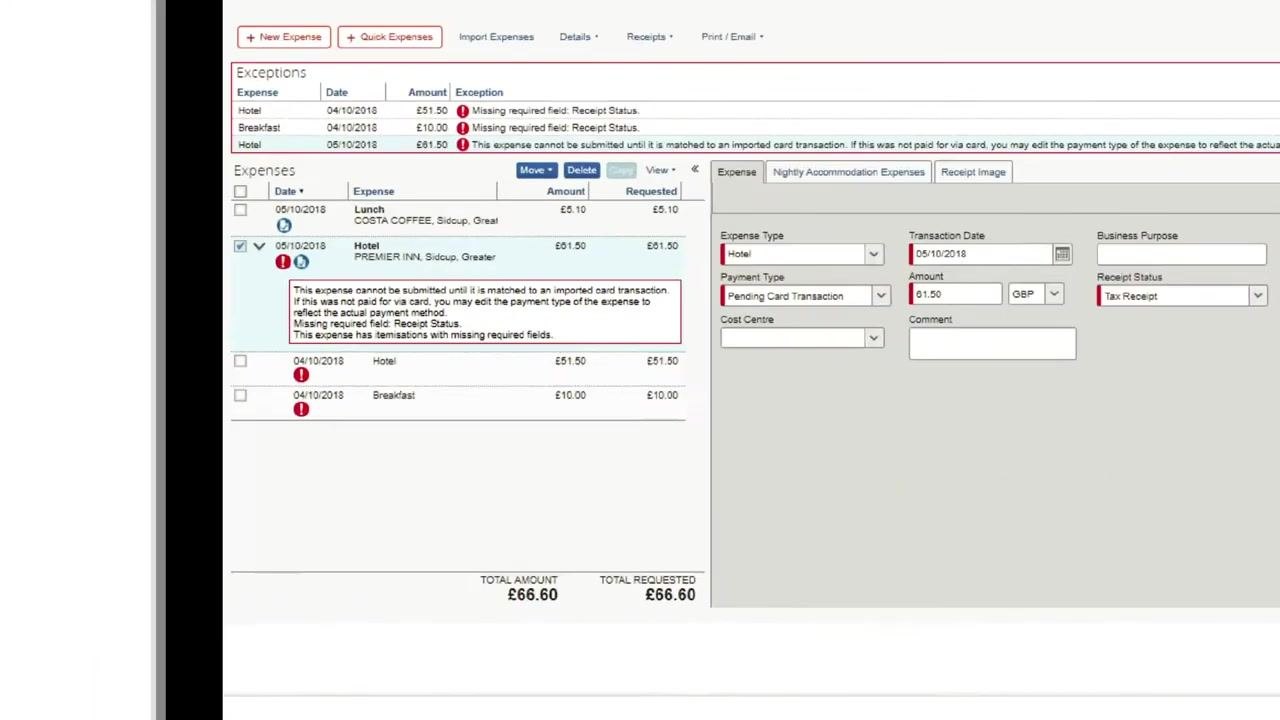
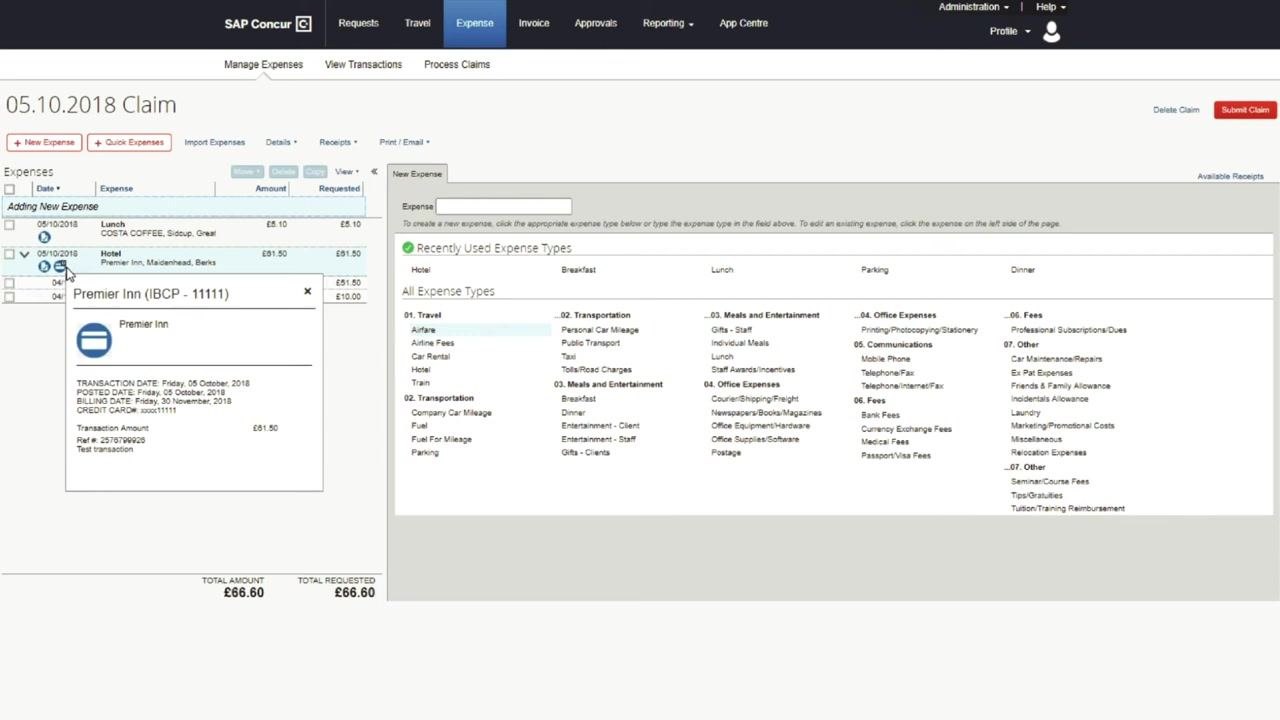
Log in to the SAP Concur web portal and go to the Expenses section. Review the automatically imported expenses, including line items for hotel, breakfast, and lunch. Check for any exceptions or missing required fields, such as Receipt Status, and edit or complete any missing information as needed.
Understand corporate card data integration
SAP Concur partners with banks to provide a daily feed of corporate card transactions. Transaction data—including amounts, dates, and supplier information—is automatically linked to the relevant receipts in your account.
Confirm matching transactions
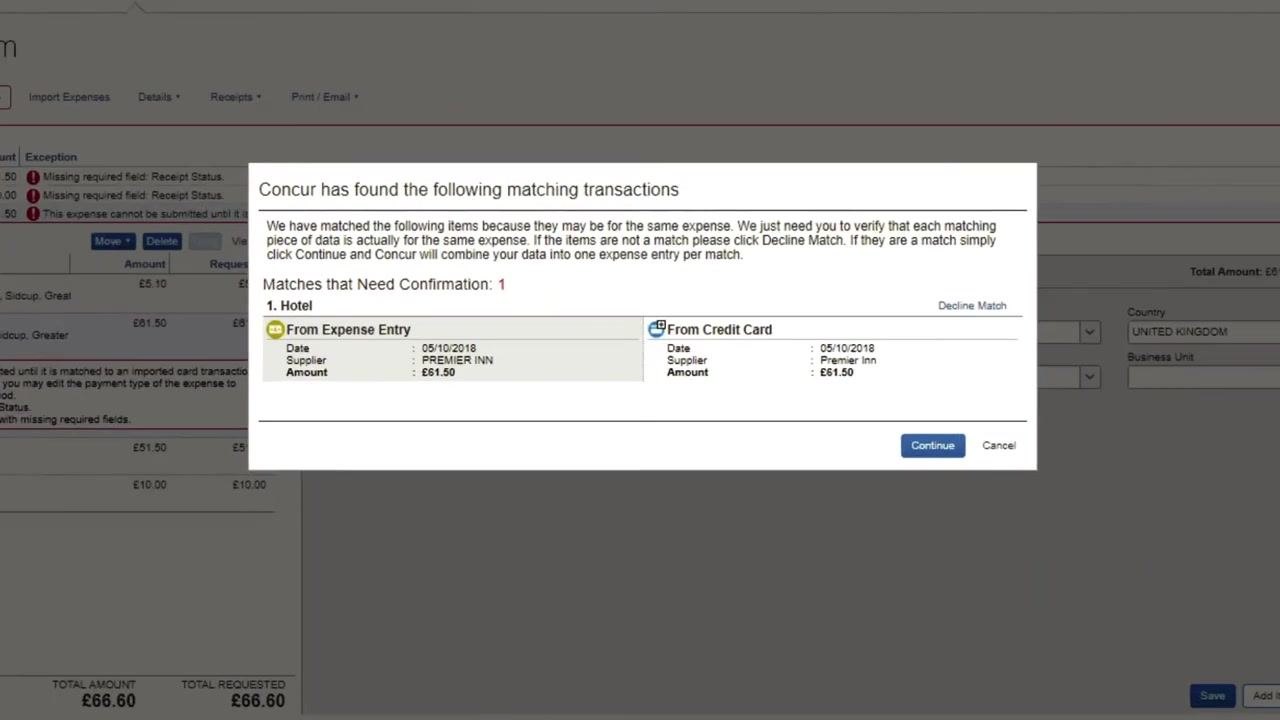
When Concur detects a receipt and a card transaction for the same expense, it prompts you to confirm the match. Review the details from both the expense entry and the credit card transaction, for example Date: 05/10/2018, Supplier: PREMIER INN, Amount: £61.50. Click Continue to combine the data into a single expense entry, or Decline Match if the details don't correspond.
Categorize your expenses
Use the web interface to view, edit, and categorize your expenses. Select from a range of expense types, such as:
- Travel
- Transportation
- Meals and Entertainment
- Office Expenses
- Fees
- Other
Make sure every expense is properly matched and categorized before submitting, to ensure accurate reporting.
Connect an airline profile with Concur TripLink
Concur TripLink connects your travel bookings directly to SAP Concur, giving your business full visibility into travel spend. Visit your preferred airline's website (for example, British Airways) and link your airline profile to SAP Concur by following the airline's instructions for corporate travel integration. Once connected, any flight you book directly with the airline sends its details automatically to Concur Expense.
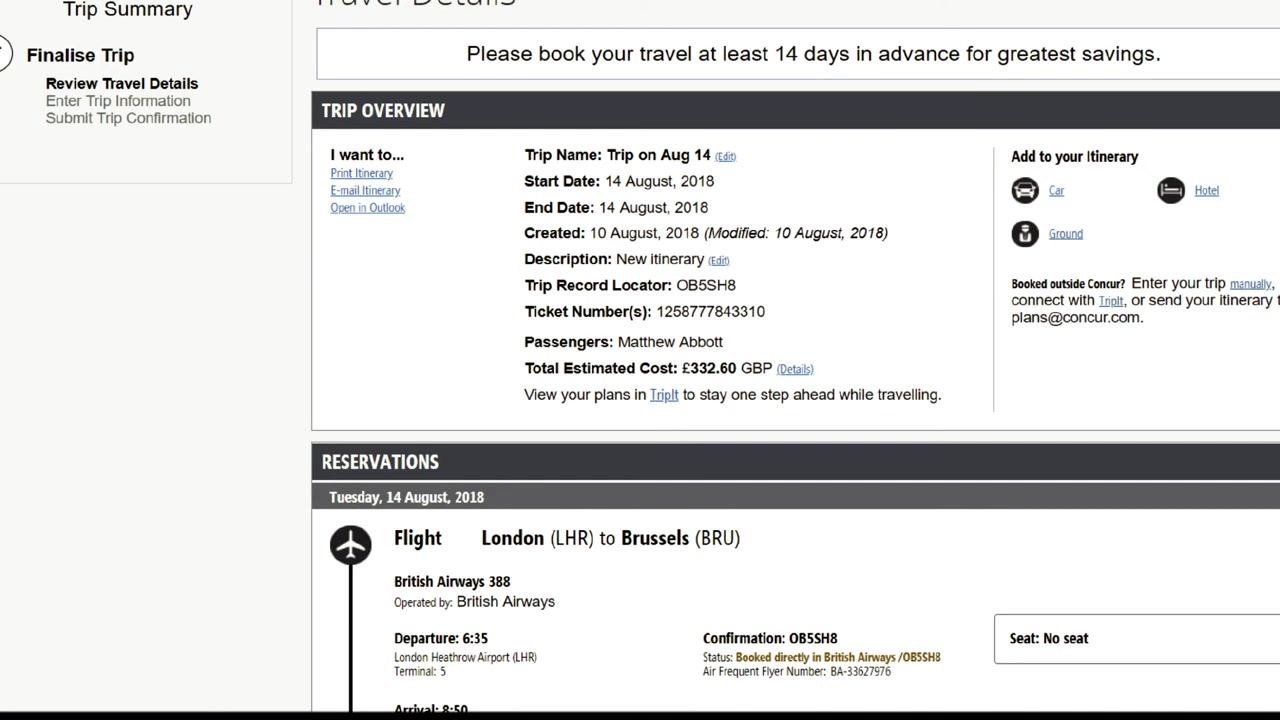
Book your flight and review the imported itinerary
Book your flight as usual on the airline's website. Enter your travel details—for example, from London Heathrow (LHR), United Kingdom, to Brussels (BRU), Belgium—select your outbound and return dates, confirm the number of passengers and travel class, and complete the booking.
After booking, your trip information is sent directly to Concur Expense. A detailed itinerary appears under the Travel section, including the trip name, dates, description, record locator, ticket number, passenger name, and estimated cost. Flight reservations, such as British Airways 388 from London (LHR) to Brussels (BRU) departing at 6:35 and arriving at 8:50, are included automatically.
Review and submit your expense claim
An expense line item is automatically created from your imported travel booking. You only need to review the details and submit the claim—there's no manual data entry required. This keeps the process accurate while saving time for you and your finance team.
What's next
With these methods, you can bring both paper and digital receipts into SAP Concur, confirm matched transactions, and link travel bookings through Concur TripLink for a seamless path from booking to expense claim. For more information and support, visit concur.co.uk.
Generation details: cost, quality tiers
Docsie billed 1,500 credits ($1.05) to analyze this 3-minute video at standard quality. The rewrite, template fill and Word/PDF exports were included. The same video at each quality tier:
| Quality | Frames sampled | Credits | Approx. cost |
|---|---|---|---|
| Draft | every 16-30 s | 750 | $0.52 |
| Standard (this guide) | every 8-15 s | 1,500 | $1.05 |
| Detailed | every 4-7 s | 3,000 | $2.10 |
| Ultra | every 1-3 s | 6,000 | $4.20 |
Credits priced at $0.70 per 1,000; plans include a monthly allowance. Enterprise customers on on-premise or bring-your-own-model deployments run this on their own inference and pay no per-video credits.
Generated by Docsie Video-to-Docs on 2026-10-06 from a 2-minute video. Screenshots are frames from the source video and belong to their creator, SAP Concur, whose original is embedded above. If you own this video and want the guide removed or credited differently, contact us and we will act within one business day.