
How to Deactivate a User in Salesforce
If you need to remove a user's access to your organization, learning how to deactivate a user in Salesforce is a quick administrative task you can complete from the Setup menu. This guide walks you through locating a user record, disabling their access, and confirming the deactivation was successful.
Video: How To Deactivate User In Salesforce Tutorial by Easy Earl (2024). All credit for the demonstration goes to the creator; watch the original on YouTube. The written guide below was generated from this video by Docsie. Creator? Request a change or removal.
If you need to remove a user's access to your organization, learning how to deactivate a user in Salesforce is a quick administrative task you can complete from the Setup menu. This guide walks you through locating a user record, disabling their access, and confirming the deactivation was successful.
Prerequisites
- You must be logged into your Salesforce account with administrative privileges before you can deactivate a user.
Access the Setup menu
After logging in, you'll land on the Salesforce Home page, which displays dashboards such as "Close Deals," "Plan My Accounts," and "Grow Relationships." The top navigation bar includes options like Home, Opportunities, Leads, Tasks, Files, Accounts, Contacts, Campaigns, Dashboards, Reports, Analytics, Chatter, Groups, Calendar, and More.
Locate the gear icon or the Setup option in the navigation bar and click it to open the Salesforce Setup page.
Search for Users in Setup
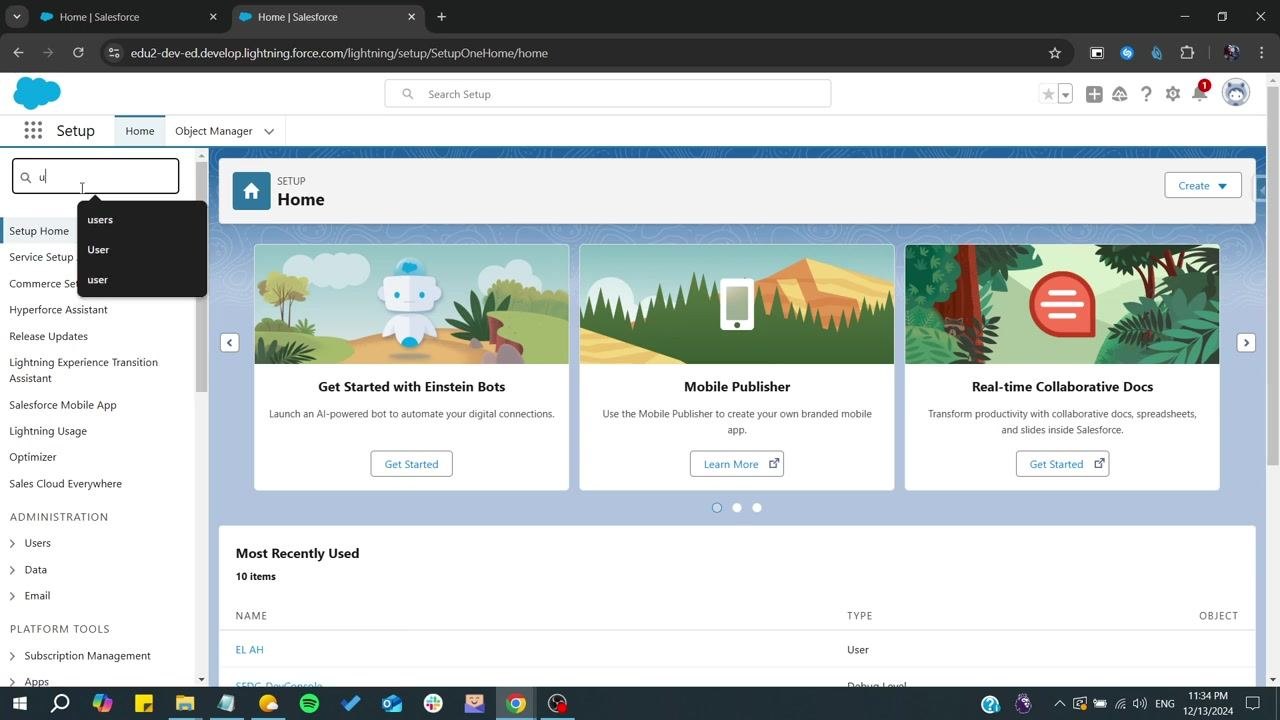
On the Setup page, find the Quick Find/Search bar in the left sidebar and type "users" into it. Select Users from the dropdown list that appears.
Locate the user to deactivate
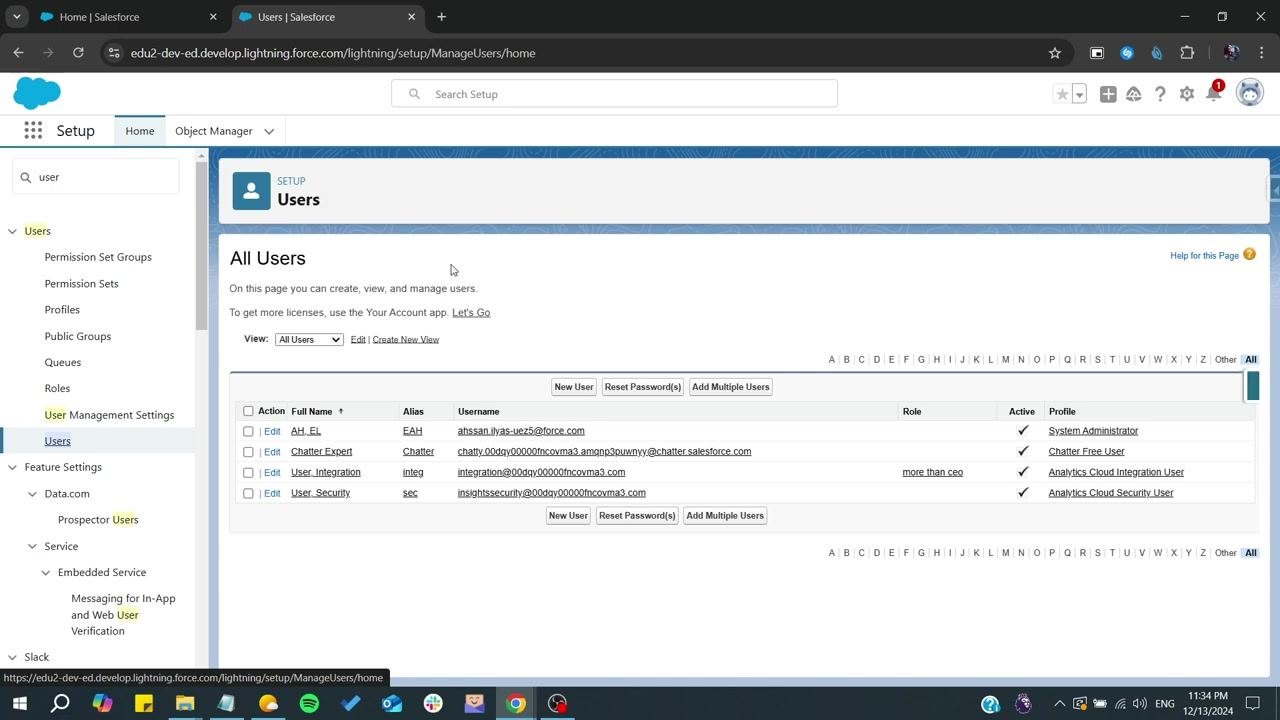
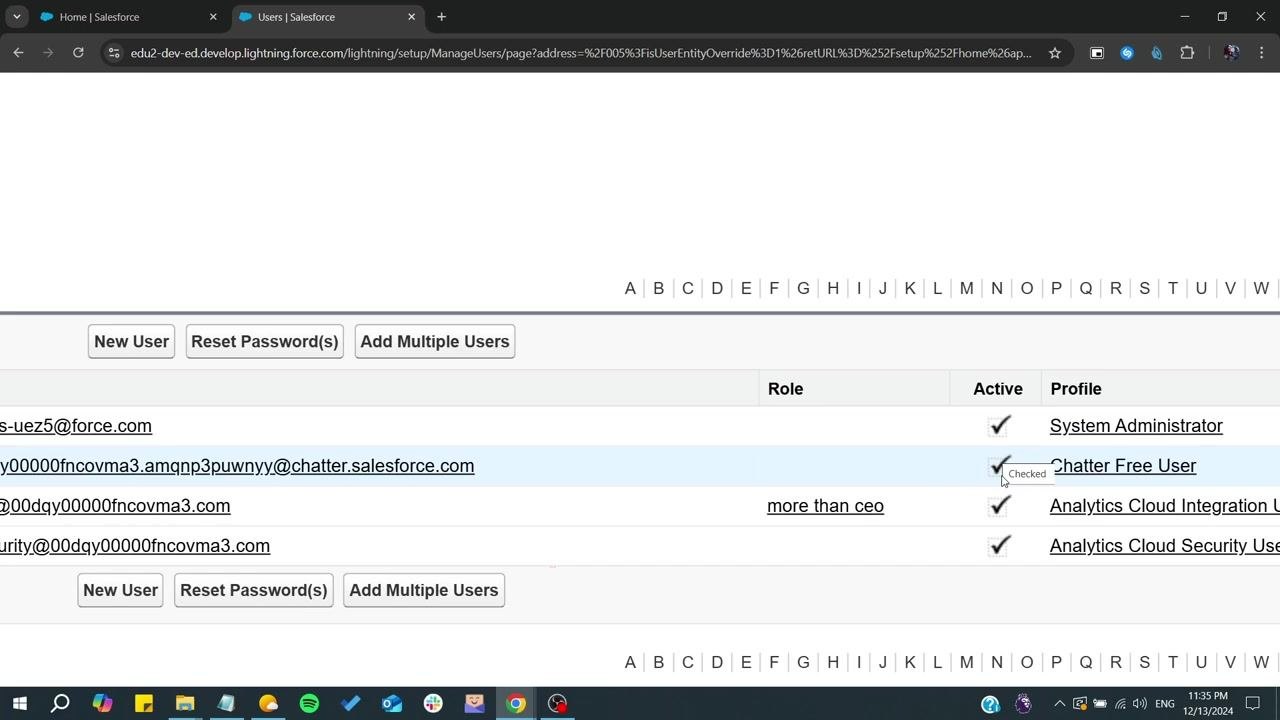
The All Users page displays a list of every user in your Salesforce organization. The columns include Action, Full Name, Alias, Username, Role, Active, and Profile, and each user has an Edit link next to their name.
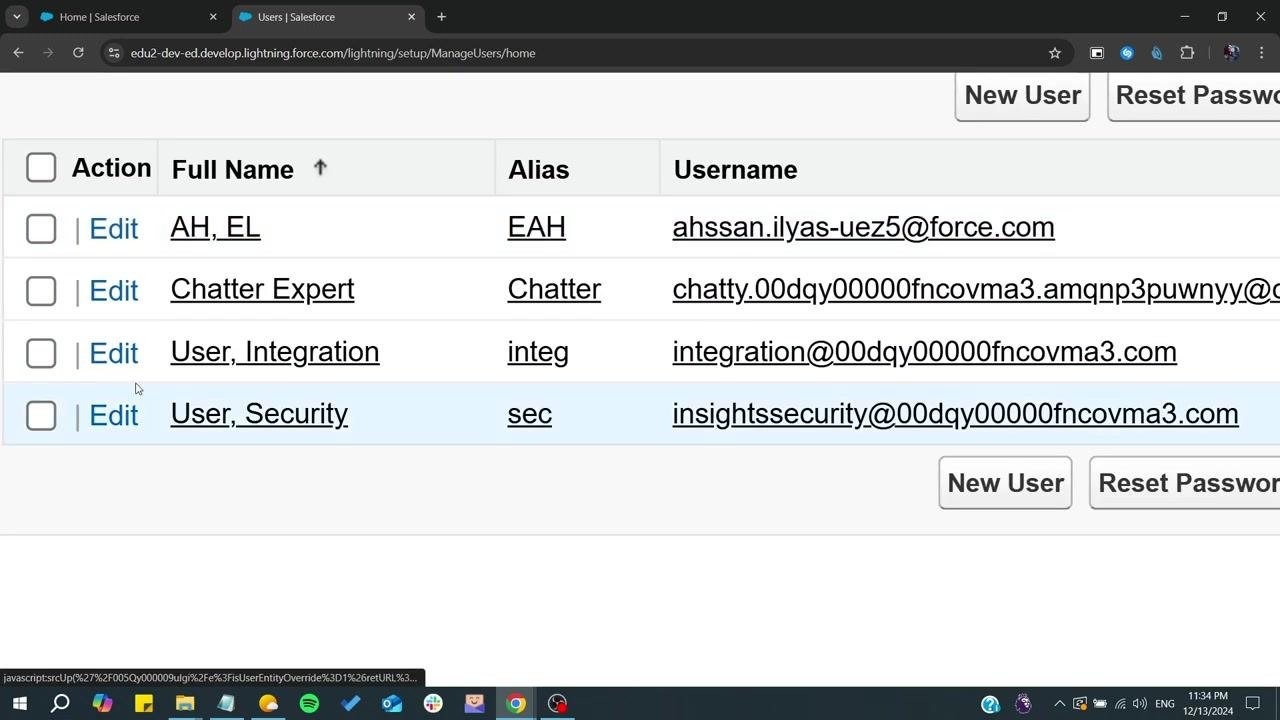
Find the user you want to deactivate. For example, you might look for "User, Integration" with the alias "integ" and username "integration@00dqy00000fncovma3.com." Click the Edit link next to that user.
Edit the user details
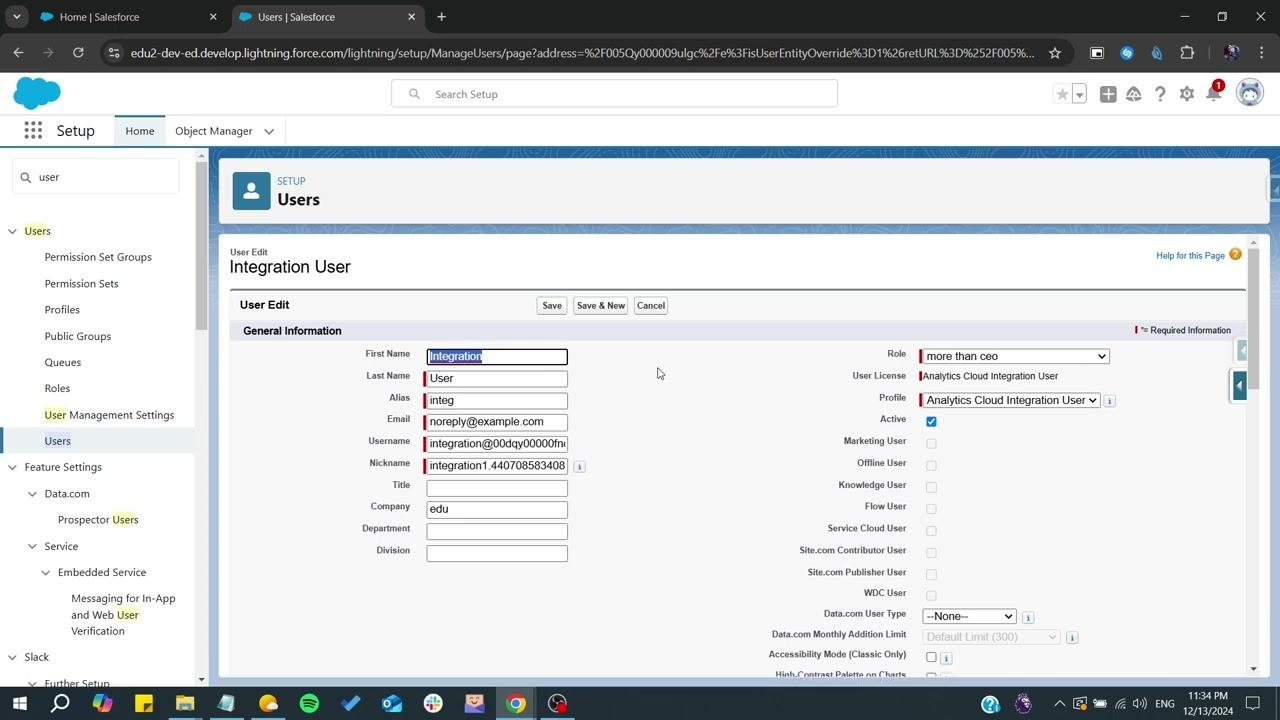
The user's details page opens, showing fields such as First Name, Last Name, Alias, Email, Username, Nickname, Role, User License, Profile, and a checkbox labeled Active.
To deactivate the user, uncheck the Active checkbox.
Acknowledge the deactivation warning
A pop-up message appears stating: "Deactivating users removes them from all delegated groups and sharing privileges. The following page prompts you to remove this user from any teams. You can still transfer this user's records to an active user and view the user's name under Manage Users."
Click OK to proceed.
Save your changes
After unchecking the Active box, click the Save button at the top or bottom of the user details page. The user is now deactivated, and the Active checkbox will remain unchecked.
Confirm the user deactivation
After clicking Save, you are returned to the All Users list. Locate the user you just deactivated — the Active checkbox for this user will now be unchecked, confirming the user is no longer active. The user's details, such as username, role, and profile, remain visible, but the Active status is now disabled.
Summary
You have now successfully deactivated a user in Salesforce. The user no longer has access, and their privileges and group memberships have been removed. Always confirm that you intend to deactivate the user before saving, since this action affects access and data ownership.
Generation details: cost, quality tiers
Docsie billed 1,500 credits ($1.05) to analyze this 3-minute video at standard quality. The rewrite, template fill and Word/PDF exports were included. The same video at each quality tier:
| Quality | Frames sampled | Credits | Approx. cost |
|---|---|---|---|
| Draft | every 16-30 s | 750 | $0.52 |
| Standard (this guide) | every 8-15 s | 1,500 | $1.05 |
| Detailed | every 4-7 s | 3,000 | $2.10 |
| Ultra | every 1-3 s | 6,000 | $4.20 |
Credits priced at $0.70 per 1,000; plans include a monthly allowance. Enterprise customers on on-premise or bring-your-own-model deployments run this on their own inference and pay no per-video credits.
Generated by Docsie Video-to-Docs on 2026-10-11 from a 2-minute video. Screenshots are frames from the source video and belong to their creator, Easy Earl, whose original is embedded above. If you own this video and want the guide removed or credited differently, contact us and we will act within one business day.