4.8
on G2
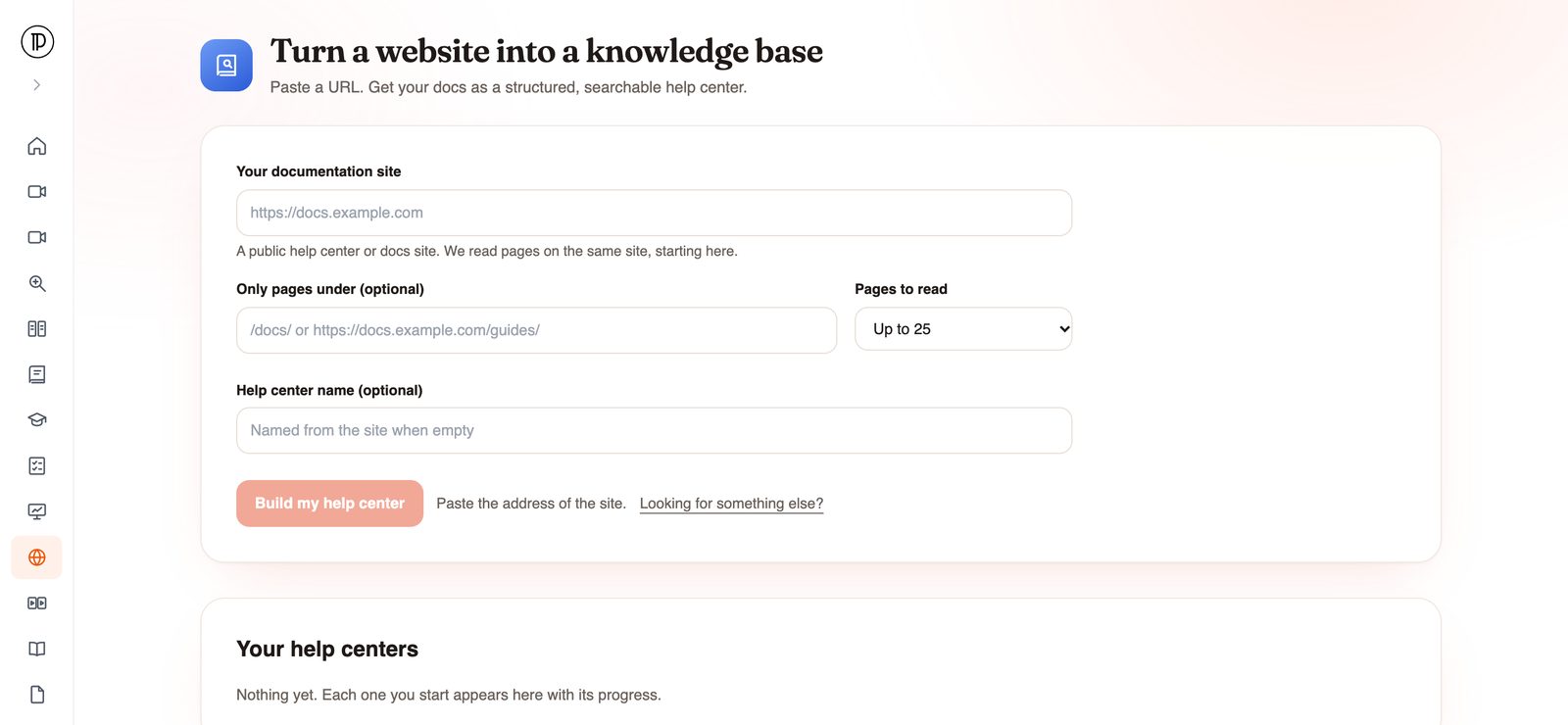
Moving an existing public docs site or help center into Docsie? Paste its address. Docsie reads the pages on that site and builds a structured, searchable knowledge base with an overview page, ready for you to review and edit.
Most documentation migrations start with someone copying articles one at a time. This one starts with a URL.
Docsie starts at the address you paste and reads pages on that same site. You can limit the run to one section, such as /docs/, and choose how many pages to read.
The content comes back organized as a Docsie knowledge base with an overview page, so readers get a front door instead of a flat list of imported pages.
The new help center is searchable, so readers can find answers across everything that was imported. Add an AI assistant on top later if you want one.
A help center migration usually means a long run of export files and broken formatting. Pasting a URL won't do the whole job, but it does the heavy first pass.
How it works
One form, then Docsie does the reading.
Enter the URL of a public help center or docs site, for example https://docs.example.com. Optionally, keep the run to pages under a path such as /guides/ and pick how many pages to read.
Give the help center a name, or leave it empty and it is named from the site. No account is needed to start; Docsie asks for your email and a one-time code when you submit.
The run happens in the background. Docsie reads the pages on the site, builds the knowledge base with its overview page, and emails you when it is ready.
Open the knowledge base, check the structure, edit what needs editing and decide what to publish. From here on, Docsie is where the content is maintained.
Good fits
Any public documentation you want to keep, but in a place that is easier to maintain, search and publish from.
Developer docs, admin guides and user guides on a docs subdomain, imported as a starting knowledge base.
Public help articles from your current support tool, brought into Docsie so documentation and support content live in one place.
FAQ and how-to pages that grew on the marketing site and are hard to keep up to date there.
Point the run at a single path, such as /docs/ or /help/, so only that part of the site is read.
Once the content is in Docsie, publish it under your own brand. See white-label help center software.
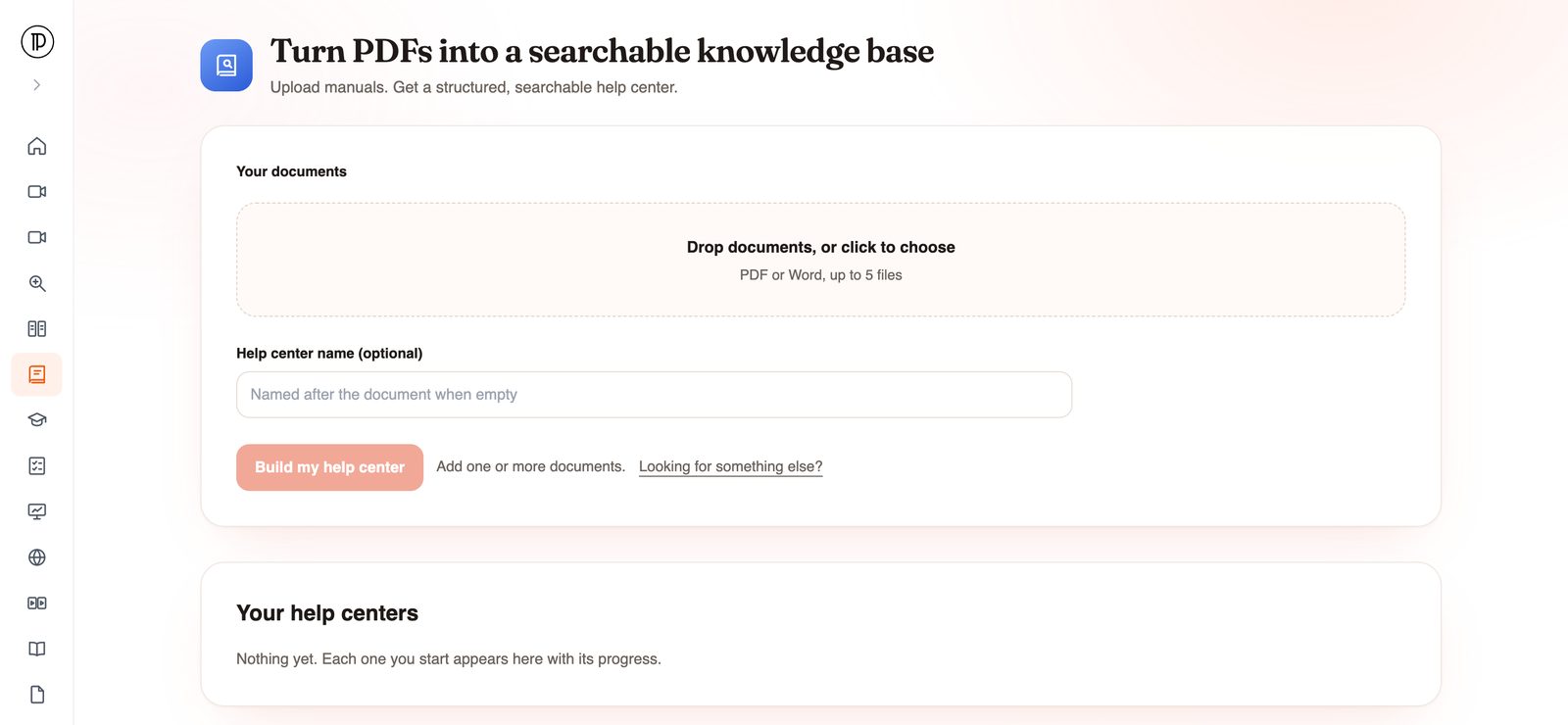
Content that lives in PDF or Word files instead of on a public site goes through PDF to Help Center. For large mixed archives, see legacy document migration.
Join forward-thinking teams using Docsie






_Leader_Small-Business_Leader.svg)


Common questions
Q: How do I migrate my help center to Docsie?
A: If the help center is public, paste its address into Docsie Website to Help Center and click Build my help center. Docsie reads the pages on that site and builds a knowledge base with an overview page. You get an email when it is ready to review.
Q: Can it import a private or login-protected docs site?
A: No. It reads public pages only. For content behind a login, export it to PDF or Word and use PDF to Help Center, which takes up to five files per run.
Q: How many pages does it read?
A: You choose a page count before you start, and a page cap applies to each run. For a large site, point the run at the section that matters most, such as /docs/, using the optional path field.
Q: Does it keep the knowledge base in sync with the old site?
A: No. It is an import, not a sync. Once the content is in Docsie, edit it there. If you retire the old site, set up redirects from its old URLs.
Q: Will the old site's design and navigation come across?
A: Expect the content to come across, not the look. Docsie builds a knowledge base with its own structure and overview page from the pages it reads; it does not copy the old site's theme.
Q: Can I migrate documentation from another docs tool this way?
A: Yes, if that tool publishes your docs on a public website. Paste the address of the published site. If the docs are only visible to signed-in users, use an export instead.
Planning a larger documentation migration?
Book a DemoPublic help centers and docs sites only. Docsie emails you when the knowledge base is ready.
SOC 2 compliant. Your data is never used to train AI models.