
How to Create a Purchase Requisition in SAP ME51N
This guide walks you through how to create a purchase requisition in SAP ME51N, from navigating the SAP Easy Access menu to entering item details, saving the document, and verifying the result in ME53N. Follow the steps below in order to complete the process successfully.
Video: How to create a Purchase Requisition in SAP - SAP MM Basic Video by BHUPAL REDDY. All credit for the demonstration goes to the creator; watch the original on YouTube. The written guide below was generated from this video by Docsie. Creator? Request a change or removal.
This guide walks you through how to create a purchase requisition in SAP ME51N, from navigating the SAP Easy Access menu to entering item details, saving the document, and verifying the result in ME53N. Follow the steps below in order to complete the process successfully.
Prerequisites
Before you begin, it helps to understand the procurement document types available in SAP. Procurement can be managed through several document types, each identified by its own document type code:
- Purchase Requisition
- Purchase Order
- Scheduling Agreement
- Outline Agreement (which can be further subdivided)
Start from the SAP Easy Access menu
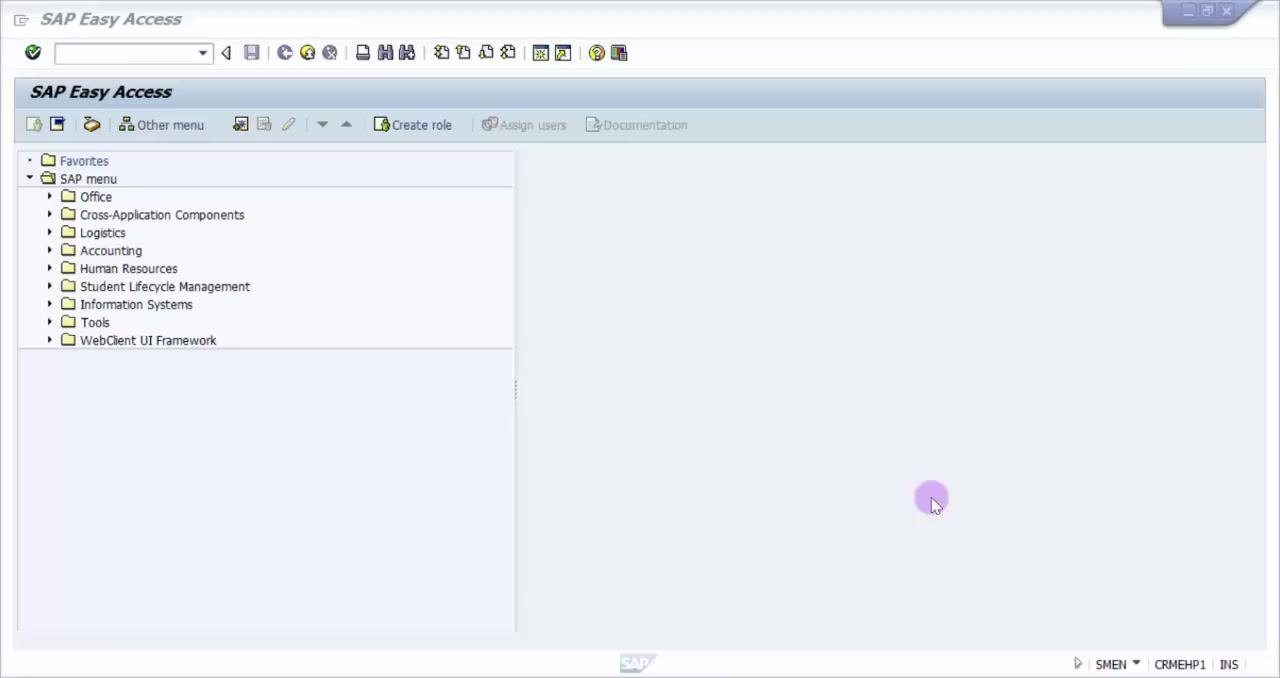
Open the SAP Easy Access main screen. The left panel displays the SAP menu with expandable folders such as Office, Cross-Application Components, Logistics, Accounting, Human Resources, Student Lifecycle Management, Information Systems, Tools, and WebClient UI Framework. No action is required yet — this is simply your starting point.
Expand the Logistics menu
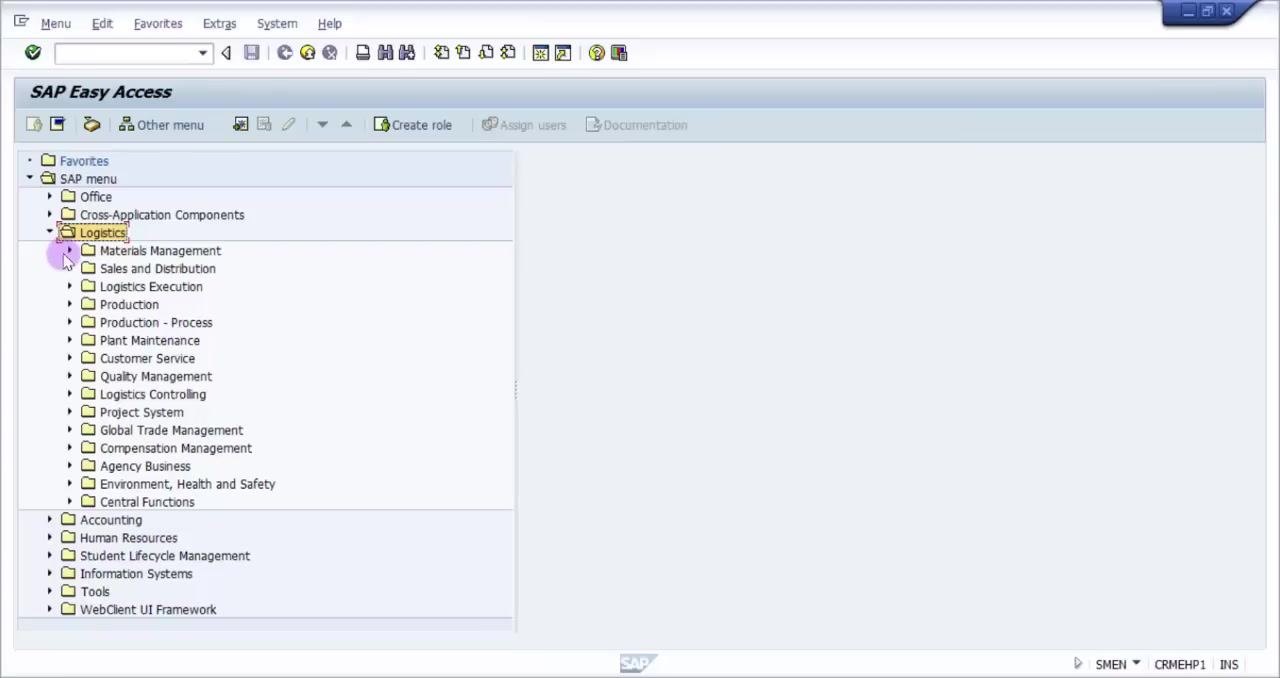
Expand the Logistics folder in the SAP menu. This reveals subfolders including Materials Management, Sales and Distribution, Logistics Execution, Production, Plant Maintenance, and more.
Navigate to the purchase requisition creation transaction
Within Logistics, expand Materials Management, then Purchasing, then Purchase Requisition. Select ME51N – Create to start the purchase requisition creation process. The status bar at the bottom confirms with the message "Start of application: Create Purchase Requisition."
Open the Create Purchase Requisition screen
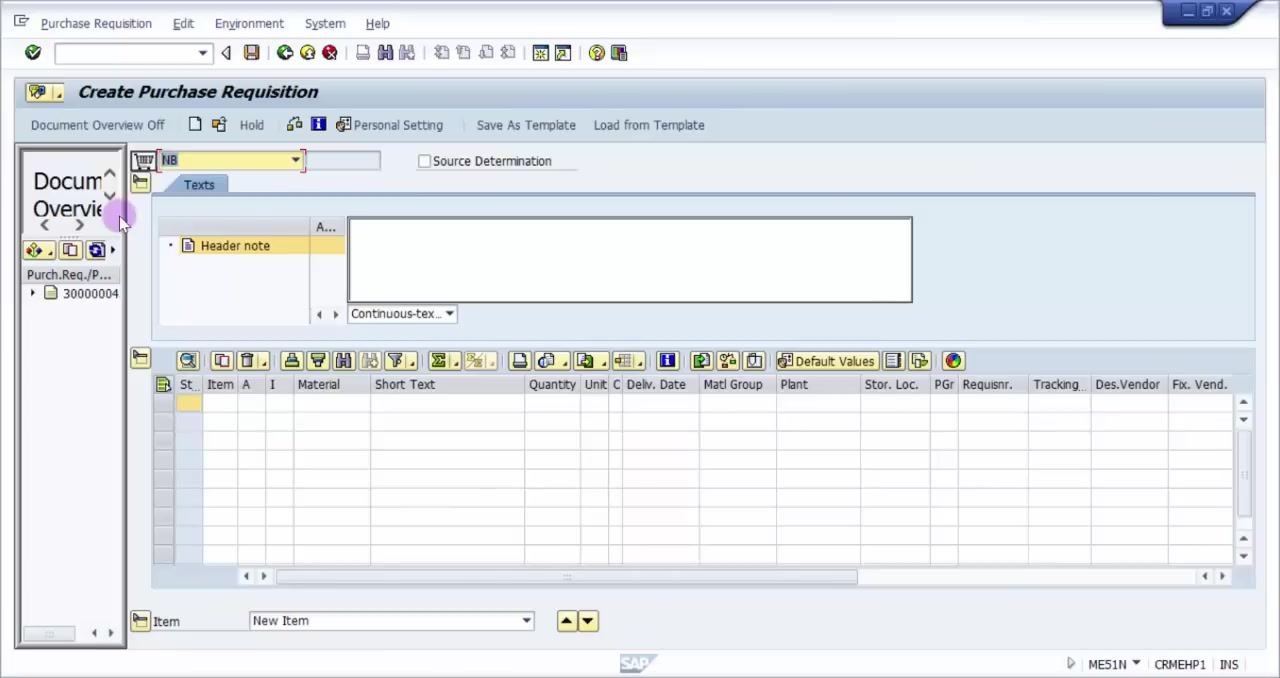
Double-click ME51N – Create. The Create Purchase Requisition screen opens, containing:
- A Document Overview panel that you can toggle on or off
- A header note section for entering general notes
- Tabs for Texts and Source Determination
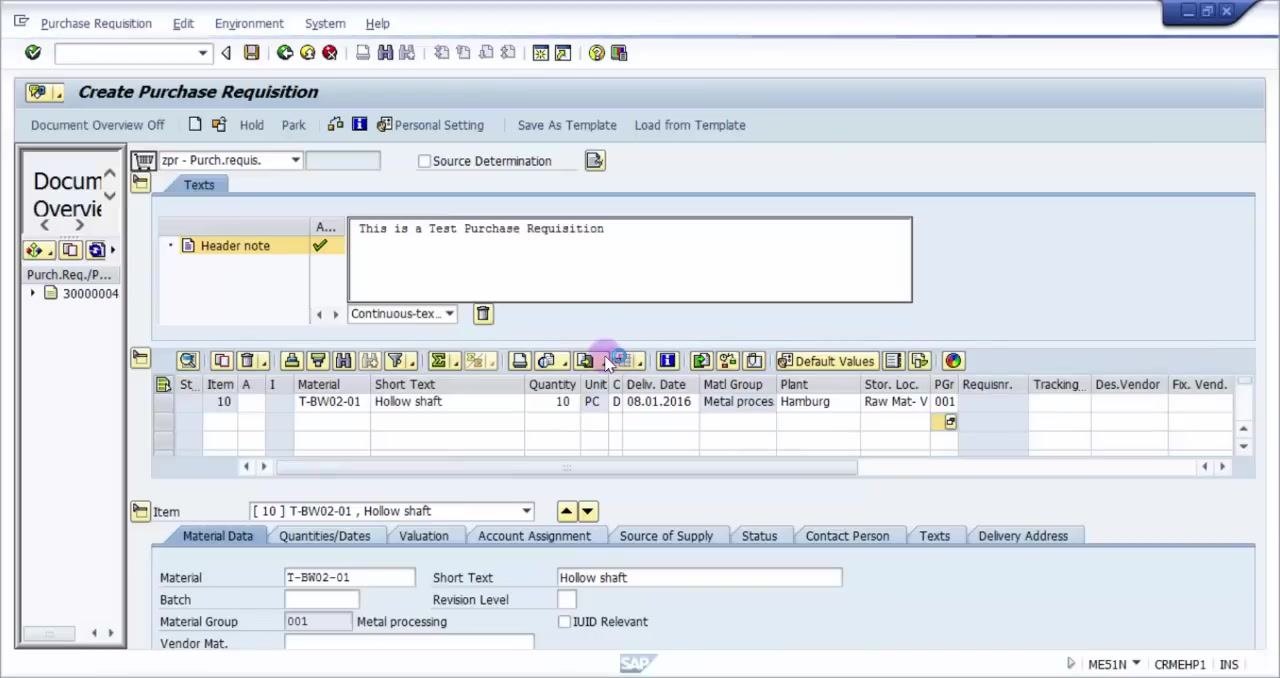
- Item detail fields: Material, Short Text, Quantity, Unit, Delivery Date, Material Group, Plant, Storage Location, and more
- A toolbar with options such as Hold, Personal Setting, Save As Template, Load from Template, and Default Values
Enter a header note (optional)
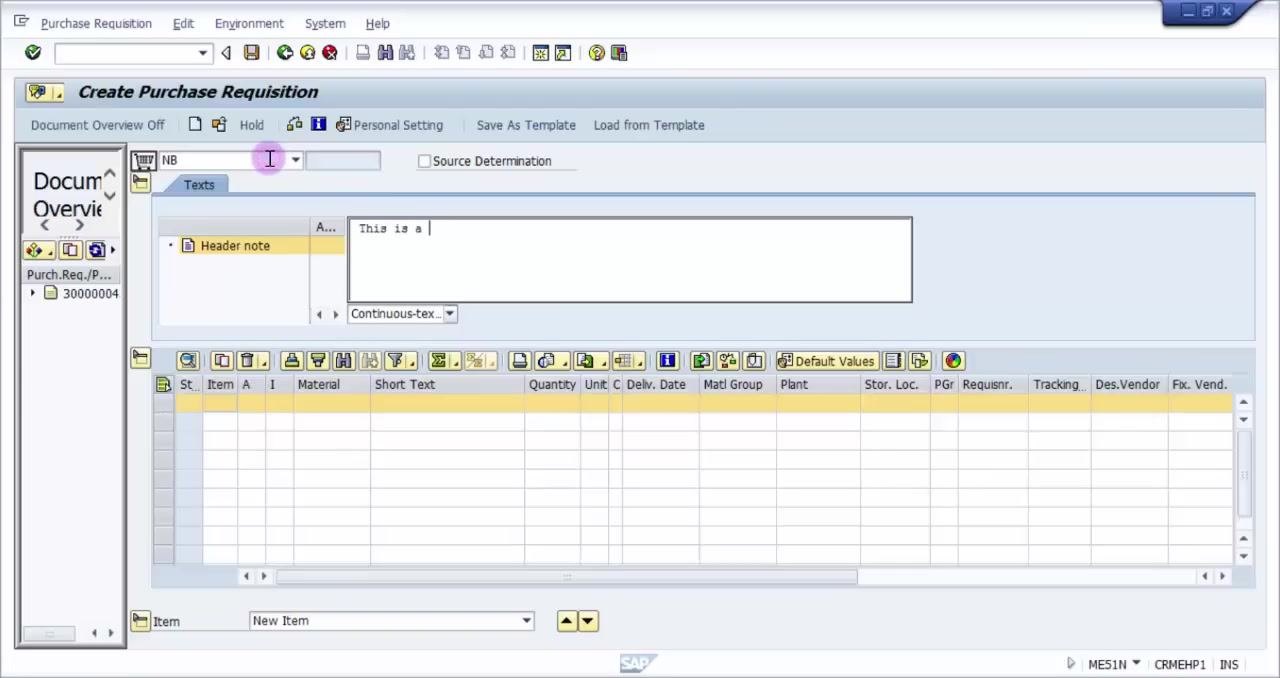
If needed, enter a header note in the text box under the Texts tab. For example, you can type "This is a test purchase requisition" as the header note. You can use the line editor, SAP script editor, or continuous text data as required.
Enter the material number
Click into the Material field in the item entry grid and enter the material number, for example T-BW02-01. The header note you entered earlier remains filled in at the top.
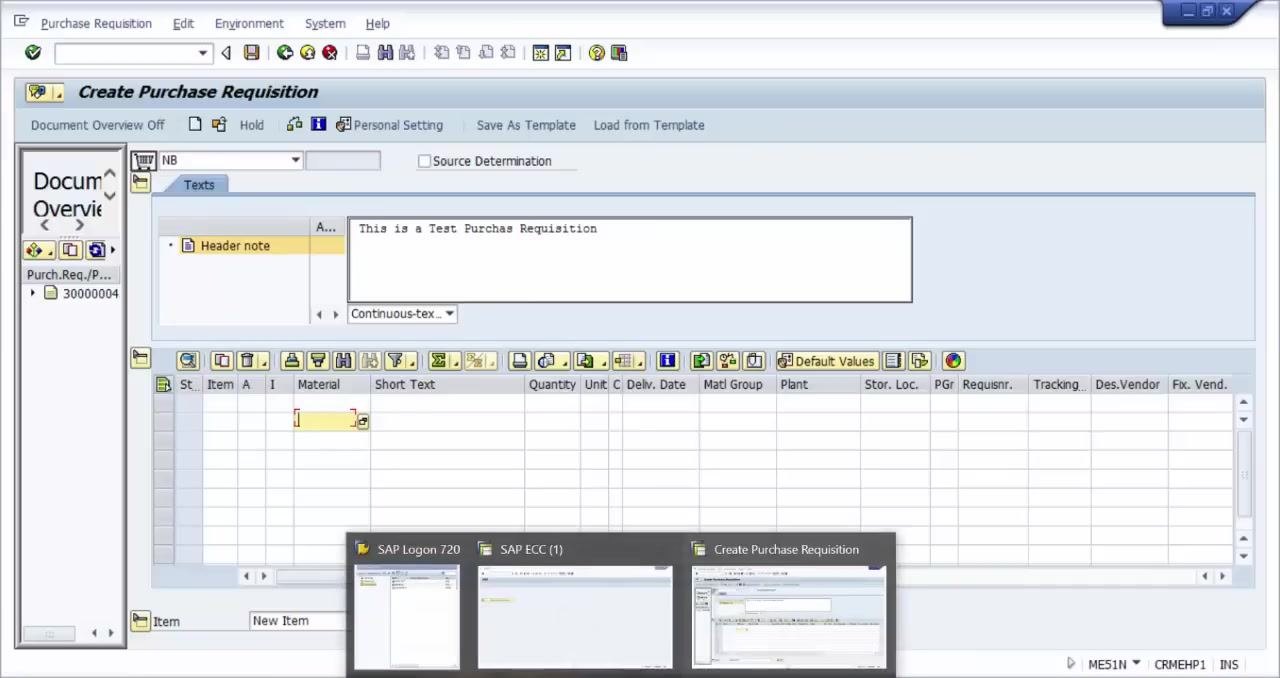
Enter quantity, plant, and storage location
Continue filling in the remaining key fields:
- Quantity — for example,
10 - Plant — for example,
1000 - Stor. Loc. (Storage Location) — for example,
braw
Press Enter to validate your entries. SAP will attempt to populate additional fields automatically.
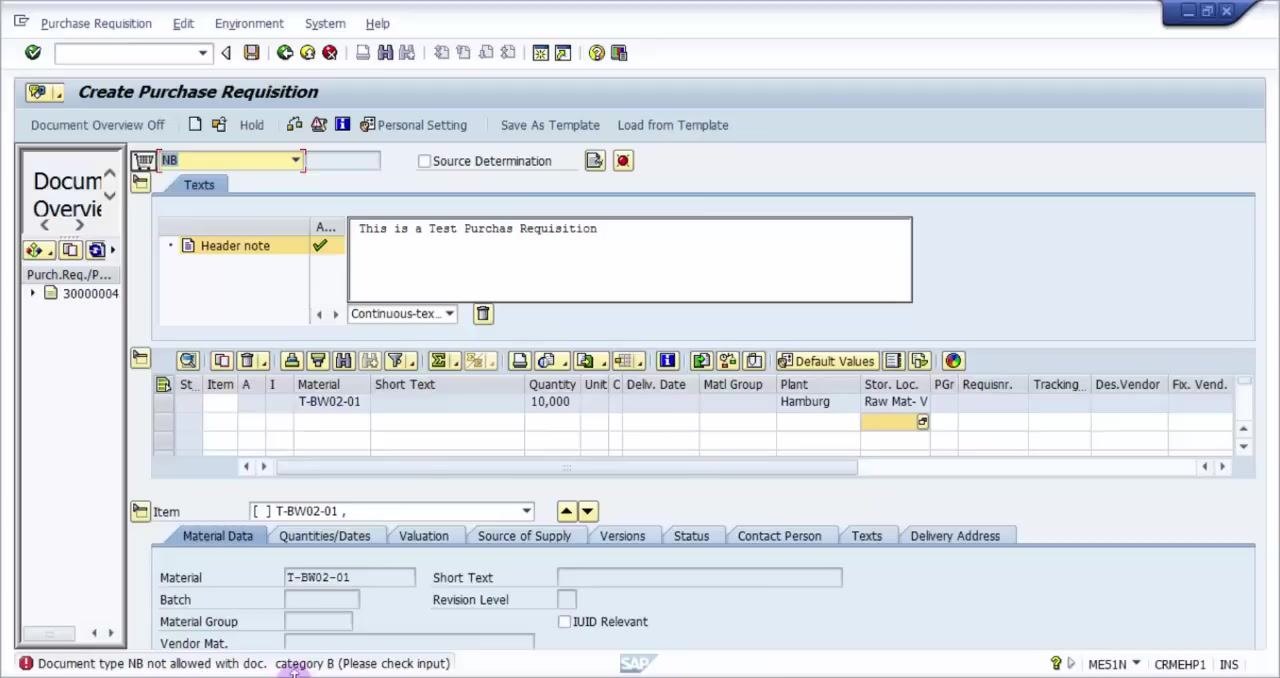
Resolve a document type error, if it appears
If you see the error message "Document type NB not allowed with doc. category B (Please check input)" at the bottom of the screen, it means the selected document type (NB) is not valid for purchase requisitions. Click the dropdown next to the document type field at the top of the screen and select the correct type, such as zpr - Purch.requis..
Review your entries for spelling mistakes, especially in fields like Short Text or Storage Location, and correct them as needed.
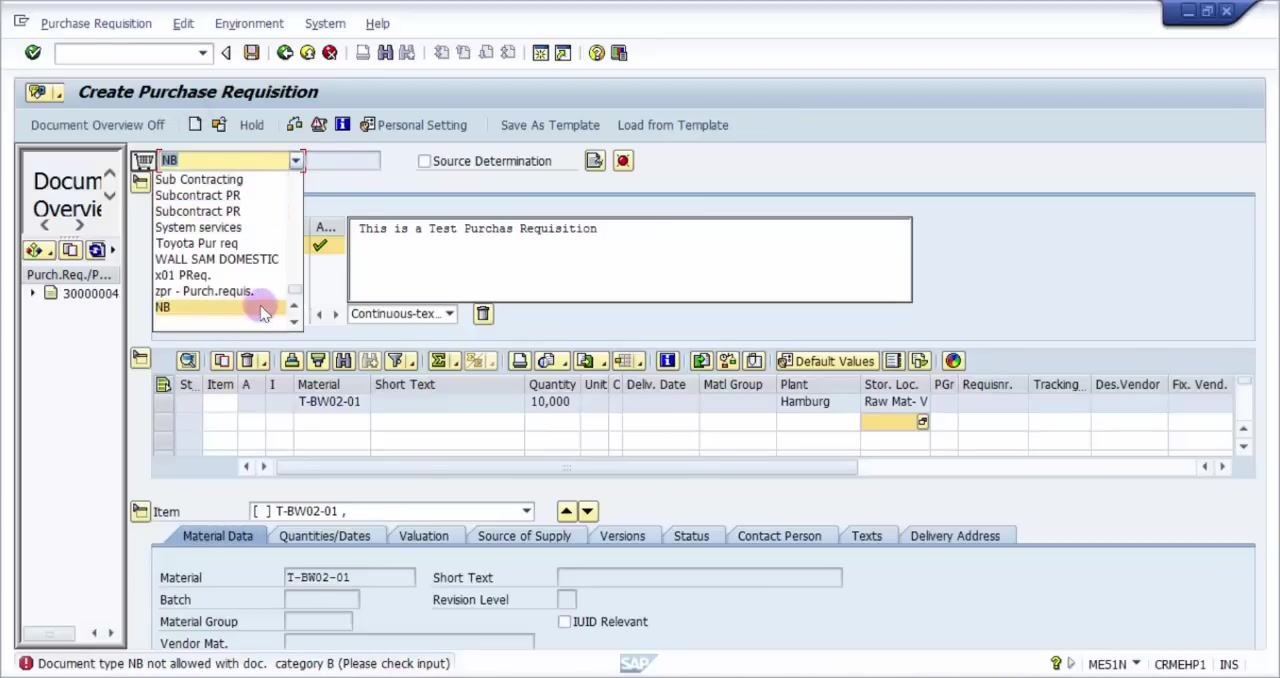
Complete the remaining item details
Make sure all required fields are filled in:
- Short Text — for example,
Hollow shaft - Unit — for example,
PC - Delivery Date — for example,
08.01.2016 - Material Group — for example,
001 - Plant — for example,
Hamburg - Storage Location — for example,
Raw Mat- V - PGr — for example,
001
The lower "Item" details section automatically populates with the material and short text you entered.
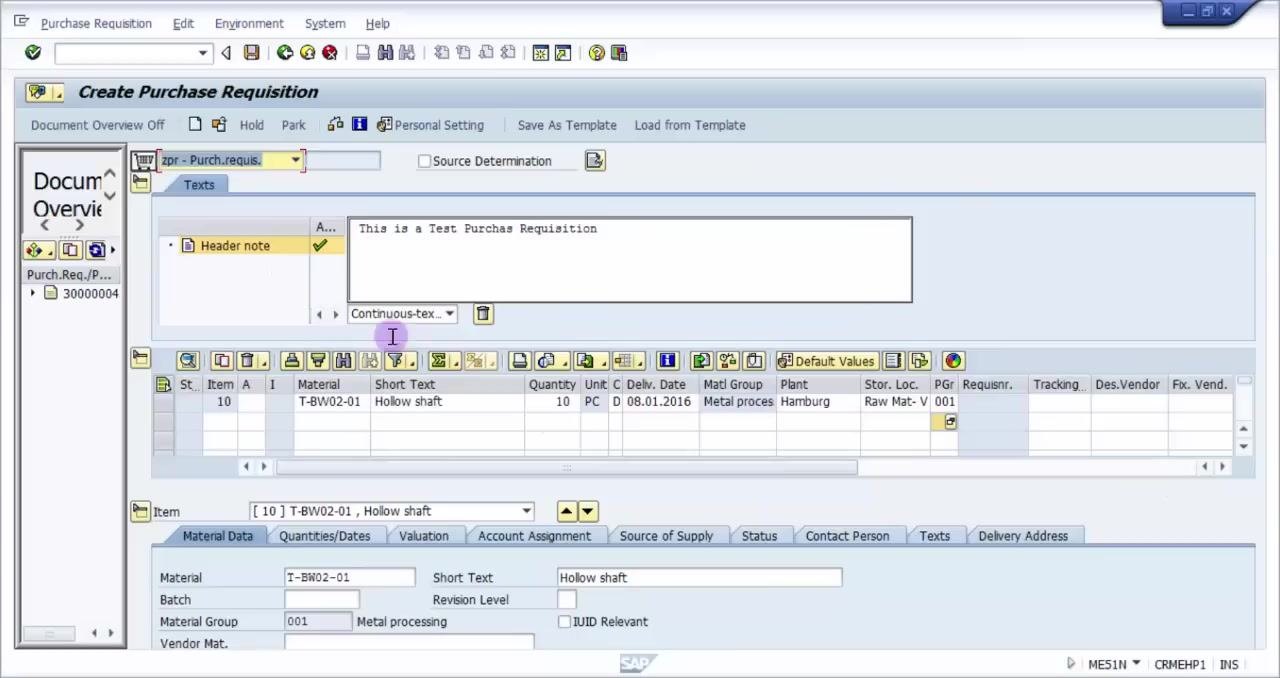
Save the purchase requisition
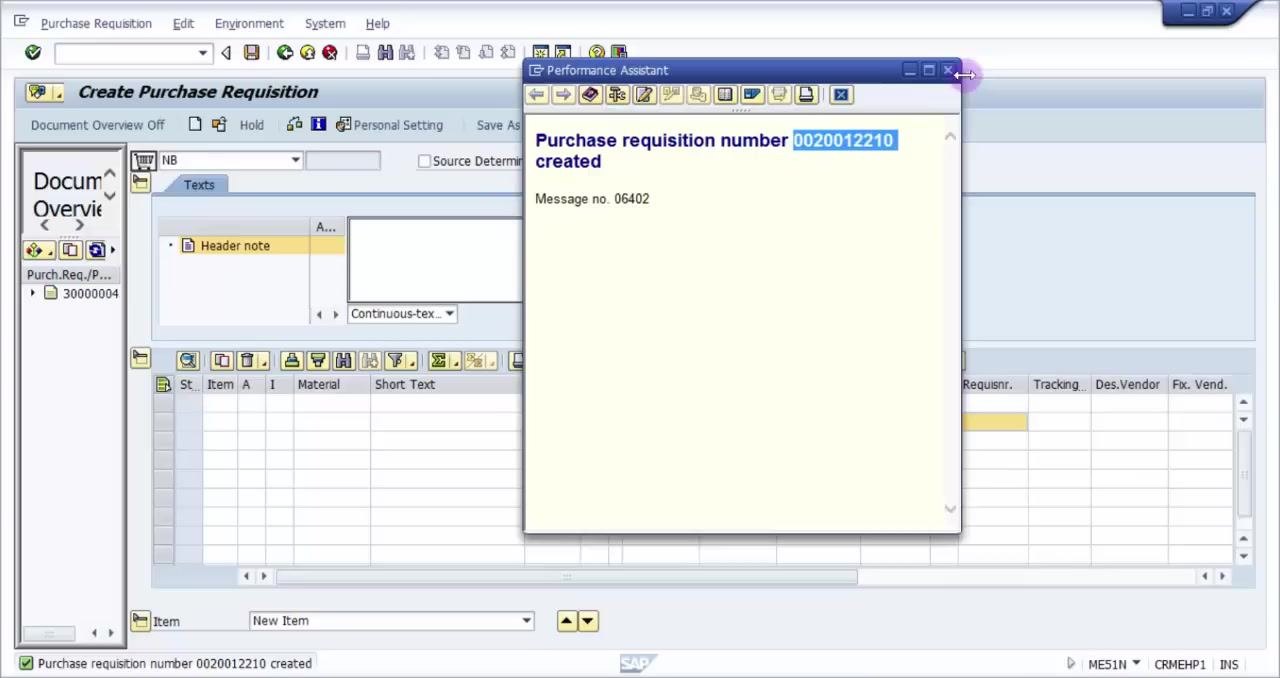
Click the Save icon (diskette) in the toolbar to save your purchase requisition. Wait for the confirmation message indicating that the purchase requisition has been created.
Record the purchase requisition number
After saving, SAP displays a confirmation window with the newly created purchase requisition number, for example "Purchase requisition number 0020012210 created" (Message no. 06402). Record this number for your records or for further processing.
Verify the purchase requisition in ME53N
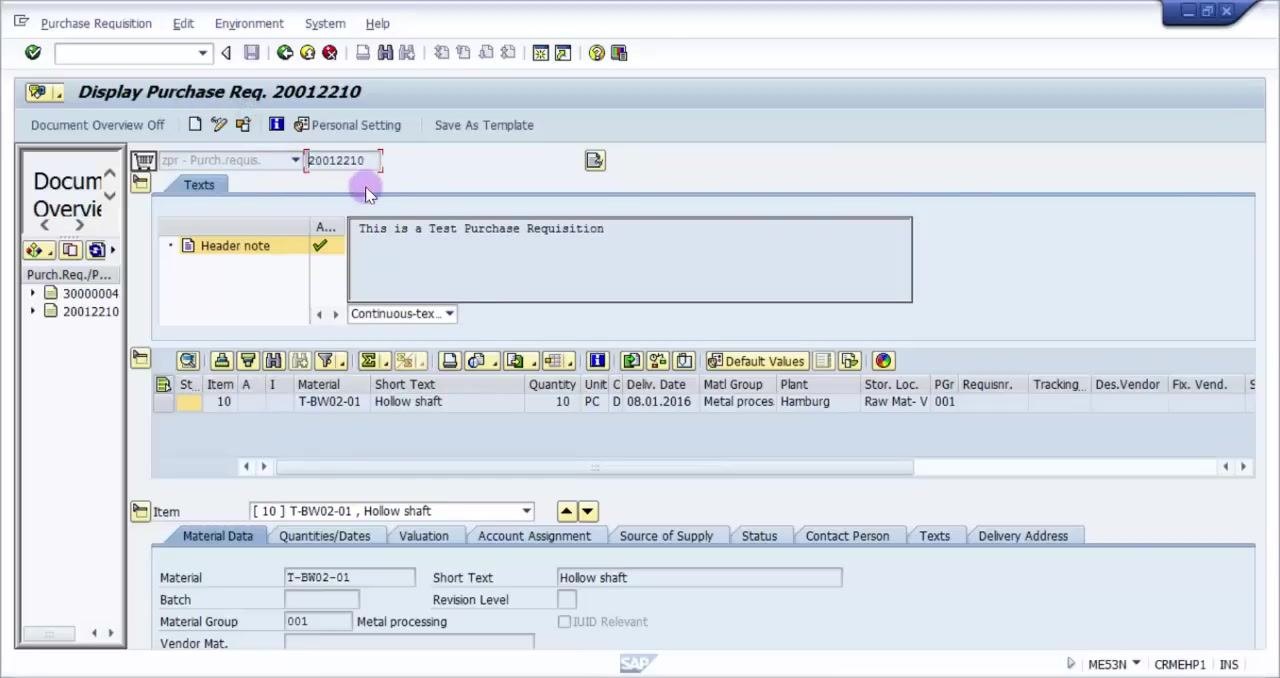
Navigate to transaction ME53N to display purchase requisitions. On the Display Purchase Req. screen, enter the purchase requisition number you recorded (for example, 0020012210). In the Document Overview panel on the left, find and select this number; the main panel updates to show the details of the selected requisition.
Review the purchase requisition details
Confirm that all entered details match your original entry:
- Header Note: e.g., "This is a Test Purchase Requisition"
- Material:
T-BW02-01 - Short Text:
Hollow shaft - Quantity:
10 - Unit:
PC - Delivery Date:
08.01.2016 - Material Group:
001(Metal processing) - Plant:
Hamburg - Storage Location:
Raw Mat- V - PGr:
001
Check additional item data
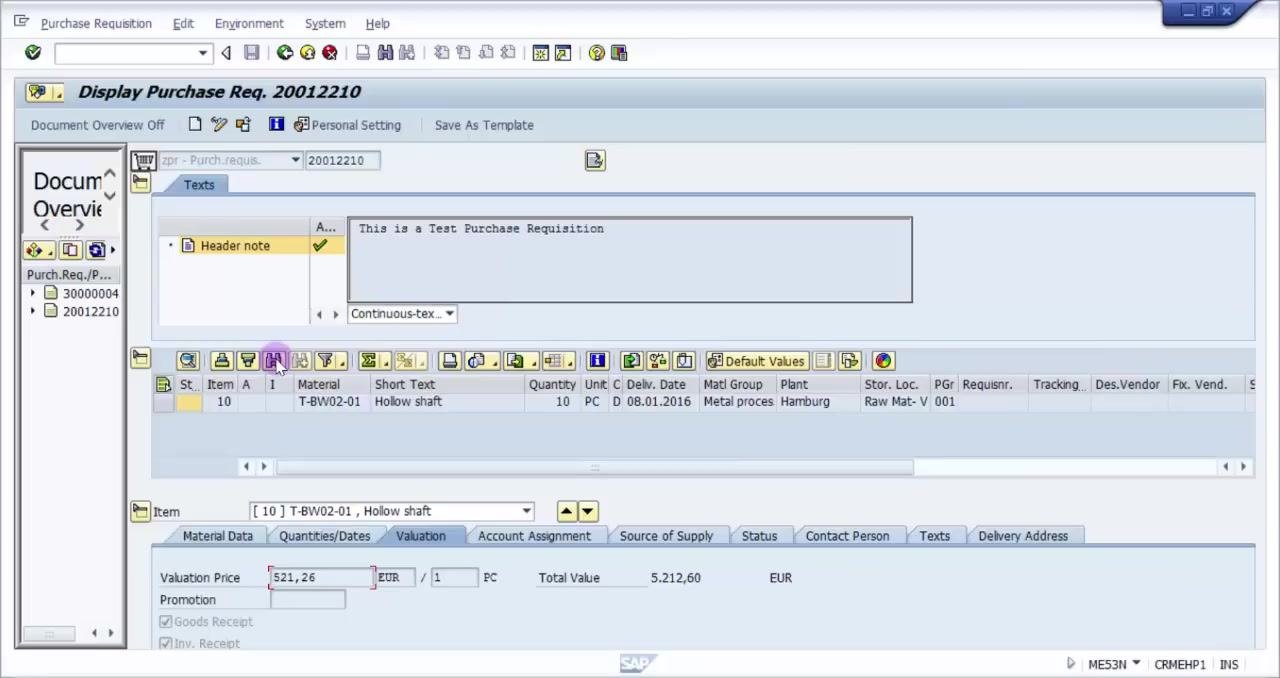
Review the lower section tabs for further confirmation:
- Material Data confirms the material and short text.
- Quantities/Dates shows the quantity, delivery date, request date, and release date.
- Valuation displays the valuation price and total value — for example, Valuation Price
521,26 EURand Total Value5.212,60 EUR.
Ensure all values match what you expect.
What's next
Once your purchase requisition is created and verified, you can:
- Create a purchase order from the purchase requisition.
- Release the purchase requisition if a release strategy is in place for your organization.
The exact next step depends on your organization's procurement process.
Generation details: cost, quality tiers
Docsie billed 2,500 credits ($1.75) to analyze this 5-minute video at standard quality. The rewrite, template fill and Word/PDF exports were included. The same video at each quality tier:
| Quality | Frames sampled | Credits | Approx. cost |
|---|---|---|---|
| Draft | every 16-30 s | 1,250 | $0.88 |
| Standard (this guide) | every 8-15 s | 2,500 | $1.75 |
| Detailed | every 4-7 s | 5,000 | $3.50 |
| Ultra | every 1-3 s | 10,000 | $7.00 |
Credits priced at $0.70 per 1,000; plans include a monthly allowance. Enterprise customers on on-premise or bring-your-own-model deployments run this on their own inference and pay no per-video credits.
Generated by Docsie Video-to-Docs on 2026-10-01 from a 4-minute video. Screenshots are frames from the source video and belong to their creator, BHUPAL REDDY, whose original is embedded above. If you own this video and want the guide removed or credited differently, contact us and we will act within one business day.