
How to Create a Condition Record in SAP VK11
In SAP SD, sales condition records control how the system calculates prices, additional charges, and tax during sales order processing. This guide shows you how to create a condition record in SAP SD using VK11, how to display existing records with VK13, and how to update them afterward with VK12, so your sales orders always pick up the correct values automatically.
Video: SAP Create sales condition records VK11 by Zafar Karnalkar. All credit for the demonstration goes to the creator; watch the original on YouTube. The written guide below was generated from this video by Docsie. Creator? Request a change or removal.
In SAP SD, sales condition records control how the system calculates prices, additional charges, and tax during sales order processing. This guide shows you how to create a condition record in SAP SD using VK11, how to display existing records with VK13, and how to update them afterward with VK12, so your sales orders always pick up the correct values automatically.
Prerequisites
- Access to transaction codes VK11 (Create Condition Records), VK12 (Change Condition Records), and VK13 (Display Condition Records).
- Basic familiarity with the sales document flow: sales order → delivery → invoice, since condition records directly affect the pricing shown at each stage.
- Even as a web consultant, understanding these transactions is useful for testing and validating pricing scenarios.
Overview of sales condition record transactions
- SAP manages sales condition records through three transactions: VK11 to create them, VK12 to change them, and VK13 to display them. These condition records let the system determine prices and charges automatically during sales order processing.
Reviewing pricing in an existing sales order
- Open the document flow for a previously created sales order (for example, order NAV153). The flow shows the sequence Sales Order → Delivery → Invoice, along with the status and date of each document.
-
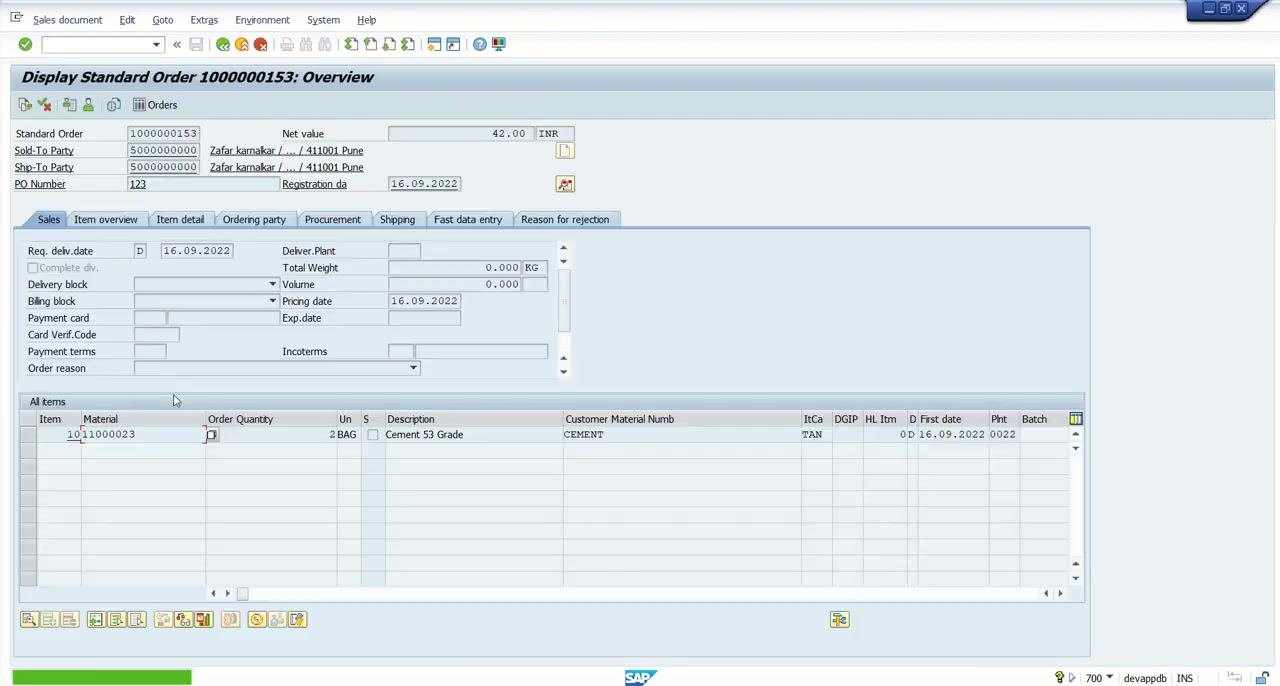
Open the sales order overview. Notice that the system has already determined pricing conditions automatically, including ZBAS (Sales Price), ZADD (Additional Charges, for example 5%), and the applicable tax percentage. These values are fetched based on the condition records already maintained in the system.
-
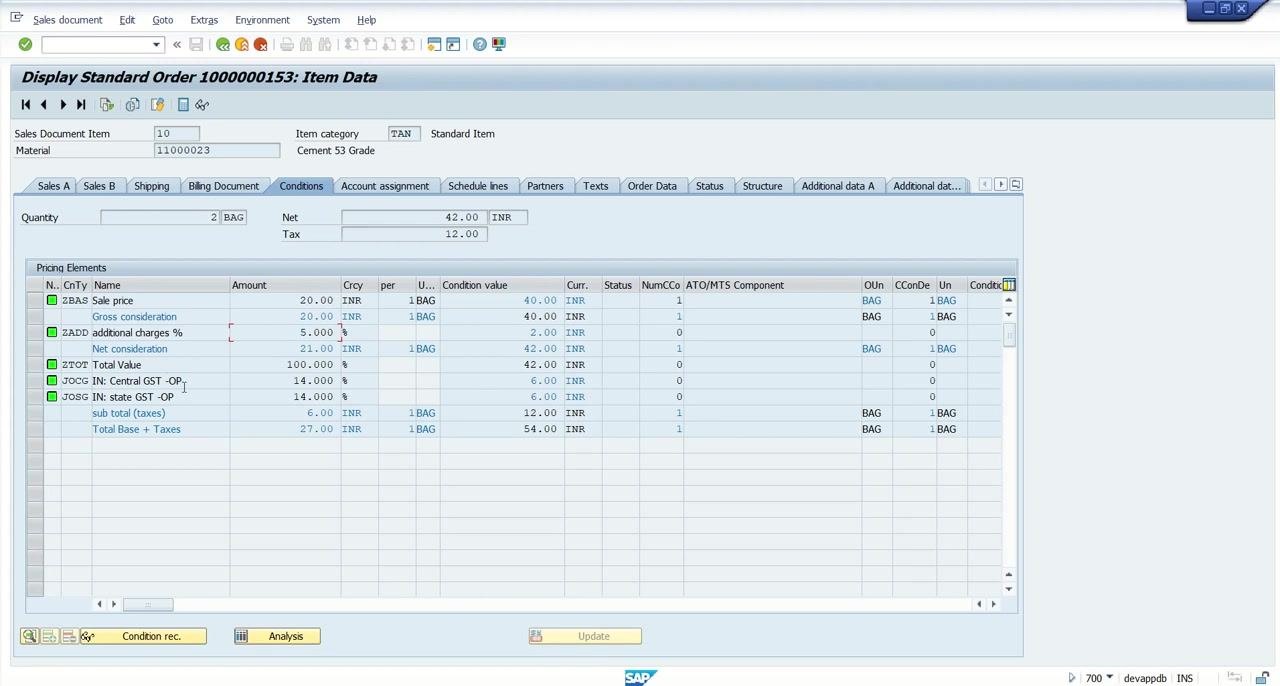
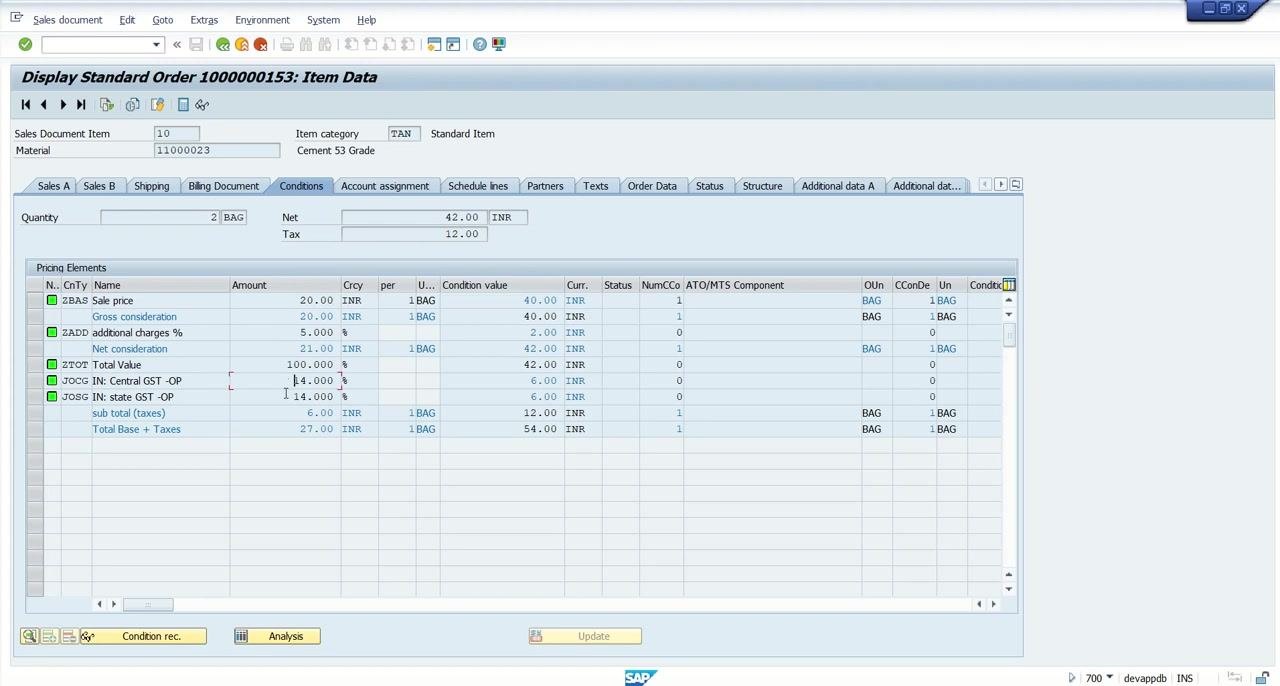
Review the item data to see the detailed pricing breakdown: ZBAS (for example, 20.00 INR per BAG, totaling 40.00 INR for 2 BAGs), ZADD (for example, 2.00 INR), net consideration, total value, and the tax breakdown for Central GST and State GST. The system calculates the net and tax values automatically based on the maintained conditions.
Displaying a condition record with VK13
- Open VK13 (Display Condition Records) and enter the condition type you want to check, for example ZBAS for Sale Price. A pop-up asks you to choose the key combination for the record, such as Material (price maintained at the material level) or Plant/Ctrl code (price maintained at a more granular level).
- Select Material as the key combination to confirm that, in this example, the price for ZBAS is currently maintained at the material level.
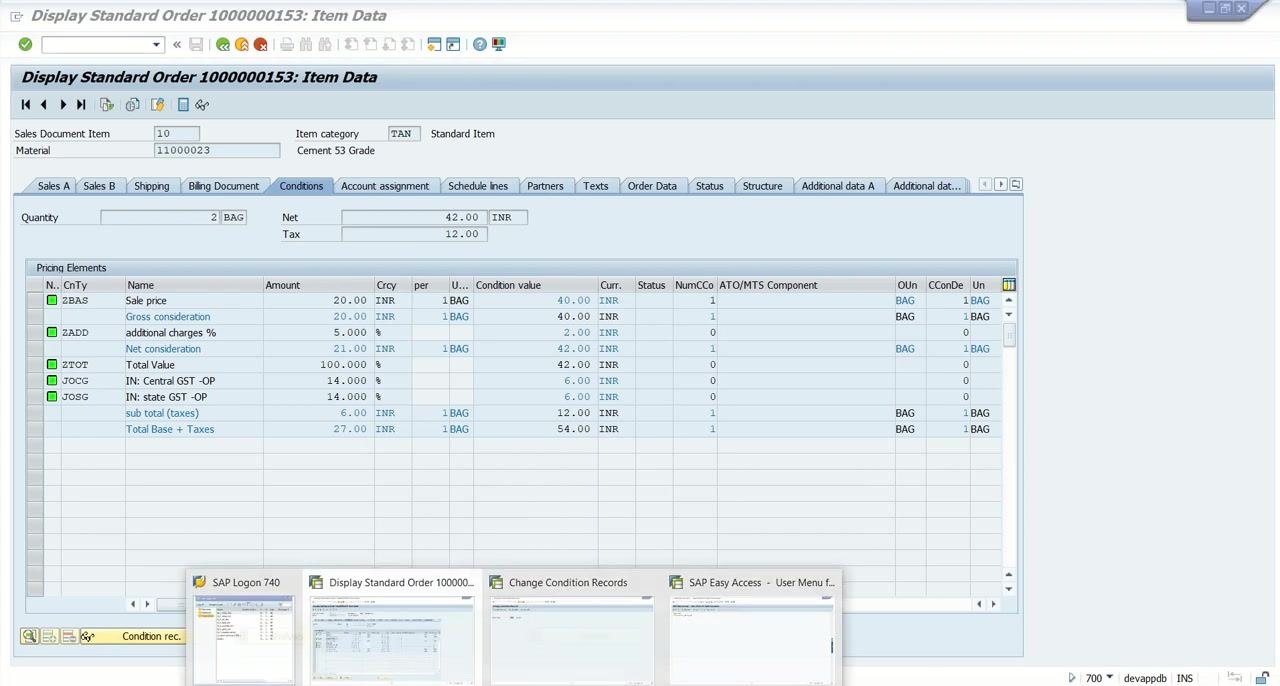
- With the Material radio button selected, press Enter and provide the relevant sales organization and distribution channel when prompted, to display the existing record.
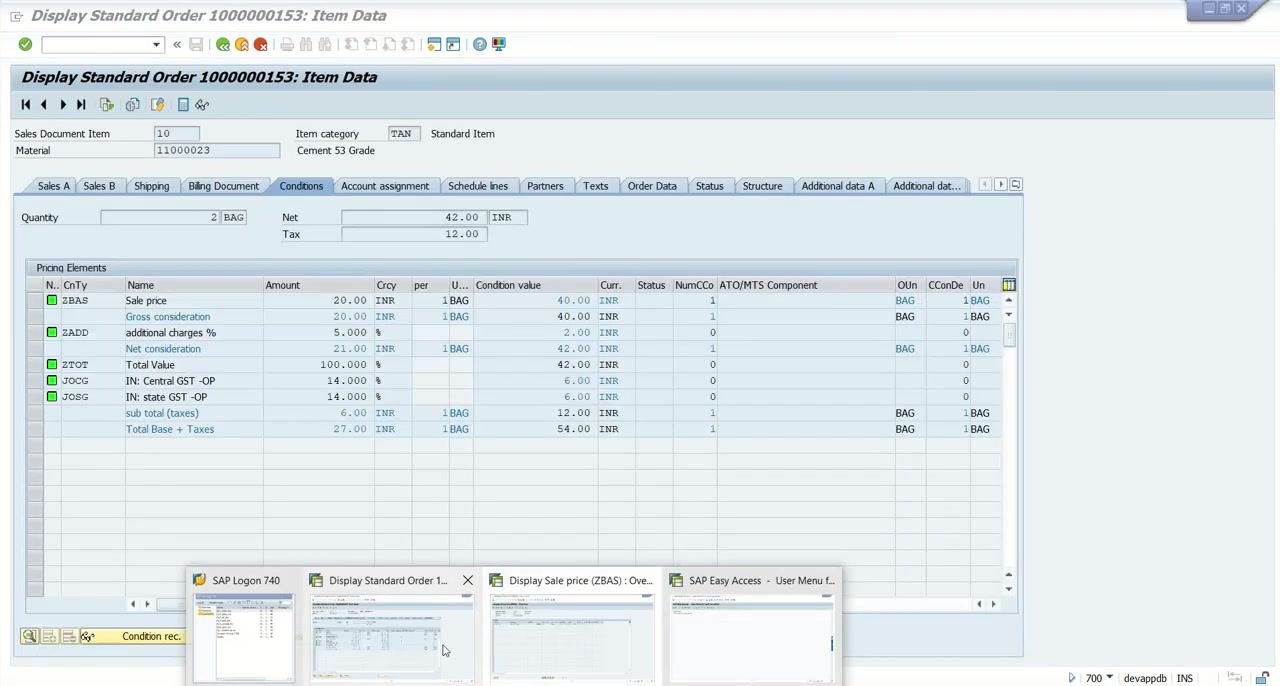
- Confirm the price currently maintained for the material (for example, 20.00 INR per BAG). This is the value the system automatically picks up when a sales order is created.
How to create a condition record in SAP SD VK11
- Open VK11 to create a new condition record, for example to update the sales price. Enter the condition type (ZBAS for Sale Price), click the Key Combination tab, and choose the appropriate option, such as Material or Plant/Ctrl code.
-
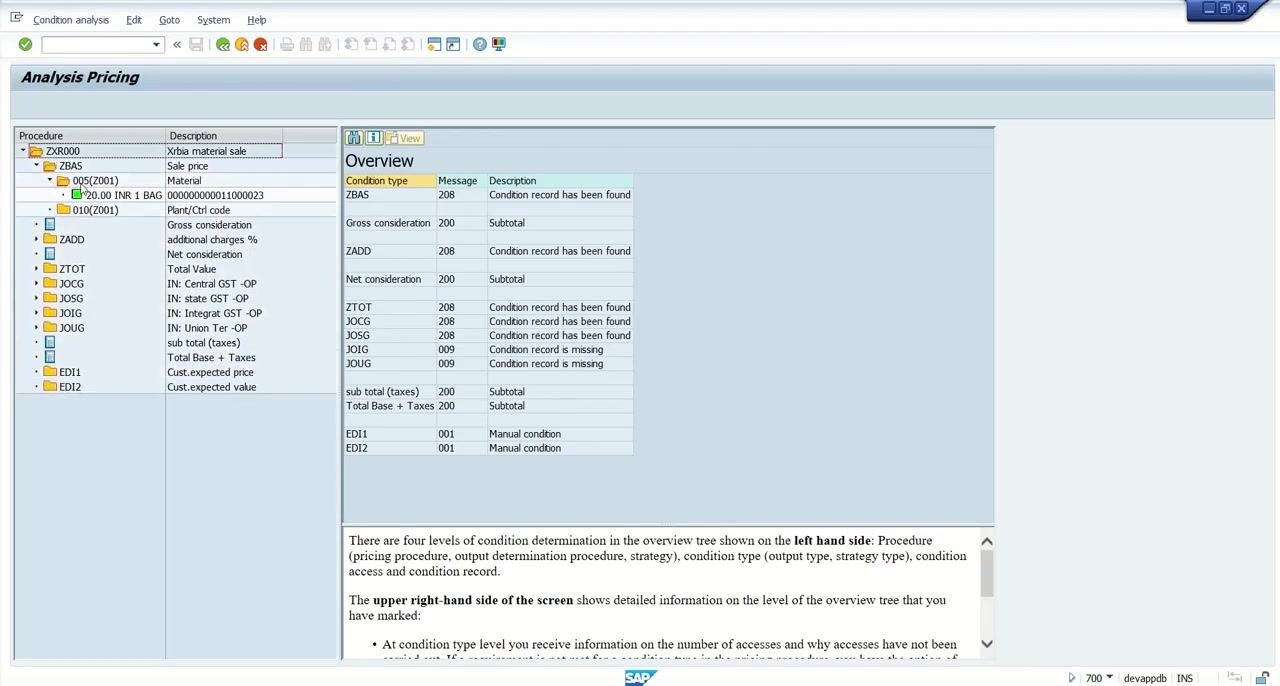
Decide where to maintain the price: at the material level, the system fetches the price based on the material code during sales order processing; at the plant/control code level, it looks for the value at that level instead. You can check how the system determines pricing by clicking Analysis on the sales order item data screen.
-
In the Analysis Pricing screen, expand the procedure and condition type nodes to see where the price is maintained. For example, under ZBAS you may see the price maintained at the material level (20.00 INR for material 11000023). If no record exists at the plant/control code level, the system indicates that the condition record is missing for that combination.
-
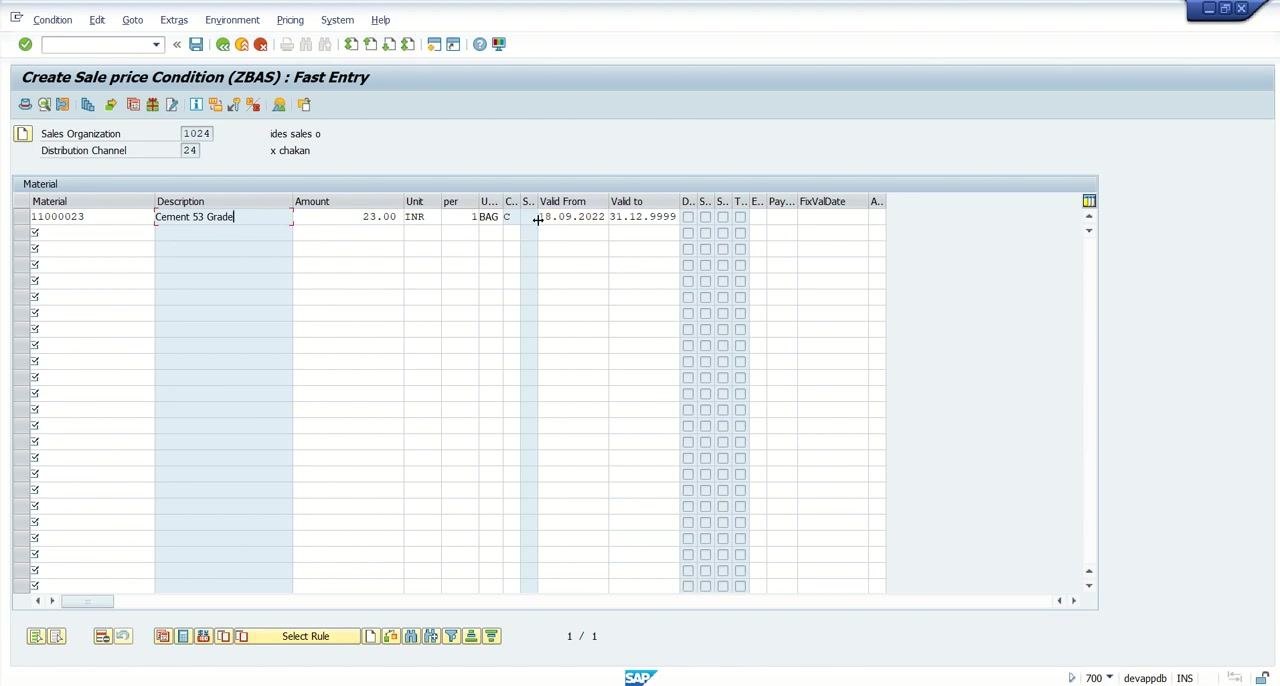
Back in VK11, select Material as the key combination, then enter the sales organization (for example, 1024), distribution channel (for example, 24), and material code (for example, 11000023), followed by the new price you want to maintain (for example, 23.00 INR).
-
Enter the validity period for the new price: in Valid From, enter the start date (for example, 18.09.2022 or a future date in October); in Valid To, enter the end date (for example, 31.12.9999 for indefinite validity). This ensures the new price only applies from the specified date onward.
Creating an additional charges condition record (ZADD)
- To create an additional charges condition record at the sales organization and plant level, open the screen for condition type ZADD. Select the sales organization (for example, 1024) and plant (for example, 0022), enter the charge amount (for example, 7.500%), and set the validity period with Valid From as 18.09.2022 (or the current date) and Valid To as 31.12.9999 for indefinite validity. Save the record once complete.
Verifying the new pricing in a sales order
-
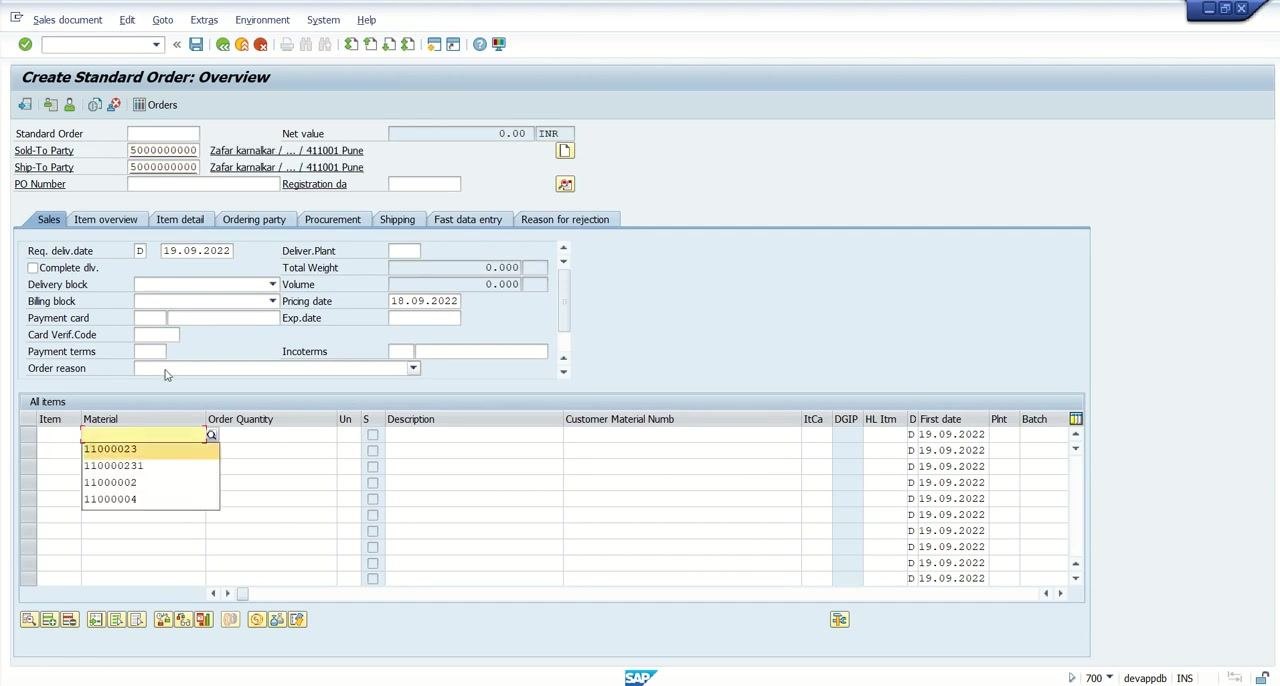
Create a new sales order to confirm the updated pricing and additional charges. Open VA01, enter the order type, sales organization, distribution channel, and division, then press Enter. Enter the Sold-To Party and Ship-To Party details, along with the material code (for example, 11000023) and order quantity (for example, 1 BAG).
-
Double-click the sales order item to open the item data, then go to the Conditions tab. Verify that the new sale price (for example, 23.00 INR) and the additional charges (for example, 7.500%) are applied correctly, along with the breakdown of ZBAS, ZADD, and the calculated net consideration.
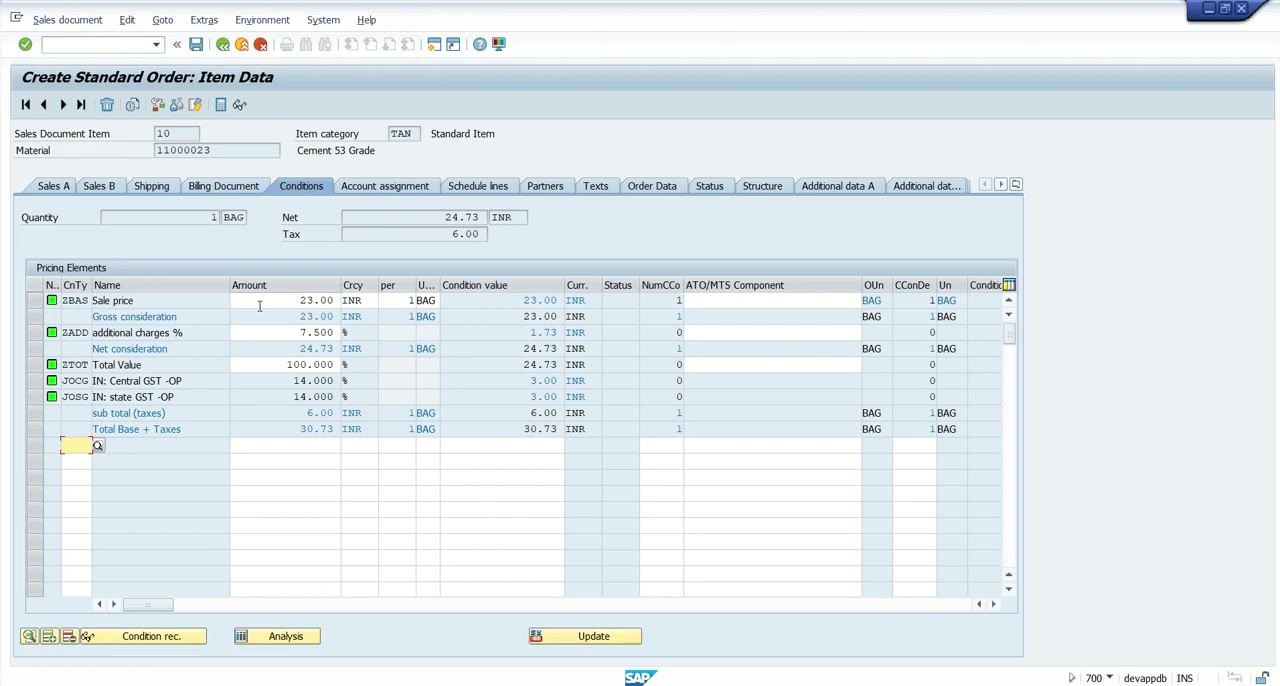
- Check which condition types you can edit directly. Types such as ZBAS and ZADD are editable in the sales order Conditions tab, while others, such as JOCG, are not editable because this behavior is controlled by the configuration of the condition type.
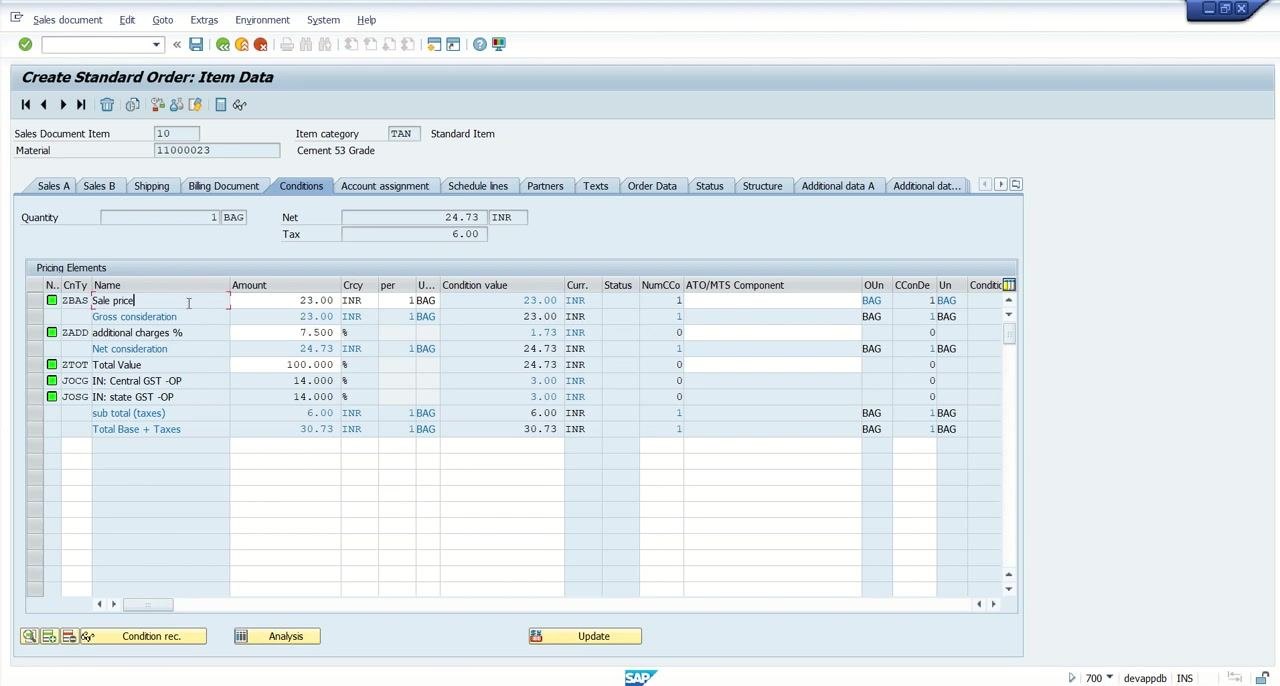
- Save the sales order once you have verified all pricing and condition details.
Modifying a condition record with VK12
-
To update a condition record you previously created with VK11, open VK12, select the same condition type, and locate the existing record. Make the necessary changes, such as updating the amount or validity period, and save the updated record.
-
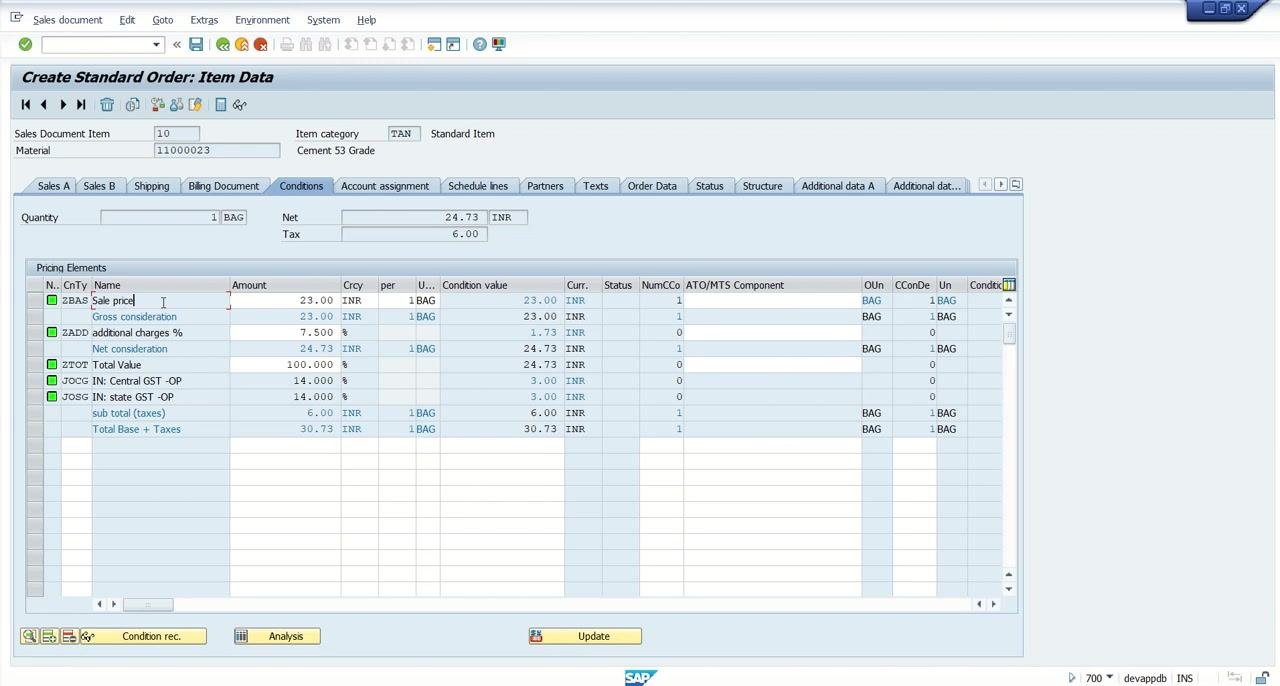
Open the sales order item data screen again and go to the Conditions tab to confirm that your changes are reflected in the pricing breakdown, including the updated values for ZBAS, ZADD, and any other relevant condition types.
What's next
With condition records maintained through VK11, VK12, and VK13, your sales orders will automatically pick up the correct prices, additional charges, and tax values. Whether a condition type is editable directly in the sales order depends on its configuration, which determines how flexible pricing can be at the time of order entry.
Generation details: cost, quality tiers
Docsie billed 3,000 credits ($2.10) to analyze this 6-minute video at standard quality. The rewrite, template fill and Word/PDF exports were included. The same video at each quality tier:
| Quality | Frames sampled | Credits | Approx. cost |
|---|---|---|---|
| Draft | every 16-30 s | 1,500 | $1.05 |
| Standard (this guide) | every 8-15 s | 3,000 | $2.10 |
| Detailed | every 4-7 s | 6,000 | $4.20 |
| Ultra | every 1-3 s | 12,000 | $8.40 |
Credits priced at $0.70 per 1,000; plans include a monthly allowance. Enterprise customers on on-premise or bring-your-own-model deployments run this on their own inference and pay no per-video credits.
Generated by Docsie Video-to-Docs on 2026-10-01 from a 5-minute video. Screenshots are frames from the source video and belong to their creator, Zafar Karnalkar, whose original is embedded above. If you own this video and want the guide removed or credited differently, contact us and we will act within one business day.