
How to Open a GL Period in Oracle Fusion
This guide walks you through how to open a GL period in Oracle Fusion Applications Cloud. You'll use the Period Close dashboard and the Manage Accounting Periods task to open the General Ledger period for your ledger, then verify that the period status updates correctly across all subledgers.
Video: How to open GL Period in Oracle Fusion Cloud General Ledger? (on Release 21A) by GudPal Training. All credit for the demonstration goes to the creator; watch the original on YouTube. The written guide below was generated from this video by Docsie. Creator? Request a change or removal.
This guide walks you through how to open a GL period in Oracle Fusion Applications Cloud. You'll use the Period Close dashboard and the Manage Accounting Periods task to open the General Ledger period for your ledger, then verify that the period status updates correctly across all subledgers.
Prerequisites
- Access to Oracle Fusion Applications Cloud with valid credentials.
- A role with Financial Implementer privileges, since this task requires access to General Accounting and period close functions.
Steps to open a GL period
Sign in to Oracle Fusion Applications Cloud
Log in using your credentials, making sure you're signed in with a role that has financial implementer privileges. This access level is required to manage accounting periods.
Review the main dashboard
After logging in, the main dashboard appears with a welcome message and quick action tiles. This is your starting point for navigating to the General Accounting modules.
Go to General Accounting > Period Close
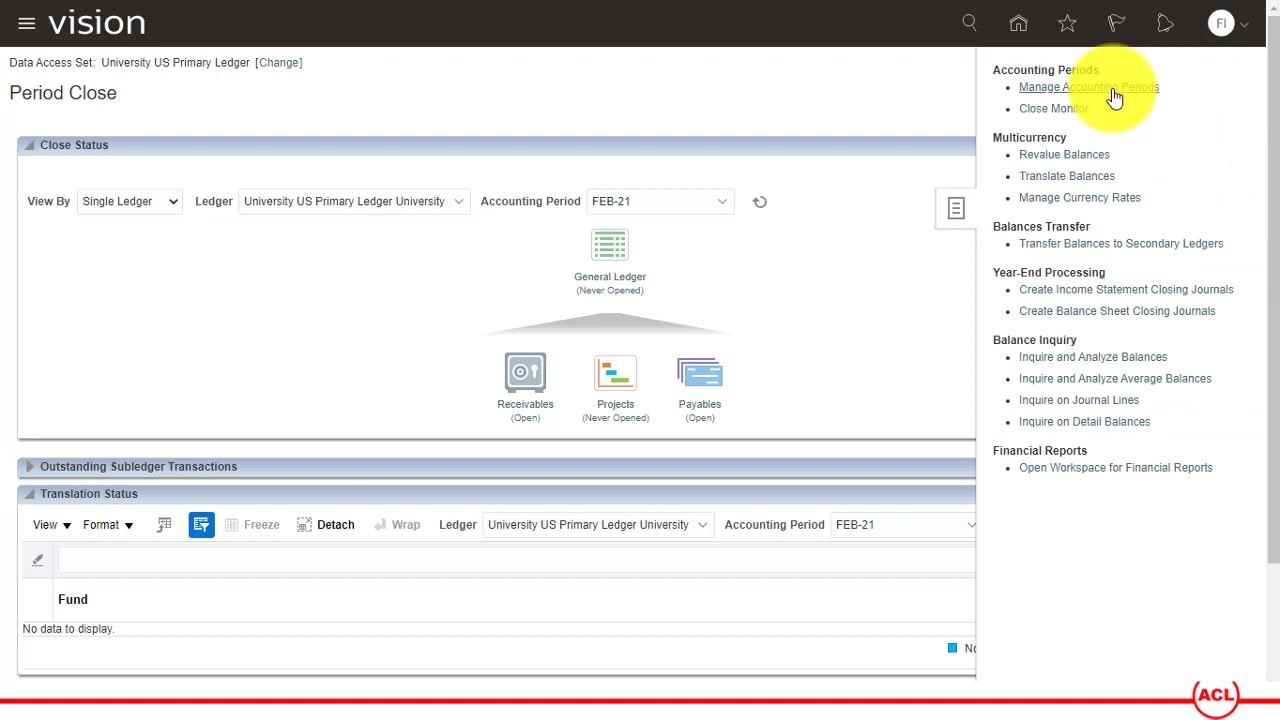
Scroll down in the Navigator and select Period Close under General Accounting. This opens the Period Close dashboard, which shows the status of each subledger—Receivables, Projects, Payables, and General Ledger—for the currently selected accounting period. For example, the General Ledger status might show "Never Opened" while Payables and Receivables show "Open."
Open Manage Accounting Periods
You can click directly on the General Ledger status, or use the Task menu on the sidebar. From the Task menu, select Manage Accounting Periods under the Accounting Periods section.
Select the ledger and period
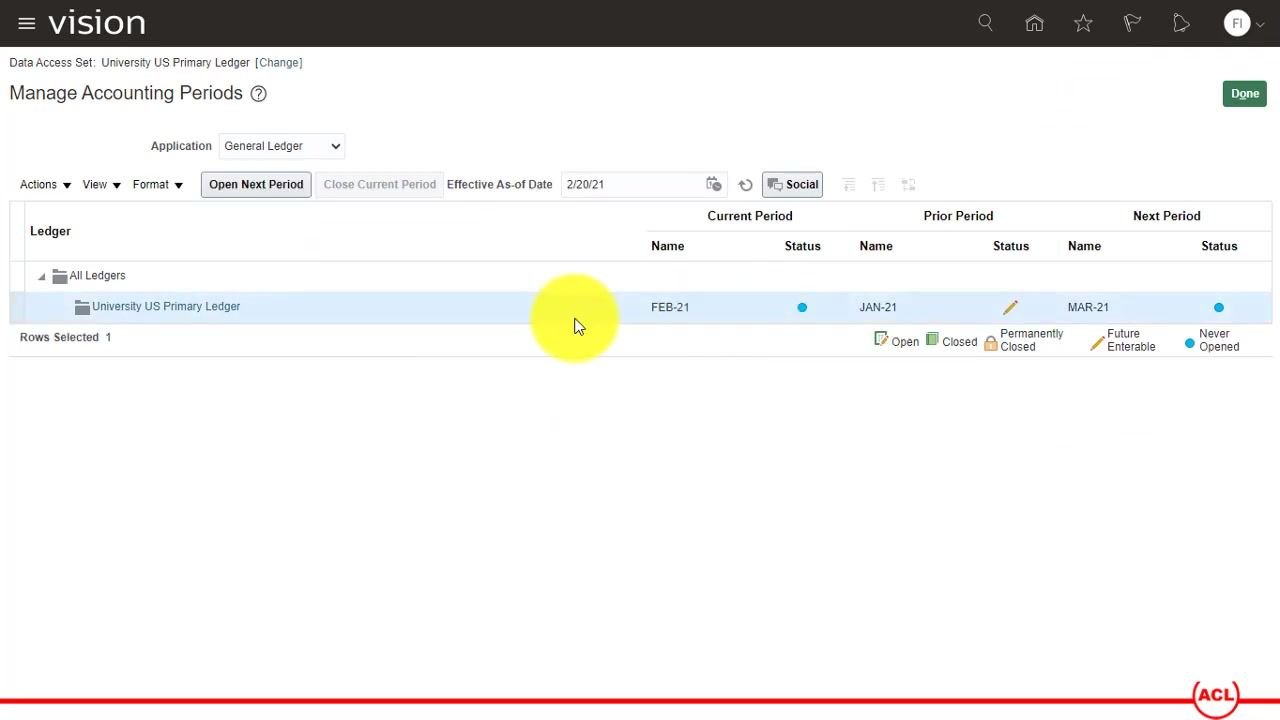
On the Manage Accounting Periods screen, confirm that the Application field is set to General Ledger. Locate your ledger (for example, University US Primary Ledger) and find the current period in the list, which may show a status of "Never Opened." Click the row for the period you want to open—the Open Next Period button becomes enabled once you do.
Open the next period
Click Open Next Period. A warning dialog appears, stating: "This action will open periods up to the target period, including earlier periods that were previously not ever opened. Do you want to continue?" Click Yes to proceed.
Confirm process submission
The system submits a process to open the period. Wait for a confirmation message showing the process number before continuing.
Monitor the background request
The request to open the period runs in the background. A confirmation message appears at the top of the Manage Accounting Periods screen—for example, "Your process 391708 has been submitted. (ID: 780975)." You can check the request status later by navigating to another form and returning to this screen.
Return to the Period Close dashboard
Minimize or close any open forms, then navigate back to Period Close under General Accounting. Confirm that the General Ledger status has changed from "Never Opened" to "Open" for the selected period. The dashboard reflects the updated status for all subledgers.
Navigate back using the Navigator menu
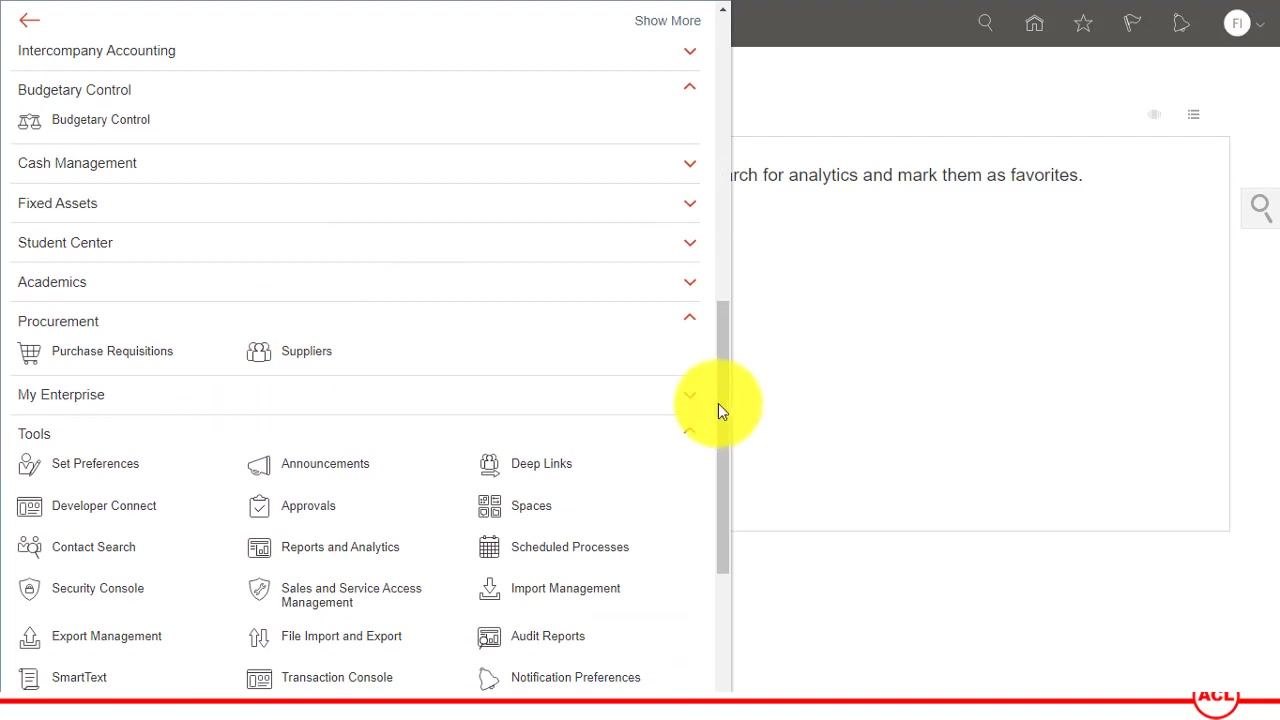
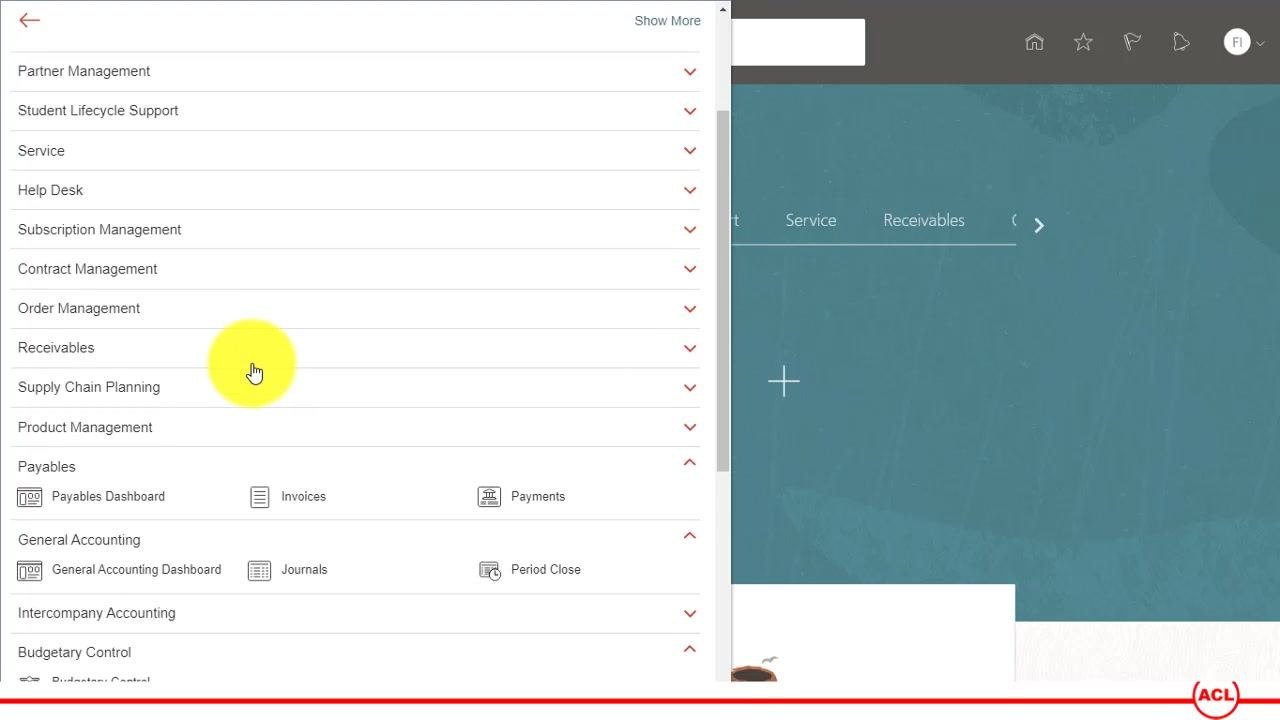
If you need to return to Period Close or Manage Accounting Periods, use the Navigator menu again. It includes sections such as Intercompany Accounting, Budgetary Control, Cash Management, Fixed Assets, Student Center, Academics, Procurement, My Enterprise, Tools, Configuration, Collections, and others. Use the scroll bar or navigation arrows to locate General Accounting and Period Close.
Verify all periods are opened up to the present
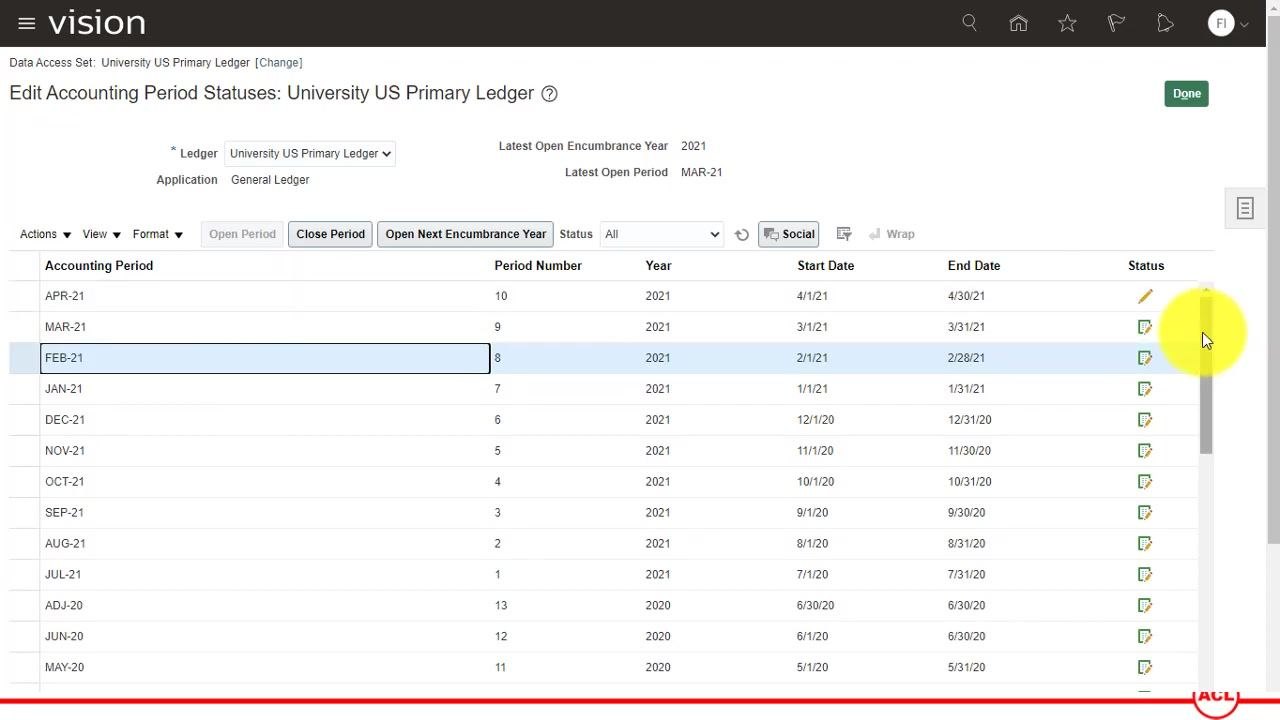
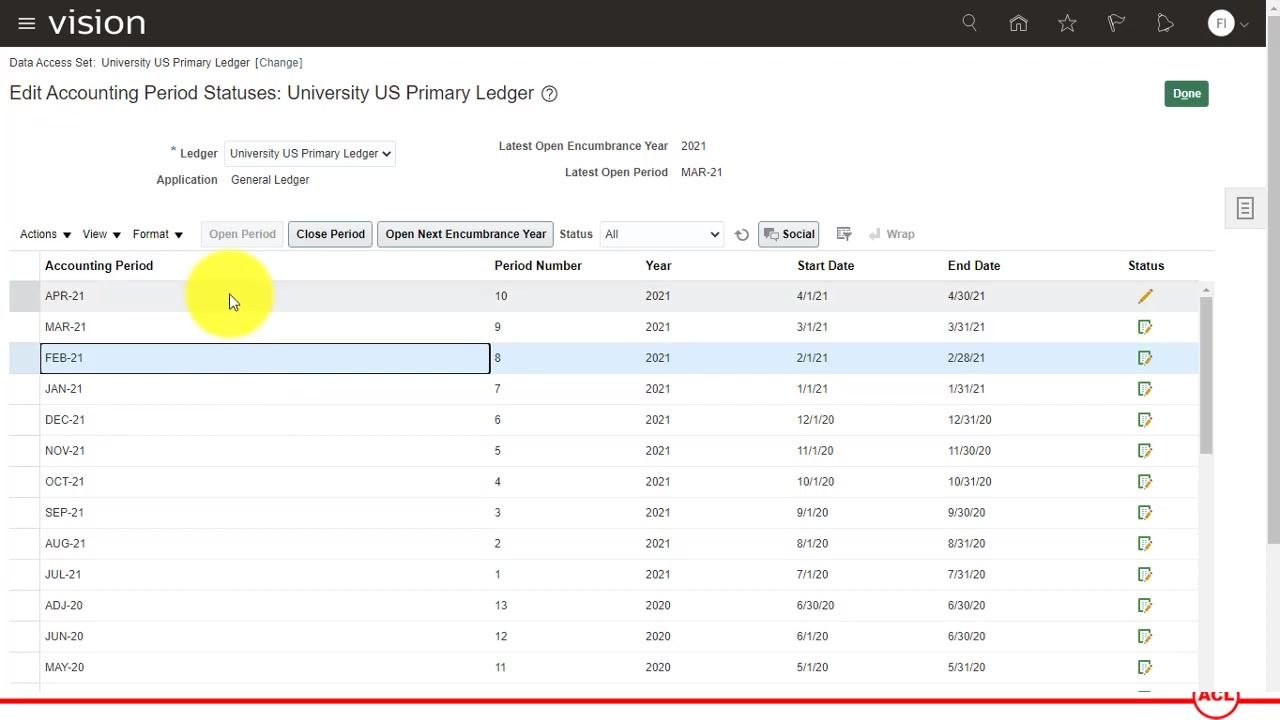
On the Edit Accounting Period Statuses screen for your ledger, review the list of accounting periods. Confirm that all periods up to the present (for example, FEB-21 and MAR-21) now show a status of "open." The Latest Open Period field at the top reflects the most recently opened period.
Understand future period status
The period following the most recently opened one (for example, APR-21) is marked as "Future Enterable." This means it isn't open for transactions yet, but it's available for future entry.
Confirm the Close Period option is available
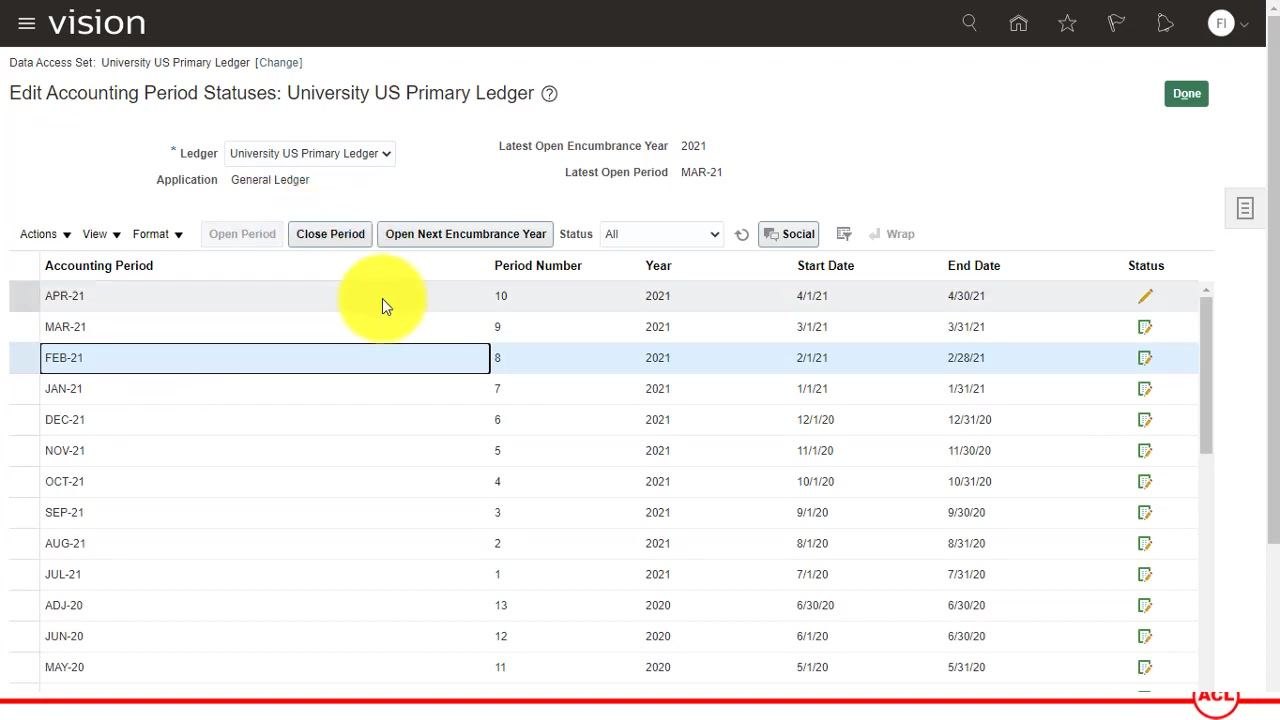
Once a period is open, the Close Period button becomes enabled for that period. You can use this option later to close the period once your accounting activities are complete.
Summary
By following these steps, you've successfully opened a General Ledger period in Oracle Fusion Applications Cloud and verified that period statuses updated correctly across all subledgers. The ledger now shows the correct open period, and the next period is available as "Future Enterable" for upcoming transactions.
What's next
With the period open, you can proceed with your regular accounting activities for that period. When those activities are complete, return to the Edit Accounting Period Statuses screen and use the Close Period button to close it.
Generation details: cost, quality tiers
Docsie billed 2,000 credits ($1.40) to analyze this 4-minute video at standard quality. The rewrite, template fill and Word/PDF exports were included. The same video at each quality tier:
| Quality | Frames sampled | Credits | Approx. cost |
|---|---|---|---|
| Draft | every 16-30 s | 1,000 | $0.70 |
| Standard (this guide) | every 8-15 s | 2,000 | $1.40 |
| Detailed | every 4-7 s | 4,000 | $2.80 |
| Ultra | every 1-3 s | 8,000 | $5.60 |
Credits priced at $0.70 per 1,000; plans include a monthly allowance. Enterprise customers on on-premise or bring-your-own-model deployments run this on their own inference and pay no per-video credits.
Generated by Docsie Video-to-Docs on 2026-10-01 from a 3-minute video. Screenshots are frames from the source video and belong to their creator, GudPal Training, whose original is embedded above. If you own this video and want the guide removed or credited differently, contact us and we will act within one business day.