
How to Create a Security Role in Dynamics 365
Security in Dynamics 365 is built around security roles, which control what information each user can see and the actions they can take. This guide walks you through how to create a security role in Dynamics 365, modify an existing role, assign it to a user, and understand how business units affect access.
Video: How to set up security roles in Dynamics 365 by Microsoft Dynamics 365. All credit for the demonstration goes to the creator; watch the original on YouTube. The written guide below was generated from this video by Docsie. Creator? Request a change or removal.
Security in Dynamics 365 is built around security roles, which control what information each user can see and the actions they can take. This guide walks you through how to create a security role in Dynamics 365, modify an existing role, assign it to a user, and understand how business units affect access.
Prerequisites
Before you create or modify a security role, you should understand the following concepts:
- Every user must belong to exactly one business unit, and security roles are created within business units.
- Every user needs at least one security role assigned to be able to log in.
- A security role is a collection of privileges and access levels that you can assign to groups of users, such as all salespeople or all service representatives.
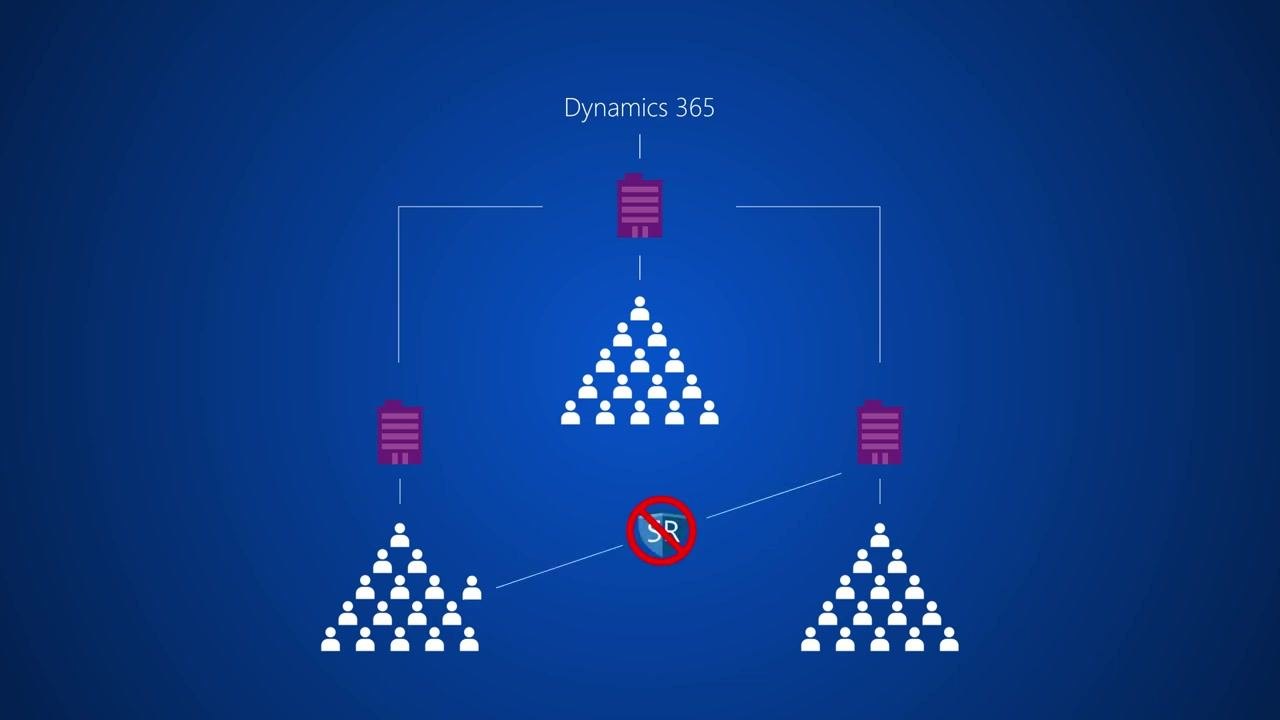
- Teams can cross business unit boundaries, letting users from different departments—such as marketing, sales, and customer service—work together and access the same set of records.

Privileges
Privileges define the actions a user can take on a record:
- Create: Creates a new record.
- Read: Views a record.
- Update: Edits an existing record.
- Append: Attaches related records.
- Append to: Attaches a record to another record.
- Assign: Assigns records to other users.
- Share: Shares records with other users.
- Delete: Deletes records.
Access levels
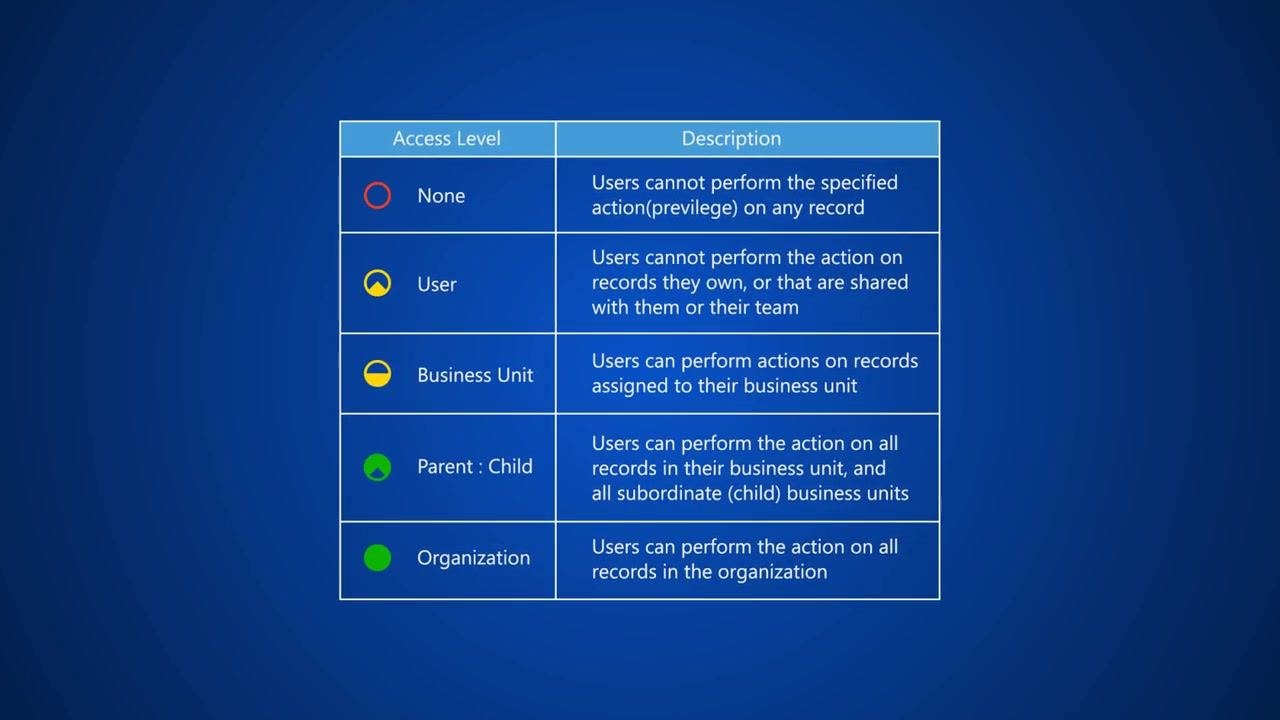
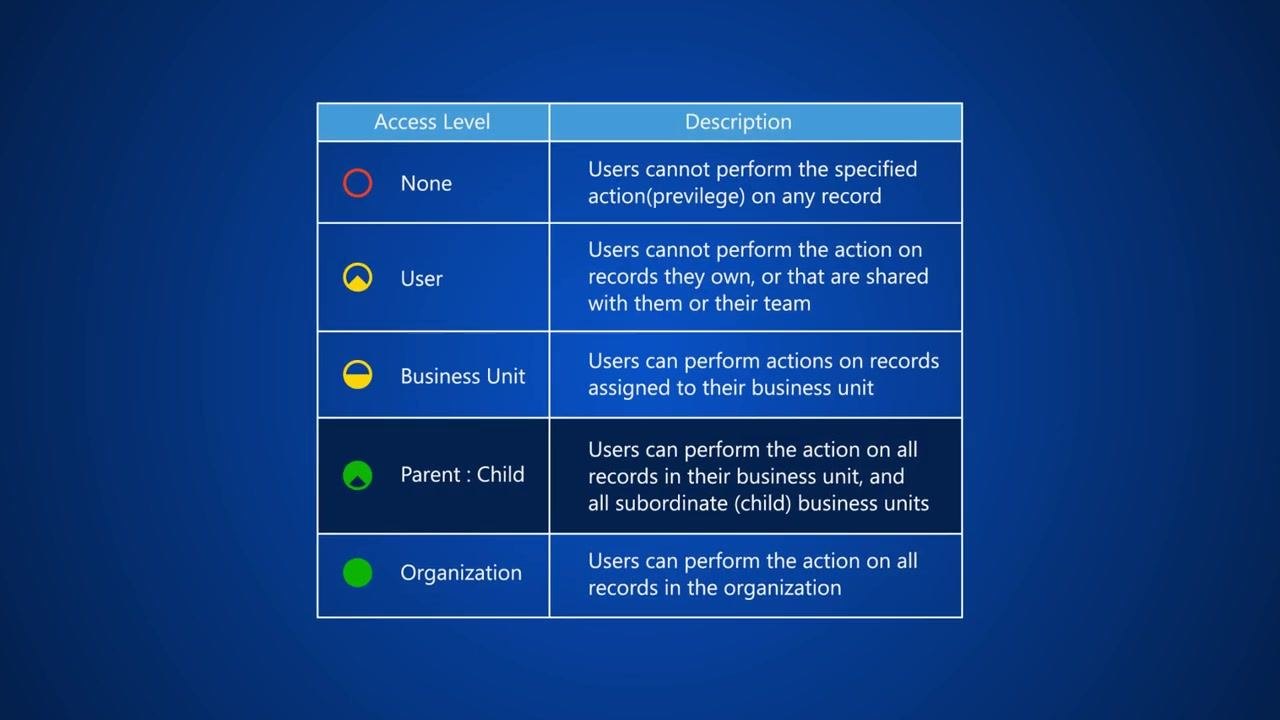
Access levels determine the scope of records a user can act on, from most restrictive to least restrictive:
- None: The user cannot perform the privilege on any record.
- User: The user can perform the action only on records they own or that are shared with them or their team.
- Business Unit: The user can perform the action on records assigned to their business unit.
- Parent: Child: The user can perform the action on all records in their business unit and any subordinate (child) business units.
- Organization: The user can perform the action on all records in the organization.
Review predefined security roles
Dynamics 365 includes many predefined security roles, such as Activity Feeds, CEO-Business Manager, Salesperson, and System Administrator. Use these predefined roles whenever possible to simplify security management. You can also edit an existing role or create a new one if your organization has specific requirements.
Open the Security Roles area
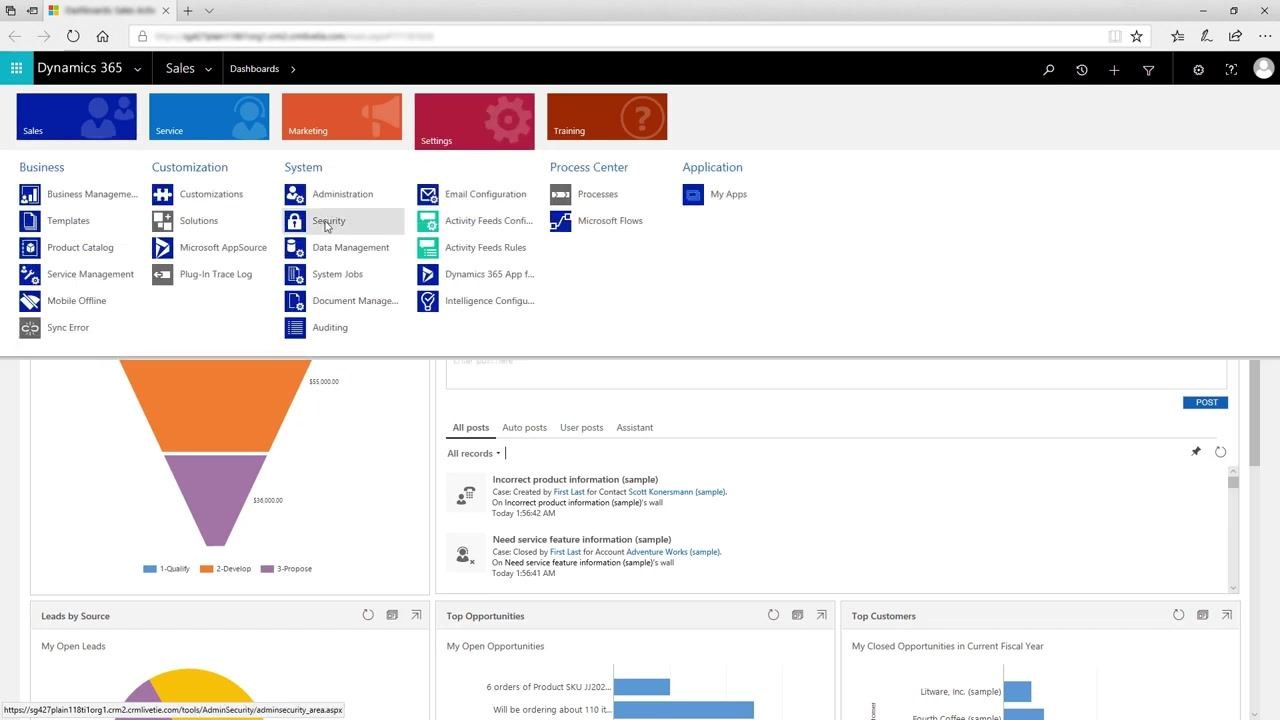
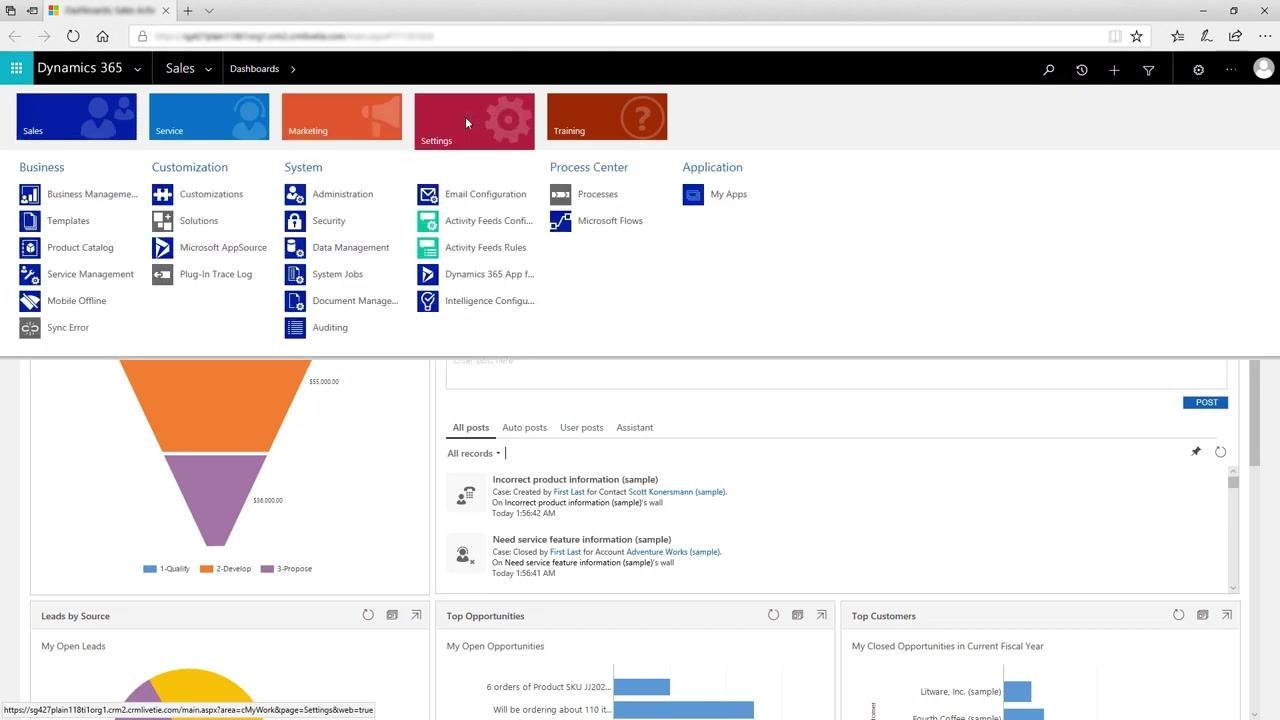
Go to the top menu and select Settings. Under the System section, click Security to access role management.
Select the role to modify
In the Security Roles list, find and select the role you want to work with—for example, the Salesperson role.
Open the role for editing
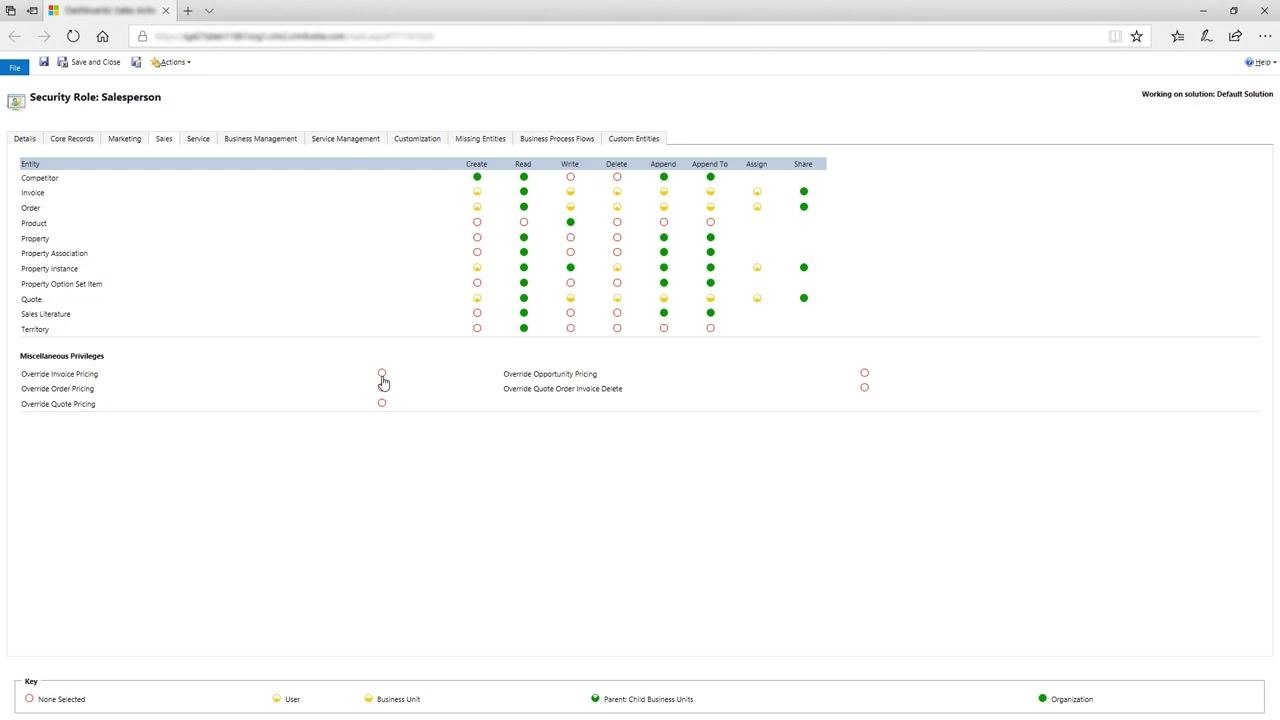
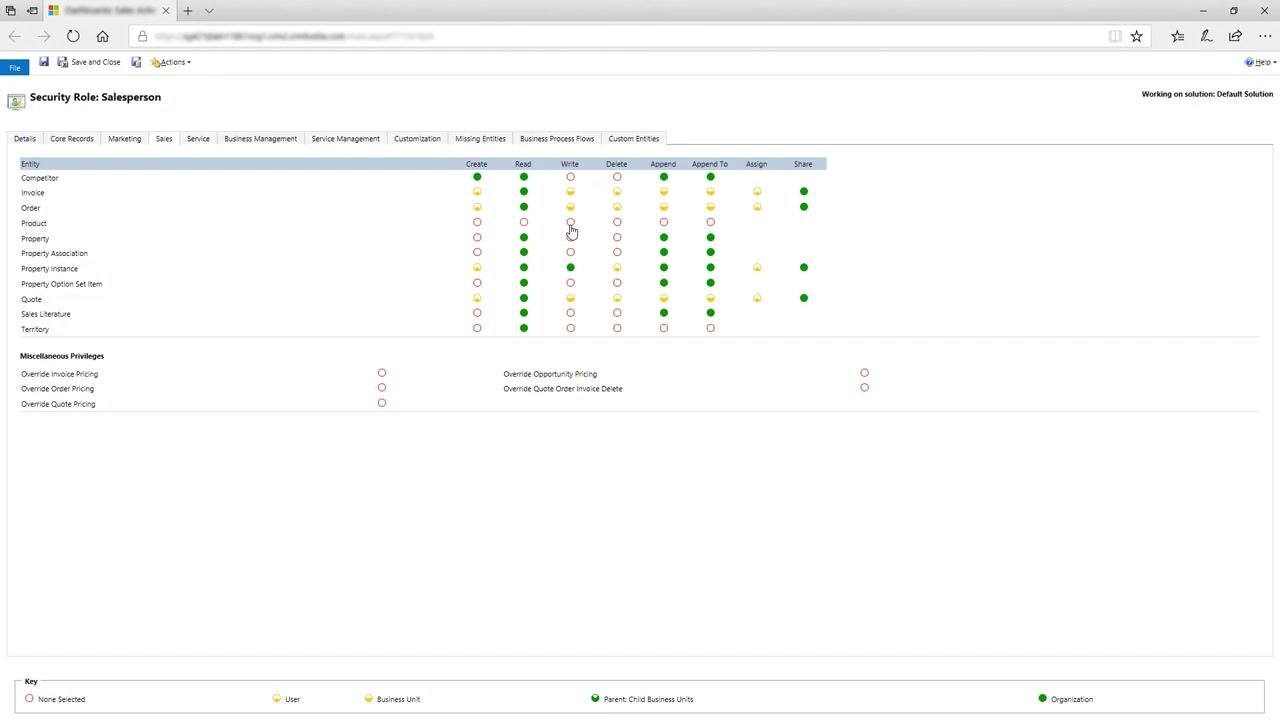
Click the Sales tab to view and modify the privileges related to sales entities. Entities—such as Competitor, Invoice, Order, and Product—are listed in the left column, and privileges (Create, Read, Write, Delete, Append, Append To, Assign, Share) appear as colored circles in columns to the right. The fill and color of each circle indicates the access level, based on the key at the bottom of the screen:
- Empty red circle: None selected
- Yellow circle: User
- Half-yellow circle: Business Unit
- Green circle with triangle: Parent: Child Business Units
- Solid green circle: Organization
Change an access level
To change the record right privilege for the Product entity, locate the Product row and the Write column. Click the circle in that column repeatedly until it displays a solid green circle, indicating Organization access. An empty red circle means salespeople cannot make changes to product records; changing it to green grants them organization-wide write access.
Adjust task-based privileges
Miscellaneous (task-based) privileges appear at the bottom of the screen, such as Override Invoice Pricing and Override Order Pricing. For example, to let salespeople override invoice pricing for all records in their business unit, click the corresponding circle until it displays the half-yellow Business Unit icon.
Save the role
When you have finished making changes, select Save and Close to apply the updates to the security role.
Open the Users list
To assign a security role to a user, go to Settings > Security, then select Users to view the list of users in your organization.
Select the user and open Manage Roles
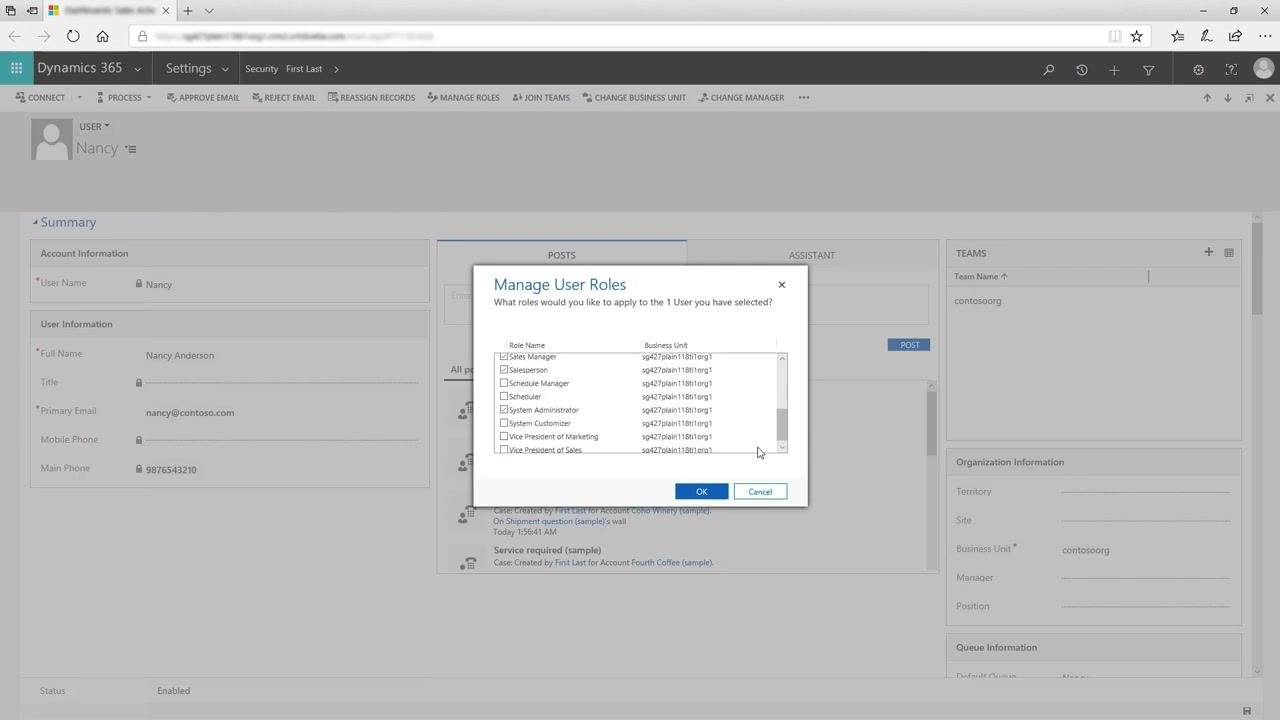
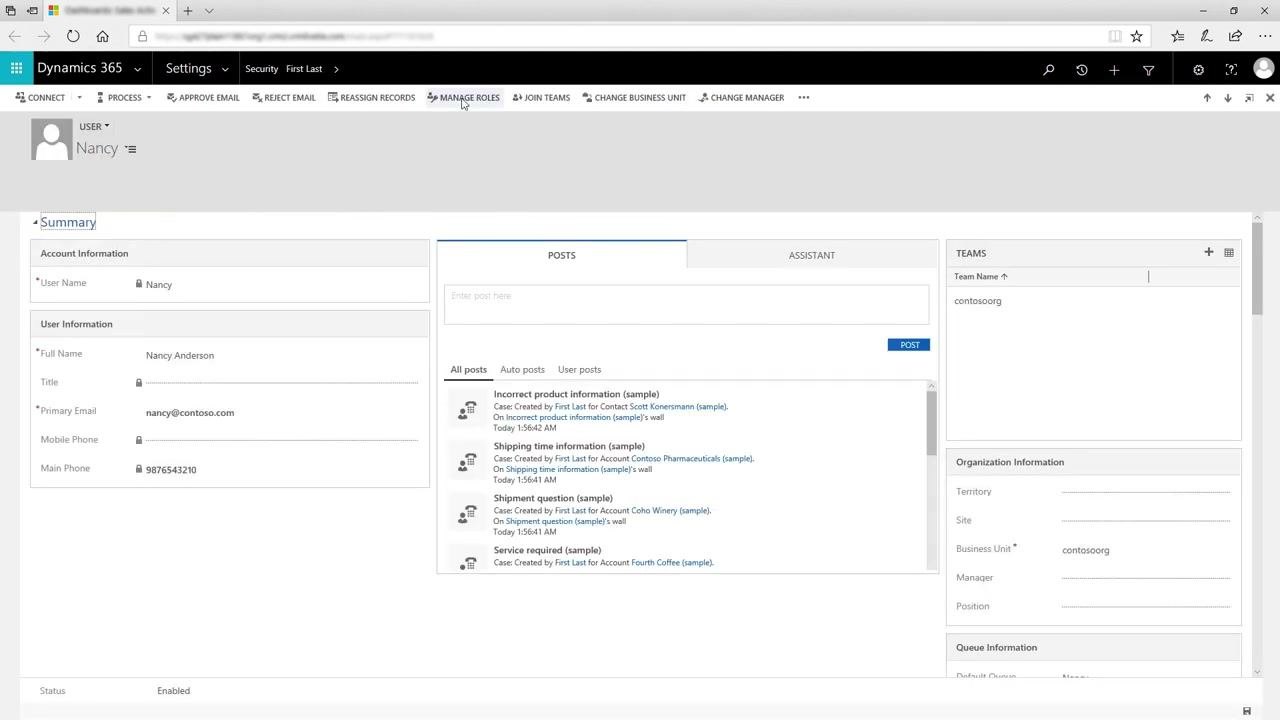
Click the user's name (for example, Nancy) to open their user record. The user summary screen displays account information, user information, posts, teams, and organization information. Click Manage Roles in the command bar at the top of the user record to open the Manage User Roles dialog box.
Select the roles to assign
In the Manage User Roles dialog box, a list of available security roles appears, each associated with a business unit. Check the box next to each role you want to assign—for example, Sales Manager, Salesperson, or System Administrator. Users can have more than one role; when multiple roles are assigned, the role with the broadest permissions overrides those with lesser permissions.
Apply the roles
Click OK to apply the selected roles. The dialog box closes, and the user now has the assigned security roles.
Understanding business units and role assignment
Security roles are created within business units, and every user must belong to one business unit. Dynamics 365 uses business units to differentiate areas of your company that have different security needs. By default, Dynamics 365 creates a root business unit that applies to your entire organization. In smaller organizations, the root business unit may be sufficient for all users.
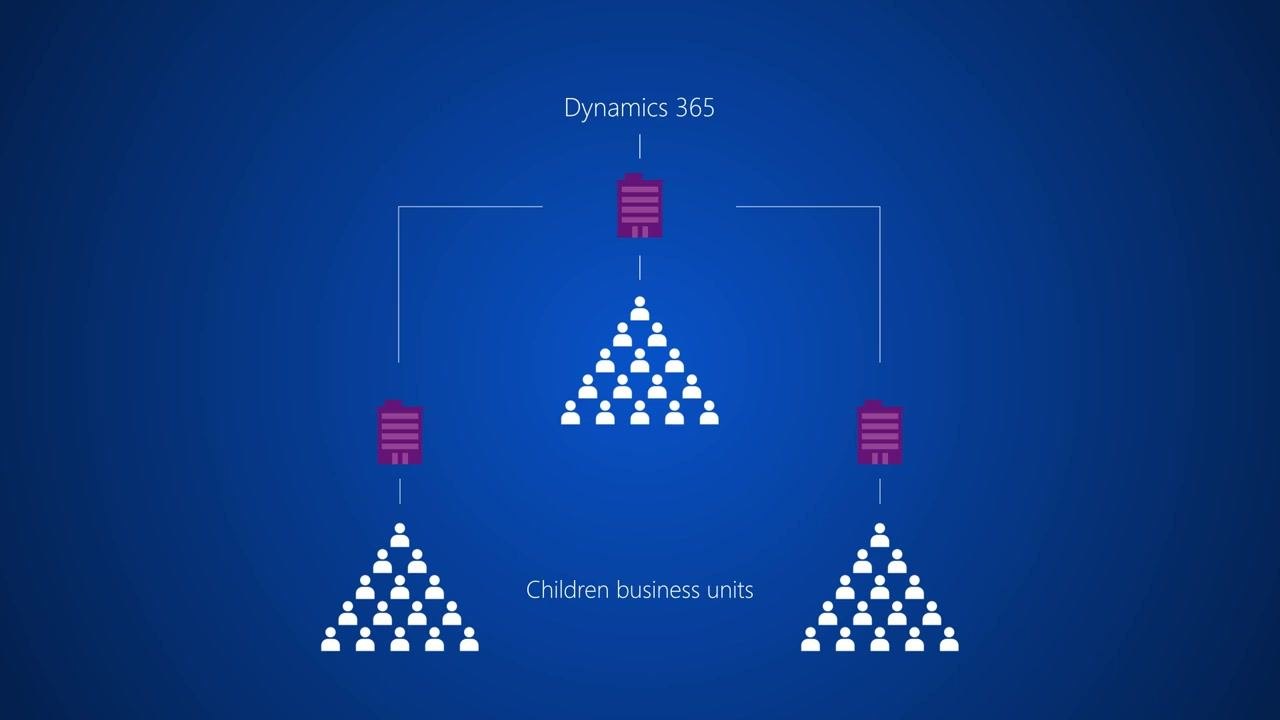
For larger organizations, you can create additional business units by function or geography. These new business units become children of the root business unit, and you can add users and teams to either the root or child business units.
Manage security primarily through security roles, and only create additional business units when necessary. Security roles are specific to the business unit in which they are created. If a user moves from one business unit to another, they lose their assigned security roles and must be assigned at least one role in the new business unit to retain access.
When a user moves between business units, they lose all previously assigned security roles. You must assign the user at least one security role in the new business unit to restore their access, ensuring they only have permissions appropriate to their new organizational context.
What's next
By following these steps, you can create, modify, and assign security roles in Dynamics 365, ensuring users have the correct access to perform their job functions while maintaining data security. For more details on security, security roles, and best practices, refer to the official Microsoft documentation at https://docs.microsoft.com/dynamics365/.
Generation details: cost, quality tiers
Docsie billed 3,000 credits ($2.10) to analyze this 6-minute video at standard quality. The rewrite, template fill and Word/PDF exports were included. The same video at each quality tier:
| Quality | Frames sampled | Credits | Approx. cost |
|---|---|---|---|
| Draft | every 16-30 s | 1,500 | $1.05 |
| Standard (this guide) | every 8-15 s | 3,000 | $2.10 |
| Detailed | every 4-7 s | 6,000 | $4.20 |
| Ultra | every 1-3 s | 12,000 | $8.40 |
Credits priced at $0.70 per 1,000; plans include a monthly allowance. Enterprise customers on on-premise or bring-your-own-model deployments run this on their own inference and pay no per-video credits.
Generated by Docsie Video-to-Docs on 2026-10-01 from a 5-minute video. Screenshots are frames from the source video and belong to their creator, Microsoft Dynamics 365, whose original is embedded above. If you own this video and want the guide removed or credited differently, contact us and we will act within one business day.