
How to Close an Issue in Jira
This guide explains how issues progress through a Jira workflow and the steps required to transition an issue to the "Done" column. You'll learn the criteria an issue must meet before it can be closed, and the practical methods available for making that transition in Jira.
Video: JIRA Tutorial #34 - How To Close JIRA Issue | Resolve JIRA issue by Software Testing Mentor (2019). All credit for the demonstration goes to the creator; watch the original on YouTube. The written guide below was generated from this video by Docsie. Creator? Request a change or removal.
This guide explains how issues progress through a Jira workflow and the steps required to transition an issue to the "Done" column. You'll learn the criteria an issue must meet before it can be closed, and the practical methods available for making that transition in Jira.
Prerequisites
Before moving an issue to "Done," make sure you understand the following:
- Every Jira project consists of multiple issues, which can be of various types: Bug, Epic, Story, Task, or Subtask.
- Each issue follows a workflow made up of a series of steps or statuses, moving from initiation to completion.
- Your project must have a defined Definition of Done (DoD) — a set of criteria established by project stakeholders that must all be met before an issue can be transitioned to "Done."
Understanding the typical workflow
Issues generally move through the following stages during a Software Development Life Cycle (SDLC):
- Design: The issue starts with design work.
- Approval: Once the design is satisfactory and approved, the issue moves to development.
- Development: The issue is worked on by developers.
- Testing: After development, the issue is deployed to testing.
- Release: If testing is successful, the issue moves to release.
- Done/Closed: Once all steps are completed and criteria are met, the issue is moved to "Done" or closed.
Moving an issue to "Done" is not simply a manual action — it is the result of completing the full workflow and satisfying all required criteria.
Step 1: Monitor issues from the dashboard
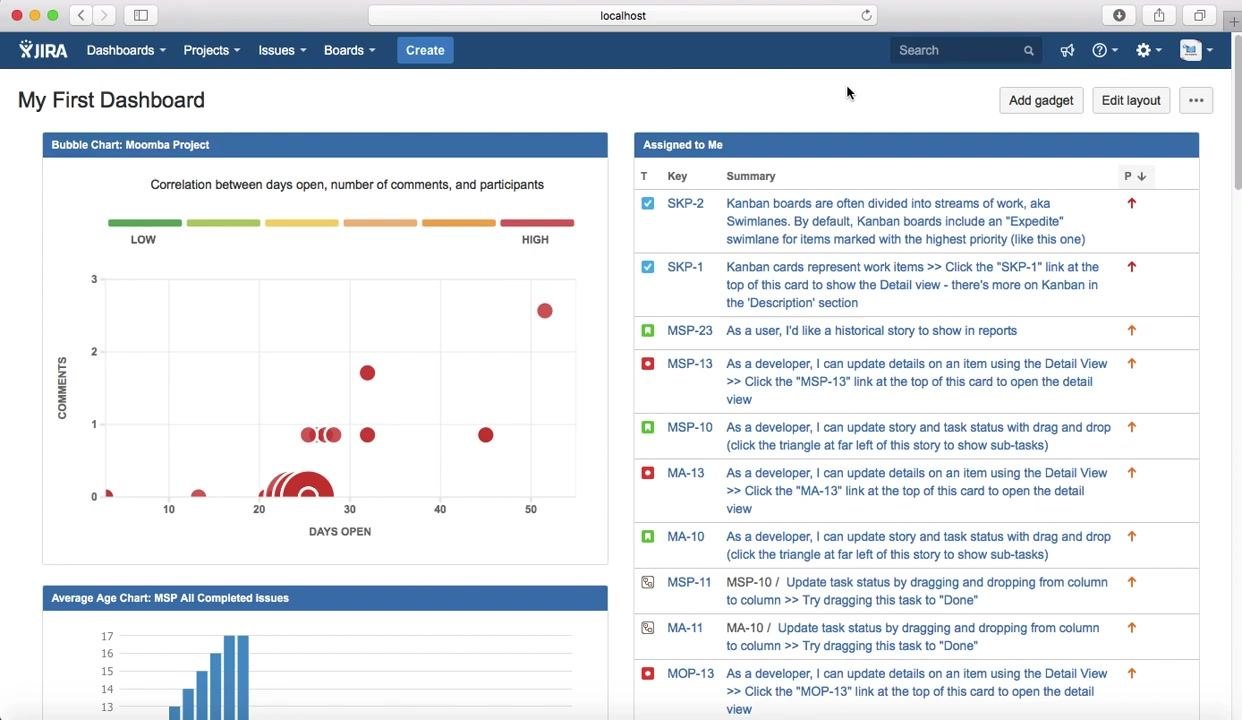
Use the Jira dashboard to track and manage your issues before moving them. The dashboard displays visualizations such as bubble charts, along with a list of issues assigned to you, including their status, type, and summary. This helps you monitor progress through the workflow at a glance.
Step 2: Confirm the issue meets the Definition of Done
You cannot move an issue directly to "Done" unless it satisfies your project's Definition of Done (DoD). Before proceeding, verify that:
- All workflow steps are completed (design, development, testing, release, etc.).
- All acceptance criteria, testing, documentation, and other DoD requirements specified for your project are fulfilled.
Step 3: Access the issue you want to update
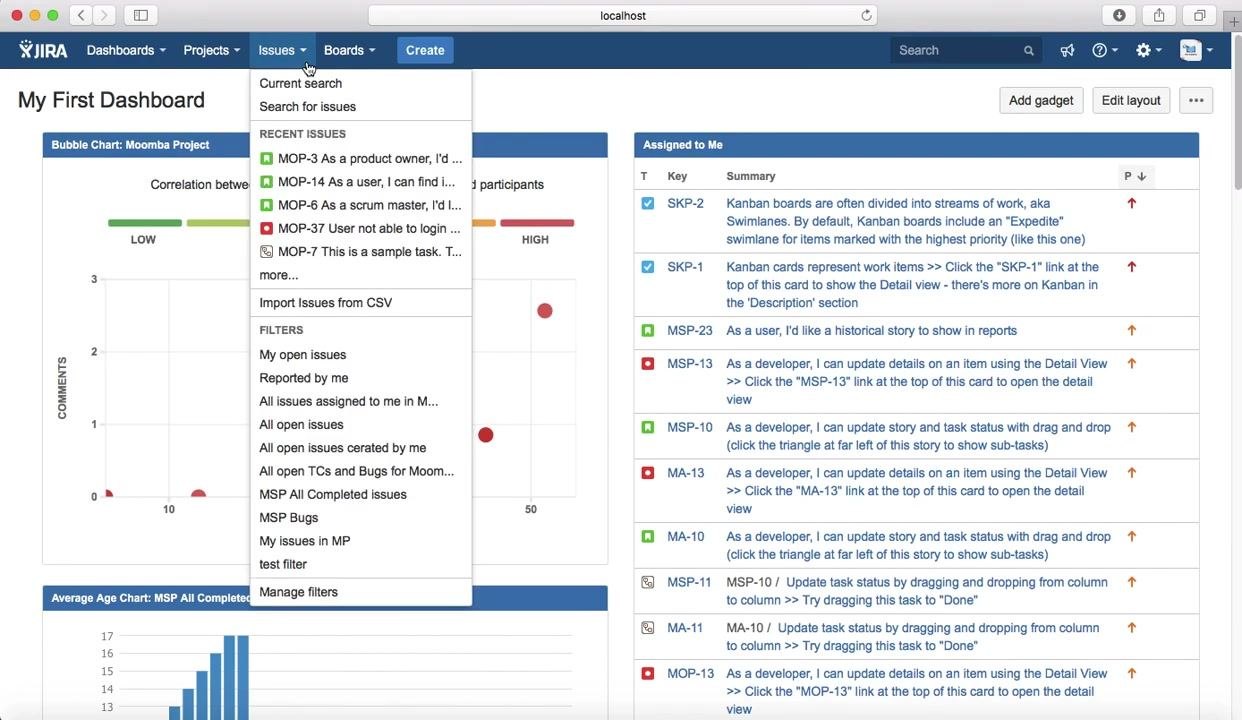
Use the Issues dropdown menu to locate the issue you need to transition. You can search for issues, view recent issues, or filter by criteria such as My open issues, Reported by me, or All open issues. Select the relevant issue to view or update its status.
Step 4: Move the issue to "Done"
You can transition an issue to "Done" using either of the following methods:
- From the board: Drag and drop the issue card from "In Progress" (or any other applicable state) into the "Done" column, provided the workflow allows it and the DoD is satisfied.
- From the issue view: Open the specific issue, then click the Done button at the top of the issue view to transition its status.
In the issue detail view, you can review the issue's type, priority, status, resolution, sprint, story points, and other details before confirming the transition.
Step 5: Confirm the transition
After moving the issue to "Done," check that the status and resolution fields reflect the change — the status should update to DONE and the resolution to Done. Also confirm that related fields, such as time tracking, sprint, and epic link, are updated as needed.
Summary
By following these steps, you ensure that issues are only moved to "Done" once they have fully met the project's requirements. This maintains quality and process integrity across your Jira project, whether you transition issues by dragging them on the board or by updating their status from the issue detail view.
Generated by Docsie Video-to-Docs on 2026-09-08 from a 2-minute video. Screenshots are frames from the source video and belong to their creator, Software Testing Mentor, whose original is embedded above. If you own this video and want the guide removed or credited differently, contact us and we will act within one business day.