4.8
on G2
 Screen Studio
 Glitter AI
Screen Studio is a Mac-only screen recorder built for polished product demo videos, while Glitter AI converts screen recordings into annotated step-by-step guides. They serve different ends of the same recording workflow — but neither delivers a complete record-to-docs-to-knowledge-base pipeline.
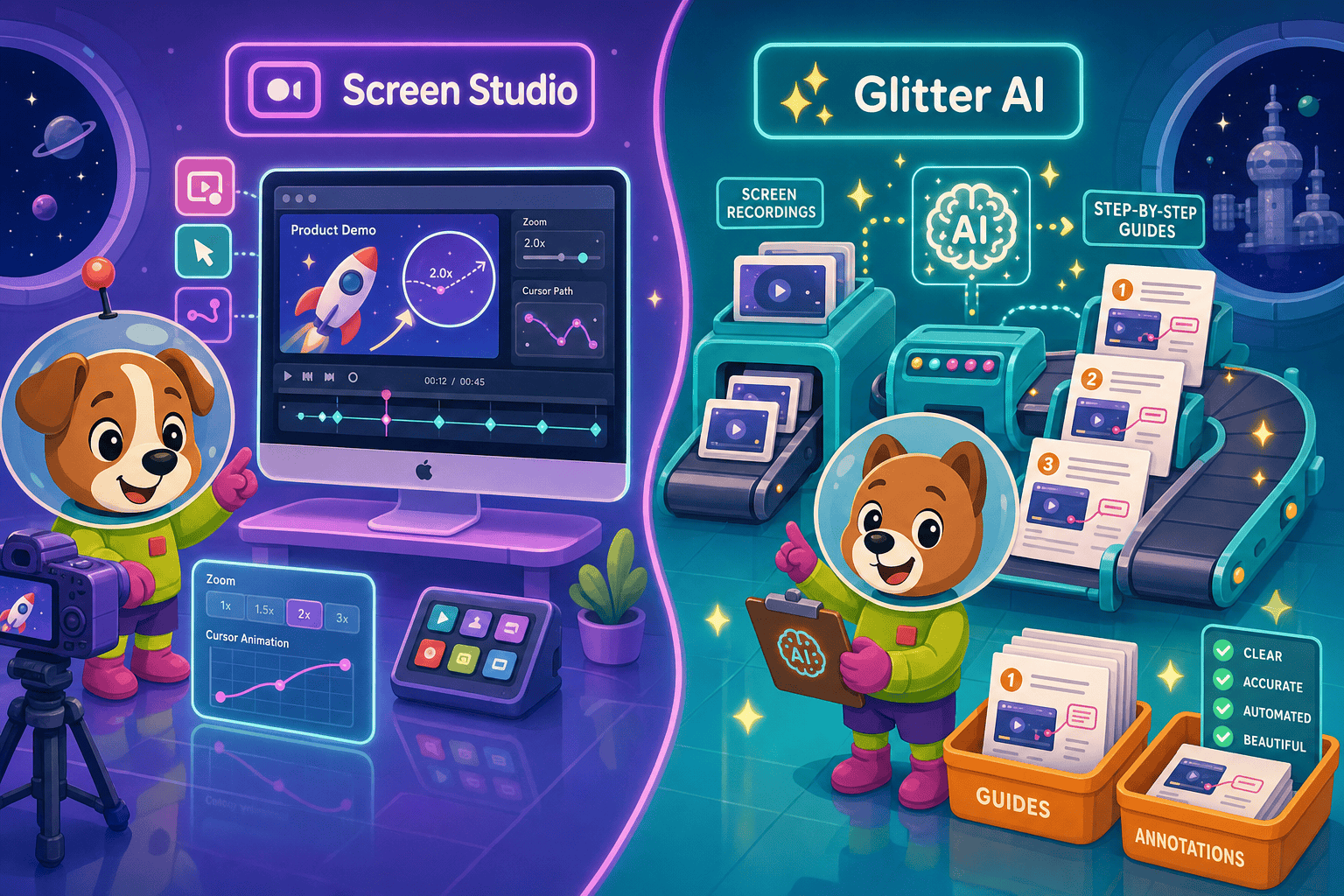
Screen Studio and Glitter AI are complementary tools that address opposite ends of the screen recording use case.
Feature Matrix
A comprehensive side-by-side comparison of recording capabilities, output formats, AI features, documentation workflows, and enterprise readiness between Screen Studio and Glitter AI.
| Feature |
Screen Studio
|
Glitter AI
|
|---|---|---|
| Free Plan Available | ||
| Starting Price | $9/month (billed yearly) | $0 (limited) |
| Mac Support | ||
| Windows Support | ||
| Linux Support | ||
| Browser Extension | ||
| Desktop App | ||
| Screen Recording | ||
| Webcam Overlay | ||
| Microphone Audio | ||
| System Audio Capture | ||
| iOS Device Recording | ||
| Automatic Zoom & Cursor Smoothing | ||
| Visual Effects (backgrounds, shadow, motion blur) | ||
| Crop, Trim, Speed Regions | ||
| Keyboard Shortcut Display | ||
| Video Export (MP4/4K) | Up to 4K 60fps | |
| GIF Export | ||
| Annotated Screenshot Output | ||
| AI Step-by-Step Guide Generation | ||
| Audio Transcription | ||
| Video-to-Docs Conversion | ||
| PDF Export | Pro+ | |
| Markdown / DOCX Export | ||
| Integrations (Notion, Confluence, Google Docs) | ||
| Shareable Links | ||
| Custom Branding | Pro+ | |
| Knowledge Base Platform | ||
| Version Control | ||
| Multi-Tenant Portals | ||
| SSO | Enterprise only | |
| API Access | ||
| Open Source |
Data as of May 2026. Features are based on publicly available information and vendor documentation. Pricing should be verified before publishing as SaaS pricing changes frequently.
Strengths & Weaknesses
Deep Dive
An in-depth analysis of the critical differences in recording capabilities, output formats, documentation workflows, and enterprise readiness between Screen Studio and Glitter AI.
Screen Studio leads decisively on recording power and visual polish. Its Mac-native app captures system audio, microphone, webcam, and iOS devices simultaneously, then adds automatic zoom, cursor smoothing, motion blur, and background styling in post. Glitter AI's recording is functional but minimal — a browser extension that captures screen clicks to generate screenshots, with no webcam overlay, system audio, or visual editing. The critical gap is platform reach: Screen Studio is Mac-only, while Glitter AI works cross-platform via browser. Teams with mixed Windows and Mac environments are immediately locked out of Screen Studio.
The two tools produce fundamentally different output from the same screen recording activity. Screen Studio outputs polished MP4 video (up to 4K 60fps) and GIF files optimised for marketing, demos, and social media. Glitter AI outputs annotated screenshot guides with AI-written step text, PDF export on Pro, and integrations into Notion and Confluence. Neither produces Markdown or DOCX. Screen Studio is the right tool if your end goal is a beautiful video; Glitter AI is the right tool if your end goal is a written SOP. If you need both from one workflow, neither tool completes that loop independently.
Glitter AI's core value proposition is AI-driven documentation extraction — it watches what you record and automatically writes step descriptions alongside annotated screenshots, with audio transcription included. Screen Studio's AI contribution is subtler: automatic zoom suggestions, cursor trajectory smoothing, and audio enhancement improve the visual quality of the video, but do not generate written documentation. Neither tool offers auto-translation, multi-language output, or downstream knowledge base publishing. Glitter AI's AI is optimised for speed-to-docs; Screen Studio's AI is optimised for video polish. For teams needing both intelligent video capture and structured documentation output, both tools fall short.
Neither Screen Studio nor Glitter AI is built for enterprise documentation governance. Screen Studio has no SSO, no audit logs, no role-based access control, no multi-tenant portals, and no version control — it is a creator tool, not an enterprise platform. Glitter AI offers SAML SSO and dedicated support on Enterprise plans with GDPR compliance, but still lacks audit logs, data residency, multi-tenant portal delivery, version control, and API access. Both tools produce isolated outputs — a video file or a guide — rather than managed, versioned documentation assets. Teams that need documentation to live in a governed, searchable knowledge base will need to manually transfer outputs from both tools into a separate platform.
Our Recommendation
Screen Studio and Glitter AI are complementary tools that address opposite ends of the screen recording use case. Screen Studio is the best Mac recorder for polished demo videos, delivering cinematic visual quality but stopping entirely at the video file. Glitter AI is a quick documentation tool that converts screen recordings into annotated step guides, but lacks any video editing, cross-platform recording depth, or knowledge base publishing capability. The honest answer is that most documentation teams need both outputs — and neither tool provides the full workflow.
Choose Screen Studio if you need. .
Choose Glitter AI if you need. .
Choose Docsie Recorder if you need. .
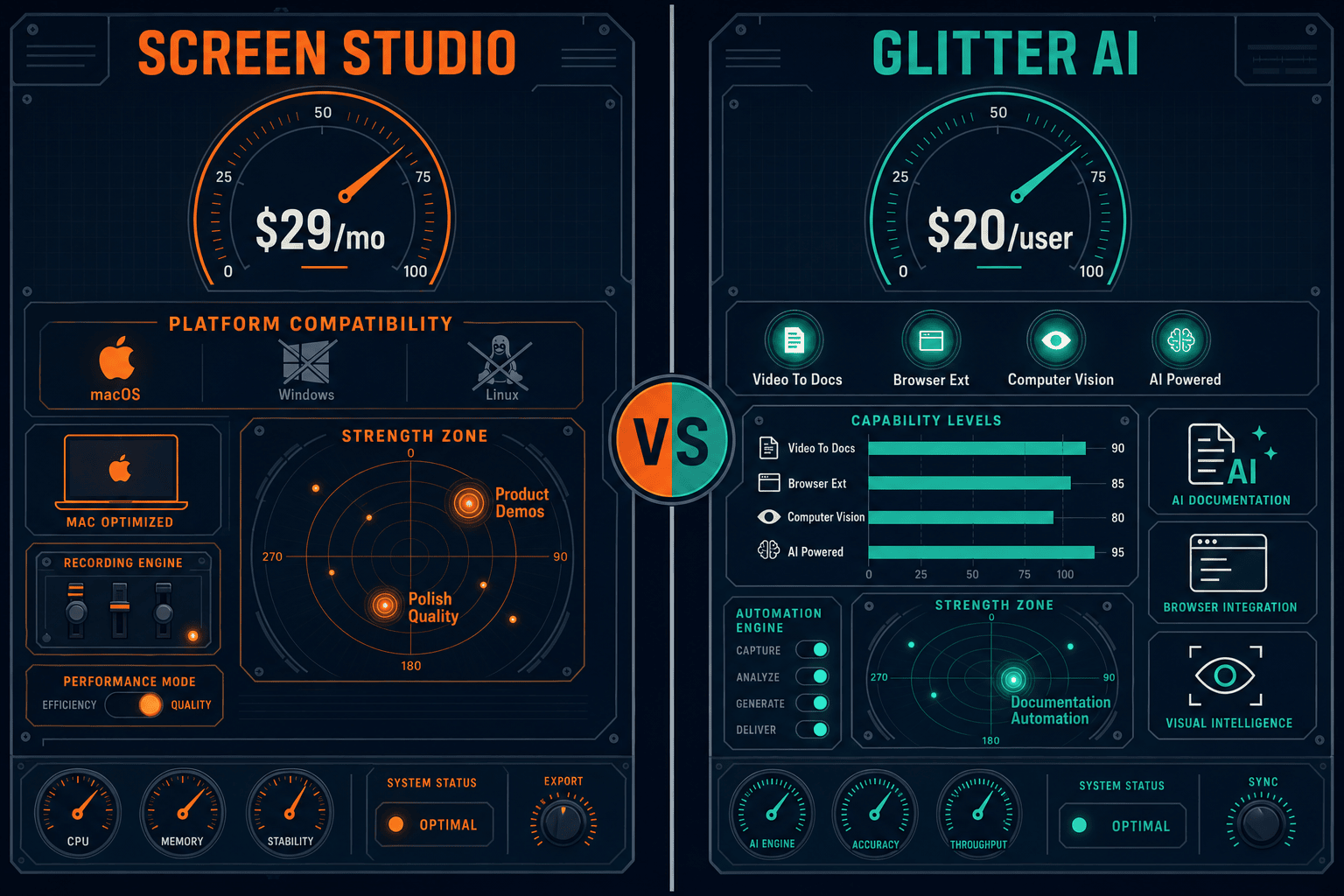
Winner: Docsie Recorder
Docsie Recorder is the only free, open-source tool in this comparison that bridges both use cases. It records and edits screen videos locally with zoom, crop, trim, speed regions, backgrounds, annotations, and blur — matching Screen Studio's editing depth — and then routes recordings directly into Docsie's Video-to-Docs pipeline to generate structured documentation, matching and exceeding Glitter AI's documentation output. The result feeds into the full Docsie platform for versioned knowledge base management, multi-tenant portal delivery, 100+ language translation, and enterprise governance that neither competitor supports.
Decision Helper
A direct framework for picking between Screen Studio, Glitter AI, and Docsie based on your specific needs.
Polished Mac-only product demos with cinematic zoom and motion.
AI screen capture turning clicks into shareable step guides.

Convert real video into searchable docs, then deploy multi-tenant portals.
Common Questions
Q: Can Glitter AI produce polished videos like Screen Studio?
A: No. Glitter AI does not produce video output at all — it converts screen recordings into annotated screenshot-based step guides and PDFs. Screen Studio produces polished MP4 video files up to 4K 60fps with automatic zoom, cursor smoothing, motion blur, and background styling. If your primary goal is a beautiful video, Glitter AI cannot serve that need.
Q: Can Screen Studio generate step-by-step documentation like Glitter AI?
A: No. Screen Studio outputs video and GIF files only. It has no AI documentation generation, no step detection, no annotated screenshot output, and no Markdown, DOCX, or PDF export. If your goal is written documentation from a screen recording, Screen Studio stops well short of that workflow. You would need to use Glitter AI or a separate documentation tool on top of Screen Studio's video output.
Q: Does either tool work on Windows?
A: Screen Studio is Mac-only and requires macOS Ventura 13.1 or later — there is no Windows version. Glitter AI works cross-platform via a browser extension and supports both Mac and Windows users. If your team includes Windows users, Screen Studio is immediately disqualified and Glitter AI is the only option between the two.
Q: Can I use both Screen Studio and Glitter AI together?
A: Technically you could record with Screen Studio for polished video output and also use Glitter AI separately to document the same workflow via its browser extension, but they do not integrate with each other. You would be maintaining two separate recording sessions and two separate outputs. This doubles effort rather than creating a unified workflow, and still does not give you a knowledge base or versioned documentation platform.
Q: Is there a better alternative to both Screen Studio and Glitter AI?
A: Yes — Docsie Recorder combines the strengths of both tools while eliminating their shared gaps. It is a free, open-source desktop recorder for Mac, Windows, and Linux that includes recorder-grade editing (zoom, crop, trim, speed regions, backgrounds, annotations) comparable to Screen Studio, and then routes recordings directly into Docsie's Video-to-Docs pipeline to generate structured documentation — going beyond what Glitter AI produces. The output publishes into a full knowledge base with version control, multi-tenant portals, and enterprise SSO, which neither Screen Studio nor Glitter AI supports. Download it free from GitHub to record.
Q: Which tool is better for internal SOP documentation at a growing company?
A: Glitter AI is the more appropriate starting point for SOP documentation because it directly outputs annotated step guides that can be shared to Notion or Confluence. However, it lacks version control, knowledge base management, and any enterprise governance features — meaning SOPs live in disconnected files rather than a managed system. For teams that need SOPs to be versioned, searchable, and governed, Docsie Recorder feeding into the Docsie knowledge base platform provides a significantly more scalable foundation than either Screen Studio or Glitter AI alone.
Docsie Recorder is a free, open-source cross-platform recorder that combines Screen Studio-grade video editing with Glitter AI-style documentation output — and routes recordings directly into a full knowledge base with version control, multi-tenant portals, and enterprise SSO. Record once, get polished video AND structured docs, and publish to a governed knowledge base. All starting free.
Free and open-source recorder core.