4.8
on G2
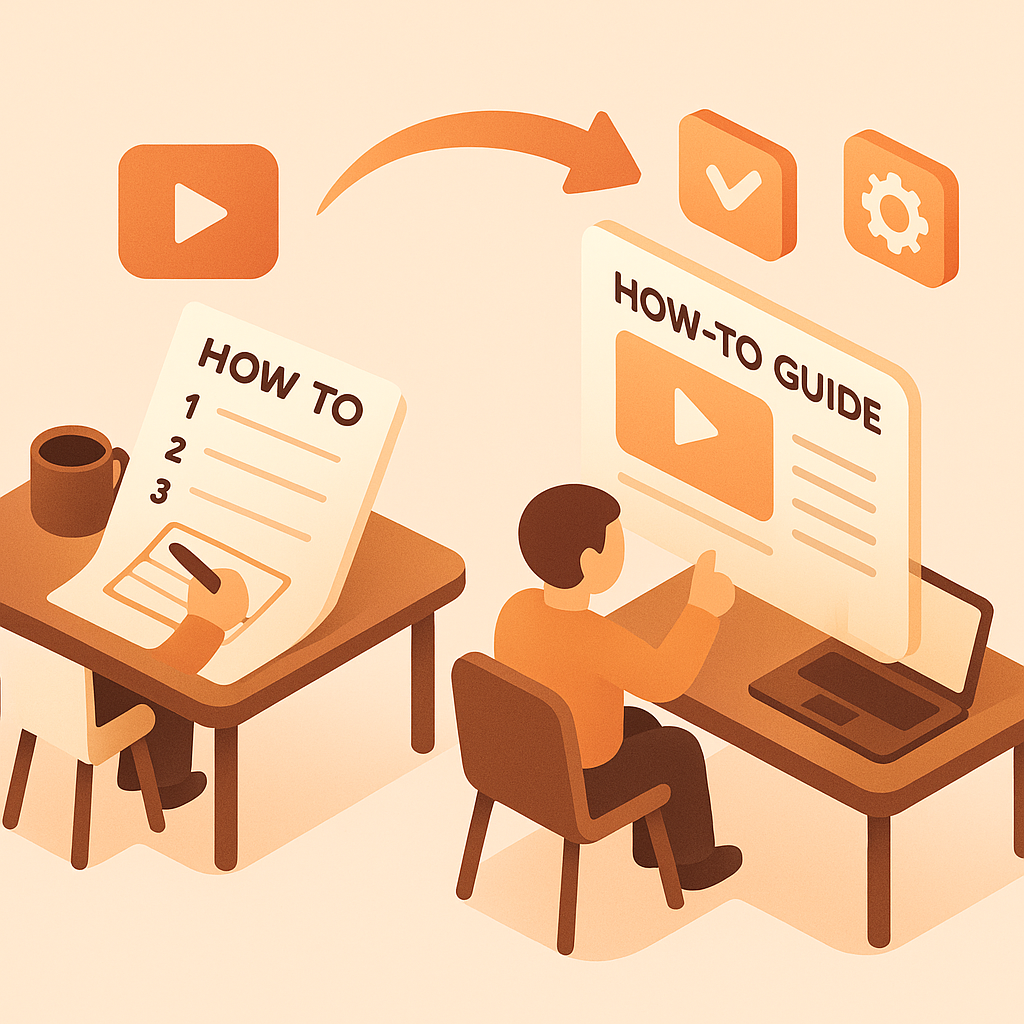
Transform Loom recordings, screencasts, and software tutorials into structured how-to guides with screenshots. Perfect for technical writers, educators, and teams creating user documentation.
Watch It Work
See how screen recordings become searchable step-by-step guides instantly
Join forward-thinking teams using Docsie to transform video content into searchable documentation






_Leader_Small-Business_Leader.svg)


_BestSupport_Small-Business_QualityOfSupport.svg)

Loom videos aren't searchable—users get stuck and frustrated
Why Docsie is Different
Most tools just convert speech to text. Docsie's multimodal AI actually watches your videos—reading on-screen text, identifying UI elements, and understanding visual context.
AI watches and understands video content—reads on-screen text, identifies UI elements, detects visual changes, and understands what's happening in each frame
Correlates what's being said with what's being shown. Understands technical terminology, product names, and industry jargon—no more 'sequel' instead of 'SQL'
Identifies important visual moments—UI changes, diagram reveals, key screens—and captures them as illustrations correlated with text
Simple Process
Powered by Docsie Copilot's agentic AI system
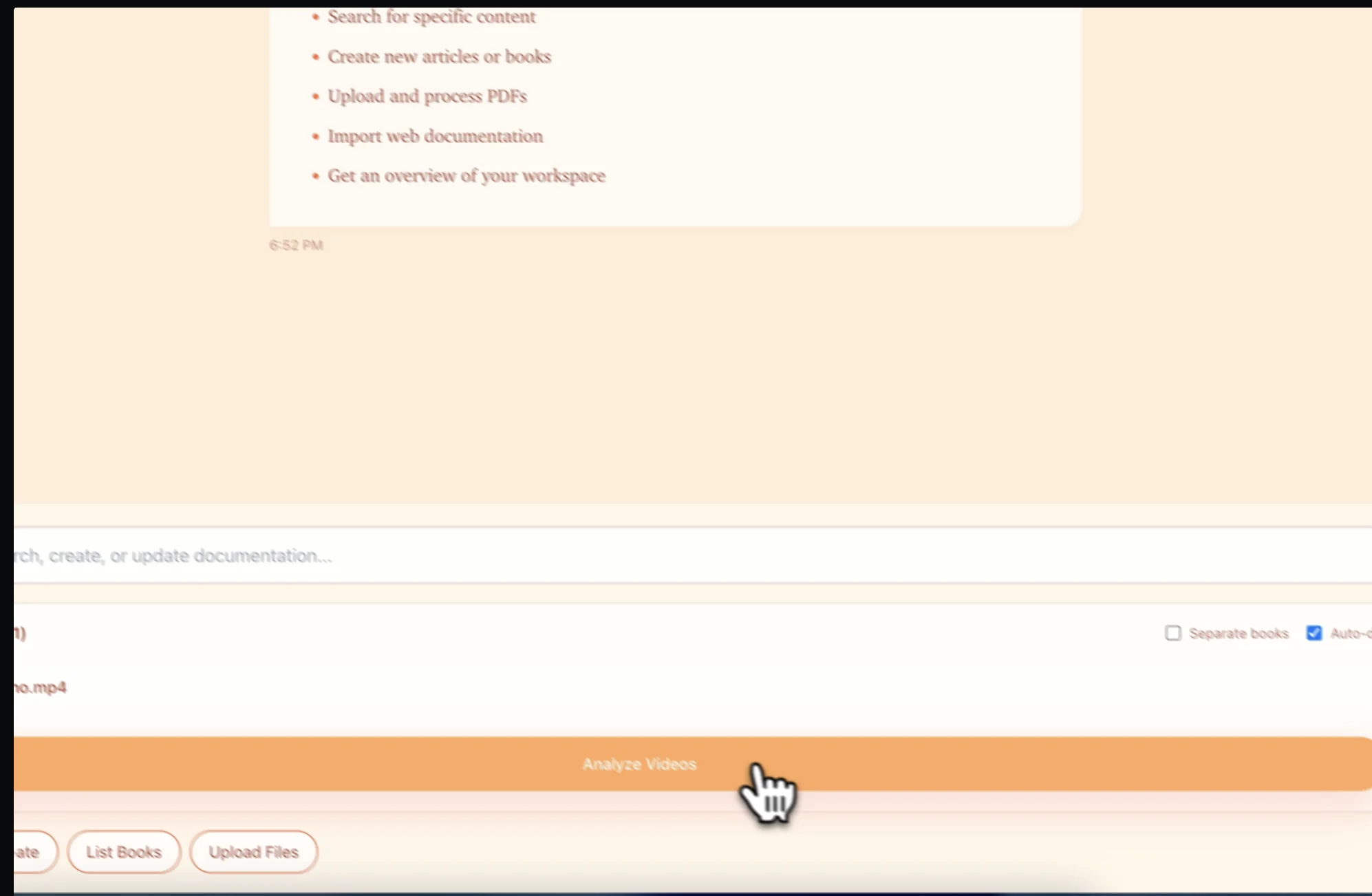
Download your Loom or screen recording and upload to Docsie. Supports MP4, MOV, WebM files from any screen capture tool
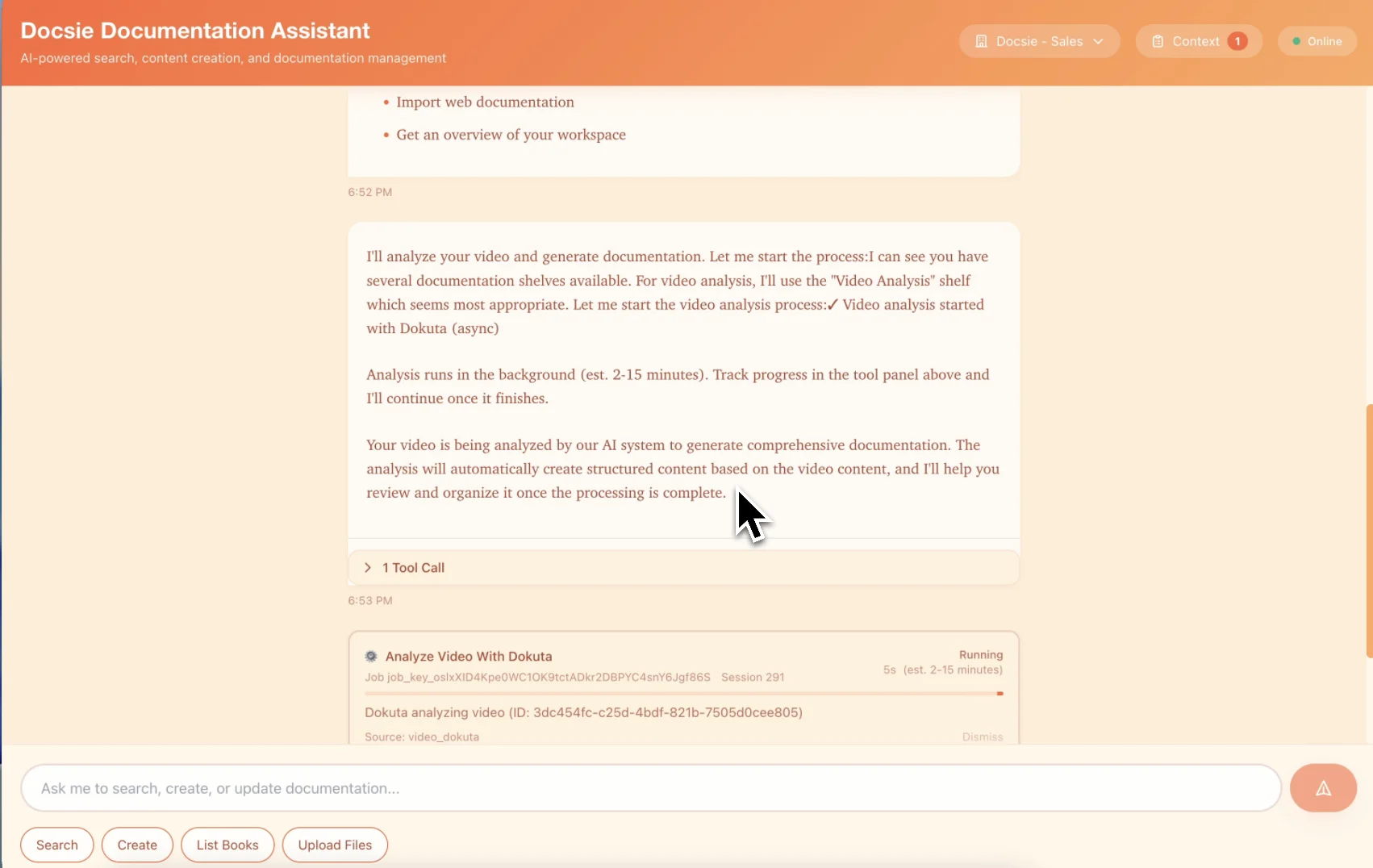
Computer vision detects every click, menu selection, and UI interaction. Automatically captures screenshots and creates numbered step-by-step instructions
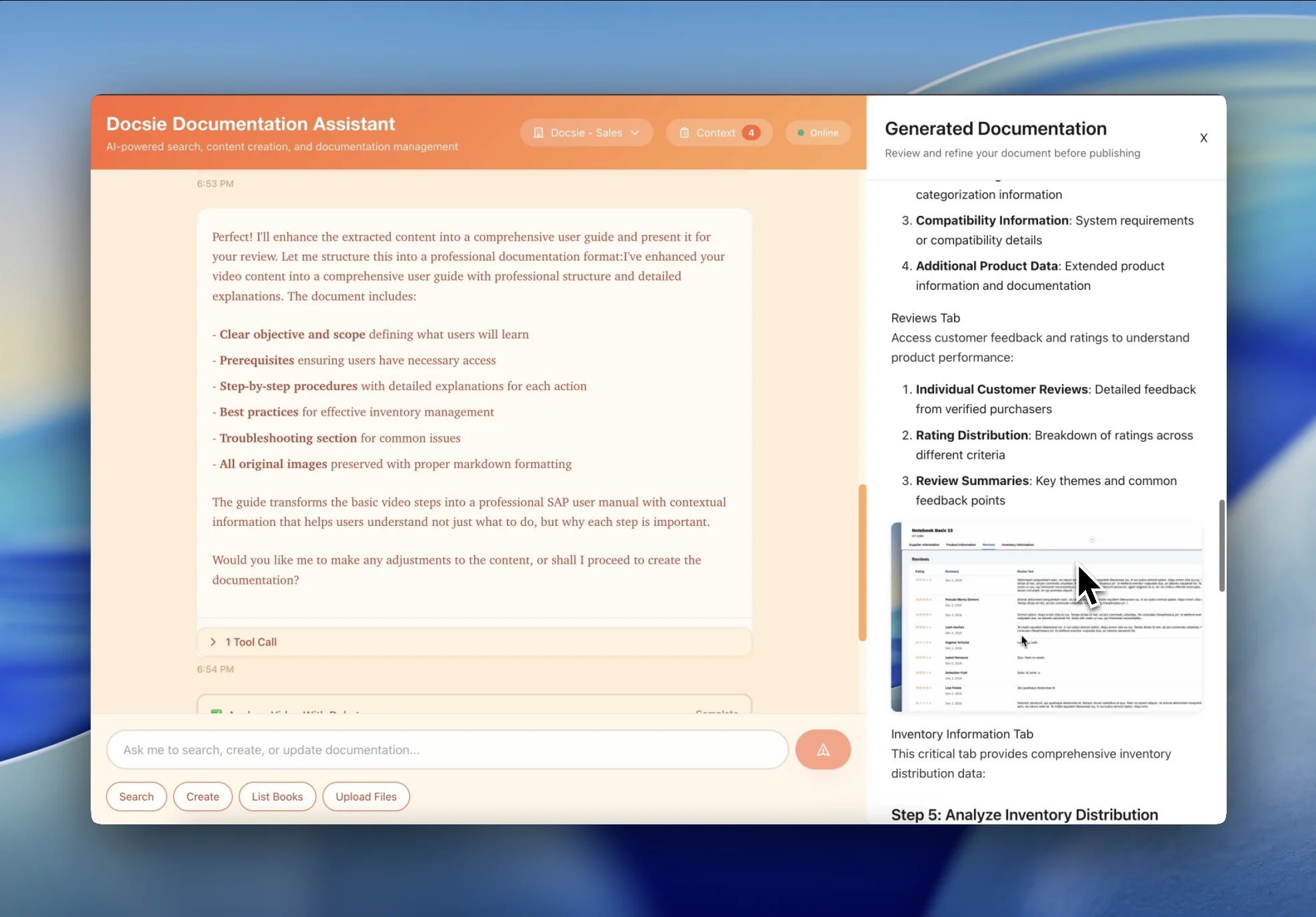
Get a scannable how-to guide with numbered steps, annotated screenshots, and UI callouts—ready to share instead of sending video links
See how teams convert Loom videos and screencasts into step-by-step documentation

Stop sending customers 10-minute Loom videos. Convert screen recordings into scannable support articles with numbered steps and screenshots they can follow at their own pace.

Convert screen recordings of software workflows into written tutorials. Perfect for SaaS products, internal tools, and any software that needs user documentation.
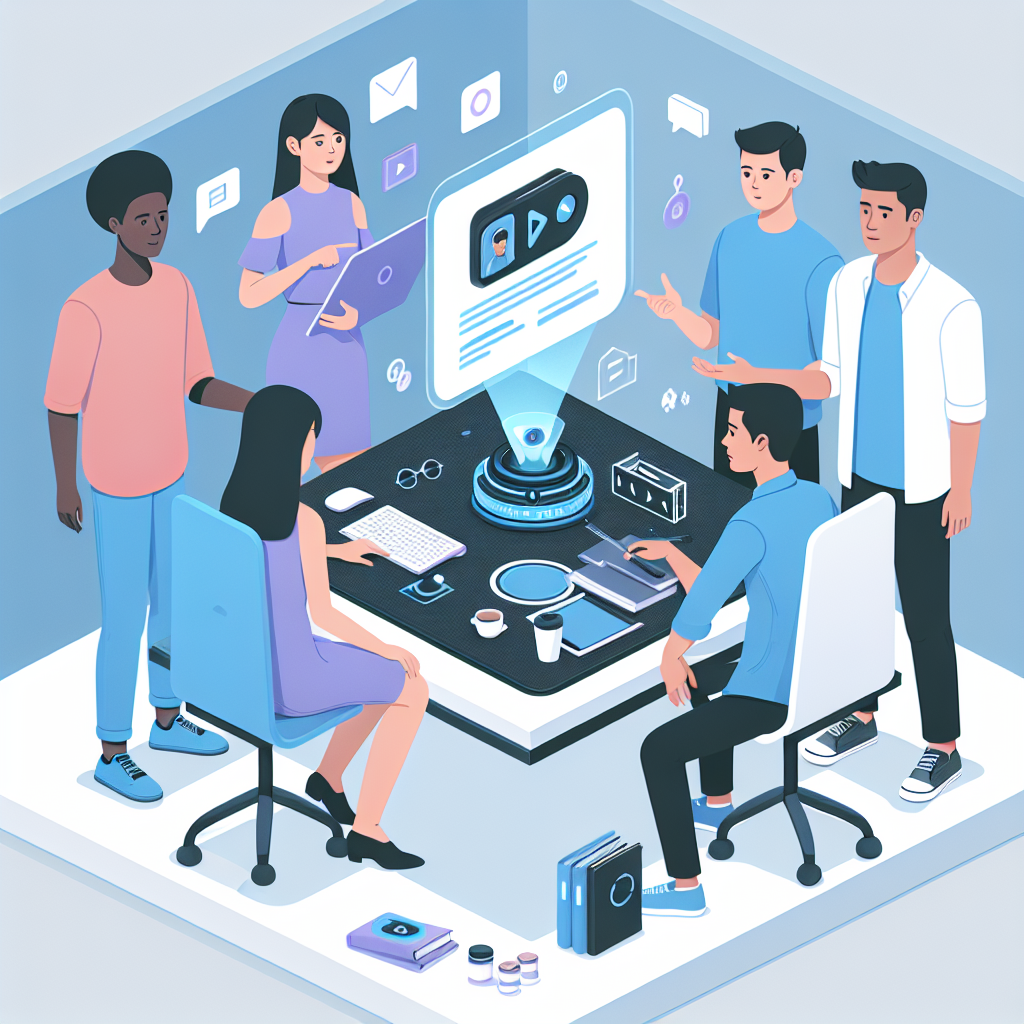
Turn screen recordings of bug reproductions into step-by-step troubleshooting articles. QA records the bug, Docsie documents the fix for future reference.
Everything you need to turn Loom videos and screencasts into professional how-to guides
AI detects every click, keystroke, and UI interaction to create numbered step-by-step instructions automatically
Automatically captures screenshots at key moments—menu selections, form fills, button clicks—with UI element highlighting
Adds visual callouts (arrows, boxes, highlights) to screenshots pointing to exact buttons and fields users need to click
All your screen recording docs become searchable—users find "how to export CSV" instead of scrubbing through videos
When your UI changes, update the text without re-recording. Edit screenshots or replace them individually
Download your Loom or screen recording and upload to Docsie. Works with any screen capture tool—Loom, Vidyard, OBS, Camtasia
Watch how Docsie Copilot analyzes both audio and video—seeing UI elements, reading on-screen text, and capturing code—to create structured documentation
No credit card required • 14-day free trial
Common Questions
Everything you need to know about converting screen recordings to how-to guides
Q: How do I get my screen recording into Docsie?
A: Download your Loom, Vidyard, or other screen recording as an MP4 file, then upload it to Docsie. We'll convert it to a searchable how-to guide with step-by-step instructions and screenshots.
Q: How does it know where to take screenshots?
A: Our AI watches the screen recording and detects meaningful UI changes—button clicks, menu selections, page transitions, form submissions. It captures screenshots at these key moments and adds them to your documentation with appropriate callouts.
Q: What if my screen recording has no audio narration?
A: No problem. Docsie's computer vision analyzes what's happening on screen—reading button labels, menu text, and form fields—to generate step-by-step instructions even without audio. The visual analysis is often more accurate than narration.
Q: What happens when my software UI changes?
A: Unlike videos that need complete re-recording, you can update individual screenshots and text in your how-to guide. Replace one outdated screenshot, adjust the step text, and republish—no need to re-record the entire workflow.
Q: Can I add my own screenshots or annotations?
A: Absolutely. The AI-generated guide is fully editable. Add custom screenshots, insert additional steps, add warning boxes, or include your own annotations. It's a starting point you can customize to match your documentation standards.
Still have questions?
Book a DemoDownload and upload recordings from any screen capture tool
Loom, Vidyard, CloudApp, Screencast-O-Matic
Camtasia, ScreenFlow, OBS Studio
macOS Screenshot, Windows Game Bar, Chrome extensions
MP4, WebM, MOV from any recording tool
Start creating professional documentation that your users will love