
4.8
on G2
Turn a training video into a source-backed presenter session: Docsie builds the docs, slide deck, and speaker notes, then launches an on-screen avatar that presents the material. When the audience asks a question, the avatar answers out loud from the source material and continues the deck.

See the Docsie workflow turn a source training video into a live avatar presenter session with slides, source context, and spoken audience Q&A.
The demo shows the presenter workflow end to end: video input, generated presentation, and live avatar delivery.
Docsie helps documentation, support, enablement, and L&D teams convert source material into governed training assets.






_Leader_Small-Business_Leader.svg)


_BestSupport_Small-Business_QualityOfSupport.svg)

What Changes
The audience no longer watches a fixed recording alone. They can listen to the avatar, ask a question, hear the answer, and continue through the deck.
Product Story
Each step is tied to the actual product screens: source intake, generated deck structure, live presenting, and source-backed session context.
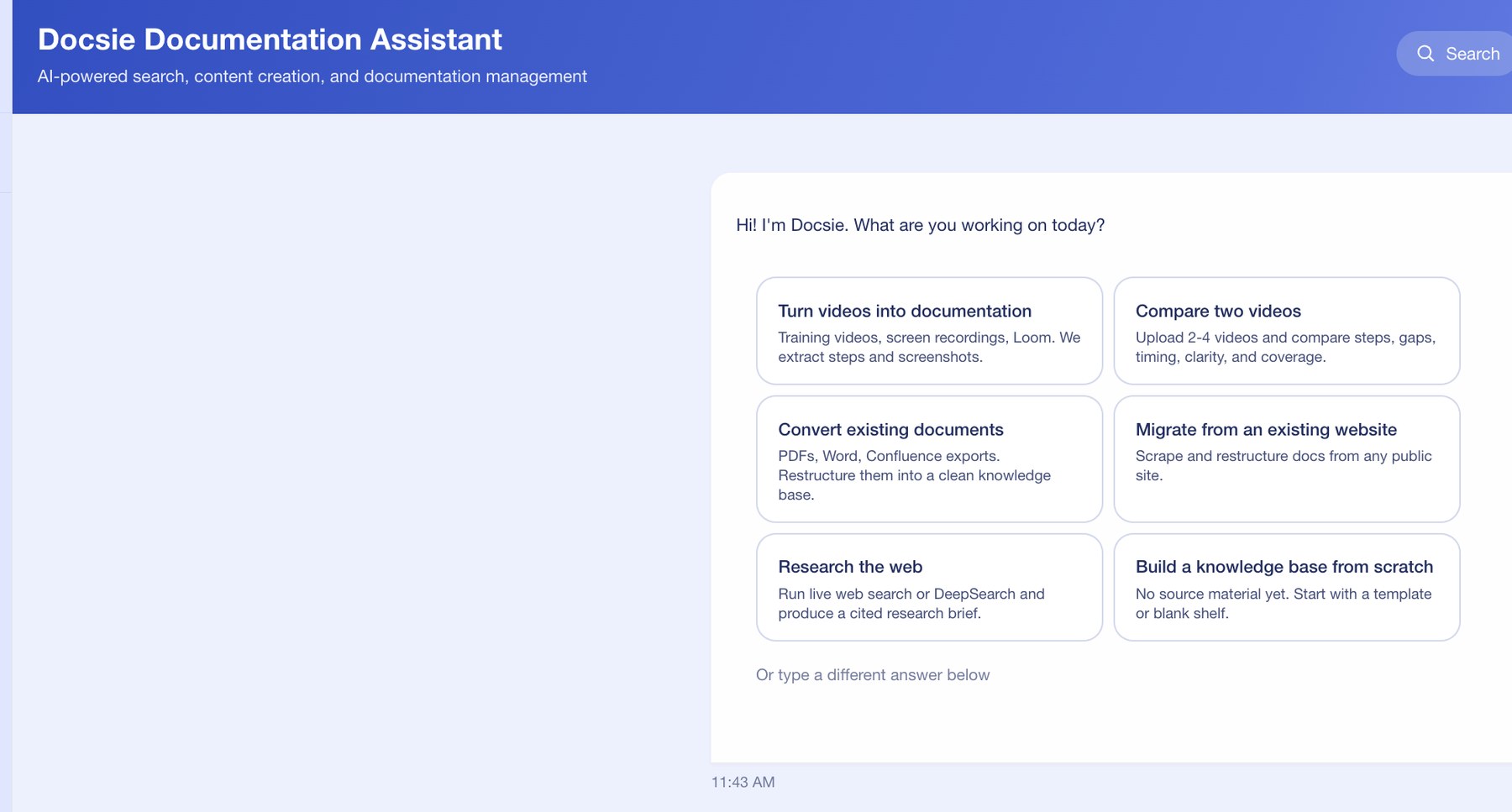
The Docsie assistant starts with the source: training videos, recordings, Loom links, PDFs, or existing docs. For avatar presenter pages, this matters because the presenter should teach from real source material rather than from a blank prompt.
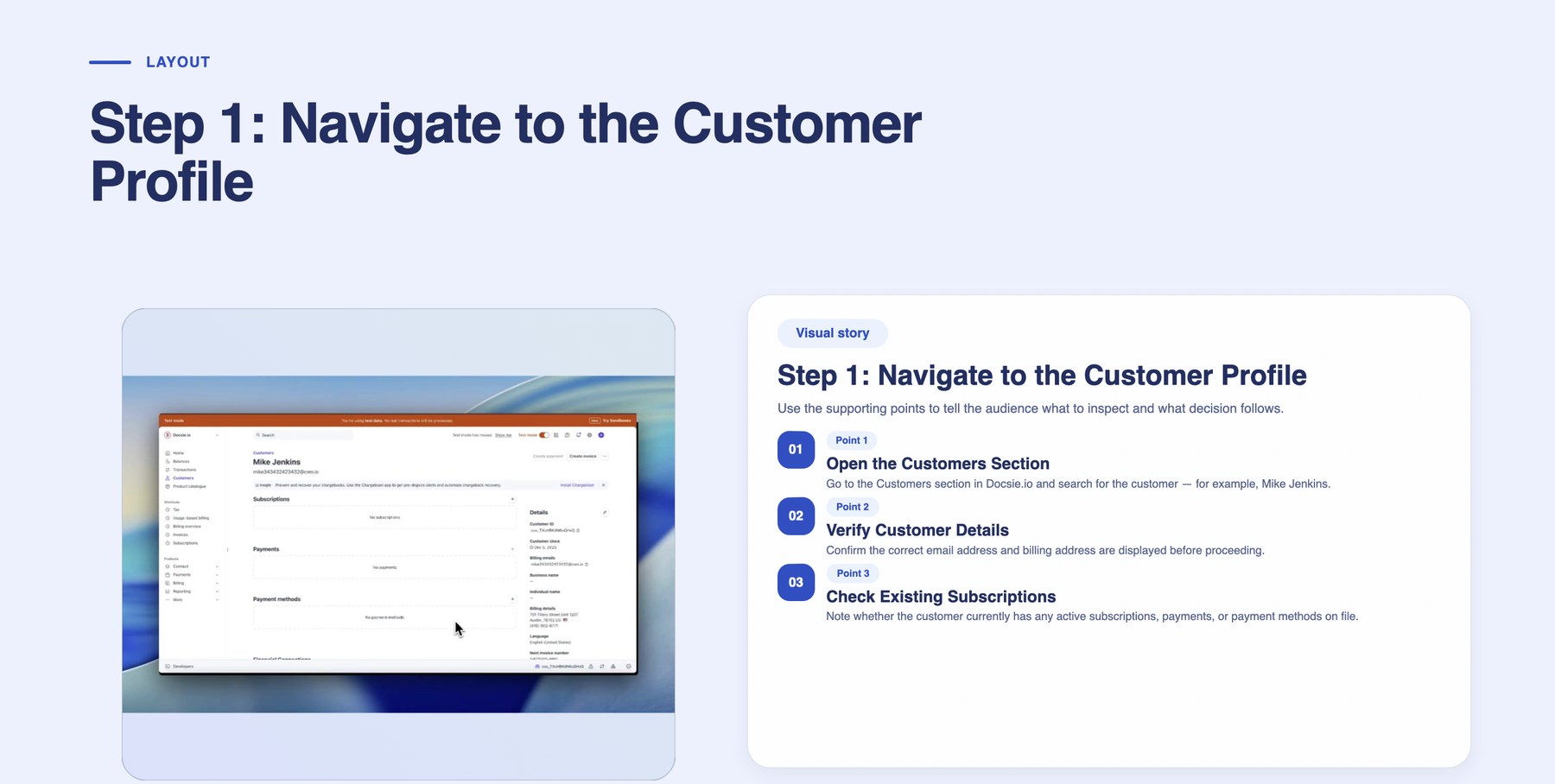
The generated presentation is not just an avatar face over a video. Docsie creates a structured slide flow with visual story points, supporting points, and presenter-ready narration.
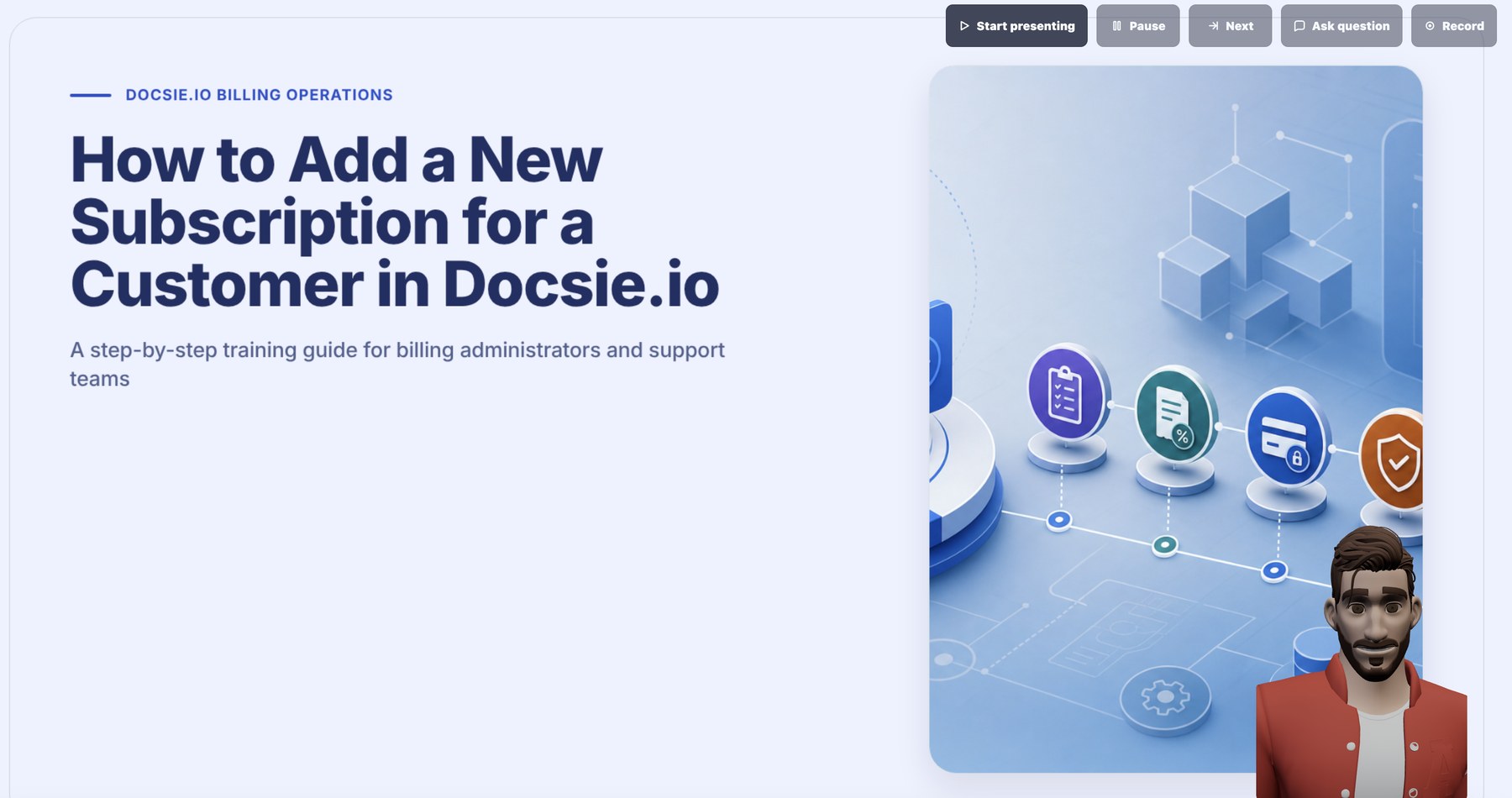
During the presentation, the audience interacts with the presenter through session controls. The Ask Question flow is a live presenter interaction: the avatar answers verbally from the source material, not as a side-panel written response bolted onto the page.
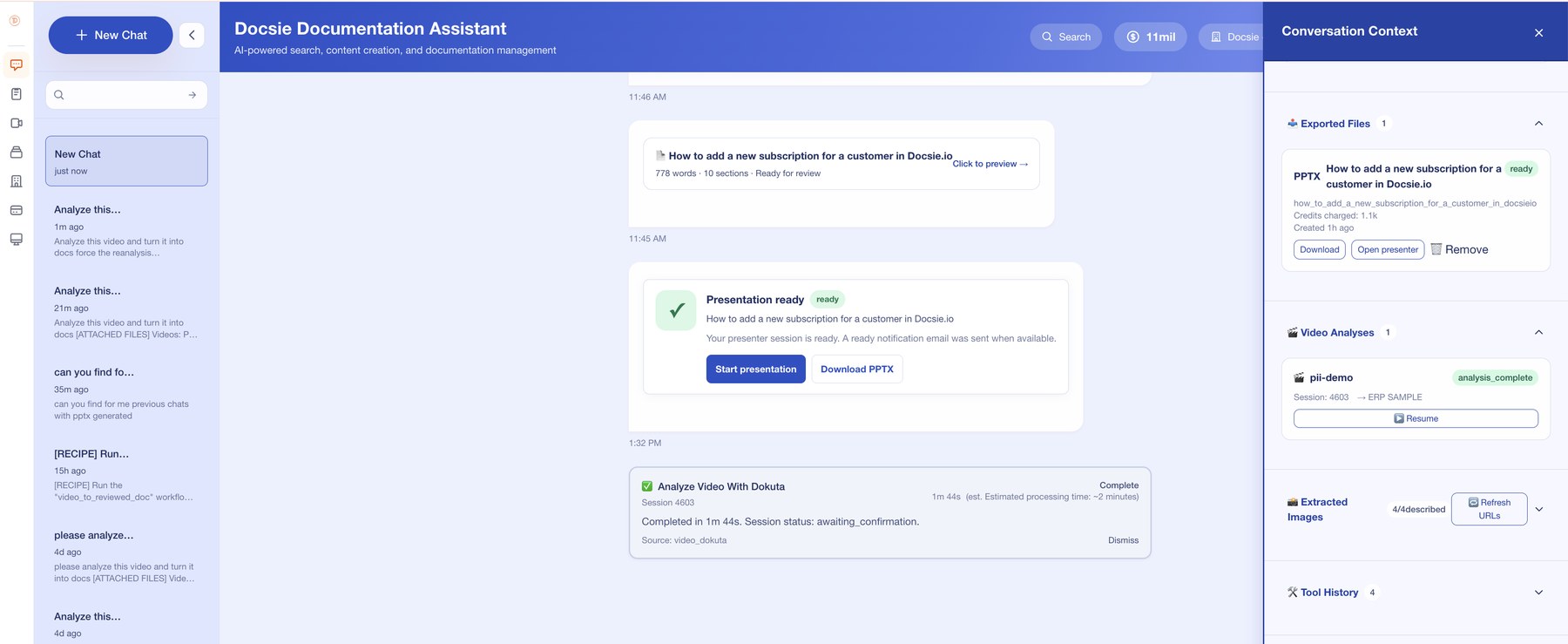
After generation, teams can open the presenter, download the PPTX, inspect video analysis status, and review extracted context. That gives the page a real enterprise story: presentation delivery plus the source package behind it.
Avatar Presenter vs Scripted Video
Synthesia, HeyGen, and D-ID are useful for producing fixed avatar videos. Docsie is built around source-grounded presenter sessions: video in, deck out, avatar delivery, and spoken audience Q&A.
| Capability |
Docsie
Live Presenter
|
Synthesia
|
HeyGen
|
D-ID
|
Prompt slide tools
|
|---|---|---|---|---|---|
| Creates a presenter session from existing training video | |||||
| Generates source docs plus slide deck | |||||
| Downloads presentation as PPTX | |||||
| Avatar presents slides live in the session | |||||
| Audience can ask during the presentation | |||||
| Avatar speaks answers from source material | |||||
| Video analysis, extracted images, and source context stay attached | |||||
| Best fit for reusable training and support walkthroughs |
Comparison focuses on workflow fit. Scripted avatar tools primarily render fixed videos from scripts; Docsie prepares a source-backed presenter session from training content.
Operating Model
The visible avatar is only the delivery layer. The value comes from the source package Docsie builds before the session starts.
Docsie extracts the transcript, screens, steps, decisions, and supporting visual context from the recording.
The workflow creates structured docs, a PPTX-ready deck, and speaker notes that shape what the avatar says.
The avatar presents the deck with live controls so the viewer can start, pause, advance, ask, or record.
When a viewer asks a question, the avatar responds out loud using the source package, then returns to the slide flow.
Teams keep the PPTX, video analysis, extracted images, and session context available for review, updates, and future runs.
Why It Matters
This workflow is useful when teams need the same expert walkthrough delivered repeatedly, but still want the audience to ask questions during the session.
Turn a recorded walkthrough into a session that can be presented again without scheduling the original expert.
The audience asks while the deck is running. The avatar answers verbally from the source material and continues the presentation.
Teams can use the generated deck directly or launch the avatar presenter from the same generated package.
Video analysis, extracted images, and context remain visible so teams can understand where the presentation came from.
When the source changes, update the source package and regenerate the session instead of rebuilding a scripted video from scratch.
A presenter session gives remote employees, customers, and partners an on-demand way to hear the walkthrough and ask questions.
Common Questions
How Docsie's avatar presenter turns training videos into source-backed presenter sessions.
Q: What is an AI avatar presenter?
A: An AI avatar presenter is an on-screen presenter that delivers a slide deck and narration without requiring a human presenter to run the session. In Docsie, the presenter is generated from source training material, including a video analysis, structured docs, slides, and speaker notes.
Q: Does the avatar answer questions by text or by voice?
A: The intended interaction is spoken. The viewer asks a question during the presenter session, and the avatar answers verbally from the source material before continuing the deck. Any written context or transcript is supporting evidence, not the main user experience.
Q: What does Docsie generate before the presenter starts?
A: Docsie prepares the source package: documentation, extracted context, a slide deck, speaker notes, and presenter-ready output. The avatar then uses that package to present and respond.
Q: Can I start from an existing training video?
A: Yes. Upload a video or paste a URL. Docsie analyzes the source, generates the presentation package, and prepares the session for the avatar presenter.
Q: Can I download the generated presentation?
A: Yes. The generated output includes a PPTX option, so teams can open or edit the deck separately from the live avatar presenter session.
Q: How is this different from a normal avatar video generator?
A: A normal avatar video generator creates a fixed video from a script. Docsie creates a source-backed presenter workflow: source intake, docs, slide deck, speaker notes, presenter controls, and spoken Q&A during delivery.
Q: Where would a team use this?
A: Use it for repeated training walkthroughs, billing or support operations, onboarding, product enablement, and any process where viewers need to hear the walkthrough and ask follow-up questions.
Q: Does the source context remain available?
A: Yes. Generated files, video analysis status, extracted images, and related context can stay attached to the session so teams can review, revise, and reuse the package.
Q: Can this support press-release traffic later?
A: Yes. The pillar is structured around the real product story and now includes the YouTube demo as proof before the workflow, comparison, and FAQ sections.
Want to turn a training video into a live avatar presenter?
Book a DemoUse the demo to see how Docsie turns a training video into a presentation package, then launches an AI avatar that presents the deck and speaks source-backed answers during the session.
Review the workflow first, then talk with the Docsie team about enabling avatar presenter sessions.